Writing a Custom Azure Policy

Writing a Custom Azure Policy

Hi folks! It’s been a while since my last post. This was due to spending a significant amount of cycles building out a new deployable lab environment for Azure that is a simplified version of the Enterprise-Scale Landing Zone. You can check it out the fruits of that labor here.

Recently I had two customers adopt the encryption at host feature of Azure VMs (virtual machines). The quick and dirty on this feature is it exists to mitigate the threat of an attacker accessing the data on the VHDs (virtual hard disks) belonging to your VM in the event that an attacker has compromised a physical host in an Azure datacenter which is running your VM. The VHDs backing your VM are temporarily cached on a physical host when the VM is running. Encryption at host encrypts the cached VHDs for the time they exist cached on that physical host. For more detail check out my peer and friend Sebastian Hooker’s blog post on the topic.

Both customers asked me if there was a simple and easy way to report on which VMs were enabled the feature and which were not. This sounded like the perfect use case for Azure Policy, so down that road I went and hence this blog post. I dove neck deep into Azure Policy about a year and a half ago when it was a newer addition to Azure and had written up a tips and tricks post. I was curious as to how relevant the content was given the state of the service today. Upon review of the content, I found many of the tips still relevant even though the technical means to use them had changed (for the better). Instead of walking through each tip in a generic way, I thought it would be more valuable to walk through the process I took to develop an Azure Policy for this use case.

Step 1 – Understand the properties of the Azure Resource

Before I could begin writing the policy I needed to understand what the data structure returned by ARM (Azure Resource Manager) for a VM enabled with encryption at host looks like. This meant I needed to create a VM and enable it for encryption at host using the process documented here. Once VM was created and configured, I then broke out Azure CLI and requested the properties of the virtual machine using the command below.

az vm show --name vmworkload1 --resource-group RG-WORKLOAD-36FCD6EC

This gave me back the properties of the VM which I then quickly searched through to find the block below indicating encryption at host was enabled for the VM.

VM properties with encryption at host enabled

When crafting an Azure Policy, always review the resource properties when the feature or property you want to check is both enabled and disabled.

Running the same command as above for a VM without encryption at host enabled yielded the following result.

VM properties with encryption at host not enabled

Now if I had assumed the encryptionAtHost property had been set to false for VMs without the feature enabled and had written a searching for VMs with the encryptionAtHost property equal to False, my policy would not have yielded the correct result. I’d want to use conditional exists instead of equals. This is why it’s critical to always review a sample resource both with and without the feature enabled.

Step 2 – Determine if Azure Policy can evaluate this property

Wonderful, I know my property, I understand the structure, and I know what it looks like when the feature is enabled or disabled. Now I need to determine if Azure Policy can evaluate it. Azure Policy accesses the properties of resources using something something called an alias. A given alias maps back to the path of a specific property of a resource for a given API version. More than likely there is some type of logic behind an alias which makes an API call to get the value of a specific property for a given resource.

Now for the bad news, there isn’t always an alias for the property you want to evaluate. The good news is the number of aliases has dramatically increased since I last looked at them over a year ago. To validate whether the property you wish to validate has an alias you can use the methods outlined in this link. For my purposes I used the AZ CLI command and grepped for encryptionAtHost.

az provider show --namespace Microsoft.Compute --expand "resourceTypes/aliases" --query "resourceTypes[].aliases[].name" | grep encryptionAtHost

The return value displayed three separate aliases. One alias for the VM resource type and two aliases for the VMSS (virtual machine scale set) type.

Aliases for encryption at host feature

Seeing these aliases validated that Azure Policy has the ability to query the property for both VM and VMSS resource types.

Always validate the property you want Azure Policy to validate has an alias present before spending cycles writing the policy.

Next up I needed to write the policy.

Step 3 – Writing the Azure Policy

The Azure Policy language isn’t the most initiative unfortunately. Writing complex Azure Policy is very similar to writing good AWS IAM policies in that it takes lots of practice and testing. I won’t spend cycles describing the Azure Policy structure as it’s very well documented here. However, I do have one link I use as a refresher whenever I return to writing policies. It does a great job describing the differences between the conditions.

You can write your policy using any editor that you wish, but Visual Studio Code has a nice add-in for Azure Policy. The add in can be used to examine the Azure Policies associated with a given Azure Subscription or optionally to view the aliases available for a given property (I didn’t find this to be as reliable as using querying via CLI).

Now that I understood the data structure of the properties and validated that the property had an alias, writing the policy wasn’t a big challenge.

{
    "mode": "All",
    "parameters": {},
    "displayName": "Audit - Azure Virtual Machines should have encryption at host enabled",
    "description": "Ensure end-to-end encryption of a Virtual Machines Managed Disks with encryption at host: https://docs.microsoft.com/en-us/azure/virtual-machines/disk-encryption#encryption-at-host---end-to-end-encryption-for-your-vm-data",
    "policyRule": {
        "if": {
            "anyOf": [
                {
                    "allOf": [
                        {
                            "field": "type",
                            "equals": "Microsoft.Compute/virtualMachines"
                        },
                        {
                            "field": "Microsoft.Compute/virtualMachines/securityProfile.encryptionAtHost",
                            "exists": false
                        }
                    ]
                },
                {
                    "allOf": [
                        {
                            "field": "type",
                            "equals": "Microsoft.Compute/virtualMachineScaleSets"
                        },
                        {
                            "field": "Microsoft.Compute/virtualMachineScaleSets/virtualMachineProfile.securityProfile.encryptionAtHost",
                            "exists": false
                        }
                    ]
                },
                {
                    "allOf": [
                        {
                            "field": "type",
                            "equals": "Microsoft.Compute/virtualMachineScaleSets/virtualMachines"
                        },
                        {
                            "field": "Microsoft.Compute/virtualMachineScaleSets/virtualmachines/securityProfile.encryptionAtHost",
                            "exists": false
                        }
                    ]
                }
            ]
        },
        "then": {
            "effect": "audit"
        }
    }
}

Let me walk through the relevant sections of the policy where I set the value to something for a reason. For the mode section I chose to use the “Full” mode since Microsoft recommends setting this to full unless you’re evaluating tags or locations. In the parameters section I left it blank since there was no relevant parameters that I wanted to add to the policy. You’ll often use parameters when you want to give the person assigning the policy the ability to determine the effect. Other use cases could be allowing the user to specify a list of tags you want applied or a list of allowed VM SKUs.

Finally we have the policyRule section which is the guts of the policy. In the policy I’ve written I have three rules which each include two conditions. The policy will fire the effect of Audit when any of the three rules evaluates as true. For a rule to evaluate as true both conditions must be true. For example, in the rule below I’m checking the resource type to validate it’s a virtual machine and then I’m using the encryption at host alias to check whether or not the property exists on the resource. If the resource is a virtual machine and the encryptionAtHost property doesn’t exist, the rule evaluates as true and the Azure Policy engine marks the resource as non-compliant.

Step 4 – Create the policy definition and assign the policy

Now that I’ve written my policy in my favorite editor, I’m ready to create the definition. Similar to Azure RBAC roles (role based access control) Azure Policies uses the concept of a definition and an assignment. Definitions can be created via the Portal, CLI, PowerShell, ARM templates, or ARM REST API like any Azure resource. For the purposes of simplicity, I’ll be creating the definition and assigning the policy through the Azure Portal.

Before I create the definition I need to plan where I create the definitions. Definitions can be created at the Management Group or Subscription scope. Creating a definition at the Management Group allows the policy to be assigned to the Management Group, child subscriptions of the Management Group, child resource groups of the subscriptions, or child resources of a resource group. I recommend creating the definitions as part of an initiative and create the definitions for the initiatives at a Management Group scope to minimize operational overhead. For this demonstration I’ll be creating a standalone definition at the subscription scope.

To do this you’ll want to search for Azure Policy in the Azure Portal. Once you’re in the Azure Policy blade you’ll want to Definitions under the Authoring section seen below. Click on the + Policy definition link.

On the next screen you’ll define some metadata about the policy and provide the policy logic. Make sure to use a useful display name and description when you’re doing this in a real environment.

Next we need to add our policy logic which you can copy and paste from your editor. The engine will validate that the policy is properly formatted. Once complete click the Save button as seen below.

Now that you’ve created the policy definition you can create the assignment. I’m not a fan of recreating documentation, so use the steps at this link to create the assignment.

Step 5 – Test the policy and review the results

Policy evaluations are performed under the following circumstances. When I first started using policy a year ago, triggering a manual evaluation required an API call. Thankfully Microsoft incorporated this functionality into CLI and PowerShell. In CLI you can use the command below to trigger a manual policy evaluation.

az policy state trigger-scan

Take note that after adding a new policy assignment, I’ve found that running a scan immediately after adding the assignment results in the new assignment not being evaluated. Since I’m impatient I didn’t test how long I needed to wait and instead ran another scan after the first one. Each scan can take up 10 minutes or longer depending on the number of resources being evaluated so prepare for some pain when doing your testing.

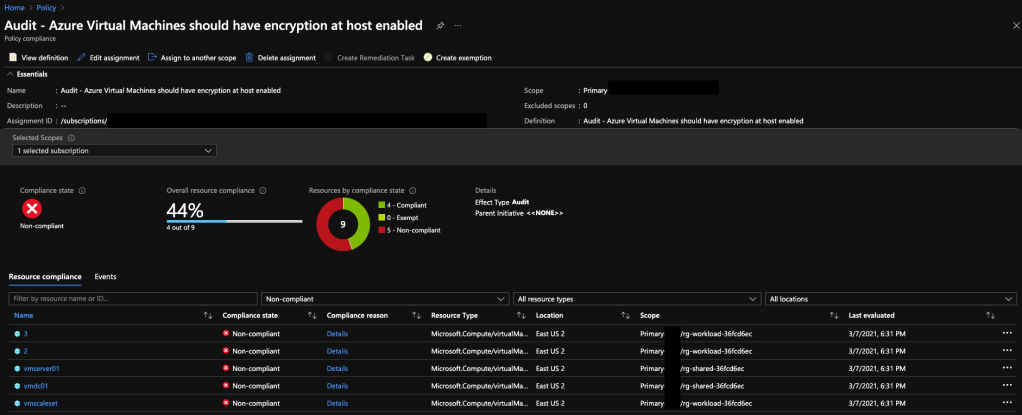
Once evaluation is complete I can go to the Azure Policy blade and the Overview section to see a summary of compliance of the resources.

Clicking into the policy shows me the details of the compliant and non-compliant resources. As expected the VMs, VMSS, and VMSS instances not enabled for encryption at host are reporting as non-compliant. The ones set for host-based encryption report to as compliant.
That’s all there is to it!

So to summarize the tips from the post:

  1. Before you create a new policy check to see if it already exists to save yourself some time. You can check the built-in policies in the Portal, the Microsoft samples, or the community repositories. Alternatively, take a crack it yourself then check your logic versus the logic someone else came up with to practice your policy skills.
  2. Always review the resource properties of a resource instance with that you would want to report on and one you wouldn’t want to report on. This will help make sure you make good use of equals vs exists.
  3. Validate that the properties you want to check are exposed to the Azure Policy engine. To do this check the aliases using CLI, PowerShell, or the Visual Studio add-in.
  4. Create your policy definitions at the management group scope to minimize operational overhead. Beware of tenant and subscription limits for Azure Policy.
  5. Perform significant testing on your policy to validate the policy is reporting on the resources you expect it to.
  6. When you’re new to Azure it’s fine to use the built-in policies directly. However, as your organization matures move away from using them directly and instead create a custom policy with the built-in policy logic. This will help to ensure the logic of your policies only change when you change it.

I hope this post helps you in your Azure Policy journey. The policy in this post and some others I’ve written in the past can be found in this repo. Don’t get discouraged if you struggle at first. It takes time and practice to whip up policies and even then some are a real challenge.

See you next post!

What If… Volume 3

Welcome back fellow geeks! I hope you managed to have an enjoyable holiday and took a break from the grind. I took a good week off, and minus some reading around AKS (Azure Kubernetes Service), I completely shut off the work and tech side of my brain. It was a great change!

Today I am back with a new entry into my What If series. In this entry I’ll be covering an interesting quirk of ASR (Azure Site Recovery) that I ran into helping a customer test out the service. For those of you unfamiliar with ASR, it’s a managed service in Microsoft Azure that provides business continuity and disaster recovery for VMs (virtual machines) both within Azure and on-premises. It can also be used to when migrating VMs from on-premises to Azure, between regions, or between availability zones.

With the quick introduction to the service out of the way, let’s get to it.

What if I wanted to test Azure Site Recovery with both Windows and Linux virtual machines?

Over the holiday break I received an email from a customer who doing some validation testing for a planned migration for ADE (Azure Disk Encryption) to SSE (Server-Side Encryption) for Managed Disks using a CMK (Customer Managed Key). As part of the validation process, the customer wanted to understand how ASR would work after when using SSE with CMK instead of ADE. The customer was making the shift from ADE to SSE for Managed Disks with CMK for a few reasons including:

  • Performance benefits by shifting the encryption engine out of the operating system
  • No limitations on specific images for the virtual machine
  • No VM extensions required
  • Can be combined with host-based encryption for end to end encryption

The customer followed the instructions on how to set up ASR for SSE with CMK-enabled disks referenced here. Replication was successful but they noticed the data disk they had attached to the VM in the source region was not automatically attached to the VM in the destination region and required manual attachment. While an inconvenience for a single test, this could create a huge headache at scale when you’re talking about hundreds of VMs.

After receiving the email I immediately spun up a very simple environment in Azure in the East US 2 region consisting of a single virtual network, Windows VM with an attached data disk, Azure Key Vault instance with a single key, and a disk encryption set. In the Central US region I created a second virtual network, Azure Key Vault instance with a single key, and a disk encryption set. My plan was to fail the VM over from East US 2 to Central US using ASR.

Lab environment

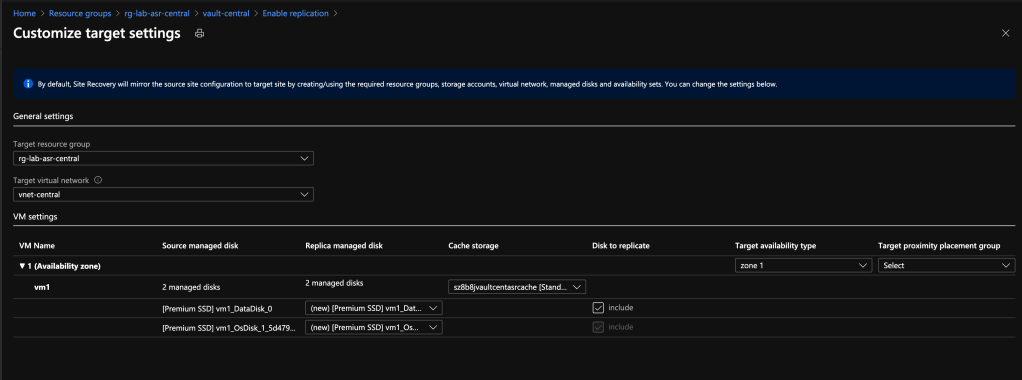
As I went through the enablement process I ensured both the OS disk and the data disk were selected for replication as seen in the image below.

ASR VM Disk Selection

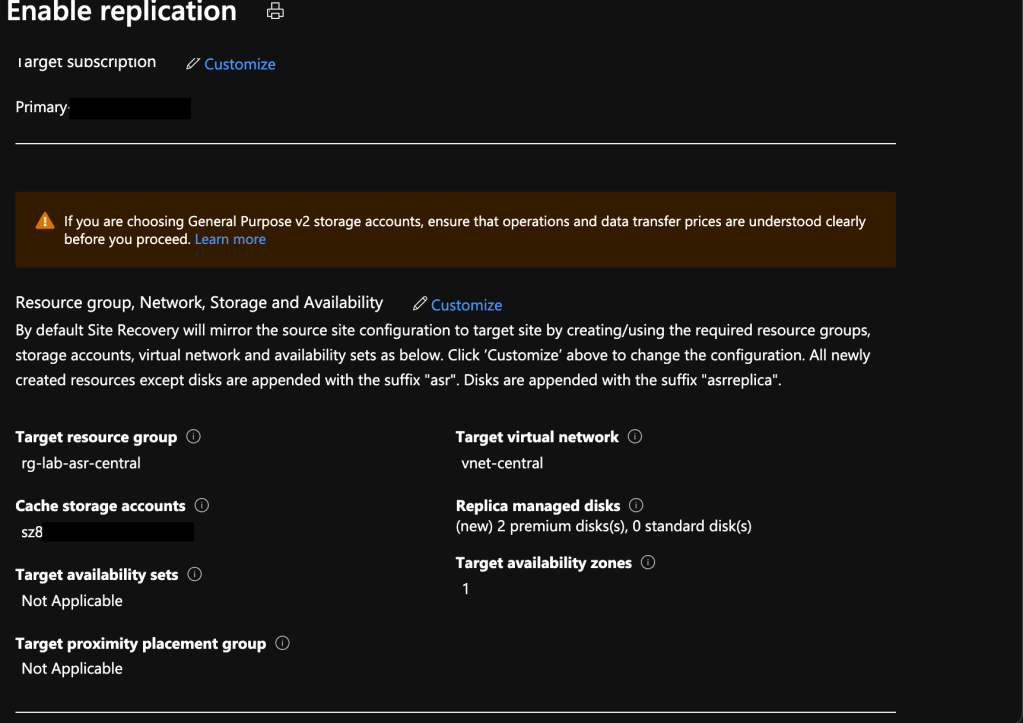
Reviewing the configuration shows that two managed disks are set to replicate.

ASR Config

After confirmation I left it alone and came back an hour later and checked the destination resource group. Replicas of both managed disks are present in the destination resource group. Good so far.

Replica Disks

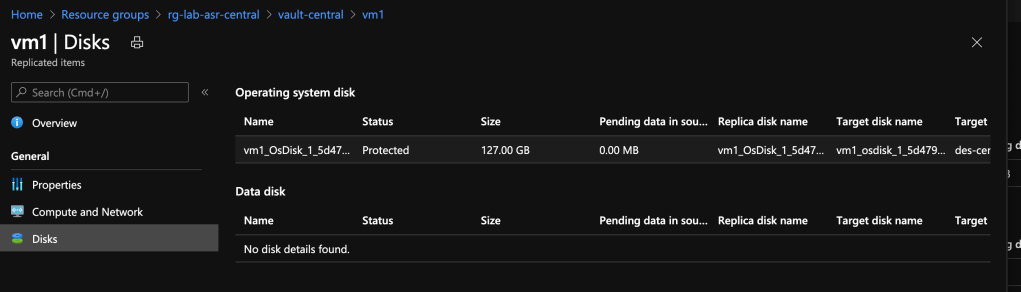
I then did a test failover and pulled up the VM and observed the same thing my customer did. The data disk was not attached even though it was replicated. I was able to manually attach it without an issue, but again, how does this work at scale? Even more interesting was the status of the VM in the Site Recovery section of the Recovery Services Vault. It did not show the data disk as being replicated.

Status of VM in Recovery Services Vault

I ran through the same process a few more times and ran into the same result each time. To make sure it wasn’t an issue with the information the portal was displaying, I wrote some quick Python code to hit the replicationprotecteditem endpoint within the ARM REST API. The results from the API also included only the OS disk in the replication status.

Was this a bug? Did both the customer and I mess something up in setting this up? Turns out it was neither. This is actually expected behavior when replicating a Windows VM when a data disk is attached that is uninitialized in the OS (operating system). For you young folks out there that have never initialized a disk in Microsoft Windows or those of you don’t spend much time in Windows, initialization consists of creating the partition table on the drive which must occur prior formatting the partition with a file system. So why is this required? I’m not really sure and can only theorize. A friend and I talked this over and we theorize it may be a requirement to ensure the disk has some unique identifier in the operating system which may not be able to be generated without the disk first being partitioned.

Note that this issue only occurs with Windows VMs with an uninitialized data disk. It does not occur if the disk has been initialized in Windows and does not occur at all with a Linux VM whether the disk has been partitioned or not. In those cases the data disk will be attached after the VM is failed over.

So there you go folks. If you decide to test out ASR for a proof-of-concept or just a learning experience, remember to initialize your disks on your Windows VMs!

See you next post!

DNS in Microsoft Azure Part 1 – Azure-provided DNS

DNS in Microsoft Azure Part 1 – Azure-provided DNS

Updates:

  • 7/2025 – Removed bullet point highlighting lack of DNS query logging and added that this can be achieved with DNS Security Policy

This is part of my series on DNS in Microsoft Azure.

Hi everyone,

In this series of posts I’m going to talk about a technology, that while old, still provides a critical foundational service.  Yes folks, we’re going to cover Domain Naming System (DNS).  Specifically, we’re going to look at how internal DNS (non-public) works in Microsoft Azure and what the positives and negatives are of each pattern.  I’m going to go into this assuming you have a basic knowledge of DNS and understand the namespaces, different record types, forward and reverse lookup zones, recursive and iterative queries, DNS forwarding and conditional forwarding, and other core DNS concepts. If those topics are unfamiliar to you, I’d suggest reading through DNS 101 by RedHat

I’m a big fan of establishing a shared vocabulary. Below I’m going to define some terms I’ll be using throughout the series.

  • A record – Resolves a hostname to an IP address such as http://www.journeyofthegeek.com to 5.5.5.5.
  • PTR Record – Resolves an IP address to a hostname.
  • CNAME record – Alias record where you can point on (FQDNs) fully qualified domain name to another to make it a domain a human can remember and for high availability configurations.
  •  Recursive Name Resolution – A DNS query where the client asks for a definitive answer to a query and relies on the upstream DNS server to resolve it to completion.  Forwarders such as Google DNS function as recursive resolvers.
  • Iterative Name Resolution – A DNS query where a client receives back a referral to another server in place of resolving the query to completion.  Querying root hints often involves iterate name resolution.
  • Standard DNS Forwarder – Forward all queries the DNS service can’t resolve to an upstream DNS service.  These upstream servers are typically configure to perform recursive or iterative name resolution.
  • Conditional Forwarder – Forward queries for a specific DNS namespace to an upstream DNS service for resolution. This is referred to as a forward zone in BIND.
  • Split-brain / Split Horizon DNS – A DNS configuration where a DNS namespace exists authoritatively across one or more DNS implementations.  A common use case is to have a single DNS namespace defined on Internet-resolvable public facing DNS servers and also on Intranet private facing DNS servers.  This allows trusted clients to reach the service via a private IP address and untrusted clients to reach the service via a public IP address.

Now that I’ve established our vocabulary for DNS, I want to cover the 168.63.129.16 address.  If you’ve ever done anything even basic in Azure, you’ve probably run into this address or used it without knowing it.  This public IP address is owned by Microsoft and is presented as a virtual IP address serving as a communication channel to the host node  for a number of platform resources.  It provides functionality such as virtual machine (VM) agent communication of the VM’s ready state, health state, enables the VM to obtain an IP address via DHCP, and you guessed it, enables the VM to leverage Azure DNS services.  The address is static and is the same for any VNet you create in every Azure region.

Traffic is routed to and from this virtual IP address through the subnet gateway.  If you run a route print on a Windows machine, you can see this route defined in the routing table of the VM.

route
Output of route print on Azure VM

The IP address is also defined in the VirtualNetwork service tag meaning the default rules within a network security group (NSG) allow this traffic to and from the VM. DNS traffic to the IP address is not filtered by NSGs by default, but you can block it with an NSG if you wish to using the instructions outlined here. You might do this if you do not want clients using the Azure platform for DNS and instead want all of these lookups to occur through another DNS mechanism such as the Azure Private DNS Resolver or a 3rd-party DNS service you have deployed.

Now that you understand what the 168.63.129.16 virtual IP address is, let’s first cover the very basics of DNS in Azure. You can configure Azure’s DHCP service to push a custom set of DNS servers to Azure resources within the virtual network or leave the default. The default DNS Server settings for a virtual network is 168.63.129.16 IP address which provides access to the Azure-provided DNS service. DNS Server settings pushed through the Azure DHCP Service can be configured at the virtual network or virtual network interface (VNI). Best practice is to configure this at the virtual network. I’ve never come across a use case to configure it at the VNI.

Configure DNS on VNet
Configure DNS Server DHCP option on VNet

This brings us to the first option for DNS resolution in Azure, Azure-provided name resolution.  Each time you spin up a virtual network Azure assigns it a unique private DNS namespace using the format <randomly generated>.internal.cloudapp.net.  This namespace is pushed to any virtual machines with VNIs in the virtual network via DHCP Option 15. An A record for each VM deployed in the virtual network is automatically registered which allows each VM the built-in ability to resolve the names of virtual machines within the same virtual network. The platform also creates PTR records in reverse lookup zones created for each of the subnets in the virtual network where VMs have VNICs in.

Let’s look at an example with a single VNet.  I’ve created a single VNet named vnet1.  I’ve assigned the CIDR block of 10.101.0.0/16 and created a single subnet assigned the 10.101.0.0/24 block.  Two Windows Server 2016 VMs have been created named azuredns and azuredns1 with the IP addresses 10.101.0.4 and 10.101.0.5.  Azure has assigned the a namespace of r0b5mqxog0hu5nbrf150v3iuuh.bx.internal.cloudapp.net to the VNet.  Note the DHCP Server and DNS Server settings in the ipconfig output of the azuredns vm shown below.

ipconfig
IPConfig output of Azure VM

If azuredns1 is pinged from azuredns you can see the in below Wireshark capture that prior to executing the ping, azuredns performs a DNS query to the 168.63.129.16 VIP and gets back a query response with the IP address of azuredns1. Pinging the single label name of the virtual machine will work as well because the Azure-provided virtual network DNS namespace is automatically prepended to the label by the operating system due to DHCP option 15 (assuming you haven’t configured the operating system to do anything different).

wireshark
Wireshark packet capture of DNS query

An example of the resolution path is diagrammed below.

In this example, the following happens:

  1. VM1 creates a DNS query for vm2 and the FQDN configured for the virtual network is automatically added to the single label resulting in a query for vm2.random.internal.cloudapp.net. VM1 does not have a cached entry for vm2.random.internal.cloudapp.net so the query is passed on to the DNS Server configured for the VMs virtual network interface (VNIC). The DNS Server has been configured by the Azure DHCP Service to the 168.63.129.16 virtual IP which is the default configuration for virtual network DNS Server settings.
  2. The DNS query is passed through the virtual IP and on to the Azure-provided DNS Service. The Azure-provided DNS Service resolves this query against the virtual network namespaces and returns the IP address for vm2.
Azure-provided DNS resolution within a virtual network

That’s all well and good for very basic DNS resolution, but who the heck has a single VNet in anything but a test environment?  So can we expand Azure-provided DNS to multiple VNets?  The answer is yes.  Recall that each VNet has its own private DNS namespace.  The only way to resolve names contained within that namespace is for a VM in that VNet to send the query to the 168.63.129.16 address.  Yes folks, this means you would need to drop a DNS server in each VNet in order to resolve the Azure-provided DNS host names assigned to VMs within that VNet by another VMs in another VNet as illustrated in the diagram below.

In this example, the following happens:

  1. VM1 creates a DNS query for vm3.random2.internal.cloudapp.net. The fully-qualified domain name (FQDN) must be provided because each virtual network uses a different randomly generated namespace. VM1 does not have a cached entry for vm3.random2.internal.cloudapp.net so the query is passed on to the DNS Server configured for the VMs virtual network interface (VNIC). Here the virtual network DNS server settings have been configured to for 10.0.2.4 which has been passed down to VM1 through the Azure DHCP Service.
  2. The DNS query arrives at DNS Server 1. DNS Server 1 does not have a cached entry. It determines it is not authoritative for the random2.internal.cloudapp.net namespace but determines it has a conditional forwarder configured for the zone pointing to 10.100.2.4. The DNS query is recursively passed on to 10.100.2.4 over the virtual network peering.
  3. The DNS query arrives at DNS Server 2. DNS Server 2 does not have a cached entry. It determines it is not authoritative for the random2.internal.cloudapp.net namespace and it does not have a conditional forwarder configured. DNS Server 2 has been configured with a standard forwarder to the 168.63.129.16 virtual IP. The query is passed on to the virtual IP and to Azure-provided DNS which resolves the query for requested record and returns the response.
Azure-provided DNS with multiple virtual networks

You can see as the number of VNets increases the scalability of this solution quickly breaks down because who the heck wants to have a DNS Server deployed to evey virtual network. Take note that if you wanted to resolve these host names from on-premises you could use a similar conditional forwarder pattern where you would pass the query to the DNS Server in Azure and on to Azure-provided DNS.

Let’s sum up the positives and negatives of Azure-provided DNS with the default virtual network namespaces..

  • Positives
    • No need to provision your own DNS servers and worry about high availability or scalability
    • DNS service provided by Azure automatically scales
    • VMs within a VNet can resolve each other’s IP addresses out of the box
    • VMs within a VNet can perform reverse lookups to get the IP address of another VM
    • DNS Query Logging is supported with use of DNS Security Policy
  • Negatives
    • Solution doesn’t scale with multiple VNets
    • You’re stuck with the namespace assigned to the VNet
    • WINS and NetBIOS are not supported
    • Only A records and PTR records that are automatically registered by the service are supported (no manual registration of records)

As you can see from the above the negatives far outweigh the positives for using the default virtual network namespaces and you’ll likely never use them. The important thing to take away from this post is an understanding of how DNS Server settings are configured and how you can configure a DNS Server to communicate with the Azure-provided DNS service. This will be relevant for everything we talk about moving forward.

In the next post l cover Azure’s new offering in the DNS space, Azure Private DNS Zones.  I’ll walk through how it works and how we can combine it with BYO DNS to create some pretty neat patterns.

See you then!

Debugging Azure SDK for Python Using Fiddler

Debugging Azure SDK for Python Using Fiddler

Hi there folks.  Recently I was experimenting with the Azure Python SDK when I was writing a solution to pull information about Azure resources within a subscription.  A function within the solution was used to pull a list of virtual machines in a given Azure subscription.  While writing the function, I recalled that I hadn’t yet had experience handling paged results the Azure REST API which is the underlining API being used by the SDK.

I hopped over to the public documentation to see how the API handles paging.  Come to find out the Azure REST API handles paging in a similar way as the Microsoft Graph API by returning a nextLink property which contains a reference used to retrieve the next page of results.  The Azure REST API will typically return paged results for operations such as list when the items being returned exceed 1,000 items (note this can vary depending on the method called).

So great, I knew how paging was used.  The next question was how the SDK would handle paged results.  Would it be my responsibility or would it by handled by the SDK itself?

If you have experience with AWS’s Boto3 SDK for Python (absolutely stellar SDK by the way) and you’ve worked in large environments, you are probably familiar with the paginator subclass.  Paginators exist for most of the AWS service classes such as IAM and S3.  Here is an example of a code snipped from a solution I wrote to report on aws access keys.

def query_iam_users():

todaydate = (datetime.now()).strftime("%Y-%m-%d")
users = []
client = boto3.client(
'iam'
)

paginator = client.get_paginator('list_users')
response_iterator = paginator.paginate()
for page in response_iterator:
for user in page['Users']:
user_rec = {'loggedDate':todaydate,'username':user['UserName'],'account_number':(parse_arn(user['Arn']))}
users.append(user_rec)
return users

Paginators make handling paged results a breeze and allow for extensive flexibility in controlling how paging is handled by the underlining AWS API.

Circling back to the Azure SDK for Python, my next step was to hop over to the SDK public documentation.  Navigating the documentation for the Azure SDK (at least for the Python SDK, I can’ t speak for the other languages) is a bit challenging.  There are a ton of excellent code samples, but if you want to get down and dirty and create something new you’re going to have dig around a bit to find what you need.  To pull a listing of virtual machines, I would be using the list_all method in VirtualMachinesOperations class.  Unfortunately I couldn’t find any reference in the documentation to how paging is handled with the method or class.

So where to now?  Well next step was the public Github repo for the SDK.  After poking around the repo I located the documentation on the VirtualMachineOperations class.  Searching the class definition, I was able to locate the code for the list_all() method.  Right at the top of the definition was this comment:

Use the nextLink property in the response to get the next page of virtual
machines.

Sounds like handling paging is on you right?  Not so fast.  Digging further into the method I came across the function below.  It looks like the method is handling paging itself releasing the consumer of the SDK of the overhead of writing additional code.

        def internal_paging(next_link=None):
            request = prepare_request(next_link)

            response = self._client.send(request, stream=False, **operation_config)

            if response.status_code not in [200]:
                exp = CloudError(response)
                exp.request_id = response.headers.get('x-ms-request-id')
                raise exp

            return response

I wanted to validate the behavior but unfortunately I couldn’t find any documentation on how to control the page size within the Azure REST API.  I wasn’t about to create 1,001 virtual machines so instead I decided to use another class and method in the SDK.  So what type of service would be a service that would return a hell of a lot of items?  Logging of course!  This meant using the list method of the ActivityLogsOperations class which is a subclass of the module for Azure Monitor and is used to pull log entries from the Azure Activity Log.  Before I experimented with the class, I hopped back over to Github and pulled up the source code for the class.  Low and behold we an internal_paging function within the list method that looks very similar to the one for the list_all vms.

        def internal_paging(next_link=None):
            request = prepare_request(next_link)

            response = self._client.send(request, stream=False, **operation_config)

            if response.status_code not in [200]:
                raise models.ErrorResponseException(self._deserialize, response)

            return response

Awesome, so I have a method that will likely create paged results, but how do I validate it is creating paged results and the SDK is handling them?  For that I broke out one of my favorite tools Telerik’s Fiddler.

There are plenty of guides on Fiddler out there so I’m going to skip the basics of how to install it and get it running.  Since the calls from the SDK are over HTTPS I needed to configure Fiddler to intercept secure web traffic.  Once Fiddler was up and running I popped open Visual Studio Code, setup a new workspace, configured a Python virtual environment, and threw together the lines of code below to get the Activity Logs.

from azure.common.credentials import ServicePrincipalCredentials
from azure.mgmt.monitor import MonitorManagementClient

TENANT_ID = 'mytenant.com'
CLIENT = 'XXXXXXXX-XXXX-XXXX-XXXX-XXXXXXXXXXXX'
KEY = 'XXXXXX'
SUBSCRIPTION = 'XXXXXX-XXXX-XXXX-XXXX-XXXXXXXX'

credentials = ServicePrincipalCredentials(
    client_id = CLIENT,
    secret = KEY,
    tenant = TENANT_ID
)
client = MonitorManagementClient(
    credentials = credentials,
    subscription_id = SUBSCRIPTION
)

log = client.activity_logs.list(
    filter="eventTimestamp ge '2019-08-01T00:00:00.0000000Z' and eventTimestamp le '2019-08-24T00:00:00.0000000Z'"
)

for entry in log:
    print(entry)

Let me walk through the code quickly.  To make the call I used an Azure AD Service Principal I had setup that was granted Reader permissions over the Azure subscription I was querying.  After obtaining an access token for the service principal, I setup a MonitorManagementClient that was associated with the Azure subscription and dumped the contents of the Activity Log for the past 20ish days.  Finally I incremented through the results to print out each log entry.

When I ran the code in Visual Studio Code an exception was thrown stating there was an certificate verification error.

requests.exceptions.SSLError: HTTPSConnectionPool(host='login.microsoftonline.com', port=443): Max retries exceeded with url: /mytenant.com/oauth2/token (Caused by SSLError(SSLCertVerificationError(1, '[SSL: CERTIFICATE_VERIFY_FAILED] certificate verify failed: unable to get local issuer certificate (_ssl.c:1056)')))

The exception is being thrown by the Python requests module which is being used underneath the covers by the SDK.  The module performs certificate validation by default.  The reason certificate verification is failing is Fiddler uses a self-signed certificate when configured to intercept secure traffic when its being used as a proxy.  This allows it to decrypt secure web traffic sent by the client.

Python doesn’t use the Computer or User Windows certificate store so even after you trust the self-signed certificate created by Fiddler, certificate validation still fails.  Like most cross platform solutions it uses its own certificate store which has to be managed separately as described in this Stack Overflow article.  You should use the method described in the article for any production level code where you may be running into this error, such as when going through a corporate web proxy.

For the purposes of testing you can also pass the parameter verify with the value of False as seen below.  I can’t stress this enough, be smart and do not bypass certificate validation outside of a lab environment scenario.

requests.get('https://somewebsite.org', verify=False)

So this is all well and good when you’re using the requests module directly, but what if you’re using the Azure SDK?  To do it within the SDK we have to pass extra parameters called kwargs which the SDK refers to as an Operation config.  The additional parameters passed will be passed downstream to the methods such as the methods used by the requests module.

Here I modified the earlier code to tell the requests methods to ignore certificate validation for the calls to obtain the access token and call the list method.

from azure.common.credentials import ServicePrincipalCredentials
from azure.mgmt.monitor import MonitorManagementClient

TENANT_ID = 'mytenant.com'
CLIENT = 'XXXXXXXX-XXXX-XXXX-XXXX-XXXXXXXXXXXX'
KEY = 'XXXXXX'
SUBSCRIPTION = 'XXXXXX-XXXX-XXXX-XXXX-XXXXXXXX'

credentials = ServicePrincipalCredentials(
    client_id = CLIENT,
    secret = KEY,
    tenant = TENANT_ID,
    verify = False
)
client = MonitorManagementClient(
    credentials = credentials,
    subscription_id = SUBSCRIPTION,
    verify = False
)

log = client.activity_logs.list(
    filter="eventTimestamp ge '2019-08-01T00:00:00.0000000Z' and eventTimestamp le '2019-08-24T00:00:00.0000000Z'",
    verify = False
)

for entry in log:
    print(entry)

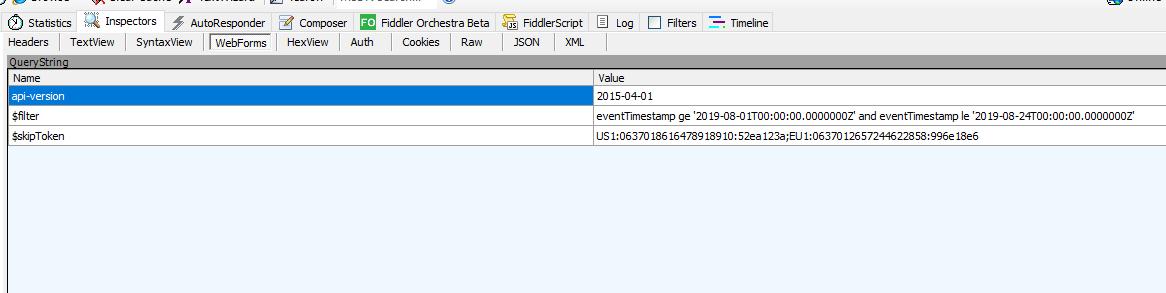
After the modifications the code ran successfully and I was able to verify that the SDK was handling paging for me.

fiddler.png

Let’s sum up what we learned:

  • When using an Azure SDK leverage the Azure REST API reference to better understand the calls the SDK is making
  • Use Fiddler to analyze and debug issues with the Azure SDK
  • Never turn off certificate verification in a production environment and instead validate the certificate verification error is legitimate and if so add the certificate to the trusted store
  • In lab environments, certificate verification can be disabled by passing an additional parameter of verify=False with the SDK method

Hope that helps folks.  See you next time!