
Hello fellow geeks! Life got busy this year and I haven’t had much time to post. I’ve been been working on some fun side projects including an enterprise-like environment for Azure, some security control mappings, and some reusable artifacts to simplify customer journeys into Azure. Outside of those efforts, I’ve spent some time addressing technical skill gaps, one of which was Azure Arc which is the topic of this post today.
Azure Arc is Microsoft’s attempt to extend the Azure management plane and Azure capabilities to resources running on-premises and other clouds. As the date of this blog these resources include Windows and Linux machines and Kubernetes clusters running on-premises or in another cloud like AWS (Amazon Web Services). Integrating these resources with Azure Arc projects them into the Azure management plane making them resources of Azure.

Once the resources are projected into Azure many capabilities of the platform can be used to assist with managing the resources. Examples include installing VM (virtual machine) extensions Microsoft Monitoring Agent extension to deliver logs and metrics to Azure Monitor, tracking changes and the software inventory of a machine using Azure Automation, or even auditing a machine’s compliance to a specific set of controls using Azure Policy. On the Kubernetes side you can monitor your on-premises clusters using Azure Container Insights or even deploy an App Service on your on-premises cluster. These capabilities continue to grow so check the official documentation for up to date information.
One of the interesting capabilities of Azure Arc that captured my eye was the ability to use a system-assigned management identity. I’ve written in the past about managed identities so I’ll stick to covering the very basics of them today. A managed identity is simply some Microsoft-managed automation on top of an Azure AD service principal, which is best explained as a security principal used for non-humans. One of the primary benefits managed identities provider over traditional service principals is automatic credential rotation. If you come from the AWS world, managed identities are similar to AWS IAM roles.
Those of you that manage service principals of scale are surely familiar with the pain of having to work with application owners to rotate the credentials of service principals in use within corporate applications. Beyond the operational overhead, the security risk exists for an attacker to obtain the service principal credentials and use them outside of Azure. Since service principals are not yet subject to Azure AD Conditional access, rotation of credentials becomes a critical control to have in place. Both this operational overhead and security risk make the automated rotation of credentials capability of managed identities a must have.
Managed identities are normally only available for use by resources running in Azure like Azure VMs, App Service instances, and the like. In the past, if you were coming from outside of Azure such as on-premises or another cloud like AWS, you’d be forced to use a service principal and struggle with the challenges I’ve outlined above. Azure Arc introduces the ability to leverage managed identities from outside of Azure.
This made me very curious as to how this was being accomplished for a machine running outside of Azure. The official documentation goes into some detail. The documentation explains a few key items:
- A system-assigned managed identity is provisioned for the Arc-enabled server when the server is onboarded to Arc
- The Azure Instance Metadata Service (IDMS) is configured with the managed identity’s service principal client id and certificate
- Code running on the machine can request an access token from the IDMS
- The IDMS challenges the application code to prove it is privileged enough to obtain the access token by requiring it provide a secret to attest that it is highly privileged
This information left me with a few questions:
- What exactly is the challenge it’s hitting the application with?
- Since the service principal is using a certificate-based credential, the private key has to be stored on the machine. If so where and how easy would it be for an attacker to steal it?
- How easy would it be to steal the identity of the Azure Arc machine in order to impersonate it on another machine?
To answer these questions I decided to deploy Azure Arc to a number of Windows and Linux machines I have running on my home instance of Hyper-V. That would give me god access to each machine and the ability to deploy whatever toolset I wanted to take a peek behind the curtains. Using the service-principal onboarding process I deployed Azure Arc to a number of Windows and Linux machines running in my home lab. Since I’m stronger in Windows, I decided I’d try to extract the service principal credentials from a Windows machine and see if I could use them on Azure Arc-enabled Linux machine.
The technical overview documentation covers how Windows and Linux machines connect into Azure Arc and communicate. There are three processes that run to support Arc connectivity which include the Azure Hybrid Instance Metadata Service (HIMDS), Guest Configuration Arc Service, and Guest Configuration Extension Service. The service I was most interested in was the HIDMS service which is in charge of authenticating and obtaining access tokens from Azure.
To better understand the service, I first referenced the service in the Services MMC (Microsoft Management Console). This gave me the path to the executable. Poking around the source directory showed some dsc logs and the location of the processes involved with Azure Arc but nothing too interesting.

My next stop was the configuration information. As documented in the technical overview documentation, the configuration data is stored in a json file in the %ProgramData%\AzureConnectedMachineAgent\Config directory. The key pieces of information we can extract from this file are the tenant id, subscription id, certificate thumbprint the service principal is using and most importantly the client id. That’s a start!
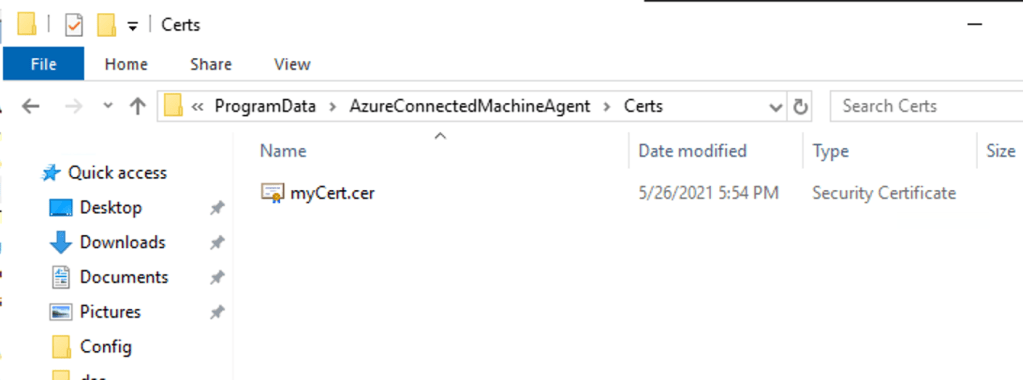
{"subscriptionId":"XXXXXXXX-XXXX-XXXX-XXXX-XXXXXXXXXXXX","resourceGroup":"rg-onpremlab","resourceName":"SERVERWSQL01","tenantId":"XXXXXXXX-XXXX-XXXX-XXXX-XXXXXXXXXXXX","location":"eastus2","vmId":"XXXXXXXX-XXXX-XXXX-XXXX-XXXXXXXXXXXX","vmUuid":"XXXXXXXX-XXXX-XXXX-XXXX-XXXXXXXXXX","certificateThumbprint":"be90bae2484ff6d495XXXXXXXXXXXXX","clientId":"XXXXXXXXX-XXXX-XXXX-XXXX-XXXXXXXXXXXX","cloud":"AzureCloud","privateLinkScope":"","namespace":"","correlationId":"XXXXXX-XXXX-XXXX-XXXX-XXXXXXXXXXX"}I then wondered what else might be stored through this directory hierarchy. Popping up a directory, I came saw the Certs subdirectory. Could it really be this easy? Would this directory contain the private-key certificate? Navigating into the directory does indeed show a certificate file. However, attempting to open the certificate up using the Crypto Shell Extensions resulted in an error stating it’s not a valid certificate. No big deal, maybe the extension is wrong right? I then took the file and ran it through a few Python scripts I have to enumerate certificate data, but unfortunately no certificate format I tried worked. After a quick discussion with my good friend Armen Kaleshian, we both came to the conclusion that the certificate is more than likely wrapped with some type of symmetric encryption.
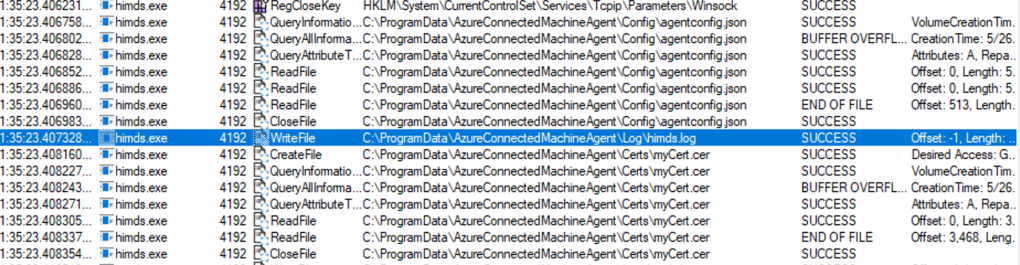
At this point I decided to take a step back and observe the HIMDS process to ensure this file is being used by the process, and if so, whether I could figure where the key that was used to wrap the certificate was stored. For that I used Process Monitor (the old tools are still the best!). After restarting the HIMDS service and sifting through the capture information, I found the mentions of the process reading the certificate file after reading from the agent config. In the past I’ve seen applications store the symmetric key used to wrap information like this in the registry, but I could not find any obvious calls to the registry indicating this. After a further conversation with Armen, we theorized the symmetric key might be stored in the himds.exe executable itself which would mean every Azure Arc instance would be using the same key to wrap the certificate. This would mean all one would have to do is move the certificate and configuration file to a new machine and one would be able to use the credentials to impersonate the machine’s managed identity (more on that later).
At this point I was fairly certain I had answered question number 2, but I wanted to explore question number 3 a bit more. For this I leveraged the PowerShell code sample provided in the documentation. Breaking down the code, I observed a web request is made to the IDMS endpoint. From the response from the IDMS endpoint, a returned header is extracted which contains the directory name a file is stored in. The contents of this file are extracted and then included as an authorization header using basic authentication. The resulting response from the IDMS contains the access token used to communicate with the relevant Microsoft cloud API.
$apiVersion = "2020-06-01"
$resource = "https://management.azure.com/"
$endpoint = "{0}?resource={1}&api-version={2}" -f $env:IDENTITY_ENDPOINT,$resource,$apiVersion
$secretFile = ""
try
{
    Invoke-WebRequest -Method GET -Uri $endpoint -Headers @{Metadata='True'} -UseBasicParsing
}
catch
{
    $wwwAuthHeader = $_.Exception.Response.Headers["WWW-Authenticate"]
    if ($wwwAuthHeader -match "Basic realm=.+")
    {
        $secretFile = ($wwwAuthHeader -split "Basic realm=")[1]
    }
}
Write-Host "Secret file path: " $secretFile`n
$secret = cat -Raw $secretFile
$response = Invoke-WebRequest -Method GET -Uri $endpoint -Headers @{Metadata='True'; Authorization="Basic $secret"} -UseBasicParsing
if ($response)
{
    $token = (ConvertFrom-Json -InputObject $response.Content).access_token
    Write-Host "Access token: " $token
}
By default the security principal doesn’t have any permissions in the ARM (Azure Resource Manager) API, so I granted it reader rights on the resource group and wrote some simple Python code to query for a list of resources in the in a resource group. I was able to successfully obtain the access token and got back a list of resources.
# Import standard libraries
import os
import sys
import logging
import requests
import json

# Create a logging mechanism
def enable_logging():
    stdout_handler = logging.StreamHandler(sys.stdout)
    handlers = [stdout_handler]
    logging.basicConfig(
        level=logging.INFO,
        format='%(asctime)s - %(name)s - %(levelname)s - %(message)s',
        handlers = handlers
    )

def get_access_token(resource, api_version="2020-06-01"):
    logging.debug('Attempting to obtain access token...')
    try:
        response = requests.get(
            url = os.getenv('IDENTITY_ENDPOINT'),
            params = {
                'api-version': api_version,
                'resource': resource
            },
            headers = {
                'Metadata': 'True'
            }
        )

        secret_file = response.headers['Www-Authenticate'].split('Basic realm=')[1]
        with open(secret_file, 'r') as file:
            key = file.read()

        response = requests.get(
            url = os.getenv('IDENTITY_ENDPOINT'),
            params = {
                'api-version': api_version,
                'resource': resource
            },
            headers = {
                'Metadata': 'True',
                'Authorization': f"Basic {key}"
            }
        )
        logging.debug("Access token obtain successfully")
        return json.loads(response.text)['access_token']

    except Exception:
        logging.error('Unable to obtain access token. Error was: ', exc_info=True)

def main():
    try:

        # Setup variables
        API_VERSION = '2021-04-01'

        # Enable logging
        enable_logging()

        # Obtain a credential from the system-assigned managed identity
        token = get_access_token(resource='https://management.azure.com/')

        # Setup query parameters
        params = {
            'api-version': API_VERSION
        }

        # Setup header
        header = {
            'Content-Type': 'application/json',
            'Authorization': f"Bearer {token}"
        }

        # Make call to ARM API
        response = requests.get(url='https://management.azure.com/subscriptions/XXXXXXXX-XXXX-XXXX-XXXX-XXXXXXXXXXXX/resourceGroups/rg-onpremlab/resources',headers=header, params=params)
        print(response.text)

    except Exception:
        logging.error('Execution error: ', exc_info=True)

if __name__ == "__main__":
    main()
This indicated to me that the additional challenge introduced with the IDMS running on Arc requires the process to obtain a secret generated by the IDMS that is placed in the %PROGRAMDATA\AzureConnectedMachineAgent\Tokens directory. This directory is locked down for access to the security principal the himds service runs as, SYSTEM, the Administrators group, and most importantly the Hybrid agent extension applications group. After the secret is obtain from the file in this directory, it is used as a secret to perform basic authentication with the IDMS service to obtain the access token. As the official documentation states, this is the group you would need to add the security principal running any processes you wanted to use the local IDMS. Question 1 had now been answered.

That left me with question 3. Based on what I learned so far, an attacker who compromised the machine or a security principal with sufficient permissions on the machine to access the %PROGRAMDATA%\AzureConnectedMachineAgent\ subdirectories could obtain the configuration of the agent and the encrypted certificate. Compromise could also come in the form of compromise of a process that was running as a security principal which was a member of the Hybrid agent extension applications group. Even with the data collected from the agentconfig.json file and the certificate file, the attacker would still be short of the symmetric key used to unwrap the certificate to make it available for use.
Here I took a gamble and tested the theory Armen and I had that the symmetric key was stored in the himds executable. I copied the agentconfig.json file and certificate file and move them to another machine. To eliminate the possibility of the configuration and credentials file being specific to the Windows operating system, I spun up an Ubuntu VM in my Hyper-V cluster. I then installed and configured the agent with a completely separate Azure AD tenant.
Once that was complete, I moved the agentconfig.json and myCert file from the existing Windows machine to the new Ubuntu VM and replaced the existing files. Re-running the same Python script (substituting out the variables for the actual URIs listed in the technical overview) I received back the same listing of resources from the resource group. This proved that if you’re able to get access to both the agentconfig.json and myCert files on an Azure Arc-enabled machine, you can move them to any other machine (regardless of operating system) and re-use them to impersonate source machine and exercise any permissions its been granted access.
Let’s sum up the findings:
- The agentconfig.json file contains sensitive information including the tenant id, subscription id, and client id of the service principal associated with the Azure Arc-enabled machine.
- The credential for the service principal is stored as a certificate file in the myCert file in the %PROGRAMDATA%\AzureConnectedMachineAgent\certs directory. This file is probably wrapped with some type of symmetric encryption.
- The challenge the documentation speaks to involves the creation of a password by the HIMDS process which is then stored in the %PROGRAMDATA%\AzureConnectedMachineAgent\tokens directory. This directory is locked down to privileged users. The password contained in the file created by the HIMDS process is then passed back in a request to the IDMS service running on the machine using the basic HTTP authentication where it is validated and an access token is returned. This is used a method to prove the process requesting the token is privileged.
- The agentconfig.json and myCert file can be moved from one Arc-enabled machine to another to be used to impersonate the source machine. This provided further evidence that the symmetric key used to encrypt the certificate file (myCert) is hardcoded into the executable.
It should come as no surprise to you follow old folks that the resulting findings stress the importance traditional security controls. A few recommendations I’d make are as follows:
- Least Privilege
- If you’re going to use the managed identity available to an Arc-enabled server for applications running on that machine, ensure you’re granting that managed identity only the permissions it requires and nothing beyond it.
- Limit the human and non-human actors who have administrator privileges on Azure Arc-enabled machines.
- Tightly control which security principals are members of the Hybrid agent extension applications group.
- Logging and monitor
- Log managed identity sign-ins and monitor for suspicious activity. Until Conditional Access is extended to service principals, it can’t be leveraged to further restrict where these security principals can be used from.
- Log and monitor the security events on the Azure Arc-enabled servers
- Patching and Updating
- Ensure your Azure Arc-enabled machines are patched and updated. You can leverage the Azure Automation update management capabilities if you don’t have an existing system to do this already.
- Ensure your Azure Arc-enabled machines are patched and updated. You can leverage the Azure Automation update management capabilities if you don’t have an existing system to do this already.
- Identity and Access Management
- Create a process to review the use case and security risks of applications that want to leverage this functionality.
- Perform access reviews to validate any additional permissions granted to these managed identities are still warranted, and if not, remove them.
Nothing in the above is new or fancy but all things you should be doing today. The biggest take away you need here is by extending the Azure management plane you get great new features but you also introduce a potential new risk where a compromised Azure Arc-enabled machine outside of Azure could be used to impact the security of your Azure implementation. If you’re using service principals today (or hell, if you’re simply having users access Azure from their desktops or laptops) you already have this risk, but it’s always worthwhile understanding the different vectors available to attackers.
At the end of the day I love this feature. It is leagues better than how most organizations are handling service principal usage outside of Azure today where the credentials are often hardcoded into code into code, dumped into a file in an unsecured directory, or never rotated for years. There are tradeoffs, but as I said earlier, none of the mitigations are things you shouldn’t already be doing today. Outside of this capability, there are a lot of benefits to Azure Arc and I’ll be very interested to see how Microsoft grows this offering and extends it beyond.
Thanks!




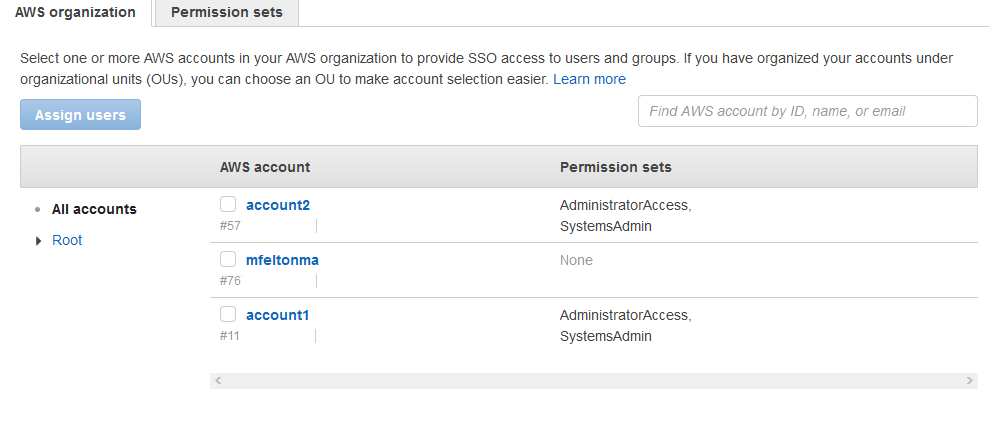 The permission sets tab displays the permission sets I’ve created and whether or not they’ve been provisioned to any accounts. In the screenshot below you’ll see I’ve added four AWS-managed policies for Billing, SecurityAudit, AdministratorAccess, and NetworkAdministrator. Additionally, I created a new permission set named SystemsAdmin which uses a custom IAM policy which restricts the principal assuming the rule to EC2, CloudWatch, and ELB activities.


