Azure Authorization – Resource Locks and Azure Policy denyActions

This is part of my series on Azure Authorization.

  1. Azure Authorization – The Basics
  2. Azure Authorization – Azure RBAC Basics
  3. Azure Authorization – actions and notActions
  4. Azure Authorization – Resource Locks and Azure Policy denyActions
  5. Azure Authorization – Azure RBAC Delegation
  6. Azure Authorization – Azure ABAC (Attribute-based Access Control)

Welcome back! Today I have another post in my series on Azure Authorization. In my last post I covered how permissions listed in notActions and notDataActions in an Azure RBAC Role Definition is not an explicit deny but rather a subtraction from the permissions listed in the definition in the action and nonActions section. In this post I’m going two features which help to address that gap: Resource Locks and the Azure Policy denyActions feature.

Resource Locks

Let’s start with Resource Locks. Resource Locks can be used to protect important resources from actions that could delete the resource or actions that could modify the resource. They are an Azure Resource that are administered through the Microsoft.Authorization resource provider (specifically Microsoft.Authorization/locks) and come in two forms which include delete (CanNotDelete) and modification locks (ReadOnly). Resource locks can be applied at the subscription scope, resource group scope, and resource scope. Resource locks applied at a higher scope are inherited down.

Resource locks are a wonderful defense-in-depth control because they are another authorization control in addition to Azure RBAC. A common use case might be to place a read only resource lock on an Azure Subscription which is used to house ExpressRoutes resources since once setup, ExpressRoute Circuits are relatively static from a configuration perspective. This could help mitigate the risk of an authorized user or CI/CD pipeline identity, who may have the Azure RBAC Owner or Contributor over the subscription, from mucking up the configuration purposefully or by accident and causing broad issues for your Azure landscape.

Example of a resource lock on a resource

Resource locks do have a number of considerations that you should be aware of before you go throwing them everywhere. One of the main considerations is that they can be removed by anyone with access to Microsoft.Authorization/*, which will include built-in Azure RBAC roles such as Owner and User Access Administrator. It’s common practice for organizations to grant the identity (service principal or managed identity) used by a CI/CD pipeline the Owner role in order for that role to create role assignments required for the services it is deploying (you can work around this with delegation which I will cover in my next post!). This means that anyone with sufficient permissions on the pipeline could theoretically pass some code that removes the lock.

Another consideration is resource locks only affect management plane operations (if you’re unfamiliar with this concept check out my first post on authorization). Using a Storage Account as an example, a ReadOnly lock would prevent someone from modifying the CMK used to encrypt a storage account, but it wouldn’t stop a user with sufficient permissions at the data plane from deleting a container or blob. Before applying a ReadOnly resource lock, make sure you understand some of the ramifications of blocking management plane operations. Using an App Service as an example, a ReadOnly lock would prevent you from scaling that App Service up or down.

I’m a big fan of using resource locks for mission critical pieces of infrastructure such as ExpressRoute. Outside of that you’ll want to evaluate the considerations I’ve listed above in the public documentation. If your primary goal is to prevent delete operations, then you may be better off with using the next feature, Azure Policy deny Actions.

Azure Policy denyActions

Azure Policy is Azure’s primary governance tool. For those of you coming from AWS, think of Azure Policy as if AWS IAM Policy conditions had a baby with AWS Config. I like to think of it as a way to enforce the way a resource needs to look, and if the resource doesn’t look that way, you can block the action altogether, log that it’s not compliance, or remediate it.

It’s important to understand that Azure Policy sits in line with the ARM (Azure Resource Manager) API allowing it to prevent or remediate the resource creation or modification before it ever gets processed by the API. This is bonus vs having to remediate it after the fact with something like AWS Config.

Azure Policy Architecture

In addition to the functionality above, Microsoft has added a bit of authorization logic in to Azure Policy with effect of denyAction (yes it was a bit confusing to me why authorization to do something was introduced, but you know what, it can come in handy!). As of the date of this blog, the only action that can be denied is the DELETE action. While this may seem limited, it’s an awesome improvement and addresses some of the gaps in resource locks.

First, you can use the power of the Azure Policy language to filter to a specific resource type type with a specific set of tags. This allows you to apply these rules at scale. Use case here might be I want to deny the delete action on all Log Analytics Workspaces across my entire Azure estate. Second, the policy could be assigned a management group scope. By assigning the policy at the management group scope I can prevent deletions of these resources even by a user or service principal that might hold the Owner role of the subscription. This helps me mitigate the risk present with resource locks when a CI/CD pipeline has been given the Owner role over a subscription.

An example policy could look like something below. This policy would prevent any Log Analytics Workspaces tagged with a tag named rbac with a value equal to prod from being deleted.

$policy_id=(New-AzPolicyDefinition -Name $policy_name `
    -Description "This is a policy used for RBAC demonstration that blocks the deletion of Log Analytics Workspaces tagged with a key of rbac and a value of prod" `
    -ManagementGroupName $management_group_name `
    -Mode Indexed `
    -Policy '{
            "if": {
                "allOf": [
                    {
                        "field": "type",
                        "equals": "Microsoft.OperationalInsights/workspaces"
                    },
                    {
                        "field": "tags.rbac",
                        "equals": "prod"
                    }
                ]
            },
            "then": {
                "effect": "denyAction",
                "details": {
                    "actionNames": [
                        "delete"
                    ],
                    "cascadeBehaviors": {
                        "resourceGroup": "deny"
                    }
                }
            }
        }')
    ```

Just like resource locks, Azure Policy denyActions have some considerations you should be aware of. These include limitations such as it not preventing deletion of the resources when the subscription is deleted. Full limitations can be found here.

Conclusion

What I want you to take away from this post is that there are other tools beyond Azure RBAC that can help you secure your Azure resources. It’s important to practice a defense-in-depth approach and utilize each tool where it makes sense. Some general guidance would be the following:

  • Use resource locks when you want to prevent modification and Azure Policy denyActions when you want to prevent deletion. This will allow you to do it at scale and mitigate the Owner risk.
  • Be careful where you use ReadOnly resource locks. Blocking management plane actions even when the user has the appropriate permission can be super helpful, but it can also bite you in weird ways. Pay attention to the limitations in the documentation.
  • If you know the defined state of a resource needs to look like, and you’re going to deploy it that way, look at using Azure Policy with the deny effect instead of a ReadOnly resource lock. This way can enforce that configuration in code and mitigate the Owner risk.

So this is all well and good, but neither of these features allow you to pick the SPECIFIC actions you want to deny. In an upcoming post I’ll cover the feature that is kind there, but not really, to address that ask.

Blocking API Key Access in Azure OpenAI Service

Blocking API Key Access in Azure OpenAI Service

This is part of my series on GenAI Services in Azure:

  1. Azure OpenAI Service – Infra and Security Stuff
  2. Azure OpenAI Service – Authentication
  3. Azure OpenAI Service – Authorization
  4. Azure OpenAI Service – Logging
  5. Azure OpenAI Service – Azure API Management and Entra ID
  6. Azure OpenAI Service – Granular Chargebacks
  7. Azure OpenAI Service – Load Balancing
  8. Azure OpenAI Service – Blocking API Key Access
  9. Azure OpenAI Service – Securing Azure OpenAI Studio
  10. Azure OpenAI Service – Challenge of Logging Streaming ChatCompletions
  11. Azure OpenAI Service – How To Get Insights By Collecting Logging Data
  12. Azure OpenAI Service – How To Handle Rate Limiting
  13. Azure OpenAI Service – Tracking Token Usage with APIM
  14. Azure AI Studio – Chat Playground and APIM
  15. Azure OpenAI Service – Streaming ChatCompletions and Token Consumption Tracking
  16. Azure OpenAI Service – Load Testing

Hello folks! I’m back again with another post on the Azure OpenAI Service. I’ve been working with a number of Microsoft customers in regulated industries helping to get the service up and running in their environments. A question that frequently comes up in this conversations is “How do I prevent usage of the API keys?”. Today, I’m going to cover this topic.

I’ve covered authentication in the AOAI (Azure OpenAI Service) in a past post so read that if you need the gory details. For the purposes of this post, you need to understand that AOIA supports both API keys and AAD (Azure Active Directory) authentication. This dual support is similar to other Azure PaaS (platform-as-a-service) offerings such as Azure Storage, Azure CosmosDB, and Azure Search. When the AOAI instance is created, two API keys are generated which provide full permissions at the data plane. If you’re unfamiliar with the data plane versus management plane, check out my post on authorization.

Azure Portal showing AOAI API Keys

Given the API keys provide full permissions at the data plane monitoring and controlling their access is critical. As seen in my logging post monitoring the usage of these keys is no simple task since the built-in logging is minimal today. You could use a custom APIM (Azure API Management) policy to include a portion of the API key to track its usage if you’re using the advanced logging pattern, but you still don’t have any ability to restrict what the person/application can do within the data plane like you can when using AAD authentication and authorization. You should prefer AAD authentication and authorization where possible and tightly control API key usage.

In my authorization and logging posts I covered how to control and track who gets access to the API keys. I’ve also covered how APIM can be placed in front of an AOAI instance to enforce AAD authentication. If you block network access to the AOAI service to anything but APIM (such as using a Private Endpoint and Network Security Group) you force the usage of APIM which forces the use of AAD authentication preventing API keys from being used.

Azure OpenAI Service and Azure API Management Pattern

The major consideration of the pattern above is it breaks the Azure OpenAI Studio as of today (this may change in the future). The Azure OpenAI Studio is an GUI-based application available within the Azure Portal which allows for simple point-and-click actions within the AOAI data plane. This includes actions such as deploying models and sending prompts to a model through a GUI interface. While all this is available via API calls, you will likely have a user base that wants access a simple GUI to perform these types of actions without having to code to them. To work around this limitation you have to open up network access from the user’s endpoint to the AOAI instance. Opening up these network flows allows the user to bypass APIM which means the user could use an API key to make calls to the AOAI service. So what to do?

In every solution in tech (and life) there is a screwdriver and a hammer. While the screwdriver is the optimal way to go, sometimes you need the hammer. With AOAI the hammer solution is to block usage of API key-based authentication at the AOAI instance level. Since AOAI exists under the Azure Cognitive Services framework, it benefits from a poorly documented property called disableLocalAuth. Setting this property to true blocks the API key-based authentication completely. This property can be set at creation or after the AOAI instance has been deployed. You can set it via PowerShell or via a REST call. Below is code demonstrating how to set it using a call to the Azure REST API.

body=$(cat <<EOF
{
    "properties" : {
        "disableLocalAuth": true
    }
}

az rest --method patch --uri "https://management.azure.com/subscriptions/SUBSCRIPTION_ID/resourceGroups/RESOURCE_GROUP/providers/Microsoft.CognitiveServices/accounts/AOAI_INSTANCE_NAME?api-version=2021-10-01" --body $body              

The AOIA instance will take about 2-5 minutes to update. Once the instance finishes updating, all calls to it using API key-based authentication will receive an error such as seen below when using the OpenAI Python SDK.

You can re-enable the usage of API keys by setting the property back to false. Doing this will update the AOAI resource again (around 2-5 minutes) and the instance will begin accepting API keys. Take note that turning the setting off and then back on again WILL cycle the API keys so don’t go testing this if you have applications in production using API keys today.

Mission accomplished right? The user or application can only access the AOAI instance using AAD authentication which enforced granular Azure RBAC authroization. Heck, there is even an Azure Policy available you can use to audit whether AOAI instances have had this property set.

There is a major consideration with the above method. While you’ve blocked access to the API keys, you’re still created a way to circumvent APIM. This means you lose out on the advanced logging provided by APIM and you’ll have to live with the native logging. You’ll need to determine whether that risk is acceptable to your organization.

My suggestion would be to use this control in combination with strict authorization and network controls. There should be a very limited set of users with permissions directly on the AOAI resource and the direct network access to the resource should be tightly controlled. The network control could be accomplished by creating a shared jump host users that require this access could use. Key thing is you treat access to the Azure OpenAI Studio as an exception versus the norm. I’d imagine Microsoft will evolve the Azure OpenAI Studio deployment options over time and address the gaps in native logging. For today, this provides a reasonable compromise.

I did encounter one “quirk” with this option that is worth noting. The account I used to lab this all out had the Owner role assignment at the subscription level. With this account I was able to do whatever I wanted within the AOAI data layer when disableLocalAuth was set to false. When I set disableLocalAuth to true I was unable to make data plane calls (such as deploying new models). When I granted my user one of the data plane roles (such as Azure Cognitive Service OpenAI Contributor) I was able to perform data plane operations once again. It seems like setting this property to true enforces a rule which requires being granted specific data plane-level permissions. Make sure you understand this before you modify the property.

Well folks that concludes this blog post. Here are your key takeaways:

  1. API Key-based authentication can be blocked at the AOIA instance by setting the disableLocalAuth property to true. This setting can be set at deployment or post deployment and takes 2-5 minutes to take effect. Switching the value of this property from true to false will regenerate the API keys for the instance.
  2. The Azure OpenAI Studio requires the user’s endpoint have direct network access to the AOAI instance. This is because it uses the user’s endpoint to make specific API calls to the data plane. You can look at this yourself using debug mode in your browser or a local proxy like Fiddler. Direct network access to the AOAI instance means you will only have the information located in the native logs for the activities the user performs.
  3. Setting disableLocalAuth to true enforces a requirement to have specific data plane-level permissions. Owner on the subscription or resource group is not sufficient. Ensure you pre-provision your users or applications who require access to the AOAI instance with the built-in Azure RBAC roles such as Azure Cognitive Services OpenAI User or a custom role with equivalent permissions prior to setting the option to true.

Thanks folks and have a great weekend!

Writing a Custom Azure Policy

Writing a Custom Azure Policy

Hi folks! It’s been a while since my last post. This was due to spending a significant amount of cycles building out a new deployable lab environment for Azure that is a simplified version of the Enterprise-Scale Landing Zone. You can check it out the fruits of that labor here.

Recently I had two customers adopt the encryption at host feature of Azure VMs (virtual machines). The quick and dirty on this feature is it exists to mitigate the threat of an attacker accessing the data on the VHDs (virtual hard disks) belonging to your VM in the event that an attacker has compromised a physical host in an Azure datacenter which is running your VM. The VHDs backing your VM are temporarily cached on a physical host when the VM is running. Encryption at host encrypts the cached VHDs for the time they exist cached on that physical host. For more detail check out my peer and friend Sebastian Hooker’s blog post on the topic.

Both customers asked me if there was a simple and easy way to report on which VMs were enabled the feature and which were not. This sounded like the perfect use case for Azure Policy, so down that road I went and hence this blog post. I dove neck deep into Azure Policy about a year and a half ago when it was a newer addition to Azure and had written up a tips and tricks post. I was curious as to how relevant the content was given the state of the service today. Upon review of the content, I found many of the tips still relevant even though the technical means to use them had changed (for the better). Instead of walking through each tip in a generic way, I thought it would be more valuable to walk through the process I took to develop an Azure Policy for this use case.

Step 1 – Understand the properties of the Azure Resource

Before I could begin writing the policy I needed to understand what the data structure returned by ARM (Azure Resource Manager) for a VM enabled with encryption at host looks like. This meant I needed to create a VM and enable it for encryption at host using the process documented here. Once VM was created and configured, I then broke out Azure CLI and requested the properties of the virtual machine using the command below.

az vm show --name vmworkload1 --resource-group RG-WORKLOAD-36FCD6EC

This gave me back the properties of the VM which I then quickly searched through to find the block below indicating encryption at host was enabled for the VM.

VM properties with encryption at host enabled

When crafting an Azure Policy, always review the resource properties when the feature or property you want to check is both enabled and disabled.

Running the same command as above for a VM without encryption at host enabled yielded the following result.

VM properties with encryption at host not enabled

Now if I had assumed the encryptionAtHost property had been set to false for VMs without the feature enabled and had written a searching for VMs with the encryptionAtHost property equal to False, my policy would not have yielded the correct result. I’d want to use conditional exists instead of equals. This is why it’s critical to always review a sample resource both with and without the feature enabled.

Step 2 – Determine if Azure Policy can evaluate this property

Wonderful, I know my property, I understand the structure, and I know what it looks like when the feature is enabled or disabled. Now I need to determine if Azure Policy can evaluate it. Azure Policy accesses the properties of resources using something something called an alias. A given alias maps back to the path of a specific property of a resource for a given API version. More than likely there is some type of logic behind an alias which makes an API call to get the value of a specific property for a given resource.

Now for the bad news, there isn’t always an alias for the property you want to evaluate. The good news is the number of aliases has dramatically increased since I last looked at them over a year ago. To validate whether the property you wish to validate has an alias you can use the methods outlined in this link. For my purposes I used the AZ CLI command and grepped for encryptionAtHost.

az provider show --namespace Microsoft.Compute --expand "resourceTypes/aliases" --query "resourceTypes[].aliases[].name" | grep encryptionAtHost

The return value displayed three separate aliases. One alias for the VM resource type and two aliases for the VMSS (virtual machine scale set) type.

Aliases for encryption at host feature

Seeing these aliases validated that Azure Policy has the ability to query the property for both VM and VMSS resource types.

Always validate the property you want Azure Policy to validate has an alias present before spending cycles writing the policy.

Next up I needed to write the policy.

Step 3 – Writing the Azure Policy

The Azure Policy language isn’t the most initiative unfortunately. Writing complex Azure Policy is very similar to writing good AWS IAM policies in that it takes lots of practice and testing. I won’t spend cycles describing the Azure Policy structure as it’s very well documented here. However, I do have one link I use as a refresher whenever I return to writing policies. It does a great job describing the differences between the conditions.

You can write your policy using any editor that you wish, but Visual Studio Code has a nice add-in for Azure Policy. The add in can be used to examine the Azure Policies associated with a given Azure Subscription or optionally to view the aliases available for a given property (I didn’t find this to be as reliable as using querying via CLI).

Now that I understood the data structure of the properties and validated that the property had an alias, writing the policy wasn’t a big challenge.

{
    "mode": "All",
    "parameters": {},
    "displayName": "Audit - Azure Virtual Machines should have encryption at host enabled",
    "description": "Ensure end-to-end encryption of a Virtual Machines Managed Disks with encryption at host: https://docs.microsoft.com/en-us/azure/virtual-machines/disk-encryption#encryption-at-host---end-to-end-encryption-for-your-vm-data",
    "policyRule": {
        "if": {
            "anyOf": [
                {
                    "allOf": [
                        {
                            "field": "type",
                            "equals": "Microsoft.Compute/virtualMachines"
                        },
                        {
                            "field": "Microsoft.Compute/virtualMachines/securityProfile.encryptionAtHost",
                            "exists": false
                        }
                    ]
                },
                {
                    "allOf": [
                        {
                            "field": "type",
                            "equals": "Microsoft.Compute/virtualMachineScaleSets"
                        },
                        {
                            "field": "Microsoft.Compute/virtualMachineScaleSets/virtualMachineProfile.securityProfile.encryptionAtHost",
                            "exists": false
                        }
                    ]
                },
                {
                    "allOf": [
                        {
                            "field": "type",
                            "equals": "Microsoft.Compute/virtualMachineScaleSets/virtualMachines"
                        },
                        {
                            "field": "Microsoft.Compute/virtualMachineScaleSets/virtualmachines/securityProfile.encryptionAtHost",
                            "exists": false
                        }
                    ]
                }
            ]
        },
        "then": {
            "effect": "audit"
        }
    }
}

Let me walk through the relevant sections of the policy where I set the value to something for a reason. For the mode section I chose to use the “Full” mode since Microsoft recommends setting this to full unless you’re evaluating tags or locations. In the parameters section I left it blank since there was no relevant parameters that I wanted to add to the policy. You’ll often use parameters when you want to give the person assigning the policy the ability to determine the effect. Other use cases could be allowing the user to specify a list of tags you want applied or a list of allowed VM SKUs.

Finally we have the policyRule section which is the guts of the policy. In the policy I’ve written I have three rules which each include two conditions. The policy will fire the effect of Audit when any of the three rules evaluates as true. For a rule to evaluate as true both conditions must be true. For example, in the rule below I’m checking the resource type to validate it’s a virtual machine and then I’m using the encryption at host alias to check whether or not the property exists on the resource. If the resource is a virtual machine and the encryptionAtHost property doesn’t exist, the rule evaluates as true and the Azure Policy engine marks the resource as non-compliant.

Step 4 – Create the policy definition and assign the policy

Now that I’ve written my policy in my favorite editor, I’m ready to create the definition. Similar to Azure RBAC roles (role based access control) Azure Policies uses the concept of a definition and an assignment. Definitions can be created via the Portal, CLI, PowerShell, ARM templates, or ARM REST API like any Azure resource. For the purposes of simplicity, I’ll be creating the definition and assigning the policy through the Azure Portal.

Before I create the definition I need to plan where I create the definitions. Definitions can be created at the Management Group or Subscription scope. Creating a definition at the Management Group allows the policy to be assigned to the Management Group, child subscriptions of the Management Group, child resource groups of the subscriptions, or child resources of a resource group. I recommend creating the definitions as part of an initiative and create the definitions for the initiatives at a Management Group scope to minimize operational overhead. For this demonstration I’ll be creating a standalone definition at the subscription scope.

To do this you’ll want to search for Azure Policy in the Azure Portal. Once you’re in the Azure Policy blade you’ll want to Definitions under the Authoring section seen below. Click on the + Policy definition link.

On the next screen you’ll define some metadata about the policy and provide the policy logic. Make sure to use a useful display name and description when you’re doing this in a real environment.

Next we need to add our policy logic which you can copy and paste from your editor. The engine will validate that the policy is properly formatted. Once complete click the Save button as seen below.

Now that you’ve created the policy definition you can create the assignment. I’m not a fan of recreating documentation, so use the steps at this link to create the assignment.

Step 5 – Test the policy and review the results

Policy evaluations are performed under the following circumstances. When I first started using policy a year ago, triggering a manual evaluation required an API call. Thankfully Microsoft incorporated this functionality into CLI and PowerShell. In CLI you can use the command below to trigger a manual policy evaluation.

az policy state trigger-scan

Take note that after adding a new policy assignment, I’ve found that running a scan immediately after adding the assignment results in the new assignment not being evaluated. Since I’m impatient I didn’t test how long I needed to wait and instead ran another scan after the first one. Each scan can take up 10 minutes or longer depending on the number of resources being evaluated so prepare for some pain when doing your testing.

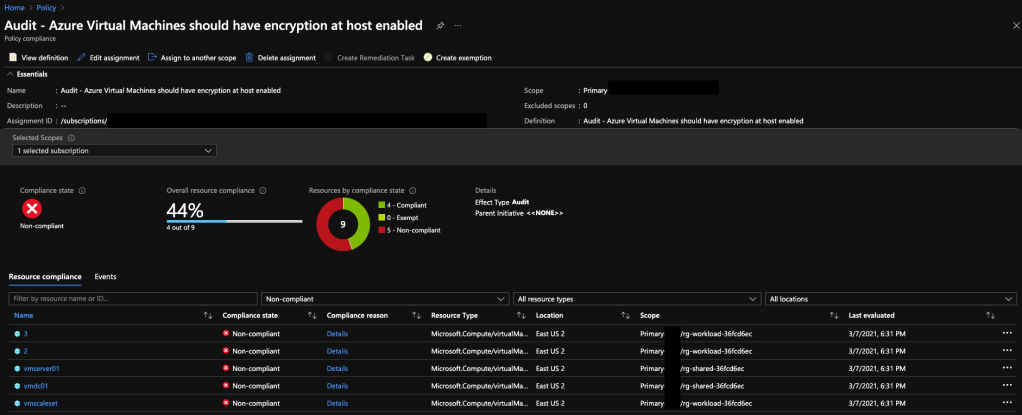
Once evaluation is complete I can go to the Azure Policy blade and the Overview section to see a summary of compliance of the resources.

Clicking into the policy shows me the details of the compliant and non-compliant resources. As expected the VMs, VMSS, and VMSS instances not enabled for encryption at host are reporting as non-compliant. The ones set for host-based encryption report to as compliant.

That’s all there is to it!

So to summarize the tips from the post:

  1. Before you create a new policy check to see if it already exists to save yourself some time. You can check the built-in policies in the Portal, the Microsoft samples, or the community repositories. Alternatively, take a crack it yourself then check your logic versus the logic someone else came up with to practice your policy skills.
  2. Always review the resource properties of a resource instance with that you would want to report on and one you wouldn’t want to report on. This will help make sure you make good use of equals vs exists.
  3. Validate that the properties you want to check are exposed to the Azure Policy engine. To do this check the aliases using CLI, PowerShell, or the Visual Studio add-in.
  4. Create your policy definitions at the management group scope to minimize operational overhead. Beware of tenant and subscription limits for Azure Policy.
  5. Perform significant testing on your policy to validate the policy is reporting on the resources you expect it to.
  6. When you’re new to Azure it’s fine to use the built-in policies directly. However, as your organization matures move away from using them directly and instead create a custom policy with the built-in policy logic. This will help to ensure the logic of your policies only change when you change it.

I hope this post helps you in your Azure Policy journey. The policy in this post and some others I’ve written in the past can be found in this repo. Don’t get discouraged if you struggle at first. It takes time and practice to whip up policies and even then some are a real challenge.

See you next post!

Tips and Tricks for Writing Azure Policy

Tips and Tricks for Writing Azure Policy

Hello geeks!

Over the past few weeks I’ve been working with a customer who has adopted the CIS (Center for Internet Security) controls framework.  CIS publishes a set of best practices and configurations called benchmarks for commonly used systems .  As you would expect there is a set of benchmarks for Microsoft Azure.  Implementing, enforcing, and auditing for compliance with the benchmarks can be a challenge.  Thankfully, this is where Azure Policy comes to the rescue.

Azure Policy works by evaluating the properties of resources (management plane right now minus a few exceptions) created in Azure either during deployment or for resources that have already been deployed.  This means you can stop a user from deploying a non-compliant resource vs addressing it after the fact.  This feature is value added for organizations that haven’t reached that very mature level of DevOps where all infrastructure is codified and pushed through a CI/CD pipeline that performs validation tests before deployment.

Policies are created in JSON format and contain five elements.  For the purposes of this blog post, I’ll be focusing on the policy rule element.  The other elements are straightforward and described fully in the official documentation.  The policy rule contains two sub elements, a logical evaluation and effect.  The logical evaluation uses simple if-then logic.  The if block contains one or more conditions with optional logical operators.  The if block will be where you spend much of your time (and more than likely frustration).

I would liken the challenge of learning how to construct working Azure Policy to the challenge presented writing good AWS IAM Policies.  The initial learning curve is high, but once you get a hang of it, you can craft works of art.  Unfortunately, unlike AWS IAM Policy, there are some odd quirks with Azure Policy right now that are either under documented or not documented.  Additionally, given how much newer Azure Policy is, there aren’t a ton of examples to draw from online for more complicated policies.

This brings us to the purpose of this blog.  While being very very very far from an expert (more like I’m barely passable) on Azure Policy, I have learned some valuable lessons from the past few weeks that I’ve been struggling through writing custom policies.  These are the lessons I want to pass on in hopes they’ll make your journey a bit easier.

    • Just because a resource alias exists, it doesn’t mean you can use it in a policy
      When you are crafting your conditions you’ll use fields which map to properties of Azure resources and describe their state.  There are a selection of fields that are supported, but one you’ll probably use often is the property alias.   You can pull a listing of property aliases using PowerShell, CLI, or the REST API.  Be prepared to format the output because some namespaces have a ton of properties.  I threw together a Python solution to pull the namespaces into a more consumable format.If you are using an alias that is listed but your Policy fails to do what you want it to do, it could be that while the alias exists, it’s not accessible by policy during an evaluation.  If the property belongs to a namespace that contains a property that is sensitive (like a secret) it will more than likely not be accessibly by Policy and hence won’t be caught.  The general rule I follow is if the namespace’s properties aren’t accessible with the Reader Azure RBAC role, policy evaluations won’t pick them up.A good example of this is the authsettings namespace under the Microsoft.Web/sites/config.  Say for example you wanted to check to see if the Web App was using FaceBook as an identity provider, you wouldn’t be able to use policy to check whether or not facebookAppId was populated.
    • Resource Explorer, Azure ARM Template Reference, and Azure REST API Reference are your friends, use them
      When you’re putting together a new policy make sure to use Azure Resource Explorer, Azure ARM Template Reference, and Azure REST API Reference.  The ARM Template Reference is a great tool to use when you are crafting a new policy because it will give you an idea of the schema of the resource you’ll be evaluating.  The Azure REST API Reference is useful when the description of a property is less than stellar in the ARM Template Reference (happens a lot).  Finally, the Azure Resource Explorer is an absolute must when troubleshooting a policy.A peer and I ran into a quirk when authoring a policy to evaluate the runtime of an Azure Web App.  In this instance Azure Web Apps running PHP on Windows were populating the PHP runtime in the phpVersion property while Linux was populating it in the linuxFxVersion property.  This meant we had to include additional logic in the policy to detect the runtimes based on the OS.  Without using Resource Explorer we would never have figured that out.
    • Use on-demand evaluations when building new policies
      Azure Policy evaluations are triggered based upon the set of the events described in this link.  The short of it is unless you want to wait 30 minutes after modifying or assigning a new policy, you’ll want to trigger an on-demand evaluation.  At this time this can only be done with a call to an Azure REST API endpoint.  I’m unaware of a built-in method to do this with Azure CLI or PowerShell.Since I have a lot of love for my fellow geeks, I put together a Python solution you can use to trigger evaluation.  Evaluations take anywhere between 5-10 minutes.  It seems like this takes longer the more policies you have, but that could simply be in my head.
    • RTFM.
      Seriously, read the public documentation.  Don’t jump into this service without spending an hour reading the documentation.  You’ll waste hours and hours of time smashing your head against the keyboard.  Specifically, read through this page to understand how processing across arrays works.  When you first start playing with Azure Policy, you’ll come across policies with double-negatives that will confuse the hell out of you.  Read that link and walk through policies like this one.  You can thank me later.
    • Explore the samples and experiment with them.
      Microsoft has published a fair amount of sample policies in the Azure Policy repo, the built-in policies and initiatives included in the Azure Portal, and the policy samples in the documentation.  I’ve thrown together a few myself and am working on others, so feel free to use them as you please.

Hope the above helps some of you on your journey to learning Azure Policy.  It’s a tool with a ton of potential and will no doubt improve over time.  One of the best ways to help it evolve is to contribute.  If you have some kick ass policies, submit them to get them published to the Azure Policy repo and to give back to the wider community.

Have a great week folks!