AWS Managed Microsoft AD Deep Dive Part 1 – Overview

AWS Managed Microsoft AD Deep Dive  Part 1 – Overview

Welcome back my fellow geeks!

Earlier this year I did a deep dive into Microsoft’s managed Active Directory service, Microsoft Azure Active Directory Domain Services (AAD DS).  I found was a service in its infancy and showing some promise, but very far from being an enterprise-ready service.  I thought it would be fun to look at Amazon’s (which I’ll refer to as Amazon Web Services (AWS) for the rest of the entries in this series) take on a managed Microsoft Active Directory (or as Microsoft is referring to it these days Windows Active Directory).

Unless your organization popped up in the last year or two and went the whole serverless route you are still managing operating systems that require centralized authentication, authorization, and configuration management.  You also more than likely have a ton of legacy/classic on-premises applications that require legacy protocols such as Kerberos and LDAP.  Your organization is likely using Windows Active Directory (Windows AD) to provide these capabilities along with Windows AD’s basic domain name system (DNS) service and centralized identity data store.

It’s unrealistic to assume you’re going to shed all those legacy applications prior to beginning your journey into the public cloud.  I mean heck, shedding the ownership of data centers alone can be a huge cost driver.  Organizations are then faced with the challenge of how to do Windows AD in the public cloud.  Is it best to extend an existing on-premises forest into the public cloud?  What about creating a resource forest with a trust?  Or maybe even a completely new forest with no trust?  Each of these options have positives and negatives that need to be evaluated against organizational requirements across the business, technical, and legal arenas.

Whatever choice you make, it means additional infrastructure in the form of more domain controllers.  Anyone who has managed Windows AD in an enterprise knows how much overhead managing domain controllers can introduce.  Let me clarify that by managing Windows AD, it does not mean opening Active Directory Users and Computers (ADUC) and creating user accounts and groups.  I’m talking about examining performance monitor AD counters and LDAP Debug logs to properly size domain controllers, configuring security controls to comply with PCI and HIPAA requirements or aligning with DISA STIGS, managing updates and patches, and troubleshooting the challenges those bring which requires extensive knowledge of how Active Directory works.  In this day an age IT staff need to be less focused on overhead such as this and more focused on working closely with its business units to drive and execute upon business strategy.  That folks is where managed services shine.

AWS offers an extensive catalog of managed services and Windows AD is no exception.  Included within the AWS Directory Services offerings there is a powerful offering named Amazon Web Services Directory Service for Microsoft Active Directory, or more succinctly AWS Managed Microsoft AD.  It provides all the wonderful capabilities of Windows AD without all of the operational overhead.  An interesting fact is that the service has been around since December 2015 in comparison to Microsoft’s AAD DS which only went into public preview at in 3rd Q 2017.  This head start has done AWS a lot of favors and in this engineer’s opinion, has established AWS Managed Microsoft AD as the superior managed Windows AD service over Microsoft’s AAD DS.  We’ll see why as the series progresses.

Over the course of this series I’ll be performing a similar analysis as I did in my series on Microsoft AAD DS.  I’ll also be examining the many additional capabilities AWS Managed Microsoft AD provides and demoing some of them in action.  My goal is that by the end of this series you understand the technical limitations that come with the significant business benefits of leveraging a managed service.

See you next post!

Integrating Azure AD and AWS – Part 3

Update: In November 2019 AWS introduced support for integration between Azure AD and AWS SSO.  The integration offers a ton more features, including out of the box support for multiple AWS accounts.  I highly recommend you go that route if you’re looking to integrate the two platforms.  Check out my series on the new integration here.

Welcome!  This entry continues my series in the integration of Azure AD and AWS.  In my first entry I covered what the advantages of the integration are.  In the second entry I walked through my lab configuration and went over what happens behind the scenes when an application is added to Azure AD from the application gallery.  In this post I’m going to walk through some of the configuration we need to do in both Azure AD and AWS.  I’ll also be breaking open the Azure AD and AWS metadata and examining the default assertion sent by Microsoft out of the box.

In my last entry I  added the AWS application to my Azure AD tenant from the Azure AD Application Gallery.  The application is now shown as added in the All Applications view of the Azure Active Directory blade for my tenant.

pic1.png

After selecting AWS from the listing of applications I’m presented with a variety of configuration options.  Starting with Properties we’re provided with some general information and configuration options.  We need to ensure that the application is enabled for users to sign-in and that it’s visible to users so we can select it from the access panel later on.  Notice also that that I’m configuring the application to require the user be assigned to the application.pic2

On the Users and groups page I’ve assigned Rick Sanchez to the application to allow the account access and display it on the access panel.

pic3

After waiting about 10 minutes (there is a delay in the time it takes for the application to appear in the application panel) I log into the Access Panel as Rick Sanchez and we can see that the AWS app has been added for Rick Sanchez.

pic4

Back to the properties page of the AWS application, my next stop is the Single sign-on page. Here I drop down the Single Sign-on Mode drop box and select SAML-based Sign-on option. Changing the mode to SAML-based Sign-on exposes a ton of options. The first option that caught my eye was the Amazon Web Services (AWS) Domain and URLs. Take notice of the note that says Amazon Web Services (AWS) is pre-integrated with Azure AD and requires no mandatory URL settings. Yeah, not exactly true as we progress through this series.

pic5.png

Further down we see the section that allows us to configure the unique user identifier and additional attributes.   By default Microsoft includes the name, givenName, surName, and emailAddress claims.  I’ll need to make some changes there to pass the claims Amazon requires, but let’s hold off on that for now.

pic6.png

Next up a copy of the Azure AD metadata (IdP metadata) is provided for download.  Additionally some advanced options are available which provide the capability to sign the SAML response, assertion, or both as well as switching the hash algorithm between SHA1 and SHA256.

pic7.png

Now like any nerd, I want to poke around the IdP metadata and see what the certificate Azure AD is using to sign looks like.  Opening up the metadata in a web browser parses the XML and makes the format look pretty.  From there I grab the contents X509Certificate tag (the base-64 encoded public-key certificate), dump it to Notepad, and renam it with a file extension of cer.  Low and behold, what do we see but a self-signed certificate.  This is a case where I can see the logic that the operational overhead is far greater than the potential security risk.  I mean really, does anyone want to deal with the challenge of hundreds of thousands of customers not understanding the basics of public key infrastructure and worrying about revocation, trust chains, and the like?  You get a pass Microsoft… This time anyway.

pic8.png

Before I proceed with the next step in the configuration, let’s take a look at what the assertion looks like without any of the necessary configuration.  For this I’ll use Fiddler to act as a man-in-the-middle between the client and the web.  In session 6 of the screenshot below we see that the SAML response was returned to the web browser from Azure.

pic9.png

Next up we extract that information with the Text Wizard, base-64 decode it, copy it to Notepad, save it as an XML file, and open it with IE.  The attributes containing values of interest are as follows:

  • Destination – The destination is the service provider assertion consumer URI

pic10.png

  • NameID – This is the unique identifier of the used by the service provider to identify the user accessing the service

pic11.png

  • Recipient– The recipient attribute references the service the assertion is intended for.  Oasis security best practices for SAML require the service provider to verify this attribute match the URI for the service provider assertion consumer URI

pic12.png

  • Audience – The audience attribute in the audienceRestriction section mitigates the threat of the assertion being stolen and used to impersonate a user.  Oasis security best practices require the service provider to verify this when the assertion is received to ensure it is recognizes the identifier.  The way in which this is accomplished is the value in the audience attribute is checked against the service provider EntityID attribute.

pic13.png

Additionally we have some interesting claims including tenantid, objectidentifier of the user object in Azure AD, name, surname, givenname, displayname, identityprovider, and authnmethosreferences.  I don’t think any of these need further explanation.

pic14.png

Let’s now take a look at the AWS (service provider in SAML terms) metadata.  The AWS metadata is available for download from here.  After it’s downloaded it can be opened with IE.

pic15.png

The fields of interest in this set of metadata is:

  • EntityID – The entityID is the unique identifier AWS will provide in its authentication requests.  Let’s note the value of urn:amazon:webservices for later as it will come in handy due to some issues with Microsoft’s default settings.

pic16

  • NameIDFormat – This tells me both transient and persistent are accepted.  I won’t go into details on Name ID format, you can review that for yourself in the Oasis standard.  Suffice to say the Name ID format required by the service provider can throw some wrenches into integrations when using a more basic security token service (STS) like AD FS.

pic17

  • AssertionConsumerService – This is where our browser will post back the SAML assertion after a successful authentication.  Note the URI in the location field.

pic18.png

  • RequestedAttributes – This provides us with a listing of all the attributes AWS will accept in an assertion.  Note that the only two required attributes are Role and RoleSessionName.

We’ve added the AWS application to Azure AD, granted a user access to the application, and have started the SAML setup within Azure AD (Identity Provider).  Let’s continue that setup by configuring which attributes Azure AD will include in the assertions delivered to AWS.  From review of the AWS metadata we know that we need to  send claims of Role and RoleSessionName.  The RoleE will match to an an AWS IAM Role handling authorization of what we can do within AWS and the RoleSessionName provides a unique identifier for the user asserting the entitlement.

Back in the Azure AD Portal I’m going to click the option to View and edit all other user attributes.  The exposes the attributes Microsoft sends by default.  These include givenName, suName, emailAddress, and name.  Since the AWS metadata only requires RoleSessionName and Role, I’m going to delete the other attributes.  No sense in exposing additional information that isn’t needed!

pic19.png

After the extra attributes are deleted I create the two required attributes as seen in the screenshot below.

pic20.png

I’m now going to bounce over to the AWS Management Console.  After logging in I navigate to the Services menu and choose IAM.

pic21.png

On the IAM menu I choose the Identity providers menu item and hit the Create Provider button.

pic22.png

On the next screen I’m required to configure the identity provider settings.  I choose SAML from the drop-down box enter a provider name of MAAD and upload the IdP metadata I downloaded from Azure AD referenced earlier in the blog entry and hit the Next Step button.

pic23.png

On the next page I verify the provider name and the type of identity provider and hit the Create button.  Once that is complete I see the new entry listed in identity providers list.  Easy right?

pic24.png

We have an identity provider, but that identity provider needs some IAM roles to be associated with the identity provider that my fictional users can assert.  For that I go to the Roles section and hit the Create Role button.

pic25.png

On the next screen I select the SAML button as the type of trusted entity since the role is going to be asserted via the SAML trust with Azure AD.  Here I select the MAAD provider and choose the option to allow the users to access both the AWS Management Console and the API and then hit the Next: Permissions button.

pic26.png

As I referenced in my first entry to this series, the role I’m going to create is going to be capable of managing all EC2 instances.  For that I choose the AmazonEC2FullAccess policy template and then hit the Next:Review button.

pic267.png

On the last screen I name the new role AzureADEC2Admins, write a short description, and hit the Create Role button.

pic28.png

The new role is created and can be seen associated to the identity provider representing the trust between AWS and Azure AD.

pic29.png

Let’s sum up what we did for this entry.  We examined the key settings Microsoft exposes for configuration with the AWS integration.  We examined the Azure AD (IdP) and AWS (SP) metadata to understand which settings are important to this integration and what those settings do.  We examined an assertion generated out of Azure AD prior to any of the necessary customization being completed to understand what a canned assertion looks like.  Finally, we completed a majority of the tasks we need to complete on the AWS side to create the SAML trust on the AWS end and to create a role JoG users can asserts.  Are your eyes bleeding yet?

In my last post in this series I’ll walk through the rest of the configuration needed on the Azure AD end.  This will include going over some of the mistakes the Microsoft tutorial makes as well as covering configuration of Azure AD’s provisioning integration as to what it means and how we can effectively configure it.  Finally, we’ll put all the pieces of the puzzle together, assert our identity, and review logs at AWS to see what they look like when a federated user performs actions in AWS.

The journey continues in my fourth entry.
Azure AD User Provisioning – Part 5

Hi everyone. I apologize for the delay in publishing the last post in this series. The past few months have been hectic. For this last post of the year I will be completing the series on provisioning in Azure AD.

As I’ve covered in earlier posts, there are a lot of options when provisioning to Azure AD including multiple GUIs and programmatic options. I’ve covered provisioning in the Azure Management Portal, Azure Portal, Office 365 Admin Center, and Azure Active Directory PowerShell v1 and v2. In this final post I will cover provisioning via the Graph API using a simple ASP .NET web application.

I was originally going to leverage the graph API directly via PowerShell using the .NET ADAL libraries and Invoke-WebRequest cmdlets. I’ve been playing around a lot with Visual Studio creating simple applications like the Azure B2B provisioning app. I decided to challenge myself by adding additional functionality to the ASP .NET web application I assembled in my previous post. I enjoyed the hell out of the process, learned a bunch more about .NET, C#, ASP .NET web apps, and applications built using the MVC architecture. Let’s get to it shall we?

Before we dive into the code and the methodologies I used to put together the application, let’s take a look at it in action. The application starts by requiring authentication to Azure AD.

1

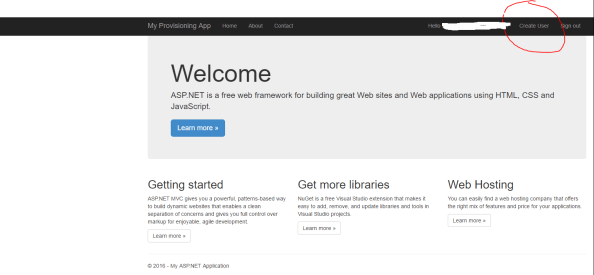
After successful authentication, the main page for the website loads. You’ll notice from the interface that I used the sample ASP .NET MVC Web Application available in Visual Studio but added a new navigation link on the right hand side named Create User.

2

After clicking the Create User link, the user is redirected to a simple (i.e. ugly) web form where information about the new user is collected.

3

After the user hits submit, the new user is created in Azure AD and the information from the returned JWT is parsed and displayed in a table.

4

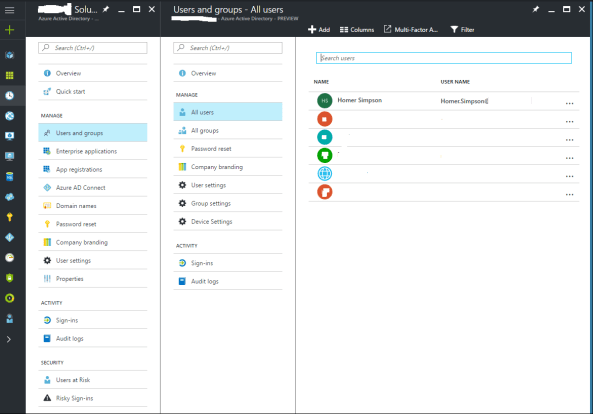
When we navigate to the Azure AD blade in the Azure Portal we see that Homer has been created and added to the system.

clearme

So you’re probably asking the question as to how complicated it was to put this application together? The answer may surprise you. It was incredibly simple. The most difficult part of the process was learning my away around C# and how MVC web apps are put together. For a skilled developer, this would have taken an hour versus the days it took me.

The first thing I did was do some reading into the Graph API, specifically around managing users. Microsoft has a number of great instructions located here and here. After getting familiar with the required inputs and the outputs, I built a new model in my application that would be used for the user form input.

6

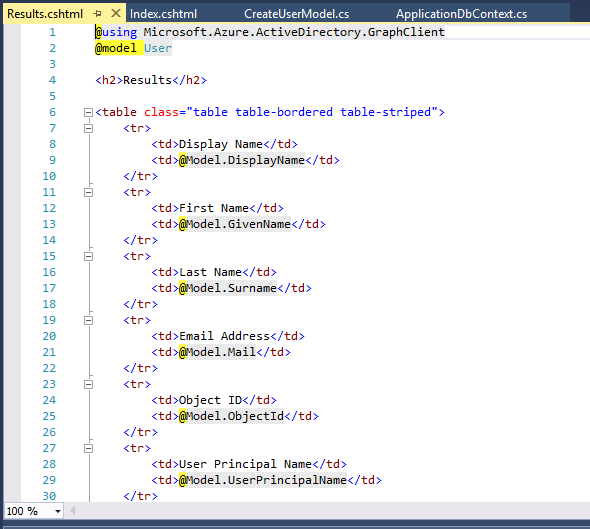
Once I had my new model assembled, I then created two new views under a new folder named Create User. The view named Index is the view that takes the user input and the view named Results is the view that spits back some of the content from the JWT returned from Azure after the user is successfully created. Here is the code for the Index view.

7

And the code for the Results view.

8

After the new views were created, I then moved on to creating the guts of the new functionality with a new controller named CreateUserController. I was able to reuse some of the code from the UserProfileController to obtain the necessary OAuth access token to delegate the rights to the application to create the new user.

9

The remaining code in my controller came from a crash course in programming and MVC web apps. The first section of code calls the task to obtain the access token.

10

The next section of code creates a new instance of the user class and populates the properties with information collected from the form.

11.png

The final section of code attempts to create the new user and displays the results page with information about the user such as objectID and userPrincipalName. If the application is unable to create the user, the exception is caught, and an error page is displayed.

12

But wait… what is missing? I’ll give you a hint, it’s not code.

The answer is the appropriate delegated permissions. Even if the user is a global admin, the application can’t perform the actions of a global admin unless we allow it to. To make this happen, we’ll log into the Azure Portal, access the Azure AD blade, and grant the application the delegated permission to Access the directory as the signed-in user.

13

Simple right? The Azure Active Directory Graph Client libraries make the whole process incredibly easy doing a whole lot with very little code. Imagine integrating this functionality into an existing service catalog. Let’s say you have a business user who needs access to Dynamics CRM Online. The user could navigate to the service catalog and request access. After their manager approvers, the application powering the service catalog could provision the new user, assign the license for Dynamics CRM Online, and drop the user into the appropriate groups. All of this could happen without having to involve IT. This is the value of a simple API with a wonderful set of libraries.

Well folks that wraps up my last post the year. I’ll return next year with a series of deep dives exploring Microsoft’s newly announced Azure AD Pass-through authentication and SSO features. Have a happy holiday!

Azure AD User Provisioning – Part 3

In this entry I’m going to look at how provisioning users differs in the Azure Management Portal and the Azure Portal. The Azure Management portal was used heavily for all Azure administration prior to the introduction of the Azure Resource Manager deployment model a year or so ago. To my knowledge there isn’t much functionality that hasn’t been migrated to the Azure Portal exempting management of Azure Active Directory. This remaining piece is in the process of being moved to the Azure Portal and is currently in public preview with some limitations. This means that if you’re administering Azure AD you’re going to need to use the Management Portal for a while longer.

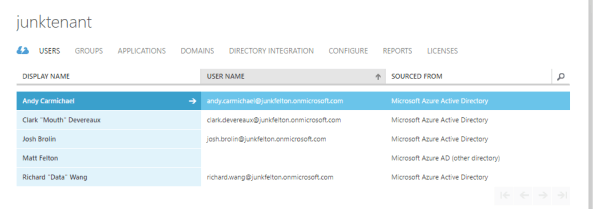
Unlike the Office 365 portal, the Management portal feels very dated. The initial dashboard that appears after authentication will list any classic deployment model resources and directories the authenticated user has control over.

pic10

First I will select one of the directories and dig into the interface. Immediately you’ll notice a number of configuration options available. Since I’m focused on user provisioning, I’ll very briefly describe the purpose of the other sections.

  • Groups – Used to manage the group lifecycle of Azure AD groups
  • Applications – Used to add new applications from the application gallery and register custom and third party applications
  • Domains – Used to manage additional DNS domains that have been associated with the tenant
  • Directory Integration – Used to configure support for synchronization using a tool such as Azure AD Connect
  • Configure – Used to manage the configuration of Azure AD including password reset policies, MFA, device authentication options, group management, who can invite guests, and the like
  • Reports – Used to run the many reports available with standard Azure AD and Azure AD Premium
  • Licenses – Used to assign Azure AD Premium licenses; not sure if any licenses beyond that, but does not seem capable of handling O365 licenses.

Now let’s get back to user provisioning. Next up I’ll head to the Users section. Here there is a listing of all members and guests within the directory.

pic11

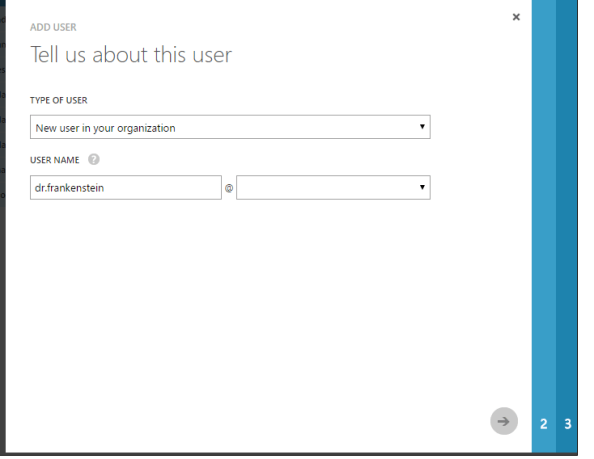
To create a new user I’ll click the Add User icon at the bottom of the page which will bring up the window below where I can configure the user name.

pic12

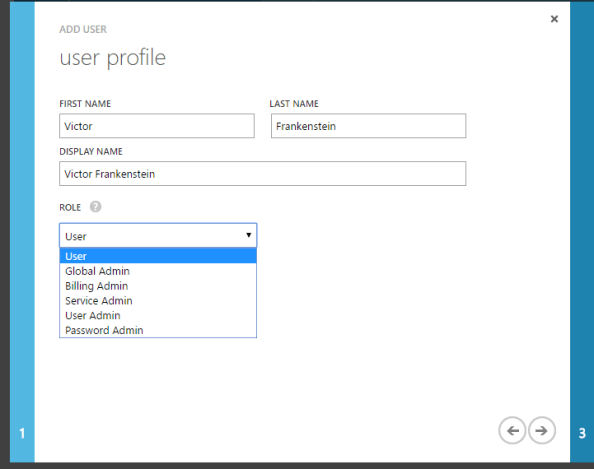
In the next window I will add a first name, last name, display name, and pick a role. Notice anything different? Here the only options to configure the Azure AD roles as described here. There are no Office 365 roles to choose from here. Additionally the user can be enabled for Azure MFA (the checkbox is hidden under the listing of roles).

pic13

In the last window I’m prompted to create an auto-generated temporary password for the user. Notice the option to create a password and enforce password change at first sign in aren’t there like O365? After the create button is hit a password will be automatically generated and will need to be delivered to the user out of band. Quite basic when compared to the Office 365 Admin Center isn’t it?

pic14

After the user is created the user can be modified in the Profile and Work Info sections. Profile is for your basic information and configuration while Work Info is similar to the contact information section in the Office 365 Admin Center with some additional options to configure the users authentication phone number and email address. The Devices and Activity sections providing reporting on the user’s activities.

pic15

Let’s now ditch the old and embrace the new by examining provisioning in the Azure Portal. Prior to a few months back, the only some of the Azure AD functionality could be administered in the Azure Portal including Azure AD Privileged Identity Management, Azure AD Identity Protection, Azure AD Connect Health, Azure AD Cloud App Discovery and Azure AD B2C (which is even mixed with the Management Portal). Microsoft has recently begun to migrate the administration of Azure AD to the Azure Portal to centralize administration of Azure resources.

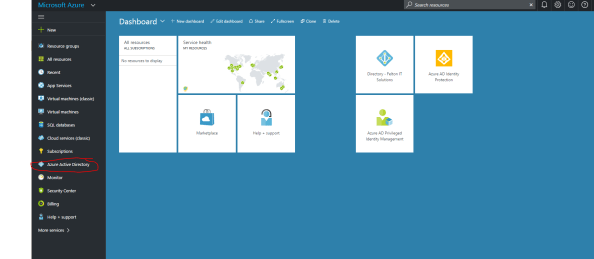
The Azure portal is accessible through by navigating to this link. After authentication the dashboard will load up displaying any resources that have been pinned. Click on the Azure Active Directory blade as highlighted in red in the screenshot below.

pic16

You’ll notice right off the bat that the interface is very slick, is intended for power users, and provides some useful summary analytics. I hadn’t poked around the new blade in a while and it looks like they’ve improved the functionality quite a bit. There doesn’t seem to be much missing beyond the ability to create new directories, assigning licenses, and reviewing the holistic audit logs. One item I did observe which is worth calling out is the app registration interface has been refined and made more slick. This is a big improvement from the similar interface in the Management Portal.

pic17.png

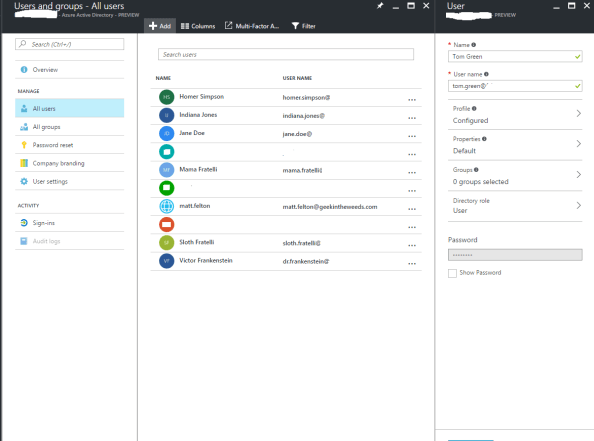
By navigating to the All Users blade and clicking the add button a new user can be created. This will bring up a new blade that allows for basic configuration of key pieces of information like user, first name, last name, job title, description, group membership, and Azure AD roles. The experience is quite similar to the Management Portal experience. Notice that the password again is pre-generated and does not allow setting a customer password or the option to turn off the enforcement of a password change at first login.

pic18

After the user is created it can be modified by clicking on the user which opens a new blade. This new blade allows for contact information about the user to be edited, assignment of Azure AD Roles, and assignment Azure AD group memberships. One neat feature is the Azure Resources option. This opens up a new blade that enumerates the user’s effective access to various Azure resources. Providing reporting on an effective user’s access is one thing Microsoft has never done effectively on-premises so a feature like this is nice to see, especially with the additional complexity the scale of cloud introduces. Finally, you’re provided some options to review the audit logs and sign in reports for the user (another neat feature). Like the Azure Management Portal, there is no quick and easy GUI-based functionality to restore deleted users in the Azure Portal at this time.

pic19

Well folks that is the overview of three out of four of the GUI provisioning methods. The fourth option is to provision natively through an on-premises Active Directory and synchronize those users to the cloud with a synchronization tool such as Azure AD Connect. There is plenty of documentation on what that process looks like already available. If you’re hungry for more, you can check out my previous series Azure Active Directory Connect – Behind the Scenes.

Let’s take a moment to summarize what we’ve learned:

Office 365 Admin Console

  • Simple and ideal for business users and Tier 1 support
  • Limited in its ability to administer Azure AD
  • Only GUI option for assigning Office 365 licenses
  • Only GUI option for assigning Office 365 roles
  • No B2B or B2C support
  • Bulk user creation capabilities
  • Best option for restoration of a deleted user

Azure Management Portal

  • Legacy portal being replace by Azure Portal
  • Only GUI option for creating additional standard and B2C directories
  • Only GUI option for adding B2B users
  • No support for bulk user creation or restoration of deleted users
  • Support of legacy Azure AD configuration items; no support for configuration of B2C policies, Identity Protection, Privileged Identity Management

Azure Portal

  • Future one-stop shop for Azure AD administration
  • Seems to supports all functionality of Azure Management Portal except creation of new directories
  • GUI options for B2C policies, management of Identity Protection, Privileged Identity Management, Azure AD Connect Health, and Azure AD Proxy
  • No GUI option for adding B2B users
  • No support for bulk user creation or restoration of deleted users
  • Analytics built into administrative tools
  • Robust application registration features

So what does this all mean? Well it means that if you need to administer identity functionality via the GUI, you’re going to need to use a combination of the Office 365 Admin Console, the Azure Management Portal, and the Azure Portal. I expect within the next 3-6 months the remaining functionality in Azure Management Portal will be completely migrated to the Azure Portal. Businesses should focus their Tier 1 and business staff on learning the Office 365 Admin Console while Tier 2 and Tier 3 staff should focus on learning the Azure Portal.

Now that I’ve dug into the GUI options, I’ll next explore how the APIs and PowerShell provide opportunities for automation and integration with 3rd party and custom identity management solutions that may already exist on premises. See you then!