Azure AD Pass-through Authentication – How does it work? Part 1

Hi everyone. I decided to take a break from the legacy and jump back to modern. Today I’m going to do some digging into Microsoft’s Azure AD Pass-through Authentication solution. The feature was introduced into public preview in December of 2016 and was touted as the simple and easy alternative to AD FS. Before I jump into the weeds of pass-through authentication, let’s do a high level overview of each option.

I will first cover the AD FS (Active Directory Federation Services) solution. When AD FS is used a solution for authentication to Azure Active Directory, it’s important to remember that AD FS is simply a product that enables the use of a technology to solve a business problem. In this instance the technology we are using is modern authentication (sometimes referred to as claims-based authentication) to solve the business problem of obtaining some level of assurance that a user is who they say they are.

When Azure AD and AD FS are integrated to enable the use of modern authentication, the Windows Services Federation Language (WS-FED) standard is used. You are welcome to read the standard for details, but the gist of WS-FED is a security token service generates logical security tokens (referred to assertions) which contain claims. The claims are typically pulled from a data store (such as Active Directory) and contain information about the user’s identity such as logon ID or email address. The data included in claims has evolved significantly over the past few years to include other data about the context of the user’s device (such as a trusted or untrusted device) and user’s location (coming from a trusted or untrusted IP range). The assertions are signed by the security token service (STS) and delivered to an application (referred to as the relying party) which validates the signature on the assertion, consumes the claims from the assertion, and authorizes the user access to the application.

You may have noticed above that we never talked about a user’s credentials. The reason for that is the user’s credentials aren’t included in the assertion. Prior to the STS generating the assertion, the user needs to authenticate to the STS. When AD FS is used, it’s common for the user to authenticate to the STS using Kerberos. Those of you that are familiar with Active Directory authentication know that a user obtains a Kerberos ticket-granting-ticket during workstation authentication to a domain-joined machine. When the user accesses AD FS (in this scenario the STS) the user provides a Kerberos service ticket. The process to obtain that service ticket, pass it to AD FS, getting an assertion, and passing that assertion back to the Azure AD (relying party in this scenario) is all seamless to the user and results in a true single sign-on experience. Additionally, there is no need to synchronize a user’s Active Directory Domain Services password to Azure AD, which your security folk will surely love.

The challenge presented with using AD FS as a solution is you have yet another service which requires on-premises infrastructure, must be highly available, and requires an understanding of the concepts I have explained above. In addition, if the service needs to be exposed to the internet and be accessible by non-domain joined machines, a reverse proxy (often Microsoft Web Application Proxy in the Microsoft world) which also requires more highly available infrastructure and the understanding of concepts such as split-brain DNS.

Now imagine you’re Microsoft and companies want to limit their on-premises infrastructure and the wider technology mark is slim in professionals that grasp all the concepts I have outlined above. What do you do? Well, you introduce a simple lightweight solution that requires little to no configuration or much understanding of what is actually happening. In come Azure AD Pass-through authentication.

Azure AD Pass-through authentication doesn’t require an STS or a reverse proxy. Nor does it require synchronization of a user’s Active Directory Domain Service password to Azure AD. It also doesn’t require making changes to any incoming flows in your network firewall. Sounds glorious right? Microsoft thinks this as well, hence why they’ve been pushing it so hard.

The user experience is very straightforward where the user plugs in their Active Directory Domain Services username and password at the Azure AD login screen. After the user hits the login screen, the user is logged in and go about their user way. Pretty fancy right? So how does Microsoft work this magic? It’s actually quite complicated but ingeniously implemented to seem incredibly simplistic.

The suspense is building right? Well, you’ll need to wait until my next entry to dig into the delicious details. We’ll be using a variety of tools including a simple packet capturing tool, a web proxy debugging tool, and an incredibly awesome API monitoring tool.

See you next post!

Azure AD User Provisioning – Part 5

Hi everyone. I apologize for the delay in publishing the last post in this series. The past few months have been hectic. For this last post of the year I will be completing the series on provisioning in Azure AD.

As I’ve covered in earlier posts, there are a lot of options when provisioning to Azure AD including multiple GUIs and programmatic options. I’ve covered provisioning in the Azure Management Portal, Azure Portal, Office 365 Admin Center, and Azure Active Directory PowerShell v1 and v2. In this final post I will cover provisioning via the Graph API using a simple ASP .NET web application.

I was originally going to leverage the graph API directly via PowerShell using the .NET ADAL libraries and Invoke-WebRequest cmdlets. I’ve been playing around a lot with Visual Studio creating simple applications like the Azure B2B provisioning app. I decided to challenge myself by adding additional functionality to the ASP .NET web application I assembled in my previous post. I enjoyed the hell out of the process, learned a bunch more about .NET, C#, ASP .NET web apps, and applications built using the MVC architecture. Let’s get to it shall we?

Before we dive into the code and the methodologies I used to put together the application, let’s take a look at it in action. The application starts by requiring authentication to Azure AD.

1

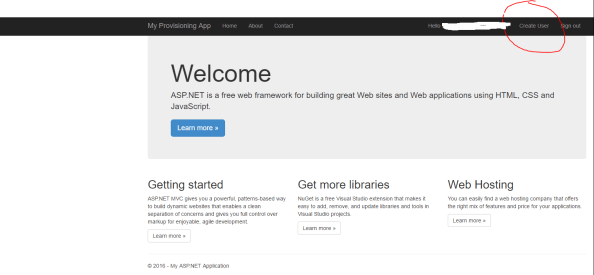
After successful authentication, the main page for the website loads. You’ll notice from the interface that I used the sample ASP .NET MVC Web Application available in Visual Studio but added a new navigation link on the right hand side named Create User.

2

After clicking the Create User link, the user is redirected to a simple (i.e. ugly) web form where information about the new user is collected.

3

After the user hits submit, the new user is created in Azure AD and the information from the returned JWT is parsed and displayed in a table.

4

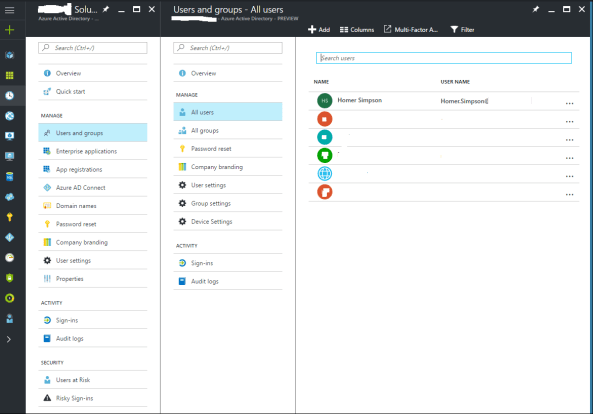
When we navigate to the Azure AD blade in the Azure Portal we see that Homer has been created and added to the system.

clearme

So you’re probably asking the question as to how complicated it was to put this application together? The answer may surprise you. It was incredibly simple. The most difficult part of the process was learning my away around C# and how MVC web apps are put together. For a skilled developer, this would have taken an hour versus the days it took me.

The first thing I did was do some reading into the Graph API, specifically around managing users. Microsoft has a number of great instructions located here and here. After getting familiar with the required inputs and the outputs, I built a new model in my application that would be used for the user form input.

6

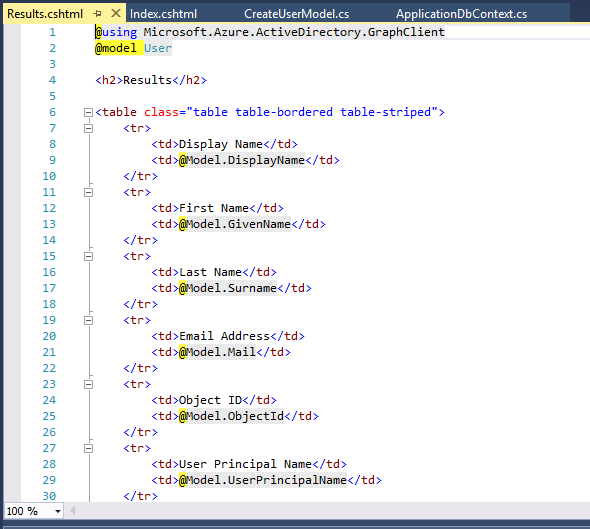
Once I had my new model assembled, I then created two new views under a new folder named Create User. The view named Index is the view that takes the user input and the view named Results is the view that spits back some of the content from the JWT returned from Azure after the user is successfully created. Here is the code for the Index view.

7

And the code for the Results view.

8

After the new views were created, I then moved on to creating the guts of the new functionality with a new controller named CreateUserController. I was able to reuse some of the code from the UserProfileController to obtain the necessary OAuth access token to delegate the rights to the application to create the new user.

9

The remaining code in my controller came from a crash course in programming and MVC web apps. The first section of code calls the task to obtain the access token.

10

The next section of code creates a new instance of the user class and populates the properties with information collected from the form.

11.png

The final section of code attempts to create the new user and displays the results page with information about the user such as objectID and userPrincipalName. If the application is unable to create the user, the exception is caught, and an error page is displayed.

12

But wait… what is missing? I’ll give you a hint, it’s not code.

The answer is the appropriate delegated permissions. Even if the user is a global admin, the application can’t perform the actions of a global admin unless we allow it to. To make this happen, we’ll log into the Azure Portal, access the Azure AD blade, and grant the application the delegated permission to Access the directory as the signed-in user.

13

Simple right? The Azure Active Directory Graph Client libraries make the whole process incredibly easy doing a whole lot with very little code. Imagine integrating this functionality into an existing service catalog. Let’s say you have a business user who needs access to Dynamics CRM Online. The user could navigate to the service catalog and request access. After their manager approvers, the application powering the service catalog could provision the new user, assign the license for Dynamics CRM Online, and drop the user into the appropriate groups. All of this could happen without having to involve IT. This is the value of a simple API with a wonderful set of libraries.

Well folks that wraps up my last post the year. I’ll return next year with a series of deep dives exploring Microsoft’s newly announced Azure AD Pass-through authentication and SSO features. Have a happy holiday!

Azure AD ASP .NET Web Application

Hi all. Before I complete my series on Azure AD Provisioning with a look at how provisioning works with the Graph API, I want to take a detour and cover some Microsoft Visual Studio. Over the past month I’ve been spending some time building very basic applications.

As I’ve covered previously in my blog, integration is going to the primary responsibility of IT Professionals as more infrastructure shifts to the cloud. Our success at integration will largely depend on how well we understand the technologies, our ability to communicate what business problems these technologies can solve, and our understanding of how to help developers build applications to consume these technologies. In my own career, I’ve spent a significant time on all of the above except the last piece. That is where I’m focusing now.

Recently I built a small.NET forms application that integrated with the new Azure AD B2B API. Over the past few days I’ve been spending time diving with to ASP .NET Web Applications built with an MVC architecture. I decided to build an small MVC application that performed queries against the Graph API, and wow was it easy. There was little to no code that I had to provide myself and “it just worked”. You can follow these instructions if you’d like to play with it as well. If you’ve read this blog, you know I don’t do well with things that just work. I need to know how it works.

If you follow the instructions in the above link you will have a ASP .NET Web Application that is integrated with your Azure AD tenant, uses Azure AD for authentication via the Open ID Connect protocol, and is capable of reading directory data from the Graph API uses OAuth 2.0. So how is all this accomplished? What actually happened? What protocol is being used for authentication, how does the application query for directory data? Those are the questions I’ll focus on answering in this blog post.

Let’s first answer the question as to what Visual Studio did behind the scenes to integrate the application with Azure AD. In the explanation below I’ll be using the technology terms (OAuth 2.0 and Open ID Connect) in parentheses to translate the Microsoft lingo. During the initialization process Visual Studio communicated with Azure AD (Authorization Server) and registered (registration) the application (confidential client) with Azure AD as a Web App and gave it the delegated permissions (scopes) of “Sign in and read user profile” and “Read directory data”.

In addition to the registration of the application in Azure AD, a number of libraries and code have been added to the project that make the authentication and queries to the Graph API “out of the box”. All of the variables specific to the application such as Client ID, Azure AD Instance GUID, application secret key are stored in the web.config. The Startup.cs has the simple code that adds Open ID Connect authentication. Microsoft does a great job explaining the Open ID Connect code here. In addition to the code to request the Open ID Connect authentication, there is code to exchange the authorization code for an access token and refresh token for the Graph API as seen below with my comments.

AuthorizationCodeReceived = (context) =>
{
var code = context.Code;
// MF -> Create a client credential object with the Client ID and Application key
ClientCredential credential = new ClientCredential(clientId, appKey);
// MF -> Extract the access token from cache and generate an authentication context from it
string signedInUserID = context.AuthenticationTicket.Identity.FindFirst(ClaimTypes.NameIdentifier).Value;
AuthenticationContext authContext = new AuthenticationContext(Authority, new ADALTokenCache(signedInUserID));
// MF -> Acquire a token by submitting the authorization code, providing the URI that is registered for the application, the application secret key, and the resource (in this scenario the Graph API)
AuthenticationResult result = authContext.AcquireTokenByAuthorizationCode(
code, new Uri(HttpContext.Current.Request.Url.GetLeftPart(UriPartial.Path)), credential, graphResourceId);
return Task.FromResult(0);
}

Now that the user has authenticated and the application has a Graph API access token, I’ll hop over to the UserProfileController.cs. The code we’re concerned about in here is below with my comments.


{
Uri servicePointUri = new Uri(graphResourceID);
Uri serviceRoot = new Uri(servicePointUri, tenantID);
ActiveDirectoryClient activeDirectoryClient = new ActiveDirectoryClient(serviceRoot, async () => await GetTokenForApplication());
// MF -> Use the access token previous obtained to query the Graph API
var result = await activeDirectoryClient.Users.Where(u => u.ObjectId.Equals(userObjectID)).ExecuteAsync();
IUser user = result.CurrentPage.ToList().First();
return View(user);
}

Next I’ll hop over to the UserProfile view to look at the Index.cshtml. In this file a simple table is constructed that returns information about the user from the Graph API. I’ve removed some of the pesky HTML and replaced it with the actions.


@using Microsoft.Azure.ActiveDirectory.GraphClient
@model User
@{
ViewBag.Title = "User Profile";
}
"CREATE TABLE"
"TABLE ROW"
Display Name
@Model.DisplayName
"TABLE ROW"
First Name
@Model.GivenName
"TABLE ROW"
Last Name
@Model.Surname
"TABLE ROW"
Email Address
@Model.Mail

Simple right? I can expand that table to include any attribute exposed via the Graph API. As you can see in the above, I’ve added email address to the display. Now that we’ve reviewed the code, let’s cover the steps the application takes and what happens in each step:

  1. App accesses https://login.microsoftonline.com//.well-known/openid-configuration
    • Get OpenID configuration for Azure AD
  2. App accesses https://login.microsoftonine.com/common/discovery/keys
    • Retrieve public-keys used to verify signature of open id connect tokens
  3. User’s browser directed to https://login.microsoftonline.com//oauth2/authorize
    • Request an open id connect id token and authorization code for user’s profile information
  4. User’s browser directed to https://login.microsoftonline.com//login
    • User provides credentials to AAD and receives back
      1. id token
      2. access code for graph API with Directory.Read, User.Read scope
  5. User’s browser directed back to application
    • Return id token and access code to application
      1. id token authenticates user to application
      2. Access code for graph API with Directory.Read, User.Read scope temporarily stored
  6. Application accesses https://login.microsftonine.com//oauth2/token
    • Exchanges access code for bearer token
  7. Application sends OData query to Graph API and attaches bearer token.

That’s it folks! In my next post I will complete the Azure AD Provisioning series with a simple ASP .NET Web app that provisions new users into Azure AD.

Azure AD User Provisioning – Part 4

Today I will continue my series in Azure AD User Provisioning. In previous posts I looked at the GUI methods of provisioning users. I’ll now begin digging into the methods that provide opportunities for programmatic management of a user’s identity management lifecycle. For this post we’ll cover every IT Professional’s favorite Microsoft topic, PowerShell.

Microsoft has specific PowerShell modules for administration of Azure Active Directory. Microsoft is in the process of transitioning from the MSOnline (Azure Active Directory PowerShell v1) to the AzureAD module (Azure Active Directory PowerShell v2). At this time the AzureAD PowerShell module is in public preview with plans to migrate all the functionality from the MSOnline module to the AzureAD module. Until that point there will be some activities you’ll need to do in the MSOnline cmdlets.
Creating a new user using the MSOnline module (lovely referred to as the “msol” cmdlets) is a quick and easy simple line of code:

New-MsolUser -userPrincipalName user@sometenant.com -DisplayName "Some User"

The user can then be modified by using cmlets such as Set-MSolUser, Set-MsolUserLicense, Set-MsolUserPrincipalName, Set-MsolUserPassword, Remove-MsolUser. Using this set of cmdlets you can assign and un-assign user licenses and manage the identity lifecycle of the user account.

There are some subtle differences in the MSOnline and AzureAD cmdlets. These differences arise due to Microsoft’s drive to make the experience using PowerShell in the Azure AD module similar to the experience of using the Graph API. The AzureAD cmdlets are much more full featured in comparison to the MSOnline cmdlets. Close to every aspect of Azure AD can be managed across the board beyond just users. Here is an example of how you would create a user with the new cmdlets:

New-AzureADUser -UserPrincipalName user@sometenant.com -AccountEnabled $False -DisplayName "user" -PasswordProfile $UserPasswordProfile

You’ll notice a few differences when we compare the minimum options required when creating a user with the MSOnline cmdlets. As you’ll notice above, there are not just more required options, but one that make look unfamiliar called PasswordProfile. The Password profile option configures the user’s password and whether or not the user is going to be forced to change the password at next login. I struggled a bit with getting the cmdlet to accept the PasswordProfile, but the documentation on the Azure Graph API and a Microsoft blog that provided some information. It can be set with the following lines of code:

$UserPasswordProfile = "" | Select-Object password,forceChangePasswordNextLogin
$UserPasswordProfile.forceChangePasswordNextLogin $true
$UserPasswordProfile.password = "some password"

So what is the big difference between the MSOnline and AzureAD cmdlets? Well it comes down to the API each uses to interact with Azure AD. The MSOnline (aka Azure AD PowerShell v1) uses the old SOAP API. Oddly enough it uses the same SOAP API that Azure AD Connect uses. If you’ve read my Azure AD Connect – Behind the Scenes series, you’ll know notice the similarities in the Fiddler capture below.

pica-1

The AzureAD cmdlets (aka Azure AD PowerShell v2) uses the Graph API. In the Fiddler capture below you can see the authentication to Azure AD, obtaining of the authorization code, exchange for bearer token, and delivery of the bearer token to the graph API for the user information on Dr. Frakenstein. Check out the screenshot from Fiddler below:

picb

As you can see, PowerShell presents a powerful method of managing Azure AD and its resources. Given how familiar IT professionals are with PowerShell, it presents a ton of opportunities for automation and standardization without a significant learning curve. Microsoft’s move to having PowerShell leverage the power of the Graph API will help IT professionals leverage the power of the Graph API without having to break out Visual Studio.

In my next post I’ll write a simple application in Visual Studio to demonstrate the simplicity of integration with the Graph API and the opportunities that could be presented to integrating with existing toolsets.