Authentication in Azure OpenAI Service

This is part of my series on the Azure OpenAI Service:

  1. Azure OpenAI Service – Infra and Security Stuff
  2. Azure OpenAI Service – Authentication
  3. Azure OpenAI Service – Authorization
  4. Azure OpenAI Service – Logging
  5. Azure OpenAI Service – Azure API Management and Entra ID
  6. Azure OpenAI Service – Granular Chargebacks
  7. Azure OpenAI Service – Load Balancing
  8. Azure OpenAI Service – Blocking API Key Access
  9. Azure OpenAI Service – Securing Azure OpenAI Studio
  10. Azure OpenAI Service – Challenge of Logging Streaming ChatCompletions
  11. Azure OpenAI Service – How To Get Insights By Collecting Logging Data
  12. Azure OpenAI Service – How To Handle Rate Limiting
  13. Azure OpenAI Service – Tracking Token Usage with APIM
  14. Azure AI Studio – Chat Playground and APIM
  15. Azure OpenAI Service – Streaming ChatCompletions and Token Consumption Tracking
  16. Azure OpenAI Service – Load Testing

Updates:

  • 1/18/2024 to reference considerable library changes with new API version. See below for details
  • 4/3/2023 with simpler way to authenticate with Azure AD via Python SDK

Hello again!

1/18/2024 Update – Hi folks! There were some considerable changes to the OpenAI Python SDK which offers an even simpler integration with the Azure OpenAI Service. While the code in this post is a bit dated, I feel the thought process is still important so I’m going to preserve it as is! If you’re looking for examples of how to authenticate with the Azure OpenAI Service using the Python SDK with different types of authentication (service principal vs managed identity) or using the REST API, I’ve placed a few examples in this GitHub repository. Hope it helps!

Days and nights have been busy diving deeper into the AI landscape. I’ve been reading a great book by Tom Taulli called Artificial Intelligence Basics: A Non-Technical Introduction. It’s been a huge help in getting down the vocabulary and understanding the background to the technology from the 1950s on. In combination with the book, I’ve been messing around a lot with Azure’s OpenAI Service and looking closely at the infrastructure and security aspects of the service.

In my last post I covered the controls available to customers to secure their specific instance of the service. I noted that authentication to the service could be accomplished using Azure Active Directory (AAD) authentication. In this post I’m going to take a deeper look at that. Be ready to put your geek hat on because this post will be getting down and dirty into the code and HTTP transactions. Let’s get to it!

Before I get into the details of how supports AAD authentication, I want to go over the concepts of management plane and data plane. Think of management plane for administration of the resource and data plane for administration of the data hosted within the resource. Many services in Azure have separate management planes and data planes. One such service is Azure Storage which just so happens to have similarities with authentication to the OpenAI Service.

When a customer creates an Azure Storage Account they do this through interaction with the management plane which is reached through the ARM API hosted behind management.azure.come endpoint. They must authenticate against AAD to get an access token to access the API. Authorization via Azure RBAC then takes place to validate the user, managed identity, or service principal has permissions on the resource. Once the storage account is created, the customer could modify the encryption key from a platform managed key (PMK aka key managed by Microsoft) to a customer managed key (CMK), enable soft delete, or enable network controls such as the storage firewall. These are all operations against the resource.

Once the customer is ready to upload blob data to the storage account, they will do this through a data plane operation. This is done through the Blob Service API. This API is hosted behind the blob.core.windows.net endpoint and operations include creation of a blob or deletion of a blob. To interact with this API the customer has two means of authentication. The first method is the older method of the two and involves the use of static keys called storage account access keys. Every storage account gets two of these keys when a storage account is provisioned. Used directly, these keys grant full access to all operations and all data hosted within the storage account (SAS tokens can be used to limit the operations, time, and scope of access but that won’t be relevant when we talk the OpenAI service). Not ideal right? The second method is the recommended method and that involves AAD authentication. Here the security principal authenticates to AAD, receives an access token, and is then authorized for the operation via Azure RBAC. Remember, these are operations against the data hosted within the resource.

Authentication in Management Plane vs Data Plane in Azure Storage

Now why did I give you a 101 on Azure Storage authentication? Well, because the Azure OpenAI Service works in a very similar way.

Let’s first talk about the management plane of the Azure OpenAI Service. Like Azure Storage (and the rest of Azure’s services) it is administered through the ARM API behind the management.azure.com endpoint. Customers will use the management plane when they want to create an instance of the Azure OpenAI Service, switch it from a PMK to CMK, or setup diagnostic settings to redirect logs (I’ll cover logging in a future post). All of these operations will require authentication to AAD and authorization via Azure RBAC (I’ll cover authorization in a future post).

Simple right? Now let’s move to the complexity of the data plane.

Two API keys are created whenever a customer creates an Azure OpenAI Service instance. These API keys allow the customer full access to all data plane operations. These operations include managing a deployment of a model, managing training data that has been uploaded to the service instance and used to fine tune a model, managing fine tuned models, and listing available models. These operations are performed against the Azure OpenAI Service API which lives behind a unique label with an FQDN of openai.azure.com (such as myservice.openai.azure.com). Pretty much all the stuff you would be doing through the Azure OpenAI Studio. If you opt to use these keys you’ll need to remember control access to these keys via securing management plane authorization aka Azure RBAC.

Azure OpenAI Service API Keys

In the above image I am given the option to regenerate the keys in the case of compromise or to comply with my organization’s key rotation process. Two keys are provided to allow for continued access to the service while other key is being rotated.

Here I have simple bit of code using the OpenAI Python SDK. In the code I provide a prompt to the model and ask it to complete it for me and use one of the API keys to authenticate to it.

import logging
import sys
import os
import openai

def main():
    # Setup logging
    try:
        logging.basicConfig(
            level=logging.ERROR,
            format='%asctime)s - %(name)s - %(levelname)s - %(message)s',
            handlers=[logging.StreamHandler(sys.stdout)]
        )
    except:
        logging.error('Failed to setup logging: ', exc_info=True)

    try:

        # Setup OpenAI Variables
        openai.api_type = "azure"
        openai.api_base = os.getenv('OPENAI_API_BASE')
        openai.api_version = "2022-12-01"
        openai.api_key = os.getenv('OPENAI_API_KEY')

        response = openai.Completion.create(
            engine=os.getenv('DEPLOYMENT_NAME'),
            prompt='Once upon a time'
        )

        print(response.choices[0].text)

    except:
        logging.error('Failed to respond to prompt: ', exc_info=True)


if __name__ == "__main__":
    main()

The model gets creative and provides me with the response below.
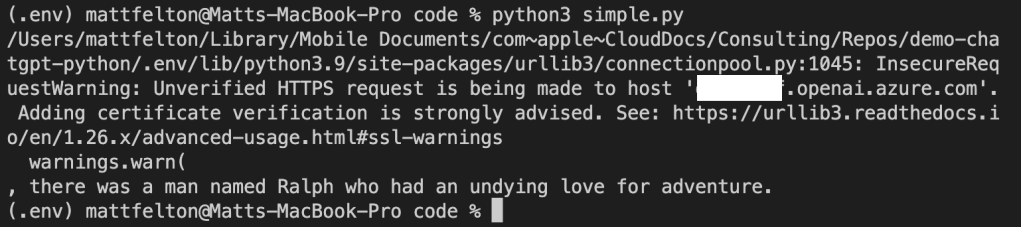
If you look closely you’ll notice an warning about the security of my session. The reason I’m getting that error is shut off certificate verification in the OpenAI library in order to intercept the calls with Fiddler. Now let me tell you, shutting off certificate verification was a pain in the ass because the developers of the SDK are trying to protect users from the bad guys. Long story short, the Azure Python SDK doesn’t provide an option to turn off certificate checking like say the Azure Python SDK (which you can pass a kwarg of verify=False to turn it off in the request library used underneath). While the developers do provide a property called verify_ssl_certs, it doesn’t actually do anything. Since most Python SDKs use the requests library underneath the hood, I went through the library on my machine and found the api_requestor.py file. Within this file I modified the _make_session function which is creating a requests Sessions object. Here I commented out the developers code and added the verify=False property to the Session object being created.

Turning off certificate verification in OpenAI Python SDK

Now don’t go and do this in any environment that matters. If you’re getting a certificate verification failure in your environment you should be notifying your information security team. Certificate verification is an absolute must to ensure the identity of the upstream server and to mitigate the risk of man-in-the-middle attacks.

Once I was able to place Fiddler in the middle of the HTTPS session I was able to capture the conversation. In the screenshot below, you can see the SDK passing the api-key header. Take note of that header name because it will become relevant when we talk AAD authentication. If you’re using OpenAI’s service already, then this should look very familiar to you. Microsoft was nice enough to support the existing SDKs when using one of the API keys.

At this point you’re probably thinking, “That’s all well and good Matt, but I want to use AAD authentication for all the security benefits AAD provides over a static key.” Yeah yeah, I’m getting there. You can’t blame me for nerding out a bit with Fiddler now can you?

Alright, so let’s now talk AAD authentication to the data plane of the Azure OpenAI Service. Possible? Yes, but with some caveats. The public documentation illustrates an example of how to do this using curl. However, curl is great for a demonstration of a concept, but much more likely you’ll be using an SDK for your preferred programming language. Since Python is really the only programming language I know (PowerShell doesn’t count and I don’t want to show my age by acknowledging I know some Perl) let me demonstrate this process using our favorite AAD SDK, MSAL.

For this example I’m going to use a service principal, but if your code is running in Azure you should be using a managed identity. When creating the service principal I granted it the Cognitive Services User RBAC role on the resource group containing the Azure OpenAI Service instance as suggested in the documentation. This is required to authorize the service principal access to data plane operations. There are a few other RBAC roles for the service, but as I said earlier, I’ll cover authorization in a future post. Once the service principal was created and assigned the appropriate RBAC role, I modified my code to include a function which calls MSAL to retrieve an access token with the access scope of Cognitive Services, which the Azure OpenAI Service falls under. I then pass that token as the API key in my call to the Azure OpenAI Service API.

import logging
import sys
import os
import openai
from msal import ConfidentialClientApplication

def get_sp_access_token(client_id, client_credential, tenant_name, scopes):
    logging.info('Attempting to obtain an access token...')
    result = None
    print(tenant_name)
    app = ConfidentialClientApplication(
        client_id=client_id,
        client_credential=client_credential,
        authority=f"https://login.microsoftonline.com/{tenant_name}",
    )
    result = app.acquire_token_for_client(scopes=scopes)

    if "access_token" in result:
        logging.info('Access token successfully acquired')
        return result['access_token']
    else:
        logging.error('Unable to obtain access token')
        logging.error(f"Error was: {result['error']}")
        logging.error(f"Error description was: {result['error_description']}")
        logging.error(f"Error correlation_id was: {result['correlation_id']}")
        raise Exception('Failed to obtain access token')

def main():
    # Setup logging
    try:
        logging.basicConfig(
            level=logging.ERROR,
            format='%asctime)s - %(name)s - %(levelname)s - %(message)s',
            handlers=[logging.StreamHandler(sys.stdout)]
        )
    except:
        logging.error('Failed to setup logging: ', exc_info=True)

    try:
        # Obtain an access token
        token = get_sp_access_token(
            client_id = os.getenv('CLIENT_ID'),
            client_credential = os.getenv('CLIENT_SECRET'),
            tenant_name = os.getenv('TENANT_ID'),
            scopes = "https://cognitiveservices.azure.com/.default"
        )
    except:
        logging.error('Failed to obtain access token: ', exc_info=True)

    try:
        # Setup OpenAI Variables
        openai.api_type = "azure"
        openai.api_base = os.getenv('OPENAI_API_BASE')
        openai.api_version = "2022-12-01"
        openai.api_key = token

        response = openai.Completion.create(
            engine=os.getenv('DEPLOYMENT_NAME'),
            prompt='Once upon a time'
        )

        print(response.choices[0].text)

    except:
        logging.error('Failed to summarize file: ', exc_info=True)


if __name__ == "__main__":
    main()

Let’s try executing that and see what happens.

Uh-oh! What happened? If you recall from earlier the API key is passed in the api-key header. However, to use the access token provided by AAD we have to pass it in the authorization header as seen in the example in Microsoft public documentation.

curl ${endpoint%/}/openai/deployments/YOUR_DEPLOYMENT_NAME/completions?api-version=2022-12-01 \
-H "Content-Type: application/json" \
-H "Authorization: Bearer $accessToken" \
-d '{ "prompt": "Once upon a time" }'

Thankfully there is a solution to this one without requiring you to modify the OpenAI SDK. If you take a look in the api_requestor.py file again in the library you will see it provides the ability to override the headers passed in the request.

With this in mind, I made a few small modifications. I removed the api_key property and added an Authorization header to the request to the Azure OpenAI Service API which includes the access token received back from AAD.

import logging
import sys
import os
import openai
from msal import ConfidentialClientApplication

def get_sp_access_token(client_id, client_credential, tenant_name, scopes):
    logging.info('Attempting to obtain an access token...')
    result = None
    print(tenant_name)
    app = ConfidentialClientApplication(
        client_id=client_id,
        client_credential=client_credential,
        authority=f"https://login.microsoftonline.com/{tenant_name}",
    )
    result = app.acquire_token_for_client(scopes=scopes)

    if "access_token" in result:
        logging.info('Access token successfully acquired')
        return result['access_token']
    else:
        logging.error('Unable to obtain access token')
        logging.error(f"Error was: {result['error']}")
        logging.error(f"Error description was: {result['error_description']}")
        logging.error(f"Error correlation_id was: {result['correlation_id']}")
        raise Exception('Failed to obtain access token')

def main():
    # Setup logging
    try:
        logging.basicConfig(
            level=logging.ERROR,
            format='%asctime)s - %(name)s - %(levelname)s - %(message)s',
            handlers=[logging.StreamHandler(sys.stdout)]
        )
    except:
        logging.error('Failed to setup logging: ', exc_info=True)

    try:
        # Obtain an access token
        token = get_sp_access_token(
            client_id = os.getenv('CLIENT_ID'),
            client_credential = os.getenv('CLIENT_SECRET'),
            tenant_name = os.getenv('TENANT_ID'),
            scopes = "https://cognitiveservices.azure.com/.default"
        )
    except:
        logging.error('Failed to obtain access token: ', exc_info=True)

    try:
        # Setup OpenAI Variables
        openai.api_type = "azure"
        openai.api_base = os.getenv('OPENAI_API_BASE')
        openai.api_version = "2022-12-01"

        response = openai.Completion.create(
            engine=os.getenv('DEPLOYMENT_NAME'),
            prompt='Once upon a time',
            headers={
                'Authorization': f'Bearer {token}'
            }
            

        )

        print(response.choices[0].text)

    except:
        logging.error('Failed to summarize file: ', exc_info=True)


if __name__ == "__main__":
    main()

Running the code results in success!

4/3/2023 Update – Poking around today looking at another aspect of the service, I came across this documentation on an even simpler way to authenticate with Azure AD without having to use an override. In the code below, I specify an openai.api_type of azure_ad which allows me to pass the token direct via the openai_api_key property versus having to pass a custom header. Definitely a bit easier!

import logging
import sys
import os
import openai
from msal import ConfidentialClientApplication

def get_sp_access_token(client_id, client_credential, tenant_name, scopes):
    logging.info('Attempting to obtain an access token...')
    result = None
    print(tenant_name)
    app = ConfidentialClientApplication(
        client_id=client_id,
        client_credential=client_credential,
        authority=f"https://login.microsoftonline.com/{tenant_name}",
    )
    result = app.acquire_token_for_client(scopes=scopes)

    if "access_token" in result:
        logging.info('Access token successfully acquired')
        return result['access_token']
    else:
        logging.error('Unable to obtain access token')
        logging.error(f"Error was: {result['error']}")
        logging.error(f"Error description was: {result['error_description']}")
        logging.error(f"Error correlation_id was: {result['correlation_id']}")
        raise Exception('Failed to obtain access token')

def main():
    # Setup logging
    try:
        logging.basicConfig(
            level=logging.ERROR,
            format='%asctime)s - %(name)s - %(levelname)s - %(message)s',
            handlers=[logging.StreamHandler(sys.stdout)]
        )
    except:
        logging.error('Failed to setup logging: ', exc_info=True)

    try:
        # Obtain an access token
        token = get_sp_access_token(
            client_id = os.getenv('CLIENT_ID'),
            client_credential = os.getenv('CLIENT_SECRET'),
            tenant_name = os.getenv('TENANT_ID'),
            scopes = "https://cognitiveservices.azure.com/.default"
        )
        print(token)
    except:
        logging.error('Failed to obtain access token: ', exc_info=True)

    try:
        # Setup OpenAI Variables
        openai.api_type = "azure_ad"
        openai.api_base = os.getenv('OPENAI_API_BASE')
        openai.api_key = token
        openai.api_version = "2022-12-01"

        response = openai.Completion.create(
            engine=os.getenv('DEPLOYMENT_NAME'),
            prompt='Once upon a time '
        )

        print(response.choices[0].text)

    except:
        logging.error('Failed to summarize file: ', exc_info=True)


if __name__ == "__main__":
    main()

Let me act like I’m ChatGPT and provide you a summary of what we learned today.

  • The Azure OpenAI Service has both a management plane and data plane.
  • The Azure OpenAI Service data plane supports two methods of authentication which include static API keys and Azure AD.
  • The static API keys provide full permissions on data plane operations. These keys should be rotated in compliance with organizational key rotation policies.
  • The OpenAI SDK for Python (and I’m going to assume the others) sends an api-key header by default. This behavior can be overridden to send an Authorization header which includes an access token obtained from Azure AD.
  • It’s recommended you use Azure AD authentication where possible to leverage all the bells and whistles of Azure AD including the usage of managed identities, improved logging, and conditional access for service principal-based access.

Well folks, that concludes this post. I’ll be uploading the code sample above to my GitHub later this week. In the next batch of posts I’ll cover the authorization and logging aspects of the service.

I hope you got some value and good luck in your AI journey!

AWS Managed Microsoft AD Deep Dive Part 2 – Setup

AWS Managed Microsoft AD Deep Dive  Part 2 – Setup

Today I’ll continue my deep dive into AWS Managed Microsoft AD.  In the last blog post I provided an overview of the reasons an organization would want to explore a managed service for Windows Active Directory (Windows AD).  In this post I’ll be providing an overview of my lab environment and demoing how to setup an instance of AWS Managed Microsoft AD and seamlessly joining a Windows EC2 instance.

Let’s dive right into it.

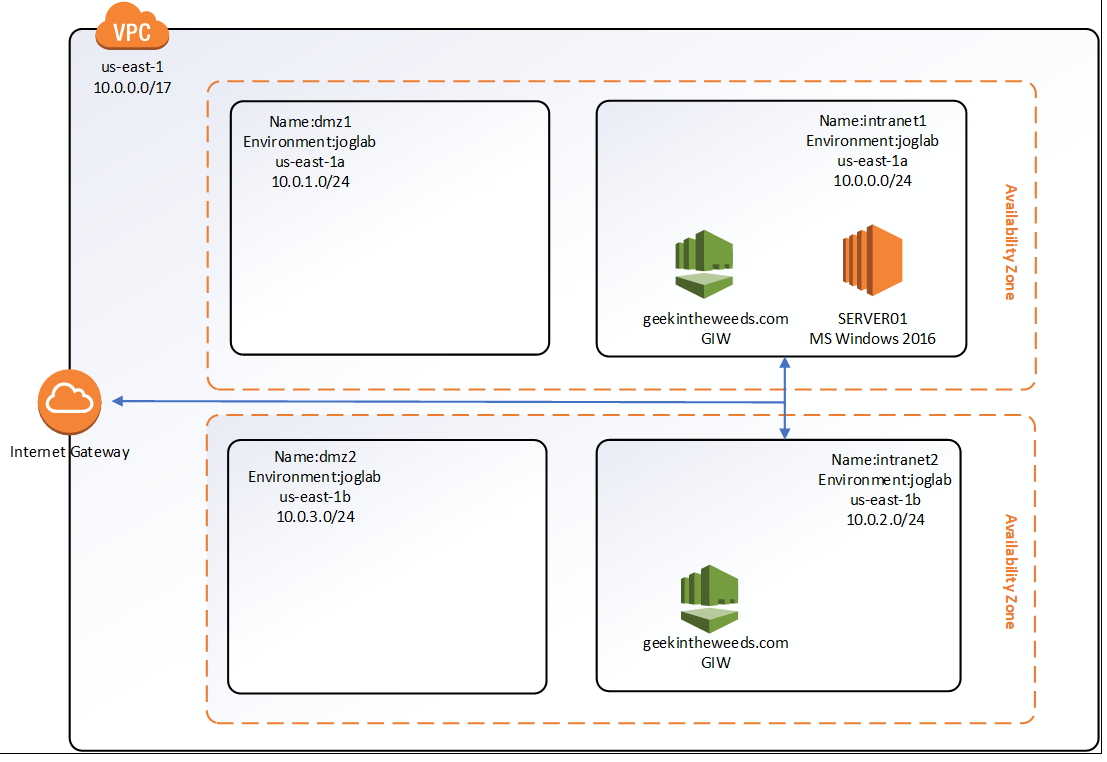
Let’s first cover what I’ll be using as a lab.  Here I’ve setup a virtual private cloud (VPC) with default tenancy which is a requirement to use AWS Managed Microsoft AD.  The VPC has four subnets configured within it named intranet1, intranet2, dmz1, and dmz2.  The subnets intranet1/dmz1 and intranet2/dmz2 provide us with our minimum of two availability zones, which is another requirement of the service.  I’ve created a route table that routes traffic destined for IP ranges outside the VPC to an Internet Gateway and applied that route table to both the intranet1 and intranet2 subnets.  This will allow me to RDP to the EC2 instances I create.  Later in the series I’ll configure VPN connectivity with my on-premises lab to demonstrate how the managed AD can be used on-prem.  Below is a simple Visio diagraming the lab.

1awsadds1.png

To create a new instance of AWS Managed Microsoft AD, I’ll be using the AWS Management Console.  After successfully logging in, I navigate to the Services menu and select the Directory Service link under the Security, Identity & Compliance section as seen below.

1awsadds2.png

The Directory Service page then loads which is a launching pad for configuration of the gamut of AWS Directory Services including AWS Cloud Directory, Simple AD, AD Connector, Amazon Cognito, and of course AWS Managed Microsoft AD.  Any directory instance that you’ve created would appear in the listing to the right.  To create a new instance I select the Set up Directory button.

1awsadds3.png

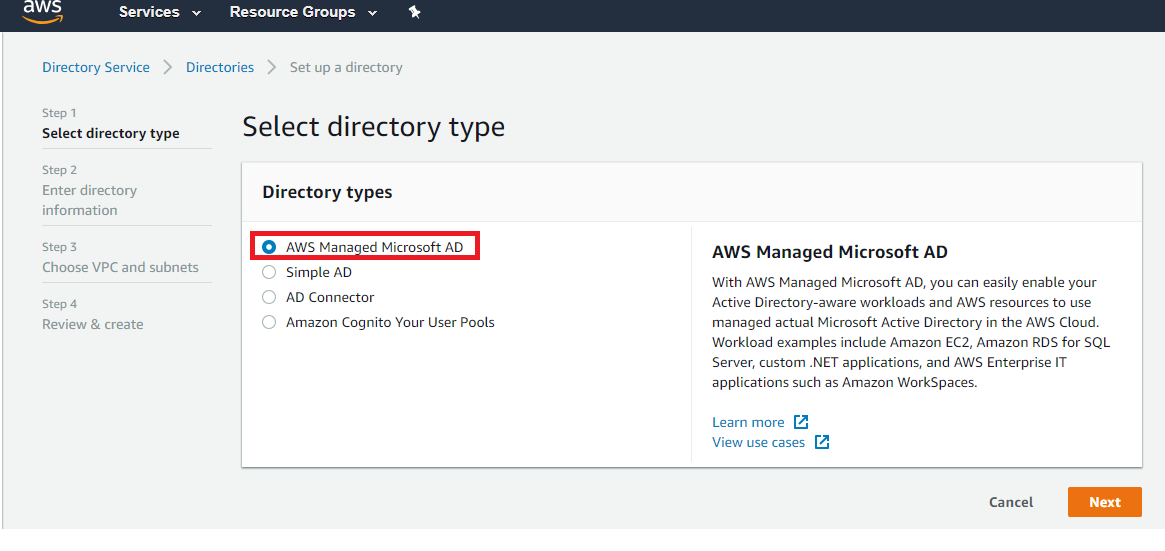
The Set up a directory page loads and I’m presented with the options to create an instance of AWS Managed Microsoft AD, Simple AD, AD Connector, or an Amazon Cognito User Pool.  Before I continue, I’ll provide the quick and dirty on the latter three options.  Simple AD is actually Samba made to emulate some of the capabilities of Windows Active Directory.  The AD Connector acts as a sort of proxy to interact with an existing Windows Active Directory.  I plan on a future blog series on that one.  Amazon Cognito is Amazon’s modern authentication solution (looks great for B2C)  providing Open ID Connect, OAuth 2.0, and SAML services to applications.  That one will warrant a future blog series as well.  For this series we’ll be select the AWS Managed Microsoft AD option and clicking the Next button.

1awsadds4.png

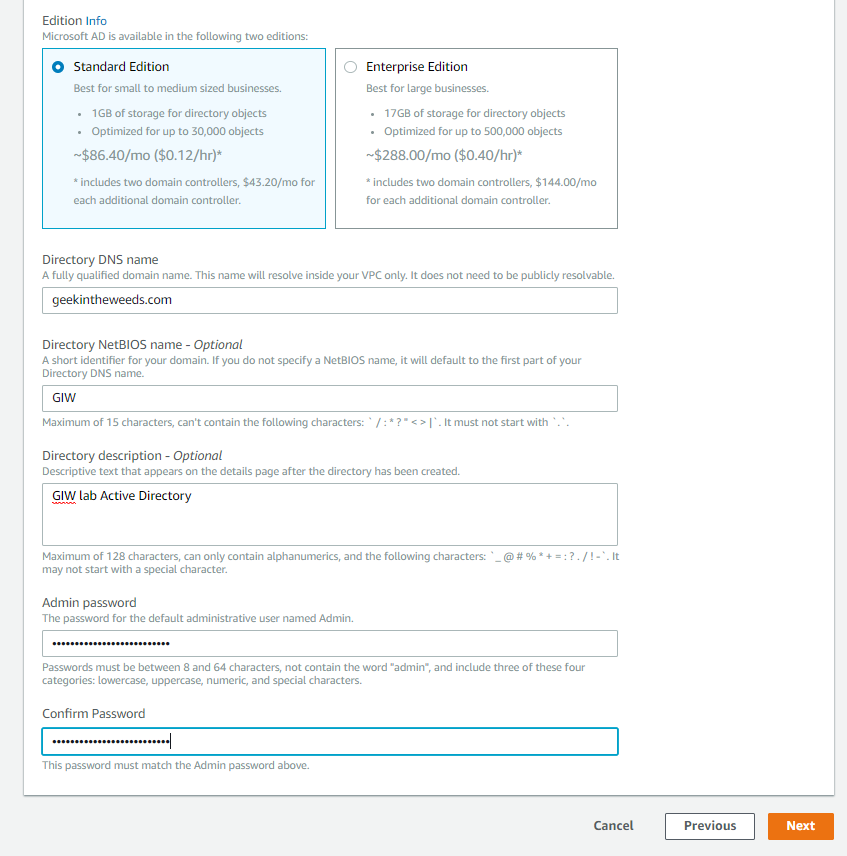
A new page loads where we configure the directory information.  Here I’m given the option to choose between a standard or enterprise offering of the service.  Beyond storage I’ve been unable to find or pull any specifications of the EC2 instances Amazon is managing in the background for the domain controllers.  I have to imagine Enterprise means more than just 16GB of storage and would include additional memory and CPU.  For the purposes of this series, I’ll be selecting Standard Edition.

Next I’ll provide the key configuration details for forest which includes the fully qualified domain name (FQDN) for the forest I want created as well as optionally specifying the NetBIOS name.  The Admin password set here is used for the delegated administrator account Amazon creates for the customer.  Make sure this password is securely stored, because if it’s lost Amazon has no way of recovering it.

1awsadds5.png

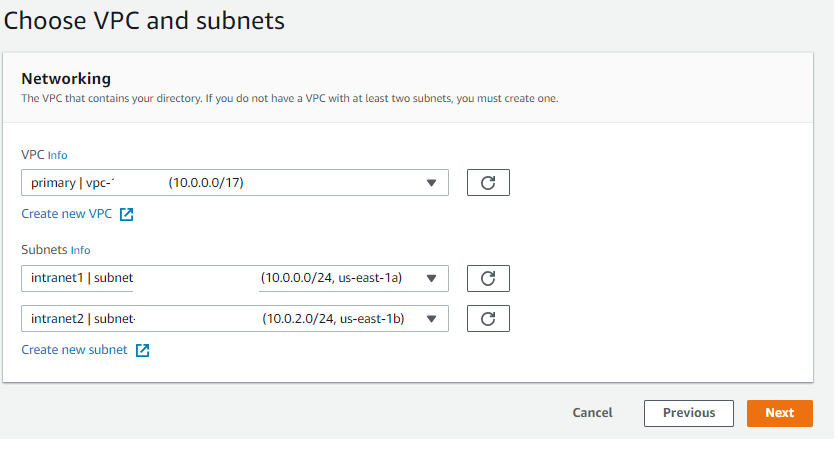
After clicking the Next button I’m prompted to select the virtual private cloud (VPC) I want to service deployed to.  The VPC used must include at least two subnets that are in different availability zones.  I’ll be using the intranet1 and intranet2 subnets shown in my lab diagram earlier in the post.

1awsadds6.png

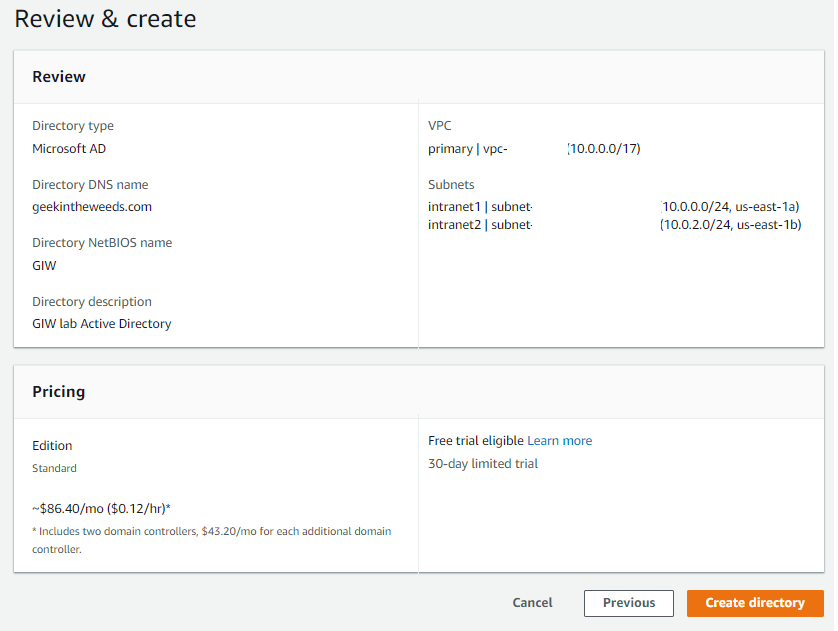
The next page that loads provides the details of the instance that will be provisioned.  Once I’m satisfied the configuration is correct I select the Create Directory button to spin up the service.

1awsadds7.png

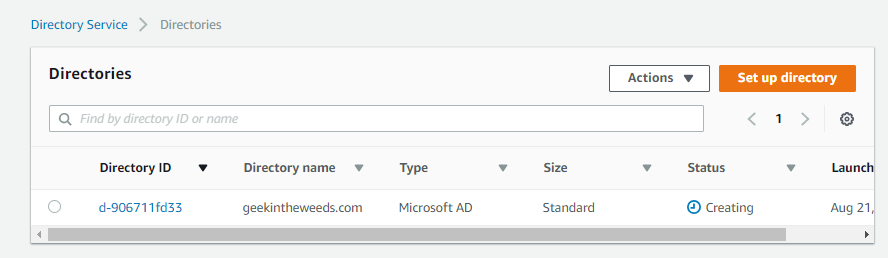
Amazon states it takes around 20 minutes or so to spin up the instance, but my experience was more like 30-45 minutes.  The main Directories Services page displays the status of the directory as Creating.  As part of this creation a new Security Group will be created which acts as a firewall for the managed domain controllers.  Unlike some organization that try to put firewalls between domain-join clients and domain controllers, Amazon has included all the necessary flows and saves  you a ton of troubleshooting with packet captures.

1awsadds8

One of the neat features offered with this service is the ability to seamlessly domain-join Windows EC2 instances during creation.  Before that feature can be leveraged an AWS Identity and Access Management (IAM) role needs to setup that has the AmazonEC2RoleforSSM attached to it.  AWS IAM is by far my favorite feature of AWS.  At a very high level, you can think of AWS IAM as being the identity service for the management of AWS resources.  It’s insanely innovative and flexible in its ability to integrate with modern authentication solutions and in how granular you can be in defining rights and permissions to AWS resources.  I could do multiple series just covering the basics (which I plan to do in the future) but to progress this entry let me briefly explain AWS IAM Roles.  Think of an AWS IAM Role as a unique security principal similar to a user but without any credentials. The role is assigned a set of rights and permissions which AWS refers to as a policy.  The role is then assumed by a human (such as federated user) or non-human (such as EC2 instance) granting the entity the rights and permissions defined in the policy attached to the role.  In this scenario the EC2 instance I create will be assuming the AmazonEC2RoleforSSM.  This role grants a number of rights and permissions within AWS’s Simple System Manager (SSM), which for your Microsoft-heavy users is a scaled down SCCM.  It requires this role to orchestrate the domain-join upon instance creation.

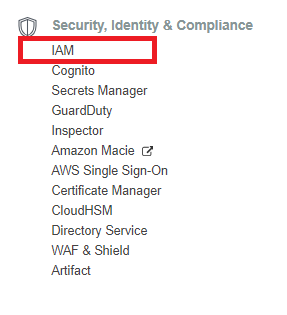
To create the role I’ll open back up the Services menu and select IAM from the Security, Identity & Compliance menu.

1awsadds9.png

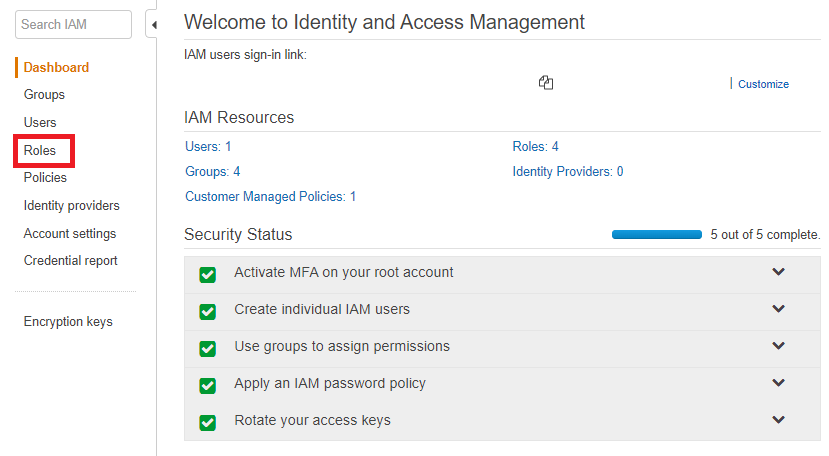
The IAM dashboard will load which provides details as to the number of users, groups, policies, roles, and identity providers I’ve created.  From the left-hand menu I’ll select the Roles link.

1awsadds10.png

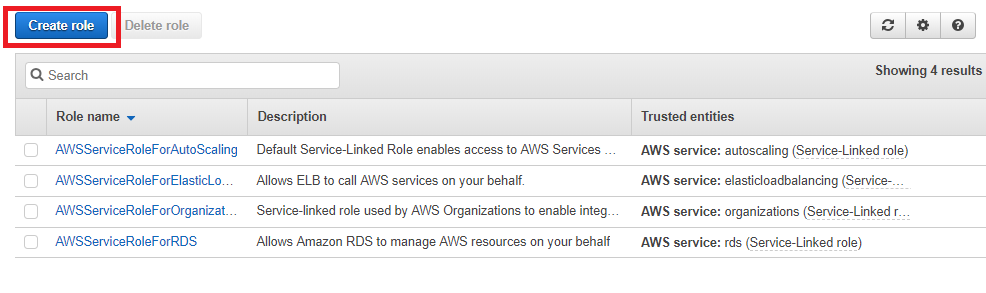
The Role page then loads and displays the Roles configured for my AWS account. Here I’ll select the Create Role button to start the role creation process.

1awsadds11.png

The Create Role page loads and prompts me to select a trusted entity type.  I’ll be using this role for EC2 instances so I’ll select the AWS service option and chose EC2 as the service that will use the role.  Once both options are selects I select the Next: Permission button.

1awsadds12.png

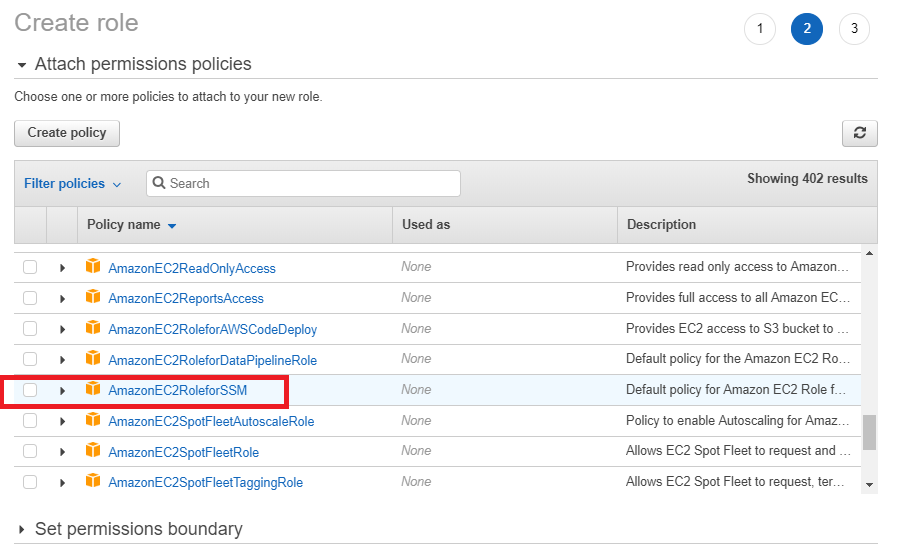
Next up we need to assign a policy to the role.  We can either create a new policy or select an existing one.  For seamless domain-join with AWS Managed Microsoft AD, EC2 instances must use the AmazonEC2forSSM policy.  After selecting the policy I select the Next: Review button.

1awsadds13.png

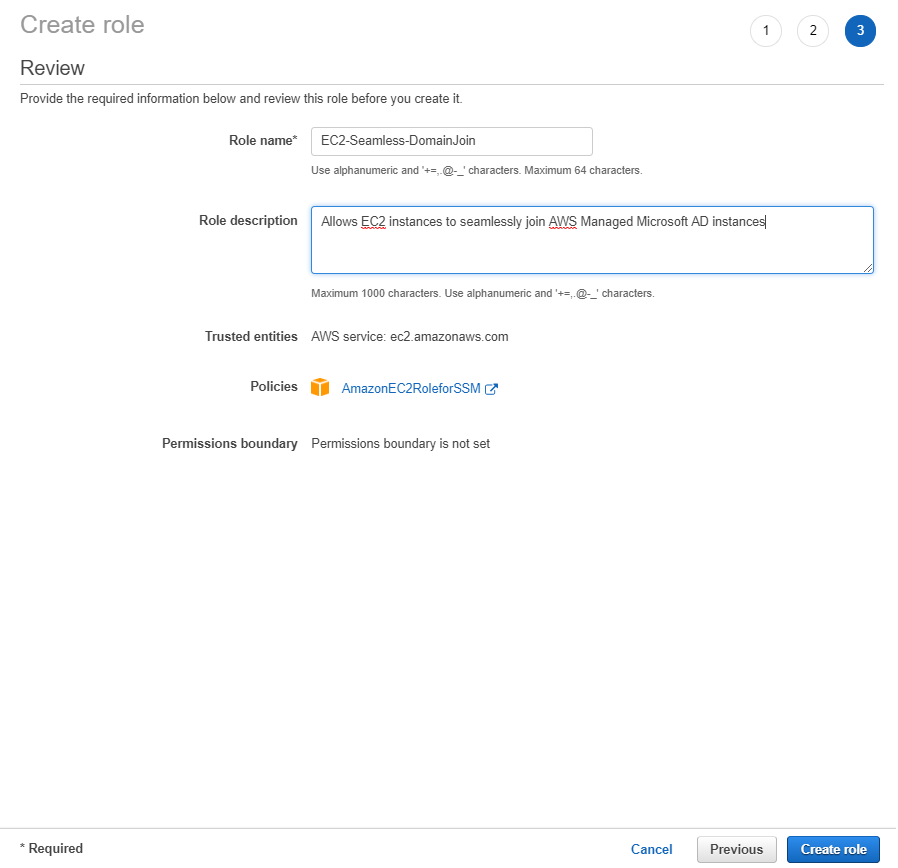
On the last page I’ll name the role, set a description, and select the Create role button. The role is then provisioned and available for use.

1awsadds14.png

Navigating back to the Directory Services page, I can see that the geekintheweeds.com instance is up and running. This means we can now create some EC2 instances and seamlessly join them to the domain.

1awsadds15.png

The EC2 instance creation is documented endless on the web, so I won’t waste time walking through it beyond showing the screenshot below which displays the options for seamless domain-join. The EC2 instance created will be named SERVER01.

1awsadds16.png

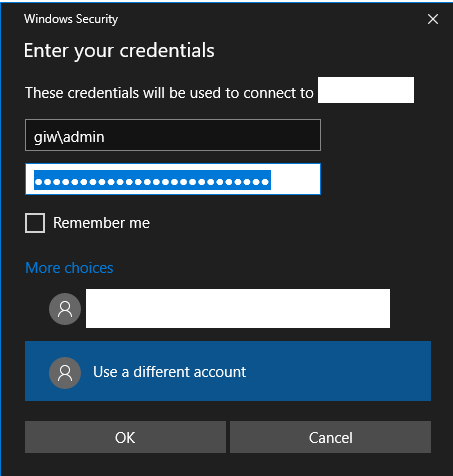
After a few minutes the instance is ready to go. I start the Remote Desktop on my client machine and attempt a connection to the EC2 instance using the Admin user and credentials I set for the AD domain.

1awsadds17.png

Low and behold I’m logged into the EC2 instance using my domain credentials!

1awsadds18.png

As you can see setup of the service and EC2 instances is extremely simple and could made that much more simple if we tossed out the GUI and leveraged cloud formation templates to seamlessly spin up entire environments at a push of a button.

We covered a lot of content in this entry so I’ll close out here.  In the next entry I’ll examine the directory structure Amazon creates including the security principals and key permissions.

See you next post!


Deep Dive into Azure AD Domain Services – Part 2

Deep Dive into Azure AD Domain Services  – Part 2

Welcome back to part 2 of my series on Microsoft’s managed services offering of Azure Active Directory Domain Services (AAD DS).  In my first post I covered so some of the basic configuration settings of the a default service instance.  In this post I’m going to dig a bit deeper and look at network flows, what type of secure tunnels are available for LDAPS, and examine the authentication protocols and supporting cipher suites are configured for the service.

To perform these tests I leveraged a few different tools.  For a port scanner I used Zenmap.  To examine the protocols and cipher suites supported by the LDAPS service I used a custom openssl binary running on an Ubuntu VM in Azure.  For examination of the authentication protocol support I used Samba’s smbclient running on the Ubuntu VM in combination with WinSCP for file transfer, tcpdump for packet capture, and WireShark for packet analysis.

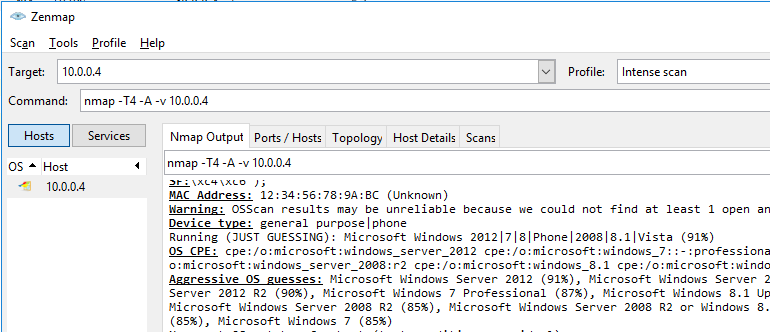
Let’s start off with examining the open ports since it takes the least amount of effort.  To do that I start up Zenmap and set the target to one of the domain controllers (DCs) IP addresses, choose the intense profile (why not?), and hit scan.  Once the scan is complete the results are displayed.

2aad1

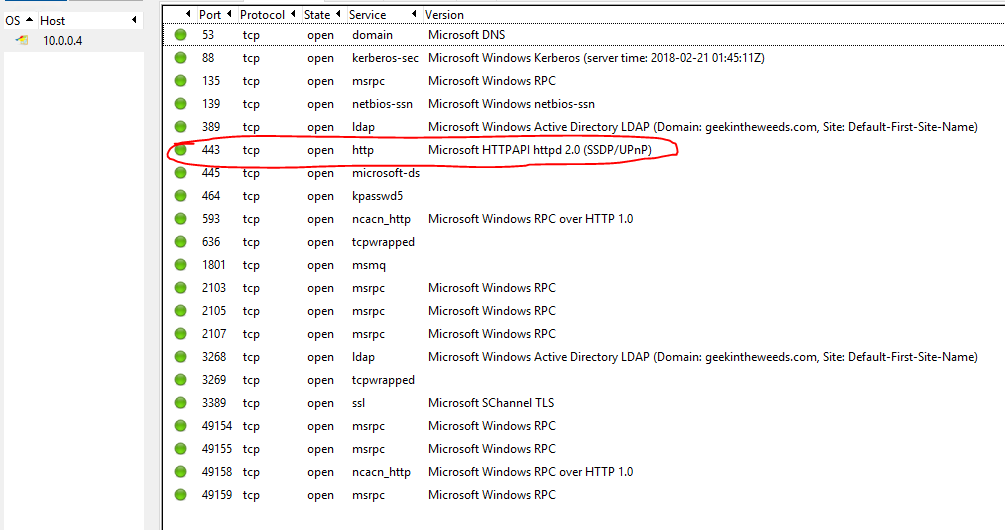
Navigating to the Ports / Hosts tab displays the open ports. All but one of them are straight out of the standard required ports you’d see open on a Windows Server functioning as an Active Directory DC.  An opened port 443 deserves more investigation.

2aad2.png

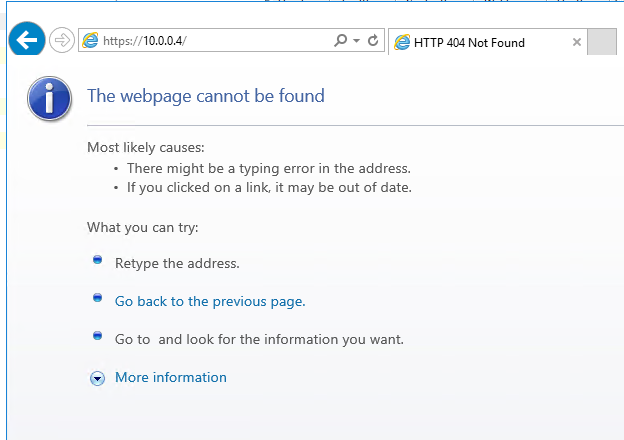
Let’s start with the obvious and attempt to hit the IP over an HTTPS connection but no luck there.

2aad3.png

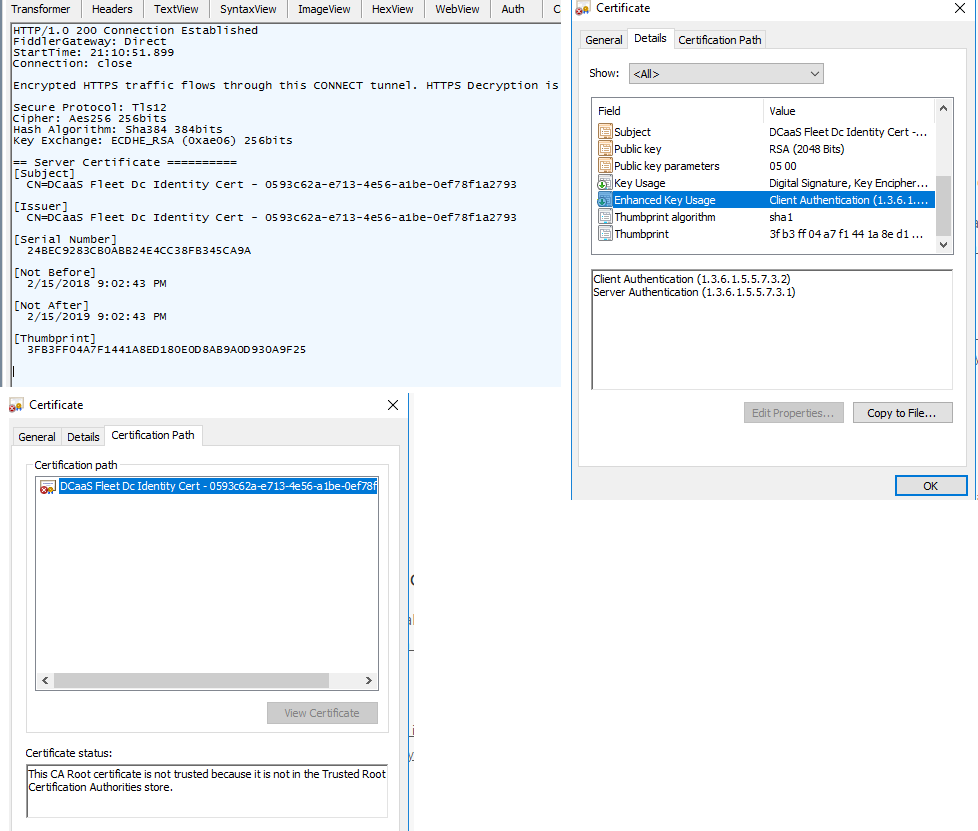
Let’s break out Fiddler and hit it again.  If we look at the first session where we build the secure tunnel to the website we see some of the details for the certificate being used to secure the session.  Opening the TextView tab of the response shows a Subject of CN=DCaaS Fleet Dc Identity Cert – 0593c62a-e713-4e56-a1be-0ef78f1a2793.  Domain Controller-as-a-Service, I like it Microsoft.  Additionally Fiddler identifies the web platform as the Microsoft HTTP Server API (HTTP.SYS).  Microsoft has been doing a lot more that API since it’s much more lightweight than IIS.  I wanted to take a closer look at the certificate so I opened the website in Dev mode in Chrome and exported it.  The EKUs are normal for a standard use certificate and it’s self-signed and untrusted on my system.  The fact that the certificate is untrusted and Microsoft isn’t rolling it out to domain-joined members tells me whatever service is running on the port isn’t for my consumption.

So what’s running on that port?  I have no idea.  The use of the HTTP Server API and a self-signed certificate with a subject specific to the managed domain service tells me it’s providing access to some type of internal management service Microsoft is using to orchestrate the managed domain controllers.  If anyone has more info on this, I’d love to hear it.

2aad4.png

Let’s now take a look at how Microsoft did at securing LDAPS connectivity to the managed domain.  LDAPS is not enabled by default in the managed domain and needs to be configured through the Azure AD Domain Services blade per these instructions.  Oddly enough Microsoft provides an option to expose LDAPS over the Internet.  Why any sane human being would ever do this, I don’t know but we’ll cover that in a later post.

I wanted to test SSLv3 and up and I didn’t want to spend time manipulating registry entries on a Windows client so I decided to spin up an Ubuntu Server 17.10 VM in Azure.  While the Ubuntu VM was spinning up, I created a certificate to be used for LDAPS using the PowerShell command referenced in the Microsoft article and enabled LDAPS through the Azure AD Domain Services resource in the Azure Portal.  I did not enable LDAPS for the Internet for these initial tests.

After adding the certificate used by LDAPS to the trusted certificate store on the Windows Server, I opened LDP.EXE and tried establishing LDAPS connection over port 636 and we get a successful connection.

2aad5.png

Once I verified the managed domain was now supporting LDAPS connections I switched over to the Ubuntu box via an SSH session.  Ubuntu removed SSLv3 support in the OpenSSL binary that comes pre-packaged with Ubuntu so to test it I needed to build another OpenSSL binary.  Thankfully some kind soul out there on the Interwebz documented how to do exactly that without overwriting the existing version.  Before I could build a new binary I had to add re-install the Make package and add the Gnu Compiler Collection (GCC) package using the two commands below.

  • sudo apt-get install –reinstall make
  • sudo apt-get install gcc

After the two packages were installed I built the new binary using the instructions in the link, tested the command, and validated the binary now includes SSLv3.

2aad6.png

After Poodle hit the news back in 2014, Microsoft along with the rest of the tech industry advised SSLv3 be disabled.  Thankfully this basic well known vulnerability has been covered and SSLv3 is disabled.

2aad7.png

SSLv3 is disabled, but what about TLS 1.0, 1.1, and 1.2?  How about the cipher suites?  Are they aligned with NIST guidance?  To test that I used a tool named TestSSLServer by Thomas Pornin.  It’s a simple command line tool which makes cycling through the available cipher suites quick and easy.

2aad8.png

The options I chose perform the following actions:

  • -all -> Perform an “exhaustive” search across cipher suites
  • -t 1 -> Space out the connections by one second
  • -min tlsv1 -> Start with TLSv1

The command produces the output below.

TLSv1.0:
server selection: enforce server preferences
3f- (key: RSA) ECDHE_RSA_WITH_AES_256_CBC_SHA
3f- (key: RSA) ECDHE_RSA_WITH_AES_128_CBC_SHA
3f- (key: RSA) DHE_RSA_WITH_AES_256_CBC_SHA
3f- (key: RSA) DHE_RSA_WITH_AES_128_CBC_SHA
3– (key: RSA) RSA_WITH_AES_256_CBC_SHA
3– (key: RSA) RSA_WITH_AES_128_CBC_SHA
3– (key: RSA) RSA_WITH_3DES_EDE_CBC_SHA
3– (key: RSA) RSA_WITH_RC4_128_SHA
3– (key: RSA) RSA_WITH_RC4_128_MD5
TLSv1.1: idem
TLSv1.2:
server selection: enforce server preferences
3f- (key: RSA) ECDHE_RSA_WITH_AES_256_CBC_SHA384
3f- (key: RSA) ECDHE_RSA_WITH_AES_128_CBC_SHA256
3f- (key: RSA) ECDHE_RSA_WITH_AES_256_CBC_SHA
3f- (key: RSA) ECDHE_RSA_WITH_AES_128_CBC_SHA
3f- (key: RSA) DHE_RSA_WITH_AES_256_GCM_SHA384
3f- (key: RSA) DHE_RSA_WITH_AES_128_GCM_SHA256
3f- (key: RSA) DHE_RSA_WITH_AES_256_CBC_SHA
3f- (key: RSA) DHE_RSA_WITH_AES_128_CBC_SHA
3– (key: RSA) RSA_WITH_AES_256_GCM_SHA384
3– (key: RSA) RSA_WITH_AES_128_GCM_SHA256
3– (key: RSA) RSA_WITH_AES_256_CBC_SHA256
3– (key: RSA) RSA_WITH_AES_128_CBC_SHA256
3– (key: RSA) RSA_WITH_AES_256_CBC_SHA
3– (key: RSA) RSA_WITH_AES_128_CBC_SHA
3– (key: RSA) RSA_WITH_3DES_EDE_CBC_SHA
3– (key: RSA) RSA_WITH_RC4_128_SHA
3– (key: RSA) RSA_WITH_RC4_128_MD5

As can be seen from the bolded output above, Microsoft is still supporting the RC4 cipher suites in the managed domain. RC4 has been known to be a vulnerable algorithm for years now and it’s disappointing to see it still supported especially since I haven’t seen any options available to disable within the managed domain. While 3DES still has a fair amount of usage, there have been documented vulnerabilities and NIST plans to disallow it for TLS in the near future. While commercial customers may be more willing to deal with the continued use of these algorithms, government entities will not.

Let’s now jump over to Kerberos and check out what cipher suites are supported by the managed DC. For that we pull up ADUC and check the msDS-SupportedEncryptionTypes attribute of the DC’s computer object. The attribute is set to a value of 28, which is the default for Windows Server 2012 R2 DCs. In ADUC we can see that this value translates to support of the following algorithms:

• RC4_HMAC_MD5
• AES128_CTS_HMAC_SHA1
• AES256_CTS_HMAC_SHA1_96

Again we see more support for RC4 which should be a big no no in the year 2018. This is a risk that orgs using AAD DS will need to live with unless Microsoft adds some options to harden the managed DCs.

Last but not least I was curious if Microsoft had support for NTLMv1. By default Windows Server 2012 R2 supports NTLMv1 due to requirements for backwards compatibility. Microsoft has long recommended disabling NTLMv1 due to the documented issues with the security of the protocol. So has Microsoft followed their own advice in the AAD DS environment?

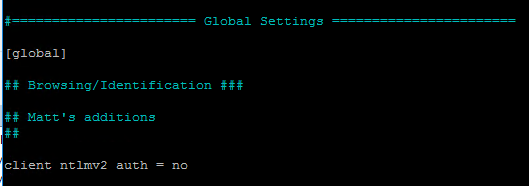
To check this I’m going use Samba’s smbclient package on the Ubuntu VM. I’ll use smbclient to connect to the DC’s share from the Ubuntu box using the NTLM protocol. Samba has enforced the use NTLMV2 in smbclient by default so I needed to make some modifications to the global section of the smb.conf file by adding client ntlmv2 auth = no. This option disables NTLMv2 on smbclient and will force it to use NTLMv1.

2aad9.png

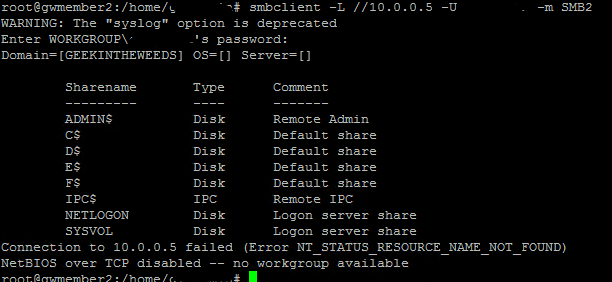
After saving the changes to smb.conf I exit back to the terminal and try opening a connection with smbclient. The options I used do the following:

  • -L -> List the shares on my DC’s IP address
  • -U -> My domain user name
  • -m -> Use the SMB2 protocol

2aad10.png

While I ran the command I also did a packet capture using tcpdump which I moved over to my Windows box using WinSCP.  I then opened the capture with WireShark and navigated to the packet containing the Session Setup Request.  In the parsed capture we don’t see an NTLMv2 Response which means NTLMv1 was used to authenticate to the domain controller indicating NTLMv1 is supported by the managed domain controllers.

2aad11.png

Based upon what I’ve observed from poking around and running these tests I’m fairly confident Microsoft is using a very out-of-the-box configuration for the managed Windows Active Directory domain.  There doesn’t seem to be much of an attempt to harden the domain against some of the older and well known risks.  I don’t anticipate this offering being very appealing to organizations with strong security requirements.  Microsoft should look to offer some hardening options that would be configurable through the Azure Portal.  Those hardening options are going to need to include some type of access to the logs like I mentioned in my last post.  Anyone who has tried to rid their network of insecure cipher suites or older authentication protocols knows the importance of access to the domain controller logs to the success of that type of effort.

My next post will be the final post in this series.  I’ll cover the option Microsoft provides to expose LDAPS to the Internet (WHY OH WHY WOULD YOU DO THAT?), summarize my findings, and mention a few other interesting things I came across during the study for this series.

Thanks!

Helpful hints for resolving AD FS problems – Part 1

Hi everyone.

Over the past week I’ve been building a lab for an upcoming deep dive into Microsoft’s Web Application Proxy.  During the course of building the lab I ran into a few interesting issues with AD FS and the Web Application Proxy that I wanted to cover.  Some were similar to issues I’ve run into in production environments and some were new to me.

These issues are interesting in that there aren’t any obvious indicators of the problem in any of the typical logs.  Two out of three required some trial and error to determine root cause, while the third drove me quite insane for a good two weeks before getting an answer from an “official” source.  Over the course of this series of blogs I’ll cover each issue in detail with the hopes that it will help others troubleshoot these issues in the future.

Issue 1: AD FS Certificate authentication fails

I’m going to start with the problem that took me the longest to resolve and eventually required getting the answer directly from an official source.

For those of you that are unfamiliar, AD FS provides the capability to offer multi-factor authentication methods both native and third-party.  Out of the box, it supports certificate-based authentication as an option for a multi-factor or “step-up” authentication mechanism.

A few months back I wanted to take advantage of the certificate authentication feature to provide a two-factor authentication solution for applications integrated with AD FS.  Like a good engineer I did my Googling, read the Microsoft articles and various blogs out there to understand how the feature worked and what the requirements were.  I built a lab in Azure, setup an AD FS server, and ensured port 49443 was open in addition to the the typical ports required by AD FS.  I created my instance of AD CS, issued a user certificate containing the user’s UPN in the subject alternate name field, and setup a sample SAML app and configured it to require Certificate authentication.

How easy it all sounds right?  I navigated to the sample application and got the screen below…

Screen Shot 2017-06-04 at 9.29.35 PM

and I waited….  and waited…. and waited…  Ummm, what went wrong?  Well surely the AD FS log will tell me what happened.

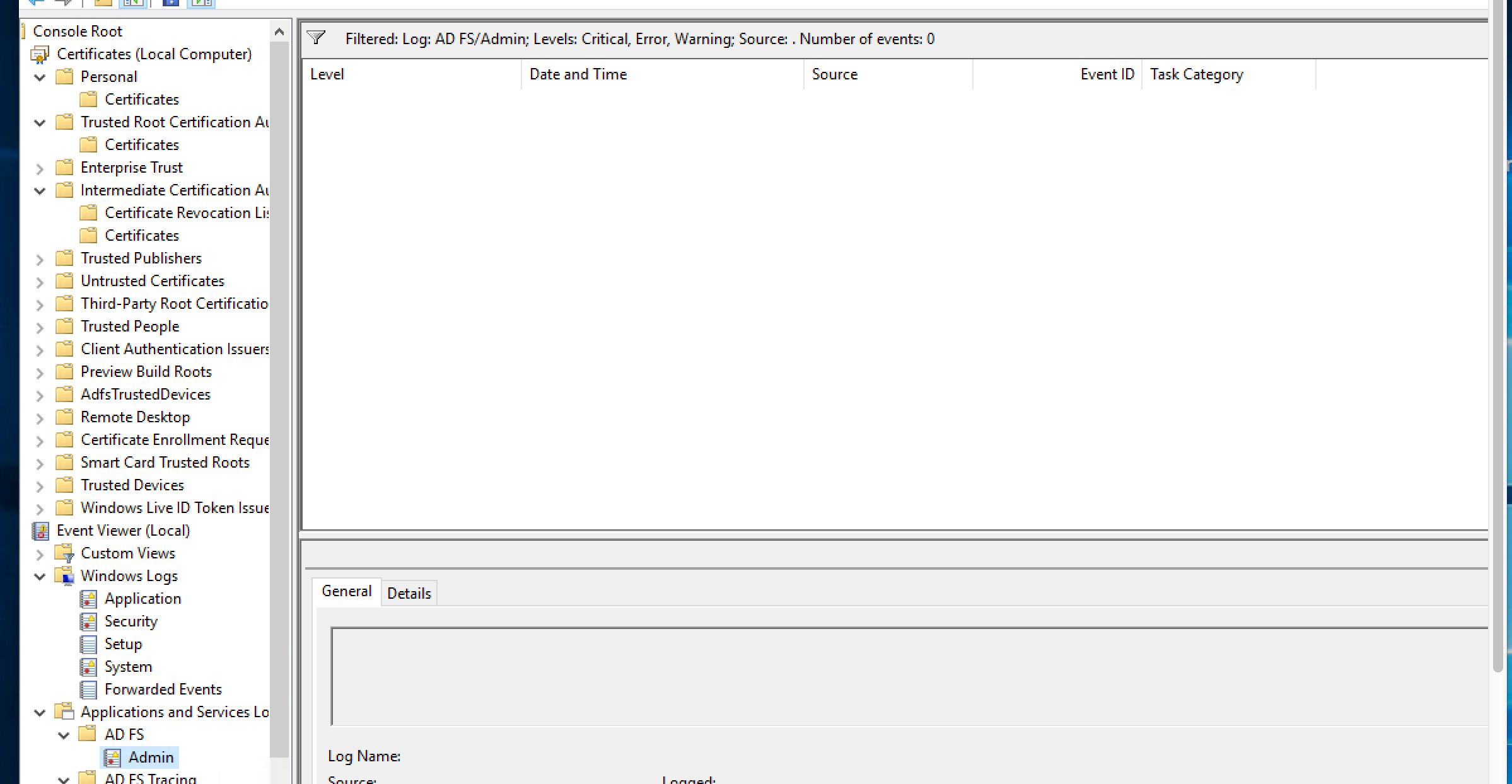
Screen Shot 2017-06-04 at 9.34.03 PM.png

Well isn’t that odd.  No errors or warnings in the AD FS Admin log.  A quick check of the Application and System logs showed no errors either.  Maybe the AD FS Debug log would show me something?  I flipped on the log and attempted another authentication.

Screen Shot 2017-06-04 at 9.38.07 PM

Nothing as well?  Maybe the server can’t query the revocation lists designated in the certificates CDP?  Nope, not that either the server can successfully contact the CDP endpoints.  At this point I began to get quite frustrated and attempted packet captures, Fiddler captures, and anything and everything I could think of.  Nothing I tried revealed the answer.

I finally gave in (which I can tell you is incredibly challenging for me) and reached out to an “official” source.  We chatted back and forth and went through much of the same steps as outlined above to ensure I didn’t miss anything.  However, we ran into another dead end.  He then reached out to some other engineers he knew and eventually we got a hit.  We were told to check to see if there were any intermediary certificates stored within the trusted root certificate authorities store.  Sounds like an odd circumstance, but sure why not.

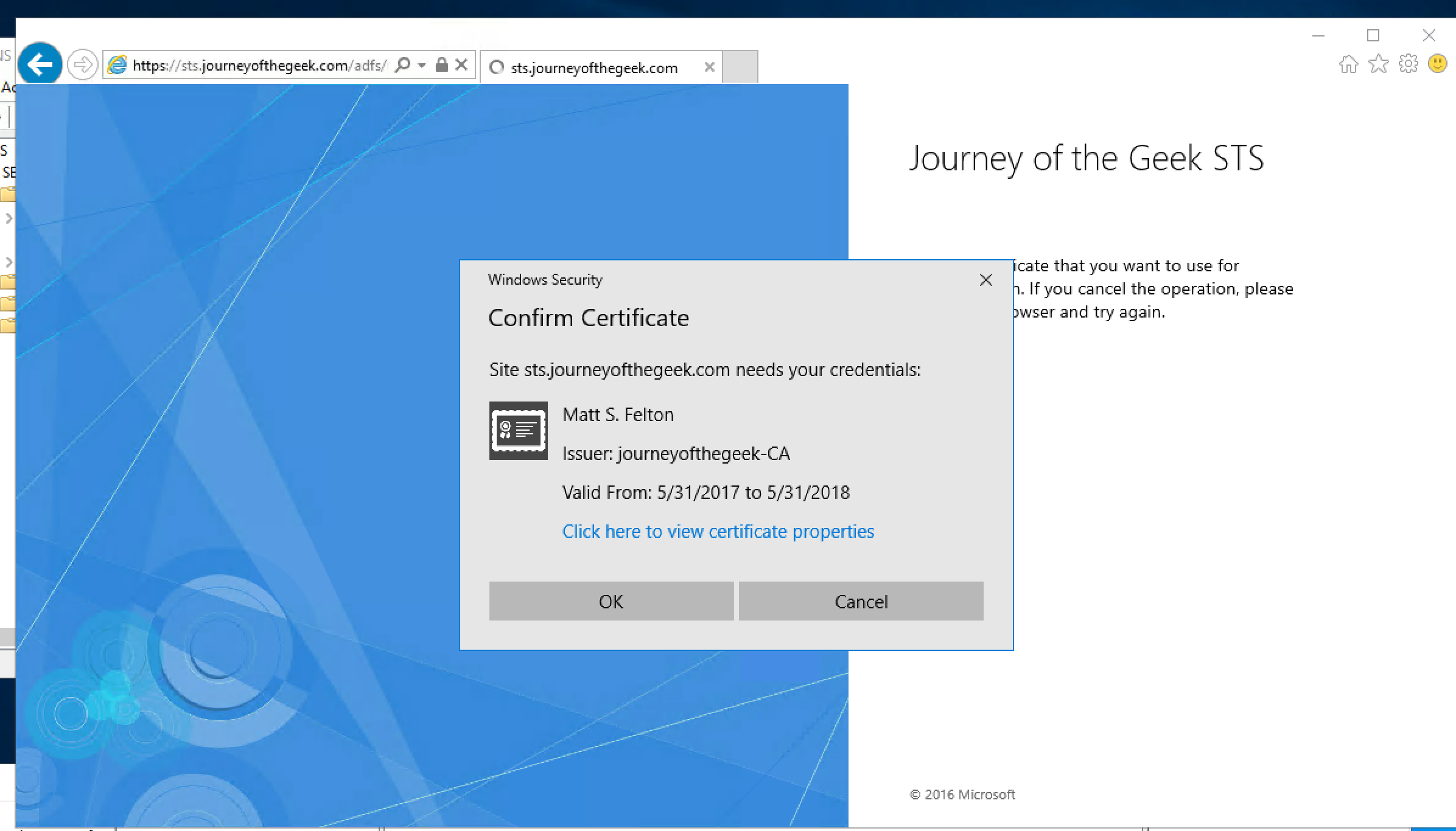
Upon opening up the certificates MMC, opening the machine store, and exploring the trusted root certificate authorities store low and behold I see an intermediary certificate within the store.  I deleted the certificate, restarted the AD FS server and attempted another login to the sample claim application and hit the screen below.

Screen Shot 2017-06-04 at 9.50.16 PM

Boom, I’m finally receiving the certificate prompt.  Clicking the OK button brings about the successful login below.

Screen Shot 2017-06-04 at 9.51.23 PM

So what was the issue?  Apparently AD FS certificate authentication fails without generating an error in any logical location (maybe nowhere at all?) if there is an intermediary certificate in the trusted root certificate authority machine store.  I’ve verified this is an issue in both AD FS 2012 R2 and AD FS 2016.  Now why this occurs is unknown to me.  It could be the underlining HTTPS.SYS driver that pukes and doesn’t report any errors to the event logs.  I didn’t get a straight answer as to why this occurs, just that it will due to some type of integrity check on the machine certificate store.  Odd right?

That completes the rundown of the first of three problems I’ll be outlining in this series of blogs.  Hopefully this helps save someone else some time and aggravation.

See you next post!