Update 11/4/2024 – Added limitations Update 10/11/2024 – Updated with generally available announcement
Welcome back! Today I’m going to step back from the Generative AI world and talk about some good ole networking. Networking is one of those technical components of every solution that gets glossed over until the rubber hits the road and the application graduates to “production-worthy”. Sitting happily beside security, it’s the topic I’m most often asked to help out with at Microsoft. I’m going to share a new feature has gone generally available under the radar that is pretty damn cool, even if a bit confusing.
Organizations in the regulated space frequently have security controls where a simple 5-tuple-based firewall rule at OSI layer 4 won’t suffice and traffic inspection needs to occur to analyze layer 7. Take for an example a publicly facing web application deployed to Azure. These applications can be subject to traffic inspection at multiple layers like an edge security service (Akamai, CloudFlare, FrontDoor, etc) and again when the traffic enters the customer’s virtual through a security appliance (F5, Palo Alto, Application Gateway, Azure Firewall, etc). Most of the time you can get away with those two inspection points (edge security service and security appliance deployed into virtual network) for public traffic and one inspection point for private traffic (security appliance deployed into virtual network and umpteenth number of security appliances on-premises). However, that isn’t always the case.
Many customers I work with have robust inspection requirements that may require multiple inspection points within Azure. The two most common patterns where this pops up is when traffic first moves through an Application Gateway or APIM (API Management) instance. In these scenarios some customers want to funnel the traffic through an additional inspection point such as their third-party firewall for additional checks or a centralized choke point managed by information security (in the event Application Gateways / APIM have been democratized). When the backend is a traditional virtual machine or virtual network injected/integrated (think something like an App Service Environment v3) the routing is quite simple and looks like something like the below.
Traffic inspection with traditional virtual machine or VNet Injected/VNet integrated service
In the above image we slap a custom route table on the Application Gateway subnet, and add a user-defined route that says when contacting the subnet containing the frontend resources of the application, it needs to go the firewall first. To ensure the symmetry of return traffic, we put a route table on the frontend subnet with a user-defined route that says communication to the Application Gateway subnet needs to also go to the firewall. The routes in these two route tables are more specific than the system route for the virtual network and take precedence forcing both the incoming and return traffic to flow symmetrically through the firewall. Easy enough.
The routing when inspecting traffic to services which receive their inbound traffic via a Private Endpoint (such as an App Service running in a Premium App Services Plan, a Storage Account, a Key Vault, etc) that inspection gets more challenging. These challenges exist for both controlling the traffic to the Private Endpoint and controlling the return traffic.
When a Private Endpoint is provisioned in a virtual network, a new system route is injected into the route tables of each subnet in that virtual network AND any peered virtual networks. This route is a /32 for the IP address assigned to the network interface associated with the Private Endpoint as seen in the image below.
System route added by the creation of a Private Endpoint in a virtual network
Historically, to work around this you had to drop /32 routes everywhere to override those routes to push the incoming traffic to the Private Endpoints through an inspection point. This was a nightmare at scale as you can imagine. Back in August 2023, Microsoft introduced what they call Private Endpoint Network Policies, which is a property of a subnet that allows you to better manage this routing (in addition to optionally enforcing Network Security Groups on Private Endpoints) by allowing less specific routes to override the more specific Private Endpoint /32 routes. You set this property to Enabled (both this routing feature and network security group enforcement) or RouteTableEnabled (just this routing feature). This property is set on the subnet you place the Private Endpoints into. Yeah I know, confusing because that is not how routing is supposed to work (where less specific routes of the same length override more specific routes), but this is an SDN (software defined network) so they’ll do what they please and you’ll like it.
Private Endpoint route invalid because Private Endpoint Network Policy property set to RouteTableEnabled
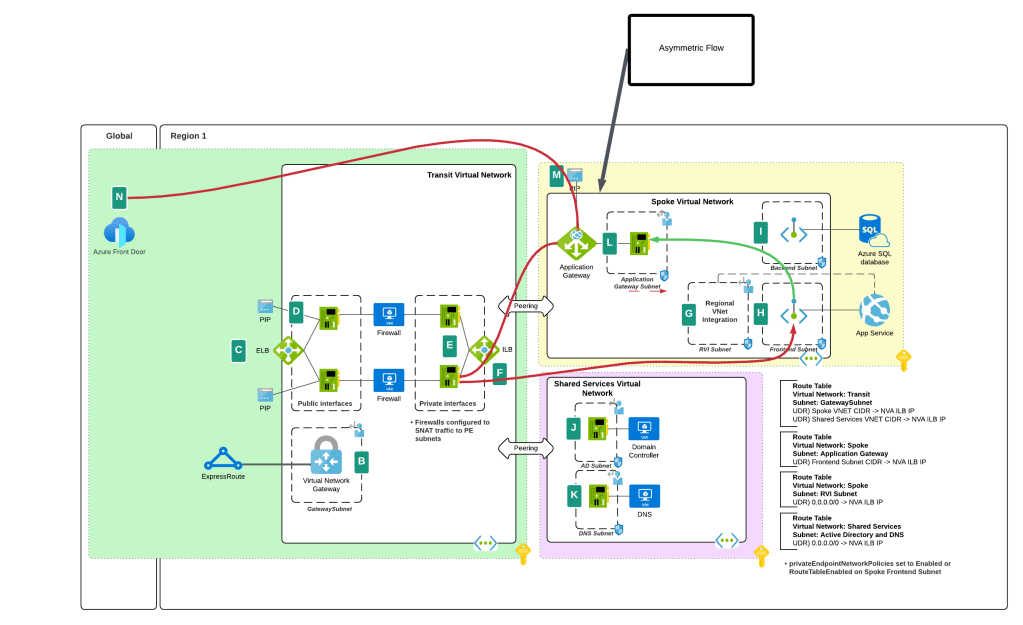
While this feature helped to address traffic to the Private Endpoint, handling the return traffic wasn’t so simple. Wrapping a custom route table around a subnet containing Private Endpoints does nothing to control return traffic from the Private Endpoints. They do not care about your user-defined routes and won’t honor them. This created an asymmetric traffic flow where incoming traffic was routed through the inspection point but return traffic bypassed it and went direct to the calling endpoint.
This misconfiguration was very common in customer environments and rarely was noticed because many TCP sessions with Private Endpoints are short lived and thus the calling client isn’t affected by the TCP RST sent by the firewall after X number of minutes. Customers could work around this by SNATing to the NVA’s (inspection point) IP address and ensure the return traffic was sent back to the NVA before it was passed back to the calling client. What made it more confusing was some services “just worked” because Microsoft was handling that symmetry in the data plane of the SDN. Azure Storage was an example of such a service. If you’re interested in understanding the old behavior, check out this post.
Prior asymmetric behavior without SNAT at NVA
You’ll notice I said “prior” behavior. Yes folks, SNATing when using a 3rd-party NVA (announcement is specific to 3rd-party NVAs. Those of you using Azure Firewall in a virtual network, Azure Firewall in a VWAN Secure Hub, or a 3rd-party NVA in a VWAN Secure Hub will need to continue to SNAT for now (As of 11/2024) until this feature is extended to those use case.
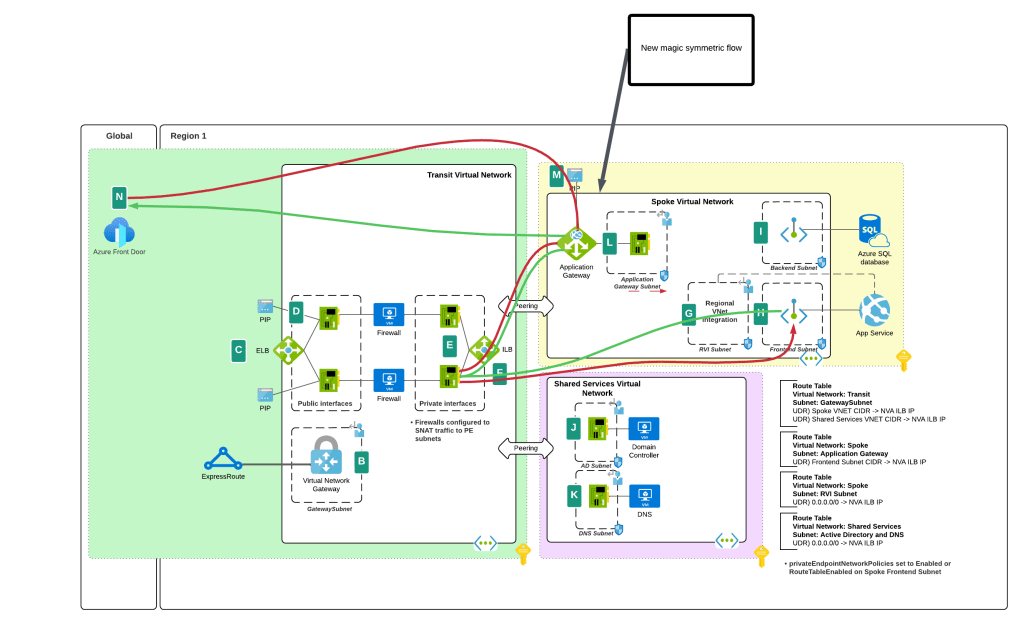
I bet you’re thinking “Oh cool, Microsoft is now having Private Endpoints honor user-defined routes in route tables”. Ha ha, that would make far too much sense! Instead Microsoft has chosen to require resource tags on the NICs of the NVAs to remove the SNAT requirement. Yeah, wouldn’t have been my choice either but here we are. Additionally, in my testing, I had it working without the resource tags to get a symmetric flow of traffic. My assumption (and total assumption as an unimportant person at Microsoft) is that this may be the default behavior on some of the newer SDN stacks while older SDN stacks may require the tags. Either way, do what the documentation says and put the tags in place.
As of today (10/11/2024) the generally available documentation is confusing as to what you need to do. I’ve provided some feedback to the author to fix some of the wording, but in the meantime let me explain what you need to do. You need to create a resource tag on either the NIC (non-VMSS) or VM instance (VMSS) that has a key of disableSnatOnPL with a value of true.
Magic of SDN ensuring symmetric flowwithout SNAT
TLDR; SNAT should no longer be required to ensure symmetric traffic flow when placing an NVA between an endpoint and a Private Endpoint if you have the proper resource tag in place. My testing of the new feature was done in Central US and Canada Central with both Azure Key Vault and Azure SQL. I tested when the calling endpoint was within the same virtual network, when it was in a peered virtual network connected in a hub and spoke environment, and when the calling machine was on-premises calling a private endpoint in a spoke. In all scenarios the NVA showed a symmetric flow of traffic in a packet capture.
Yeah, yeah, yeah, I missed posting in July. I have been appropriately shamed on a daily basis by WordPress reminders.
I’m going to make up for it today by covering another of the “Generative AI Gateway” features of APIM (Azure API Management) that were announced a few months back. I’ve already covered the circuit breaker and load balancing and the token-based rate limiting features. These two features have made it far easier to distribute and control the usage of the AOAI (Azure OpenAI Service) that is being offered as a core enterprise service. One of the challenges that isn’t addressed by those features is charge backs.
As I’ve covered in prior posts, you can get away with an instance or two of AOAI dedicated to an app when you have one or two applications at the POC (proof-of-concept) stage. Capacity and charge back isn’t an issue in that model. However, your volume of applications will grow as well as the capacity of tokens and requests those applications require as they move to production. This necessitates AOAI being offered as a core foundational service as basic as DNS or networking. The patterns for doing this involve centrally distributing requests across several instances of AOAI spread across different regions and subscriptions using a feature like the circuit breaker and load balancing features of APIM. Once you have several applications drawing from a common pool, you then need to control how much each of those applications can consume using a feature like the token-based rate limiting feature of APIM.
Common way to scale AOAI service
Wonderful! You’ve built a service that has significant capacity and can service your BUs from a central endpoint. Very cool, but how are you gonna determine who is consuming what volume?
You may think, “That information is returned in the response. I can have the developers use a common code snippet to send that information for each response to a central database where I can track it.” Yeah nah, that ain’t gonna work. First, you ain’t ever gonna get that level of consistency across your enterprise (if you do have this, drop me an email because I want to work there). Second, as of today, the APIs do not return the number of tokens used for streaming based chat completions which will be a large majority of what is being sent to the models.
I know you, and you’re determined. You follow-up with, “Well Matt, I’m simply going to pull the native metrics from each of the AOAI instances I’m load balancing to.” Well yeah, you could do that but guess what? Those only show you the total consumed across the instance and do not provide a dimension for you to determine how much of that total was related to a specific application.
Native metrics and its dimensions for an instance of AOAI
“Well Matt, I’m going to configure diagnostic logging for each of my AOAI instances and check off the Request and Response Logs. Surely that information will be in there!”. You don’t quit do you? Let me shatter your hopes yet again, no that will not work. As I’ve covered in a prior post while the logs do contain the Entra ID object ID (assuming you used Entra ID-based authentication) you won’t find any token counts in those logs either.
AOAI Request and Response Logs
Well fine then, you’re going to use a custom logging solution to capture token usage when it’s returned by the API and calculate it when it isn’t. While yes this does work and does provide a number of additional benefits beyond information for charge backs (and I’m a fan of this pattern) it takes some custom code development and some APIM policy snippet expertise. What if there was an easier way?
That is where the token metrics feature of APIM really shines. This feature allows you to configure APIM to emit a custom metric for the tokens consumed by a Completion, Chat Completion (EVEN STREAMING!!), or Embeddings API call to an AOAI backend with a very basic APIM Policy snippet. You can even add custom dimensions and that is where this feature gets really powerful.
The first step in setting this up is to spin up an instance of Application Insights (if your APIM isn’t already hooked into one) and a Log Analytics Workspace the Application Insights instance will be associated with. Once your App Insights instance is created, you need to modify the settings API in APIM you’ve defined for AOAI and turn on the App Insights integration and enable custom metrics as seen below.
Enable custom metrics in APIM
Next up, you need to modify your APIM policy. In the APIM Policy snippet below I extra a few pieces of data from the request and add them as dimensions to the custom metric. Here I’m extracting the Entra ID app id of security principal accessing the AOAI service (this would be the application’s identity if you’re using Entra ID authentication to the AOAI service) and the model deployment name being called from AOAI which I’ve standardized to be the same as the model name.
         <!-- Extract the application id from the Entra ID access token -->

        <set-variable name="appId" value="@(context.Request.Headers.GetValueOrDefault("Authorization",string.Empty).Split(' ').Last().AsJwt().Claims.GetValueOrDefault("appid", string.Empty))" />

        <!-- Extract the model name from the URL -->

        <set-variable name="uriPath" value="@(context.Request.OriginalUrl.Path)" />
        <set-variable name="deploymentName" value="@(System.Text.RegularExpressions.Regex.Match((string)context.Variables["uriPath"], "/deployments/([^/]+)").Groups[1].Value)" />

        <!-- Emit token metrics to Application Insights -->

        <azure-openai-emit-token-metric namespace="openai-metrics">
            <dimension name="model" value="@(context.Variables.GetValueOrDefault<string>("deploymentName","None"))" />
            <dimension name="client_ip" value="@(context.Request.IpAddress)" />
            <dimension name="appId" value="@(context.Variables.GetValueOrDefault<string>("appId","00000000-0000-0000-0000-000000000000"))" />
        </azure-openai-emit-token-metric>
After making a few calls from my code to APIM, the metrics begin to populate in the App Insights instance. To view those metrics you’ll want to go into the App Insights blade and go to the Monitoring -> Metrics section. Under the Metrics Namespace drop down you’ll see the namespace you’ve created in the policy snippet. I named mine openai-metrics.
Accessing custom metrics in App Insights for token metrics
I can now select metrics based on prompt tokens, completion tokens, and total tokens consumed. Here I select the completion tokens and split the data by the appId, client IP address, and model to give me a view of how many tokens each app is consuming and of which model at any given time span.
Metrics split by dimensions
Very cool right?
As of today, there are some key limitations to be aware of:
Only Chat Completions, Completions, and Embedding API operations are supported today.
Each API operation is further limited by which models it supports. For example, as of August 2024, Chat Completions only supports gpt-3.5 and gpt-4. No 4o support yet unfortunately.
If you’re using a load balanced pool backend, you can’t yet use the actual backend the pool send the request to as a dimension.
Well folks, hopefully this helps you better understand why this functionality was added and the value it provides. While you could do this with another API Gateway (pick your favorite), it likely won’t be as simple as it it with APIM’s policy snippet. Another win for cloud native I guess!
10/29/2024 – Microsoft has announced a deployment option referred to as a data zone (https://azure.microsoft.com/en-us/blog/accelerate-scale-with-azure-openai-service-provisioned-offering/). Data zones can be thought of as data sovereignty boundaries incorporated into the existing global deployment option. This will significantly ease load balancing so you will no longer need to deploy individual regional instances and can instead deploy a single instance with a data zone deployment within a single subscription. As you hit the cap for TPM/RPM within that subscription, you can then repeat the process with a new subscription and load balance across the two. This will result in fewer backends and a more simple load balancing setup.
Another week, another AOAI (Azure OpenAI Service) post. Today, I’m going to continue to discuss the new “Generative AI Gateway”-type features released to APIM (Azure API Management). In my last post I covered the new built-in load balancing and circuit breaker feature. For this post I’m going to talk about the new token-based rate limiting feature and rate limiting in general. Put on your nerd cap and caffeinate because we’re going to be analyzing some Fiddler captures.
The Basics
When talking rate limiting for AOAI it’s helpful to understand how an instance natively handles subscription service limits. There are a number of limits to be aware, but the most relevant to this conversation are the regional quota limits. Each Azure Subscription gets a certain quota of tokens per minute and request per minute for each model in a given region. That regional quota is shared among all the AOAI instances you provision with the model within that subscription in that given region. When you exhaust your quota for a region, you scan scale by requesting quota (good luck with that), create a new instance in another region in the same subscription, create a new instance in the same region in a different subscription, or going the provisioned throughput option.
Representation of regional quotas
In October 2024, Microsoft introduced the concept of a data zone deployment. Data zones address the compliance issues that came with global deployments. In a global deployment the prompt can be sent and serviced by the AOAI service in any region across the globe. For customers in regulated industries, this was largely a no go due to data sovereignty requirements. The new data zone deployment type allows you to pool AOAI capacity within a subscription across all regions within a given geopolitical boundary. As of October 2024, this supports two data zones including the US and EU.
Global and Data Zone Deployments
With each AOAI instance you provision in a subscription, you’ll be able to adjust the quota of the deployment of a particular model for that instance. Each AOAI instance you create will share the total quota available. If you have a use case where you need multiple AOAI instances, like for example making each its own authorization boundary with Azure RBAC for the purposes of separating different fine-tuned models and training data, each instance will draw from that total subscription-wide regional quota. Note that the more TPM (tokens per minute) you give the instance the higher RPM (requests per minute, 1K TPM = 6 RPM).
Adjusting quota for a specific instance of AOAI
Alright, so you get the basics of quota so now let’s talk about what rate limiting looks like from the application’s point of view. I’ll first walk through how things work when contacting the AOAI instance directly and then I’ll cover how things work when APIM sits in the middle (YMMV on this one if you’re using another type of “Generative AI Gateway”).
Direct Connectivity to Azure OpenAI Instance
Here I’ve set the model deployment to a rate limit of 50K TPM which gives me a limit of 300 RPM. I’ll be contacting the AOAI instance directly without any “Generative AI Gateway” component between my code and the AOAI instance. I’m using the Python openai SDK version 1.14.3.
I’ll be using this simple function to make Chat Completion calls to GPT3.5 Turbo.
Code being used in this post
Let’s dig into the response from the AOAI service.
Response headers from direct connectivity to AOAI
The headers relevant to the topic at hand are x-ratelimit-remaining-requests and x-ratelimit-remaining-tokens.
The x-rate-limit-remaining-requests header tells you have many responses you have left before you’ll be rate limited for requests. There’s a few interesting things about this header. First, it always starts decrementing from 1/1000 of whatever the TPM. In my testing 50K TPM starts with 50 requests, 10K TPM with 10 requests. The Portal says 300 RPM at 50K TPM, so it’s odd that the response header shows something different and far less than what I’d expect. I also noticed that each corresponding request will decrease the x-ratelimit-remaining-tokens but will not necessarily reduce the x-rate-limit-remaining-requests header. Good example is at 1K TPM (which gives you 6 requests according to the Portal but gives me 1 RPM according to this header) would tell me I had zero requests left after my first request but wouldn’t always throttle me. Either there’s additional logic being executed to determine when to rate limit based on request or it’s simply inaccurate. My guess is the former, but I’m not sure.
The next header is the x-ratelimit-remaining-tokens which does match the TPM you set for the deployment. The functionality is pretty straightforward, but it’s important to understand how the max_tokens parameter Chat Completions and the like can affect it. In my example above, I ask the model to say hello which uses around 20 total tokens across the prompt and completion. When I set the max_tokens parameter to 100 the x-ratelimit-remaining-tokens is reduced by 100 even though I’ve only used 20 tokens. What you want to take from that is be careful with what you set in your max_tokens parameter because you can very easily exhaust your quota on an specific AOAI instance. I believe consideration holds true in both pay-as-you-go and PTU SKUs.
When you hit a limit and begin to get rate limited, you’ll get a message similar to what you see below with the policy-id header telling you which limit you hit (token or requests) and the Retry-After header telling you how long you’re rate limited. If you’re using the openai SDK (I can only speak for Python) the retry logic within the library will kick off.
Let me dig into that a bit.
Rate limited by AOAI instance
The retry logic for the openai SDK for Python is in the openai/lib/_base_client.py file. It’s handled by a few different functions including _parse_retry_after_header, _calculate_retry_timeout, and _should_retry. I’ll save the you the gooey details and give you the highlights. In each response the SDK looks for the retry-after-ms and retry-after headers. If either is found it looks to see if the value is less than 60 seconds. If it’s greater than 60 seconds, it ignores the value and executes its own logic which starts at around 1 to 2 seconds and increases up to 8 seconds for a maximum of 2 retries by default (constants used for much of the calculations are located in openai/lib/_constants.py). The defaults should be good for most instances but you can certainly tweak the max retries if it’s not sufficient. While the retry logic is very straightforward in the instance of hitting the AOAI instance directly, you will see some interesting behavior when APIM is added.
Throttling and APIM
I’ve talked ad-nauseam about why you’d want to place APIM in between your applications and the AOAI instance. To save myself some typing these are some of the key reasons:
Capturing operational and security information such as metrics for response times, token usage for chargebacks, and prompts and responses for security review or caching to reduce costs.
In the olden days (two months ago) customers struggled to limit specific applications to a certain amount of token usage. Using APIM’s request limiting wasn’t very helpful because the metric we care most about with GenAI is tokens, not requests. Customers came up with creative solutions to distribute applications to different sets of AOAI instances, but it was difficult to manage at scale. I can’t count the number of times I heard “How do I throttle based upon token usage in APIM?” and I was stuck giving the customer the bad news it wasn’t possible without extremely convoluted PeeWee Herman Breakfast Machine-type solutions.
Microsoft heard the customer pain and introduced a new APIM policy for rate limiting based on token usage. This new policy allows you to rate limit an application based on a counter key you specify. APIM will then limit the application if it pushes beyond the TPM you specify. This allows you to move away from the dedicated AOAI instance pattern you may have been trying to use to solve this problem and into a design where you position a whole bunch of AOAI instances behind APIM and load balance across them using the new load balancer and circuit breaker capabilities of APIM relying upon this new policy to control consumption.
Now that you get the sales pitch, take a look at the options available for the policy snippet.
Below you’ll see a section from my APIM policy. In this section I’m setting up the token rate limiting feature. The counter key I’m using in this scenario is the appid property I’ve extracted from the Entra ID access token. I’m a huge proponent of blocking API key access to AOAI instances and instead using Entra ID based authentication under the context of the application’s identity for the obvious reasons.
I’ve also set the estimate-prompt-tokens property to true. The docs state this could cause some performance impact, so you’ll want to test that on and off in your own environment. It’s worth noting that APIM will always estimate prompt tokens if a streaming completion is being used whether or not you’ve set this option to true. Next, I’m setting a custom header name for both the remaining-tokens header and tokens-consumed headers. This will ensure these headers are returned to the client and they’re uniquely identifiable such that they couldn’t be confused with the headers natively returned by AOAI instance behind the scenes.
Notice I didn’t modify the name of the retry header. Recall that the openai SDK looks for retry-after so if you modify this header you won’t get the benefit of the SDK’s retry logic. My advice is keep this as the default.
When I send the Chat Completion request to APIM, I get back the response headers below which includes the two new headers x-apim-remaining-tokens and x-apim-tokens-consumed which show my request consumed 22 of the 1K TPM I’ve been allotted. Notice how this is keeping track of exact number of tokens being used vs how the service natively will feed of the max_tokens parameter which is a nice improvement.
Once I exhaust my 1K TPM, I’m hit with a 429 and a retry-after header. The SDK will execute its retry logic and wait the amount of time in the retry logic. This is why you shouldn’t muck with the header name.
Very cool right? You are now saved from a convoluted solution of dedicated AOAI instances or an insanely complex APIM policy snippet.
Before I close this out I want to show one more interesting “feature” I ran into when I was testing. In my environment I’m using a load balanced pool backend where I have 4 AOAI instances stretched across multiple regions and a circuit breaker to bounce to temporarily remove pool members if they 429. When I was doing testing for this post I noticed an interesting behavior of APIM when one of the pool members begins to 429.
In the image below I purposely went over the AOAI instance backend quota to trigger the pool member’s rate limiting. Notice how I receive a 429 with the Retry-After is set to 86,400 seconds which is the number of seconds in a day. It seems like the load balanced pool will shoot this value back when a pool member 429s. Recall again the behavior or the openai SDK which ignores retry-after greater than 60 second. This means the SDK will execute its own shorter timer making for a quick retry. Whether the PG designed this with the openai SDK behavior’s in mind, I don’t know, but it worked out well either way.
Rate limited by AOAI instance behind a load balancing APIM backend
That about completes this post. Your key takeaways today are:
If you’re using request rate limiting or something more convoluted like dedicating AOAI instances to handle rate limiting across applications, plan to move to using the token-based rate limiting policy in APIM.
Be careful with what you’re setting the max_tokens parameter to when you call the models because setting too high can trigger the AOAI instance rate limiting even though you haven’t exhausted the TPM set in the token rate limiting APIM policy.
Don’t mess with the retry-after header in your token rate limiting policy if you’re using the openai SDK. If you do you’ll have to come up with your own retry logic.
Ensure you set the remaining-tokens-header-name and tokens-consumed-header-name so it’s easily identified which rate limit is affecting an application.
Be aware that in my testing the tokens-consumed returned by the token rate limiting policy didn’t account for completion tokens when it was a streaming Chat Completion. You’ll still need to be creative to calculating streaming token usage for chargeback.
10/29/2024 – Microsoft has announced a deployment option referred to as a data zone (https://azure.microsoft.com/en-us/blog/accelerate-scale-with-azure-openai-service-provisioned-offering/). Data zones can be thought of as data sovereignty boundaries incorporated into the existing global deployment option. This will significantly ease load balancing so you will no longer need to deploy individual regional instances and can instead deploy a single instance with a data zone deployment within a single subscription. As you hit the cap for TPM/RPM within that subscription, you can then repeat the process with a new subscription and load balance across the two. This will result in fewer backends and a more simple load balancing setup.
Welcome back folks!
Today I’m back again talking load balancing in AOAI (Azure OpenAI Service). This is an area which has seen a ton of innovation over the past year. From what began as a very basic APIM (API Management) policy snippet providing randomized load balancing was matured to add more intelligence by a great crew out of Microsoft via the “Smart” Load Balancing Policy. Innovative Microsoft folk threw together a solution called PowerProxy which provides load balancing and other functionality without the need for APIM. Simon Kurtz even put together a new Python library to provide load balancing at the SDK-level without the need for additional infrastructure. Lots of great ideas put into action.
The Product Group for APIM over at Microsoft was obviously paying attention to the focus in this area and have introduced native functionality which makes addressing this need cake. With the introduction of the load balancer and circuit breaker feature in APIM, you can now perform complex load balancing without needing a complex APIM policy. This dropped with a bunch of other Generative AI Gateway (told you this would become an industry term!) features for APIM that were announced this week. These other features include throttling based on tokens consumed (highly sought after feature!), emitting token counts to App Insights, caching completions for optimization of token usage, and a simpler way to onboard AOAI into APIM. Very cool stuff of which I’ll be covering over the next few weeks. For this post I’m going to focus on the new load balancing and circuit breaker feature.
Before I dive into the new feature I want to do a quick review of why scaling across AOAI instances is so important. For each model you have a limited amount of requests and tokens you can pass to the service within a given subscription within a region. These limits vary on a per model basis. If you’re consuming a lot of prompts or making a lot of requests it’s fairly easy to hit these limits. I’ve seen a customer hit the limits within a region with one document processing application. I had another customer who deployed a single Chat Bot in a simple RAG (retrieval augmented generation) that was being used by large swath of their help desk staff and limits were quickly a problem. The point I’m making here is you will hit these limits and you will need to add figure out how to solve it. Solving it is going to require additional instances in different Azure regions likely spread across multiple subscriptions. This means you’ll need to figure out a way to spread applications across these instances to mitigate the amount of throttling your applications have to deal with.
Load Balancing Azure OpenAI Service
As I covered earlier, there are a lot of ways you can load balancing this service. You could do it at the local application using Simon’s Python library if you need to get something up and running quickly for an application or two. If you have an existing deployed API Gateway like an Apigee or Mulesoft, you could do it there if you can get the logic right to support it. If you want to custom build something from scratch or customize a community offering like PowerProxy you could do that as well if you’re comfortable owning support for the solution. Finally, you have the native option of using Azure APIM. I’m a fan of the APIM option over the Python library because it’s scalable to support hundreds of applications with a GenAI (generative AI) need. I also like it more than custom building something because the reality is most customers don’t have the people with the necessary skill sets to build something and are even less likely to have the bodies to support yet another custom tool. Another benefit of using APIM include the backend infrastructure powering the solution (load balancers, virtual machines, and the like) are Microsoft’s responsibility to run and maintain. Beyond load balancing, it’s clear that Microsoft is investing in other “Generative AI Gateway” types of functionality that make it a strategic choice to move forward with. These other features are very important from a security and operations perspective as I’ve covered in past posts. No, there was not someone from Microsoft holding me hostage forcing me to recommend APIM. It is a good solution for this use case for most customers today.
Ok, back to the new load balancing and circuit breaker feature. This new feature allows you to use new native APIM functionality to create a load balancing and circuit breaker policy around your APIM backends. Historically to do this you’d need a complex policy like the “smart” load balancing policy seen below to accomplish this feature set.
<policies>
    <inbound>
        <base />
        <!-- Getting the main variable where we keep the list of backends -->
        <cache-lookup-value key="listBackends" variable-name="listBackends" />
        <!-- If we can't find the variable, initialize it -->
        <choose>
            <when condition="@(context.Variables.ContainsKey("listBackends") == false)">
                <set-variable name="listBackends" value="@{
                    // -------------------------------------------------
                    // ------- Explanation of backend properties -------
                    // -------------------------------------------------
                    // "url":          Your backend url
                    // "priority":     Lower value means higher priority over other backends.
                    //                 If you have more one or more Priority 1 backends, they will always be used instead
                    //                 of Priority 2 or higher. Higher values backends will only be used if your lower values (top priority) are all throttling.
                    // "isThrottling": Indicates if this endpoint is returning 429 (Too many requests) currently
                    // "retryAfter":   We use it to know when to mark this endpoint as healthy again after we received a 429 response

                    JArray backends = new JArray();
                    backends.Add(new JObject()
                    {
                        { "url", "https://andre-openai-eastus.openai.azure.com/" },
                        { "priority", 1},
                        { "isThrottling", false },
                        { "retryAfter", DateTime.MinValue }
                    });

                    backends.Add(new JObject()
                    {
                        { "url", "https://andre-openai-eastus-2.openai.azure.com/" },
                        { "priority", 1},
                        { "isThrottling", false },
                        { "retryAfter", DateTime.MinValue }
                    });

                    backends.Add(new JObject()
                    {
                        { "url", "https://andre-openai-northcentralus.openai.azure.com/" },
                        { "priority", 1},
                        { "isThrottling", false },
                        { "retryAfter", DateTime.MinValue }
                    });

                    backends.Add(new JObject()
                    {
                        { "url", "https://andre-openai-canadaeast.openai.azure.com/" },
                        { "priority", 2},
                        { "isThrottling", false },
                        { "retryAfter", DateTime.MinValue }
                    });

                    backends.Add(new JObject()
                    {
                        { "url", "https://andre-openai-francecentral.openai.azure.com/" },
                        { "priority", 3},
                        { "isThrottling", false },
                        { "retryAfter", DateTime.MinValue }
                    });

                    backends.Add(new JObject()
                    {
                        { "url", "https://andre-openai-uksouth.openai.azure.com/" },
                        { "priority", 3},
                        { "isThrottling", false },
                        { "retryAfter", DateTime.MinValue }
                    });

                    backends.Add(new JObject()
                    {
                        { "url", "https://andre-openai-westeurope.openai.azure.com/" },
                        { "priority", 3},
                        { "isThrottling", false },
                        { "retryAfter", DateTime.MinValue }
                    });

                    backends.Add(new JObject()
                    {
                        { "url", "https://andre-openai-australia.openai.azure.com/" },
                        { "priority", 4},
                        { "isThrottling", false },
                        { "retryAfter", DateTime.MinValue }
                    });

                    return backends;
                }" />
                <!-- And store the variable into cache again -->
                <cache-store-value key="listBackends" value="@((JArray)context.Variables["listBackends"])" duration="60" />
            </when>
        </choose>
        <authentication-managed-identity resource="https://cognitiveservices.azure.com" output-token-variable-name="msi-access-token" ignore-error="false" />
        <set-header name="Authorization" exists-action="override">
            <value>@("Bearer " + (string)context.Variables["msi-access-token"])</value>
        </set-header>
        <set-variable name="backendIndex" value="-1" />
        <set-variable name="remainingBackends" value="1" />
    </inbound>
    <backend>
        <retry condition="@(context.Response != null && (context.Response.StatusCode == 429 || context.Response.StatusCode >= 500) && ((Int32)context.Variables["remainingBackends"]) > 0)" count="50" interval="0">
            <!-- Before picking the backend, let's verify if there is any that should be set to not throttling anymore -->
            <set-variable name="listBackends" value="@{
                JArray backends = (JArray)context.Variables["listBackends"];

                for (int i = 0; i < backends.Count; i++)
                {
                    JObject backend = (JObject)backends[i];

                    if (backend.Value<bool>("isThrottling") && DateTime.Now >= backend.Value<DateTime>("retryAfter"))
                    {
                        backend["isThrottling"] = false;
                        backend["retryAfter"] = DateTime.MinValue;
                    }
                }

                return backends;
            }" />
            <cache-store-value key="listBackends" value="@((JArray)context.Variables["listBackends"])" duration="60" />
            <!-- This is the main logic to pick the backend to be used -->
            <set-variable name="backendIndex" value="@{
                JArray backends = (JArray)context.Variables["listBackends"];

                int selectedPriority = Int32.MaxValue;
                List<int> availableBackends = new List<int>();

                for (int i = 0; i < backends.Count; i++)
                {
                    JObject backend = (JObject)backends[i];

                    if (!backend.Value<bool>("isThrottling"))
                    {
                        int backendPriority = backend.Value<int>("priority");

                        if (backendPriority < selectedPriority)
                        {
                            selectedPriority = backendPriority;
                            availableBackends.Clear();
                            availableBackends.Add(i);
                        }
                        else if (backendPriority == selectedPriority)
                        {
                            availableBackends.Add(i);
                        }
                    }
                }

                if (availableBackends.Count == 1)
                {
                    return availableBackends[0];
                }

                if (availableBackends.Count > 0)
                {
                    //Returns a random backend from the list if we have more than one available with the same priority
                    return availableBackends[new Random().Next(0, availableBackends.Count)];
                }
                else
                {
                    //If there are no available backends, the request will be sent to the first one
                    return 0;
                }
                }" />
            <set-variable name="backendUrl" value="@(((JObject)((JArray)context.Variables["listBackends"])[(Int32)context.Variables["backendIndex"]]).Value<string>("url") + "/openai")" />
            <set-backend-service base-url="@((string)context.Variables["backendUrl"])" />
            <forward-request buffer-request-body="true" />
            <choose>
                <!-- In case we got 429 or 5xx from a backend, update the list with its status -->
                <when condition="@(context.Response != null && (context.Response.StatusCode == 429 || context.Response.StatusCode >= 500) )">
                    <cache-lookup-value key="listBackends" variable-name="listBackends" />
                    <set-variable name="listBackends" value="@{
                        JArray backends = (JArray)context.Variables["listBackends"];
                        int currentBackendIndex = context.Variables.GetValueOrDefault<int>("backendIndex");
                        int retryAfter = Convert.ToInt32(context.Response.Headers.GetValueOrDefault("Retry-After", "-1"));

                        if (retryAfter == -1)
                        {
                            retryAfter = Convert.ToInt32(context.Response.Headers.GetValueOrDefault("x-ratelimit-reset-requests", "-1"));
                        }

                        if (retryAfter == -1)
                        {
                            retryAfter = Convert.ToInt32(context.Response.Headers.GetValueOrDefault("x-ratelimit-reset-tokens", "10"));
                        }

                        JObject backend = (JObject)backends[currentBackendIndex];
                        backend["isThrottling"] = true;
                        backend["retryAfter"] = DateTime.Now.AddSeconds(retryAfter);

                        return backends;
                    }" />
                    <cache-store-value key="listBackends" value="@((JArray)context.Variables["listBackends"])" duration="60" />
                    <set-variable name="remainingBackends" value="@{
                        JArray backends = (JArray)context.Variables["listBackends"];

                        int remainingBackends = 0;

                        for (int i = 0; i < backends.Count; i++)
                        {
                            JObject backend = (JObject)backends[i];

                            if (!backend.Value<bool>("isThrottling"))
                            {
                                remainingBackends++;
                            }
                        }

                        return remainingBackends;
                    }" />
                </when>
            </choose>
        </retry>
    </backend>
    <outbound>
        <base />
        <!-- This will return the used backend URL in the HTTP header response. Remove it if you don't want to expose this data -->
        <set-header name="x-openai-backendurl" exists-action="override">
            <value>@(context.Variables.GetValueOrDefault<string>("backendUrl", "none"))</value>
        </set-header>
    </outbound>
    <on-error>
        <base />
    </on-error>
</policies>
Complex policies like the above are difficult to maintain and easy to break (I know, I break my policies all of time). Compare that with a policy that does something very similar with the new load balancing and circuit breaker feature.
<policies>
    <!-- Throttle, authorize, validate, cache, or transform the requests -->
    <inbound>
        <set-backend-service backend-id="backend_pool_aoai" />
        <base />
    </inbound>
    <!-- Control if and how the requests are forwarded to services  -->
    <backend>
        <base />
    </backend>
    <!-- Customize the responses -->
    <outbound>
        <base />
    </outbound>
    <!-- Handle exceptions and customize error responses  -->
    <on-error>
        <base />
    </on-error>
</policies>
A bit simpler eh? With the new feature you establish a new APIM backend of a “pool” type. In this backend you configure your load balancing and circuit breaker logic. In the Terraform template below, I’ve created a load balanced pool that includes three existing APIM backends which are each an individual AOAI instance. I’ve divided the three backends into two priority groups such that the APIM so that APIM will concentrate the requests to the first priority group until a circuit break rule is triggered. I configured a circuit breaker rule that will hold sending additional requests for 1 minute (tripDuration) to a backend if that backend returns a single (count) 429 over the course of 1 minute (interval). You’ll likely want to play with the tripDuration and interval to figure out what works for you.
Priority group 2 will only be used if all the backends in priority group 1 have circuit breaker rules tripped. The use case here might be that your priority group 1 instance is a AOAI instance setup for PTU (provisioned throughput units) and you want overflow to dump down into instances deployed at the standard tier (basically consumption based).
resource "azapi_resource" "symbolicname" {
  type = "Microsoft.ApiManagement/service/backends@2023-05-01-preview"
  name = "string"
  parent_id = "string"
  body = jsonencode({
    properties = {
      circuitBreaker = {
        rules = [
          {
            failureCondition = {
              count = 1
              errorReasons = [
                "Backend service is throttling"
              ]
              interval = "PT1M"
              statusCodeRanges = [
                {
                  max = 429
                  min = 429
                }
              ]
            }
            name = "breakThrottling "
            tripDuration = "PT1M",
            acceptRetryAfter = true
          }
        ]
      }
      description = "This is the load balanced backend"
      pool = {
        services = [
          {
            id = "/subscriptions/XXXXXXXX-XXXX-XXXX-XXXX-XXXXXXXXXXXX/resourceGroups/rg-demo-aoai/providers/Microsoft.ApiManagement/service/apim-demo-aoai-jog/backends/openai-3",
            priority = 1
          },
          {
            id = "/subscriptions/XXXXXXXX-XXXX-XXXX-XXXX-XXXXXXXXXXXX/resourceGroups/rg-demo-aoai/providers/Microsoft.ApiManagement/service/apim-demo-aoai-jog/backends/openai-1",
            priority = 2
          },
          {
            id = "/subscriptions/XXXXXXXX-XXXX-XXXX-XXXX-XXXXXXXXXXXX/resourceGroups/rg-demo-aoai/providers/Microsoft.ApiManagement/service/apim-demo-aoai-jog/backends/openai-2",
            priority = 2
          }
        ]
      }
    }
  })
}
Very cool right? This makes for way simpler APIM policy which means troubleshooting APIM policy that much easier. You could also establish different pools for different categories of applications. Maybe you have a pool with a PTU and standard tier instances for mission-critical production apps and another pool of only standard instances for non-production applications. You could then direct specific applications (based on their Entra ID service principal id) to different pools. This feature gives you a ton of flexibility in how you handle load balancing without a to of APIM policy overhead.
With the introduction of this feature into APIM, it makes APIM that much more of an appealing solution for this use case. No longer do you need a complex policy and in-depth APIM policy troubleshooting skills to make this work. Tack on the additional GenAI features Microsoft introduced that I mentioned earlier, as well as its existing features and capabilities available in APIM policy, you have a damn fine tool for your Generative AI Gateway use case.
Well folks that wraps up this post. I hope this overview gave you some insight into why load balancing is important with AOAI, what the historical challenges have been doing it within APIM, and how those challenges have been largely removed with the added bonus of additional new GenAI-based features make this a tool worth checking out.





 Journey Of The Geek