Azure Authorization – The Basics

This is part of my series on Azure Authorization.

  1. This is part of my series on Azure Authorization.
  2. Azure Authorization – The Basics
  3. Azure Authorization – Azure RBAC Basics
  4. Azure Authorization – actions and notActions
  5. Azure Authorization – Resource Locks and Azure Policy denyActions
  6. Azure Authorization – Azure RBAC Delegation
  7. Azure Authorization – Azure ABAC (Attribute-based Access Control)

Hello again!

I’ve been wanting to put together a series on authorization in Azure for a while now. Over the past month I spent some time digging into the topic and figured I’d get it in written form while it is still fresh in my mind. I’ll be covering a lot of areas and features in these series, including some cool stuff that is in public preview. Before we get into the gooey details, let’s start with the basics.

When we talk identity I like to break it into three topics: identity, authentication, and authorization. Let me first define those terms using some wording from the NIST glossary. Identity is the attribute or attributes that describe the subject (in terms of Azure think of this as an Entra ID user or service principal). Authentication which is the process of verifying a user, process, or device. Authorization, which will be the topic of this series, is the rights or permissions granted to a subject. More simply, identity is the representation of the subject, authentication is the process of getting assurance that the subject is who they claim to be, and authorization is what the subject can do.

Identity in Azure is provided by the Entra ID directory (formerly Azure Active Directory, Microsoft marketing likes to rebrand stuff every few years). Like any good directory, it supports a variety of object types. The ones relevant to Azure are users, groups, service principals, and managed identities. Users and groups can exist authoritatively in the Entra ID tenant, they can be synchronized from an on-premises directory using something like Entra ID Connect Sync (marketing, please rebrand this), or they can represent federated users from other Entra ID tenants via the Entra ID B2B feature.

Azure Subscriptions (logical atomic unit for Azure whose parallel would be in AWS would be an AWS Account) are associated to a single Entra ID tenant. An Entra ID tenant can be associated to multiple Azure subscriptions. When configuring authorization in Azure you will be able to associate the permissions to security principals sourced from the associated Entra ID tenant.

Since multiple Azure Subscriptions can be associated to the same Entra ID tenant, this means all of those Azure Subscriptions share a common identity data store and authentication boundary. This differs from an AWS Account where each AWS Account has its own unique authentication boundary and directory of IAM Users and Roles. There are positive and negatives to this architectural decision by Microsoft that we can have fun banter with over a few tequilas, but we’ll save that for another day. The key thing I want you to remember is every Azure Subscription in the same Entra ID tenant shares that directory and authentication boundary but has a separate authorization boundary within each subscription. This means that getting authorization right is critical.

Boundaries in Azure

The above will always be true when talking about the management plane (sometimes referred to as the control plane), however there are exceptions when talking about the data plane. So what are the management plane and data planes? I like to define the management plane as the destination you interact with when you want to perform actions on a resource. Meanwhile the data plane is the destination you communicate with when you want to perform actions on data the resource is storing.

Management plane versus data plane

In the image above you’ll see an example of how the management plane and data plane differ when talking about Azure Storage. When you communicate with the management plane you interact with the management.azure.com which is the endpoint for the Azure Resource Manager REST API. The Azure Portal, Azure CLI, Azure PowerShell, ARM (Azure Resource Manager) templates, Bicep templates, and the Azure Terraform Provider are all different ways to interact with this API. Interaction with this API will use Entra ID authentication (which uses modern authentication protocols and standards such as Open ID Connect and SAML). Determining what actions you can perform on resources behind this management plane is then determined by the permissions defined in Azure RBAC (Role-based Access Control) roles you have been assigned (more on this in the next post).

As I mentioned earlier, the data plane can break the the rule of “one identity plane to rule them all”. Notice how interactions with the data plane use a separate endpoint, in this case blob.core.windows.net. This is the Azure Storage Blob REST API and is the API used to interact with the data plane of Azure Storage when using blob storage. As is common with Azure, many PaaS (platform-as-a-service) offerings support Entra ID authentication and Azure RBAC authorization for both the management plane and data plane. What should pop out to you is that there is also support for a service-specific authentication and authorization mechanism, in this case storage account keys and SAS (shared access signature) tokens. You’ll see this pattern often with Azure PaaS offerings and its important to understand that the service-specific authentication and authorization mechanism should only be used if the service doesn’t support Entra ID authentication or authorization, or your use case specifically requires some functionality of the service-specific mechanism that isn’t available in Entra ID. The reason for this is service-specific mechanisms rarely support granular authorization (SAS tokens being an exception) effectively making the person in possession of that key “god” of the data plane for the service. Additionally, there are security features which are specific to Entra ID (Entra ID Conditional Access, Privileged Identity Management, Identity Protection, etc) and, perhaps most critically, traceability and auditability is extremely difficult to impossible when these mechanisms are used.

Yet another interesting aspect of Azure authorization is there are a few ways for a security principal who is highly privileged in other places to navigate themselves into highly privileged roles across Azure resources. In the image below, you can see how a highly privileged user in Entra ID can leverage the Entra ID Global Admin role to obtain highly privileged permissions in Azure. I’ve covered how this works, how to mitigate it, and how to detect it in this post. The other way to do this is through holding a highly privileged role across the Enterprise Billing constructs. While a bit dated, this blog post does a good job explaining how it’s possible.

Azure Authorization Planes

The key things I want you to walk away with for this post are:

  • With a shared identity and authentication boundary, ensuring a solid authorization model is absolutely mission critical for security of your Azure estate.
  • Ensure you tightly control your Entra ID Global Admins and Enterprise Billing authorization because they provide a way to bypass even the best configured Azure RBAC.
  • Whenever possible use Entra ID identities and authentication so you can take advantage of Azure RBAC.
  • Avoid using service-specific authentication and authorization because it tends to be very course-grained and difficult to track.

Alright folks, you are prepped with the basics. In my next post I’ll begin diving into Azure RBAC.

Have a great weekend!

Azure Virtual Network Manager – Dynamic Network Group Membership

Happy New Year fellow geeks!

Over the past few weeks I’ve been diving into the relatively new Azure product Azure Virtual Network Manager (AVNM). AVNM was first introduced back in late 2021 with the connectivity feature and security admin rule feature. In the past year both features have begun to trickle into general availability in some regions. I was interested in the Security Admin Rules feature so I did my usual thing and began to read through all the documentation and experiment with the service. I’ll be covering Security Admin Rules in another post. In this short post I will be focusing on how you onboard virtual networks to the connectivity and security admin rule features.

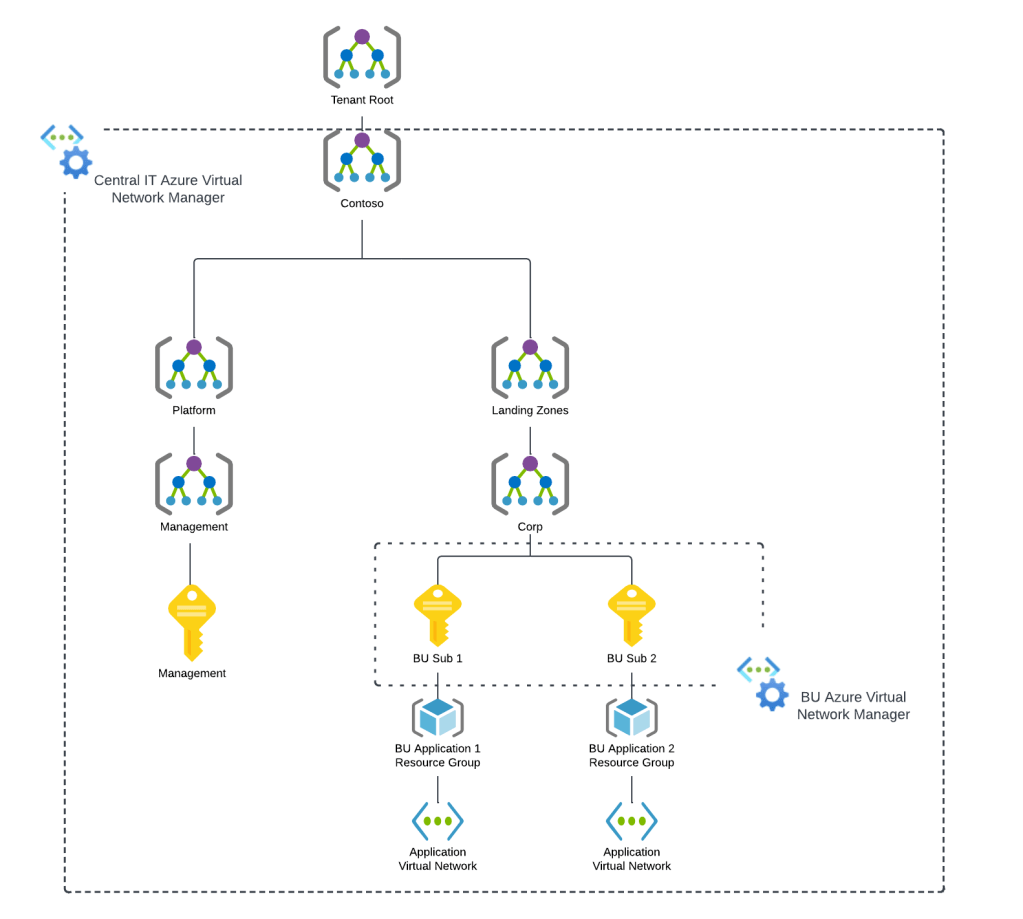
When an AVNM instance is created, it is assigned a scope of what it can manage. This can subscriptions added individually or it can be all subscriptions under a specific management group. A given scope can only have one AVNM instance assigned to it.

Azure Virtual network Manager Sample Architecture

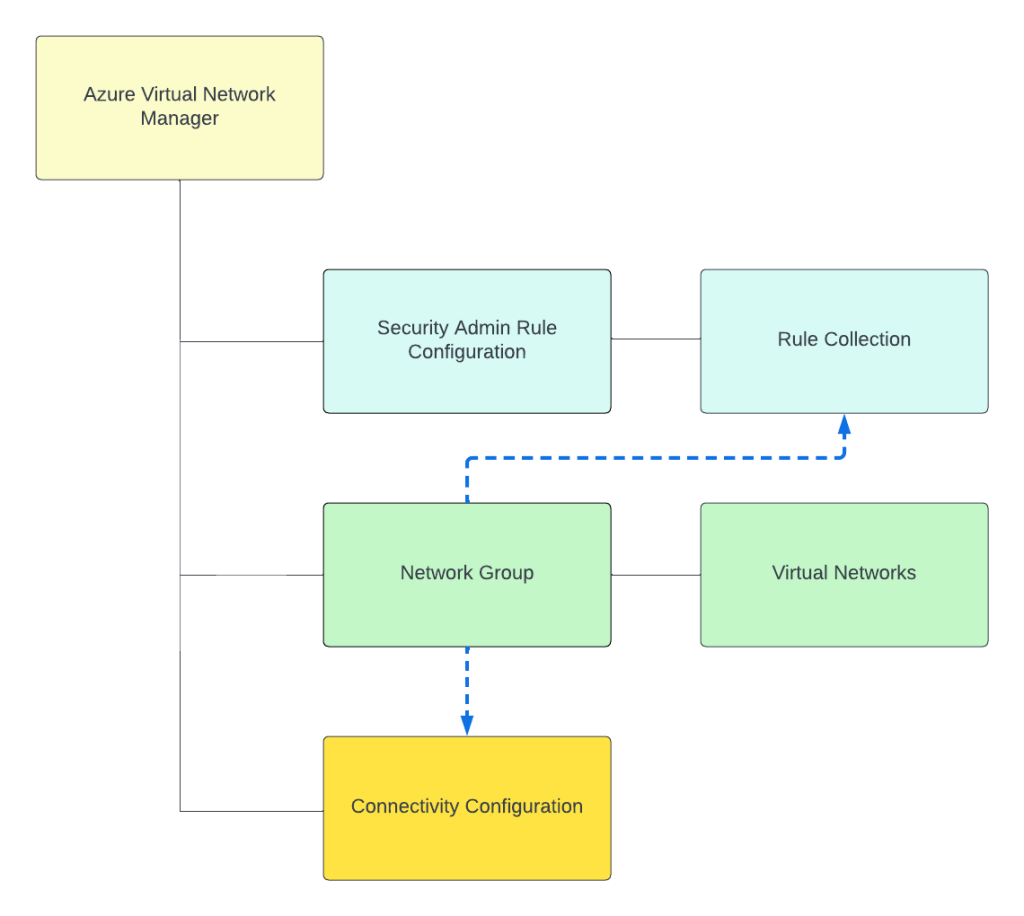
Today, under the assigned scope, AVNM can manage how virtual networks are connected to each other with the connectivity feature and what traffic is allowed or denied within the virtual network with the security admin rules feature superseding Network Security Groups. Within an AVNM instance you group virtual networks under the managed scope into a construct called a Network Group. Network Groups are then associated to either a connectivity or security admin rule configuration as seen below.

Azure Virtual Network Manager Resource relationships

Network groups can contain multiple virtual networks and virtual networks can be members of multiple Network Groups. Virtual networks can be added to a Network Group manually or dynamically through Azure Policy. The rest of this post will focus on dynamic membership and some of the interesting properties of the Azure Policy definitions.

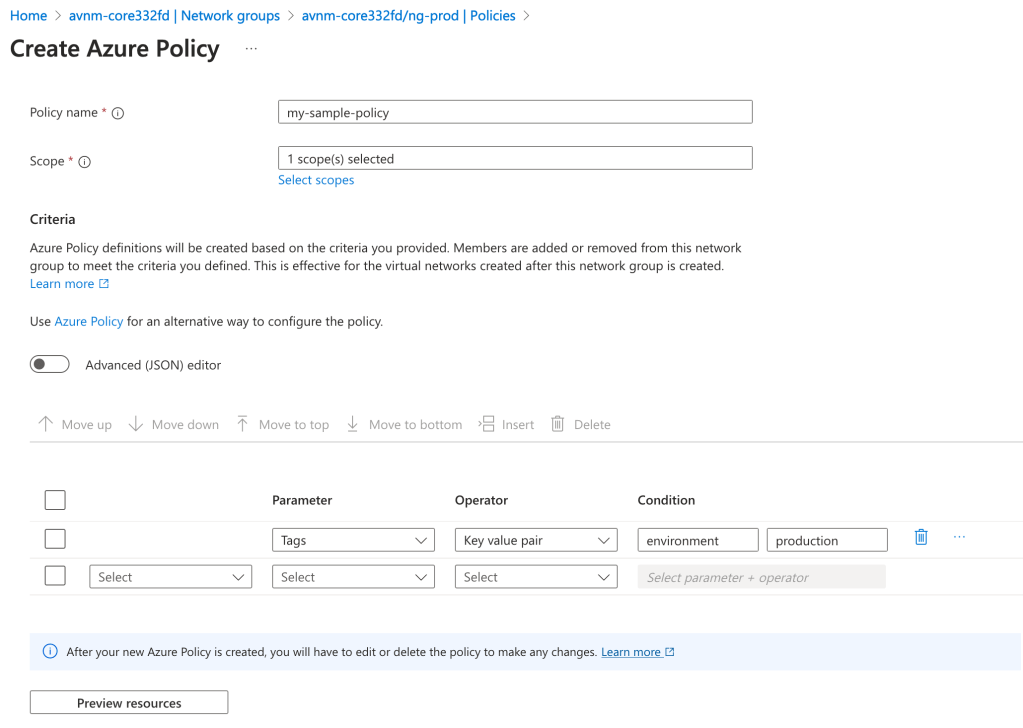
Before I dive into the policy definition I want to call out a neat feature the Product Group built into the solution. When accessing an AVNM instance from the Azure Portal there is a handy GUI-based tool included that can be used to graphically build the conditions on which virtual networks will be members of the Network Group. In the background, this tool builds out the Azure Policy definition and creates the assignment at the scopes you specify. This is one of the only products I’ve come across within Azure that assists the customer in building out an Azure Policy for the service. Great job by the product group!

Azure Policy builder to onboard virtual networks into a Network Group in Azure Virtual Network Manager

With the settings pictured above, I’m creating an Azure Policy to onboard all virtual networks tagged (there are a number of parameters and operators combinations you can use besides tags) with the key of environment and value of production under the specified scope to the Network Group. The policy will look something like this:

{
"properties": {
"policyType": "Custom",
"mode": "Microsoft.Network.Data",
"policyRule": {
"if": {
"allOf": [
{
"field": "type",
"equals": "Microsoft.Network/virtualNetworks"
},
{
"allOf": [
{
"field": "tags['environment']",
"equals": "production"
}
]
}
]
},
"then": {
"effect": "addToNetworkGroup",
"details": {
"networkGroupId": "/subscriptions/XXXXXXXX-XXXX-XXXX-XXXX-XXXXXXXXXXXX/resourceGroups/rg-demo-avnm-core332fd/providers/Microsoft.Network/networkManagers/avnm-core332fd/networkGroups/ng-prod"
}
}
}
},
"id": "/providers/Microsoft.Management/managementGroups/jogcloud/providers/Microsoft.Authorization/policyDefinitions/test",
"type": "Microsoft.Authorization/policyDefinitions",
"name": "test"

}

I’ve bolded the two properties I want you to key in on. The first property is the mode property. If you’ve written a custom Azure Policy or examined built-in policies you will likely be used to that property being set to either all or indexed. Here you will see it is set to Microsoft.Network.Data. This is one of the new resource provider modes that has been introduced which extends Azure Policy’s functionality. The other interesting property is the effect property. Again, you will likely be used to this being audit, deny, deployIfNotExists, etc. Instead, it is populated with a value of addToNetworkGroup. Both of these properties are specific to AVNM’s feature for dynamic members into its Network Groups.

Being the geek I am, I decided to try writing my own custom Azure Policy definition which would parameterize the the tag key, value, and resource id of the Network Group. Interestingly, you’re blocked from parameterizing the Network Group id due to a regex filter that has been put in. This regex filter validates that the Network Group id looks like an id and will reject if you try to do it as a parameter. I plan on submitting some feedback requesting this regex filter be removed which would allow for this to be fully parameterized. As of now, it looks like you’ll need an Azure Policy definition for each Network Group where you’re using dynamic membership.

Error message when parameterizing Network Group resource id

Once you create your Azure Policy definition and create the assignment, at the next policy evaluation the matching virtual networks will be added into the Network Group as dynamic members. The feature works exactly as described and is incredibly handy in quickly and efficiently onboarding new and existing virtual networks to a specific Network Group to apply a connectivity or security admin rule configuration.

Well folks that’s it for this short blog post. I found the dynamic membership and new Azure Policy properties interesting enough to warrant their own post. I’ve added an example working parameterized Azure Policy definition to my custom Azure Policy GitHub repo if you’re interested in messing around with it yourself.

Expect more posts to come on Azure Virtual Network Manager. Have a great night!

The Challenge of Logging Azure OpenAI Stream Completions

This is part of my series on GenAI Services in Azure:

  1. Azure OpenAI Service – Infra and Security Stuff
  2. Azure OpenAI Service – Authentication
  3. Azure OpenAI Service – Authorization
  4. Azure OpenAI Service – Logging
  5. Azure OpenAI Service – Azure API Management and Entra ID
  6. Azure OpenAI Service – Granular Chargebacks
  7. Azure OpenAI Service – Load Balancing
  8. Azure OpenAI Service – Blocking API Key Access
  9. Azure OpenAI Service – Securing Azure OpenAI Studio
  10. Azure OpenAI Service – Challenge of Logging Streaming ChatCompletions
  11. Azure OpenAI Service – How To Get Insights By Collecting Logging Data
  12. Azure OpenAI Service – How To Handle Rate Limiting
  13. Azure OpenAI Service – Tracking Token Usage with APIM
  14. Azure AI Studio – Chat Playground and APIM
  15. Azure OpenAI Service – Streaming ChatCompletions and Token Consumption Tracking
  16. Azure OpenAI Service – Load Testing

Updates:

Hello again fellow geeks. Today I’m back with another Azure OpenAI Service (AOAI) post. I’ve talked in the past about the gaps in the native logging for the AOAI service and how the logs lack traceability and details on token usage to be used for chargebacks. I was lucky enough to work with Jake Wang and others on a reference architecture that could address these gaps using Azure API Manager (APIM). I also wrote some custom APIM policies to provide examples for how this information could be captured within APIM. I’ve observed customers coming up with creative solutions such as capturing the data within the application sitting in front of AOAI as a tactical means to get this data while more strategically using third-party API Gateway products such as Apigee, or even building custom highly functional and complex gateways. However, there was a use case that some of these solutions (such as the custom policies I wrote) didn’t account for, and that was streaming completions.

Like OpenAI’s API, the AOAI service API offers support for streaming chat completions. Streaming completions return the model’s completion as a series as events as the tokens are processed versus a non-streaming completion which returns the entire completion once the model is finished processing. The benefit of a streaming completion is a better user experience. There have been studies that show that any delay longer than 10 seconds won’t hold user attention. By streaming the completion as it’s generated the user is receiving that feedback that the website is responding.

Streaming Chat Completion

The OpenAI documentation points out a few challenges when using streaming completions. One of those challenges is the response from the API no longer includes token usage, which means you need to calculate token usage by some other means such as using OpenAI’s open source tokeniser tiktoken. It also makes it difficult to moderate content because only partial completions are received in each event. Outside of those challenges, there is also a challenge when using APIM. As my peer Shaun Callighan points out, Microsoft does not recommend logging the request/response body when dealing with a stream of server-events such as the API is returning with streaming chat completions because it can cause unexpected buffering (which it does with streaming chat completions). This means the application user will not get the behavior the application owner intended them to get. In my testing, nothing was returned until model finished the completion.

If using the Python SDK, you can make a chat completion streaming by adding the stream=true property to the ChatCompletion object as seen below.

        response = openai.ChatCompletion.create(
            engine=DEPLOYMENT_NAME,
            messages=[
                {
                   "role": "user",
                   "content": "Write me a bedtime story"
                }
            ],
            max_tokens=300,
            stream=True
        )

The body of the response includes a series of server-events such as the below.

...
data: {"id":"chatcmpl-8JNDagQPDWjNWOgbUm9u5lRxcmzIw","object":"chat.completion.chunk","created":1699628174,"model":"gpt-35-turbo","choices":[{"index":0,"finish_reason":null,"delta":{"content":"Once"}}],"usage":null}
data: {"id":"chatcmpl-8JNDagQPDWjNWOgbUm9u5lRxcmzIw","object":"chat.completion.chunk","created":1699628174,"model":"gpt-35-turbo","choices":[{"index":0,"finish_reason":null,"delta":{"content":" upon"}}],"usage":null}
data: {"id":"chatcmpl-8JNDagQPDWjNWOgbUm9u5lRxcmzIw","object":"chat.completion.chunk","created":1699628174,"model":"gpt-35-turbo","choices":[{"index":0,"finish_reason":null,"delta":{"content":" a"}}],"usage":null}
...

So how do you deal with this if you are or were planning to use APIM for logging, load balancing, authorization, and throttling? You have a few options.

  1. You can move logging into the application and use APIM only for load balancing, authorization, and throttling.
  2. You can insert a proxy logging solution behind APIM to handle logging of both streaming and non-streaming completions and use APIM only for load balancing, authorization, and throttling.
  3. You can block streaming completions at APIM.

Option 1

Option 1 is workable at a small scale and is a good tactical solution if you need to get something out to production quickly. The challenge with this option is enforcing it at scale. If you have amazing governance within your organization and excellent SDLC maybe you can enforce this. In my experience, few organizations have the level of maturity needed for this. The other problem with this is ideally logging for the purposes of compliance should be implemented and enforced by another entity to ensure separation of duties.

Benefits

  1. Quick and easy to put in place.

Considerations

  1. Difficult to enforce at scale.
  2. Puts the developers in charge of enforcing logging on themselves. Could be an issue with separation of duties.

Option 2

Option 2 is an interesting solution that my peer Shaun Callighan came up. In Shaun’s architecture a proxy-type solution is placed between APIM and AOAI and that solution handles parsing the requests and responses, calculating token usage, and logging the information to an Event Hub. They have even been kind enough to provide a sample solution demonstrating how this could be done with an Azure Function.

Benefits

  1. Allows you to use continue using APIM for the benefits around load balancing, authorization, and throttling.
  2. Supports streaming chat completions.
  3. Provides the logging necessary for compliance and chargebacks for both streaming and non-streaming chat completions.
  4. Centralized enforcement of logging.

Considerations

  1. You will need to develop your own code to parse the responses/responses, calculate chargebacks, and deliver the logs to Event Hub. (You could use Shaun’s code as a starting point)
  2. You’ll need to ensure this proxy does not become a bottleneck. It will need to scale as requests to the AOAI instance scale along with APIM and whatever else you have in path of the user’s request.

Option 3

Option 3 is another valid option (and honestly a simple fix IMO) and may be where some customers end up in the near term. With this option you block the use of streaming completions at APIM with a custom policy snippet like below. If the developers are worried about the user experience, there is always the option to flash a “processing”-like message in the text window while the model processes the completion.

Benefits

  1. Allows you to continue using APIM for logging, load balancing, throttling, and authorization.
  2. No new code introduced.
  3. Centralized enforcement of logging.
  4. No additional bottlenecks.

Considerations

  1. Your developers may hate you for this.
  2. There may be a legitimate use case where stream chat completions are required.

Since Shaun has a proof-of-concept example for option 2, I figured I’d showcase a sample APIM policy snippet for option 3. In the APIM policy snippet below, I determine if the stream property is included in the request body and store the value in a variable (it will be true or false). I then check the variable to see if the value is true, and if so I return a 404 status code with the message that streaming chat completions are not allowed.

        <!-- Capture the value of the streaming property if it is included -->
        <choose>
            <when condition="@(context.Request.Body.As<JObject>(true)["stream"] != null && context.Request.Body.As<JObject>(true)["stream"].Type != JTokenType.Null)">
                <set-variable name="isStream" value="@{
                    var content = (context.Request.Body?.As<JObject>(true));
                    string streamValue = content["stream"].ToString();
                    return streamValue;
                }" />
            </when>
        </choose>
        <!-- Blocks streaming completions and returns 404 -->
        <choose>
            <when condition="@(context.Variables.GetValueOrDefault<string>("isStream","false").Equals("true", StringComparison.OrdinalIgnoreCase))">
                <return-response>
                    <set-status code="404" reason="BlockStreaming" />
                    <set-header name="Microsoft-Azure-Api-Management-Correlation-Id" exists-action="override">
                        <value>@{return Guid.NewGuid().ToString();}</value>
                    </set-header>
                    <set-body>Streaming chat completions are not allowed by this organization.</set-body>
                </return-response>
            </when>
        </choose>

If you ignore streaming chat completions and try to use a policy such as this one, the model will complete the completion but APIM will throw a 500 status code back at the developer because the structure of a streaming response doesn’t look like the structure of a non-streaming response and it can’t be parsed using that policy’s logic. This means you’ll be throwing money out of the window and potentially struggling with troubleshooting root cause. TLDR, pick an option above to deal with streaming and get it in place if you’re using APIM for logging today or plan to.

Last but not least, I want to link to a wonderful policy snippet by Shaun Callighan. This policy snippet dumps the trace logs from APIM into the headers returned in the response from APIM. This is incredibly helpful when troubleshooting a 500 status code returned by APIM.

Well folks, that wraps up this short blog post on this Friday afternoon. Have a great weekend and happy holidays!

Azure VWAN and Private Endpoint Traffic Inspection – Findings

Azure VWAN and Private Endpoint Traffic Inspection – Findings

Today I’m taking a break from my AI series to cover an interesting topic that came up at a customer.

My customer base exists within the heavily regulated financial services industry which means a strong security posture. Many of these customers have requirements for inspection of network traffic which includes traffic between devices within their internal network space. This requirement gets interesting when talking inspection of traffic destined for a service behind a Private Endpoint. I’ve posted extensively on Private Endpoints on this blog, including how to perform traffic inspection in a traditional hub and and spoke network architecture. One area I hadn’t yet delved into was how to achieve this using Azure Virtual WAN (VWAN).

VWAN is Microsoft’s attempt to iterate on the hub and spoke networking architecture and make the management and setup of the networking more turnkey. Achieving that goal has been an uphill battle for VWAN with it historically requiring very complex architectures to achieve the network controls regulated industries strive for. There has been solid progress over the past few months with routing intent and support for additional third-party next generation firewalls running in the VWAN hub such as Palo Alto becoming available. These improvements have opened the doors for regulated customers to explore VWAN Secure Hubs as a substitute for a traditional hub and spoke. This brings us to our topic: How do VWAN Secure Hubs work when there is a requirement to inspect traffic destined for a Private Endpoint?

My first inclination when pondering this question was that it would work in the same way a traditional hub and spoke works. In past posts I’ve covered that pattern. You can take a look at this repository I’ve put together which walks through the protocol flows in detail if you’re curious. The short of it is inspection requires enabling network policies for the subnet the Private Endpoints are deployed to and SNATing at the firewall. The SNATing is required at the firewall because Private Endpoints do not obey user-defined routes defined in a route table. Without the SNAT you get asymmetric routing that becomes a nightmare of troubleshooting to identify. Making it even more confusing, some services like Azure Storage will magically keep traffic symmetric as I’ve covered in past posts. Best practice for traditional hub and spoke is SNATing for firewall inspection with Private Endpoints.

Hub and Spoke Firewall Inspection

My first stop was to read through the Microsoft documentation. I came across this article first which walks through traffic inspection with Azure Firewall with a VWAN Secure Hub. As expected, the article states that SNAT is required (yes I’m aware of the exception for Azure Firewall Application Rules, but that is the exception and not the rule and very few in my customer space use Azure Firewall). Ok great, this aligns with my understanding. But wait, this article about Secure Hub with routing intent does not mention SNAT at all. So is SNAT required or not?

When public documentation isn’t consistent (which of course NEVER happens) it’s time to lab and see what we see. I threw together a single region VWAN Secure Hub with Azure Firewall, enabled routing intent for both Internet and Private traffic, and connected my home lab over a S2S VPN. I created then Private Endpoint for a Key Vault and Azure SQL resource. Per the latter article mentioned above, I enabled Private Endpoint Network Policies for the snet-svc subnet in the spoke virtual network. Finally, I created a single Network Rule allowing traffic for 443 and 1433 from my lab to the spoke virtual network. This ensured I didn’t run into the transparent proxy aspect of Application Rules throwing off my findings.

Lab used

If you were doing this in the “real world” you’d setup a packet capture on the firewall and validate you see both sides of the conversation. If you’ve used Azure Firewall, you’re well aware it does not yet support packet captures making this impossible. Thankfully, Microsoft has recently introduced Azure Firewall Structure Firewall Logs which include a log called Azure Firewall Flow Trace Log. This log will show you the gooey details of the TCP conversation and helps to fill the gap of troubleshooting asymmetric traffic while Microsoft works on offering a packet capture capability (a man can dream, can’t he?).

While the rest of the Azure Firewall Structured Logs need nothing special to be configured, the Flow Trace Logs do (likely because as of 8/20/2023 they’re still in public preview). You need to follow the instructions located within this document. Make sure you give it a solid 30 minutes of completing the steps to enable the feature before you enable the log through the diagnostic settings of the Azure Firewall. Also, do not leave this running. Beyond the performance hit that can occur because of how chatty this log is, you could also be in a world of hurt for a big Log Analytics Workspace bill if you leave it running.

Once I had my lab deployed and the Flow Trace Logs working, I next went ahead testing using the Test-NetConnection PowerShell cmdlet from a Windows machine in my home lab. This is a wonderful cmdlet if you need something built-in to Windows to do a TCP Ping.

Testing Azure SQL via Private Endpoint

In the above image you can see that the TCP Ping to port 1433 of an Azure SQL database behind a Private Endpoint was successful. Review of the Azure Firewall Network Logs showed my Network Rule firing which tells me the TCP SYN at least passed through providing proof that Private Endpoint Network Policies were successfully affecting the traffic to the Private Endpoint.

What about return traffic? For that I went to the Flow Trace Logs. Oddly enough, the firewall was also receiving the SYN-ACK back from the Private Endpoint all without SNAT being configured. I repeated the test for a Azure Key Vault behind a Private Endpoint and observed the same behavior (and I’ve confirmed in the Azure Key Vault needs SNAT for return traffic in the past in a standard hub and spoke).

Azure Firewall Flow Trace Log

So is SNAT required or not? You’re likely expecting me to answer yes or no. Well today I’m going to surprise you with “I don’t know”. While testing with these two services in this architecture seemed to indicate it was not, I’ve circulated these findings within Microsoft and the recommendation to SNAT to ensure flow symmetry remains. As I’ve documented in prior posts, not all Azure services behave the same way with traffic symmetry and Azure Private Endpoints (Azure Storage for example) and for consistent purposes you should be SNATing. Do not rely on your testing of a few services in a very specific architecture as being gospel. You should be following the practices outlined in the documentation.

I feel like I’m ending this blog Sopranos-style with fade to black, but sometimes even tech has mystery. In this post you got a taste of how Flow Trace Logs can help troubleshoot traffic symmetry issues when using Azure Firewall and you learned that not all things in the cloud work the way you expect them to work. Sometimes that is intentional and sometimes it’s not intentional. When you run into this type of situation where behavior you’re observing doesn’t match documentation, it’s always best to do what is documented (in this case you should be doing SNAT). Maybe it’s something you’re doing wrong (this is me we’re talking about) or maybe you don’t have all the data (I tested 2 of 100+ services). If you go with what you experience, you risk that undocumented behavior being changed or corrected and then being in a heap of trouble in the middle of the night (oh the examples I could give of this across my time at cloud providers over a glass of Titos).

Well folks, that wraps things up. TLDR; SNAT until the documentation says otherwise regardless of what you experience.

Thanks!