Azure AD Pass-through Authentication – How does it work? Part 1

Hi everyone. I decided to take a break from the legacy and jump back to modern. Today I’m going to do some digging into Microsoft’s Azure AD Pass-through Authentication solution. The feature was introduced into public preview in December of 2016 and was touted as the simple and easy alternative to AD FS. Before I jump into the weeds of pass-through authentication, let’s do a high level overview of each option.

I will first cover the AD FS (Active Directory Federation Services) solution. When AD FS is used a solution for authentication to Azure Active Directory, it’s important to remember that AD FS is simply a product that enables the use of a technology to solve a business problem. In this instance the technology we are using is modern authentication (sometimes referred to as claims-based authentication) to solve the business problem of obtaining some level of assurance that a user is who they say they are.

When Azure AD and AD FS are integrated to enable the use of modern authentication, the Windows Services Federation Language (WS-FED) standard is used. You are welcome to read the standard for details, but the gist of WS-FED is a security token service generates logical security tokens (referred to assertions) which contain claims. The claims are typically pulled from a data store (such as Active Directory) and contain information about the user’s identity such as logon ID or email address. The data included in claims has evolved significantly over the past few years to include other data about the context of the user’s device (such as a trusted or untrusted device) and user’s location (coming from a trusted or untrusted IP range). The assertions are signed by the security token service (STS) and delivered to an application (referred to as the relying party) which validates the signature on the assertion, consumes the claims from the assertion, and authorizes the user access to the application.

You may have noticed above that we never talked about a user’s credentials. The reason for that is the user’s credentials aren’t included in the assertion. Prior to the STS generating the assertion, the user needs to authenticate to the STS. When AD FS is used, it’s common for the user to authenticate to the STS using Kerberos. Those of you that are familiar with Active Directory authentication know that a user obtains a Kerberos ticket-granting-ticket during workstation authentication to a domain-joined machine. When the user accesses AD FS (in this scenario the STS) the user provides a Kerberos service ticket. The process to obtain that service ticket, pass it to AD FS, getting an assertion, and passing that assertion back to the Azure AD (relying party in this scenario) is all seamless to the user and results in a true single sign-on experience. Additionally, there is no need to synchronize a user’s Active Directory Domain Services password to Azure AD, which your security folk will surely love.

The challenge presented with using AD FS as a solution is you have yet another service which requires on-premises infrastructure, must be highly available, and requires an understanding of the concepts I have explained above. In addition, if the service needs to be exposed to the internet and be accessible by non-domain joined machines, a reverse proxy (often Microsoft Web Application Proxy in the Microsoft world) which also requires more highly available infrastructure and the understanding of concepts such as split-brain DNS.

Now imagine you’re Microsoft and companies want to limit their on-premises infrastructure and the wider technology mark is slim in professionals that grasp all the concepts I have outlined above. What do you do? Well, you introduce a simple lightweight solution that requires little to no configuration or much understanding of what is actually happening. In come Azure AD Pass-through authentication.

Azure AD Pass-through authentication doesn’t require an STS or a reverse proxy. Nor does it require synchronization of a user’s Active Directory Domain Service password to Azure AD. It also doesn’t require making changes to any incoming flows in your network firewall. Sounds glorious right? Microsoft thinks this as well, hence why they’ve been pushing it so hard.

The user experience is very straightforward where the user plugs in their Active Directory Domain Services username and password at the Azure AD login screen. After the user hits the login screen, the user is logged in and go about their user way. Pretty fancy right? So how does Microsoft work this magic? It’s actually quite complicated but ingeniously implemented to seem incredibly simplistic.

The suspense is building right? Well, you’ll need to wait until my next entry to dig into the delicious details. We’ll be using a variety of tools including a simple packet capturing tool, a web proxy debugging tool, and an incredibly awesome API monitoring tool.

See you next post!

Digging deep into the AD DS workstation logon process – Part 2

Welcome back.

Today I will continue my analysis of the workstation logon process. Please take a read through Part 1 if you haven’t already. We left off with the workstation obtaining a Kerberos service ticket in order to authenticate to the domain controller to access the SMB share.

Ready? Let’s go!

  1. Source: Domain-joined machine
    Destination: Same Site or Closest Site Domain Controller
    Connection: TCP
    Port: 445
    Protocol: SMB
    Purpose: The domain-joined workstation requests a new authenticated SMB session with the domain controller and provides its Kerberos service ticket as proof of authentication.
    Links:

  2. Source: Domain-joined machine
    Destination: Primary DNS Server
    Connection: UDP
    Port: 53
    Protocol: DNS
    Purpose: DsGetDcName API issues a DNS query for an SRV record to the domain-joined machine’s primary DNS server for a domain controller offering the Kerberos service within its site using the SRV record of _ldap._tcp.FAKESITE._sites.dc._msdcs.contoso.local. The primary DNS server returns the results of the SRV query.

  3. Source: Domain-joined machine
    Destination: Domain Controller resolved from IP returned from previous step
    Connection: UDP
    Port: 389
    Protocol: LDAP
    Purpose: DsGetDcName API on domain-joined machine issues a specially crafted LDAP query (referred to by Microsoft as an LDAP Ping) to the domain controller it receives back from the query and then queries the RootDSE for the NetLogon attribute. The detail query is as follows:

    • Filter: (&(DnsDomain=)(Host=HOSTNAME)(DomainGUID=)(NtVer=)(DnsHostName=))
    • Attributes: NetLogon

    The domain controller passes the query to the NetLogon service running on the domain controller which evaluates the query to determine which site the server belongs in. The domain controller returns information about its state and provides the information detailed below (https://msdn.microsoft.com/en-us/library/cc223807.aspx):

    • Flags:
      • DSPDCFLAG – DC is PDC of the domain
      • DSGCFLAG – DC is a GC of the forest
      • DSLDAPFLAG – Server supports an LDAP server
      • DSDSFlag- DC supports a DS and is a domain controller
      • DSKDCFlag DC is running KDC service
      • DSTimeServFlag – DC is running time service
      • DSClosestFlag – DC is in the closest site to the client
      • DSWritableFLag – DC has a writable DS
      • DSGoodTimeServFlag (0) – DC is running time service
      • DSNDNCFlag – DomainName is a non-domain NC serviced by the LDAP server
      • DSSelectSecretDomain6Flag – the server is a not an RODC
      • DSFullSecretDomain6Flag – The server is a writable DC
      • DSWSFlag – The Active Directory Web Service is present on the server
      • DSDNSControllerFlag – DomainControllerName is not a DNS name
      • DSDNSDomainFlag – DomainName is not a DNS name
      • DSDNSForestFlag – DnsForestName is not a DNS name
    • DomainGuid:
    • DnsForestName: contoso.local
    • DnsDomainName: contoso.local
    • DnsHostName: dc2.contoso.local
    • NetbiosDomainName: CONTOSO
    • NetbiosComputerName: DC2
    • Username:
    • DcSiteName: FAKESITE
    • ClientSiteName: FAKESITE
    • NextClosestSIteName: Default-First-Site-Name

    The client caches this information to its DCLocator cache.

  4. Source: Domain-joined machine
    Destination: Same Site or Closest Site Domain Controller
    Connection: TCP
    Port: 445
    Protocol: SMB
    Purpose: The domain-joined workstation sends an SMB TREE CONNECT Request to the domain controller for the IPC$ share accessed by \IPC$. The IPC$ share is used to setup a named pipe for further RPC calls to the service such as allowing the workstation to enumerate the shares available on the server. The domain controller responds with an SMB TREE CONNECT Response providing information about the capabilities of the IPC$ share.
    Links:

  5. Source: Domain-joined machine
    Destination: Same Site or Closest Site Domain Controller
    Connection: TCP
    Port: 445
    Protocol: SMB
    Purpose: The domain-joined workstation sends an SMB IOCTL Request to the domain controller with the control FSCTL_VALIDATE_NEGOTIATE_INFO (0x00140204). This control is used to verify that the domain controller hasn’t changed the authentication mechanism originally negotiated. The domain controller responds with an SMB IOCTL Response confirming the authentication mechanism has not changed. This helps to prevent man in the middle attacks.
    Links:

  6. Source: Domain-joined machine
    Destination: Same Site or Closest Site Domain Controller
    Connection: TCP
    Port: 445
    Protocol: SMB
    Purpose: The domain-joined workstation sends an SMB IOCTL Request to the domain controller with the control FSCTL_QUERY_NETWORK_INTERFACE_INFO (0x001401FC). This control is used to determine whether or not the server has multiple IPs and a new channel should be established. The domain controller responds with an SMB IOCTL Response providing an answer.
    Links:

  7. Source: Domain-joined machine
    Destination: Same Site or Closest Site Domain Controller
    Connection: TCP
    Port: 445
    Protocol: SMB
    Purpose: The domain-joined workstation sends an SMB IOCTL Request to the domain controller with the control SCTL_DFS_GET_REFERRALS (0x00060194). This control requests the DFS referral for the domain-based DNS root. The domain controller responds with an SMB IOCTL Response providing an answer with an entry for the FQDN and NetBios entries.
    Links:

  8. Source: Domain-joined machine
    Destination: Primary DNS Server
    Connection: UDP
    Port: 389
    Protocol: LDAP
    Purpose: The domain-joined workstation sends a DNS query for the A record for the second domain controller record it received back in the initial queries for the various SRV records. The domain controller responds with the answer to the DNS query.

  9. Source: Domain-joined machine
    Destination: Domain Controller resolved from IP returned from previous step
    Connection: UDP
    Port: 389
    Protocol: LDAP
    Purpose: DsGetDcName API on domain-joined machine issues a specially crafted LDAP query (referred to by Microsoft as an LDAP Ping) to the domain controller it receives back from the query and then queries the RootDSE for the NetLogon attribute. The detail query is as follows:

    • Filter: (&(DnsDomain=)(Host=HOSTNAME)(DomainGUID=)(NtVer=)(DnsHostName=))
    • Attributes: NetLogon

    The domain controller passes the query to the NetLogon service running on the domain controller which evaluates the query to determine which site the server belongs in. The domain controller returns information about its state and provides the information detailed below (https://msdn.microsoft.com/en-us/library/cc223807.aspx):

    • Flags:
      • DSPDCFLAG – DC is PDC of the domain
      • DSGCFLAG – DC is a GC of the forest
      • DSLDAPFLAG – Server supports an LDAP server
      • DSDSFlag- DC supports a DS and is a domain controller
      • DSKDCFlag DC is running KDC service
      • DSTimeServFlag – DC is running time service
      • DSClosestFlag – DC is in the closest site to the client
      • DSWritableFLag – DC has a writable DS
      • DSGoodTimeServFlag (0) – DC is running time service
      • DSNDNCFlag – DomainName is a non-domain NC serviced by the LDAP server
      • DSSelectSecretDomain6Flag – the server is a not an RODC
      • DSFullSecretDomain6Flag – The server is a writable DC
      • DSWSFlag – The Active Directory Web Service is present on the server
      • DSDNSControllerFlag – DomainControllerName is not a DNS name
      • DSDNSDomainFlag – DomainName is not a DNS name
      • DSDNSForestFlag – DnsForestName is not a DNS name
    • DomainGuid:
    • DnsForestName: contoso.local
    • DnsDomainName: contoso.local
    • DnsHostName: DCSERVER.contoso.local
    • NetbiosDomainName: CONTOSO
    • NetbiosComputerName: DCSERVER
    • Username:
    • DcSiteName: Default-First-Site-Name
    • ClientSiteName: FAKESITE
    • NextClosestSIteName: Default-First-Site-Name

    The client caches this information to its DCLocator cache.

All right folks, we’re going to break here. My next post will continue with the NetLogon process.

Thanks and see you then!

Digging deep into the AD DS workstation logon process – Part 1

Hi everyone. The holidays are over, spring is quickly approaching, and it’s been far too long since I’ve had a chance to do a deep dive. This year I have some work on the agenda for Microsoft Active Directory Domain Services (AD DS). That work will require a very strong understanding of the network flows, ports, and protocols that provide the service. While there are many different resources on the web, I haven’t found one that gets to the level I’d like to see. This made for the perfect opportunity for a series of blog posts.

Many of us have faced the challenge where there is a requirement to separate the domain controllers providing the AD DS service and the domain members with a firewall. Microsoft does a wonderful job defining the ports and protocols required for this scenario in this link (https://technet.microsoft.com/en-us/library/dd772723(v=ws.10).aspx). The integration is pretty straightforward with the only decision typically being whether to define static RPC ports or leveraging a firewall which is capable of handling dynamic RPC ports.

One of the things I’ve always wondered is when are each of these ports and protocols used? What better place to start than a common source for troubleshooting? For this series of blogs I will do a deep dive into the flows a domain-joined machine uses and what happens within those connections. Yeah I know, AD DS isn’t that glamorous in the year 2017, but all the moving parts, protocols, standards, and functions that power something as seemingly simple as a logon are fascinating and worth a deeper look.

To provide for this scenario I built a small lab in Azure with three Windows Server 2016 Standard VMs. Each VM is configured as seen below:

Name: DCSERVER
Roles: Active Directory Domain Services, DNS
IP: 10.0.10.101

Name: DC2
Roles: Active Directory Domain Services, DNS
IP: 10.0.10.102

Name: MEMBER
Roles: None
IP: 10.0.10.100

The AD DS forest uses the CONTOSO.LOCAL DNS namespace and has one custom site defined named FAKESITE. DCSERVER is servicing the Default-First-Site-Name and DC2 is servicing FAKESITE. FAKESITE has been assigned a subnet range that includes MEMBER. For tools I used Procmon to capture the registry entries that a domain-joined member’s Active Directory site is cached to. Additionally I used netsh to perform a network capture at boot up

Beyond the network flows, I was interested in observing the DCLocator (DSGetDcName) API behavior. I cleared the three registry entries listed below to ensure MEMBER would perform a DCLocator query at boot up. Additionally I used netsh to get a network capture at boot up (https://blogs.msdn.microsoft.com/canberrapfe/2012/03/30/capture-a-network-trace-without-installing-anything-capture-a-network-trace-of-a-reboot/) and Microsoft Network Monitor to analyze the capture.

– HKLMSystemCurrentControlSetServicesTcpipParametersDomain
– HKLMSystemCurrentControlSetServicesNetlogonParametersSiteName
– HKLMSystemCurrentControlSetServicesNetlogonParameterDynamicSiteName

With the background information taken care of, let’s jump into workstation authentication process.

  1. Source: Domain-joined machine
    Destination: Primary DNS Server
    Connection: UDP
    Port: 53
    Protocol: DNS
    Purpose: DsGetDcName API on domain-joined machine uses the information collected from the registries entries listed at the bottom of this step to issue a DNS query for an SRV record to the machine’s primary DNS server for a server offering an LDAP service _ldap._tcp.dc_msdsc.contoso.local. The primary DNS server returns the results of the SRV query.

    • HKLMSystemCurrentControlSetServicesTcpipParametersHostname
    • HKLMSystemCurrentControlSetServicesTcpipParametersDomain
    • HKLMSystemCurrentControlSetServicesTcpipParametersNameServer
    • HKLMSystemCurrentControlSetServicesTcpipParametersDhcpNameServer
    • HKLMSystemCurrentControlSetServiesNetlogonParametersSiteName
    • HKLMSystemCurrentControlSetServiesNetlogonParametersDynamicSiteName
  2. Source: Domain-joined machine
    Destination: Primary DNS Server
    Connection: UDP
    Port: 53
    Protocol: DNS
    Purpose: DSGetDcName API on domain-joined machine issues a DNS query for the A record of a domain controller from the results of the SRV query. The primary DNS server returns the results of the A record query.

  3. Source: Domain-joined machine
    Destination: Domain Controller
    Connection: UDP
    Port: 389
    Protocol: LDAP
    Purpose: DsGetDcName API on domain-joined machine issues a specially crafted LDAP query (referred to by Microsoft as an LDAP Ping) to the domain controller querying the RootDSE for the NetLogon attribute. The detail query is as follows:

    • Filter: (&(DnsDomain=)(Host=HOSTNAME)(DomainSID=)(DomainGUID=)(NtVer=)(DnsHostName=))
    • Attributes: NetLogon

    The domain controller passes the query to the NetLogon service running on the domain controller which evaluates the query to determine which site the server belongs in. The domain controller returns information about its state and provides the information detailed below (https://msdn.microsoft.com/en-us/library/cc223807.aspx):

    • Flags:
      • DSPDCFLAG – DC is PDC of the domain
      • DSGCFLAG – DC is a GC of the forest
      • DSLDAPFLAG – Server supports an LDAP server
      • DSDSFlag- DC supports a DS and is a domain controller
      • DSKDCFlag DC is running KDC service
      • DSTimeServFlag – DC is running time service
      • DSClosestFlag – DC is in the closest site to the client
      • DSWritableFLag – DC has a writable DS
      • DSGoodTimeServFlag (0) – DC is running time service
      • DSNDNCFlag – DomainName is a non-domain NC serviced by the LDAP server
      • DSSelectSecretDomain6Flag – the server is a not an RODC
      • DSFullSecretDomain6Flag – The server is a writable DC
      • DSWSFlag – The Active Directory Web Service is present on the server
      • DSDNSControllerFlag – DomainControllerName is not a DNS name
      • DSDNSDomainFlag – DomainName is not a DNS name
      • DSDNSForestFlag – DnsForestName is not a DNS name
    • DomainGuid:
    • DnsForestName: contoso.local
    • DnsDomainName: contoso.local
    • DnsHostName: DCSERVER.contoso.local
    • NetbiosDomainName: CONTOSO
    • NetbiosComputerName: DCSERVER
    • Username:
    • DcSiteName: Default-First-Site-Name
    • ClientSiteName: FAKESITE
    • NextClosestSIteName: Default-First-Site-Name

    The client caches this information to its DCLocator cache and will perform another LDAP Ping to another domain controller if it was determined the domain controller is not within the client’s site.

  4. Source: Domain-joined machine
    Destination: Same Site or Closest Site Domain Controller
    Connection: TCP
    Port: 445
    Protocol: SMB
    Purpose: The domain-joined workstation sends an SMB2 NEGOTIATE Request to the domain controller and receives back an SMB2 Negotiate Response. This process allows the machines to agree upon an authentication mechanism. This SMB session will be leveraged through the logon process to communicate with a domain controller’s SYSVOL to process group policy and run any startup scripts.
    Links:

  5. Source: Domain-joined machine
    Destination: Primary DNS Server
    Connection: UDP
    Port: 53
    Protocol: DNS
    Purpose: DsGetDcName API issues a DNS query for an SRV record to the machine’s primary DNS server for a domain controller offering the Kerberos service using the SRV record of _kerberos._tcp.dc._msdcs.contoso.local. The primary DNS server returns the results of the SRV query.

  6. Source: Domain-joined machine
    Destination: Domain Controller
    Connection: UDP
    Port: 389
    Protocol: LDAP
    Purpose: DsGetDcName API on domain-joined machine issues a specially crafted LDAP query (referred to by Microsoft as an LDAP Ping) to the domain controller querying the RootDSE for the NetLogon attribute. The detail query is as follows:

    • Filter: (&(DnsDomain=)(Host=HOSTNAME)(DomainGUID=)(NtVer=)(DnsHostName=))
    • Attributes: NetLogon

    The domain controller passes the query to the NetLogon service running on the domain controller which evaluates the query to determine which site the server belongs in. The domain controller returns information about its state and provides the information detailed below (https://msdn.microsoft.com/en-us/library/cc223807.aspx):

    • Flags
      • DSPDCFLAG – DC is PDC of the domain
      • DSGCFLAG – DC is a GC of the forest
      • DSLDAPFLAG – Server supports an LDAP server
      • DSDSFlag- DC supports a DS and is a domain controller
      • DSKDCFlag DC is running KDC service
      • DSTimeServFlag – DC is running time service
      • DSClosestFlag – DC is in the closest site to the client
      • DSWritableFLag – DC has a writable DS
      • DSGoodTimeServFlag (0) – DC is running time service
      • DSNDNCFlag – DomainName is a non-domain NC serviced by the LDAP server
      • DSSelectSecretDomain6Flag – the server is a notan RODC
      • DSFullSecretDomain6Flag – The server is a writable DC
      • DSWSFlag – The Active Directory Web Service is present on the server
      • DSDNSControllerFlag – DomainControllerName is not a DNS name
      • DSDNSDomainFlag – DomainName is not a DNS name
      • DSDNSForestFlag – DnsForestName is not a DNS name
    • DomainGuid:
    • DnsForestName: contoso.local
    • DnsDomainName: contoso.local
    • DnsHostName: DCSERVER.contoso.local
    • NetbiosDomainName: CONTOSO
    • NetbiosComputerName: DCSERVER
    • Username:
    • DcSiteName: Default-First-Site-Name
    • ClientSiteName: FAKESITE
    • NextClosestSIteName: Default-First-Site-Name

    The client caches this information to its DCLocator cache and will perform another LDAP Ping to another domain controller if it was determined the domain controller is not within the client’s site.

  7. Source: Domain-joined machine
    Destination: Same Site or Closest Site Domain Controller
    Connection: TCP
    Port: 88
    Protocol: Kerberos
    Purpose: The domain-joined machine attempts to verify its identity with the domain controller by sending a KRB-AS-REQ without pre-authentication data. The domain controller checks the object that represents the principal to determine if the account has the “Do not require Kerberos preauthentication.” If the option is not checked, the domain controller returns KRB_ERROR (25) indicating preauthentication data is required.

  8. Source: Domain-joined machine
    Destination: Same Site or Closest Site Domain Controller
    Connection: TCP
    Port: 88
    Protocol: Kerberos
    Purpose: The domain-joined machine re-attempts to verify its identity with the domain controller by sending a KRB-AS-REQ with pre-authentication data. The domain controller validates the principal’s identity and responds with a KRB-AS-REP which includes a Kerberos TGT for the principal to use to obtain additional Kerberos service tickets.

  9. Source: Domain-joined machine
    Destination: Same Site or Closest Site Domain Controller
    Connection: TCP
    Port: 88
    Protocol: Kerberos
    Purpose: The domain-joined machine requests a service ticket for CIFS service running on the domain controller by sending a KRB-TGS-REQ for the CIFS service principal. The domain controller validates the machine’s Kerberos TGT and returns a service ticket for the CIFS service. The domain-joined machine will use the service ticket to authenticate to the SMB service in order to access the SYSVOL share.

  10. Source: Domain-joined machine
    Destination: Same Site or Closest Site Domain Controller
    Connection: TCP
    Port: 88
    Protocol: Kerberos
    Purpose: The domain-joined machine requests a service ticket for CIFS service running on the domain controller by sending a KRB-TGS-REQ for the CIFS service principal name. The domain controller validates the machine’s Kerberos TGT and returns a service ticket for the CIFS service. The domain-joined machine will use the service ticket to authenticate to the SMB service in order to access the SYSVOL share.

  11. Source: Domain-joined machine
    Destination: Same Site or Closest Site Domain Controller
    Connection: TCP
    Port: 88
    Protocol: Kerberos
    Purpose: The domain-joined machine requests a Kerberos TGT by sending a KRB-TGS-REQ for the KRBTGT service principal name. I have to admit, I’m pretty clueless on this one. The only usage I can find online references cross realm.

As you can see, there’s a ton of interesting chatter that only gets more interesting once we begin breaking down the SMB conversation. The SMB portion involved a ton of reading on my end, because I haven’t often done any deep dive troubleshooting into the protocol. As always, I’ll include the links that helped me along the learning path as we cruise through those sections. See you on the next post!

Azure AD User Provisioning – Part 5

Hi everyone. I apologize for the delay in publishing the last post in this series. The past few months have been hectic. For this last post of the year I will be completing the series on provisioning in Azure AD.

As I’ve covered in earlier posts, there are a lot of options when provisioning to Azure AD including multiple GUIs and programmatic options. I’ve covered provisioning in the Azure Management Portal, Azure Portal, Office 365 Admin Center, and Azure Active Directory PowerShell v1 and v2. In this final post I will cover provisioning via the Graph API using a simple ASP .NET web application.

I was originally going to leverage the graph API directly via PowerShell using the .NET ADAL libraries and Invoke-WebRequest cmdlets. I’ve been playing around a lot with Visual Studio creating simple applications like the Azure B2B provisioning app. I decided to challenge myself by adding additional functionality to the ASP .NET web application I assembled in my previous post. I enjoyed the hell out of the process, learned a bunch more about .NET, C#, ASP .NET web apps, and applications built using the MVC architecture. Let’s get to it shall we?

Before we dive into the code and the methodologies I used to put together the application, let’s take a look at it in action. The application starts by requiring authentication to Azure AD.

1

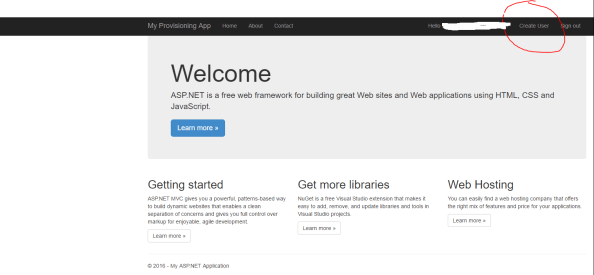
After successful authentication, the main page for the website loads. You’ll notice from the interface that I used the sample ASP .NET MVC Web Application available in Visual Studio but added a new navigation link on the right hand side named Create User.

2

After clicking the Create User link, the user is redirected to a simple (i.e. ugly) web form where information about the new user is collected.

3

After the user hits submit, the new user is created in Azure AD and the information from the returned JWT is parsed and displayed in a table.

4

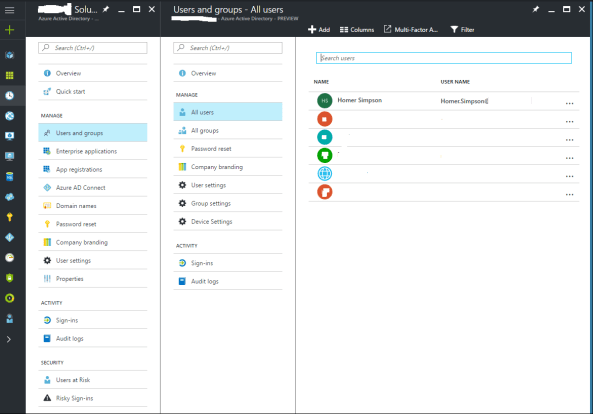
When we navigate to the Azure AD blade in the Azure Portal we see that Homer has been created and added to the system.

clearme

So you’re probably asking the question as to how complicated it was to put this application together? The answer may surprise you. It was incredibly simple. The most difficult part of the process was learning my away around C# and how MVC web apps are put together. For a skilled developer, this would have taken an hour versus the days it took me.

The first thing I did was do some reading into the Graph API, specifically around managing users. Microsoft has a number of great instructions located here and here. After getting familiar with the required inputs and the outputs, I built a new model in my application that would be used for the user form input.

6

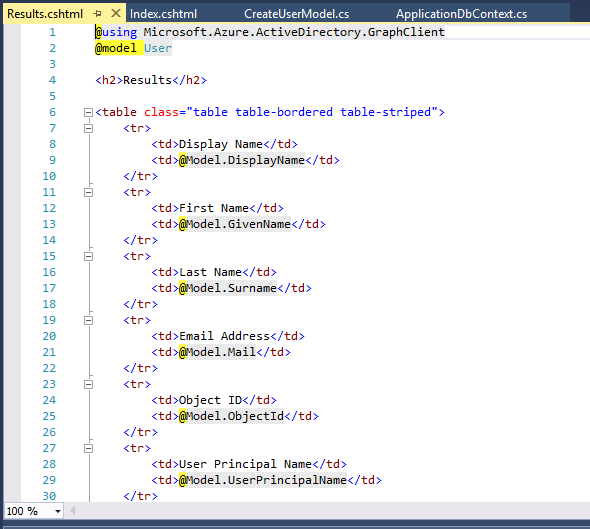
Once I had my new model assembled, I then created two new views under a new folder named Create User. The view named Index is the view that takes the user input and the view named Results is the view that spits back some of the content from the JWT returned from Azure after the user is successfully created. Here is the code for the Index view.

7

And the code for the Results view.

8

After the new views were created, I then moved on to creating the guts of the new functionality with a new controller named CreateUserController. I was able to reuse some of the code from the UserProfileController to obtain the necessary OAuth access token to delegate the rights to the application to create the new user.

9

The remaining code in my controller came from a crash course in programming and MVC web apps. The first section of code calls the task to obtain the access token.

10

The next section of code creates a new instance of the user class and populates the properties with information collected from the form.

11.png

The final section of code attempts to create the new user and displays the results page with information about the user such as objectID and userPrincipalName. If the application is unable to create the user, the exception is caught, and an error page is displayed.

12

But wait… what is missing? I’ll give you a hint, it’s not code.

The answer is the appropriate delegated permissions. Even if the user is a global admin, the application can’t perform the actions of a global admin unless we allow it to. To make this happen, we’ll log into the Azure Portal, access the Azure AD blade, and grant the application the delegated permission to Access the directory as the signed-in user.

13

Simple right? The Azure Active Directory Graph Client libraries make the whole process incredibly easy doing a whole lot with very little code. Imagine integrating this functionality into an existing service catalog. Let’s say you have a business user who needs access to Dynamics CRM Online. The user could navigate to the service catalog and request access. After their manager approvers, the application powering the service catalog could provision the new user, assign the license for Dynamics CRM Online, and drop the user into the appropriate groups. All of this could happen without having to involve IT. This is the value of a simple API with a wonderful set of libraries.

Well folks that wraps up my last post the year. I’ll return next year with a series of deep dives exploring Microsoft’s newly announced Azure AD Pass-through authentication and SSO features. Have a happy holiday!