Recently I was giving a customer an overview of Azure Managed Identities and came across an interesting find while building a demo environment. If you’re unfamiliar with managed identities, check out my prior series for an overview. Long story short, managed identities provide a solution for non-human identities where you don’t have to worry about storing, securing, and rotating the credentials. For those of you coming from AWS, managed identities are very similar to AWS Roles. They come in two flavors, user-assigned and system-assigned. For the purposes of this post, I’ll be focusing on system-assigned.
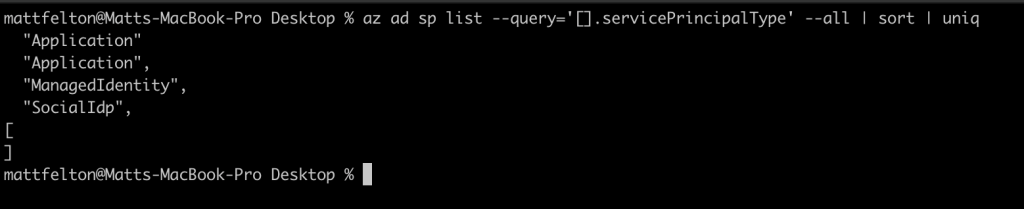
Under the hood, a managed identity is essentially a service principal with some orchestration on top of it. Interestingly enough, there are a number of different service principal types. Running the command below will spit back the different types of service principals that exist in your Azure AD tenant.
az ad sp list --query='[].servicePrincipalType' --all | sort | uniq
Service principal types
If you’re interested in seeing the service principals associated with managed identities in your Azure AD tenant, you can run the command below.
az ad sp list --query="[?servicePrincipalType=='ManagedIdentity']" --all
Managed identities include a property called alternativeNames which is an array. In my testing I observed two values within this array. The first value is “isExplicit=True” or “isExplicit=False” which is set to True for user-assigned managed identities and False when it’s a system-assigned managed identity. If you want to see all system-assigned managed identities for example, you can run the command below.
az ad sp list --query="[?servicePrincipalType=='ManagedIdentity' && alternativeNames[?contains(@,'isExplicit=False')]]" --all
The other value in this array is the resource id of the managed identity in the case of a user-assigned managed identity. With a system-assigned managed identity this is the resource id of the Azure resource the system-assigned managed identity is associated with.
System-assigned managed identity
So why does any of this matter? Before we get to that, let’s cover the major selling point of a system-assigned managed identity when compared to a user-assigned managed identity. With a system-assigned managed identity, the managed identity (and its service principal) share the lifecycle of the resource. This means that if you delete the resource, the service principal is cleaned up… well most of the time anyway.
Sometimes this cleanup process doesn’t happen and you’re left with orphaned service principals in your directory. The most annoying part is you can’t delete these service principals (I’ve tried everything including calls direct to the ARM API) and the only way to get them removed is to open a support ticket. Now there isn’t a ton of risk I can think of with having these orphaned service principals left in your tenant since I’m not aware of any means to access the credential associated with it. Without the credential no one can authenticate as it. Assuming the RBAC permissions are cleaned up, it’s not really authorized to do anything within Azure either. However, beyond dirtying up your directory, it’s an identity with a credential that shouldn’t be there anymore.
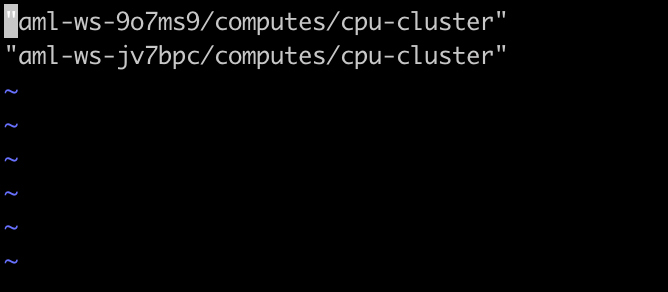
I wanted an easy way to identify these orphaned system-assigned managed identities so I could submit a support ticket and get it cleaned up before it started cluttering up my demonstration tenant. This afternoon I wrote a really ugly bash script to do exactly that. The script uses some of the az cli commands I’ve listed above to identify all the system-assigned managed identities and then uses az cli to determine if the resource exists. If the resource doesn’t exist, it logs the displayName property of the system-assigned managed identity to a text file. Quick and dirty, but does the job.
Orphaned system-assigned managed identities
Interestingly enough, I had a few peers run the script on their tenants and they all had some of these orphaned system-assigned managed identities, so it seems like this problem isn’t restricted to my tenants. Again, I personally can’t think of a risk of these identities remaining in the directory, but it does point to an issue with the lifecycle management processes Microsoft is using in the backend.
In this post I’ll be covering the behavior of the network security controls available for Azure Event Hub and the “quirk” (trying to be nice here) in enforcement of those controls specifically for Event Hub. This surfaced with one of my customers recently, and while it is publicly documented, I figured it was worthy of a post to explain why an understanding of this “quirk” is important.
As I’ve mentioned in the past, my primary customer base consists of customers in regulated industries. Given the strict laws and regulations these organizations are subject to, security is always at the forefront in planning for any new workload. Unless you’ve been living under a rock, you’ve probably heard about the recent “issue” identified in Microsoft’s CosmosDB service, creatively named ChaosDB. I’ll leave the details to the researchers over at Wiz. Long story short, the “issue” reinforced the importance of practicing defense-in-depth and ensuring network controls are put in place where they are available to supplement identity controls.
You may be asking how this relates to Event Hub? Like CosmosDB and many other Azure PaaS (platform-as-a-service) services, Event Hub has more than one method to authenticate and authorize to access to both the control plane and the data plane. The differences in these planes are explained in detail here, but the gist of it is the control plane is where interactions with the Azure Resource Manager (ARM) API occurs and involves such operations as creating an Event Hub, enabling network controls like Private Endpoints, and the like. The data plane on the other hand consists of interactions with the Event Hub API and involves operations such as sending an event or receiving an event.
Azure AD authentication and Azure RBAC authorization uses modern authentication protocols such as OpenID Connect and OAuth which comes with the contextual authorization controls provided by Azure AD Conditional Access and the granularity for authorization provided by Azure RBAC. This combination allows you to identify, authenticate, and authorize humans and non-humans accessing the Event Hub on both planes. Conditional access can be enforced to get more context about a user’s authentication (location, device, multi-factor) to make better decisions as to the risk of an authentication. Azure RBAC can then be used to achieve least privilege by granting the minimum set of permissions required. Azure AD and Azure RBAC is the recommended way to authenticate and authorize access to Event Hub due to the additional security features and modern approach to identity.
The data plane has another method to authenticate and authorize into Event Hubs which uses shared access keys. There are few PaaS services in Azure that allow for authentication using shared access keys such as Azure Storage, CosmosDB, and Azure Service Bus. These shared keys are generated at the creation time of the resource and are the equivalent to root-level credentials. These keys can be used to create SAS (shared access signatures) which can then be handed out to developers or applications and scoped to a more limited level of access and set with a specific start and expiration time. This makes using SAS a better option than using the access keys if for some reason you can’t use Azure AD. However, anyone who has done key management knows it’s an absolute nightmare of which you should avoid unless you really want to make your life difficult, hence the recommendation to use Azure AD for both the control plane and data plane.
Whether you’re using Azure AD or SAS, the shared access keys remain a means to access the resource with root-like privileges. While access to these keys can be controlled at the control plane using Azure RBAC, the keys are still there and available for use. Since the usage of these keys when interacting with the data plane is outside Azure AD, it means conditional access controls aren’t an option. Your best bet in locking down the usage of these keys is to restrict access at the control plane as to who can retrieve the access keys and use the network controls available for the service. Event Hubs supports using Private Endpoints, Service Endpoint, and the IP-based restrictions via what I will refer to as the service firewall.
If you’ve used any Azure PaaS service such as Key Vault or Azure Storage, you should be familiar with the service firewall. Each instance of a PaaS service in Azure has a public IP address exposes that service to the Internet. By default, the service allows all traffic from the Internet and the method of controlling access to the service is through identity-based controls provided by the supported authentication and authorization mechanism.
Service Firewall off allowing access from any public IP
Access to the service through the public IP can be restricted to a specific set of IPs, specific Virtual Networks, or to Private Endpoints. I want quickly to address a common point of confusion for customers; when locking down access to a specific set of Virtual Networks such as available in this interface, you are using Service Endpoints. This list should be empty because there are few very situations where you are required to use a Service Endpoint now because of the availability of Private Endpoints. Private Endpoints are the strategic direction for Microsoft and provide a number of benefits over Service Endpoints such as making the service routable from on-premises over an ExpressRoute or VPN connection and mitigating the risk of data exfiltration that comes with the usage of Service Endpoints. If you’ve been using Azure for any length of time, it’s worthwhile auditing for the usage of Service Endpoints and replacing them where possible.
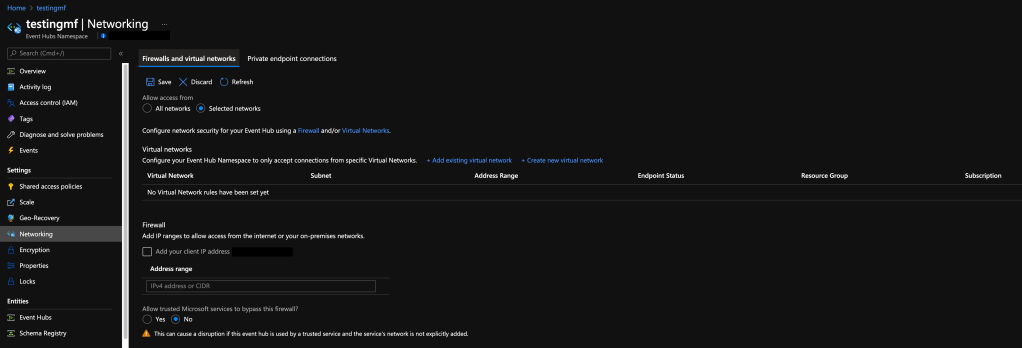
Service Firewall options
Now this is where the “quirk” of Event Hubs comes in. As I mentioned earlier, most of the Azure PaaS services have a service firewall with a similar look and capabilities as above. If you were to set the the service firewall to the setting above where the “Selected Networks” option is selected and no IP addresses, Virtual Networks, or Private Endpoints have been exempted you would assume all traffic is blocked to the service right? If you were talking about a service such as Azure Key Vault, you’d be correct. However, you’d be incorrect with Event Hubs.
The “quirk” in the implementation of the service firewall for Event Hub is that it is still accessible to the public Internet when the Selected Networks option is set. You may be thinking, well what if I enabled a Private Endpoint? Surely it would be locked down then right? Wrong, the service is still fully accessible to the public Internet. While this “quirk” is documented in the public documentation for Event Hubs, it’s inconsistent to the behaviors I’ve observed in other Microsoft PaaS services with a similar service firewall configuration. The only way to restrict access to the public Internet is to add a single entry to the IP list.
Note in public documentation
So what does this mean to you? Well this means if you have any Event Hubs deployed and you don’t have a public IP address listed in the IP rules, then your Event Hub is accessible from the Internet even if you’ve enabled a Private Endpoint. You may be thinking it’s not a huge deal since “accessible” means open for TCP connections and that authentication and authorization still needs to occur and you have your lovely Azure AD conditional access controls in place. Remember how I covered the shared access key method of accessing the Event Hubs data plane? Yeah, anyone with access to those keys now has access to your Event Hub from any endpoint on the Internet since Azure AD controls don’t come into play when using keys.
Now that I’ve made you wish you wore your brown pants, there are a variety of mitigations you can put in place to mitigate the risk of someone exploiting this. Most of these are taken directly from the security baseline Microsoft publishes for the service. These mitigations include (but are not limited to):
Use Azure RBAC to restrict who has access to the share access keys.
Take an infrastructure-as-code approach when deploying new Azure Event Hubs to ensure new instances are configured for Azure AD authentication and authorization and that the service firewall is properly configured.
Use Azure Policy to enforce Event Hubs be created with correctly configured network controls which include the usage of Private Endpoints and at least one IP address in the IP Rules. You can use the built-in policies for Event Hub to enforce the Private Endpoint in combination with this community policy to ensure Event Hubs being created include at least one IP of your choosing. Make sure to populate the parameter with at least one IP address which could be a public IP you own, a non-publicly routable IP, or a loopback address.
Use Azure Policy to audit for existing Event Hubs that may be publicly available. You can use this policy which will look for Event Hub hubs with a default action of Allow or Event Hubs with an empty IP list.
Rotate the access keys on a regular basis and whenever someone who had access to the keys changes roles or leaves the organization. Note that rotating the access keys will invalidate any SAS, so ensure you plan this out ahead of time. Azure Storage is another service with access keys and this article provides some advice on how to handle rotating the access keys and the repercussions of doing it.
If you’re an old school security person, not much of the above should be new to you. Sometimes it’s the classic controls that work best. 🙂 For those of you that may want to test this out for yourselves and don’t have the coding ability to leverage one of the SDKs, take a look at the Event Hub add-in for Visual Studio Code. It provides a very simplistic interface for testing sending and receiving messages to an Event Hub.
Well folks, I hope you’ve found this post helpful. The biggest piece of advice I can give you is to ensure you read documentation thoroughly whenever you put a new service in place. Never assume one service implements a capability in the same way (I know, it hurts the architect in me as well), so make sure you do your own security testing to validate any controls which fall into the customer responsibility column.
Last year Microsoft announced the general availability of Private Endpoint support for App Services. This was a feature I was particularly excited about because when combined with regional Vnet integration, it offered an alternative to an ASE (App Service Environment) for customers who wanted to run internally-facing applications or who didn’t feel comfortable exposing their publicly facing application directly via a public IP.
Over the past year I created a few different labs that demonstrated these features including a web app and function app. Each lab was built around a hub and spoke architecture where the application was serving as an internally-facing application. Given my recent post on Azure Firewall Premium, and the fact I still had the lab environment up and running, I thought it would be interesting to switch the virtual machine out and switch App Services in, which resulted in the lab environment pictured below.
Lab environment
I established the following goals for the lab environment:
Perform IDPS on traffic to the web app
Mediate and inspect traffic initiated from the web app to third-party APIs
Expose a web application to the Internet without giving it a direct public IP address
To accomplish these goals I was able to re-use much of the pattern I described in my last post.
The first step in the process was to create a very simple hub and spoke architecture as pictured above. The environment would consist of a transit Vnet (virtual network), shared services Vnet, and spoke Vnet. The transit Vnet would contain the guts of the solution with an Azure Firewall Premium SKU instance and Azure Application Gateway v2 instance. In the shared services Vnet I used a Windows Server VM (virtual machine) running the DNS Server service and providing DNS resolution for the environment. I could have taken a shortcut here and used Azure Firewall’s DNS proxy capability, but I like to leave the options open for conditional forwarding which Azure Firewall and Azure Private DNS do not support at this time. Finally, in the spoke Vnet I created two subnets. One subnet hosted the private endpoint for App Services and the other subnet was delegated to App Services to support regional Vnet integration.
Once all components were in place, I deployed a simple Python web application I wrote. All it does it queries two public APIs, one for the current time and the other for a random Breaking Bad quote (greatest show of all time!). I took the cheating way out and deployed the app directly via Visual Studio using the Azure App Service add-in prior to deploying the private endpoint and regional Vnet integration capabilities. This allowed me to test the app to validate it was still working as intended while also allowing me to deploy the app from my home machine. Deploying a private endpoint for app services locks down not only access to the running application but also to the SCM (source control management) endpoint that is used for deploying code to the app.
The next step was to create the Azure Private DNS Zone for app services which is named privatelink.azurewebsites.net. I then linked this zone to my shared services Vnet and setup the DNS server running in that Vnet with a standard forward to 168.63.129.16. This setup allows DNS queries made to the Private DNS zone to be resolved by the DNS server. I’ve written extensively about how DNS works with Azure Private Link so I won’t go into any more detail on that flow. Last step in the DNS process is to configure each Vnet to use the DNS server IP in its DNS Server settings. This also needs to configured directly on the Azure Firewall.
Now that the infrastructure would be able to resolve queries to the Private DNS Zone used by App Services, it was time to create the private endpoint for the web app. This registered the appropriate DNS records in the Private DNS Zone for my web app. With the private endpoint created, the last step was to enable Vnet integration.
Private DNS Zone with records for App Service instance
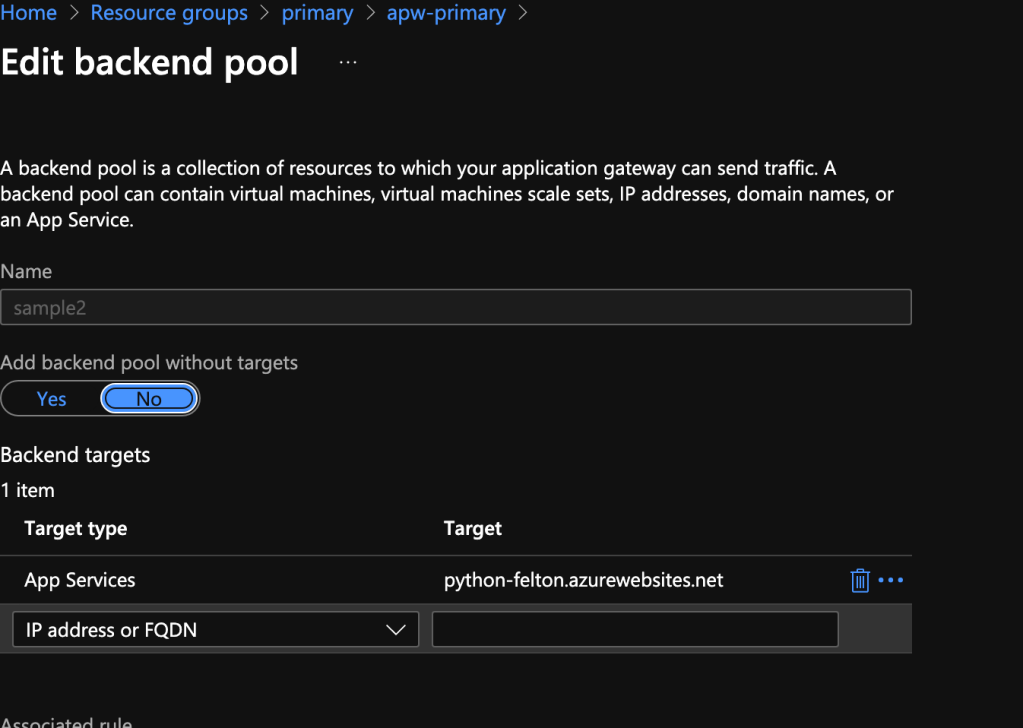
At this point I had all the guts of my solution and it was time to configure traffic to flow the way I wanted it to flow. Before I could begin work in Azure I needed to do the work outside of Azure. This involved creating an A record in my DNS hosting provider to point the public DNS name of my web app to the AGW’s (Application Gateway) public IP. This name can be whatever you want as long as you provide a certificate to the AGW such that it will identify itself as that name to the user. The AGW configuration is very straightforward and this tutorial will get you most of the way there. One thing to note is you’ll need to set the backend to point to the name given to the app service. This allows you to take advantage of the certificate Microsoft automatically provisions to the given app service.
App Gateway backend config
Since I wanted to route traffic destined for the web app through the Azure Firewall Premium instance, I needed to ensure the AGW trusted the certificate served up by Azure Firewall. This is done by modifying the HTTP setting used in the AGW rule for the app. Here you can upload the root certificate that issued the Azure Firewall Premium intermediate certificate.
App Gateway HTTP Setting
Now that the AGW is configured, I needed to create a route table for the subnet the AGW has its private IP address in. In this route table I disabled BGP (border gateway protocol) propagation to ensure the default route since this AGW v2 requires a default route pointing directly to the Internet. Now this is where it gets interesting from a routing perspective. Whenever you create a private endpoint for a service, a system route is added to the route table of all the subnets within the private endpoint’s vnet (virtual network) as well as any vnet the private endpoint’s vnet is peered with. If I want traffic from the AGW to route through the Azure Firewall, I need to override that system route with a /32 UDR. As you can imagine, this can become extremely tedious at scale and even risks hitting the max routes per route table depending on the scale we’re talking about. On the positive side, the issues around this are something Microsoft is aware of so hopefully that means this will be addressed at some point. In the meantime you’ll need to use the /32 route in a pattern such as this.
App Gateway route table
Azure Firewall Premium needs to be configured to allow traffic from the AGW to the web app and inspect this traffic. You can check out my last post for instructions on configured Azure Firewall to perform these activities.
Excellent, work is done right? Nope! If we influence routing on one side, we have to ensure the other side routes the same way. Toss a route table on the private endpoint subnet you say? Sorry, that isn’t supported my friend. Instead I needed to enable the Azure Firewall instance to SNAT (source NAT) traffic to the spoke Vnet. This ensures routing is symmetric and will eliminate any potential connection issues by creating only the UDR on the AGW subnet.
Incoming traffic flow
Lastly, I needed to create and apply a route table to the subnet I delegated to App Services for regional Vnet integration. This route table can be very simple and be configured with a single UDR for the default route pointing to the Azure Firewall private IP. This results in the traffic flow below:
Outgoing Internet traffic flow
This one was another fun pattern to solve. I got a chance to mess around more with AGW and also get a pattern I had theorized would work actually working. I find implementing the pretty pictures I draw helps drive home the benefits and considerations of such a pattern. With this pattern specifically, it suffers from similar considerations as the pattern in my last post. These include:
Challenges with observability
Operational overhead of certificate management
Possible latency issues depending on latency requirements and traffic patterns
This pattern tacks on more operational overhead by requiring that /32 route be added to the AGW route table each time a new app service is provisioned with a private endpoint. Observability further suffers when tracing a packet flow end-to-end due to the additional layer of SNAT required via Azure Firewall. One thing to note about this is you may be able to get around the SNAT requirement for web-specific traffic because of the transparent proxy functionality behind Azure Firewall application rules. I want to highlight I have not tested this myself and I typically tend to SNAT for this use case in my lab because many of my customers may use similar patterns but with a 3rd party firewall.
So there you go folks, another pattern to add to your inventory. Hopefully we’ll see the /32 issue issue private endpoints resolved sometime in the near future. Have a great weekend!
I recently had a customer that was interested in staying as purely cloud native as possible, which included any centralized firewall that would be in use. Microsoft has offered up Azure Firewall for a while now and it is a great solution if you’re looking for a very basic fully-managed firewall. Here are some of the neater features of the solution:
Unfortunately this basic feature set rarely satisfied the more regulated customer base I tend to work with. Many of these customers went with the full featured security appliances such as those offered by Palo Alto, Fortigate, and the like. One of the largest gaps in Azure Firewall when compared to the 3rd party vendors was the lack DPI (deep packet inspection) and IDS (intrusion detection system) / IPS (intrusion prevention system) capabilities. Microsoft heard the feedback from its customers and back in February of 2021 made the Azure Firewall Premium SKU available in public preview with a collection of features such as TLS (transport layer security) Inspection, IDPS (intrusion detection prevention system), URL filtering, and improved web category filtering. The addition of these capabilities now has made Azure Firewall a much more appealing cloud-native solution.
I had yet to spend any significant time experimenting with the Premium SKU (I make it a habit to not invest a ton of time into preview features). However, this customer gave me the opportunity to dive into the TLS inspection and IDPS capabilities. These capabilities will be the subject of this post and I’ll spend some time describing the architectural pattern I built out and experimented with.
This particular customer had a requirement to perform DPI and IDPS on incoming web-based traffic from the Internet. I asked the customer to provide the control set they needed to satisfy such that we could map those controls to the technical controls available in Azure-native services. The hope was, since this was web-based traffic only and used across multiple regions, we might be able to satisfy all the controls via a WAF (web application firewall) such as Azure Front Door and supplement with layer 7 load balancing with Azure Application Gateway within a given region. The rest of the traffic, non-web, would be delivered to a firewall running in parallel. This pattern is becoming more common place as the WAFs grow in functionality and feature set.
WAF-Only Pattern
Unfortunately the above pattern was not an option for the customer because they wanted to maintain a centralized funnel for all traffic via a firewall. This is not an uncommon ask. This meant I had to get the traffic coming in from the WAF to funnel through Azure Firewall. For this pattern to work end to end I would need layer 7 load balancing so that meant I needed an Application Gateway as well. The question was do I place the Azure Firewall before or after the Application Gateway? For the answer to this question I went to the Microsoft documentation. Typically the public documentation leaves a lot to be desired when it comes to identifying the benefits and considerations of a particular pattern (oh how I long for the days of Technet-quality documentation), however the documentation around these patterns is stellar.
After quickly reading the benefits and considerations about the two patterns, the decision looked like it was made for me. The pattern where the firewall is placed after the application gateway aligned with my customer’s use case. It specifically covered TLS inspection and IDPS through Azure Firewall Premium. Curious as to why this TLS inspection at Azure Firewall wasn’t mentioned in the other use case where Azure Firewall is placed in front of Application Gateway, I went down a rabbit hole.
My first stop was the public documentation for the Azure Firewall Premium SKU. Since the feature is still public preview there are a fair amount of limitations but none of the limitations that weren’t planned to be fixed by GA (general availability) looked like show stoppers. However, in the section for TLS Inspection, I noticed this blurb, “Azure Firewall Premium terminates outbound and east-west TLS connections.” I reached out to some internal communities within Microsoft and confirmed that “at this time” Azure Firewall isn’t capable of performing TLS Inspection on traffic coming in the public interface. This limitation meant that I had to get the traffic received from the WAF over to the internal interface and the best way to do this was to intake it from the WAF through the Application Gateway. This would be the pattern I’d experiment with.
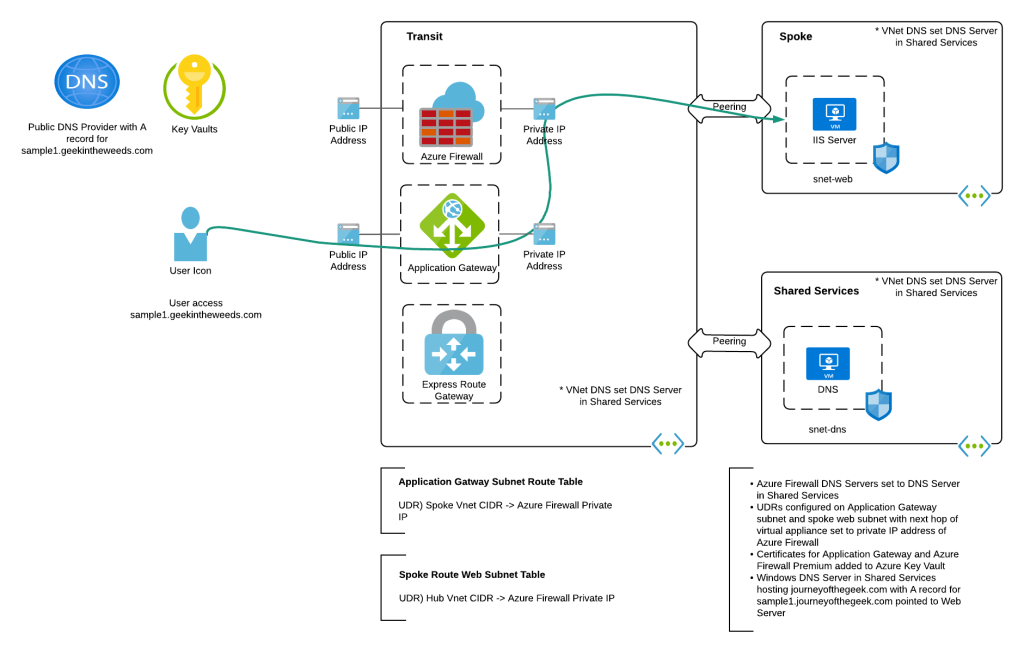
To keep things simple, I focused on a single region and didn’t include a WAF. Load balancing across regions could be done with the customer’s 3rd party WAF where the WAF would resolve to the appropriate regional Application Gateway v2 instance public IP depending on the load balancing pattern (such as geo-location) the customer was using. Once the traffic is received from the WAF, the Application Gateway terminates the TLS session so that it can inspect the URL and host headers and direct the traffic to the appropriate backend, which in this case was the single web server running IIS (Internet Information Services) in a peered spoke virtual network.
Lab environment
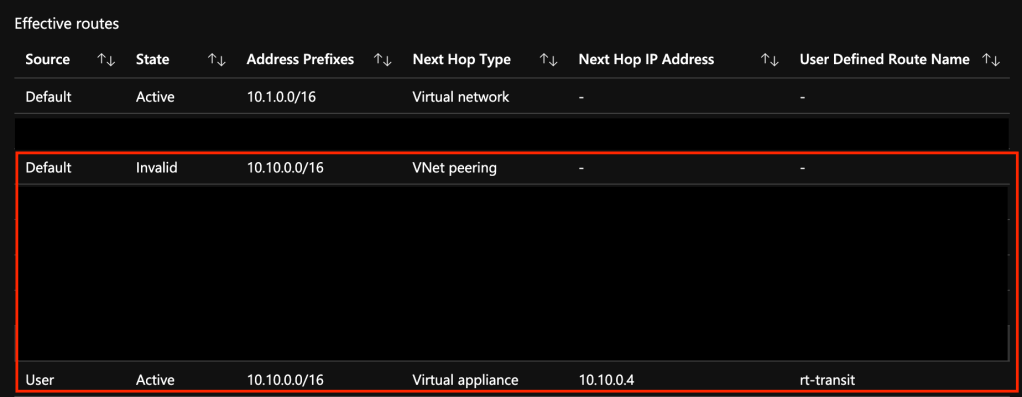
To ensure the traffic leaving the Application Gateway funnels through the Azure Firewall instance, I attached a route table to the Application Gateway. This route table was configured with BGP propagation disabled (to ensure a default route couldn’t be accidentally propagated in) and with a single UDR (user-defined route) which contained the spoke’s virtual network CIDR (Classless Inter-Domain Routing) block with a next hop of the Azure Firewall private IP address. Since UDRs take precedence over system routes, this route would invalidate the system route for the peering. On the web server subnet in the spoke I had a similar route table with a single UDR which contained the transit virtual network CIDR block with a next hop of the Azure Firewall private IP address. This ensured that any communication between the two would flow through the Azure Firewall.
Spoke web server subnet’s route table
To ensure DNS would resolve, I created an A record in public DNS for sample1.geekintheweeds.com pointing to the public IP address of the Application Gateway. Within Azure, I built a Windows server, installed the DNS service, and created a forward lookup zone for geekintheweeds.com with an A record named sample1 pointing to the web server. Within each virtual network I configured the Windows Server IP address in the DNS Server settings (note that if you do this after you provision Application Gateway, you’ll need to stop and start it). Within the Azure Firewall, I set it to use the server as its DNS server.
DNS Flows
Now that the necessary plumbing was in place I needed to put in the appropriate certificates for the Application Gateway, Azure Firewall, and the Web Server. This is where this setup can get ugly. Since this was a lab, I generated all of my certificates from a private CA (certificate authority) I have running in my home lab. Since these CAs are only used for testing the CA issues all certificates without a CDP (certificate revocation distribution point) to keep things simple by avoiding requiring any of those network flows for revocation check lookups. In a production environment you’d want to issue the certificates for the Application Gateway from a trusted public CA so you don’t have to worry about CDPs/OCSP (online certificate status protocol) exposing the endpoints for these flows. For Azure Firewall and the web server you’d be fine using certificates issued by a private CA as long as you ensured appropriate validation endpoints were available.
The Application Gateway and web server will use your standard web server certificate. The Azure Firewall is a different story. To support TLS Interception you’ll need to provide it with an intermediary certificate. This type of certificate allows Azure Firewall to generate certificates on the fly to impersonate the services it’s intercepting traffic for. This link explains the finer details of the requirements. Also note that the certificate needs to be imported to an instance of Key Vault which Azure Firewall accesses using a user-assigned managed identity.
Once the Application Gateway was configured in a similar manner as outlined here, I was good to test. Accessing the server from a machine running in my home lab successfully displayed the standard IIS website as hoped! When I viewed the Azure Firewall logs the full URL being accessed by the user was visible proving TLS inspection was working as expected. Success!
Log entry from Azure Firewall showing full URL
The patterns works but there are a number of considerations.
The biggest consideration being Azure Firewall Premium is still in public preview. Regardless of what you may hear from those within Microsoft or outside of Microsoft, DO NOT USE PUBLIC PREVIEW FEATURES IN PRODUCTION. I’d go as far as cautioning against even using them in planned designs. By the time these new products or features make it to GA, they can and often do change, sometimes for the better and sometimes for the worst. If you choose to use these products or features in an upcoming design, make sure to have a plan B if the product doesn’t hit GA or hits GA without the features you need. Remember that Microsoft’s targeted release dates are often moving targets that accelerate or decelerate depending on the feedback from public preview. Unless you have a contractual agreement with a vendor to deliver upon a specific date and there are real penalties to the vendor for not doing that, you should have a fully vetted and tested plan B ready to go.
Outside of my ranting about usage of public preview products and features, here are some other considerations with this pattern:
Challenges with observability
Operational overhead of certificate management
Possible latency issues depending on latency requirements and traffic patterns
In this design the Application Gateway will be SNATing the traffic it receives from the Internet users. To understand the session end to end and correlate the logs from the WAF to the Application Gateway, through the Firewall, to the web server, you’ll need to ensure you’re capturing the x-forwarded-for header and using it to identify the user’s original source IP. This will definitely add complexity to the observability of the environment. Tack on the many mediation points, and identifying where traffic is getting rejected (WAF, App Gateway, firewall, NSG, local machine firewall) will require a strong logging and correlation system.
This pattern is going to require at least 3 separate certificates which will likely be a mix of certificates issued by both public CAs and private CAs. Certificate lifecycle management is a significantly challenging operational task and is often the cause of service outages. If you opt to use a pattern such as this, you’ll need to ensure your operational monitoring and alerting processes around certificate lifecycle management are solid. In addition, you will also need to manage revocation network flows. In a past life, these were the flows I observed that would often bite organizations.
Lastly, this pattern involves a lot of hops where the traffic is being decrypted and re-encrypted. This requires compute time which could add to latency. These latency issues could be impactful depending on the latency requirements of the application and what type and volume of data is flowing between the user and web server.
I have to admit I enjoyed labbing this on out. These days I usually spend a majority of my time in governance conversations focusing on people and process. Getting back into the technology and spending some time playing with the Azure Firewall Premium SKU and Application Gateway was a great learning experience. It will be interesting to see over time how well it will compete against the behemoths of the industry such as Palo Alto.
Over the next week I’ll be making some small tweaks to this design to see whether I can stick the Key Vault behind a Private Endpoint (documentation is unclear as to whether or not this is supported) and messing with the logs provided by both the Azure Firewall and Application Gateway to see how challenging correlation of sessions is.
I hope you have a great long weekend and see you next post!