Authentication in Azure OpenAI Service

This is part of my series on the Azure OpenAI Service:

  1. Azure OpenAI Service – Infra and Security Stuff
  2. Azure OpenAI Service – Authentication
  3. Azure OpenAI Service – Authorization
  4. Azure OpenAI Service – Logging
  5. Azure OpenAI Service – Azure API Management and Entra ID
  6. Azure OpenAI Service – Granular Chargebacks
  7. Azure OpenAI Service – Load Balancing
  8. Azure OpenAI Service – Blocking API Key Access
  9. Azure OpenAI Service – Securing Azure OpenAI Studio
  10. Azure OpenAI Service – Challenge of Logging Streaming ChatCompletions
  11. Azure OpenAI Service – How To Get Insights By Collecting Logging Data
  12. Azure OpenAI Service – How To Handle Rate Limiting
  13. Azure OpenAI Service – Tracking Token Usage with APIM
  14. Azure AI Studio – Chat Playground and APIM
  15. Azure OpenAI Service – Streaming ChatCompletions and Token Consumption Tracking
  16. Azure OpenAI Service – Load Testing

Updates:

  • 1/18/2024 to reference considerable library changes with new API version. See below for details
  • 4/3/2023 with simpler way to authenticate with Azure AD via Python SDK

Hello again!

1/18/2024 Update – Hi folks! There were some considerable changes to the OpenAI Python SDK which offers an even simpler integration with the Azure OpenAI Service. While the code in this post is a bit dated, I feel the thought process is still important so I’m going to preserve it as is! If you’re looking for examples of how to authenticate with the Azure OpenAI Service using the Python SDK with different types of authentication (service principal vs managed identity) or using the REST API, I’ve placed a few examples in this GitHub repository. Hope it helps!

Days and nights have been busy diving deeper into the AI landscape. I’ve been reading a great book by Tom Taulli called Artificial Intelligence Basics: A Non-Technical Introduction. It’s been a huge help in getting down the vocabulary and understanding the background to the technology from the 1950s on. In combination with the book, I’ve been messing around a lot with Azure’s OpenAI Service and looking closely at the infrastructure and security aspects of the service.

In my last post I covered the controls available to customers to secure their specific instance of the service. I noted that authentication to the service could be accomplished using Azure Active Directory (AAD) authentication. In this post I’m going to take a deeper look at that. Be ready to put your geek hat on because this post will be getting down and dirty into the code and HTTP transactions. Let’s get to it!

Before I get into the details of how supports AAD authentication, I want to go over the concepts of management plane and data plane. Think of management plane for administration of the resource and data plane for administration of the data hosted within the resource. Many services in Azure have separate management planes and data planes. One such service is Azure Storage which just so happens to have similarities with authentication to the OpenAI Service.

When a customer creates an Azure Storage Account they do this through interaction with the management plane which is reached through the ARM API hosted behind management.azure.come endpoint. They must authenticate against AAD to get an access token to access the API. Authorization via Azure RBAC then takes place to validate the user, managed identity, or service principal has permissions on the resource. Once the storage account is created, the customer could modify the encryption key from a platform managed key (PMK aka key managed by Microsoft) to a customer managed key (CMK), enable soft delete, or enable network controls such as the storage firewall. These are all operations against the resource.

Once the customer is ready to upload blob data to the storage account, they will do this through a data plane operation. This is done through the Blob Service API. This API is hosted behind the blob.core.windows.net endpoint and operations include creation of a blob or deletion of a blob. To interact with this API the customer has two means of authentication. The first method is the older method of the two and involves the use of static keys called storage account access keys. Every storage account gets two of these keys when a storage account is provisioned. Used directly, these keys grant full access to all operations and all data hosted within the storage account (SAS tokens can be used to limit the operations, time, and scope of access but that won’t be relevant when we talk the OpenAI service). Not ideal right? The second method is the recommended method and that involves AAD authentication. Here the security principal authenticates to AAD, receives an access token, and is then authorized for the operation via Azure RBAC. Remember, these are operations against the data hosted within the resource.

Authentication in Management Plane vs Data Plane in Azure Storage

Now why did I give you a 101 on Azure Storage authentication? Well, because the Azure OpenAI Service works in a very similar way.

Let’s first talk about the management plane of the Azure OpenAI Service. Like Azure Storage (and the rest of Azure’s services) it is administered through the ARM API behind the management.azure.com endpoint. Customers will use the management plane when they want to create an instance of the Azure OpenAI Service, switch it from a PMK to CMK, or setup diagnostic settings to redirect logs (I’ll cover logging in a future post). All of these operations will require authentication to AAD and authorization via Azure RBAC (I’ll cover authorization in a future post).

Simple right? Now let’s move to the complexity of the data plane.

Two API keys are created whenever a customer creates an Azure OpenAI Service instance. These API keys allow the customer full access to all data plane operations. These operations include managing a deployment of a model, managing training data that has been uploaded to the service instance and used to fine tune a model, managing fine tuned models, and listing available models. These operations are performed against the Azure OpenAI Service API which lives behind a unique label with an FQDN of openai.azure.com (such as myservice.openai.azure.com). Pretty much all the stuff you would be doing through the Azure OpenAI Studio. If you opt to use these keys you’ll need to remember control access to these keys via securing management plane authorization aka Azure RBAC.

Azure OpenAI Service API Keys

In the above image I am given the option to regenerate the keys in the case of compromise or to comply with my organization’s key rotation process. Two keys are provided to allow for continued access to the service while other key is being rotated.

Here I have simple bit of code using the OpenAI Python SDK. In the code I provide a prompt to the model and ask it to complete it for me and use one of the API keys to authenticate to it.

import logging
import sys
import os
import openai

def main():
    # Setup logging
    try:
        logging.basicConfig(
            level=logging.ERROR,
            format='%asctime)s - %(name)s - %(levelname)s - %(message)s',
            handlers=[logging.StreamHandler(sys.stdout)]
        )
    except:
        logging.error('Failed to setup logging: ', exc_info=True)

    try:

        # Setup OpenAI Variables
        openai.api_type = "azure"
        openai.api_base = os.getenv('OPENAI_API_BASE')
        openai.api_version = "2022-12-01"
        openai.api_key = os.getenv('OPENAI_API_KEY')

        response = openai.Completion.create(
            engine=os.getenv('DEPLOYMENT_NAME'),
            prompt='Once upon a time'
        )

        print(response.choices[0].text)

    except:
        logging.error('Failed to respond to prompt: ', exc_info=True)


if __name__ == "__main__":
    main()

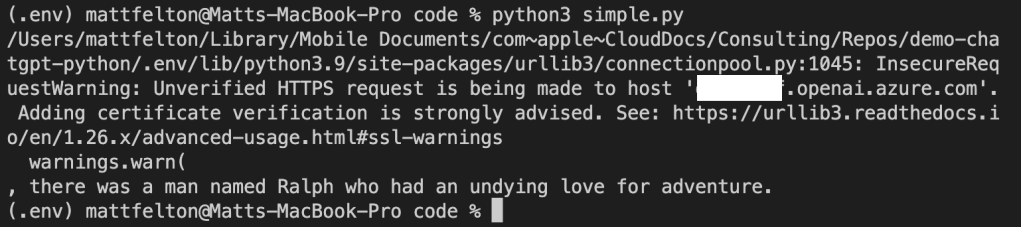
The model gets creative and provides me with the response below.

If you look closely you’ll notice an warning about the security of my session. The reason I’m getting that error is shut off certificate verification in the OpenAI library in order to intercept the calls with Fiddler. Now let me tell you, shutting off certificate verification was a pain in the ass because the developers of the SDK are trying to protect users from the bad guys. Long story short, the Azure Python SDK doesn’t provide an option to turn off certificate checking like say the Azure Python SDK (which you can pass a kwarg of verify=False to turn it off in the request library used underneath). While the developers do provide a property called verify_ssl_certs, it doesn’t actually do anything. Since most Python SDKs use the requests library underneath the hood, I went through the library on my machine and found the api_requestor.py file. Within this file I modified the _make_session function which is creating a requests Sessions object. Here I commented out the developers code and added the verify=False property to the Session object being created.

Turning off certificate verification in OpenAI Python SDK

Now don’t go and do this in any environment that matters. If you’re getting a certificate verification failure in your environment you should be notifying your information security team. Certificate verification is an absolute must to ensure the identity of the upstream server and to mitigate the risk of man-in-the-middle attacks.

Once I was able to place Fiddler in the middle of the HTTPS session I was able to capture the conversation. In the screenshot below, you can see the SDK passing the api-key header. Take note of that header name because it will become relevant when we talk AAD authentication. If you’re using OpenAI’s service already, then this should look very familiar to you. Microsoft was nice enough to support the existing SDKs when using one of the API keys.

At this point you’re probably thinking, “That’s all well and good Matt, but I want to use AAD authentication for all the security benefits AAD provides over a static key.” Yeah yeah, I’m getting there. You can’t blame me for nerding out a bit with Fiddler now can you?

Alright, so let’s now talk AAD authentication to the data plane of the Azure OpenAI Service. Possible? Yes, but with some caveats. The public documentation illustrates an example of how to do this using curl. However, curl is great for a demonstration of a concept, but much more likely you’ll be using an SDK for your preferred programming language. Since Python is really the only programming language I know (PowerShell doesn’t count and I don’t want to show my age by acknowledging I know some Perl) let me demonstrate this process using our favorite AAD SDK, MSAL.

For this example I’m going to use a service principal, but if your code is running in Azure you should be using a managed identity. When creating the service principal I granted it the Cognitive Services User RBAC role on the resource group containing the Azure OpenAI Service instance as suggested in the documentation. This is required to authorize the service principal access to data plane operations. There are a few other RBAC roles for the service, but as I said earlier, I’ll cover authorization in a future post. Once the service principal was created and assigned the appropriate RBAC role, I modified my code to include a function which calls MSAL to retrieve an access token with the access scope of Cognitive Services, which the Azure OpenAI Service falls under. I then pass that token as the API key in my call to the Azure OpenAI Service API.

import logging
import sys
import os
import openai
from msal import ConfidentialClientApplication

def get_sp_access_token(client_id, client_credential, tenant_name, scopes):
    logging.info('Attempting to obtain an access token...')
    result = None
    print(tenant_name)
    app = ConfidentialClientApplication(
        client_id=client_id,
        client_credential=client_credential,
        authority=f"https://login.microsoftonline.com/{tenant_name}",
    )
    result = app.acquire_token_for_client(scopes=scopes)

    if "access_token" in result:
        logging.info('Access token successfully acquired')
        return result['access_token']
    else:
        logging.error('Unable to obtain access token')
        logging.error(f"Error was: {result['error']}")
        logging.error(f"Error description was: {result['error_description']}")
        logging.error(f"Error correlation_id was: {result['correlation_id']}")
        raise Exception('Failed to obtain access token')

def main():
    # Setup logging
    try:
        logging.basicConfig(
            level=logging.ERROR,
            format='%asctime)s - %(name)s - %(levelname)s - %(message)s',
            handlers=[logging.StreamHandler(sys.stdout)]
        )
    except:
        logging.error('Failed to setup logging: ', exc_info=True)

    try:
        # Obtain an access token
        token = get_sp_access_token(
            client_id = os.getenv('CLIENT_ID'),
            client_credential = os.getenv('CLIENT_SECRET'),
            tenant_name = os.getenv('TENANT_ID'),
            scopes = "https://cognitiveservices.azure.com/.default"
        )
    except:
        logging.error('Failed to obtain access token: ', exc_info=True)

    try:
        # Setup OpenAI Variables
        openai.api_type = "azure"
        openai.api_base = os.getenv('OPENAI_API_BASE')
        openai.api_version = "2022-12-01"
        openai.api_key = token

        response = openai.Completion.create(
            engine=os.getenv('DEPLOYMENT_NAME'),
            prompt='Once upon a time'
        )

        print(response.choices[0].text)

    except:
        logging.error('Failed to summarize file: ', exc_info=True)


if __name__ == "__main__":
    main()

Let’s try executing that and see what happens.

Uh-oh! What happened? If you recall from earlier the API key is passed in the api-key header. However, to use the access token provided by AAD we have to pass it in the authorization header as seen in the example in Microsoft public documentation.

curl ${endpoint%/}/openai/deployments/YOUR_DEPLOYMENT_NAME/completions?api-version=2022-12-01 \
-H "Content-Type: application/json" \
-H "Authorization: Bearer $accessToken" \
-d '{ "prompt": "Once upon a time" }'

Thankfully there is a solution to this one without requiring you to modify the OpenAI SDK. If you take a look in the api_requestor.py file again in the library you will see it provides the ability to override the headers passed in the request.

With this in mind, I made a few small modifications. I removed the api_key property and added an Authorization header to the request to the Azure OpenAI Service API which includes the access token received back from AAD.

import logging
import sys
import os
import openai
from msal import ConfidentialClientApplication

def get_sp_access_token(client_id, client_credential, tenant_name, scopes):
    logging.info('Attempting to obtain an access token...')
    result = None
    print(tenant_name)
    app = ConfidentialClientApplication(
        client_id=client_id,
        client_credential=client_credential,
        authority=f"https://login.microsoftonline.com/{tenant_name}",
    )
    result = app.acquire_token_for_client(scopes=scopes)

    if "access_token" in result:
        logging.info('Access token successfully acquired')
        return result['access_token']
    else:
        logging.error('Unable to obtain access token')
        logging.error(f"Error was: {result['error']}")
        logging.error(f"Error description was: {result['error_description']}")
        logging.error(f"Error correlation_id was: {result['correlation_id']}")
        raise Exception('Failed to obtain access token')

def main():
    # Setup logging
    try:
        logging.basicConfig(
            level=logging.ERROR,
            format='%asctime)s - %(name)s - %(levelname)s - %(message)s',
            handlers=[logging.StreamHandler(sys.stdout)]
        )
    except:
        logging.error('Failed to setup logging: ', exc_info=True)

    try:
        # Obtain an access token
        token = get_sp_access_token(
            client_id = os.getenv('CLIENT_ID'),
            client_credential = os.getenv('CLIENT_SECRET'),
            tenant_name = os.getenv('TENANT_ID'),
            scopes = "https://cognitiveservices.azure.com/.default"
        )
    except:
        logging.error('Failed to obtain access token: ', exc_info=True)

    try:
        # Setup OpenAI Variables
        openai.api_type = "azure"
        openai.api_base = os.getenv('OPENAI_API_BASE')
        openai.api_version = "2022-12-01"

        response = openai.Completion.create(
            engine=os.getenv('DEPLOYMENT_NAME'),
            prompt='Once upon a time',
            headers={
                'Authorization': f'Bearer {token}'
            }
            

        )

        print(response.choices[0].text)

    except:
        logging.error('Failed to summarize file: ', exc_info=True)


if __name__ == "__main__":
    main()

Running the code results in success!

4/3/2023 Update – Poking around today looking at another aspect of the service, I came across this documentation on an even simpler way to authenticate with Azure AD without having to use an override. In the code below, I specify an openai.api_type of azure_ad which allows me to pass the token direct via the openai_api_key property versus having to pass a custom header. Definitely a bit easier!

import logging
import sys
import os
import openai
from msal import ConfidentialClientApplication

def get_sp_access_token(client_id, client_credential, tenant_name, scopes):
    logging.info('Attempting to obtain an access token...')
    result = None
    print(tenant_name)
    app = ConfidentialClientApplication(
        client_id=client_id,
        client_credential=client_credential,
        authority=f"https://login.microsoftonline.com/{tenant_name}",
    )
    result = app.acquire_token_for_client(scopes=scopes)

    if "access_token" in result:
        logging.info('Access token successfully acquired')
        return result['access_token']
    else:
        logging.error('Unable to obtain access token')
        logging.error(f"Error was: {result['error']}")
        logging.error(f"Error description was: {result['error_description']}")
        logging.error(f"Error correlation_id was: {result['correlation_id']}")
        raise Exception('Failed to obtain access token')

def main():
    # Setup logging
    try:
        logging.basicConfig(
            level=logging.ERROR,
            format='%asctime)s - %(name)s - %(levelname)s - %(message)s',
            handlers=[logging.StreamHandler(sys.stdout)]
        )
    except:
        logging.error('Failed to setup logging: ', exc_info=True)

    try:
        # Obtain an access token
        token = get_sp_access_token(
            client_id = os.getenv('CLIENT_ID'),
            client_credential = os.getenv('CLIENT_SECRET'),
            tenant_name = os.getenv('TENANT_ID'),
            scopes = "https://cognitiveservices.azure.com/.default"
        )
        print(token)
    except:
        logging.error('Failed to obtain access token: ', exc_info=True)

    try:
        # Setup OpenAI Variables
        openai.api_type = "azure_ad"
        openai.api_base = os.getenv('OPENAI_API_BASE')
        openai.api_key = token
        openai.api_version = "2022-12-01"

        response = openai.Completion.create(
            engine=os.getenv('DEPLOYMENT_NAME'),
            prompt='Once upon a time '
        )

        print(response.choices[0].text)

    except:
        logging.error('Failed to summarize file: ', exc_info=True)


if __name__ == "__main__":
    main()

Let me act like I’m ChatGPT and provide you a summary of what we learned today.

  • The Azure OpenAI Service has both a management plane and data plane.
  • The Azure OpenAI Service data plane supports two methods of authentication which include static API keys and Azure AD.
  • The static API keys provide full permissions on data plane operations. These keys should be rotated in compliance with organizational key rotation policies.
  • The OpenAI SDK for Python (and I’m going to assume the others) sends an api-key header by default. This behavior can be overridden to send an Authorization header which includes an access token obtained from Azure AD.
  • It’s recommended you use Azure AD authentication where possible to leverage all the bells and whistles of Azure AD including the usage of managed identities, improved logging, and conditional access for service principal-based access.

Well folks, that concludes this post. I’ll be uploading the code sample above to my GitHub later this week. In the next batch of posts I’ll cover the authorization and logging aspects of the service.

I hope you got some value and good luck in your AI journey!

Identifying Orphaned Managed Identities

Hello again fellow geeks!

Recently I was giving a customer an overview of Azure Managed Identities and came across an interesting find while building a demo environment. If you’re unfamiliar with managed identities, check out my prior series for an overview. Long story short, managed identities provide a solution for non-human identities where you don’t have to worry about storing, securing, and rotating the credentials. For those of you coming from AWS, managed identities are very similar to AWS Roles. They come in two flavors, user-assigned and system-assigned. For the purposes of this post, I’ll be focusing on system-assigned.

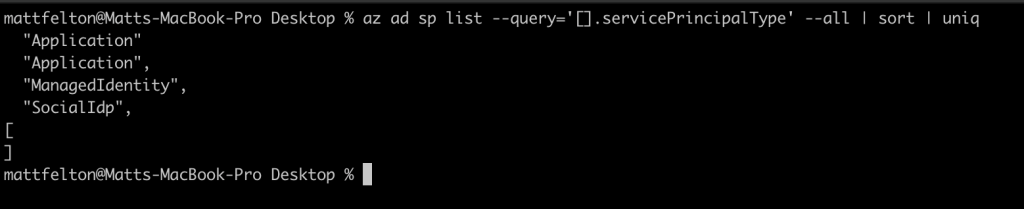
Under the hood, a managed identity is essentially a service principal with some orchestration on top of it. Interestingly enough, there are a number of different service principal types. Running the command below will spit back the different types of service principals that exist in your Azure AD tenant.

az ad sp list --query='[].servicePrincipalType' --all | sort | uniq
Service principal types

If you’re interested in seeing the service principals associated with managed identities in your Azure AD tenant, you can run the command below.

az ad sp list --query="[?servicePrincipalType=='ManagedIdentity']" --all

Managed identities include a property called alternativeNames which is an array. In my testing I observed two values within this array. The first value is “isExplicit=True” or “isExplicit=False” which is set to True for user-assigned managed identities and False when it’s a system-assigned managed identity. If you want to see all system-assigned managed identities for example, you can run the command below.

az ad sp list --query="[?servicePrincipalType=='ManagedIdentity' && alternativeNames[?contains(@,'isExplicit=False')]]" --all

The other value in this array is the resource id of the managed identity in the case of a user-assigned managed identity. With a system-assigned managed identity this is the resource id of the Azure resource the system-assigned managed identity is associated with.

System-assigned managed identity

So why does any of this matter? Before we get to that, let’s cover the major selling point of a system-assigned managed identity when compared to a user-assigned managed identity. With a system-assigned managed identity, the managed identity (and its service principal) share the lifecycle of the resource. This means that if you delete the resource, the service principal is cleaned up… well most of the time anyway.

Sometimes this cleanup process doesn’t happen and you’re left with orphaned service principals in your directory. The most annoying part is you can’t delete these service principals (I’ve tried everything including calls direct to the ARM API) and the only way to get them removed is to open a support ticket. Now there isn’t a ton of risk I can think of with having these orphaned service principals left in your tenant since I’m not aware of any means to access the credential associated with it. Without the credential no one can authenticate as it. Assuming the RBAC permissions are cleaned up, it’s not really authorized to do anything within Azure either. However, beyond dirtying up your directory, it’s an identity with a credential that shouldn’t be there anymore.

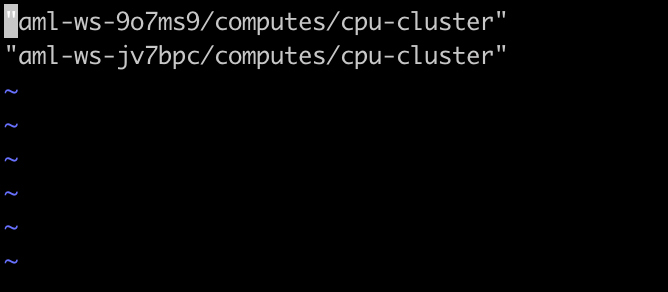
I wanted an easy way to identify these orphaned system-assigned managed identities so I could submit a support ticket and get it cleaned up before it started cluttering up my demonstration tenant. This afternoon I wrote a really ugly bash script to do exactly that. The script uses some of the az cli commands I’ve listed above to identify all the system-assigned managed identities and then uses az cli to determine if the resource exists. If the resource doesn’t exist, it logs the displayName property of the system-assigned managed identity to a text file. Quick and dirty, but does the job.

Orphaned system-assigned managed identities

Interestingly enough, I had a few peers run the script on their tenants and they all had some of these orphaned system-assigned managed identities, so it seems like this problem isn’t restricted to my tenants. Again, I personally can’t think of a risk of these identities remaining in the directory, but it does point to an issue with the lifecycle management processes Microsoft is using in the backend.

Well folks that’s it! Have a great night!

Python Sample Web App and API for Azure AD B2C

Python Sample Web App and API for Azure AD B2C

Hello again folks.

I’ve recently had a number of inquiries on Microsoft’s AAD (Azure Active Directory) B2C (Business-To-Consumer) offering. For those infrastructure folks who have had to manage customer identities in the past, you know the pain of managing these identities with legacy solutions such as LDAP (Lighweight Directory Access Protocol) servers or even a collection of Windows AD (Active Directory) forests. Developers have suffered along with us carrying the burden of securely implementing the technologies into their code.

AAD B2C exists to make the process easier by providing a modern IDaaS (identity-as-a-service) offering complete with a modern directory accessible over a Restful API, support for modern authentication and authorization protocols such as SAML, Open ID Connect, and OAuth, advanced features such as step-up authentication, and a ton of other bells and whistles. Along with these features, Microsoft also provides a great library in the form of the Microsoft Authentication Library (MSAL).

It had been just about 4 years since I last experimented with AAD B2C, so I was due for a refresher. Like many people, I learn best from reading and doing. For the doing step I needed an application I could experiment with. My first stop was the samples Microsoft provides. The Python pickings are very slim. There is a basic web application Ray Lou put together which does a great job demonstrating basic authentication. However, I wanted to test additional features like step-up authentication and securing a custom-built API with AAD B2C so I decided to build on top of Ray’s solution.

I began my journey to create the web app and web API I’ll be walking through setting up with this post. Over the past few weeks I spent time diving into the Flask web framework and putting my subpar Python skills to work. After many late nights and long weekends spent reading documentation and troubleshooting with Fiddler, I finished the solution which costs of a web app and web API.

Get the code here.

Screenshot of Python B2C Solution Design

The solution is quite simple . It is intended to simulate a scenario where a financial services institution is providing a customer access the customer’s insurance policy information . The customer accesses a web frontend (python-b2c-web) which makes calls to a API (python-b2c-api) which then retrieves policy information from an accounts database (in this case a simple JSON file). The customer can use the self-service provisioning capability of Azure B2C to create an account with the insurance company, view their policy, and manage the beneficiary on the policy.

AAD B2C provides the authentication to the web front end (python-b2c-web) via Open ID Connect. Access to the user’s policy information is handled through the API (python-b2c-api) using OAuth. The python-b2c-web frontend uses OAuth to obtain an access token which is uses for delegated access to python-b2c-api to retrieve the user’s policy information. The claims included in the access token instruct the python-b2c-api which record to pull. If the user wishes to change the beneficiary on the policy, the user is prompted for step-up authentication requiring an MFA authentication.

The solution uses four Azure AD B2C User Flows. It has a profile editing user flow which allows the user to change information stored in the AAD B2C directory about the user such as their name. A password reset flow allows the user to change the password for their local AAD B2C identity. Two sign-up/sign-in flows exist one with no MFA and one with MFA enforced and two sign-up / sign-in flows. The non-MFA enabled flow is the kicked off at login to python-b2c-web while the MFA enabled flow is used when the user attempts to change the beneficiary.

With the basics on the solution explained, let’s jump in to how to set it up. Keep in mind I’ll be referring to public documentation where it makes sense to avoid reinventing the wheel. At this I’m providing instructions as to how to run the code directly on your machine and additionally instructions for running it using Docker. Before we jump into how to get the code up and running, I’m going to walkthrough setting up Azure AD B2C.

Setting up Azure AD B2C

Before you go setting up Azure AD B2C, you’ll need a valid Azure AD Tenant and Azure Subscription. You can setup a free Azure account here. You will need at least contributor within the Azure Subscription you plan on using to contain the Azure AD B2C directory.

Follow the official documentation to setup your Azure B2C directory once you have your Azure Subscription setup and ready to go. Take note of the name of the single-label DNS name you use for your Azure B2C directory. This will be the unique name you set that prefixes .onmicrosoft.com (such as myb2c.onmicrosoft.com).

Creation of the Azure AD B2C directory will create a resource of type B2C Tenant in the resource group in the Azure Subscription you are using.

In addition to the single-label DNS name, you’ll also need the note down tenant ID assigned to the B2C directory for use in later steps. You can obtain the tenant ID by looking at the B2C Tenant resource in the Azure Portal. Make sure you’re in the Azure AD directory the Azure Subscription is associated with.

Screenshot of Azure AD B2C resource in Azure Resource Group

If you select this resource you’ll see some basic information about your B2C directory such as the name and tenant ID.

Screenshot of Overview of an Azure AD Tenant resource

Once that is complete the next step is to register the web front end (python-b2c-web) and API (python-b2c-api). The process of registering the applications establishes identities, credentials, and authorization information the applications use to communicate with Azure B2C and each other. This is a step where things can get a bit confusing because when administering an Azure AD B2C directory you need to switch authentication contexts to be within the directory. You can do this by selecting your username in the top right-hand corner of the Azure Portal and selecting the Switch Directory link.

Screenshot of how to switch between Azure AD and Azure AD B2C directories

This will bring up a list of the directories your identity is authorized to access. In the screenshot below you’ll see my Azure AD B2C directory giwb2c.onmicrosoft.com is listed as an available directory. Selecting the directory will be me in the context of the B2C directory where I can then register applications and administer other aspects of the B2C directory.

Screenshot showing available directories

Once you’ve switched to the Azure AD B2C directory context you can search for Azure B2C in the Azure search bar and you’ll be able to fully administer the B2C directory. Select the App Registrations link to begin registering the python-b2c-web application.

Screenshot of Azure AD B2C administration options

In the next screen you’ll be see the applications currently registered with the B2C directory. Click the New registration button to begin a new registration.

In the Register an application screen you need to provide information about the application you are registering. You can name the application whatever you’d like as this is used as the display name when viewing registered applications. Leave the Who can use this application or access this API set the Accounts in any identity provider or organizational directory (for authenticating users with user flows). Populate the Redirect URI with URI Azure B2C should redirect the user’s browser to after the user has authenticate. This needs to be an endpoint capable of processing the response from Azure AD B2C after the user has authenticated. For this demonstration application you can populate the URI with http://localhost:5000/getAToken. Within the application this URI will process the authorization code returned from B2C and use it to obtain the ID token of the user. Note that if you want to run this application in App Services or something similar you’ll need to adjust this value to whatever DNS name your application is using within that service.

Leave the Grant admin consent to openid and offline_access permissions option checked since the application requires permission to obtain an id token for user authentication to the application. Once complete hit the Register button. This process creates an identity for the application in the B2C directory and authorizes it to obtain ID tokens and access tokens from B2C.

Screenshot showing how to register the python-b2c-web application

Now that the python-b2c-web application is registered, you need to obtain some information about the application. Go back to the main menu for the B2C Directory, back into the App Registrations and select the newly registered application. On this page you’ll have the ability to administer a number of aspects of the application such as creating credentials for the application to support confidential client flows such as the authorization code flow which this application uses.

Before you do any configuration, take note of the Application (client) ID. You’ll ned this for later steps.

Screenshot of registered application configuration options

The client ID is used to identify the application to the Azure B2C directory, but you still need a credential to authenticate it. For that you’ll go to Certificates & secrets link. Click on the New client secret button to generate a new credential and save this for later.

You will need to register one additional redirect URI. This redirect URI is used when the user authenticates with MFA during the step-up process. Go back to the Overview and click on the Redirect URIs menu item on the top section as seen below.

Screenshot of overview menu and Redirect URIs link

Once the new page loads, add a redirect URI which is found under the web section. The URI you will need to add is http://localhost:5000/getATokenMFA. Save your changes by hitting the Save button. Again, note you will need to adjust this URI if you deploy this into a service such as App Services.

At this point the python-b2c-web (or web frontend) is registered, but you need to now register python-b2c-api (the API). Repeat the steps above to register the python-b2c-api. You’ll select the same except you do not need to provide a redirect URI since the API won’t be directly authenticating the user.

Once the python-b2c-api is registered, go into the application configuration via the App Registrations menu and record the Application (client) ID as you’ll use this to configuration the application later on. After you’ve recorded that information select the Expose an API link. Here you will register the two OAuth scopes I’ve configured in the application. These scopes will be included in the access token obtained by python-b2c-web when it makes calls to python-b2c-api to get policy information for the user.

Select the Add a scope button and you’ll be prompted to set an Application ID URI which you need to set to api. Once you’ve set it, hit the Save and continue button.

Screenshot of setting the Application ID URI for the python-b2c-api

The screen will refresh you’ll be able to add your first scope. I have defined two scopes within the pyton-b2c-api. One is called Accounts.Read which grants access to read policy information and one for Accounts.Write which grants access to edit policy information. Create the scope for the Accounts.Read and repeat the process for Accounts.Write.

As a side note, by default B2C grants application registered with it the offline_access and openid permissions for Microsoft Graph. Since python-b2c-api won’t be authenticating the user and will simply be verifying the access token passed by the python-b2c-web, you could remove those permissions if you want. You can do this through the API permissions link which is located on the application configuration settings of the python-b2c-api.

The last step you have in the B2C portion of Azure is to grant the python-b2c-web application permission to request an access token for the Accounts.Read and Accounts.Write scopes used by the python-b2c-api application To do this you need to go back into the application configuration for the python-b2c-web application and go to the API permissions link. Click the Add a permission link. In the Request API permissions window, select My APIs link and select the python-b2c-api application you registered. Select the two permissions (Accounts.Read and Accounts.Write) and click the Add permissions link.

Screenshot of granting permissions to the python-b2c-web application

To finish up with the permissions piece you’ll grant admin consent to permissions. At the API permissions window, click the Grant admin consent for YOUR_TENANT_NAME button.

Screenshot of granting admin consent to the new permissions

At this point we’ve registered the python-b2c-web and python-b2c-api applications with Azure B2C. We now need to enable some user flows. Azure B2C has an insanely powerful policy framework that powers the behavior of B2C behind the scenes that allow you to do pretty much whatever you can think of. With power comes complexity, so expect to engage professional services if you want to go to the custom policy route. Azure AD B2C also comes with predefined user flows that provide for common user journeys and experiences. Exhaust your ability to use before you go the custom policy route.

For this solution you’ll be using predefined user flows. You will need to create four predefined user flows named exactly as outlined below. You can use the instructions located here for creation of the user flows. When creating the sign-in and sign-up flows (both MFA and non-MFA) make sure to configure the user attributes and application claims to include the Display Name, Email Address, Given Name, and Surname attributes at a minimum. The solution will be expecting these claims and be using them throughout the application. You are free to include additional user attributes and claims if you wish.

Screenshot of user flows that must be created

At this point you’ve done everything you need to to configure Azure B2C. As a reminder make sure you’ve collected the Azure AD B2C single-label DNS name, Azure AD B2C Tenant ID, python-b2c-web application (client) ID and client secret, and python-b2c-api application (client) ID.

In the next section we’ll setup the solution where the code will run directly on your machine.

(Option 1) Running the code directly on your machine

With this option you’ll run the Python code directly on your machine. For prerequisites you’ll need to download and install Visual Studio Code and Python 3.x.

Open up an instance of Visual Studio Code and clone the repository https://github.com/mattfeltonma/python-b2c-sample. The directory structure of the solution is pictured below.

Screenshot of solution directory structure

The python-b2c-web folder contains the web front end application and the python-b2c-api contains the API application. The accounts.json file in the python-b2c-api folder acts as the database containing the policy information. If a user does not have a policy, a policy is automatically created for the user by the python-b2c-api application the first time the user tries to look at the policy information. The app_config.py file in the python-b2c-web folder contains all the configuration options used by python-b2c-web application. It populates any key variables with environment variables you will set in a later step. The app.py files in both directories contain the code for each application. Each folder also contains a Dockerfile if you wish to deploy the solution as a set of containers. See the option 2 running as containers section for steps on how to do this.

Once the repo has cloned you’ll want to open two Terminal instances in Visual Studio Code. You can do this with CTRL+SHIFT+` hotkey. In your first terminal navigate python-b2c-web directory and in the second navigate to the python-b2c-api directory.

In each terminal we’ll setup a Python virtual directory to ensure we don’t add a bunch of unneeded libraries into the operating system’s central Python instance.

Run the command in each terminal to create the virtual environments. Depending on your operating system you may use to specify python3 instead of python before the -m venv env. This is because operating systems like Mac OS X come preinstalled with Python2 which will not work for this solution.

python -m venv env

Once the virtual environments will need to activate the virtual environments. On a Windows machine you’ll use the command below. On a Mac this file will be in env/bin/ directory and you’ll need to run the command source env/bin/activate.

env\Scripts\activate

Next, load the required libraries using pip using the command below. Remember to do this for both terminals. If you run into any errors installing the dependencies for python-b2c-web ensure you update the version of pip used in the virtual environment using the command pip install –upgrade pip.

pip install -r requirements.txt

The environments are now ready to go. Next up you need to set some user variables. Within the terminal for the python-b2c-web create variables for the following:

  • CLIENT_ID – The application (client) id of the python-b2c-web application you recorded.
  • CLIENT_SECRET – The client secret of the python-b2c-web application you recorded.
  • B2C_DIR – The single-label DNS name of the B2C directory such as myb2c.
  • API_ENDPOINT – The URI of the python-b2c-api endpoint which must this to http://localhost:5001 when running the code directly on your machine. If running this solution on another platform such as Azure App Services you’ll need to set this to whatever the URI you’re using for App Services.

Within the terminal for the python-b2c-api create variables for the following:

  • CLIENT_ID – application (client) id of the python-b2c-api application you recorded earlier
  • TENANT_ID – tenant ID of the B2C directory you recorded earlier
  • B2C_DIR – single-label DNS name of the B2C directory such as myb2c

In Windows you can set these variables by using the command below. If using Mac OS X ensure you export the variables after creation after you set them. Remember to set all of these variables. If you miss one the application will fail to run.

set B2C_DIR=myb2c

Now you can start the python-b2c-web web front end application. To do this you’ll use the flask command. In the terminal you setup for the python-b2c-web application, run the following command:

flask run -h localhost -p 5000

Then in the terminal for the python-simple-web-api, run the following command:

flask run -h localhost -p 5001

You’re now ready to test the app! Open up a web browser and go to http://localhost:5000.

Navigate to the testing the application section <INSERT LINK> for instructions on how to test the application.

(Option 2) Running as containers

Included in the repository is the necessary Dockerfiles to build both applications as Docker images to run as containers in your preferred container runtime. I’m working on a Kubernetes deployment and will that in time. For the purposes of this article I’m going to assume you’ve installed Docker on your local machine.

To get started clone the repository https://github.com/mattfeltonma/python-b2c-sample. The directory structure of the solution is pictured below.

Screenshot of solution directory structure

The python-b2c-web folder contains the web front end application and the python-b2c-api contains the API application. The accounts.json file in the python-b2c-api folder acts as the database containing the policy information. If a user does not have a policy, a policy is automatically created for the user by the python-b2c-api application the first time the user tries to look at the policy information. The app_config.py file in the python-b2c-web folder contains all the configuration options used by python-b2c-web application. It populates any key variables with environment variables you will set in a later step. The app.py files in both directories contain the code for each application. Each folder also contains a Dockerfile that you will use to build the images.

Navigate to the python-b2c-web directory and run the following command to build the image.

docker build --tag=python-b2c-web:v1 .

Navigate to the python-b2c-api directory and run the following command to build the image.

docker build --tag=python-b2c-api:v1 .

Since we need the python-b2c-web and python-b2c-api applications to communicate, we’re going to create a custom bridged network. This will provide a network that will allow both containers to communicate, connect to the Internet to contact Azure B2C, and find each other using DNS. Note that you must use a custom bridged network to support the DNS feature as the default bridged network doesn’t support the containers finding each other by name.

docker network create b2c

Now that the images are built and the network is created you are ready to spin up the containers. When spinning up each container you’ll need to pass a series of environment variables to the containers. The environment variables are as follows:

  • CLIENT_ID – The application (client) id of the python-b2c-web application you recorded.
  • CLIENT_SECRET – The client secret of the python-b2c-web application you recorded.
  • B2C_DIR – The single-label DNS name of the B2C directory such as myb2c.
  • API_ENDPOINT – The URI of the python-b2c-api endpoint. As long as you name the container running the python-b2c-api with the name of python-b2c-api, you do not need to set this variable.

Within the terminal for the python-b2c-api create variables for the following:

  • CLIENT_ID – application (client) id of the python-b2c-api application you recorded earlier
  • TENANT_ID – tenant ID of the B2C directory you recorded earlier
  • B2C_DIR – single-label DNS name of the B2C directory such as myb2c

Start a container instance of the python-b2c-web application using the following command:

docker run --network=b2c \
--name=python-b2c-web \
--publish=5000:5000 \
--env=B2C_DIR=giwb2c \
--env=CLIENT_ID=<CLIENT_ID_OF_python-b2c-web> \
--env=CLIENT_SECRET=<CLIENT_SECRET_OF_python-b2c-api> \
python-b2c-web:v1

Start a container instance of the python-b2c-api application using the following command:

docker run --network=b2c \
--name=python-b2c-api \
--publish=5001:5001 \
--env=B2C_DIR=giwb2c \
--env=CLIENT_ID=<CLIENT_ID_OF_python-b2c-api> \
--env=TENANT_ID=<TENANT_ID_OF_B2C_DIRECTORY> \
python-b2c-api:v1

Once both containers are created proceed to the Testing the Application section of this post.

Testing the Application

Open a web browser and navigate to http://localhost:5000. The login page below will appear.

Clicking the Sign-In button will open up the B2C sign-in page. Here you can sign-in with an existing B2C account or create a new one. You can also initialize a password reset.

After successfully authenticating you’ll be presented with a simple home page. The Test API link will bring you to the public endpoint of the python-b2c-api application validating that the API is reachable and running. The Edit Profile link will redirect you to the B2C Edit Profile experience. Clicking the My Claims link will display the claims in your ID token as seen below.

Clicking the My Account link causes the python-b2c-web application to request an access token from Azure B2C to access the python-b2c-api and pull the policy information for the user.

Clicking on the Change Beneficiary button will kick off the second MFA-enabled sign-in and sign-up user flow prompting the user for MFA. After successful MFA, the user is redirected to a page where they make the change to the record. Clicking the submit button causes the python-b2c-web application to make a call to the python-b2c-api endpoint modifying the user’s beneficiary on their policy.

That’s about it. Hopefully this helps give you a simple base to mess with Azure AD B2C.

You can get the solution here.

Thanks everyone!

Deep Dive into Azure AD and AWS SSO Integration – Part 4

Deep Dive into Azure AD and AWS SSO Integration – Part 4

Today we continue exploring the new integration between Microsoft’s Azure AD (Azure Active Directory) and AWS (Amazon Web Services) SSO (Single Sign-On).  Over the past three posts I’ve covered the high level concepts of both platforms, the challenges the integration seeks to solve, and how to enable the federated trust which facilitates the single sign-on experience.  If you haven’t read through those posts, I recommend you before you dive into this one.  In this post I’ll be covering the neatest feature of the new integration, which is the support for automated provisioning.

If you’ve ever worked in the identity realm before, you know the pains that come with managing the life cycle of an identity from initial provisioning, changes resulting to the identity such as department and position changes, to the often forgotten stage of de-provisioning.  On-premises these problems were used solved by cobbled together scripts or complex identity management solution such as SailPoint Identity IQ or Microsoft Identity Manager.  While these tools were challenging to implement and operate, they did their job in the world of Windows Active Directory, LDAP, SQL databases and the like.

Then came cloud, and all bets were off.  Identity data stores skyrocketed from less than a hundred to hundreds and sometimes thousands (B2C has exploded far beyond event that).  Each new cloud service introduced into the enterprise introduced yet another identity management challenge.  While some of these offerings have APIs that support identity management operations, most do not, and those that do are proprietary in nature.  Writing custom code to each of the APIs is a huge challenge that most enterprises can’t keep up.  The result is often manual management of an identity life cycle, through uploading exported CSV files or some poor soul pointing and clicking a thousand times in a vendor portal.

Wouldn’t it be great if there was some mythical standard out that would help to solve this problem, use a standard API through REST, and support the JSON format?  Turns out there is and that standard is SCIM (System for Cross-domain Identity Management).  You may be surprised to know the standard has been around for a while now (technically 2011).  I recall hearing about it at a Gartner conference many many hears ago.  Unfortunately, it’s taken a long time to catch on but support is steadily increasing.

Thankfully for us, Microsoft has baked support into Azure AD and AWS recognized the value and took advantage of the feature.  By doing this, the identity life cycle challenges of managing an Azure AD and AWS integration has been heavily re-mediated and our lives made easier.

Azure AD Provisioning - Example

Azure AD Provisioning – Example

Let’s take a look at how set it up, shall we?

The first place you’ll need to go is into the AWS account which is the master for the organization and into the AWS SSO Settings.  In Settings you’ll see the provisioning option which is initially set as manual.  Select to enable automatic provisioning.

AWS SSO Settings - Provisioning

AWS SSO Settings – Provisioning

Once complete, a SCIM endpoint will be created.  This is the endpoint in AWS (referred to as the SCIM service provider in the SCIM standard) that the SCIM service on Azure AD (referred to as the client in the SCIM standard) will interact with to search for, create, modify, and delete AWS users and groups.  To interact with this endpoint, Azure AD must authenticate to it, which it does with a bearer access token that is issued by AWS SSO.  Be aware that the access token has a one year life span, so ensure you set some type of reminder.  A quick search through the boto3 API doesn’t show a way to query for issued access tokens (yes you can issue more than one at at time) so you won’t be able to automate the process as of yet.

awssso-scimendpoint.png

After SCIM is enabled, AWS SSO Settings for provisioning now reports SCIM in use.

awssso-scimenabled.png

Next you’ll need to bounce over to Azure AD and go into the enterprise app you created (refer to my third post for this process).   There you’ll navigate to the Provisioning blade and select Automatic as the provisioning method.

azuread-scimprov.png

You’ll then need to configure the URL and access token you collected from AWS and test the connection.  This will cause Azure AD to test querying the endpoint for a random user and group to validate functionality.

azuread-scimtest.png

If your test is successful you can then save the settings.

azuread-scimtestsucccess.PNG

You’re not done yet.  Next you have to configure a mapping which map attributes in Azure AD to the resource and attributes in the SCIM schema.  Yes folks, SCIM does have a schema for attributes and resources (like users and groups).  You can extend it as needed, but in this integration it looks to be using the default user and group resources.

azuread-scimmappings

Let’s take a look at what the group mappings look like.

azuread-scimgroupmappings.PNG

The attribute names on the left are the names of the attributes in Azure AD and the attributes on the right are the names of the attributes Azure AD will write the values of the attributes to in AWS SSO.  Nothing too surprising here.

How about the user mappings?

azuread-scimusermappings1azuread-scimusermappings2

Lots more attributes in the user mappings by default.  Now I’m not sure how many of these attributes AWS SSO supports.  According to the SCIM standard, a client can attempt to write whatever it wants and any attributes the service provider doesn’t understand is simply discarded.  The best list of attributes I could find were located here, and it’s not near this number.  I can’t speak to what the minimum required attributes are to make AWS work, because their official instructions on this integration doesn’t say.  I know some of the product team sometimes reads the blog, so maybe we’ll luck out and someone will respond with that answer.

The one tweak you’ll need to make here is to delete the mailNickName mapping and replace it with a mapping of objectId to externalId.  After you make the change, click the save icon.

I don’t know why AWS requires this so I can only theorize.  Maybe they’re using this attribute as a primary key in the back end database or perhaps they’re using it to map the users to the groups?  I’m not sure how Azure AD is writing the members attribute over to AWS.  Maybe in the future I’ll throw together a basic app to visualize what the service provider end looks like.

newmapping.PNG

Now you need to decide what users and groups you want to sync to AWS SSO.  Towards the bottom of the provisioning blade, you’ll see the option to toggle the provisioning status.  The scope drop down box has an option to sync all users and groups or to sync only assigned users and groups.  Best practice here is basic security, only sync what you need to sync, so leave the option on sync only assigned users and group.

The assigned users and groups refers to users that have been assigned to the enterprise application in Azure AD.  This is configured on the Users and Groups blade for the enterprise app.  I tested a few different scenarios using an Azure AD dynamic group, standard group, and a group synchronized from Windows AD.  All worked successfully and synchronized the relevant users over.

Once you’re happy with your settings, toggle the provisioning status and save the changes.  It may take some time depending on how much you’re syncing.

syncsuccess.PNG

If the sync is successful, you’ll be able to hop back over to AWS SSO and you’ll see your users and groups.

awssyncedusersawssyncedgroup

Microsoft’s official documentation does a great job explaining the end to end cycle.  The short of it is there’s an initial cycle which grabs all users and groups from Azure AD, then filters the list down to the users and groups assigned to the application.  From there it queries the target system to match the user with the matching attribute and if it isn’t found creates it, and if found and needs updating, updates it.

Incremental cycles are down from that point forward every 40 minutes.  I couldn’t find any documentation on how to adjust the synchronization frequency.  Be aware of that 40 minute sync and consider the end to end synchronization if you’re sourcing from Windows Active Directory.  In that case making changes in Windows AD could take just over an hour (assuming you’re using the 30 minute sync interval in Azure AD Connect) to fully synchronize.

awsssotime.PNG

As I described in my third post, I have a lab environment setup where a Windows Active Directory domain is syncing to Azure AD.  I used that environment to play out a few scenarios.

In the first scenario I disabled Marge Simpson’s account.  After waiting some time for changes to synchronize across both platforms, I saw in AWS SSO that Marge Simpson was now disabled.

margedisabled.PNG

For another scenario, I removed Barney Gumble from the Network Operators Active Directory group.  After waiting time for the sync to complete, the Network Operators group is now empty reflecting Barney’s removal from the group.

networkoperators.PNG

Recall that I assigned four groups to the app in Azure AD, Network Operators, Security Admins, Security Auditors, and Systems Operators.  These are the four groups syncing to AWS SSO.  Barney Gumble was only a member of the Network Operators group, which means removing him put him out of scope for the app assignment.  In AWS SSO, he now reports as being disabled.

barneydisabled.PNG

For our final scenario, let’s look at what happens when I deleted Barney Gumble from Windows Active Directory.  After waiting the required replication time, Barney Gumble’s user account was still present in AWS SSO, but set as disabled.  While Barney wouldn’t be able to login to AWS SSO, there would still be cleanup that would need to happen on the AWS SSO directory to remove the stale identity records.

barneydisabled.PNG

The last thing I want to cover is the logging capabilities of the SCIM service in Azure AD.  There are two separate logs you can reference.  The first are the Provisioning Logs which are currently in preview.  These logs are going to be your go to to troubleshoot issues with the provisioning process.  They’re available with an Azure AD P1 or above license and are kept for 30 days.  Supposedly they’re kept for free for 7 days, but the documentation isn’t clear whether or not you have the ability to consume them.  I also couldn’t find any documentation on if it’s possible to pull the logs from an API for longer term retention or analysis in Log Analytics or a 3rd party logging solution.

If you’ve ever used Azure AD, you’ll be familiar with the second source of logs.  In the Azure AD Audit logs, you get additional information, which while useful, is more catered to tracking the process vs troubleshooting the process like the provisioning logs.

Before I wrap up, let’s cover a few key findings:

  • The access token used to access the SCIM endpoint in AWS SSO has a one year lifetime.  There doesn’t seem to be a way to query what tokens have been issued by AWS SSO at this time, so you’ll need to manage the life cycle in another manner until the capability is introduced.
  • Users that are removed from the scope of the sync, either by unassigning them from the app or deleting their user object, become disabled in AWS SSO.  The records will need to be cleaned up via another process.
  • If synchronizing changes from a Windows AD the end to end synchronization process can take over an hour (30 minutes from Windows AD to Azure AD and 40 minutes from Azure AD to AWS SSO).

That will wrap up this post.  In my opinion the SCIM service available in Azure AD is extremely under utilized.  SCIM is a great specification that needs more love.  While there is a growing adoption from large enterprise software vendors, there is a real opportunity for your organization to take advantage of the features it offers in the same way AWS has.  It can greatly ease the pain your customers and enterprise users experience having to manage the life cycle of an identity and makes for a nice belt and suspenders to modern identity capabilities in an application.

In the last post of my series I’ll demonstrate a few scenarios showing how simple the end to end experience is for users.  I’ll include some examples of how you can incorporate some of the advanced security features of Azure AD to help protect your multi-cloud experience.

See you next post!