Integrating Azure AD and AWS – Part 2

Update: In November 2019 AWS introduced support for integration between Azure AD and AWS SSO.  The integration offers a ton more features, including out of the box support for multiple AWS accounts.  I highly recommend you go that route if you’re looking to integrate the two platforms.  Check out my series on the new integration here.

Today I will continue the journey into the integration between Azure AD and Amazon Web Services.  In my first entry I covered the reasons why you’d want to integrate Azure AD with AWS and provided a high-level overview of how the solution works.  The remaining entries in this series will cover the steps involved in completing the integration including deep dives into the inner workings of the solution.

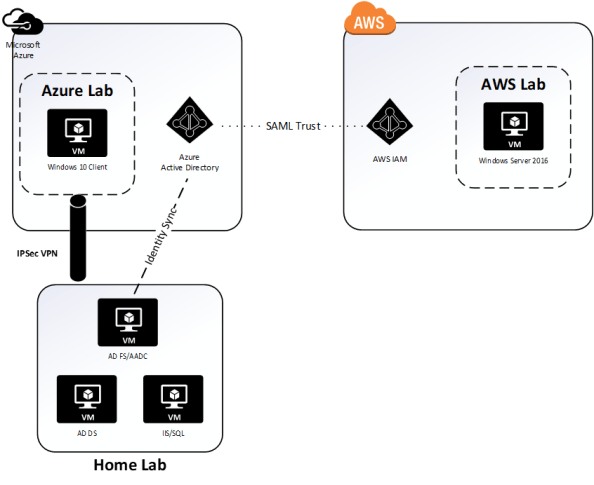
Let me start out by talking about the testing environment I’ll be using for this series.
lab.png

The environment includes three virtual machines (VMs) running on Windows Server 2016 Hyper V on a server at my house.  The virtual machines consists three servers running Windows Server 2016 with one server acting as a domain controller for the journeyofthegeek.local Active Directory (AD) forest, another server running Active Directory Federation Services (AD FS) and Azure AD Connect (AADC), and the third server running MS SQL Server and IIS.  The IIS instance hosts a .NET sample federated application published by Microsoft.

In Microsoft Azure I have a single Vnet configured for connectivity to my on-premises lab through a site-to-site IPSec virtual private network (VPN) I’ve setup with pfSense.  Within the Vnet exists a single VM running Windows 10 that is domain-joined to the journeyofthegeek.local AD domain.  The Azure AD tenant providing the identity backend for the Microsoft Azure subscription is synchronized with the journeyofthegeek.local AD domain using Azure AD Connect and is associated with the domain journeyofthegeek.com.  Authentication to the Azure AD tenant is federated using my instance of AD FS.  I’m not synchronizing passwords and am using an alternate login ID with the user principal name being synchronized to Azure AD being stored in the AD attribute msDS-CloudExtensionAttribute1.  The reason I’m still configured to use an alternate login ID was due to some testing I needed to do for a previous project.

I created a single test user in the journeyofthegeek.local Active Directory domain named Rick Sanchez with a user principal name (UPN) of rick.sanchez@journeyofthegeeklocal and msDS-CloudExtensionAttribute1 of  rick.sanchez@journeyofthegeek.com.  The only attribute to note that the user has populated is the mail attribute which has the value of rick.sanchez@journeyofthegeek.com.  The user is being synchronized to Azure AD via the Azure AD Connect instance.

In AWS I have a single elastic compute cloud (EC2) instance running Windows Server 2016 within a virtual private cloud (VPC).  I’ll be configuring Azure AD as an identity provider associated with the AWS account and will be associating an AWS IAM role named AzureADEC2Admins.  The role will grant full admin rights over the management of the EC2 instances associated to the account via the AmazonEC2FullAccess permissions policy.

Let’s begin shall we?

The first step I’ll be taking is to log into the Azure Portal as an account that is a member of the global admins and navigate to the Azure Active Directory blade.  From there I select Enterprise Applications blade and hit the New Application link.

entapps.png

I then search the application gallery for AWS, select the AWS application, accept the default name, and hit the Add button.  Azure AD will proceed to add the application and will then jump to a quick start page.  So what exactly does it mean to add an application to Azure AD?  Good question, for that we’ll want to use the Azure AD cmdlets.  You can reference this link.

Before we jump into running cmdlets, let’s talk very briefly about the concept of application identities in AAD.  If you’ve managed Active Directory Domain Services (AD DS), you’re very familiar with the concept of service accounts.  When you needed an application (let’s call it a non-human to be more in-line with industry terminology) to access AD-integrated resources directly or on-behalf of a user you would create a security principal to represent the non-human.  That security principal could be a user object, managed service account object, or group managed service account object.  You would then grant that security principal rights and permissions over the resource or grant it the right to impersonate a user and access the resource on the user’s behalf.  The part we want to focus in on is the impersonation or delegation to access a resource on the behalf of a user.  In AD DS that delegation is accomplished through the Kerberos protocol.

When we shift over to AAD the same basic concepts still exist of creating a security principal to represent the application and granting that application direct or delegated access to a resource.  The difference is the protocol handling the access shifts from Kerberos to OAuth 2.0.  One thing many people become confused about is thinking that OAuth handles authentication.  It doesn’t.  It has nothing do with authentication and everything to do with authorization, or more clearly delegation.  When we add an application the AAD a service principal object and sometimes application object (in AWS instance both are created) are created in the AAD tenant to represent the application.  I’m going to speak to the service principal object for the AWS integration, but you can read through this link for a good walkthrough on application and service principal objects and how they differ.

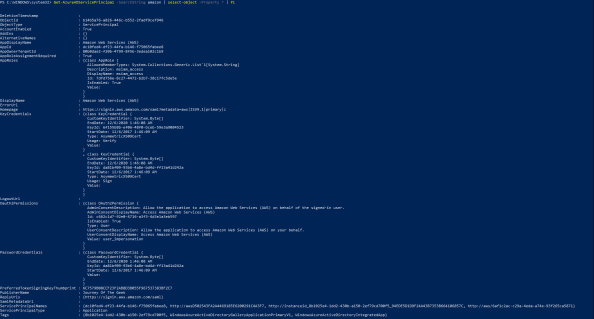
Now back to AWS.  So we added the application and we now have a service principal object in our tenant representing AWS.  Here is a few of the attributes for the object pulled via PowerShell.
awsservice.png

Review of the attributes for the object provide a few pieces of interesting information.   We’ll get to experiment more with what these mean when we start doing Fiddler captures, but let’s talk a bit about them now.  The AppRoles attribute provides a single default role of msiam_access.  Later on we’ll be adding additional roles that will map back to our AWS IAM roles.

Next up we have the KeyCredentials which contains two entries.  This attribute took me a while to work out.  In short, based upon the startDate, I think these two entries are referencing the self-signed certificate included in the IdP metadata that is created after the application is added to the directory.  I’ll cover the IdP metadata in the next entry.

The Oauth2Permissions are a bit funky for this use case since we’re not really allowing the application to access AWS on our behalf, but rather asking it to produce a SAML assertion asserting our identity.  Maybe the delegation can be thought of as delegating Azure AD the right to create logical security tokens representing our users that can be used to assert an identity to AWS.

The PasswordCredentials contains a single entry which shares the same KeyID as the KeyCredential.  As best I can figure from reading the documentation is this would normally contain entries for client keys when not using certificate authentication.  Given that it contains a single entry with the same KeyID as the KeyCredential for signing, I can only guess it will contain an entry even with a certificate is used to authenticate the application.

The last attributes of interest are the PreferredTokenSigningKeyThumbprint which references the certificate within the IdP metadata and the replyURLs which is the assertion consumer URI for AWS.

So yeah, that’s what happens in those 2 or 3 seconds the AWS application is registered with Azure AD.  I found it interesting how the service principal object is used to represent trust between Azure AD and AWS and all the configuration information attached to the object after the application is simply added.  It’s nice to have some of the configuration work done for us out of the box, but there is much more to do.

In the next entry I’ll walk through the Quick Start for the AWS application configuration and explore the metadata Azure AD creates.

The journey continues in my third entry.

Integrating Azure AD and AWS – Part 1

Update: In November 2019 AWS introduced support for integration between Azure AD and AWS SSO.  The integration offers a ton more features, including out of the box support for multiple AWS accounts.  I highly recommend you go that route if you’re looking to integrate the two platforms.  Check out my series on the new integration here.

Hi everyone.  After being slammed with work from the real job over the past few months, I’m back with a new deep dive into the integration between Azure Active Directory (AAD) and Amazon Web Services (AWS).  I enjoyed the heck out of this one because I finally got some playtime in AWS and got to integrate two of the big cloud providers together to make some cool stuff happen.  There are a lot of blogs and articles out there (including Microsoft’s and Amazon’s *cough cough*) which provide the steps to accomplish this integration, but either the steps are incomplete, outdated, or wrong and none of them give a great explanation of the why or the how.  I can’t complain though, what else would I blog about?

Before we jump into the technologies that power the integration, let me first answer the question as to why we’d want to do the integration in the first place.

Let’s face it, managing digital identities is hard and it’s only getting harder with the introduction of cloud technology to the mix.  The tens of thousands of identities you’re managing for your users on-premises data center can quickly grow into the millions when SaaS comes into the mix. The operational overhead or supporting those millions of identities can eat up a large part of your IT budget and make your user experience miserable.  Beyond the cost issue, saddling your users with hundreds of credentials means users are going to re-use passwords and store them in whatever ways are convenient for them (under the keyboard anyone?) which introduces the risk of the credentials being compromised and sensitive data getting leaked.

Now more than ever you need to put a strong focus on centralized identity management and modern authentication and authorization.  Historically this was very challenging to do because of the lack of application programming interfaces (APIs) that allowed for create read update delete (CRUD) operations against the individual user records represented in an application database such as a SQL backend.  Beyond the lack of good APIs, you also were stuck using complicated and limiting legacy authentication and authorization protocols such as Kerberos, NTLM, LDAP, and the like.

Thankfully the industry has made a dramatic shift towards providing robust web-based APIs and support for modern authentication and authorization such as SAML, WS-Fed, Open ID Connect, and OAuth.  This presents a unique opportunity for organizations to shift towards a centralized identity management model where one authoritative store drives the lifecycle of an identity across all applications.  With the introduction of the modern protocols, users aren’t required to maintain thousands of credentials and can instead rely upon a singular trusted credential service provider (CSP) to act as the primary authentication point allowing users to then assert their identities to applications.  This frees the application from having to be saddled with storing and managing user credentials as well as improving the user experience, not to mention using these modern protocols is far simpler for your average developer.

Integrating AAD and AWS allow you to take advantage of centralized identity and modern authentication and authorization.  AAD specifically allows you to leverage all the cool features of a modern Identity-as-a-Service (IDaaS) offering such as behavioral analytics, multifactor authentication, adaptive authentication, and contextual-based authorization.  The short of it is you get a rock solid IDaaS to back the industry leading PaaS and IaaS offerings of AWS.  The best of both worlds right?

Now that you understand why you’d want to integrate the two solutions, let’s look at the technology powering the solution. In this integration the vendors are leveraging the concepts of modern APIs and modern authentication and authorization I touched upon above.  First up is authentication.

aws-signon

In this integration SAML, specifically the identity provider-initiated single sign-on POST binding, is being used to assert the user’s identity to the service provider (SP) after the user successfully authenticates with the identity provider (IdP).  Azure AD plays the role of IdP and AWS plays the role of SP.  The sequence of events plays out as follows:

  1. The user navigates to AAD and authenticates using either a credential or an asserted identity from a federated identity store.  The user then selects AWS from the listing of applications exposed through a method like the MyApps portal.  AAD generates an assertion containing a claim of the user’s identity and the AWS Identity and Access Management (IAM) role(s) the user is authorized to use and redirects the user to an endpoint at AWS.
  2. The user’s browser posts the assertion to the endpoint at AWS.
  3. The assertion is passed to the AWS security token service (STS) which checks the assertion to ensure it is from an identity provider that has been configured to be trusted for the AWS account, verifies the roles can be granted to a federated user, and completes the authentication process granting the user access to the AWS management console.(Don’t worry, we’ll dig into this process much more deeply using Fiddler in the next post.)

For provisioning, the AWS API is used.  AAD queries the AWS API using credentials for an AWS security principal that is associated with a role that has the IAMReadOnlyAccess permissions policy or greater.  It queries for the IAM roles configured for the account and synchronizes those roles back to AAD.  When the synchronization is complete, AAD users can then be added to the relevant roles from within AAD creating a one stop shop for doing your identity lifecycle management, authentication, and authorization.  Nice right?

At a high level that is the why and the what. In my upcoming posts in this series I’ll be digging deep into the how.  This will include how to do the integration, the pitfalls of the Microsoft tutorial, and of course Fiddler captures showing the conversations between the web browser, AAD, and AWS.

The journey continues in my second entry.

Helpful hints for resolving AD FS problems – Part 1

Hi everyone.

Over the past week I’ve been building a lab for an upcoming deep dive into Microsoft’s Web Application Proxy.  During the course of building the lab I ran into a few interesting issues with AD FS and the Web Application Proxy that I wanted to cover.  Some were similar to issues I’ve run into in production environments and some were new to me.

These issues are interesting in that there aren’t any obvious indicators of the problem in any of the typical logs.  Two out of three required some trial and error to determine root cause, while the third drove me quite insane for a good two weeks before getting an answer from an “official” source.  Over the course of this series of blogs I’ll cover each issue in detail with the hopes that it will help others troubleshoot these issues in the future.

Issue 1: AD FS Certificate authentication fails

I’m going to start with the problem that took me the longest to resolve and eventually required getting the answer directly from an official source.

For those of you that are unfamiliar, AD FS provides the capability to offer multi-factor authentication methods both native and third-party.  Out of the box, it supports certificate-based authentication as an option for a multi-factor or “step-up” authentication mechanism.

A few months back I wanted to take advantage of the certificate authentication feature to provide a two-factor authentication solution for applications integrated with AD FS.  Like a good engineer I did my Googling, read the Microsoft articles and various blogs out there to understand how the feature worked and what the requirements were.  I built a lab in Azure, setup an AD FS server, and ensured port 49443 was open in addition to the the typical ports required by AD FS.  I created my instance of AD CS, issued a user certificate containing the user’s UPN in the subject alternate name field, and setup a sample SAML app and configured it to require Certificate authentication.

How easy it all sounds right?  I navigated to the sample application and got the screen below…

Screen Shot 2017-06-04 at 9.29.35 PM

and I waited….  and waited…. and waited…  Ummm, what went wrong?  Well surely the AD FS log will tell me what happened.

Screen Shot 2017-06-04 at 9.34.03 PM.png

Well isn’t that odd.  No errors or warnings in the AD FS Admin log.  A quick check of the Application and System logs showed no errors either.  Maybe the AD FS Debug log would show me something?  I flipped on the log and attempted another authentication.

Screen Shot 2017-06-04 at 9.38.07 PM

Nothing as well?  Maybe the server can’t query the revocation lists designated in the certificates CDP?  Nope, not that either the server can successfully contact the CDP endpoints.  At this point I began to get quite frustrated and attempted packet captures, Fiddler captures, and anything and everything I could think of.  Nothing I tried revealed the answer.

I finally gave in (which I can tell you is incredibly challenging for me) and reached out to an “official” source.  We chatted back and forth and went through much of the same steps as outlined above to ensure I didn’t miss anything.  However, we ran into another dead end.  He then reached out to some other engineers he knew and eventually we got a hit.  We were told to check to see if there were any intermediary certificates stored within the trusted root certificate authorities store.  Sounds like an odd circumstance, but sure why not.

Upon opening up the certificates MMC, opening the machine store, and exploring the trusted root certificate authorities store low and behold I see an intermediary certificate within the store.  I deleted the certificate, restarted the AD FS server and attempted another login to the sample claim application and hit the screen below.

Screen Shot 2017-06-04 at 9.50.16 PM

Boom, I’m finally receiving the certificate prompt.  Clicking the OK button brings about the successful login below.

Screen Shot 2017-06-04 at 9.51.23 PM

So what was the issue?  Apparently AD FS certificate authentication fails without generating an error in any logical location (maybe nowhere at all?) if there is an intermediary certificate in the trusted root certificate authority machine store.  I’ve verified this is an issue in both AD FS 2012 R2 and AD FS 2016.  Now why this occurs is unknown to me.  It could be the underlining HTTPS.SYS driver that pukes and doesn’t report any errors to the event logs.  I didn’t get a straight answer as to why this occurs, just that it will due to some type of integrity check on the machine certificate store.  Odd right?

That completes the rundown of the first of three problems I’ll be outlining in this series of blogs.  Hopefully this helps save someone else some time and aggravation.

See you next post!