1/18/2024 – Logs now include Entra ID security principal objectid property in RequestResponse log
Welcome back fellow geeks.
Over the past few weeks I’ve done a series of posts on the Azure OpenAI Service covering some of the security features of the service. In my first post I gave an overview of what security controls Microsoft makes available for customers to configure to secure their instance of the service. In the second and third posts I did deep dives into the authentication and authorization capabilities of the service. Tonight I’m going to cover the logging capabilities of the service.
Let’s jump right in!
The Azure OpenAI Service emits both logs and metrics. For the purposes of this post I’ll be covering logs. I’ll cover the metrics and monitoring of the service in another post if there is a community interest. Logs emitted by the service have been integrated with the diagnostic setting feature. For those unfamiliar with the diagnostic settings feature, it provides a very simple way to deliver logs and metrics emitted by an Azure service to an Azure Storage Account, Log Analytics Workspace, or to an Event Hub (common use case for passing on to a SIEM like Splunk). In the image below, you can see I’m sending all of the logs and metrics emitted from the service to a Log Analytics Workspace.
Diagnostic Settings
In the image above you can see that the Azure OpenAI Service emits three types of logs which include audit logs, request and response logs, and trace logs. As of the date of this blog all of these logs are sent to the AzureDiagnostics table if you opt to send this logs to a Log Analytics Workspace, so dust off your Kusto skills.
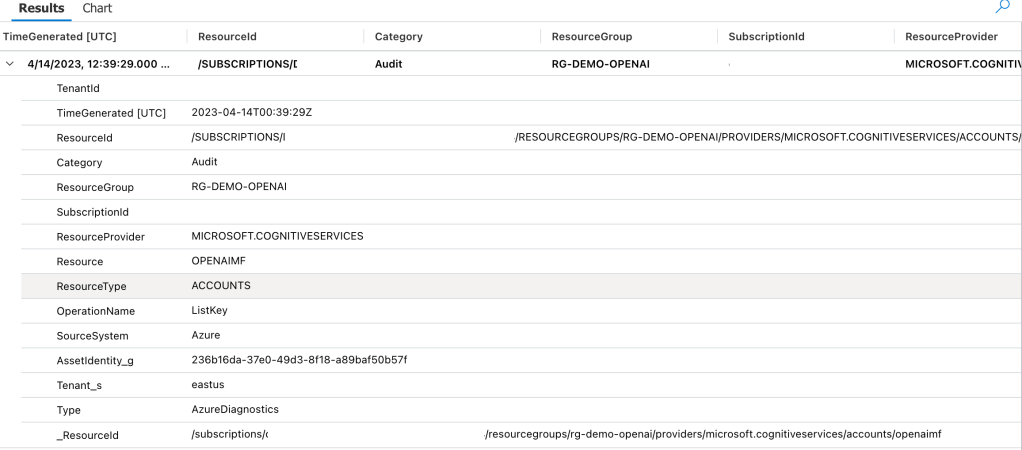
Let’s first take a look at the audit logs, because I know that’s where your security focused eyes darted to. I want to remind you this is a very new service and lots of improvements are coming. Yeah, I did that. I pulled a sales dude move. Seriously though, the audit logging is very limited and likely not what you’d hope for as of the date of this blog. The only events that seem to be logged to the Audit Log for the service are when a ListKeys operation is performed. The operation means a security principal accessed the API Keys. The API keys are used to authenticate to the data plane of the service and do not allow for granular authorization at that plane. Check out my last two posts on authentication and authorization if that sentence doesn’t make sense. Unfortunately, the identity that accessed the API key isn’t listed in the log entry which makes it pretty useless in its current state. Below is a sample entry.
Azure OpenAI Service Audit Log Entry Example
Making this even more useless, this operation is also logged in the Azure Activity Log. The log entry within the Activity Log does include the security principal that performed the action so you’ll want to watch for that activity there. I imagine over time the audit log will be improved to capture more operations and associate those operations to a security principal.
Activity Log Entry Showing List Keys Operation
Next I’m going to cover the Request and Response Logs. This log set is really interesting because likely your expectation is the same as mine was that these would include details around prompts sent to the models and information on the response such as the number of tokens consumed. While it does operations around requests for things such a completions or summarizations, it also captures a ton of other events that would likely be more suited for the audit log. Additionally, the data it captures about these actions is extremely limited.
Let’s take a look at a log entry where I requested the model complete a sentence for me. In my code I’m calling the API using an Azure AD service principal NOT an API key with the shattered hope that the log entry would capture the service principal I’m using. 1/18/2024 – The Entra ID object id is now included in the RequestResponse log entry! Hooray!
Prompt and Response Log Entry
In the above log entry we don’t get any information to correlate the operation back an entity even when using Azure AD authentication. All we can see is the completion action occurred at a specific time and resulted in a success status code. You’ll also see there is a CallerIPAddress field. This will include the first three octets of the IP address called the service but not the last octet. Kinda weird it’s being masked like this, but I guess that’s better than nothing? (Not really, but hey it’s a new service).
Before you ask, no, the content of the prompts and responses are not logged in any of these logs.
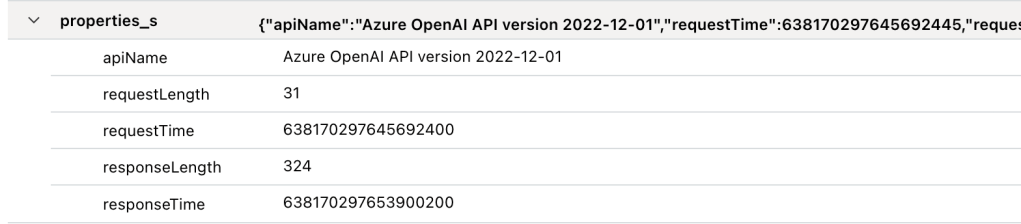
There is one additional field of relevance I couldn’t fit within the above screenshot and that’s properties_s. The only real useful information on this is total response time the service took to return an answer to the user. I hoped this would have had some information around tokens used, but sadly it does not.
properties_s field of a Prompt and Response Log Entry
Besides prompts and responses, this log seems to capture other data plane operations. This includes everything from activities users have performed around uploading files to the service to train fine-tuned models, activities around fine-tuned models (listing, creation, deletion), creation of embeddings, and management of models deployed to the service. Most of these operations should be in the Audit Log in my opinion. I’m not sure why they’re included in this log, but they are. No, none of these operations include details as to who performed these actions beyond the first three octets of the IP address.
Lastly, there is the trace log. I have no idea what’s logged in there because I have yet generate any trace log data. If you know what gets logged in there, let me know in the comments.
So yes folks, there are some serious gaps in the logging for the service today. However, the service is new and the underlining technology is still pretty new as well so we can’t expect perfection out of the gates. My advice to customers has been to build the logging they need into whatever application is fronting the user access and to lock the service down from an authorization perspective so that the only access to the service comes through that application.
My peer Jake Wang has come up with a creative solution to address some of the logging gaps in the service by placing an API Management instance in front of it. With this design anything communicating with the Azure OpenAI Service instance has to go through APIM. Within APIM you can do whatever fancy logging you want to do, toss in some additional throttling to specific user requests, and lots of other cool stuff. It’s a great workaround while the Product Group improves the native logging. Check out my recent post for some of the gotchas of APIM logging for the Azure OpenAI Service.
If you have a different API Gateway like Mulesoft you could use this same pattern with that instead of APIM.
Well folks that wraps things up. I hope you got some value out of this post and I’d encourage you to make your voices heard by submitting feedback to the product group on how you’d like to see the logging improved for the service.
The fun with the new Azure OpenAI Service continues! I’ve been lucky enough to have been tapped to help a number of Microsoft financial services customers with getting the Azure OpenAI Service in place with the appropriate infrastructure and security controls. In the process, I get to learn from a ton of smart people in the AI space. It’s truly been one of the highlights of my 20-year career.
Over the past few weeks I’ve been posting about what I’ve learned, and today I’m going to continue with that. In my first post on the service I gave a high level overview of the security controls Microsoft makes available to the customer to secure their instance of Azure OpenAI Service. In my second post I dove deep into how the service handles authentication and how Azure Active Directory (Azure AD) can be used to improve over the built-in API key-based authentication. Today I’m going to cover authorization and demonstrate how using Azure AD authentication lets you take advantage of granular authorization with Azure RBAC.
Let’s dig in!
As I covered in my last post, the Azure OpenAI Service has both a management plane and data plane. Each plane supports different types of authentication (process of verifying the identity of a user, process, or device, often as a prerequisite to allowing access to resources in an information system) and authorization (The right or a permission that is granted to a system entity to access a system resource). Operations such as swapping to a customer-managed key, enabling a private endpoint, or assigning a managed identity to the service occur within the management plane. Activities such as uploading training data or issuing a prompt to a model occur at the data plane. Each plane uses a different API endpoint. The image below will help you visualize the different planes.
Azure OpenAI Service Management and Data Planes
As illustrated above, authorization within the management plane is handled using Azure RBAC because authentication to that plane requires Azure AD-based authentication. Here we can limit the operations occurring at the management plane a security principal (user, service principal, managed identity, Azure Active Directory group (local or synchronized from on-premises) can perform by using Azure RBAC. For those of you coming from the AWS world, and where the Azure OpenAI Service may be your first venture into Azure, Azure RBAC is Azure’s authorization solution. It’s similar to an AWS IAM Policy. Let’s take a look at a built-in RBAC role that a customer might grant a data scientist who will be using the Azure OpenAI Service.
Let’s briefly walkthrough each property. The id property is the unique resource name assigned to this role definition. Next up we have the name property and description properties which need no explanations. The assignableScopes property determines at which scope an RBAC role can be assigned. Typical scopes include management groups, subscriptions, resource groups, and resources. Built-in roles will always have an assignable scope of “/” which denotes the RBAC role can be assigned to any management group, subscription, resource group, or role.
I’ll spend a bit of time on the permissions property. The permissions property contains a few different child properties including actions, notActions, dataActions, and notDataActions. The actions property lists the management plane operations allowed by the role while the dataActions lists the data plane operations allowed by the role. The notActions and notDataActions are interesting in that they are used to strip permissions out of the actions or dataActions. For example, say you granted a user full data plane operations to an Azure Key Vault but didn’t want them to have the ability to delete keys. You could to this by giving the user the dataAction of Microsoft.KeyVaults/* and notDataAction of Microsoft.KeyVaults/keys/purge/action. Take note this is NOT an explicit deny. If the user gets this permission in another way through assignment of a different RBAC role the user will be able to perform the action. At this time, Azure does not have a generally available feature that allows for an explicit deny like AWS IAM and what does exist in preview has an extremely narrow scope such that it isn’t very useful.
When you’re ready to assign a role to a security principal (user, service principal, managed identity, Azure Active Directory group (local or synchronized from on-premises) you create what is called a role assignment. A role assignment associates an Azure RBAC Role Definition to a security principal and scope. For example, in the below image I’ve created an RBAC Role Assignment for the Cognitive Services User Role at the resource group scope for the user Carl Carlson. This grants Carl the permission to perform the operations listed in the role definition above to any resource within the resource group, including the Azure OpenAI Resource.
Azure RBAC Role Assignment
Scroll back and take a look at the role definition, notice any risky permission? If you noticed the permission Microsoft.CognitiveServices/accounts/listkeys/action (remember that the Azure OpenAI Service falls under the Cognitive Services umbrella), grab yourself a cookie. As I’ve covered previously, every instance of the Azure OpenAI Service comes with two API keys. These API keys allow for authentication to the instance at the data plane level, can’t be limited in what they can do, and are very difficult to ever track back to who used them. You will want to very tightly control access to those API keys so be wary of who you give this role out to and may want to instead create a similar custom role but without this permission.
The are two other roles which are specific two the Azure OpenAI Service are the Cognitive Services OpenAI Contributor and Cognitive Services OpenAI User. Let’s look at the contributor role first.
The big difference here is this role doesn’t grant much at the management plane. While this role may seem appealing to give to a data scientist because it doesn’t allow access to the API keys, it also doesn’t allow access to the instance metrics. I’ll talk about this more when I do a post on logging and monitoring in the service, but access to the metrics are important for the data scientists. These metrics allow them to see how much volume they’re doing with the service which can help them estimate costs and avoid hitting API limits.
Under the dataActions you can see this role allows all data plane operations. These operations include uploading training data for the creation of fine-tuned models. If you don’t want your users to have this access, then you can either strip the permissions Microsoft.CognitiveServices/accounts/OpenAI/files/import/action or grant the user the next role I’ll talk about.
One interesting thing to note is that while this role grants all data actions, which include data plane permissions around deployments, users with this role cannot deploy models to the instance. An error will be thrown that the user does not have the Microsoft.CognitiveServices/accounts/deployments/write permission. I’m not sure if this by design, but if anyone has a workaround for it, let me know in the comments. It would seem like if you want the user to deploy a model, you’ll need to model a custom role after this role and add that permissions.
The last role I’m going to cover is the Cognitive Services OpenAI User role. Let’s look at the permissions for this one.
Like the contributor role, this role is very limited with management plane permissions. At the data plane level, this role really allows for issuing prompts and not much else. This role is great a non-human application role assigned via service principal or managed identity. It will allow the application to issue prompts and not much else. You don’t have to worry about a user exploiting this role to access training data you may have uploaded or making any modification to the Azure OpenAI Service instance.
Well folks that wraps this up. Let’s sum up what we’ve learned:
The Azure OpenAI Service supports fine-grained authorization through Azure RBAC at both the management plane and data plane when the security principal is authenticated through Azure AD.
Avoid using API keys where possible and leverage Azure RBAC for authorization. You can make it much more fine-grained, layer in the controls provided by Azure AD on top of it, and associate the usage of the service back to user (kinda as we’ll see in my post on logging).
Tightly control access to the API keys. I’d recommend any role you give to a data scientist or an application that you strip out the listkeys permissions.
I’d recommend creating a custom role for human users modeled after the Cognitive Services User role but without the listkeys permission. This will grant the user access to the full data plane and allow access to management plane pieces such as metrics. You can optionally be granular with your dataActions and leave out the files permissions to prevent human users from uploading training data.
I’d recommend using the built-in Cognitive Services OpenAI User role for service principals and managed identities assigned to applications. It grants only the permissions these applications are likely going to need and nothing more.
I’d avoid using notActions and notDataActions since it’s not an explicit deny and it’s very difficult to determine an effective user’s access in Azure without another tool like Entra Permissions Management.
Well folks, I hope this post has helped you better understand authorization in the service and how you could potentially craft it to align with least privilege.
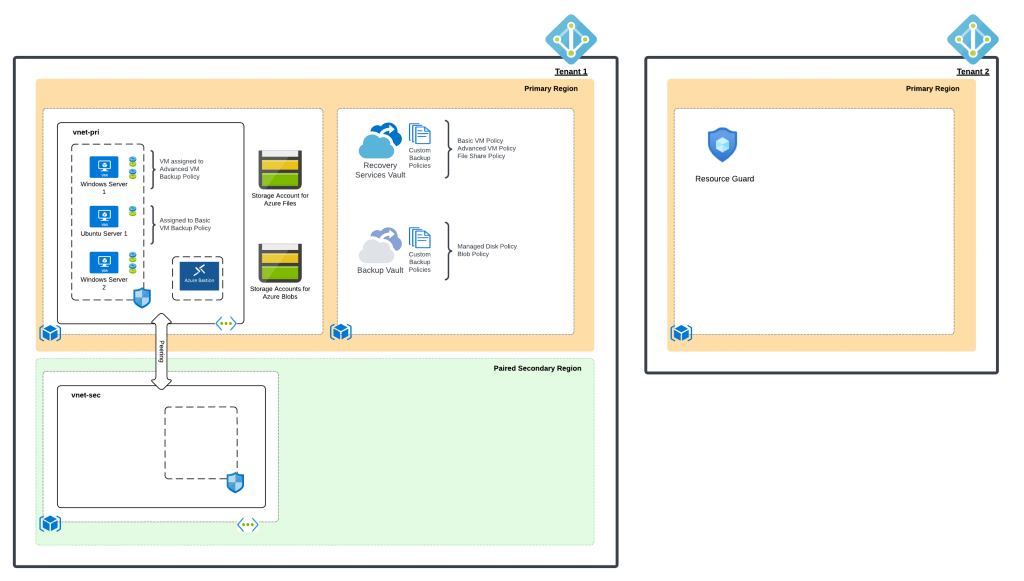
Welcome to part 2 of my series on Azure Backup and Resource Guard. In my first post, I gave some background on the value proposition Resource Guard provides. In this post I’ll be walking through how to configure it and demonstrating it in action. I’ll be using the lab pictured below which is based off the Azure Backup demo lab I have up on GitHub.
Lab used to demonstrate Resource Guard
For this demonstration, I used my jogcloud.com Azure AD tenant as the primary tenant where the Recovery Service Vaults will be stored. I have a small environment in my at home lab that is configured with a Windows Active Directory forest that is synchronized to that tenant. The geekintheweeds.com Azure AD tenant acted as the secondary tenant containing the Resource Guard. Homer Simpson will act as the owner of the Resource Guard (perhaps he is someone in Information Security) in the geekintheweeds.com tenant and Maggie Simpson will own the subscription containing the workload and Recovery Services Vault (emulating a typical application owner) in the jogcloud.com tenant.
Since both users are sourced from my on-premises Windows Active Directory forest and synchronized to jogcloud.com, I used Azure AD’s B2B feature to invite Homer Simpson into the geekintheweeds.com tenant. Once added through the B2B process, I setup an RBAC assignment granting Homer Simpson Owner of the subscription containing the Resource Guard.
Role Assignment in geekintheweeds.com tenant
Next up I went to create the Resource Guard in the GIW tenant and received the error below when attempting to create the Resource Guard resource in the GIW Tenant.
Error creating Resource Guard
The error message was pretty useless (not atypical of Azure errors). In this case, this error is due to the Microsoft.DataProtection resource provider not being registered in this subscription. Once registering the resource provider in question, the Resource Guard was provisioned without issue. One thing to note is that while the Resource Guard can exist within a different resource group, subscription, or tenant, it must be in the same region as the Recovery Services Vault it is protecting.
Once the Resource Guard resource was provisioned, I needed to give Maggie Simpson appropriate access over the Recovery Services Vault in the jogcloud.com tenant. For that, I provisioned a role assignment for the Contributor role on the subscription to the System Operators group synchronized from on-premises that Maggie is a member of.
Role Assignment in jogcloud.com tenant
Navigating to the Recovery Services Vault, Maggie Simpson is capable of modifying the soft delete feature (note it’s disabled for the purposes of this lab so the resources can be easily removed).
Prior to Resource Guard, Maggie Simpson can modify Soft Delete
Switching over to Homer Simpson and logging into the jogcloud.com tenant, I attached the Resource Guard to the Recovery Services Vault. The interface allowed me to select the tenant (directory) and the Resource Guard resource.
Enabling Resource Guard
I had configured the Resource Guard to protect all the operations it was able to. This is confirmed with the confirmation in the screenshot below.
Resource Guard configured to protect sensitive operations
Once the Resource Guard is enabled, navigating back to the Security Settings of the Recovery Services Vault displays a message that Resource Guard is now enabled.
Switching back to Maggie Simpson, I then attempted to modify a backup policy which is considered a sensitive operation and is restricted via the association to the Resource Guard. As expected, Maggie Simpson cannot make the modifications to the Recovery Services Vault without authenticating to the GIW tenant and being authorized on the Resource Guard.
Maggie Simpson blocked from using Resource Guard
Success! Here we demonstrated how we can restrict sensitive operations on an Azure Backup Vault even when a user has a high level of permissions on the vault itself. Resource Guard provides a great security mechanism to establish the blast radius that works best for your organization. I could even add Azure AD PIM to the mix in the support just-in-time access of the Resource Guard. The support for cross-tenant specifically is very unique because there are very few (if any) other Azure resources that allow you to leverage a cross-tenant security boundary.
If you’re using Azure Backup, you should be using Resource Guard as an additional security control to add to the controls you are enforcing with Azure RBAC and Azure Policy. With the introduction into preview of the immutable vaults, Microsoft is providing a variety of tools to take a defense-in-depth approach using the technical features that make the most sense to the needs of your organization. WIth that bit of sales speak, I’m out for the weekend.
I’ve recently had a number of inquiries on Microsoft’s AAD (Azure Active Directory) B2C (Business-To-Consumer) offering. For those infrastructure folks who have had to manage customer identities in the past, you know the pain of managing these identities with legacy solutions such as LDAP (Lighweight Directory Access Protocol) servers or even a collection of Windows AD (Active Directory) forests. Developers have suffered along with us carrying the burden of securely implementing the technologies into their code.
AAD B2C exists to make the process easier by providing a modern IDaaS (identity-as-a-service) offering complete with a modern directory accessible over a Restful API, support for modern authentication and authorization protocols such as SAML, Open ID Connect, and OAuth, advanced features such as step-up authentication, and a ton of other bells and whistles. Along with these features, Microsoft also provides a great library in the form of the Microsoft Authentication Library (MSAL).
It had been just about 4 years since I last experimented with AAD B2C, so I was due for a refresher. Like many people, I learn best from reading and doing. For the doing step I needed an application I could experiment with. My first stop was the samples Microsoft provides. The Python pickings are very slim. There is a basic web application Ray Lou put together which does a great job demonstrating basic authentication. However, I wanted to test additional features like step-up authentication and securing a custom-built API with AAD B2C so I decided to build on top of Ray’s solution.
I began my journey to create the web app and web API I’ll be walking through setting up with this post. Over the past few weeks I spent time diving into the Flask web framework and putting my subpar Python skills to work. After many late nights and long weekends spent reading documentation and troubleshooting with Fiddler, I finished the solution which costs of a web app and web API.
The solution is quite simple . It is intended to simulate a scenario where a financial services institution is providing a customer access the customer’s insurance policy information . The customer accesses a web frontend (python-b2c-web) which makes calls to a API (python-b2c-api) which then retrieves policy information from an accounts database (in this case a simple JSON file). The customer can use the self-service provisioning capability of Azure B2C to create an account with the insurance company, view their policy, and manage the beneficiary on the policy.
AAD B2C provides the authentication to the web front end (python-b2c-web) via Open ID Connect. Access to the user’s policy information is handled through the API (python-b2c-api) using OAuth. The python-b2c-web frontend uses OAuth to obtain an access token which is uses for delegated access to python-b2c-api to retrieve the user’s policy information. The claims included in the access token instruct the python-b2c-api which record to pull. If the user wishes to change the beneficiary on the policy, the user is prompted for step-up authentication requiring an MFA authentication.
The solution uses four Azure AD B2C UserFlows. It has a profile editing user flow which allows the user to change information stored in the AAD B2C directory about the user such as their name. A password reset flow allows the user to change the password for their local AAD B2C identity. Two sign-up/sign-in flows exist one with no MFA and one with MFA enforced and two sign-up / sign-in flows. The non-MFA enabled flow is the kicked off at login to python-b2c-web while the MFA enabled flow is used when the user attempts to change the beneficiary.
With the basics on the solution explained, let’s jump in to how to set it up. Keep in mind I’ll be referring to public documentation where it makes sense to avoid reinventing the wheel. At this I’m providing instructions as to how to run the code directly on your machine and additionally instructions for running it using Docker. Before we jump into how to get the code up and running, I’m going to walkthrough setting up Azure AD B2C.
Setting up Azure AD B2C
Before you go setting up Azure AD B2C, you’ll need a valid Azure AD Tenant and Azure Subscription. You can setup a free Azure account here. You will need at least contributor within the Azure Subscription you plan on using to contain the Azure AD B2C directory.
Follow the official documentation to setup your Azure B2C directory once you have your Azure Subscription setup and ready to go. Take note of the name of the single-label DNS name you use for your Azure B2C directory. This will be the unique name you set that prefixes .onmicrosoft.com (such as myb2c.onmicrosoft.com).
Creation of the Azure AD B2C directory will create a resource of type B2C Tenant in the resource group in the Azure Subscription you are using.
In addition to the single-label DNS name, you’ll also need the note down tenant ID assigned to the B2C directory for use in later steps. You can obtain the tenant ID by looking at the B2C Tenant resource in the Azure Portal. Make sure you’re in the Azure AD directory the Azure Subscription is associated with.
Screenshot of Azure AD B2C resource in Azure Resource Group
If you select this resource you’ll see some basic information about your B2C directory such as the name and tenant ID.
Screenshot of Overview of an Azure AD Tenant resource
Once that is complete the next step is to register the web front end (python-b2c-web) and API (python-b2c-api). The process of registering the applications establishes identities, credentials, and authorization information the applications use to communicate with Azure B2C and each other. This is a step where things can get a bit confusing because when administering an Azure AD B2C directory you need to switch authentication contexts to be within the directory. You can do this by selecting your username in the top right-hand corner of the Azure Portal and selecting the Switch Directory link.
Screenshot of how to switch between Azure AD and Azure AD B2C directories
This will bring up a list of the directories your identity is authorized to access. In the screenshot below you’ll see my Azure AD B2C directory giwb2c.onmicrosoft.com is listed as an available directory. Selecting the directory will be me in the context of the B2C directory where I can then register applications and administer other aspects of the B2C directory.
Screenshot showing available directories
Once you’ve switched to the Azure AD B2C directory context you can search for Azure B2C in the Azure search bar and you’ll be able to fully administer the B2C directory. Select the App Registrations link to begin registering the python-b2c-web application.
Screenshot of Azure AD B2C administration options
In the next screen you’ll be see the applications currently registered with the B2C directory. Click the New registration button to begin a new registration.
In the Register an application screen you need to provide information about the application you are registering. You can name the application whatever you’d like as this is used as the display name when viewing registered applications. Leave the Who can use this application or access thisAPI set the Accountsin any identity provider or organizational directory (for authenticating users with user flows). Populate the Redirect URI with URI Azure B2C should redirect the user’s browser to after the user has authenticate. This needs to be an endpoint capable of processing the response from Azure AD B2C after the user has authenticated. For this demonstration application you can populate the URI with http://localhost:5000/getAToken. Within the application this URI will process the authorization code returned from B2C and use it to obtain the ID token of the user. Note that if you want to run this application in App Services or something similar you’ll need to adjust this value to whatever DNS name your application is using within that service.
Leave the Grant admin consent to openid and offline_access permissions option checked since the application requires permission to obtain an id token for user authentication to the application. Once complete hit the Register button. This process creates an identity for the application in the B2C directory and authorizes it to obtain ID tokens and access tokens from B2C.
Screenshot showing how to register the python-b2c-web application
Now that the python-b2c-web application is registered, you need to obtain some information about the application. Go back to the main menu for the B2C Directory, back into the App Registrations and select the newly registered application. On this page you’ll have the ability to administer a number of aspects of the application such as creating credentials for the application to support confidential client flows such as the authorization code flow which this application uses.
Before you do any configuration, take note of the Application (client) ID. You’ll ned this for later steps.
Screenshot of registered application configuration options
The client ID is used to identify the application to the Azure B2C directory, but you still need a credential to authenticate it. For that you’ll go to Certificates & secrets link. Click on the New client secret button to generate a new credential and save this for later.
You will need to register one additional redirect URI. This redirect URI is used when the user authenticates with MFA during the step-up process. Go back to the Overview and click on the Redirect URIs menu item on the top section as seen below.
Screenshot of overview menu and Redirect URIs link
Once the new page loads, add a redirect URI which is found under the web section. The URI you will need to add is http://localhost:5000/getATokenMFA. Save your changes by hitting the Save button. Again, note you will need to adjust this URI if you deploy this into a service such as App Services.
At this point the python-b2c-web (or web frontend) is registered, but you need to now register python-b2c-api (the API). Repeat the steps above to register the python-b2c-api. You’ll select the same except you do not need to provide a redirect URI since the API won’t be directly authenticating the user.
Once the python-b2c-api is registered, go into the application configuration via the App Registrations menu and record the Application (client) ID as you’ll use this to configuration the application later on. After you’ve recorded that information select the Expose anAPI link. Here you will register the two OAuth scopes I’ve configured in the application. These scopes will be included in the access token obtained by python-b2c-web when it makes calls to python-b2c-api to get policy information for the user.
Select the Add a scopebutton and you’ll be prompted to set an Application ID URI which you need to set to api. Once you’ve set it, hit the Save and continue button.
Screenshot of setting the Application ID URI for the python-b2c-api
The screen will refresh you’ll be able to add your first scope. I have defined two scopes within the pyton-b2c-api. One is called Accounts.Read which grants access to read policy information and one for Accounts.Write which grants access to edit policy information. Create the scope for the Accounts.Read and repeat the process for Accounts.Write.
As a side note, by default B2C grants application registered with it the offline_access and openid permissions for Microsoft Graph. Since python-b2c-api won’t be authenticating the user and will simply be verifying the access token passed by the python-b2c-web, you could remove those permissions if you want. You can do this through theAPI permissions link which is located on the application configuration settings of the python-b2c-api.
The last step you have in the B2C portion of Azure is to grant the python-b2c-web application permission to request an access token for the Accounts.Read and Accounts.Write scopes used by the python-b2c-api application To do this you need to go back into the application configuration for the python-b2c-web application and go to the API permissions link. Click the Add a permission link. In the Request API permissions window, select My APIs link and select the python-b2c-api application you registered. Select the two permissions (Accounts.Read and Accounts.Write) and click the Add permissions link.
Screenshot of granting permissions to the python-b2c-web application
To finish up with the permissions piece you’ll grant admin consent to permissions. At the API permissions window, click the Grant admin consent for YOUR_TENANT_NAME button.
Screenshot of granting admin consent to the new permissions
At this point we’ve registered the python-b2c-web and python-b2c-api applications with Azure B2C. We now need to enable some user flows. Azure B2C has an insanely powerful policy framework that powers the behavior of B2C behind the scenes that allow you to do pretty much whatever you can think of. With power comes complexity, so expect to engage professional services if you want to go to the custom policy route. Azure AD B2C also comes with predefined user flows that provide for common user journeys and experiences. Exhaust your ability to use before you go the custom policy route.
For this solution you’ll be using predefined user flows. You will need to create four predefined user flows named exactly as outlined below. You can use the instructions located here for creation of the user flows. When creating the sign-in and sign-up flows (both MFA and non-MFA) make sure to configure the user attributes and application claims to include the Display Name, Email Address, Given Name, and Surname attributes at a minimum. The solution will be expecting these claims and be using them throughout the application. You are free to include additional user attributes and claims if you wish.
Screenshot of user flows that must be created
At this point you’ve done everything you need to to configure Azure B2C. As a reminder make sure you’ve collected the Azure AD B2C single-label DNS name, Azure AD B2C Tenant ID, python-b2c-web application (client) ID and client secret, and python-b2c-api application (client) ID.
In the next section we’ll setup the solution where the code will run directly on your machine.
(Option 1) Running the code directly on your machine
With this option you’ll run the Python code directly on your machine. For prerequisites you’ll need to download and install Visual Studio Code and Python 3.x.
The python-b2c-web folder contains the web front end application and the python-b2c-api contains the API application. The accounts.json file in the python-b2c-api folder acts as the database containing the policy information. If a user does not have a policy, a policy is automatically created for the user by the python-b2c-api application the first time the user tries to look at the policy information. The app_config.py file in the python-b2c-web folder contains all the configuration options used by python-b2c-web application. It populates any key variables with environment variables you will set in a later step. The app.py files in both directories contain the code for each application. Each folder also contains a Dockerfile if you wish to deploy the solution as a set of containers. See the option 2 running as containers sectionfor steps on how to do this.
Once the repo has cloned you’ll want to open two Terminal instances in Visual Studio Code. You can do this with CTRL+SHIFT+` hotkey. In your first terminal navigate python-b2c-web directory and in the second navigate to the python-b2c-api directory.
In each terminal we’ll setup a Python virtual directory to ensure we don’t add a bunch of unneeded libraries into the operating system’s central Python instance.
Run the command in each terminal to create the virtual environments. Depending on your operating system you may use to specify python3 instead of python before the -m venv env. This is because operating systems like Mac OS X come preinstalled with Python2 which will not work for this solution.
python -m venv env
Once the virtual environments will need to activate the virtual environments. On a Windows machine you’ll use the command below. On a Mac this file will be in env/bin/ directory and you’ll need to run the command source env/bin/activate.
env\Scripts\activate
Next, load the required libraries using pip using the command below. Remember to do this for both terminals. If you run into any errors installing the dependencies for python-b2c-web ensure you update the version of pip used in the virtual environment using the command pip install –upgrade pip.
pip install -r requirements.txt
The environments are now ready to go. Next up you need to set some user variables. Within the terminal for the python-b2c-web create variables for the following:
CLIENT_ID – The application (client) id of the python-b2c-web application you recorded.
CLIENT_SECRET – The client secret of the python-b2c-web application you recorded.
B2C_DIR – The single-label DNS name of the B2C directory such as myb2c.
API_ENDPOINT – The URI of the python-b2c-api endpoint which must this to http://localhost:5001 when running the code directly on your machine. If running this solution on another platform such as Azure App Services you’ll need to set this to whatever the URI you’re using for App Services.
Within the terminal for the python-b2c-api create variables for the following:
CLIENT_ID – application (client) id of the python-b2c-api application you recorded earlier
TENANT_ID – tenant ID of the B2C directory you recorded earlier
B2C_DIR – single-label DNS name of the B2C directory such as myb2c
In Windows you can set these variables by using the command below. If using Mac OS X ensure you export the variables after creation after you set them. Remember to set all of these variables. If you miss one the application will fail to run.
set B2C_DIR=myb2c
Now you can start the python-b2c-web web front end application. To do this you’ll use the flask command. In the terminal you setup for the python-b2c-web application, run the following command:
flask run -h localhost -p 5000
Then in the terminal for the python-simple-web-api, run the following command:
flask run -h localhost -p 5001
You’re now ready to test the app! Open up a web browser and go to http://localhost:5000.
Navigate to the testing the application section <INSERT LINK> for instructions on how to test the application.
(Option 2) Running as containers
Included in the repository is the necessary Dockerfiles to build both applications as Docker images to run as containers in your preferred container runtime. I’m working on a Kubernetes deployment and will that in time. For the purposes of this article I’m going to assume you’ve installed Docker on your local machine.
The python-b2c-web folder contains the web front end application and the python-b2c-api contains the API application. The accounts.json file in the python-b2c-api folder acts as the database containing the policy information. If a user does not have a policy, a policy is automatically created for the user by the python-b2c-api application the first time the user tries to look at the policy information. The app_config.py file in the python-b2c-web folder contains all the configuration options used by python-b2c-web application. It populates any key variables with environment variables you will set in a later step. The app.py files in both directories contain the code for each application. Each folder also contains a Dockerfile that you will use to build the images.
Navigate to the python-b2c-web directory and run the following command to build the image.
docker build --tag=python-b2c-web:v1 .
Navigate to the python-b2c-api directory and run the following command to build the image.
docker build --tag=python-b2c-api:v1 .
Since we need the python-b2c-web and python-b2c-api applications to communicate, we’re going to create a custom bridged network. This will provide a network that will allow both containers to communicate, connect to the Internet to contact Azure B2C, and find each other using DNS. Note that you must use a custom bridged network to support the DNS feature as the default bridged network doesn’t support the containers finding each other by name.
docker network create b2c
Now that the images are built and the network is created you are ready to spin up the containers. When spinning up each container you’ll need to pass a series of environment variables to the containers. The environment variables are as follows:
CLIENT_ID – The application (client) id of the python-b2c-web application you recorded.
CLIENT_SECRET – The client secret of the python-b2c-web application you recorded.
B2C_DIR – The single-label DNS name of the B2C directory such as myb2c.
API_ENDPOINT – The URI of the python-b2c-api endpoint. As long as you name the container running the python-b2c-api with the name of python-b2c-api, you do not need to set this variable.
Within the terminal for the python-b2c-api create variables for the following:
CLIENT_ID – application (client) id of the python-b2c-api application you recorded earlier
TENANT_ID – tenant ID of the B2C directory you recorded earlier
B2C_DIR – single-label DNS name of the B2C directory such as myb2c
Start a container instance of the python-b2c-web application using the following command:
Once both containers are created proceed to the Testing the Application section of this post.
Testing the Application
Open a web browser and navigate to http://localhost:5000. The login page below will appear.
Clicking the Sign-In button will open up the B2C sign-in page. Here you can sign-in with an existing B2C account or create a new one. You can also initialize a password reset.
After successfully authenticating you’ll be presented with a simple home page. The Test API link will bring you to the public endpoint of the python-b2c-api application validating that the API is reachable and running. The Edit Profile link will redirect you to the B2C Edit Profile experience. Clicking the My Claims link will display the claims in your ID token as seen below.
Clicking the My Account link causes the python-b2c-web application to request an access token from Azure B2C to access the python-b2c-api and pull the policy information for the user.
Clicking on the Change Beneficiary button will kick off the second MFA-enabled sign-in and sign-up user flow prompting the user for MFA. After successful MFA, the user is redirected to a page where they make the change to the record. Clicking the submit button causes the python-b2c-web application to make a call to the python-b2c-api endpoint modifying the user’s beneficiary on their policy.
That’s about it. Hopefully this helps give you a simple base to mess with Azure AD B2C.