Integrating Azure AD and G-Suite – Google API Integration Part 1

Integrating Azure AD and G-Suite – Google API Integration Part 1

Hi everyone,

Welcome to the second post in my series on the integration between Azure Active Directory (Azure AD) and Google’s G-Suite (formally named Google Apps).  In my first entry I covered the single sign-on (SSO) integration between the two solutions.  This included a brief walkthrough of the configuration and an explanation of how the SAML protocol is used by both solutions to accomplish the SSO user experience.  I encourage you to read through that post before you jump into this.

So we have single sign-on between Azure AD and G-Suite, but do we still need to provision the users and group into G-Suite?  Thanks to Google’s Directory Application Programming Interface (API) and Azure Active Directory’s (Azure AD) integration with it, we can get automatic provisioning into G-Suite .  Before I cover how that integration works, let’s take a deeper look at Google’s Cloud Platform (GCP) and its API.

Like many of the modern APIs out there today, Google’s API is web-based and robust. It was built on Google’s JavaScript Object Notation (JSON)-based API infrastructure and uses Open Authorization 2.0 (OAuth 2.0) to allow for delegated access to an entities resources stored in Google. It’s nice to see vendors like Microsoft and Google leveraging standard protocols for interaction with the APIs unlike some vendors… *cough* Amazon *cough*. Google provides software development kits (SDKs) and shared libraries for a variety of languages.

Let’s take a look at the API Explorer.  The API Explorer is a great way to play around with the API without the need to write any code and to get an idea of the inputs and outputs of specific API calls.  I’m first going to do something very basic and retrieve a listing of users in my G-Suite directory.  Once I access the API explorer I hit the All Versions menu item and select the Admin Directory API.
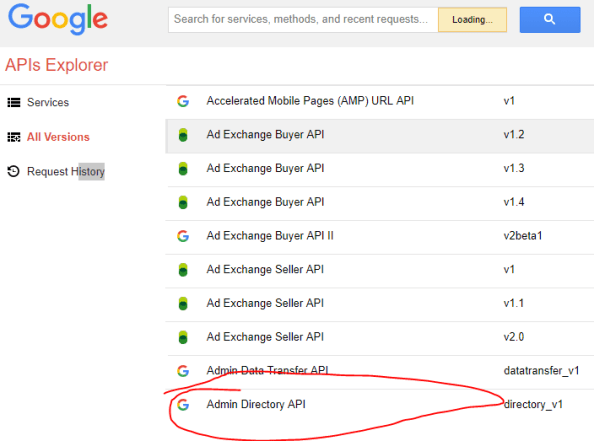
google1int1

On the next screen I navigate down to the directory.users.list method and select it.  On the screen that follows I’m provided with a variety of input fields.  The data I input into these fields will affect what data is returned to me from the API. I put the domain name associated with my G-Suite subscription and hit the Authorize and Execute button.  A new window pops up which allows me to configure which scope of access I want to grant the API Explorer.  I’m going to give it just the scope of https://www.googleapis.com/auth/admin.directory.user.readonly.
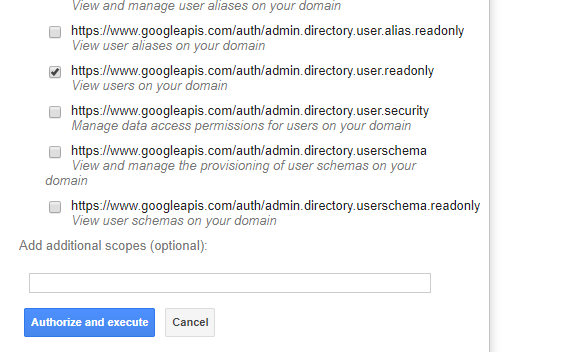
google1int2

I then hit the Authorize and Execute button and I’m prompted to authenticate to Google and delegate API Explorer to access data I have permission to access in my G-Suite description.   Here I plug in the username and password for a standard user who isn’t assigned to any G-Suite Admin Roles.

google1int3

After successfully authenticating, I’m then prompted for consent to delegate API Explorer to view the users configured in the user’s G-Suite directory.

google1int4

I hit the allow button, the request for delegated access is complete, and a listing of users within my G-Suite directory are returned in JSON format.

google1int5

Easy right?  How about we step it up a notch and create a new user.  For that operation I’ll be delegating access to API Explorer using an account which has been granted the G-Suite User Management Admin role.  I navigate back to the main list of methods and choose the directory.users.insert method.  I then plug in the required values and hit the Authorize and Execute button.  The scopes menu pops up and I choose the https://www.googleapis.com/auth/admin.directory.user scope to allow for provisioning of the user and then hit the Authorize and Execute button.  The request is made and a successful response is returned.
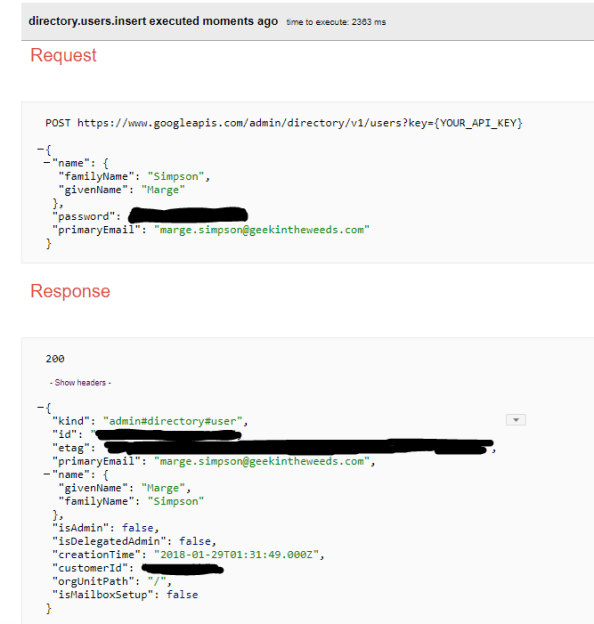
google1int6

Navigating back to G-Suite and looking at the listing of users shows the new user Marge Simpson as appearing as created.
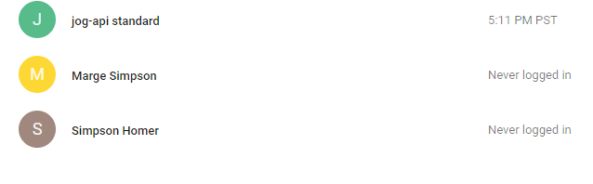
google1int7

Now that we’ve seen some simple samples using API Explorer let’s talk a bit about how you go about registering an application to interact with Google’s API as well as covering some basic Google Cloud Platform (GCP) concepts.

First thing I’m going to do is navigate to Google’s Getting Started page and create a new project.  So what is a project?  This took a bit of reading on my part because my prior experience with GCP was non-existent.  Think of a Google Project like an Amazon Web Services (AWS) account or a Microsoft Azure Subscription.  It acts as a container for billing, reporting, and organization of GCP resources.  Projects can be associated with a Google Cloud Organization (similar to how multiple Azure subscriptions can be associated with a single Microsoft Azure Active Directory (Azure AD) tenant) which is a resource available for a G-Suite subscription or Google Cloud Identity resource.  The picture below shows the organization associated with my G-Suite subscription.
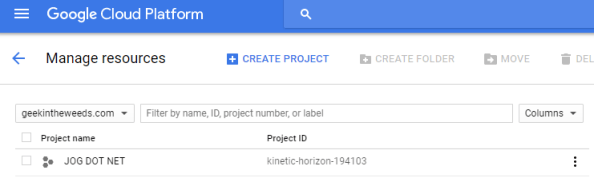
google1int8

Now that we have the concepts out of the way, let’s get back to the demo. Back at the Getting Started page, I click the Create a new project button and authenticate as the super admin for my G-Suite subscription. I’ll explain why I’m using a super admin later. On the next screen I name the project JOG-NET-CONSOLE and hit the next button.

google1int9

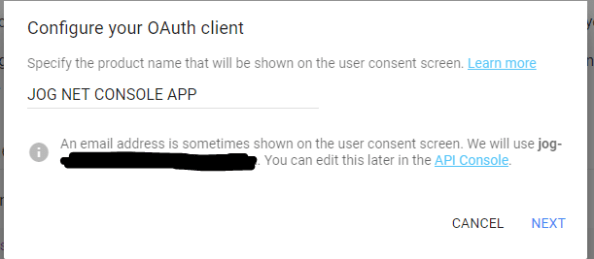
The next screen prompts me to provide a name which will be displayed to the user when the user is prompted for consent in the instance I decide to use an OAuth flow which requires user consent.
google1int10

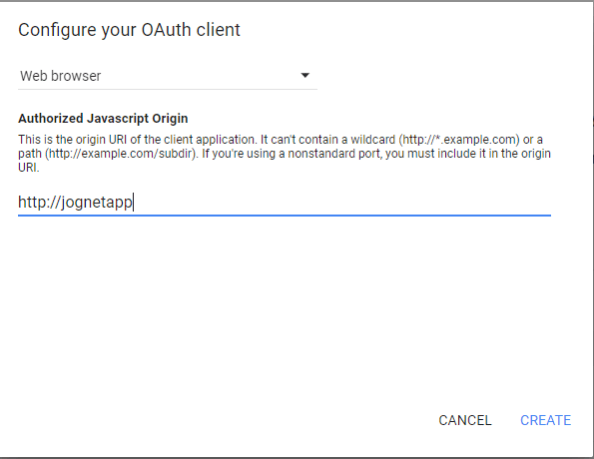
Next up I’m prompted to specify what type of application I’m integrated with Google.  For this demonstration I’ll be creating a simple console app, so I’m going to choose Web Browser simply to move forward.  I plug in a random unique value and click Create.
google1int11

After creation is successful, I’m prompted to download the client configuration and provided with my Client ID and Client Secret. The configuration file is in JSON format that provides information about the client’s registration and information on authorization server (Google’s) OAuth endpoints. This file can be consumed directly by the Google API libraries when obtaining credentials if you’re going that route.

google1int12

For the demo application I’m building I’ll be using the service account scenario often used for server-to-server interactions. This scenario leverages the OAuth 2.0 Client Credentials Authorization Grant flow. No user consent is required for this scenario because the intention of the service account scenario is it to access its own data. Google also provides the capability for the service account to be delegated the right to impersonate users within a G-Suite subscription. I’ll be using that capability for this demonstration.

Back to the demo…

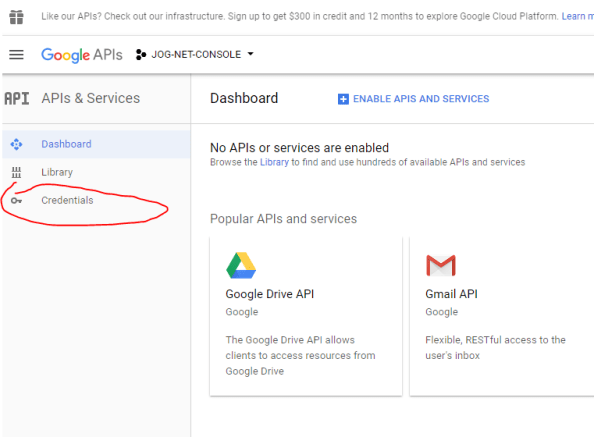
Now that my application is registered, I now need to generate credentials I can use for the service account scenario. For that I navigate to the Google API Console. After successfully authenticating, I’ll be brought to the dashboard for the application project I created in the previous steps. On this page I’ll click the Credentials menu item.
google1int13

The credentials screen displays the client IDs associated with the JOG-NET-CONSOLE project.  Here we see the client ID I received in the JSON file as well as a default one Google generated when I created the project.

google1int14

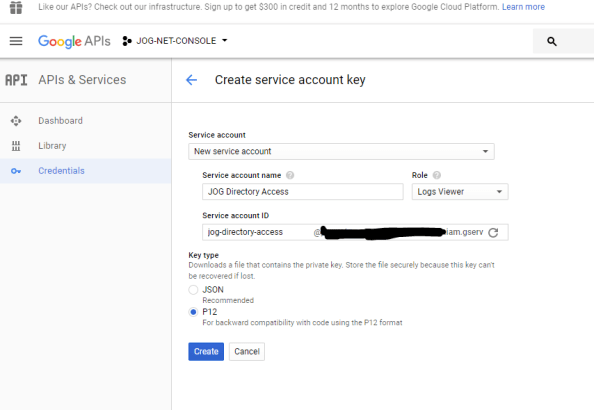
Next up I click the Create Credentials button and select the Service Account key option.  On the Create service account key page I provide a unique name for the service account of Jog Directory Access.

The Role drop down box relates to the new roles that were introduced with Google’s Cloud IAM.

You can think of Google’s Cloud IAM as Google’s version of Amazon Web Services (AWS) IAM  or Microsoft’s Azure Active Directory in how the instance is related to the project which is used to manage the GCP resources.  When a new service account is created a new security principal representing the non-human identity is created in the Google Cloud IAM instance backing the project.

Since my application won’t be interacting with GCP resources, I’ll choose the random role of Logs Viewer.  When I filled in the service account name the service account ID field was automatically populated for me with a value.  The service account ID is unique to the project and represents the security principal for the application.   I choose the option to download the private key as a PKCS12 file because I’ll be using the System.Security.Cryptography.X509Certificates namespace within my application later on.  Finally I click the create button and download the PKCS12 file.
google1int15

The new service account now shows in the credential page.
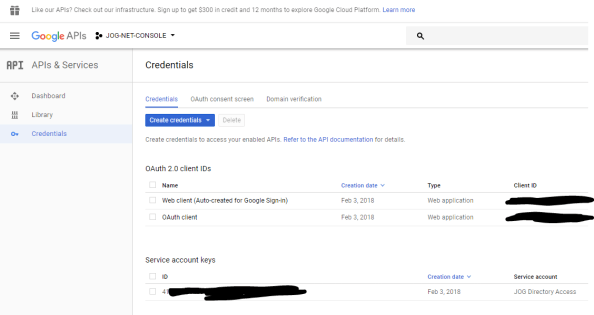
google1int16


Navigating to the IAM & Admin dashboard now shows the application as a security principal within the project.
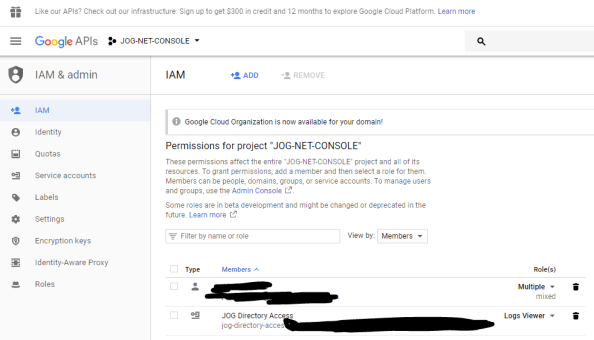
google1int17

I now need to enable the APIs in my project that I want my applications to access.  For this I navigate to the API & Services dashboard and click the Enable APIs and Services link.

google1int23.png

On the next page I use “admin” as my search term, select the Admin SDK and click the Enable button.  The API is now enabled for applications within the project.

From here I navigate down to the Service accounts page and edit the newly created service account.

google1int19

At this point I’ve created a new project in GCP, created a service account that will represent the demo application, and have given that application the right to impersonate users in my G-Suite directory.  I now need to authorize the application to access the G-Suite’s data via Google’s API.  For that I switch over to the G-Suite Admin Console and authenticate as a super admin and access the Security dashboard.  From there I hit the Advanced Setting option and click the Manage API client access link.

google1int20

On the Manage API client access page I add a new entry using the client ID I pulled previously and granting the application access to the  https://www.googleapis.com/auth/admin.directory.user.readonly scope.  This allows the application to impersonate a user to pull a listing of users from the G-Suite directory.
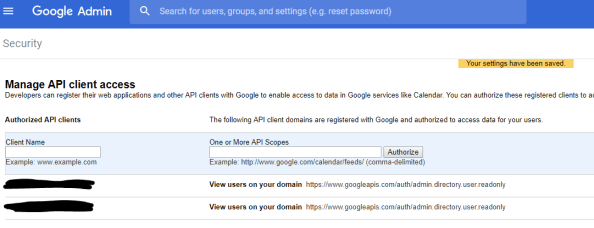
google1int21

Whew, a lot of new concepts to digest in this entry so I’ll save the review of the application for the next entry.  Here’s a consumable diagram I put together showing the relationship between GCP Projects, G-Suite, and a GCP Organization.  The G-Suite domain acts as a link to the GCP projects.  The G-Suite users can setup GCP projects and have a stub identity (see my first entry LINK) provisioned in the project.  When an service account is created in a project and granted G-Suite Domain-wide Delegation, we use the Client ID associated with the service account to establish an identity for the app in the G-Suite domain which is associated with a scope of authorized access.

google1int22

In this post I covered some basic GCP concepts and saw that the concepts are very similar to both Microsoft and AWS.  I also covered the process to create a service account in GCP and how all the pieces come together to programmatic access to G-Suite resources.  In my next entry I’ll demo some simple .NET applications and walk through the code.

Have a great weekend and go Pats!
Integrating Azure AD and AWS – Part 4

Integrating Azure AD and AWS – Part 4

Update: In November 2019 AWS introduced support for integration between Azure AD and AWS SSO.  The integration offers a ton more features, including out of the box support for multiple AWS accounts.  I highly recommend you go that route if you’re looking to integrate the two platforms.  Check out my series on the new integration here.

We’ve reached the end of the road for my series on integrating Azure Active Directory (Azure AD) and Amazon Web Services (AWS) for single sign-on and role management. In part 1 I walked through the many reasons the integration is worth looking at if your organization is consuming both clouds. In part 2 I described the lab I used to for this series, described the different way application identities (service accounts for those of you in the Microsoft space) are handled in Active Directory Domain Services versus Azure AD, and walked through what a typical application identity looks like in Azure AD. In part 3 I walked through a portion of the configuration steps, did a deep dive into the Azure AD and AWS federation metadata, examined a SAML assertion, and configured the AWS end of the federated trust through the AWS Management Console. This included creation of an identity provider representing the Azure AD tenant and creation of a new IAM role for users within the Azure AD tenant to assert.

In this final post I’ll cover the remainder of the configuration, describe the “provisioning” capabilities of Azure AD in this integration, and pointing out some of the issues with the recommended steps in the Microsoft tutorial.

Before I continue with the configuration, let me cover what I’ve done so far.

  • Part 2
    • Added the AWS application from the Azure AD Application Gallery through the Azure Portal.
  • Part 3
    • Assigned an Azure Active Directory user to the application through the Azure Portal.
    • Configured the Azure AD to pass the Role and RoleSessionName claims through the Azure Portal.
    • Created the SAML identity provider representing Azure AD in the AWS Management Console.
    • Created an AWS IAM Role and associated it with the identity provider representing Azure AD in the AWS Management Console.

At this point JoG users can assert their identity to their heart’s content but we don’t have a list of what AWS IAM roles stored in Azure AD for our users to assert.  So how do we assert a role from Azure AD if the listing of the roles exists in AWS?  The wonderful concept of application programmatic interfaces (APIs) swoops in and saves the day.  Don’t get me wrong, if you hate yourself you can certainly provision them manually by modifying the application manifest file every time a new role is created or deleted.  However, there is an easier route of having Azure AD pick up those roles directly from AWS on an automated schedule.  How does this work?  Well nothing works better than demonstrating how the roles can be queried from the AWS API.

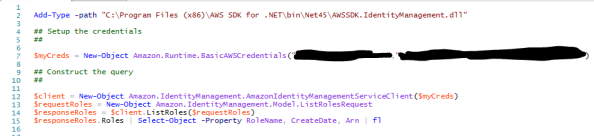
The AWS SDK for .NET makes querying the API incredibly easy.  We’re not stuck worrying about assembling the request and signing it.  As you can see below the script is six lines of code in PowerShell.

Script.png

The result is a listing of the roles configured in AWS which includes the AzureADEC2Admins role I created earlier.  This example demonstrates the power a robust API brings to the table when integrating cloud services.

2

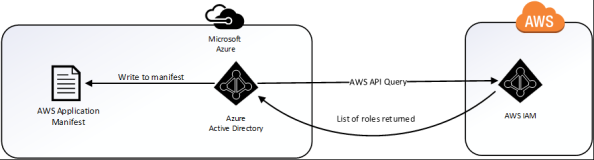
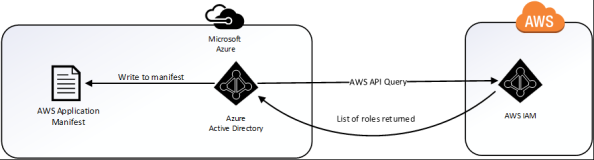
When Microsoft speaks of provisioning in regards to the AWS integration, they are talking about provisioning the roles defined in AWS to the the application manifest file in Azure AD.  This provides us with the ability to assign the roles from within the Azure Portal as we’ll see later.  This differs from many of the Azure AD integrations I’ve observed in the past where it will provision a record for the user into the software as a service (SaaS) offering.  Below is a simple diagram of the provisioning process.3

To do support provisioning we need to navigate to the AWS Management Console, open the Services Menu, and select IAM.  We then select Users and hit the Add User button.  I named the user AzureAD, gave it programmatic access type, and attached the IAMReadOnlyAccess policy.  AWS then presented me with the access key ID and secret access key I’ll need to provide to Azure AD.  Yes, we are going to follow security best practices and provide the account with the minimum rights and permissions it needs to provide the functionality.  The Microsoft tutorial instructs you to generate the credentials under the context of the AWS administrator effectively giving the application full rights to the AWS account.  No Microsoft, just no.

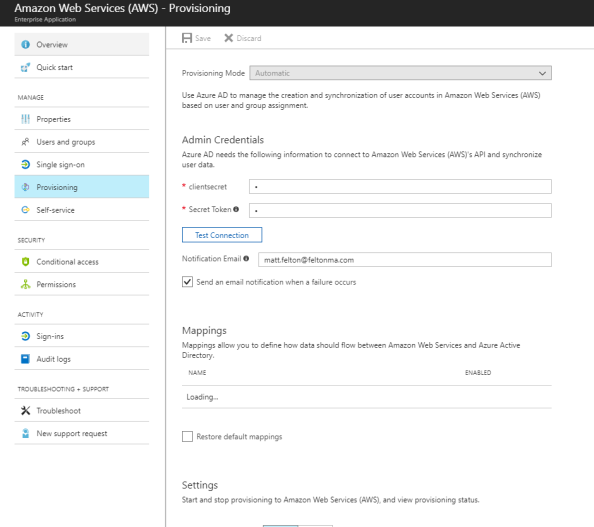
I next bounce back to the Azure portal and to the AWS application configuration.  From here I select the Provisioning option, switch the drop-down box to Automatic, and plug the access key ID into the clientsecret field and the secret access key into the secret token field.  A quick test connection shows success and I then save the configuration.  Note that you must first save the configuration before you can turn on the synchronization.

4

After the screen refreshes I move down to the Settings section and turn the Provisioning Status to On and set the Scope to Sync only assigned users and groups (kind of a moot point for this, but oh well).  I then Save the configuration once again and give it about 10 minutes to pull down the roles.

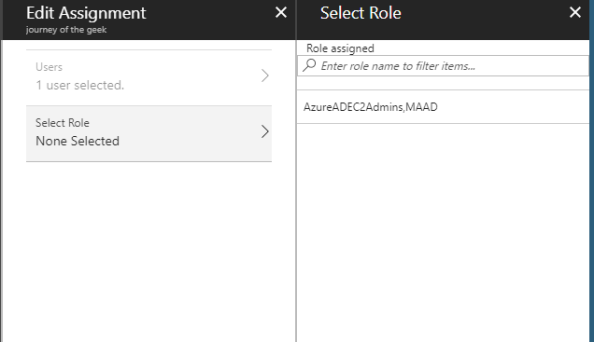
I then navigate back to the Users and Groups section and edit the Rick Sanchez assignment.  Hitting the role option now shows me the AzureADEC2Admins role I configured in AWS IAM.


5.png

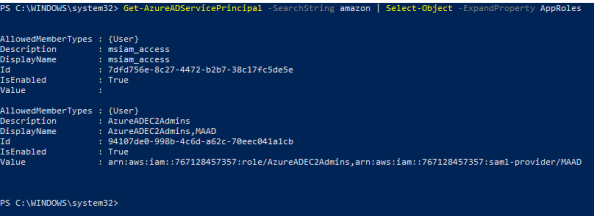
Let’s take another look at the service principle representing the AWS application in PowerShell.  Using the Azure AD PowerShell cmdlets I referenced in entry 2 we connect to Azure AD and run the cmdlet Get-AzureADServicePrincipal which when run shows the manifest has been updated to include the newly synchronized application role.

6

We’ve configured the SAML trust on both ends, defined the necessary attributes, setup synchronization, and assigned Rick Sanchez an IAM role. In a moment we’ll demonstrate all of the pieces coming together.

Before I wrap it up, I want to quickly mention a few issues I ran into with this integration that seemed to resolve themselves without any intervention.

  1. Up to a few nights ago I was unable to get the Provisioning piece working.  I’m not putting it past user error (this is me we’re talking about) but I tried numerous times and failed but was successful a few nights ago.  I also noticed from some recent comments in the Microsoft tutorial people complaining of similar errors.  Maybe something broke for a bit?
  2. The value of the audience attribute in the audienceRestriction section of the SAML assertion generated by Azure AD doesn’t match the identifier within the AWS federation metadata.  Azure AD inserts some garbage looking audience value by default which was causing the assertions to be rejected by AWS.  After setting the identifier to the value of urn:amazon:webservices as referenced in the AWS federation metadata the assertion was consumed without issue.  I saw similar complaints in the Microsoft tutorial so I’m fairly confident this wasn’t just my issue.The story gets a bit stranger.  I wanted to demonstrate the behavior for this series by removing the identifier I had previously added.  Oddly enough the assertion was consumed without issue by AWS.  I verified using Fiddler that the audience value was populated with that garbage entry.  Either way, I would err on the side of caution and would recommend populating the identifier with the entry referenced in the AWS metadata as seen below.7.png

The last thing I want to point out is the Microsoft tutorial states that you are required to create the users in AWS prior to asserting their identity.  This is inaccurate as AWS does not require a user record to be pre-created in AWS.  This is different from a majority (if not all) of the SaaS integrations I’ve done in the past so this surprised me as well.  Either way, it’s not required which is a nice benefit if you’ve ever had to deal with the challenging of managing the identify lifecycle across cloud offerings.

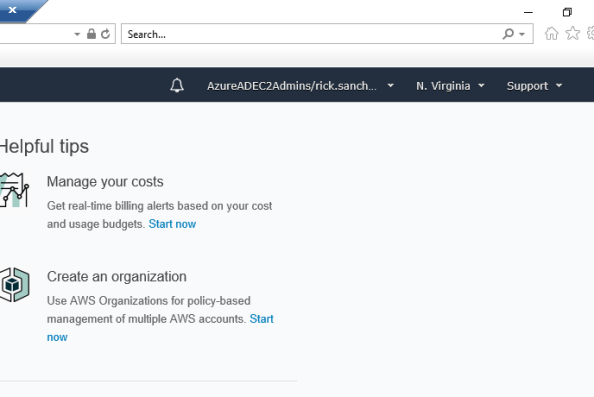
Let’s wrap up this series by having Rick Sanchez log into the AWS Management Console and shutdown an EC2 instance.  Here I have logged into the Windows 10 machine named CLIENT running in Azure.  We navigate to https://myapps.microsoft.com and log into Azure AD as Rick Sanchez.  We then hit the Amazon Web Services icon and are seamless logged into the AWS Management Console.

8.png

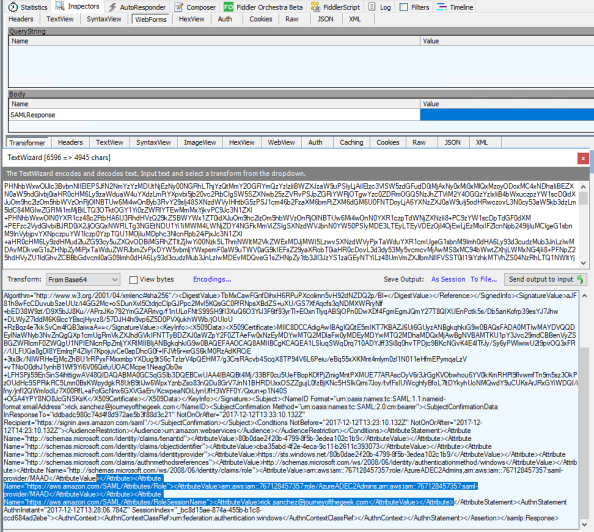
Examining the assertion in Fiddler shows  the Role and RoleSessionName claims in the assertion.

9.png

Navigating to the EC2 Dashboard displays the instance I prepared earlier using my primary account.  Rick has full rights over administration of the instance for activities such as starting and starting the instance.  After successfully terminating the instance I log into the AWS Management Console as my primary AWS account and go to CloudTrail and see the log entries recording the activities of Rick Sanchez.

10.png

With that let’s cover some key pieces of information to draw from the series.

  1. The Azure AD and AWS integration differs from most SaaS integrations I’ve done when it comes to user provisioning.  Most of the time a user record must exist prior to the user authenticating.  There are a growing number of SaaS providers provisioning upon successful authentication as provisioning challenges grow to further consumption of cloud services, but they are still few and far between.  AWS does a solid job with eliminating the pain of pre-provisioning users.
  2. The concept of associating roles with specific identity providers is really neat on Amazon’s part.  It allows the customer to manage permissions and associate those permissions with roles in AWS, but delegate the right on a per identity provider basis to assert a specific set of roles.
  3. Microsoft’s definition of provisioning in this integration is pulling a listing of roles from AWS and making them configurable in the Azure Portal.
  4. The AWS API is solid and quite easy to leverage when using the AWS SDKs. I would like to see AWS switch from what seems to be proprietary method of application access to OAuth to become more aligned with the rest of the industry.
  5. Don’t trust vendors to make everything point and click. Take the time to understand what’s going on in the background. In a SAML integration such as this, a quick review of the metadata can save you a lot of headaches when troubleshooting issues.

I learned a ton about AWS over these past few weeks and also got some good deep dive time into Azure AD which I haven’t had time for in a while.  Hopefully you found this series valuable and learned a thing or two yourself.

In my next series I plan on writing a simple application to consume the Cognito service offered by AWS.  For those of you more familiar with the Microsoft side of the fence, it’s similar to Azure AD B2C but with some unique features Microsoft hasn’t put in place yet making a great option to solve those B2C identity woes.

Thanks and have a wonderful holiday!

Deep dive into AD FS and MS WAP – User Certificate Authentication through a WAP

Hi everyone,

Today I continue my series of posts that cover a behind the scenes look at how Active Directory Federation Service (AD FS) and the Microsoft Web Application Proxy (WAP) interact.  In my first post  I explained the business cases that would call for the usage of a WAP.  In my second post I did a deep dive into the WAP registration process (MS refers to this as the trust establishment with AD FS and the WAP).  In this post I decided to cover how user certificate authentication is achieved when AD FS server is placed behind the WAP.

AD FS offers a few different options to authenticate users to the service including Integrated Windows Authentication (IWA), forms-based authentication, and certificate authentication.  Readers who work in environments with sensitive data where assurance of a user’s identity is important should be familiar with certificate authentication in the Microsoft world.  If you’re unfamiliar with it I recommend you take a read through this Microsoft article.

With the recent release of the National Institute of Standards and Technology (NIST) Digital Identity Guidelines 800-63 which reworks the authenticator assurance levels (AAL) and relegates passwords to AAL1 only, organizations will be looking for other authenticator options.  Given the maturity of authenticators that make use of certificates such as the traditional smart card it’s likely many organizations will look at opportunities for how the existing equipment and infrastructure can be further utilized.  So all the more important we understand how AD FS certificate authentication works.

I’ll be using the lab I described in my first post.  I made the following modifications/additions to the lab:

  • Configure Active Directory Certificate Services (AD CS) certificate authority (CA) to include certificate revocation list (CRL) distribution point (CDP).  The CRLs will be served up via an IIS instance with the address crl.journeyofthegeek.com.  This is the only CDP listed in the certificates.  Certificates created during my original lab setup that are installed within the infrastructure do not include a CDP.
  • Added a non-domain-joined Windows 10 computer which be used as the endpoint the test user accesses the federation service from.

Tool-wise I used ProcMon, Fiddler, API Monitor, and WireShark.

So what did I discover?

Prior to doing any type of user interaction, I setup the tools I would be using moving forward.  On the WAP I started ProcMon as an Administrator and configured my filters to capture only TCP Send and TCP Receive operations.  I also setup WireShark using a filter of ip.addr==192.168.100.10 && tcp.port==80.  The IP address is the IP of the web server hosting my CRLs.  This would ensure I’d see the name of the process making the connection to the CDP as well as the conversation between the two nodes.

pic1

** Note that the machine will cache the CRLs after they are successfully downloaded from the CDP.  It will not make any further calls until the CRLs expire.  To get around this behavior while I was testing I ran the command certutil -setreg chain\ChainCacheResyncFiletime @now as outlined in this article.   This forces the machine to pull the CRLs again from the CDP regardless of whether or not they are expired.  I ran the command as the LOCAL SYSTEM security principal using psexec.

The final step was to start Fiddler as the NETWORK SERVICE security principal using the command psexec -i -u “NT AUTHORITY\Network Service” “C:\Program Files (x86)\Fiddler2\Fiddler.exe”.  Remember that Fiddler needs the public key certificate in the appropriate file location as I outlined in my last post.  Recall that the Web Application Proxy Service and the Active Directory Federation Service running on the WAP both run as that security principal.

Once all the tools were in place I logged into the non-domain joined Windows 10 box and opened up Microsoft Edge and popped the username of my test user into the username field.

pic2.png

After home realm discovery occurred within Azure AD, I received the forms-based login page of my AD FS instance.


pic3.png

Let’s take a look at what’s happened on the WAP so far.

In the initial HTTP Connect session the WAP makes to the AD FS farm, we see that the ClientHello handshake occurs where the WAP authenticates to the AD FS server to authenticate itself as described in my last post.

pic4.png

Once the secure session is established the WAP passes the HTTP GET request to the AD FS server.  It adds a number of headers to the request which AD FS consumes to identify the client is coming from the WAP.  This information is used for a number of AD FS features such as enforcing additional authentication policies for Extranet access.

pic5.png

The WAP also passes a number of query strings.  There are a few interesting query strings here.  The first is the client-request-id which is a unique identifier for the session that AD FS uses to correlate event log errors with the session.  The username is obvious and shows the user’s user principal name that was inputted in the username field at the O365 login page.  The wa query string shows a value of wsignin1.0 indicating the usage of WS-Federation.  The wtrealm indicates the relying party identifier of the application, in this case Azure AD.

pic6

The wctx query string is quite interesting and needs to be parsed a bit on its own.  Breaking down the value in the parameter we come across three unique parameters.

LoginOptions=3 indicates that the user has not selected the “Keep me signed in” option.  If the user had selected that checkbox a value of 1 would have been passed and AD FS would create a persistent cookie which would exist even after the browser closes.  This option is sometimes preferable for customers when opening documents from SharePoint Online so the user does not have to authenticate over and over.

The estsredirect contains the encoded and signed authentication request from O365.  I stared at API monitor for a few hours going API call by API call trying to identify what this looks like once it’s decoded, but was unsuccessful.  If you know how to decode it, I’d love to know.  I’m very curious as to its contents.

The WAP next makes another HTTP GET to the AD FS server this time including the additional query string of pullStatus which is set equal to 0.  I’m clueless as to the function on of this, I couldn’t find anything.  The only other thing that changes is the referer.

My best guess on the above two sessions is the first session is where AD FS performs home realm discovery and maybe some processing on to determine if there are any special configurations for the WAP such as limited or expanded authentication options (device authN, certAuthN only).  The second session is simply the AD FS server presenting the authentication methods configured for Extranet users.

The user then chooses the “Sign in with an X.509 certificate” (I’m not using SNI to host both forms and cert authN on the same port) and the WAP then performs another HTTP CONNECT to port 49443 which is the certificate authentication endpoint on the AD FS server.  It again authenticates to the AD FS server with its client certificate prior to establishing the secure tunnel.

The third session we see a HTTP POST to the AD FS server with the same query parameters as our previous request but also providing a JSON object with a key of AuthMethod and the key value combination of AuthMethod=CertificateAuthentication in the body.

pic7

The next session is another HTTP POST with the same JSON object content and the key value pairs of AuthMethod=CertificateAuthentication and RetrieveCertificate=1 in the body.  The AD FS server sends a 307 Temporary Redirect to the /adfs/backendproxytls/ endpoint on the AD FS server.

Prior to the redirect completing successful we see the calls to the CDP endpoint for the full and delta CRLs.

pic8.png

pic9

I was curious as to which process was pulling the CRLs and identified it was LSASS.EXE from the ProcMon capture.

pic10

At the /adfs/backendproxytls/ endpoint the WAP performs another HTTP POST this time posting a JSON object with a number of key value combinations.

pic11.png

The interesting key value types included in the JSON object are the nested JSON object for Headers which contains all the WAP headers I covered earlier.  The query string JSON object which contains all the query strings I covered earlier.  The SeralizedClientCertificate contains the certificate the user provided after selecting to use certificate authentication.  The AD FS server then sends back a cookie to the WAP.  This cookie is the cookie the representing the user’s authentication to the AD FS server as detailed in this link.

pic12.png

The WAP then performs a final HTTP GET back at the /adfs/ls/ endpoint including the previously described headers and query strings as well as provided the cookie it just received.  The AD FS server responds by providing the assertion requested by Microsoft along with a MSISAuthenticated, MSISSignOut, and MSISLoopDetectionCookie cookies which are described in the link above.

What did we learn?

  1. The certificate is checked at both the WAP and the AD FS server to ensure it is valid and issued from a trusted certificate authority.  Remember to verify you trust the certificate chain of any user certificates on both the AD FS servers and WAPs.
  2. CRL Revocation checking is enabled by default and is performed on both the AD FS server and the WAP.  Remember to verify the locations in your CDP are available by both devices.
  3. The AD FS servers use the LSALogonUser function in the secur32.dll library to perform standard certificate authentication to Active Directory Domain Services.  I didn’t include this, but I captured this by running API monitor on the AD FS server.

In short, if you’re going to use device authentication or user certificate authentication make sure you have your PKI components in order.

See you next post!

Deep dive into AD FS and MS WAP – WAP Registration

Hi everyone,

In today’s blog entry I’ll be doing a deep dive into how the Microsoft Web Application Proxy (WAP) established a trust with the Active Directory Federation Service (AD FS) (I’ll be referring to this as registration) in order to act as a reverse proxy for AD FS.  In my first entry into this series I covered the business use cases that would call for such an integration as well as providing an overview of the lab environment I’ll be using for the series.  So what does registration mean?  Well, the best way to describe it is to see it in action.

Figuring out how to capture the conversation took some trial and error.  This is where Sysinternals Process Explorer comes into play.  I went through the process of registering the WAP with AD FS using the Remote Access Management Console configuration utility and monitored the running processes with Process Explorer.  Upon reviewing the TCP/IP activity of the Remote Access Management Console process (RAMgmtUI.exe) I observed TCP connectivity to the AD FS farm.

RemoteReg

The process is running as the logged in user, in my case the administrator account I’ve configured.  This meant I would need to run Fiddler using the logged in user context rather than having to do some funky with running it as SYSTEM or another security principal using PSEXEC.

I started up Fiddler and configured it to intercept HTTPS traffic as per the configuration below.  Ensure that you’ve trusted the Fiddler root certificate so Fiddler can establish a man-in-the-middle (MITM) scenario.

fiddlerconfig.png

I next ran the Remote Access Management Console and initiated the Web Application Proxy Configuration wizard.   Here I ran the wizard a few different times specifying invalid credentials on the AD FS server to generate some web requests.  The web conversation below popped up Fiddler.

failedlog.png

Digging into the third session shows an HTTP POST to sts.journeyofthegeek.com/adfs/Proxy/EstablishTrust with a return code of 401 Unauthorized which we would expect given our application doesn’t know if authentication is required yet and didn’t specify an Authorization header.

estab1

Session four shows another HTTP POST to the same URL this time with an Authorization header specifying Basic authentication with our credentials Base64 encoded.  We receive another 401 because we have invalid credentials which again is expected.

succlog.png

What’s interesting is the JSON object being posted to the URL.  The JWT includes a key named SerializedTrustCertificate with a value of a Base64 encoded public-key certificate as the value.

json.png

Copy and pasting the encoded value to notepad and saving the file with a CER extension yields the certificate below of which the WAP has both the public and private key pairs.  The certificate is a 2048-bit key length self-signed certificate.

cert.png

At this point the WAP will attempt numerous connections to the /adfs/Proxy/GetConfiguration URL with a query string of api-version=2 as seen in the screenshot below.  It will receive a 401 back because Fiddler needs a copy of the client certificate to provide to the AD FS server.  At this point I let it time out and eventually the setup finished.

getconfig.png

So what does the configuration information look like from AD FS when it’s successfully retrieved?  So to see that we have to now pay attention to the Microsoft.IdentityServer.ProxyService.exe process which runs as the Active Directory Federation Services service (adfssrv).

adfservice.png

Since the process runs as Network Service I needed to get a bit creative in how I captured the conversation with Fiddler.  The first step is to export the public-key certificate for the self-signed certificate generated by the WAP, name it ClientCertificate.cer, and to store it in the Network Service profile folder in C:\Windows\ServiceProfiles\NetworkService\Documents\Fiddler2.   By doing this Fiddler will use that certificate for any website requiring client certificate authentication.

The next step was to start Fiddler as the Network Service security principal.  To do this I used PSEXEC with the following options:

Psexec -i -u “NT AUTHORITY\Network Service” “C:\Program Files (x86)\Fiddler2\Fiddler.exe.

I then restarted the Active Directory Federation Service on the WAP and boom there are our successful GET from the AD FS server at the /adfs/Proxy/GetConfiguration URL.

getconfigsuc.png

The WAP receives back a JSON object with all the configuration information for the AD FS server as seen below.  Much of this is information about endpoints the AD FS server is supporting.  Beyond that we get information the AD FS service configuration.  The WAP uses this configuration to setup its bindings with the HTTP.SYS kernel mode driver.  Yes the WAP uses HTTP.SYS in the same way AD FS uses it.

config1.png

config2.png

So what did we learn?  When establishing the trust with the AD FS server (I’m branding this registration 🙂 ) the WAP does the following:

  1. Generates a 2048-bit self-signed certificate
  2. Opens an HTTPS connection with an AD FS server
  3. Performs a POST on /adfs/Proxy/EstablishTrust providing a JSON object containing the public key certificate and authenticating to the AD FS server with the credentials provided with the wizard using Basic authentication.If the authentication is successful the AD FS server establishes the trust.  (I’ll dig into this piece in the next post)
  4. Performs a GET on /adfs/Proxy/GetConfiguration using the self-signed certificate to authenticate itself to the AD FS server.
  5. Consumes the configuration information and configures the appropriate endpoints with calls to HTTP.SYS.

So that’s the WAP side of the fence for establishing the trust.  In my next post I’ll briefly cover what goes on with the AD FS server as well as examining the LDAP calls (if any) to AD DS during the registration process.

See you next time!