Deep dive into AD FS and MS WAP – Overview

Hi everyone,

If you’ve followed my blog at all, you will notice I spend a fair amount of my time writing about the products and technologies powering the integration of on-premises and cloud solutions.  The industry refers to that integration using a variety of buzzwords from hybrid cloud to software defined data center/storage/networking/etc.  I prefer a more simple definition of legacy solutions versus modern solutions.

So what do I mean by a modern solution?  I’m speaking of solutions with the following most if not all of these characteristics:

  • Customer maintains only the layers of the technology that directly present business value
  • Short time to market for new features and features are introduced in a “toggle on and toggle off” manner
  • Supports modern authentication, authorization, and identity management standards and specifications such as Open ID Connect, OAuth, SAML, and SCIM
  • On-demand scaling
  • Provides a robust web-based API
  • Customer data can exist on-premises or off-premises

Since I love the identity realm, I’m going to focus on the bullet regarding modern authentication, authorization, and identity management.  For this series of posts I’m going to look at how Microsoft’s Active Directory Federation Service (AD FS)  and Microsoft’s Web Application Proxy (WAP) can be used to help facilitate the use of modern authentication and authorization.

So where does AD FS and the WAP come in?  AD FS provides us with a security token service producing the logical security tokens used in SAML, OAuth, and Open ID Connect.  Why do we care about the MS WAP?  The WAP acts a reverse proxy giving us the ability to securely expose AD FS to untrusted networks (like the Internet) so that devices outside our traditional firewalled security boundary can leverage our modern authentication and authorization solution.

Some real life business cases that can be solved with this solution are:

  1. Single sign-on (SSO) experience to a SaaS application such as SharePoint online from both an Active Directory domain-joined endpoint or a non-domain joined endpoint such as a mobile phone.
  2. Limit the number of passwords a user needs to remember to access both internal and cloud applications.
  3. Provide authentication or authorization for modernized internal applications for endpoints outside the traditional firewalled security boundary.
  4. Authentication and authorization of devices prior to accessing an internal or cloud application.

As we can see from the above, there are some great benefits around SSO, limiting user credentials to improve security and user experience, and taking our authorization to the next step by doing contextual-based authorization (device information, user location, etc) versus relying upon just Active Directory group.

Microsoft does a relatively decent job describing how to design and implement your AD FS and WAP rollout, so I’m not going to cover much of that in this series.  Instead I’m going to focus on the “behind the scenes” conversations that occur with endpoints, WAP, AD FS, AD DS, and Azure AD. Before I begin delving into the weeds of the product, I’m going to spend this post giving an overview of what my lab looks like.

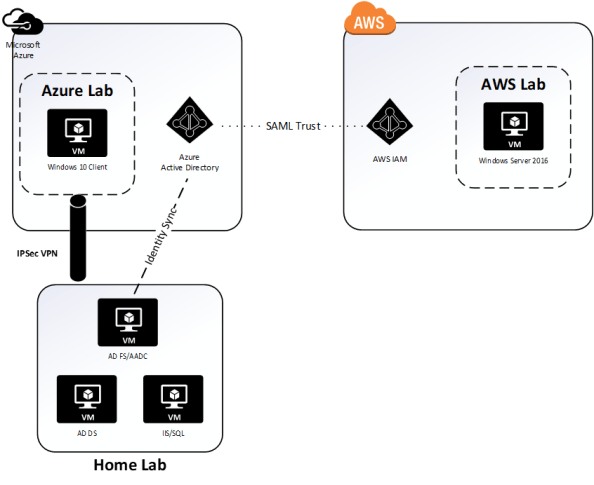
I recently put together a more permanent lab consisting of a mixture of on-premise VMs running on HyperV and Azure resources.  I manage to stay well within my $150.00 MSDN balance by keeping a majority of the VMs deallocated.   The layout of the lab is diagramed below.

HomeLab


On-premises I am running a small collection of Windows Server 2016 machines within HyperV running on top of Windows Server 2016.  I’m using a standard setup of an AD DS, AD CS, AADC, AD FS, and IIS/MS SQL server.  Running in Azure I have a single VNet with three subnets each separated by a network security group.  My core infrastructure of an AD DS, IIS/MS SQL, and AD FS server exist in my Intranet subnet with my DMZ subnet containing a single WAP.

The Active Directory configuration consists of a single Active Directory forest with an FQDN of journeyofthegeek.local.  The domain has been configured with an explicit UPN of journeyofthegeek.com which is assigned as the UPN suffix for all users synchronized to Azure Active Directory.  The domain is running in Windows Server 2016 domain and forest functional level.  The on-premises domain controller holds all FSMO roles and acts as the DC for the Active Directory site representing the on-premises physical location.  The domain controller in Azure acts as the sole DC for the Active Directory site representing Azure.  Both DCs host the split-brain DNS zone for journeyofthegeek.com.

The on-premises domain controller also runs Active Directory Certificate Services.  The CA is an enterprise CA that is used to distribute certificates to security principals in the environment.  I’ve removed the CDP from the certificate templates issued by the CA to eliminate complications with the CRL revocation checking.

The AD FS servers are members of an AD FS farm named sts.journeyofthegeek.com and use a MS SQL Server 2016 backend for storage of configuration information.  The SQL Server on-premises hosts the SQL instance that the AD FS users are using to store configuration information.

Azure Active Directory Connect is co-located on the AD FS server and uses the same SQL server as the AD FS uses.  It has been integrated with a lab Azure Active Directory tenant I use which has a few licenses of Office 365 Business Essentials.  The objectGUID attribute is used as the immutable ID and the Azure Active Directory tenant has the DNS namespaces of journeyofthegeek.onmicrosoft.com and journeyofthegeek.com associated with it.

The IIS server running in Azure runs a simple .NET application (https://blogs.technet.microsoft.com/tangent_thoughts/2015/02/20/install-and-configure-a-simple-net-4-5-sample-federated-application-samapp/) that is used for claims-based authentication.  I’ll be using that application for demonstrations with the Web Application Proxy and have used it in the past to demonstrate functionality of the Azure Application Proxy.

For the demonstrations throughout these series I’ll be using the following tools:

In my next post I’ll do a deep dive into what happens behind the scenes during the registration of the Web Application Proxy with an AD FS farm.  See you then!


Helpful hints for resolving AD FS problems – Part 1

Hi everyone.

Over the past week I’ve been building a lab for an upcoming deep dive into Microsoft’s Web Application Proxy.  During the course of building the lab I ran into a few interesting issues with AD FS and the Web Application Proxy that I wanted to cover.  Some were similar to issues I’ve run into in production environments and some were new to me.

These issues are interesting in that there aren’t any obvious indicators of the problem in any of the typical logs.  Two out of three required some trial and error to determine root cause, while the third drove me quite insane for a good two weeks before getting an answer from an “official” source.  Over the course of this series of blogs I’ll cover each issue in detail with the hopes that it will help others troubleshoot these issues in the future.

Issue 1: AD FS Certificate authentication fails

I’m going to start with the problem that took me the longest to resolve and eventually required getting the answer directly from an official source.

For those of you that are unfamiliar, AD FS provides the capability to offer multi-factor authentication methods both native and third-party.  Out of the box, it supports certificate-based authentication as an option for a multi-factor or “step-up” authentication mechanism.

A few months back I wanted to take advantage of the certificate authentication feature to provide a two-factor authentication solution for applications integrated with AD FS.  Like a good engineer I did my Googling, read the Microsoft articles and various blogs out there to understand how the feature worked and what the requirements were.  I built a lab in Azure, setup an AD FS server, and ensured port 49443 was open in addition to the the typical ports required by AD FS.  I created my instance of AD CS, issued a user certificate containing the user’s UPN in the subject alternate name field, and setup a sample SAML app and configured it to require Certificate authentication.

How easy it all sounds right?  I navigated to the sample application and got the screen below…

Screen Shot 2017-06-04 at 9.29.35 PM

and I waited….  and waited…. and waited…  Ummm, what went wrong?  Well surely the AD FS log will tell me what happened.

Screen Shot 2017-06-04 at 9.34.03 PM.png

Well isn’t that odd.  No errors or warnings in the AD FS Admin log.  A quick check of the Application and System logs showed no errors either.  Maybe the AD FS Debug log would show me something?  I flipped on the log and attempted another authentication.

Screen Shot 2017-06-04 at 9.38.07 PM

Nothing as well?  Maybe the server can’t query the revocation lists designated in the certificates CDP?  Nope, not that either the server can successfully contact the CDP endpoints.  At this point I began to get quite frustrated and attempted packet captures, Fiddler captures, and anything and everything I could think of.  Nothing I tried revealed the answer.

I finally gave in (which I can tell you is incredibly challenging for me) and reached out to an “official” source.  We chatted back and forth and went through much of the same steps as outlined above to ensure I didn’t miss anything.  However, we ran into another dead end.  He then reached out to some other engineers he knew and eventually we got a hit.  We were told to check to see if there were any intermediary certificates stored within the trusted root certificate authorities store.  Sounds like an odd circumstance, but sure why not.

Upon opening up the certificates MMC, opening the machine store, and exploring the trusted root certificate authorities store low and behold I see an intermediary certificate within the store.  I deleted the certificate, restarted the AD FS server and attempted another login to the sample claim application and hit the screen below.

Screen Shot 2017-06-04 at 9.50.16 PM

Boom, I’m finally receiving the certificate prompt.  Clicking the OK button brings about the successful login below.

Screen Shot 2017-06-04 at 9.51.23 PM

So what was the issue?  Apparently AD FS certificate authentication fails without generating an error in any logical location (maybe nowhere at all?) if there is an intermediary certificate in the trusted root certificate authority machine store.  I’ve verified this is an issue in both AD FS 2012 R2 and AD FS 2016.  Now why this occurs is unknown to me.  It could be the underlining HTTPS.SYS driver that pukes and doesn’t report any errors to the event logs.  I didn’t get a straight answer as to why this occurs, just that it will due to some type of integrity check on the machine certificate store.  Odd right?

That completes the rundown of the first of three problems I’ll be outlining in this series of blogs.  Hopefully this helps save someone else some time and aggravation.

See you next post!


Azure AD Pass-through Authentication – How does it work? Part 1

Hi everyone. I decided to take a break from the legacy and jump back to modern. Today I’m going to do some digging into Microsoft’s Azure AD Pass-through Authentication solution. The feature was introduced into public preview in December of 2016 and was touted as the simple and easy alternative to AD FS. Before I jump into the weeds of pass-through authentication, let’s do a high level overview of each option.

I will first cover the AD FS (Active Directory Federation Services) solution. When AD FS is used a solution for authentication to Azure Active Directory, it’s important to remember that AD FS is simply a product that enables the use of a technology to solve a business problem. In this instance the technology we are using is modern authentication (sometimes referred to as claims-based authentication) to solve the business problem of obtaining some level of assurance that a user is who they say they are.

When Azure AD and AD FS are integrated to enable the use of modern authentication, the Windows Services Federation Language (WS-FED) standard is used. You are welcome to read the standard for details, but the gist of WS-FED is a security token service generates logical security tokens (referred to assertions) which contain claims. The claims are typically pulled from a data store (such as Active Directory) and contain information about the user’s identity such as logon ID or email address. The data included in claims has evolved significantly over the past few years to include other data about the context of the user’s device (such as a trusted or untrusted device) and user’s location (coming from a trusted or untrusted IP range). The assertions are signed by the security token service (STS) and delivered to an application (referred to as the relying party) which validates the signature on the assertion, consumes the claims from the assertion, and authorizes the user access to the application.

You may have noticed above that we never talked about a user’s credentials. The reason for that is the user’s credentials aren’t included in the assertion. Prior to the STS generating the assertion, the user needs to authenticate to the STS. When AD FS is used, it’s common for the user to authenticate to the STS using Kerberos. Those of you that are familiar with Active Directory authentication know that a user obtains a Kerberos ticket-granting-ticket during workstation authentication to a domain-joined machine. When the user accesses AD FS (in this scenario the STS) the user provides a Kerberos service ticket. The process to obtain that service ticket, pass it to AD FS, getting an assertion, and passing that assertion back to the Azure AD (relying party in this scenario) is all seamless to the user and results in a true single sign-on experience. Additionally, there is no need to synchronize a user’s Active Directory Domain Services password to Azure AD, which your security folk will surely love.

The challenge presented with using AD FS as a solution is you have yet another service which requires on-premises infrastructure, must be highly available, and requires an understanding of the concepts I have explained above. In addition, if the service needs to be exposed to the internet and be accessible by non-domain joined machines, a reverse proxy (often Microsoft Web Application Proxy in the Microsoft world) which also requires more highly available infrastructure and the understanding of concepts such as split-brain DNS.

Now imagine you’re Microsoft and companies want to limit their on-premises infrastructure and the wider technology mark is slim in professionals that grasp all the concepts I have outlined above. What do you do? Well, you introduce a simple lightweight solution that requires little to no configuration or much understanding of what is actually happening. In come Azure AD Pass-through authentication.

Azure AD Pass-through authentication doesn’t require an STS or a reverse proxy. Nor does it require synchronization of a user’s Active Directory Domain Service password to Azure AD. It also doesn’t require making changes to any incoming flows in your network firewall. Sounds glorious right? Microsoft thinks this as well, hence why they’ve been pushing it so hard.

The user experience is very straightforward where the user plugs in their Active Directory Domain Services username and password at the Azure AD login screen. After the user hits the login screen, the user is logged in and go about their user way. Pretty fancy right? So how does Microsoft work this magic? It’s actually quite complicated but ingeniously implemented to seem incredibly simplistic.

The suspense is building right? Well, you’ll need to wait until my next entry to dig into the delicious details. We’ll be using a variety of tools including a simple packet capturing tool, a web proxy debugging tool, and an incredibly awesome API monitoring tool.

See you next post!

Azure AD User Provisioning – Part 5

Hi everyone. I apologize for the delay in publishing the last post in this series. The past few months have been hectic. For this last post of the year I will be completing the series on provisioning in Azure AD.

As I’ve covered in earlier posts, there are a lot of options when provisioning to Azure AD including multiple GUIs and programmatic options. I’ve covered provisioning in the Azure Management Portal, Azure Portal, Office 365 Admin Center, and Azure Active Directory PowerShell v1 and v2. In this final post I will cover provisioning via the Graph API using a simple ASP .NET web application.

I was originally going to leverage the graph API directly via PowerShell using the .NET ADAL libraries and Invoke-WebRequest cmdlets. I’ve been playing around a lot with Visual Studio creating simple applications like the Azure B2B provisioning app. I decided to challenge myself by adding additional functionality to the ASP .NET web application I assembled in my previous post. I enjoyed the hell out of the process, learned a bunch more about .NET, C#, ASP .NET web apps, and applications built using the MVC architecture. Let’s get to it shall we?

Before we dive into the code and the methodologies I used to put together the application, let’s take a look at it in action. The application starts by requiring authentication to Azure AD.

1

After successful authentication, the main page for the website loads. You’ll notice from the interface that I used the sample ASP .NET MVC Web Application available in Visual Studio but added a new navigation link on the right hand side named Create User.

2

After clicking the Create User link, the user is redirected to a simple (i.e. ugly) web form where information about the new user is collected.

3

After the user hits submit, the new user is created in Azure AD and the information from the returned JWT is parsed and displayed in a table.

4

When we navigate to the Azure AD blade in the Azure Portal we see that Homer has been created and added to the system.

clearme

So you’re probably asking the question as to how complicated it was to put this application together? The answer may surprise you. It was incredibly simple. The most difficult part of the process was learning my away around C# and how MVC web apps are put together. For a skilled developer, this would have taken an hour versus the days it took me.

The first thing I did was do some reading into the Graph API, specifically around managing users. Microsoft has a number of great instructions located here and here. After getting familiar with the required inputs and the outputs, I built a new model in my application that would be used for the user form input.

6

Once I had my new model assembled, I then created two new views under a new folder named Create User. The view named Index is the view that takes the user input and the view named Results is the view that spits back some of the content from the JWT returned from Azure after the user is successfully created. Here is the code for the Index view.

7

And the code for the Results view.

8

After the new views were created, I then moved on to creating the guts of the new functionality with a new controller named CreateUserController. I was able to reuse some of the code from the UserProfileController to obtain the necessary OAuth access token to delegate the rights to the application to create the new user.

9

The remaining code in my controller came from a crash course in programming and MVC web apps. The first section of code calls the task to obtain the access token.

10

The next section of code creates a new instance of the user class and populates the properties with information collected from the form.

11.png

The final section of code attempts to create the new user and displays the results page with information about the user such as objectID and userPrincipalName. If the application is unable to create the user, the exception is caught, and an error page is displayed.

12

But wait… what is missing? I’ll give you a hint, it’s not code.

The answer is the appropriate delegated permissions. Even if the user is a global admin, the application can’t perform the actions of a global admin unless we allow it to. To make this happen, we’ll log into the Azure Portal, access the Azure AD blade, and grant the application the delegated permission to Access the directory as the signed-in user.

13

Simple right? The Azure Active Directory Graph Client libraries make the whole process incredibly easy doing a whole lot with very little code. Imagine integrating this functionality into an existing service catalog. Let’s say you have a business user who needs access to Dynamics CRM Online. The user could navigate to the service catalog and request access. After their manager approvers, the application powering the service catalog could provision the new user, assign the license for Dynamics CRM Online, and drop the user into the appropriate groups. All of this could happen without having to involve IT. This is the value of a simple API with a wonderful set of libraries.

Well folks that wraps up my last post the year. I’ll return next year with a series of deep dives exploring Microsoft’s newly announced Azure AD Pass-through authentication and SSO features. Have a happy holiday!