Azure VWAN and Private Endpoint Traffic Inspection – Findings

Azure VWAN and Private Endpoint Traffic Inspection – Findings

Today I’m taking a break from my AI series to cover an interesting topic that came up at a customer.

My customer base exists within the heavily regulated financial services industry which means a strong security posture. Many of these customers have requirements for inspection of network traffic which includes traffic between devices within their internal network space. This requirement gets interesting when talking inspection of traffic destined for a service behind a Private Endpoint. I’ve posted extensively on Private Endpoints on this blog, including how to perform traffic inspection in a traditional hub and and spoke network architecture. One area I hadn’t yet delved into was how to achieve this using Azure Virtual WAN (VWAN).

VWAN is Microsoft’s attempt to iterate on the hub and spoke networking architecture and make the management and setup of the networking more turnkey. Achieving that goal has been an uphill battle for VWAN with it historically requiring very complex architectures to achieve the network controls regulated industries strive for. There has been solid progress over the past few months with routing intent and support for additional third-party next generation firewalls running in the VWAN hub such as Palo Alto becoming available. These improvements have opened the doors for regulated customers to explore VWAN Secure Hubs as a substitute for a traditional hub and spoke. This brings us to our topic: How do VWAN Secure Hubs work when there is a requirement to inspect traffic destined for a Private Endpoint?

My first inclination when pondering this question was that it would work in the same way a traditional hub and spoke works. In past posts I’ve covered that pattern. You can take a look at this repository I’ve put together which walks through the protocol flows in detail if you’re curious. The short of it is inspection requires enabling network policies for the subnet the Private Endpoints are deployed to and SNATing at the firewall. The SNATing is required at the firewall because Private Endpoints do not obey user-defined routes defined in a route table. Without the SNAT you get asymmetric routing that becomes a nightmare of troubleshooting to identify. Making it even more confusing, some services like Azure Storage will magically keep traffic symmetric as I’ve covered in past posts. Best practice for traditional hub and spoke is SNATing for firewall inspection with Private Endpoints.

Hub and Spoke Firewall Inspection

My first stop was to read through the Microsoft documentation. I came across this article first which walks through traffic inspection with Azure Firewall with a VWAN Secure Hub. As expected, the article states that SNAT is required (yes I’m aware of the exception for Azure Firewall Application Rules, but that is the exception and not the rule and very few in my customer space use Azure Firewall). Ok great, this aligns with my understanding. But wait, this article about Secure Hub with routing intent does not mention SNAT at all. So is SNAT required or not?

When public documentation isn’t consistent (which of course NEVER happens) it’s time to lab and see what we see. I threw together a single region VWAN Secure Hub with Azure Firewall, enabled routing intent for both Internet and Private traffic, and connected my home lab over a S2S VPN. I created then Private Endpoint for a Key Vault and Azure SQL resource. Per the latter article mentioned above, I enabled Private Endpoint Network Policies for the snet-svc subnet in the spoke virtual network. Finally, I created a single Network Rule allowing traffic for 443 and 1433 from my lab to the spoke virtual network. This ensured I didn’t run into the transparent proxy aspect of Application Rules throwing off my findings.

Lab used

If you were doing this in the “real world” you’d setup a packet capture on the firewall and validate you see both sides of the conversation. If you’ve used Azure Firewall, you’re well aware it does not yet support packet captures making this impossible. Thankfully, Microsoft has recently introduced Azure Firewall Structure Firewall Logs which include a log called Azure Firewall Flow Trace Log. This log will show you the gooey details of the TCP conversation and helps to fill the gap of troubleshooting asymmetric traffic while Microsoft works on offering a packet capture capability (a man can dream, can’t he?).

While the rest of the Azure Firewall Structured Logs need nothing special to be configured, the Flow Trace Logs do (likely because as of 8/20/2023 they’re still in public preview). You need to follow the instructions located within this document. Make sure you give it a solid 30 minutes of completing the steps to enable the feature before you enable the log through the diagnostic settings of the Azure Firewall. Also, do not leave this running. Beyond the performance hit that can occur because of how chatty this log is, you could also be in a world of hurt for a big Log Analytics Workspace bill if you leave it running.

Once I had my lab deployed and the Flow Trace Logs working, I next went ahead testing using the Test-NetConnection PowerShell cmdlet from a Windows machine in my home lab. This is a wonderful cmdlet if you need something built-in to Windows to do a TCP Ping.

Testing Azure SQL via Private Endpoint

In the above image you can see that the TCP Ping to port 1433 of an Azure SQL database behind a Private Endpoint was successful. Review of the Azure Firewall Network Logs showed my Network Rule firing which tells me the TCP SYN at least passed through providing proof that Private Endpoint Network Policies were successfully affecting the traffic to the Private Endpoint.

What about return traffic? For that I went to the Flow Trace Logs. Oddly enough, the firewall was also receiving the SYN-ACK back from the Private Endpoint all without SNAT being configured. I repeated the test for a Azure Key Vault behind a Private Endpoint and observed the same behavior (and I’ve confirmed in the Azure Key Vault needs SNAT for return traffic in the past in a standard hub and spoke).

Azure Firewall Flow Trace Log

So is SNAT required or not? You’re likely expecting me to answer yes or no. Well today I’m going to surprise you with “I don’t know”. While testing with these two services in this architecture seemed to indicate it was not, I’ve circulated these findings within Microsoft and the recommendation to SNAT to ensure flow symmetry remains. As I’ve documented in prior posts, not all Azure services behave the same way with traffic symmetry and Azure Private Endpoints (Azure Storage for example) and for consistent purposes you should be SNATing. Do not rely on your testing of a few services in a very specific architecture as being gospel. You should be following the practices outlined in the documentation.

I feel like I’m ending this blog Sopranos-style with fade to black, but sometimes even tech has mystery. In this post you got a taste of how Flow Trace Logs can help troubleshoot traffic symmetry issues when using Azure Firewall and you learned that not all things in the cloud work the way you expect them to work. Sometimes that is intentional and sometimes it’s not intentional. When you run into this type of situation where behavior you’re observing doesn’t match documentation, it’s always best to do what is documented (in this case you should be doing SNAT). Maybe it’s something you’re doing wrong (this is me we’re talking about) or maybe you don’t have all the data (I tested 2 of 100+ services). If you go with what you experience, you risk that undocumented behavior being changed or corrected and then being in a heap of trouble in the middle of the night (oh the examples I could give of this across my time at cloud providers over a glass of Titos).

Well folks, that wraps things up. TLDR; SNAT until the documentation says otherwise regardless of what you experience.

Thanks!

Blocking API Key Access in Azure OpenAI Service

Blocking API Key Access in Azure OpenAI Service

This is part of my series on GenAI Services in Azure:

  1. Azure OpenAI Service – Infra and Security Stuff
  2. Azure OpenAI Service – Authentication
  3. Azure OpenAI Service – Authorization
  4. Azure OpenAI Service – Logging
  5. Azure OpenAI Service – Azure API Management and Entra ID
  6. Azure OpenAI Service – Granular Chargebacks
  7. Azure OpenAI Service – Load Balancing
  8. Azure OpenAI Service – Blocking API Key Access
  9. Azure OpenAI Service – Securing Azure OpenAI Studio
  10. Azure OpenAI Service – Challenge of Logging Streaming ChatCompletions
  11. Azure OpenAI Service – How To Get Insights By Collecting Logging Data
  12. Azure OpenAI Service – How To Handle Rate Limiting
  13. Azure OpenAI Service – Tracking Token Usage with APIM
  14. Azure AI Studio – Chat Playground and APIM
  15. Azure OpenAI Service – Streaming ChatCompletions and Token Consumption Tracking
  16. Azure OpenAI Service – Load Testing

Hello folks! I’m back again with another post on the Azure OpenAI Service. I’ve been working with a number of Microsoft customers in regulated industries helping to get the service up and running in their environments. A question that frequently comes up in this conversations is “How do I prevent usage of the API keys?”. Today, I’m going to cover this topic.

I’ve covered authentication in the AOAI (Azure OpenAI Service) in a past post so read that if you need the gory details. For the purposes of this post, you need to understand that AOIA supports both API keys and AAD (Azure Active Directory) authentication. This dual support is similar to other Azure PaaS (platform-as-a-service) offerings such as Azure Storage, Azure CosmosDB, and Azure Search. When the AOAI instance is created, two API keys are generated which provide full permissions at the data plane. If you’re unfamiliar with the data plane versus management plane, check out my post on authorization.

Azure Portal showing AOAI API Keys

Given the API keys provide full permissions at the data plane monitoring and controlling their access is critical. As seen in my logging post monitoring the usage of these keys is no simple task since the built-in logging is minimal today. You could use a custom APIM (Azure API Management) policy to include a portion of the API key to track its usage if you’re using the advanced logging pattern, but you still don’t have any ability to restrict what the person/application can do within the data plane like you can when using AAD authentication and authorization. You should prefer AAD authentication and authorization where possible and tightly control API key usage.

In my authorization and logging posts I covered how to control and track who gets access to the API keys. I’ve also covered how APIM can be placed in front of an AOAI instance to enforce AAD authentication. If you block network access to the AOAI service to anything but APIM (such as using a Private Endpoint and Network Security Group) you force the usage of APIM which forces the use of AAD authentication preventing API keys from being used.

Azure OpenAI Service and Azure API Management Pattern

The major consideration of the pattern above is it breaks the Azure OpenAI Studio as of today (this may change in the future). The Azure OpenAI Studio is an GUI-based application available within the Azure Portal which allows for simple point-and-click actions within the AOAI data plane. This includes actions such as deploying models and sending prompts to a model through a GUI interface. While all this is available via API calls, you will likely have a user base that wants access a simple GUI to perform these types of actions without having to code to them. To work around this limitation you have to open up network access from the user’s endpoint to the AOAI instance. Opening up these network flows allows the user to bypass APIM which means the user could use an API key to make calls to the AOAI service. So what to do?

In every solution in tech (and life) there is a screwdriver and a hammer. While the screwdriver is the optimal way to go, sometimes you need the hammer. With AOAI the hammer solution is to block usage of API key-based authentication at the AOAI instance level. Since AOAI exists under the Azure Cognitive Services framework, it benefits from a poorly documented property called disableLocalAuth. Setting this property to true blocks the API key-based authentication completely. This property can be set at creation or after the AOAI instance has been deployed. You can set it via PowerShell or via a REST call. Below is code demonstrating how to set it using a call to the Azure REST API.

body=$(cat <<EOF
{
    "properties" : {
        "disableLocalAuth": true
    }
}

az rest --method patch --uri "https://management.azure.com/subscriptions/SUBSCRIPTION_ID/resourceGroups/RESOURCE_GROUP/providers/Microsoft.CognitiveServices/accounts/AOAI_INSTANCE_NAME?api-version=2021-10-01" --body $body              

The AOIA instance will take about 2-5 minutes to update. Once the instance finishes updating, all calls to it using API key-based authentication will receive an error such as seen below when using the OpenAI Python SDK.

You can re-enable the usage of API keys by setting the property back to false. Doing this will update the AOAI resource again (around 2-5 minutes) and the instance will begin accepting API keys. Take note that turning the setting off and then back on again WILL cycle the API keys so don’t go testing this if you have applications in production using API keys today.

Mission accomplished right? The user or application can only access the AOAI instance using AAD authentication which enforced granular Azure RBAC authroization. Heck, there is even an Azure Policy available you can use to audit whether AOAI instances have had this property set.

There is a major consideration with the above method. While you’ve blocked access to the API keys, you’re still created a way to circumvent APIM. This means you lose out on the advanced logging provided by APIM and you’ll have to live with the native logging. You’ll need to determine whether that risk is acceptable to your organization.

My suggestion would be to use this control in combination with strict authorization and network controls. There should be a very limited set of users with permissions directly on the AOAI resource and the direct network access to the resource should be tightly controlled. The network control could be accomplished by creating a shared jump host users that require this access could use. Key thing is you treat access to the Azure OpenAI Studio as an exception versus the norm. I’d imagine Microsoft will evolve the Azure OpenAI Studio deployment options over time and address the gaps in native logging. For today, this provides a reasonable compromise.

I did encounter one “quirk” with this option that is worth noting. The account I used to lab this all out had the Owner role assignment at the subscription level. With this account I was able to do whatever I wanted within the AOAI data layer when disableLocalAuth was set to false. When I set disableLocalAuth to true I was unable to make data plane calls (such as deploying new models). When I granted my user one of the data plane roles (such as Azure Cognitive Service OpenAI Contributor) I was able to perform data plane operations once again. It seems like setting this property to true enforces a rule which requires being granted specific data plane-level permissions. Make sure you understand this before you modify the property.

Well folks that concludes this blog post. Here are your key takeaways:

  1. API Key-based authentication can be blocked at the AOIA instance by setting the disableLocalAuth property to true. This setting can be set at deployment or post deployment and takes 2-5 minutes to take effect. Switching the value of this property from true to false will regenerate the API keys for the instance.
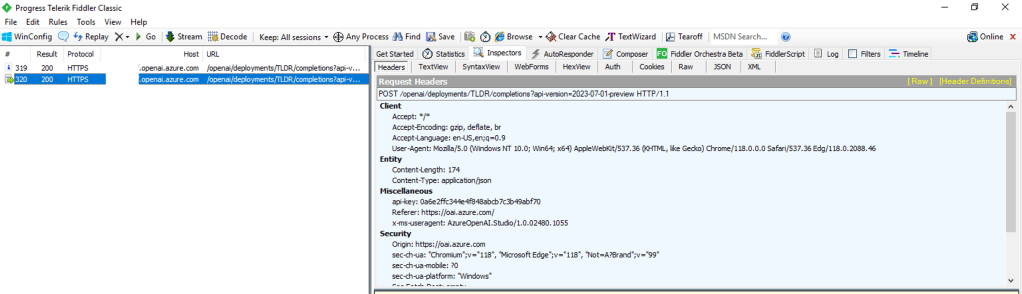
  2. The Azure OpenAI Studio requires the user’s endpoint have direct network access to the AOAI instance. This is because it uses the user’s endpoint to make specific API calls to the data plane. You can look at this yourself using debug mode in your browser or a local proxy like Fiddler. Direct network access to the AOAI instance means you will only have the information located in the native logs for the activities the user performs.
  3. Setting disableLocalAuth to true enforces a requirement to have specific data plane-level permissions. Owner on the subscription or resource group is not sufficient. Ensure you pre-provision your users or applications who require access to the AOAI instance with the built-in Azure RBAC roles such as Azure Cognitive Services OpenAI User or a custom role with equivalent permissions prior to setting the option to true.

Thanks folks and have a great weekend!

APIM and Azure OpenAI Service – Azure AD

This is part of my series on GenAI Services in Azure:

  1. Azure OpenAI Service – Infra and Security Stuff
  2. Azure OpenAI Service – Authentication
  3. Azure OpenAI Service – Authorization
  4. Azure OpenAI Service – Logging
  5. Azure OpenAI Service – Azure API Management and Entra ID
  6. Azure OpenAI Service – Granular Chargebacks
  7. Azure OpenAI Service – Load Balancing
  8. Azure OpenAI Service – Blocking API Key Access
  9. Azure OpenAI Service – Securing Azure OpenAI Studio
  10. Azure OpenAI Service – Challenge of Logging Streaming ChatCompletions
  11. Azure OpenAI Service – How To Get Insights By Collecting Logging Data
  12. Azure OpenAI Service – How To Handle Rate Limiting
  13. Azure OpenAI Service – Tracking Token Usage with APIM
  14. Azure AI Studio – Chat Playground and APIM
  15. Azure OpenAI Service – Streaming ChatCompletions and Token Consumption Tracking
  16. Azure OpenAI Service – Load Testing

Hello folks!

I’m back with another entry on the Azure OpenAI Service (AOAI). In my previous posts, I’ve focused on the native security features that Microsoft provides to its customers to secure their instance of the service. However, in this post, I’ll be taking a slightly different approach. I’ll be walking you through a pattern that can be used to supplement those native features using Azure API Management (APIM)

For those who are unfamiliar with APIM, it is Azure’s API Gateway PaaS (platform-as-a-service) offering. Like any good API Gateway, it provides an abstraction layer away from backend APIs, which allows you to add additional authentication/authorization controls, throttling, transform requests, and log information from the requests and responses. In this post, I’ll be covering how the authentication/authorization controls can be used to supplement what is provided natively in AOAI. 

I’ve covered authentication in the AOAI in a previous post, refer to that post for the gory details. For the purposes of this post, you need to understand at the data plane it supports both Azure AD authentication/Azure RBAC authorization and authentication with two API keys created when the service is instantiated.

Azure OpenAI Service Authentication and Authorization

To my knowledge, there is no way to disable the usage of API keys. Moreover, as I’ve discussed in my logging post, it is extremely difficult to trace back to what is using the API keys because the source IP address is masked and the calls aren’t associated with specific API keys or Azure AD identities. This makes it critically important to control who has access to the API keys. In my post on authorization within the service, I cover this conversation in more detail, and yes, it can be done with Azure RBAC.

Sample log entry from Azure Open AI Service


Controlling access should be your first priority. However, wouldn’t it be great to restrict access to the service to Azure AD authentication only? This is where APIM comes in. APIM is placed between the application calling the AOAI service and the AOAI service. This establishes a man-in-the-middle scenario where APIM can analyze and modify the request and responses between the application and AOAI service.

APIM and AOAI Data Flow

The image above is an example of this pattern. Here, the calling application is provisioned with either a service principal (running outside of Azure) or a managed identity (running within Azure or integrated with Azure Arc). Instead of pointing the application directly to the Azure OpenAI Service, it is pointed to a custom domain configured on the APIM instance, and the APIM instance is configured to front the Azure OpenAI Service API. My peer Jake Wang put together some wonderful instructions on how to set this piece up in this repository.

Once APIM is set up to pass traffic along to the AOAI service, a custom APIM policy can be introduced to start controlling access. Since the goal is to limit access to the AOAI service to applications using an Azure AD identity, the validate-jwt policy can be used. This policy captures and extracts the JSON Web Token (bearer token) and parses the content within it to verify that the token was issued by the issuer specified in the policy. 

The policy would be structured as shown below. In this policy, any request made to the API must include a JWT issued by the Azure AD tenant (you can find your tenant ID here). Additionally, the policy filters to ensure that the token is intended for the Cognitive Services OAuth scope, which AOAI falls under. If the request doesn’t include the JWT issued by the tenant, the user receives a 403.

<!--
    This sample policy enforces Azure AD authentication and authorization to the Azure OpenAI Service. 
    It limits the authorization tokens issued by the organization's tenant for Cognitive Services.
    The authorization token is passed on to the Azure OpenAI Service ensuring authorization to the actions within
    the service are limited to the permissions defined in Azure RBAC.

    You must provide values for the AZURE_OAI_SERVICE_NAME and TENANT_ID parameters.
-->
<policies>
    <inbound>
        <base />
        <set-backend-service base-url="https://{{AZURE_OAI_SERVICE_NAME}}.openai.azure.com/openai" />
        <validate-jwt header-name="Authorization" failed-validation-httpcode="403" failed-validation-error-message="Forbidden">
            <openid-config url="https://login.microsoftonline.com/{{TENANT_ID}}/v2.0/.well-known/openid-configuration" />
            <issuers>
                <issuer>https://sts.windows.net/{{TENANT_ID}}/</issuer>
            </issuers>
            <required-claims>
                <claim name="aud">
                    <value>https://cognitiveservices.azure.com</value>
                </claim>
            </required-claims>
        </validate-jwt>
    </inbound>
    <backend>
        <base />
    </backend>
    <outbound>
        <base />
    </outbound>
    <on-error>
        <base />
    </on-error>
</policies>

If you followed the instructions in the repository I linked above, you can enforce this policy for the API you created as seen below.

APIM Policy In Place

Once the policy is in place, you can test it by attempting to authenticate to the APIM API endpoint and specifying an AOAI API key. In the image below, an attempt is made to call the endpoint with an API key.

APIM Denying Request with API Keys

Success! Even though the API key is valid, APIM is rejecting the request before it ever reaches the AOAI instance, preventing the API keys from being used. 

This pattern also passes the bearer token on to the AOAI service, so the RBAC you configure on your AOAI instance will be enforced. In my post on authorization, I provide some guidance on which built-in RBAC roles make since and which permissions you’ll want to carefully distribute.

What’s even cooler is that now that the application is forced to authenticate using Azure AD, the application ID can be extracted. If there are multiple applications hitting the same AOAI instance, different throttling can be applied on a per-application basis instead of having them share one big pool of request/token allowance at the AOAI service level

This can be achieved with a policy similar to the one shown below. This policy looks for specific app IDs in the bearer token and applies different throttling based on the application.

<!--
    This sample policy enforces Azure AD authentication and authorization to the Azure OpenAI Service. 
    It limits the authorization tokens issued by the organization's tenant for Cognitive Services.
    The authorization token is passed on to the Azure OpenAI Service ensuring authorization to the actions within
    the service are limited to the permissions defined in Azure RBAC.

    The sample policy also sets different throttling limits per application id. This is useful when an organization
    has multiple applications consuming the same instance of the Azure OpenAI Service. This sample shows throttling
    rules for two separate applications.

    You must provide values for the AZURE_OAI_SERVICE_NAME, TENANT_ID, and CLIENT_ID_APP parameters. You can add multiple
    lines for as many applications as you need to throttle.
-->
<policies>
    <inbound>
        <base />
        <set-backend-service base-url="https://{{AZURE_OAI_SERVICE_NAME}}.openai.azure.com/openai" />
        <validate-jwt header-name="Authorization" failed-validation-httpcode="403" failed-validation-error-message="Forbidden">
            <openid-config url="https://login.microsoftonline.com/{{TENANT_ID}}/v2.0/.well-known/openid-configuration" />
            <issuers>
                <issuer>https://sts.windows.net/{{TENANT_ID}}/</issuer>
            </issuers>
            <required-claims>
                <claim name="aud">
                    <value>https://cognitiveservices.azure.com</value>
                </claim>
            </required-claims>
        </validate-jwt>
        <choose>
            <when condition="@(context.Request.Headers.GetValueOrDefault("Authorization","").Split(' ').Last().AsJwt().Claims.GetValueOrDefault("appid", string.Empty).Equals("{{CLIENT_ID_APP1}}"))">
                <rate-limit-by-key calls="1" renewal-period="60" counter-key="@(context.Request.Headers.GetValueOrDefault("Authorization","").Split(' ').Last().AsJwt().Claims.GetValueOrDefault("appid", string.Empty))" increment-condition="@(context.Response.StatusCode == 200)" />
            </when>
        </choose>
        <choose>
            <when condition="@(context.Request.Headers.GetValueOrDefault("Authorization","").Split(' ').Last().AsJwt().Claims.GetValueOrDefault("appid", string.Empty).Equals("{{CLIENT_ID_APP2}}"))">
                <rate-limit-by-key calls="10" renewal-period="60" counter-key="@(context.Request.Headers.GetValueOrDefault("Authorization","").Split(' ').Last().AsJwt().Claims.GetValueOrDefault("appid", string.Empty))" increment-condition="@(context.Response.StatusCode == 200)" />
            </when>
        </choose>
    </inbound>
    <backend>
        <base />
    </backend>
    <outbound>
        <base />
    </outbound>
    <on-error>
        <base />
    </on-error>
</policies>

While the above is impressive, it only works if the application is restricted from direct access to the Azure OpenAI Service. To achieve this, I recommend creating a Private Endpoint for the AOAI service and wrapping a Network Security Group around the subnet (NSGs are now supported for private endpoints) to block access to the resources within the subnet to anything but the APIM instance. Keep in mind that the APIM instance needs to be able to access resources within the virtual network, which means that an APIM needs to be deployed in internal mode. The architecture could look similar to the image below.

APIM and Azure OpenAI Service with Private Networking

One thing to note is that if access is blocked as described above, it will break the AOAI studio feature within the Azure Portal. This is because calls to the data plane of the AOAI service are now blocked. A workaround could be to use a jump host or shared server if you need to continue supporting that feature. However, that opens up the risk that someone could write some code while on that machine and use the API keys. 

Let me sum up what we learned today:

  • APIM policies can be used to enforce Azure AD authentication and can block the use of API keys.
  • You must lock down the Azure OpenAI Service to just APIM to make this effective. Remember this will break access to the Studio within the Azure Portal.
  • Since you’re forcing Azure AD authentication, you can use the application id to add custom throttling.

That’s all for this post. The policy samples used in this blog have been uploaded to this repository on GitHub. Feel free to experiment with them and build upon them. If you end up building upon them and doing anything interesting, do reach out and let me know. I’m always interested in geeking out! In my next post, I’ll cover how to use an APIM policy to create custom logging that can be delivered to an Event Hub and consumed by the upstream service of your choice. Have a great week!

Logging in Azure OpenAI Service

This is part of my series on GenAI Services in Azure:

  1. Azure OpenAI Service – Infra and Security Stuff
  2. Azure OpenAI Service – Authentication
  3. Azure OpenAI Service – Authorization
  4. Azure OpenAI Service – Logging
  5. Azure OpenAI Service – Azure API Management and Entra ID
  6. Azure OpenAI Service – Granular Chargebacks
  7. Azure OpenAI Service – Load Balancing
  8. Azure OpenAI Service – Blocking API Key Access
  9. Azure OpenAI Service – Securing Azure OpenAI Studio
  10. Azure OpenAI Service – Challenge of Logging Streaming ChatCompletions
  11. Azure OpenAI Service – How To Get Insights By Collecting Logging Data
  12. Azure OpenAI Service – How To Handle Rate Limiting
  13. Azure OpenAI Service – Tracking Token Usage with APIM
  14. Azure AI Studio – Chat Playground and APIM
  15. Azure OpenAI Service – Streaming ChatCompletions and Token Consumption Tracking
  16. Azure OpenAI Service – Load Testing

Updates:

  • 1/18/2024 – Logs now include Entra ID security principal objectid property in RequestResponse log

Welcome back fellow geeks.

Over the past few weeks I’ve done a series of posts on the Azure OpenAI Service covering some of the security features of the service. In my first post I gave an overview of what security controls Microsoft makes available for customers to configure to secure their instance of the service. In the second and third posts I did deep dives into the authentication and authorization capabilities of the service. Tonight I’m going to cover the logging capabilities of the service.

Let’s jump right in!

The Azure OpenAI Service emits both logs and metrics. For the purposes of this post I’ll be covering logs. I’ll cover the metrics and monitoring of the service in another post if there is a community interest. Logs emitted by the service have been integrated with the diagnostic setting feature. For those unfamiliar with the diagnostic settings feature, it provides a very simple way to deliver logs and metrics emitted by an Azure service to an Azure Storage Account, Log Analytics Workspace, or to an Event Hub (common use case for passing on to a SIEM like Splunk). In the image below, you can see I’m sending all of the logs and metrics emitted from the service to a Log Analytics Workspace.

Diagnostic Settings

In the image above you can see that the Azure OpenAI Service emits three types of logs which include audit logs, request and response logs, and trace logs. As of the date of this blog all of these logs are sent to the AzureDiagnostics table if you opt to send this logs to a Log Analytics Workspace, so dust off your Kusto skills.

Let’s first take a look at the audit logs, because I know that’s where your security focused eyes darted to. I want to remind you this is a very new service and lots of improvements are coming. Yeah, I did that. I pulled a sales dude move. Seriously though, the audit logging is very limited and likely not what you’d hope for as of the date of this blog. The only events that seem to be logged to the Audit Log for the service are when a ListKeys operation is performed. The operation means a security principal accessed the API Keys. The API keys are used to authenticate to the data plane of the service and do not allow for granular authorization at that plane. Check out my last two posts on authentication and authorization if that sentence doesn’t make sense. Unfortunately, the identity that accessed the API key isn’t listed in the log entry which makes it pretty useless in its current state. Below is a sample entry.

Azure OpenAI Service Audit Log Entry Example

Making this even more useless, this operation is also logged in the Azure Activity Log. The log entry within the Activity Log does include the security principal that performed the action so you’ll want to watch for that activity there. I imagine over time the audit log will be improved to capture more operations and associate those operations to a security principal.

Activity Log Entry Showing List Keys Operation

Next I’m going to cover the Request and Response Logs. This log set is really interesting because likely your expectation is the same as mine was that these would include details around prompts sent to the models and information on the response such as the number of tokens consumed. While it does operations around requests for things such a completions or summarizations, it also captures a ton of other events that would likely be more suited for the audit log. Additionally, the data it captures about these actions is extremely limited.

Let’s take a look at a log entry where I requested the model complete a sentence for me. In my code I’m calling the API using an Azure AD service principal NOT an API key with the shattered hope that the log entry would capture the service principal I’m using.

1/18/2024 – The Entra ID object id is now included in the RequestResponse log entry! Hooray!

Prompt and Response Log Entry

In the above log entry we don’t get any information to correlate the operation back an entity even when using Azure AD authentication. All we can see is the completion action occurred at a specific time and resulted in a success status code. You’ll also see there is a CallerIPAddress field. This will include the first three octets of the IP address called the service but not the last octet. Kinda weird it’s being masked like this, but I guess that’s better than nothing? (Not really, but hey it’s a new service).

Before you ask, no, the content of the prompts and responses are not logged in any of these logs.

There is one additional field of relevance I couldn’t fit within the above screenshot and that’s properties_s. The only real useful information on this is total response time the service took to return an answer to the user. I hoped this would have had some information around tokens used, but sadly it does not.

properties_s field of a Prompt and Response Log Entry

Besides prompts and responses, this log seems to capture other data plane operations. This includes everything from activities users have performed around uploading files to the service to train fine-tuned models, activities around fine-tuned models (listing, creation, deletion), creation of embeddings, and management of models deployed to the service. Most of these operations should be in the Audit Log in my opinion. I’m not sure why they’re included in this log, but they are. No, none of these operations include details as to who performed these actions beyond the first three octets of the IP address.

Lastly, there is the trace log. I have no idea what’s logged in there because I have yet generate any trace log data. If you know what gets logged in there, let me know in the comments.

So yes folks, there are some serious gaps in the logging for the service today. However, the service is new and the underlining technology is still pretty new as well so we can’t expect perfection out of the gates. My advice to customers has been to build the logging they need into whatever application is fronting the user access and to lock the service down from an authorization perspective so that the only access to the service comes through that application.

My peer Jake Wang has come up with a creative solution to address some of the logging gaps in the service by placing an API Management instance in front of it. With this design anything communicating with the Azure OpenAI Service instance has to go through APIM. Within APIM you can do whatever fancy logging you want to do, toss in some additional throttling to specific user requests, and lots of other cool stuff. It’s a great workaround while the Product Group improves the native logging. Check out my recent post for some of the gotchas of APIM logging for the Azure OpenAI Service.

If you have a different API Gateway like Mulesoft you could use this same pattern with that instead of APIM.

Well folks that wraps things up. I hope you got some value out of this post and I’d encourage you to make your voices heard by submitting feedback to the product group on how you’d like to see the logging improved for the service.

Thanks for reading!