Network Security Perimeters – NSPs in Action – Key Vault Example

This is part of my series on Network Security Perimeters:

  1. Network Security Perimeters – The Problem They Solve
  2. Network Security Perimeters – NSP Components
  3. Network Security Perimeters – NSPs in Action – Key Vault Example
  4. Network Security Perimeters – NSPs in Action – AI Workload Example

Welcome back to my third post in my NSP (Network Security Perimeter) series. In this post I’m going to start covering some practical use cases for NSPs and demonstrating how they work. I was going to group these use cases in a single post, but it would have been insanely long (and I’m lazy). Instead, I’ll be covering one per post. These use cases are likely scenarios you’ve run into and do a good job demonstrating the actual functionality.

A Quick Review

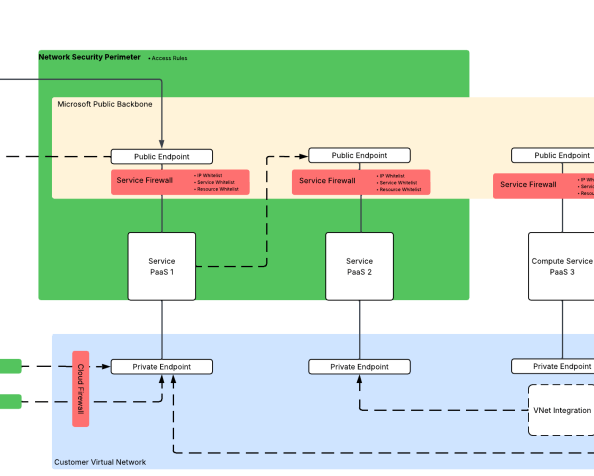
In my first post I broke PaaS services into compute-based PaaS and service-based PaaS. NSPs are focused on solving problems for service-based PaaS. These problems include a lack of outbound network controls to mitigate data exfiltration, inconsistent offerings for inbound network controls across PaaS services, scalability with inbound IP whitelisting, difficulty configuring and managing these controls at scale, and inconsistent quality of logs across services for simple fields you’d expect in a log like calling inbound IP address.

Compute-based PaaS vs Service-based PaaS

My second post walked through the components that make up a Network Security Perimeter and their relationships to each other. I walked through each of the key components including the Network Security Perimeter, profiles, access policies, and resource associations. If you haven’t read that post, you need to read it before you tackle this one. My focus in this post will be where those resources are used and will assume you grasp their function and relationships.

Network Security Perimeter components and their relationships

With that refresher out of the way, let’s get to the good stuff.

Use Case 1: Securing Azure Key Vaults

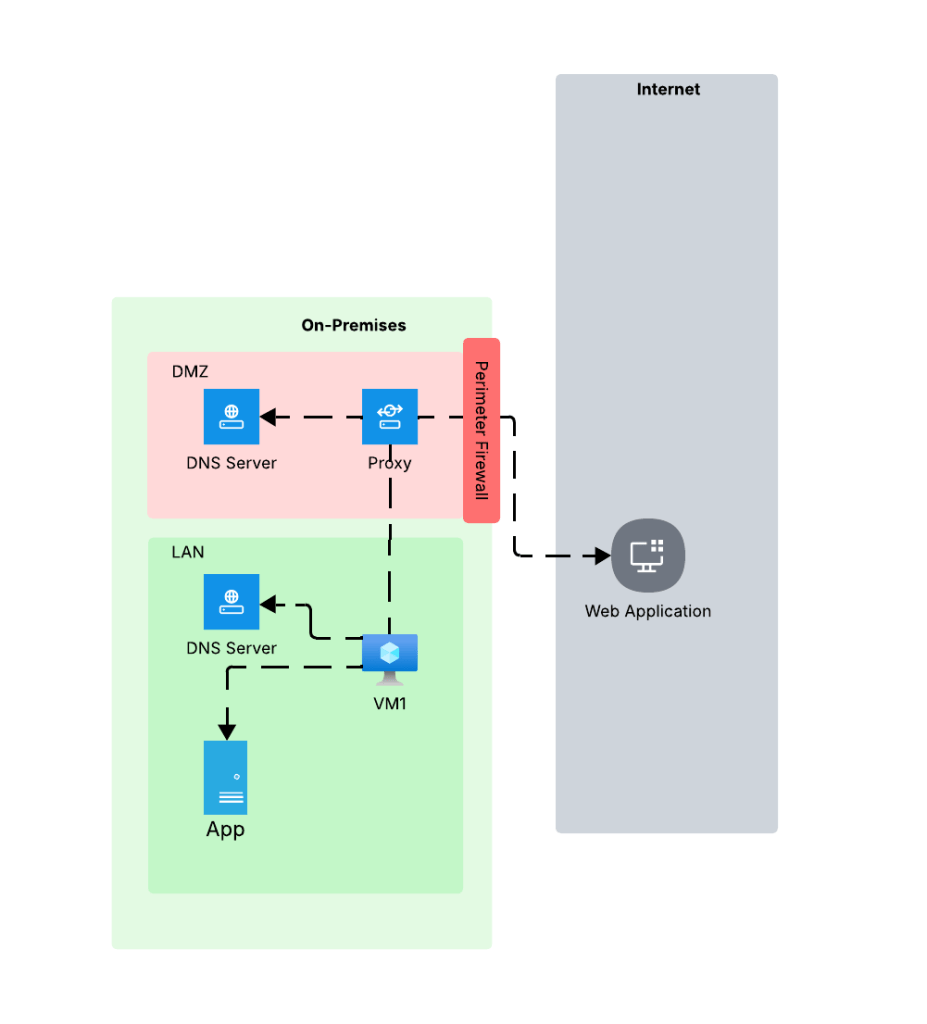
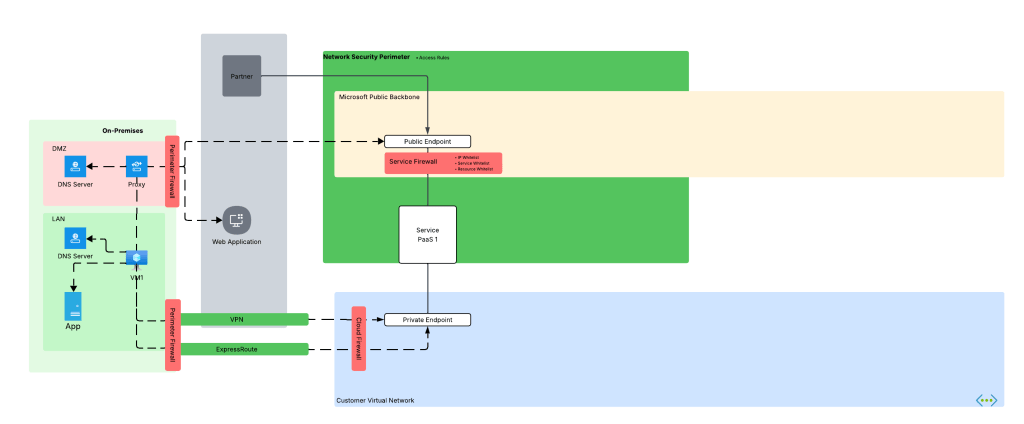
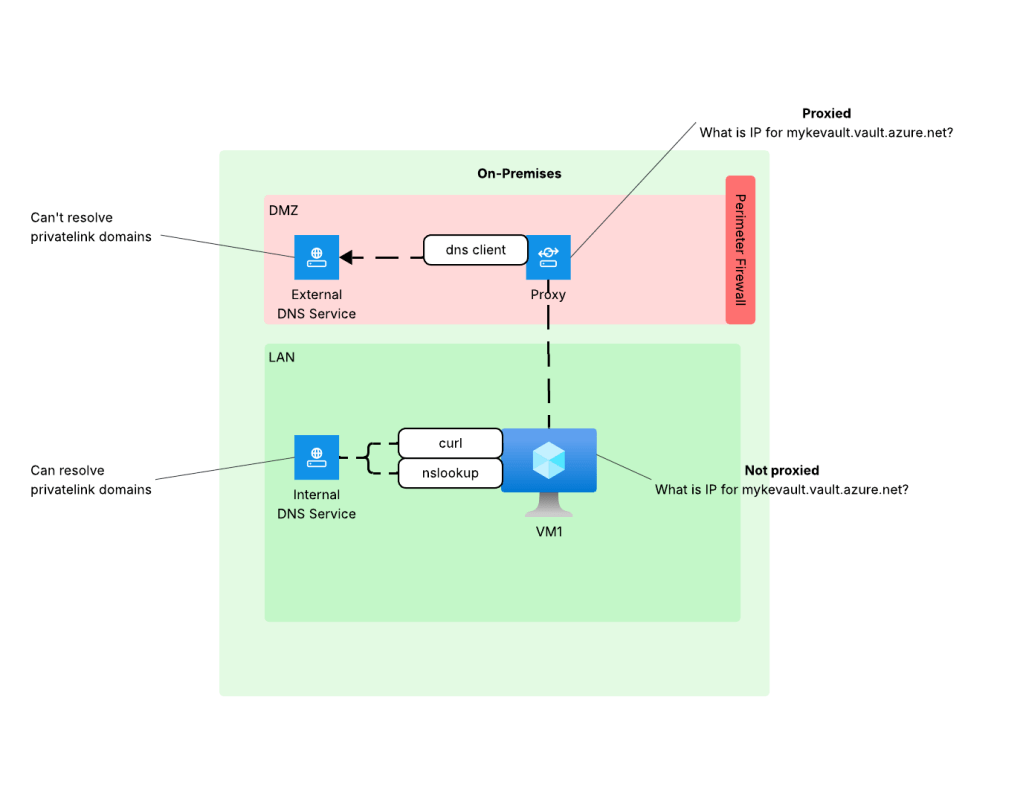
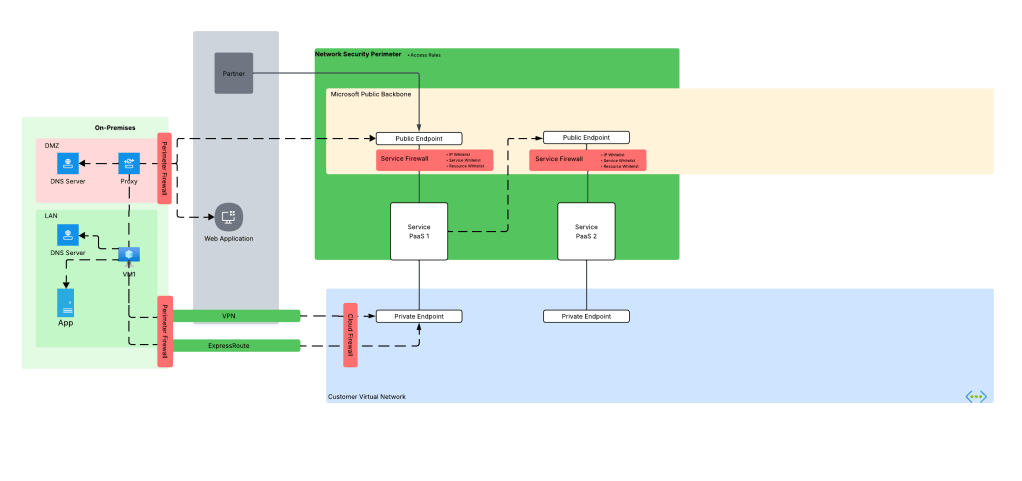
Azure Key Vault is Microsoft’s native PaaS offering for secure key, secret, and certificate storage. Secrets sometimes need to be accessed by Microsoft SaaS (software-as-a-service) and compute-based PaaS that do not support virtual network injection or a managed virtual network concept, such as some use cases for PowerBI. Vaults are used by 3rd-party products outside of Azure or from another CSP (cloud service provider). There are also use cases where a customer may be new to Azure and doesn’t yet have the necessary hybrid connectivity and Private DNS configuration to support the usage of Private Endpoints. In these scenarios, Private Endpoints are not an option and the traffic needs to come in the public endpoint of the vault. Here is our use case for NSPs.

Services accessing Key Vault for secrets

Historically, folks would try to solve this with IP whitelisting on the Key Vault service firewall. As I covered in my first post, this is a localized configuration to the resource and can be mucked with by the resource owner unless permissions are properly scoped or an Azure Policy is used to enforce a specific configuration. This makes it difficult to put network control in the hands of security while leaving the rest of the configuration of the resource to the resource owner. Another issue that sometimes pops up with this pattern is hitting the maximum of 400 prefixes for the service firewall rules.

NSPs provide us with a few advantages here:

  1. Network security can be controlled by the NSP and that NSP can be controlled by the security team while leaving the rest of the resource configuration to the resource owner.
  2. You can allow more than 400 inbound IP rules (up to 500 in my testing). Sometimes a few extra IP prefixes is all you needed back with the service firewall.

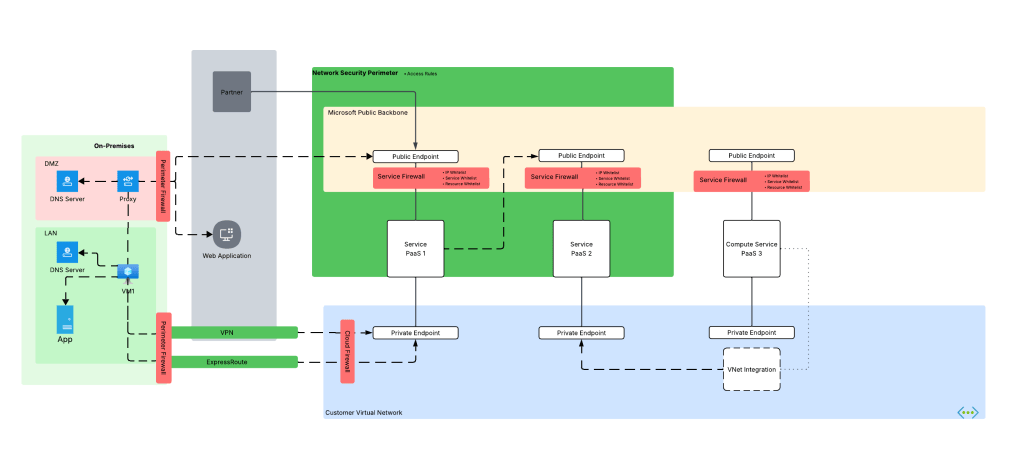
In this type of use case, we could do something like the below. Here we have a single Network Security Perimeter for our two categories of Key Vaults for a product line. Category 1 Key Vaults need to be accessed by 3rd-party SaaS and applications that do not have the necessary network path to use Private Endpoints. Category 2 are Key Vaults used by internally facing application within Azure and those Key Vaults need to be restricted to a Private Endpoint.

Public Key Vault

For this scenario we can build something like in the image above where we have a single NSP with two profiles. One profile will be used by our “public” Key Vaults. This profile will be associated with an access rule that allows a set of trusted IP addresses from a 3rd-party SaaS solution. The other profile will have no associated access rules, thus blocking all access to the Key Vault over the public endpoint. Both resource associations will be set to enforced to ensure the the NSP rules override the local service firewall rules.

Let’s take a look at this in action.

For this scenario, I have an NSP design setup exactly as above. The access rule applied to my public vault has the IP address of my machine as seen below:

Profile access rule for publicly-facing Key Vault

At this point my vault isn’t associated with the NSP yet and it has been configured to allow all public network access. Attempts at accessing the vault from a random public IP shows successful as would be expected.

Successful retrieval of secret from untrusted IP address prior to NSP association

Next I associate the vault to the NSP and set it to enforced mode. By default it will be configured in Transition mode (see my second post for detail on this) which means it will log whether the traffic would be allowed or denied but it won’t block the traffic. Since I want the NSP to override the local service firewall, I’m going to set it to enforced.

When trying to pull the secret from the vault using a machine with the trusted public IP listed in the access rule associated to the profile, I’m capable of getting the secret.

Successful call from trusted IP listed in NSP profile access rule

If I attempt to access the secret from an untrusted IP, even with the service firewall on the vault configured to allow all public network access, I’m rejected with the message below.

Denied call from an untrusted IP due to NSP

Review of the logs (NSPAccessLogs table) shows that the successful call was due to the access rule I put in place and the denied call triggered DefaultDenyAll rule.

Now what about my private vault? Let’s take a look at that one next.

Private Key Vault

For this scenario I’m going to use the second profile in the NSP. This profile doesn’t have any associated access rules which effectively blocks all traffic to the public endpoint originating from outside the NSP. My goal is to make this vault accessible only from a private endpoint.

First, I associate the resource to the NSP profile and configure it in enforced mode.

Private Key Vault associated to profile in enforced mode

This is another vault where I’ve configured the service firewall to allow all public network access. Attempting to access the resource throws the message indicating the NSP is blocking access.

Denied call from a public IP when NSP denies all public access

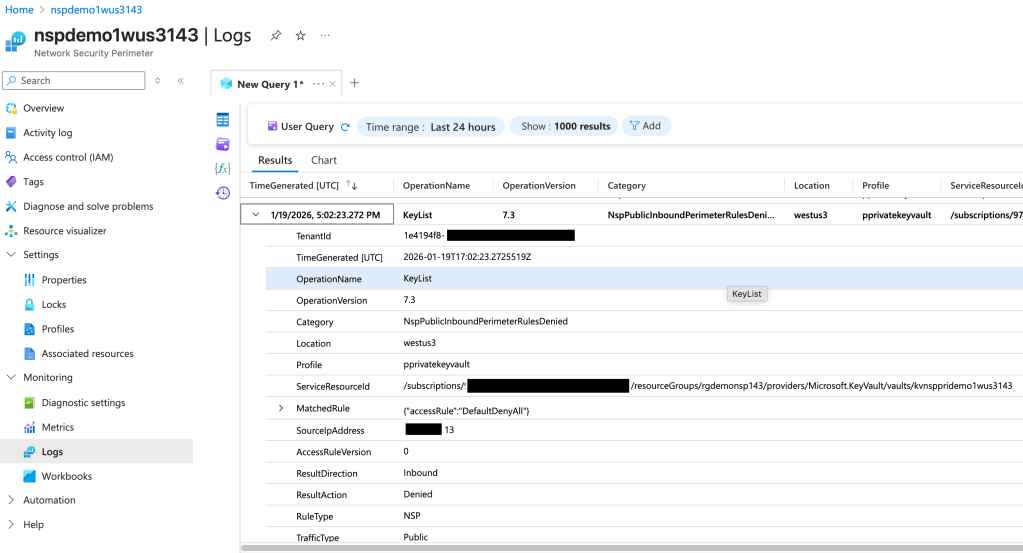
I’ve created a Private Endpoint for this vault as well. As I covered earlier in this series, NSPs are focused on public access and do not limit Private Endpoint access, so that means it doesn’t log access from a Private Endpoint, right? Wrong! A neat feature of NSP wrapped resources is those the NSPs will allow the traffic and log it as seen below.

NSP log entry showing access through Private Endpoint

In the above log entry you’ll see the traffic is labeled as private indicating it’s traffic being allowed through the DefaultAllowAll rule and the TrafficType set to Private because it’s coming in through a Private Endpoint. Interestingly enough, you also get the operation that was being performed in the request. I could have sworn these logs used to include the specific Private Endpoint resource ID the traffic ingressed from, but perhaps I imagined that or it was removed when the service graduated to GA (generally available).

Summing it up

In this post I gave an overview of a simple use case that many folks may have today. You could easily sub out Key Vault for any of the other supported PaaS that has a similar public endpoint access model and the setup will be the same. Here are some key takeaways:

  1. NSPs allow you to enforce public access network controls regardless how the resource owner configures the service firewall on the resource.
  2. Profiles seem to support a maximum of 500 IP prefixes for inbound and 500 for outbound. This is more than the 400 available in the service firewall. This is based on my testing and no idea if it’s a soft or hard limit.
  3. NSPs provide a standardized log format for network access. No more looking at 30 different log schemas across different resources, half of which don’t contain network information or someone drank too much tequila and decided to mask an octet of the IP. Additionally, they will log network access attempts through Private Endpoints.

In my next post I’ll cover a use where we have two resources in the same NSP that communicate with each other.

See you next post!

Logging in Azure OpenAI Service

This is part of my series on GenAI Services in Azure:

  1. Azure OpenAI Service – Infra and Security Stuff
  2. Azure OpenAI Service – Authentication
  3. Azure OpenAI Service – Authorization
  4. Azure OpenAI Service – Logging
  5. Azure OpenAI Service – Azure API Management and Entra ID
  6. Azure OpenAI Service – Granular Chargebacks
  7. Azure OpenAI Service – Load Balancing
  8. Azure OpenAI Service – Blocking API Key Access
  9. Azure OpenAI Service – Securing Azure OpenAI Studio
  10. Azure OpenAI Service – Challenge of Logging Streaming ChatCompletions
  11. Azure OpenAI Service – How To Get Insights By Collecting Logging Data
  12. Azure OpenAI Service – How To Handle Rate Limiting
  13. Azure OpenAI Service – Tracking Token Usage with APIM
  14. Azure AI Studio – Chat Playground and APIM
  15. Azure OpenAI Service – Streaming ChatCompletions and Token Consumption Tracking
  16. Azure OpenAI Service – Load Testing

Updates:

  • 1/18/2024 – Logs now include Entra ID security principal objectid property in RequestResponse log

Welcome back fellow geeks.

Over the past few weeks I’ve done a series of posts on the Azure OpenAI Service covering some of the security features of the service. In my first post I gave an overview of what security controls Microsoft makes available for customers to configure to secure their instance of the service. In the second and third posts I did deep dives into the authentication and authorization capabilities of the service. Tonight I’m going to cover the logging capabilities of the service.

Let’s jump right in!

The Azure OpenAI Service emits both logs and metrics. For the purposes of this post I’ll be covering logs. I’ll cover the metrics and monitoring of the service in another post if there is a community interest. Logs emitted by the service have been integrated with the diagnostic setting feature. For those unfamiliar with the diagnostic settings feature, it provides a very simple way to deliver logs and metrics emitted by an Azure service to an Azure Storage Account, Log Analytics Workspace, or to an Event Hub (common use case for passing on to a SIEM like Splunk). In the image below, you can see I’m sending all of the logs and metrics emitted from the service to a Log Analytics Workspace.

Diagnostic Settings

In the image above you can see that the Azure OpenAI Service emits three types of logs which include audit logs, request and response logs, and trace logs. As of the date of this blog all of these logs are sent to the AzureDiagnostics table if you opt to send this logs to a Log Analytics Workspace, so dust off your Kusto skills.

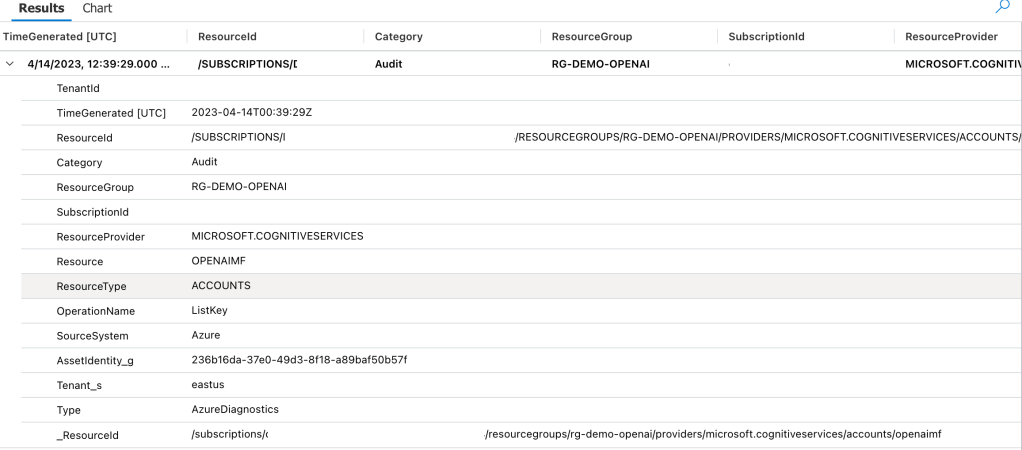
Let’s first take a look at the audit logs, because I know that’s where your security focused eyes darted to. I want to remind you this is a very new service and lots of improvements are coming. Yeah, I did that. I pulled a sales dude move. Seriously though, the audit logging is very limited and likely not what you’d hope for as of the date of this blog. The only events that seem to be logged to the Audit Log for the service are when a ListKeys operation is performed. The operation means a security principal accessed the API Keys. The API keys are used to authenticate to the data plane of the service and do not allow for granular authorization at that plane. Check out my last two posts on authentication and authorization if that sentence doesn’t make sense. Unfortunately, the identity that accessed the API key isn’t listed in the log entry which makes it pretty useless in its current state. Below is a sample entry.

Azure OpenAI Service Audit Log Entry Example

Making this even more useless, this operation is also logged in the Azure Activity Log. The log entry within the Activity Log does include the security principal that performed the action so you’ll want to watch for that activity there. I imagine over time the audit log will be improved to capture more operations and associate those operations to a security principal.

Activity Log Entry Showing List Keys Operation

Next I’m going to cover the Request and Response Logs. This log set is really interesting because likely your expectation is the same as mine was that these would include details around prompts sent to the models and information on the response such as the number of tokens consumed. While it does operations around requests for things such a completions or summarizations, it also captures a ton of other events that would likely be more suited for the audit log. Additionally, the data it captures about these actions is extremely limited.

Let’s take a look at a log entry where I requested the model complete a sentence for me. In my code I’m calling the API using an Azure AD service principal NOT an API key with the shattered hope that the log entry would capture the service principal I’m using.

1/18/2024 – The Entra ID object id is now included in the RequestResponse log entry! Hooray!

Prompt and Response Log Entry

In the above log entry we don’t get any information to correlate the operation back an entity even when using Azure AD authentication. All we can see is the completion action occurred at a specific time and resulted in a success status code. You’ll also see there is a CallerIPAddress field. This will include the first three octets of the IP address called the service but not the last octet. Kinda weird it’s being masked like this, but I guess that’s better than nothing? (Not really, but hey it’s a new service).

Before you ask, no, the content of the prompts and responses are not logged in any of these logs.

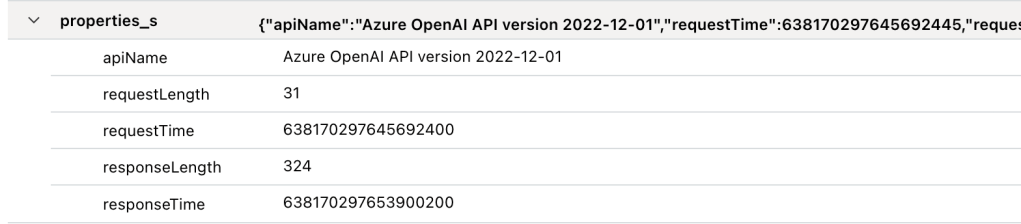
There is one additional field of relevance I couldn’t fit within the above screenshot and that’s properties_s. The only real useful information on this is total response time the service took to return an answer to the user. I hoped this would have had some information around tokens used, but sadly it does not.

properties_s field of a Prompt and Response Log Entry

Besides prompts and responses, this log seems to capture other data plane operations. This includes everything from activities users have performed around uploading files to the service to train fine-tuned models, activities around fine-tuned models (listing, creation, deletion), creation of embeddings, and management of models deployed to the service. Most of these operations should be in the Audit Log in my opinion. I’m not sure why they’re included in this log, but they are. No, none of these operations include details as to who performed these actions beyond the first three octets of the IP address.

Lastly, there is the trace log. I have no idea what’s logged in there because I have yet generate any trace log data. If you know what gets logged in there, let me know in the comments.

So yes folks, there are some serious gaps in the logging for the service today. However, the service is new and the underlining technology is still pretty new as well so we can’t expect perfection out of the gates. My advice to customers has been to build the logging they need into whatever application is fronting the user access and to lock the service down from an authorization perspective so that the only access to the service comes through that application.

My peer Jake Wang has come up with a creative solution to address some of the logging gaps in the service by placing an API Management instance in front of it. With this design anything communicating with the Azure OpenAI Service instance has to go through APIM. Within APIM you can do whatever fancy logging you want to do, toss in some additional throttling to specific user requests, and lots of other cool stuff. It’s a great workaround while the Product Group improves the native logging. Check out my recent post for some of the gotchas of APIM logging for the Azure OpenAI Service.

If you have a different API Gateway like Mulesoft you could use this same pattern with that instead of APIM.

Well folks that wraps things up. I hope you got some value out of this post and I’d encourage you to make your voices heard by submitting feedback to the product group on how you’d like to see the logging improved for the service.

Thanks for reading!

AWS Managed Microsoft AD Deep Dive Part 1 – Overview

AWS Managed Microsoft AD Deep Dive  Part 1 – Overview

Welcome back my fellow geeks!

Earlier this year I did a deep dive into Microsoft’s managed Active Directory service, Microsoft Azure Active Directory Domain Services (AAD DS).  I found was a service in its infancy and showing some promise, but very far from being an enterprise-ready service.  I thought it would be fun to look at Amazon’s (which I’ll refer to as Amazon Web Services (AWS) for the rest of the entries in this series) take on a managed Microsoft Active Directory (or as Microsoft is referring to it these days Windows Active Directory).

Unless your organization popped up in the last year or two and went the whole serverless route you are still managing operating systems that require centralized authentication, authorization, and configuration management.  You also more than likely have a ton of legacy/classic on-premises applications that require legacy protocols such as Kerberos and LDAP.  Your organization is likely using Windows Active Directory (Windows AD) to provide these capabilities along with Windows AD’s basic domain name system (DNS) service and centralized identity data store.

It’s unrealistic to assume you’re going to shed all those legacy applications prior to beginning your journey into the public cloud.  I mean heck, shedding the ownership of data centers alone can be a huge cost driver.  Organizations are then faced with the challenge of how to do Windows AD in the public cloud.  Is it best to extend an existing on-premises forest into the public cloud?  What about creating a resource forest with a trust?  Or maybe even a completely new forest with no trust?  Each of these options have positives and negatives that need to be evaluated against organizational requirements across the business, technical, and legal arenas.

Whatever choice you make, it means additional infrastructure in the form of more domain controllers.  Anyone who has managed Windows AD in an enterprise knows how much overhead managing domain controllers can introduce.  Let me clarify that by managing Windows AD, it does not mean opening Active Directory Users and Computers (ADUC) and creating user accounts and groups.  I’m talking about examining performance monitor AD counters and LDAP Debug logs to properly size domain controllers, configuring security controls to comply with PCI and HIPAA requirements or aligning with DISA STIGS, managing updates and patches, and troubleshooting the challenges those bring which requires extensive knowledge of how Active Directory works.  In this day an age IT staff need to be less focused on overhead such as this and more focused on working closely with its business units to drive and execute upon business strategy.  That folks is where managed services shine.

AWS offers an extensive catalog of managed services and Windows AD is no exception.  Included within the AWS Directory Services offerings there is a powerful offering named Amazon Web Services Directory Service for Microsoft Active Directory, or more succinctly AWS Managed Microsoft AD.  It provides all the wonderful capabilities of Windows AD without all of the operational overhead.  An interesting fact is that the service has been around since December 2015 in comparison to Microsoft’s AAD DS which only went into public preview at in 3rd Q 2017.  This head start has done AWS a lot of favors and in this engineer’s opinion, has established AWS Managed Microsoft AD as the superior managed Windows AD service over Microsoft’s AAD DS.  We’ll see why as the series progresses.

Over the course of this series I’ll be performing a similar analysis as I did in my series on Microsoft AAD DS.  I’ll also be examining the many additional capabilities AWS Managed Microsoft AD provides and demoing some of them in action.  My goal is that by the end of this series you understand the technical limitations that come with the significant business benefits of leveraging a managed service.

See you next post!