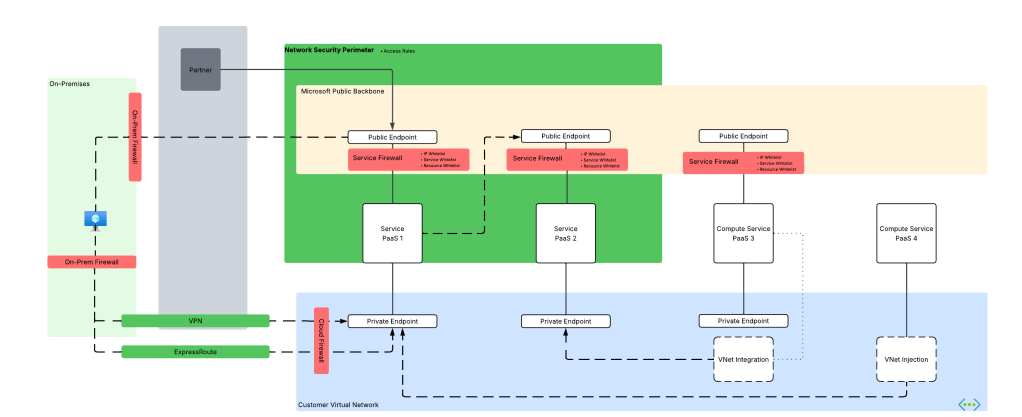
Network Security Perimeters – NSPs in Action – Key Vault Example

This is part of my series on Network Security Perimeters:

  1. Network Security Perimeters – The Problem They Solve
  2. Network Security Perimeters – NSP Components
  3. Network Security Perimeters – NSPs in Action – Key Vault Example
  4. Network Security Perimeters – NSPs in Action – AI Workload Example

Welcome back to my third post in my NSP (Network Security Perimeter) series. In this post I’m going to start covering some practical use cases for NSPs and demonstrating how they work. I was going to group these use cases in a single post, but it would have been insanely long (and I’m lazy). Instead, I’ll be covering one per post. These use cases are likely scenarios you’ve run into and do a good job demonstrating the actual functionality.

A Quick Review

In my first post I broke PaaS services into compute-based PaaS and service-based PaaS. NSPs are focused on solving problems for service-based PaaS. These problems include a lack of outbound network controls to mitigate data exfiltration, inconsistent offerings for inbound network controls across PaaS services, scalability with inbound IP whitelisting, difficulty configuring and managing these controls at scale, and inconsistent quality of logs across services for simple fields you’d expect in a log like calling inbound IP address.

Compute-based PaaS vs Service-based PaaS

My second post walked through the components that make up a Network Security Perimeter and their relationships to each other. I walked through each of the key components including the Network Security Perimeter, profiles, access policies, and resource associations. If you haven’t read that post, you need to read it before you tackle this one. My focus in this post will be where those resources are used and will assume you grasp their function and relationships.

Network Security Perimeter components and their relationships

With that refresher out of the way, let’s get to the good stuff.

Use Case 1: Securing Azure Key Vaults

Azure Key Vault is Microsoft’s native PaaS offering for secure key, secret, and certificate storage. Secrets sometimes need to be accessed by Microsoft SaaS (software-as-a-service) and compute-based PaaS that do not support virtual network injection or a managed virtual network concept, such as some use cases for PowerBI. Vaults are used by 3rd-party products outside of Azure or from another CSP (cloud service provider). There are also use cases where a customer may be new to Azure and doesn’t yet have the necessary hybrid connectivity and Private DNS configuration to support the usage of Private Endpoints. In these scenarios, Private Endpoints are not an option and the traffic needs to come in the public endpoint of the vault. Here is our use case for NSPs.

Services accessing Key Vault for secrets

Historically, folks would try to solve this with IP whitelisting on the Key Vault service firewall. As I covered in my first post, this is a localized configuration to the resource and can be mucked with by the resource owner unless permissions are properly scoped or an Azure Policy is used to enforce a specific configuration. This makes it difficult to put network control in the hands of security while leaving the rest of the configuration of the resource to the resource owner. Another issue that sometimes pops up with this pattern is hitting the maximum of 400 prefixes for the service firewall rules.

NSPs provide us with a few advantages here:

  1. Network security can be controlled by the NSP and that NSP can be controlled by the security team while leaving the rest of the resource configuration to the resource owner.
  2. You can allow more than 400 inbound IP rules (up to 500 in my testing). Sometimes a few extra IP prefixes is all you needed back with the service firewall.

In this type of use case, we could do something like the below. Here we have a single Network Security Perimeter for our two categories of Key Vaults for a product line. Category 1 Key Vaults need to be accessed by 3rd-party SaaS and applications that do not have the necessary network path to use Private Endpoints. Category 2 are Key Vaults used by internally facing application within Azure and those Key Vaults need to be restricted to a Private Endpoint.

Public Key Vault

For this scenario we can build something like in the image above where we have a single NSP with two profiles. One profile will be used by our “public” Key Vaults. This profile will be associated with an access rule that allows a set of trusted IP addresses from a 3rd-party SaaS solution. The other profile will have no associated access rules, thus blocking all access to the Key Vault over the public endpoint. Both resource associations will be set to enforced to ensure the the NSP rules override the local service firewall rules.

Let’s take a look at this in action.

For this scenario, I have an NSP design setup exactly as above. The access rule applied to my public vault has the IP address of my machine as seen below:

Profile access rule for publicly-facing Key Vault

At this point my vault isn’t associated with the NSP yet and it has been configured to allow all public network access. Attempts at accessing the vault from a random public IP shows successful as would be expected.

Successful retrieval of secret from untrusted IP address prior to NSP association

Next I associate the vault to the NSP and set it to enforced mode. By default it will be configured in Transition mode (see my second post for detail on this) which means it will log whether the traffic would be allowed or denied but it won’t block the traffic. Since I want the NSP to override the local service firewall, I’m going to set it to enforced.

When trying to pull the secret from the vault using a machine with the trusted public IP listed in the access rule associated to the profile, I’m capable of getting the secret.

Successful call from trusted IP listed in NSP profile access rule

If I attempt to access the secret from an untrusted IP, even with the service firewall on the vault configured to allow all public network access, I’m rejected with the message below.

Denied call from an untrusted IP due to NSP

Review of the logs (NSPAccessLogs table) shows that the successful call was due to the access rule I put in place and the denied call triggered DefaultDenyAll rule.

Now what about my private vault? Let’s take a look at that one next.

Private Key Vault

For this scenario I’m going to use the second profile in the NSP. This profile doesn’t have any associated access rules which effectively blocks all traffic to the public endpoint originating from outside the NSP. My goal is to make this vault accessible only from a private endpoint.

First, I associate the resource to the NSP profile and configure it in enforced mode.

Private Key Vault associated to profile in enforced mode

This is another vault where I’ve configured the service firewall to allow all public network access. Attempting to access the resource throws the message indicating the NSP is blocking access.

Denied call from a public IP when NSP denies all public access

I’ve created a Private Endpoint for this vault as well. As I covered earlier in this series, NSPs are focused on public access and do not limit Private Endpoint access, so that means it doesn’t log access from a Private Endpoint, right? Wrong! A neat feature of NSP wrapped resources is those the NSPs will allow the traffic and log it as seen below.

NSP log entry showing access through Private Endpoint

In the above log entry you’ll see the traffic is labeled as private indicating it’s traffic being allowed through the DefaultAllowAll rule and the TrafficType set to Private because it’s coming in through a Private Endpoint. Interestingly enough, you also get the operation that was being performed in the request. I could have sworn these logs used to include the specific Private Endpoint resource ID the traffic ingressed from, but perhaps I imagined that or it was removed when the service graduated to GA (generally available).

Summing it up

In this post I gave an overview of a simple use case that many folks may have today. You could easily sub out Key Vault for any of the other supported PaaS that has a similar public endpoint access model and the setup will be the same. Here are some key takeaways:

  1. NSPs allow you to enforce public access network controls regardless how the resource owner configures the service firewall on the resource.
  2. Profiles seem to support a maximum of 500 IP prefixes for inbound and 500 for outbound. This is more than the 400 available in the service firewall. This is based on my testing and no idea if it’s a soft or hard limit.
  3. NSPs provide a standardized log format for network access. No more looking at 30 different log schemas across different resources, half of which don’t contain network information or someone drank too much tequila and decided to mask an octet of the IP. Additionally, they will log network access attempts through Private Endpoints.

In my next post I’ll cover a use where we have two resources in the same NSP that communicate with each other.

See you next post!

Network Security Perimeters – NSP Components

Network Security Perimeters – NSP Components

This is part of my series on Network Security Perimeters:

  1. Network Security Perimeters – The Problem They Solve
  2. Network Security Perimeters – NSP Components
  3. Network Security Perimeters – NSPs in Action – Key Vault Example
  4. Network Security Perimeters – NSPs in Action – AI Workload Example

Welcome back fellow geeks!

Today I will be continuing my series on NSPs (Network Security Perimeters). In the last post I outlined the problems NSPs were built to solve. I covered how users of Azure have historically controlled inbound and outbound traffic for PaaS (platform-as-a-service) in Azure and the gaps and challenges of those designs. In this post I’m going to dig into the components that make up an NSP, what their function is, how they’re related, and how they work together.

A Quick Review

Before I dive into the gory details of NSP primitives, I want to do a quick refresh on terminology I’ll be using in this post. As I covered in the last post, I divide PaaS services in Azure into what I call compute-based PaaS and service-based PaaS. Service-based PaaS is PaaS where you upload data but don’t control the code executed by the PaaS whereas with compute-based PaaS you control the code executed within the service. NSPs shine in the service-based PaaS realm and that will be my focus for this series.

Compute-based PaaS vs Service-based PaaS

Securing service-based PaaS with the traditional tooling of IP whitelisting, service whitelisting, resource whitelisting, resource-specific outbound controls (and they are very rare) presented the problems below:

  1. Issues at scale (IP whitelisting).
  2. Certain features were not available in all PaaS (resource-based whitelisting or product-specific outbound controls).
  3. The configuration for inbound network control features lived as properties of the resource and could be configured differently by different teams resulting in inconsistent configurations.
  4. Logging widely differed across products.

All the challenges above demanded a better more standardized solution, and that’s where NSPs come in.

Network Security Perimeter Components

I’m a huge fan of breaking down any technology into the base components that make it up. It makes it way easier to understand how the hell these things work together holistically to solve a problem. Let’s do that.

Network Security Perimeter Hierarchy

At the highest level is the Network Security Perimeter resource. This is what I refer to as a top-level resource, meaning a resource that exists directly under an Azure Resource Provider and is visible under a resource group. The Network Security Perimeter resource exists in the Microsoft.Network resource provider, is regional in nature (vs global), and serve as the outer container for the logic of the NSP.

The resource is very simple and the only properties of note are name, location, and tags.

Network Security Perimeter

Profiles

Underneath the Network Security Perimeter resource is the Profile resource. The easiest way to think about a profile is that it’s a collection of inbound and outbound network access rules that you plan to tie to a resource or resources. Each Network Security Perimeter resource can have 1 or more profiles. It’s recommended you have less than 200 profiles, however, I have trouble thinking of a use case for that many unless you’re in an older and more legacy subscription model where you’re packing everything into as few subscriptions as possible (not where you should be these days).

From mucking around with profiles, I can see the use for putting resources in the same NSP into different profiles. For example, I may wrap an NSP around a Storage Account and the Key Vault which holds the CMK (customer-managed key) used to encrypt the Storage Account. I’d likely want one profile for the storage account with a large set of inbound rules and another profile for the Key Vault with a profile with no inbound or outbound rules restricting the Key Vault to be accessed by the Storage Account. My CI/CD pipeline could reach the Key Vault via a Private Endpoint as NSPs DO NOT affect traffic ingressing through the resource’s Private Endpoint. Resources within the same NSP can communicate with each other as long as they’re associated with a managed identity (according to docs, still want to test and validate this myself).

Network Security Perimeter Profiles

Access Rules

Next up you have the Access Rule resource which exists underneath the Profile resource. This is where the the rubber hits the road. Access rules should be familiar to you old folks like myself as they are very similar to firewall rules (at least today). You have a direction (inbound or outbound) and some type of type of property to filter by. For example, as of the date of this post, inbound traffic can support filtering on subscriptions (very similar to the resource whitelisting in Azure Storage) and IP-based rules (similar to IP whitelisting of traditional service firewall). Outbound traffic can be filtered by FQDN (fully qualified domain name). You can have up to 200 rules per profile (this is a hard limit).

If you’re nosy like I am, you may have glanced at the API reference. Inside the API reference, there are additional items that may someday come to fruition such as email addresses and phone numbers (really curious as to the use cases for these) and service tags (DAMN handy but not yet usable as of the date of this post).

Network Security Perimeter Profile Access Rules

Resource Association

The Resource Association resource exists underneath the Network Security Perimeter. Resource associations connect a supported Azure resource to Network Security Perimeter’s profile and dictate an access mode. There are two documented access modes today which include learning (since renamed transition mode in documentation), and enforced. Transition mode (or learning mode in the APIs) is the default mode and is the mode you’ll start with to understand the inbound and outbound traffic of the resources associated with the NSP. Only after you understand those patterns should you switch to enforced mode. In enforced mode the access rules applied the relevant profile will take effect and all inbound and outbound traffic outside the NSP will be blocked unless explicitly allowed.

Audit mode is a third mode that is available via the API but isn’t mentioned in main public documentation. Your use case for audit mode as far as I can see is if you (say you’re information security) want to audit inbound and outbound traffic out of PaaS resources that are associated to a Network Security Perimeter you do not control.

To answer a few questions that I know immediately popped in my head:

  1. Yes, you can associate resources to a network security perimeter that is in different a subscription.
  2. No, you cannot associate a resource to multiple profiles in enforced mode in the same Network Security Group. Associations to other profiles must be configured in access mode.
  3. No, you cannot associate a resource to multiple profiles in enforced mode in different Network Security Groups. Associations to other profiles must be configured in access mode.
Network Security Perimeter Resource Associations

Transition and Enforcement Mode

I want to dig a bit more into transition and enforcement mode and how they affect the resource-level service firewall controls.

In transition mode (which is the default mode) the NSP will evaluate the access rules of the profile the resource is associated with and will log whether the traffic would be allowed or denied (if diagnostic logging is enabled which you most definitely should enable and I’ll cover quickly below but more in depth in a future post) by the NSP and will then fallback to obeying the rules defined in the resource’s service firewall. This is a stellar way for you to get a baseline on how much shit will break with your new rules (and oh yes will shit break for some folks out there).

Once you understand the traffic patterns and design rules around what you want to allow in via the public side of the PaaS, you can flip the resource association to enforced mode. Once you flip that switch, the associated resources will have public access blocked both inbound and outbound. If you have IP whitelisting defined, those rules are ignored. If you checked off the “Allow Microsoft trusted services”, those rules are ignored. As I mentioned above, access through a Private Endpoint is never affected by NSPs as NSPs are concerned with traffic ingressing or egressing from the public sides of the PaaS resource.

It’s worth noting that a new value of the publicNetworkAccess property has been introduced. The publicNetworkAccess property is a property standard to PaaS (I haven’t seen one without it yet). Typically, the two values are either Enabled or Disabled. The property will be typically be set to Enabled if you’re allowing all public access or are restricting it to specific IP addresses, trusted services, specific resources, or service endpoints. It will be typically Disabled when you are blocking all public access and restricting it to Private Endpoints. Note that I use the word typically because this is Azure and there seem to always be exceptions. The new value introduced is SecuredByPerimeter. If you set the publicNetworkAccess property to this the resource is completely locked down to public traffic except for what is allowed in the NSP (even if no NSP is applied). If you plan on transitioning to NSPs fully for controlling public access (once all the resources you need have been onboarded) this is the setting you’ll want to go with.

Logging

The best feature of NSPs (in this dude’s opinion) is the logging feature. Like other Azure resources, NSPs support diagnostic settings. These are configured on a per Network Security Perimeter resource and include a plethora of logs categories. These diagnostic settings allow you to turn on detailed logging of traffic that comes in and out of an NSP. This provides you a standard log for all inbound and outbound traffic vs relying on the resource-level logs which can vary greatly per service (again, looking at you AI Search!).

Imagine being able to confirm that a user’s machine is accessing resource over the Microsoft public backbone vs a Private Endpoint and being able to see exactly what IP they’re using to do it. I can’t tell you how helpful this would have been over the past few years where forward web proxies were in use and were incorrectly configured for DNS affecting access to Private Endpoints.

This is such a damn cool feature that it is deserving of its own deep dive post. I’ll be adding this over the next few weeks.

Summing it up

For the purposes of this post, I really want you to take away an understanding of the NSP primitives, what they do, and how they’re related. Do some noodling on how you think you’d use these primitives and what use cases you might apply them to.

Here are some key points to walk away with:

  1. Network Security Perimeters rules apply only to public traffic. They do not affect traffic coming in through a Private Endpoint.
  2. Resources can be associated to Network Security Perimeters across subscriptions.
  3. Leverage transition mode (learning mode in the API) to understand what traffic is coming in and going out of your resources over the public endpoints and how your access rules may effect them.
  4. For resources that support NSPs (and are generally available) think about deploying those resources (it’s only a few as of the date of this post) with the publicAccessProperty set to SecuredByPerimeter at creation to ensure all public network access is controlled by a Network Security Perimeter. This will force you to use NSPs to control that traffic. Auditing or enforcing with Azure Policy would be nice control on top.
  5. Do some experimentation with the logging provided by NSPs. It will truly blow your mind how useful the logs are to troubleshooting networking issues and identifying network security threats.

Before I close this out, you’re probably wondering why I didn’t cover the Links resource. Well today, this resource doesn’t do anything and isn’t mentioned in the documentation. If you’re a close observer, you’ll notice the API properties of this resource hint to a possible upcoming feature (I ain’t spoiling anything here since the REST documentation is out there) that looks to provide a feature for NSP to NSP communication. We’ll have to wait and see!

In my next post I’ll walk through three common use cases for NSPs. I’ll cover how the problem was previously solved with service firewall controls and how it can be solved with NSPs. I’ll also walk through the configuration in the Portal and through Terraform. I’ll finish off this series (unless I think of anything else) with a deep dive into NSP logging.

See you next post!

Network Security Perimeters – The Problem They Solve

Network Security Perimeters – The Problem They Solve

This is part of my series on Network Security Perimeters:

  1. Network Security Perimeters – The Problem They Solve
  2. Network Security Perimeters – NSP Components
  3. Network Security Perimeters – NSPs in Action – Key Vault Example
  4. Network Security Perimeters – NSPs in Action – AI Workload Example

Hello folks!

Last month a much anticipated new feature became available. No, it wasn’t AI-related (hence why little fanfare) but instead one of the biggest network security improvements in Azure. In early August, Microsoft announced that Network Security Perimeters were finally generally available. If you’ve ever had the pain of making PaaS (platform-as-a-service) to PaaS work in Azure, or had an organization that hadn’t yet fully adopted PrivateLink Private Endpoints, or even had a use case where public access was required and there wasn’t a way around it, then Network Security Perimeters (NSPs) will be one of your favorite new features.

This is gonna be lengthy, so I’m going to divide this content into 2 -3 separate posts. In this first post I’m going to cover a bit of history and the problem NSPs were created to solve.

Types of PaaS

Like any cloud platform, Azure has many PaaS-based services. I like to mentally divide these services into compute-based PaaS (where you upload code and control the actions the code performs) and service-based PaaS (where you upload data but don’t control the code that executes the actions). Examples of compute-based PaaS would be App Services, Functions, AKS, and the like. Service-based PaaS would be things like Storage, Key Vault, and AI Search. I’m sure there are other more effective ways to divide PaaS, but this is the way I’m gonna do it and you’ll have to like it for the purposes of this post.

Compute-based PaaS has historically been easier to control both inbound and outbound given because the feature set to do that was built directly into the product. These control mechanisms consisted of Private Endpoints or VNet injection to control inbound traffic and VNet integration and VNet injection to control outbound traffic.

Controlling service-based PaaS was a much different story.

How Matt’s brain divides PaaS

Prior to the introduction of PrivateLink Private Endpoint support for service-based PaaS customers controlled inbound traffic destined for the public IP of the service instance using what I refer to as the service firewall. The service firewall has a few capabilities to control inbound traffic to the public IP address including:

  • IP-based whitelisting
  • Service-based whitelisting (via Trusted Microsoft Services)
  • Subnet whitelisting (via Service Endpoints)
  • Resource-based whitelisting

Not every service-based PaaS supports all of these capabilities. For example, resource-based whitelisting via the service firewall is only available in Storage today.

Service Firewall – IP Whitelisting

IP-based whitelisting is exactly what you think it is. You plug in an individual public IP or public IP CIDR (consider this a rule) and those sources are allowed through the service firewall and can create TCP connections. This feature was commonly used to allow specific customer IP addresses, often linked to forward web proxies, access to the service-based PaaS prior to the organization implementing Private Endpoints. The major consideration of this feature is there is a finite number of rules (400 last I checked) you can have. While this worked well for the forward web proxy use case, it would often be insufficient for PaaS to PaaS communication (such as Storage to Key Vault to retrieve a CMK for encryption or attempting to whitelist the entire Power BI service prior to its own vnet integration support).

Service Firewall – IP-based Rules

Service Firewall – Service Whitelisting

Next up you had service-based whitelisting through toggling the “Trusted Microsoft Services” option. This toggle would allow all of the public IP addresses belonging a specific set of Microsoft services which differs on a per service-based PaaS basis. This means that toggling that switch for Storage allows a different set of services versus toggling that for Key Vault. The differing of what constitutes a trusted service made this option painful because the documentation on what’s trusted for each service has never been documented well. Additionally, this allows ALL public IPs from that service used by any Microsoft customer not just the public IPs used by your instances of these services. This particular risk was always a pain point for most organizational security teams. Unfortunately, in the past, this was required to be enabled to facilitate any service-based PaaS to service-based PaaS communication. Even worse is the listing of trusted services didn’t include the service you actually needed.

Service Firewall – Trusted Microsoft Services exception

Service Firewall – Virtual Network Service Endpoints

Next up you have Virtual Network Service Endpoints (or subnet whitelisting as I think of them). Service Endpoints were the predecessor to Private Endpoints. They allowed you to limit access to the public IP address of an Azure PaaS instance based on the virtual network (really the subnet in the virtual network) id. They do this by injecting specific routes into the virtual network’s subnet where they are deployed. When the traffic egresses the subnet, it is tagged with an identifier which is used in the ACL (access control list) of the PaaS instance. These routes can be seen when viewing the effective routes on a NIC (network interface card) of a virtual machine running in the subnet.

Service Firewall – Service Endpoints Routes

You would then whitelist the virtual network’s subnet on the PaaS instance allowing that traffic to flow the PaaS instance’s public IP address.

Service Firewall – Service Endpoint Rules

The major security issue with Service Endpoints is they create a wide open data exfiltration point. Any traffic leaving a compute within that subnet will traverse directly to the PaaS instance and will ignore any UDRs (since the UDRs are less specific) bypassing any customer NVA (network virtual appliance like a firewall). Unlike Private Endpoints, Service Endpoints aren’t limited to a specific instance of your PaaS but allow network access to all instances of that PaaS. This means an attacker could take advantage of a Service Endpoint to exfiltrate data to their malicious PaaS instance with zero network visibility to the customer. Gross. There were attempts to address this gap with Service Endpoint Policies which allow you to limit the egress to specific PaaS instances, but these never saw wider adoption than storage.

Operationally, these things are a complete shit show. First off, they are non-routeable outside the subnet so they do you no good from on-premises. The other pain point with them is customers will often implement them without understanding how they actually work causing confusion on why Azure traffic is routing the way it is or trying to figure out why traffic isn’t getting to where it needs to go.

These days service endpoints have very limited use cases and you should avoid them where possible in favor of Private Endpoints. The exception being cost optimization. There is an inbound and outbound network charge for Private Endpoints which can get considerable when talking about Azure Backup or Azure Site Recovery at scale. Service Endpoints do not have that same inbound/outbound network cost and can help to reduce costs in those circumstances.

While Service Endpoints don’t really have much to do with NSPs, I did want to cover them because of the amount of confusion around how they work (and how much I hate them) and because they have traditionally been an inbound network control.

Service Firewall – Resource Whitelisting

Last but not least, we have resource whitelisting. Resource whitelisting is a service-firewall capability unique to Azure Storage. It allows you to permit inbound network connectivity to Azure Storage to a specific instance of an Azure PaaS service, all instances of a PaaS service in a subscription, or all within the customer tenant. The resource then uses it managed identity and RBAC assignments to control what it can do with the resource after it creates its network connection. This was a good example of early attempt to authorize network access based on a service identity. It was commonly used when an instance of Azure Machine Learning (AML), AI Foundry Hubs, AI Search, and the like needed to connect to storage. It provided a more restricted method of network control vs the traditional Allow Trusted Microsoft Services option.

Service Firewall – Resource Whitelisting

Ok… and what about outbound?

Another major issue you should notice is the above are all inbound. What the hell do you do about outbound controls for these service-based PaaS? Well, the answer has historically been jack shit for almost every PaaS service. The focus was all about controlling the inbound network traffic and authorization of the resource to hope no one does anything shady with the resource by having it make outbound calls to other services to exfiltrate data or do something else malicious. Not ideal right?

Some service-based PaaS services came up with creative solutions around this. Resources that fall under the Cognitive Services umbrella, such as the Azure OpenAI Service got data exfiltration controls. AI Search introduced the concept of Shared Private Access which didn’t really control the outbound access, but did allow you to further secure the downstream resources AI Search accessed. Each Product Group was doing their best within the confines of their bubble.

Network Security Perimeters to the rescue

You should now see the challenges that faced inbound and outbound network controls in service-based PaaS.

  • Sure you had lots of options for inbound controls, but they had issues at scale (IP whitelisting) or certain features were not available in all PaaS (resource-based whitelisting).
  • The configuration for inbound network control features lived as properties of the resource and could be configured differently by different teams resulting in access challenges.
  • Outbound, you had very few controls, and if there were controls, they differed on a per-service basis.
  • Some services would give great details as to the inbound traffic allowed or denied (such as Azure Storage) while other services didn’t give you any of that network information (I’m looking at you AI Search).

In my next post I’ll walk through how NSPs help to solve each of these issues and why you should be planning a migration over to them as soon as possible. I’ll walk through a few common examples of how NSPs can ease the burden using common service-based PaaS to service-based PaaS. I’ll also cover how they can be extremely useful in troubleshooting network connectivity caused by routing issues or even DNS issues.

See you next post!

DNS in Microsoft Azure – DNS Security Policies

This is part of my series on DNS in Microsoft Azure.

Hi there folks! After a busy July packed with a vacation and an insane amount of work , I’m back with a new post. Today I’m going to cover a new feature that has been years coming. Yes folks, DNS query logging is now native to the platform with the introduction of DNS Security Policies into GA (generally available) last month. No longer will you have to solution around this long painful gap. In this post I’ll walk through what this new resource is, what it can do (beyond DNS query logging), cover the use cases I’ve tested with it, show you some samples of the logs, and finally cover some potential designs to incorporate it. Let’s dive in!

A long time coming

If you’ve ever spent time troubleshooting a connection error or trying to detect, block, and analyze malware you are likely familiar with the value of DNS query logs. The former makes it a must for day-to-day operations and the latter a critical piece of data for information security. Historically, it’s been a pain to gather this in Microsoft Azure. The wire server (magic IP, 168 address, whatever your favorite nickname) that is made available within a virtual network to use Azure’s built-in DNS resolution service has lacked the capability to capture DNS queries. This mean queries from compute within your virtual network that were resolving to Azure Private DNS zones or a public DNS zone via Azure-provided DNS weren’t captured. Even the introduction of the Azure Private Resolver didn’t address this gap. This lead to customers with requirements to capture DNS query logs having to get fancy.

The most common pattern customers used to address this gap was to introduce a third-party DNS service like an Infoblox, Bluecat, BIND server, or even Windows DNS Server that all compute running within Azure would use for resolution. While customers were able to use this pattern to get the logs, it meant more virtual machines, more costs, more overhead, and it was typically too expensive to implement for workloads that may require complete isolation and didn’t fit into a typical hub and spoke pattern.

Example design for BYODNS for query logging

When the Azure Private Resolver service got introduced along with DNS Forwarding Rule Sets, customers using Azure Firewall had the option of ditching the third-party DNS service and using Azure Firewall’s DNS proxy service which included DNS query logging (kind odd it went there first, right?). This was another common pattern I saw pop up in that Azure Firewall customer base.

Example design using Azure Firewall for DNS query logging and Azure Private DNS Resolver

Beyond whatever other creative ways customers were addressing this gap, it was a gap and it was costing customers extra money. In comes DNS Security Policies to save the day.

DNS Security Policies Components

DNS Security Policies provide 2 core functions today:

  1. DNS query filtering
  2. DNS query logging

Before I dive into those features in depth, I’m a fan of looking at the resource as a whole from the API layer to get an idea of the components, their purpose, and their relationships.

DNS Security Policies and related resources

DNS Security Policies fall under the Microsoft.Network resource provider and are regional resources. The simplest way to understand a resource provider is to think of a namespace in traditional programming. Within a namespace there are resource types (think classes) with specific resource operations. Within the Microsoft.Network resource provider, the three direct children resources that are key.

You’ll notice the Microsoft Learn documentation uses different terminology from what the API uses for some of the resources. To keep things simple, I’ll be using the Microsoft Learn documentation. Here is a quick cheat sheet:

  • DNS Resolver Policies -> DNS Security Policy
  • DNS Security Rules -> DNS Traffic Rules
  • DNS Resolver Domain Lists -> Domain Lists

Each DNS Security Policy has two children resources: DNS Traffic Rules and Virtual Network Links. DNS traffic rules are the guts of your logic for the DNS Security Policy. Each policy can have up to 10 rules (as of August 2025). Each rule consists of a priority (100 – 65000), action (block, allow, alert), and related domain list (I’ll cover these in a few). You can create multiple rules and order them in priority similar to the screenshot below.

DNS Traffic Rules example

Based on the above logic, when the DNS Security Policy triggers a rule based on the domain matching the associated domain list. If the domain being requested is in the list associated with the priority 100 rule, the query is blocked. If not, it’s then processed by the alert rule (which seems to do nothing in my experience as I’ll cover later). Finally, it will hit the last rule which will allow it through but log it.

As I covered above, each rule is associate with one or more domain list. Domain lists are sibling resources to DNS Security Policies. By being a sibling vs a child, they can be re-used across multiple DNS Security Policies (and whatever other use Microsoft comes up with). This allows you to define your domain lists centrally and re-use them across multiple rule sets if, for example, you wanted to maintain your domains lists consistently across environments (test/qa/prod/etc). Domain lists are pretty simple resources consisting of a domain name or wildcard (denoted by a period). It’s important to understand how the domains will be processed. For example (I’m going to steal this direct from the docs), if you allow contoso.com at rule 100 but block bad.contoso.com at rule 110 the query to bad.contoso.com will be allowed because it falls under contoso.com which was allowed by a higher priority rule.

Example of a domain list

The virtual network link resource is the other child of the DNS Security Policy. This functions similar to the virtual network links with Private DNS Zones as it associates the DNS Security Policy to a virtual network where it will process queries sent through the wire server (Azure-provided DNS). Each virtual network can be linked to one DNS Security Policy but each DNS Security Policy can be linked multiple virtual networks allowing you to use them for those virtual networks connected in a hub and spoke like architecture with centralized DNS as well as those virtual networks that may require complete network isolation.

Example of DNS Security Policy virtual network links

DNS Security Policies support diagnostic logging. This allows you to send each query captured by the policy to storage, event hub, or a log analytics workspace. If using a log analytics workspace, the logs are written to a table named DNSQueryLogs. Log entries will look like the below. You’ll get the key pieces of information such as source IP address of the query and the action taken on it. Here you’ll see the query was denied which is indicated by the ResolverPolicyRuleAction. The values here will be “Deny” for blocks, “None” for alerts, and “Allow” for anything allowed.

Example of DNS Query Logs log entry

When the query is denied, instead of getting back an NXDomain, the machine making the query receives back a CNAME of blockpolicy.azuredns.invalid indicating the query has been blocked by DNS Security Policy. This is much better behavior than a NXDomain because now we know what the culprit for the failed DNS query is.

Example of DNS query being denied by DNS Security Policy

To visualize how the allow and deny works, I threw together two quick and dirty visual representations.

Example of how Allow and Block DNS Traffic Rules work

Scenarios you may be wondering about

Like many of you, I’m curious to see what does work and doesn’t work. I went through and tested a variety of scenarios. Here are a few below and my results when using these policies:

  • Machine using an external DNS server and is not using wire server (magic IP, 168 address, etc)
    • Query is not logged by DNS Security Policies
  • Machine using its wire server in its virtual network
    • Query is captured
  • Machine using Private DNS Resolver in the same virtual network
    • Query is captured
  • Machine using a DNS Proxy which sits in front of the Private DNS Resolver
    • Query is captured
  • Machine queries an A record or PTR record
    • Query is captured
  • Machine queries AAAA record
    • Query is captured
  • Machine queries using TCP-based query instead of UDP-based query
    • Query is captured
  • PaaS Services tested successfully
    • Azure Bastion
    • Azure Firewall

How might you use this?

So now you better understand how the service works and what it does. I’ll now tell you how I’d use it. I’m sure folks smarter than me will come out with more effective ways, but here is how I’m envisioning it now.

Based on the testing I’ve done (and testing done by one of my wonderful peers Chris Jasset) the DNS Security Policies seem to take effect at the wire server. This means you’ll want to link the policies to the virtual networks where DNS packets are directed to the wire server. In a centralized DNS design such as below, this would be linked to the virtual network containing the Azure Private DNS Resolver or 3rd-party DNS solution. You would need one DNS Security Policy per region give they are regional in nature.

Sample design for centralized DNS resolution

If you’re using a distributed DNS model, or have isolated virtual networks, your design would look something more like below. Here the DNS Security Policies are linked to each virtual network to ensure the packet is captured at the wire server of the virtual network where the query originates.

Sample design for distributed DNS Security Policy

As for domain lists, I think most organizations will likely have three separate domain lists. One for block, one for alert (again I don’t find this super useful as of now), and one for allow. These domain lists could be established in a production subscription and shared across lower environments to ensure consistency of blocked domains across environments.

Summing it up

There are a few big takeaways for you this post:

  • It’s time to revisit how you’re capturing DNS query logs. If your only reason for implementing a third-party DNS service was DNS query logging, you may want to revisit that to see to see if this new solution is more cost effective.
  • Just like Azure Private DNS, don’t forget to link your policy to the right virtual network. Whatever virtual network you’re sending DNS queries to the wire server is where these should be linked.
  • DNS query logs are very chatty. You may want to look at ways of optimizing what you capture (if you’re sending it to a third-party logging solution) of how much you retain (if you’re keeping it in a Log Analytics Workspace). This is especially true if you use a wildcard in the allow to capture everything. PaaS especially is very chatty. If you aren’t careful about this, you’ll owe Microsoft a big fat check by the end of that first month.

Lastly, I threw together some samples of the creation of these resources in Terraform if you’re curious. You can find the code here.

Well folks, hopefully you learned something new today. Thanks as always for taking the time to read the content!