DNS in Microsoft Azure Part 4 – Private Link DNS

DNS in Microsoft Azure Part 4 – Private Link DNS

Updated October 2023

This is part of my series on DNS in Microsoft Azure.

Hi there geeks!

Azure Private Link is a common topic for customers. It provides a service provider with the ability to inject a path to the instance of their service into a customer’s virtual network. It should come as no surprise that Microsoft makes full use this service to provide its customers with the same capability for it’s PaaS services. While the DNS configuration is straightforward for 3rd-party-provided Private Link services, there is some complexity to DNS when using it for access to Microsoft PaaS services behind a Private Link Private Endpoint.

Before I dive into the complexities of DNS, I want to cover how and why the service came to be.

The service was introduced in September 2019.  One of the primary drivers behind the introduction of the service was to address the customer demand for secure and private connectivity to native Azure services and 3rd-party services.  Native Azure PaaS services used to be accessible only via public IP addresses which required traffic to traverse the public Internet. If the customer wanted the traffic to take a known path to that public IP and have some assurance of consistency in the latency, the customer was forced to implement ExpressRoute with Microsoft Peering (formerly known as ExpressRoute Public Peering) which can be complex and comes with lots of considerations.

Microsoft first tried to address this technical challenge with Service Endpoints, which were introduced in February 2018.  For you AWS folk, the Service Endpoints are probably closest to VPC Gateway Endpoints.  Service Endpoints provide a means for services deployed with the virtual network to access an Azure PaaS service directly over the Microsoft backbone while also tagging the traffic egressing the Service Endpoint with the virtual network identity. The customer’s instance of that PaaS service could then be locked down access from a specific virtual network.

Service Endpoints
Access to public IP of Azure PaaS services

Service Endpoints came with a few gaps. One gap was Service Endpoints are not routable from on-premises so machines coming from on-premises can’t benefit from their deployment. The other gap was a Service Endpoint creates a data exfiltration risk because it is a more efficient route to ALL instances of the Azure PaaS service. Customers were often implementing Service Endpoints directly on the compute subnets which would cause traffic to bypass an organization’s security appliance (think traditional hub-and-spoke) making that exfiltration risk that much greater.

Microsoft made an attempt to mitigate the exfiltration risk Service Endpoint policies which are similar to VPC Gateway Endpoint Policies in controls could be applied via the policy to limit which instances of a PaaS service the Service Endpoint would allow traffic to. Unfortunately, Service Endpoint Policies never seemed to catch on and they are limited to Azure Storage.

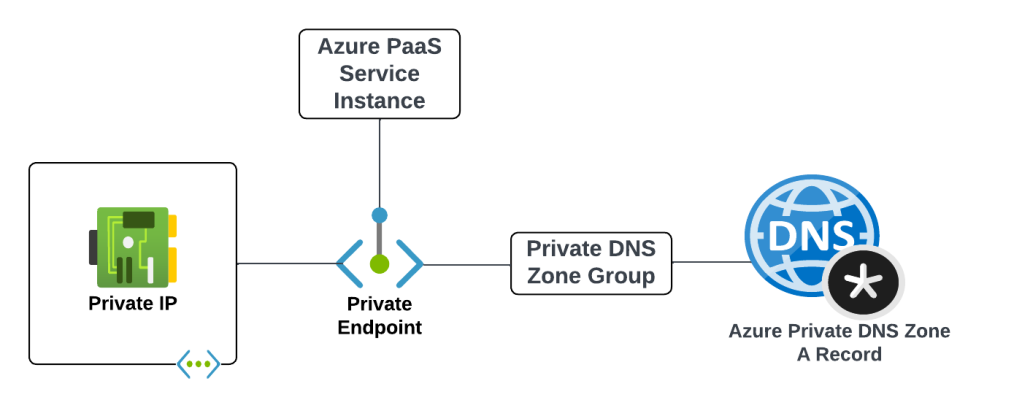
Microsoft needed a solution to these two gaps and that’s how Azure Private Link came to be. Azure Private Link includes the concept of an Azure Private Link Service and Private Link Endpoint. I won’t be digging into the details of the Private Link Service component, because the focus of this two-part series is on DNS and its role in providing name resolution for Microsoft native PaaS Private Link Private Endpoints. I do want to cover the benefits Private Link brings to the table because it will reinforce why it’s so important to under the DNS integration.

Private Link addresses the major gaps in Service Endpoints by doing the following:

  • Private access to services running on the Azure platform through the provisioning of a virtual network interface within the customer VNet that is assigned one of the VNet IP addresses from the RFC1918 address space.
  • Makes the services routable and accessible over private IP space to resources running outside of Azure such as machines running in an on-premises data center or virtual machines running in other clouds.
  • Protects against data exfiltration by the Private Endpoint providing access to only a specific instance of a PaaS service.
Azure Private Link
Azure Private Link architecture

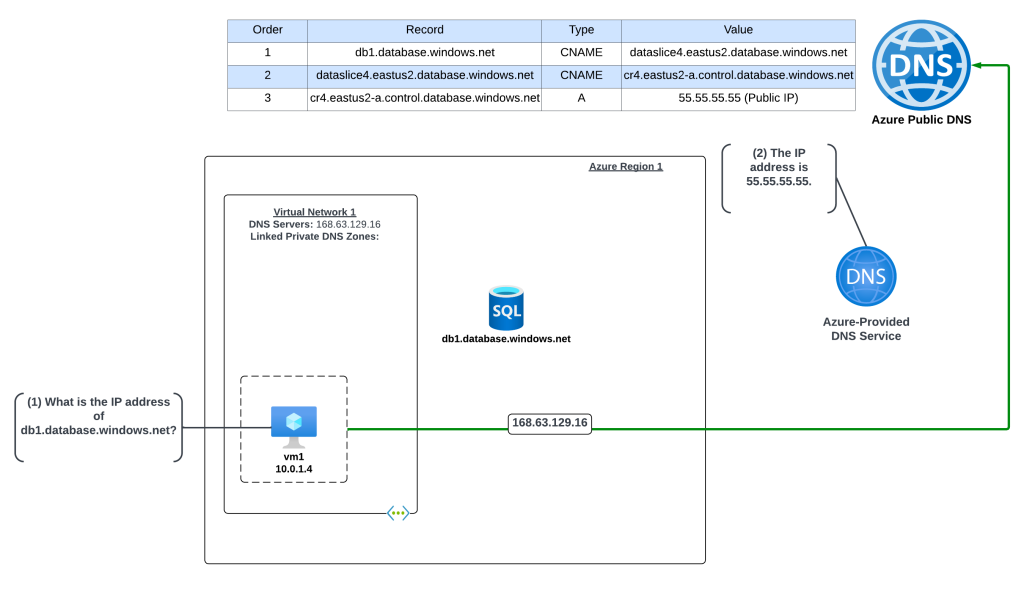
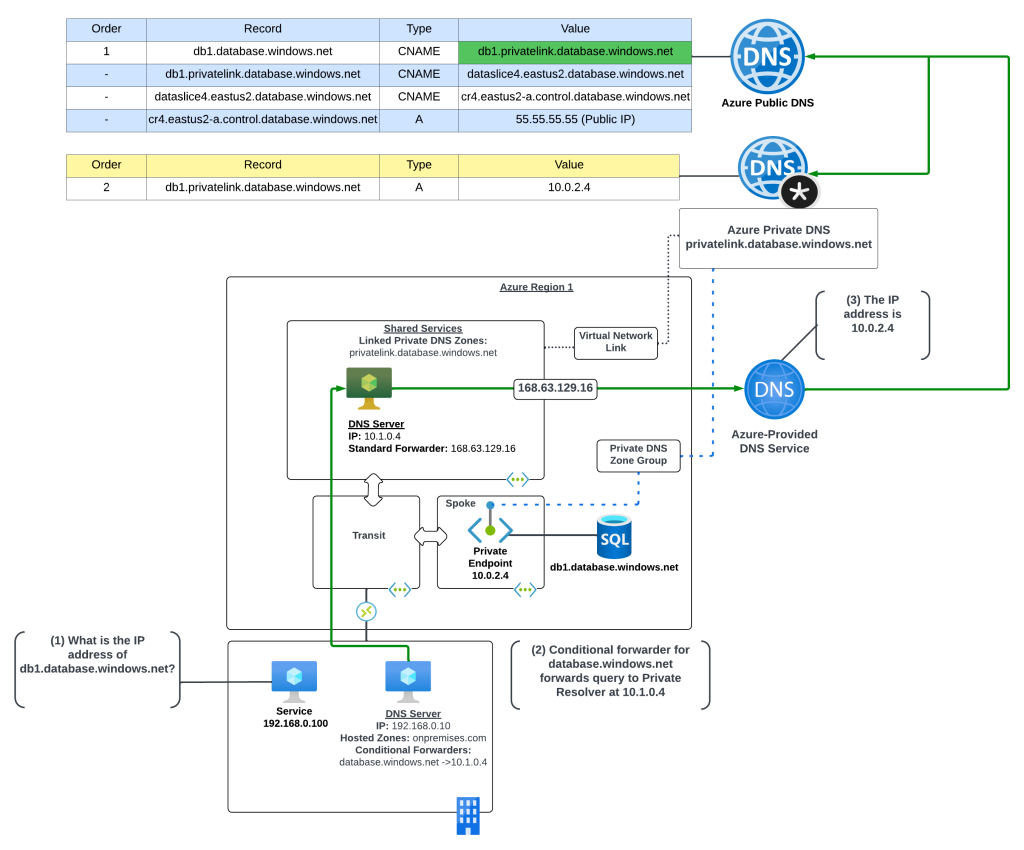
Now that you understand what Private Link brings to the table, I’ll focus on the DNS integration required to support Azure native PaaS services deployed behind a Private Link Private Endpoint.

The series is continued in my second post.

Deep Dive into Azure AD and AWS SSO Integration – Part 4

Deep Dive into Azure AD and AWS SSO Integration – Part 4

Today we continue exploring the new integration between Microsoft’s Azure AD (Azure Active Directory) and AWS (Amazon Web Services) SSO (Single Sign-On).  Over the past three posts I’ve covered the high level concepts of both platforms, the challenges the integration seeks to solve, and how to enable the federated trust which facilitates the single sign-on experience.  If you haven’t read through those posts, I recommend you before you dive into this one.  In this post I’ll be covering the neatest feature of the new integration, which is the support for automated provisioning.

If you’ve ever worked in the identity realm before, you know the pains that come with managing the life cycle of an identity from initial provisioning, changes resulting to the identity such as department and position changes, to the often forgotten stage of de-provisioning.  On-premises these problems were used solved by cobbled together scripts or complex identity management solution such as SailPoint Identity IQ or Microsoft Identity Manager.  While these tools were challenging to implement and operate, they did their job in the world of Windows Active Directory, LDAP, SQL databases and the like.

Then came cloud, and all bets were off.  Identity data stores skyrocketed from less than a hundred to hundreds and sometimes thousands (B2C has exploded far beyond event that).  Each new cloud service introduced into the enterprise introduced yet another identity management challenge.  While some of these offerings have APIs that support identity management operations, most do not, and those that do are proprietary in nature.  Writing custom code to each of the APIs is a huge challenge that most enterprises can’t keep up.  The result is often manual management of an identity life cycle, through uploading exported CSV files or some poor soul pointing and clicking a thousand times in a vendor portal.

Wouldn’t it be great if there was some mythical standard out that would help to solve this problem, use a standard API through REST, and support the JSON format?  Turns out there is and that standard is SCIM (System for Cross-domain Identity Management).  You may be surprised to know the standard has been around for a while now (technically 2011).  I recall hearing about it at a Gartner conference many many hears ago.  Unfortunately, it’s taken a long time to catch on but support is steadily increasing.

Thankfully for us, Microsoft has baked support into Azure AD and AWS recognized the value and took advantage of the feature.  By doing this, the identity life cycle challenges of managing an Azure AD and AWS integration has been heavily re-mediated and our lives made easier.

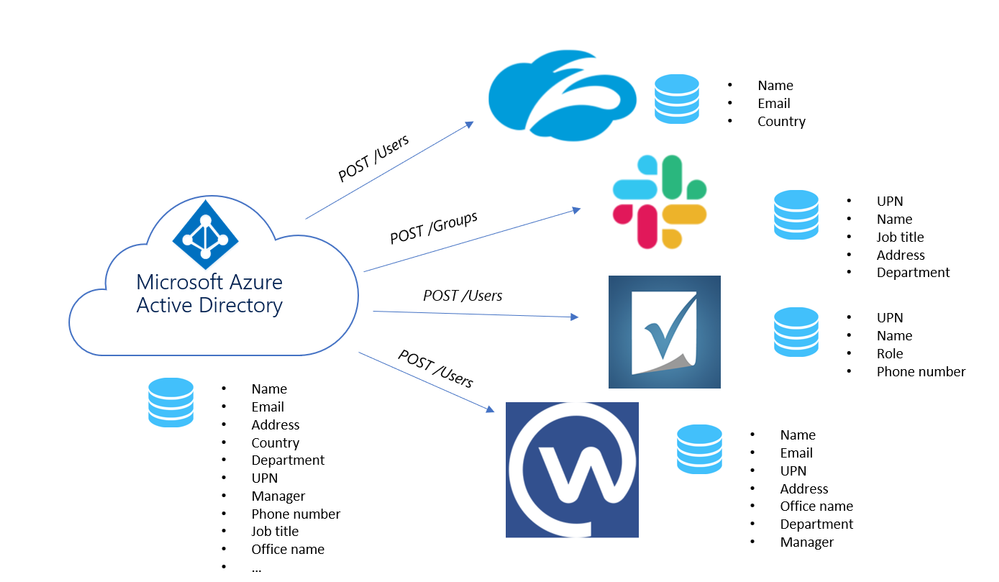
Azure AD Provisioning - Example

Azure AD Provisioning – Example

Let’s take a look at how set it up, shall we?

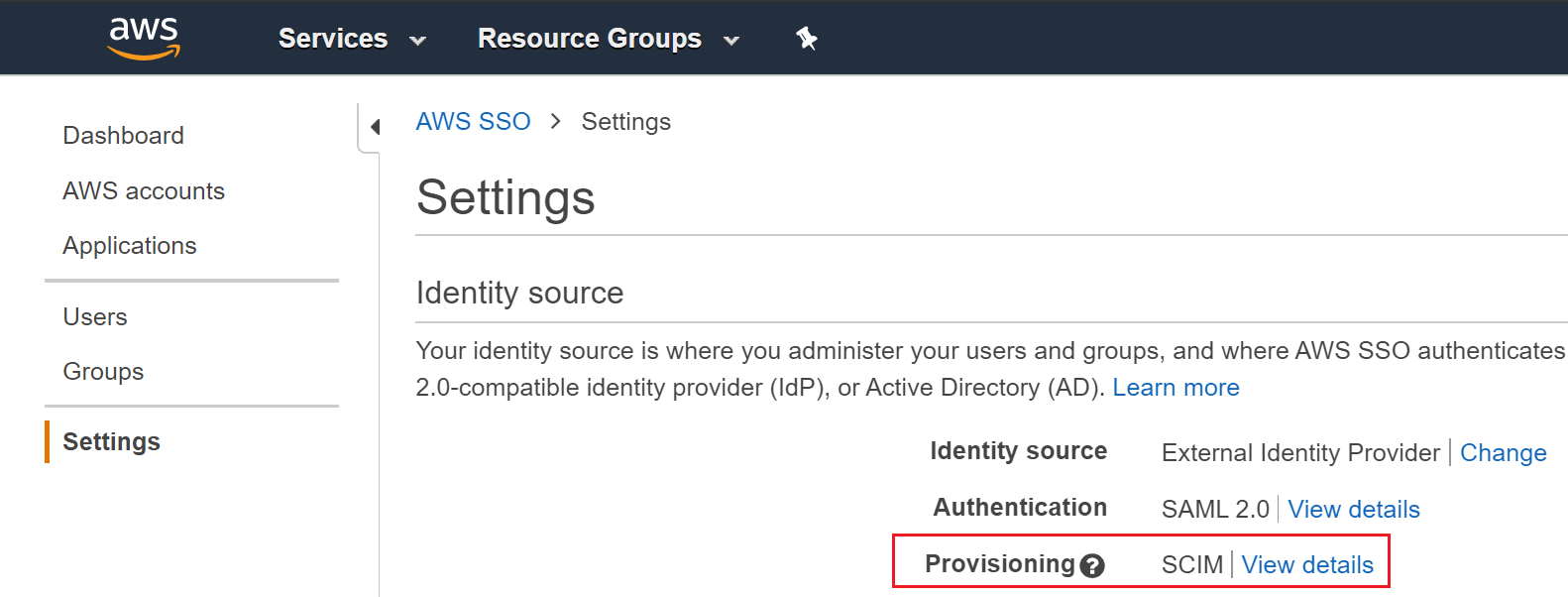
The first place you’ll need to go is into the AWS account which is the master for the organization and into the AWS SSO Settings.  In Settings you’ll see the provisioning option which is initially set as manual.  Select to enable automatic provisioning.

AWS SSO Settings - Provisioning

AWS SSO Settings – Provisioning

Once complete, a SCIM endpoint will be created.  This is the endpoint in AWS (referred to as the SCIM service provider in the SCIM standard) that the SCIM service on Azure AD (referred to as the client in the SCIM standard) will interact with to search for, create, modify, and delete AWS users and groups.  To interact with this endpoint, Azure AD must authenticate to it, which it does with a bearer access token that is issued by AWS SSO.  Be aware that the access token has a one year life span, so ensure you set some type of reminder.  A quick search through the boto3 API doesn’t show a way to query for issued access tokens (yes you can issue more than one at at time) so you won’t be able to automate the process as of yet.

awssso-scimendpoint.png

After SCIM is enabled, AWS SSO Settings for provisioning now reports SCIM in use.

awssso-scimenabled.png

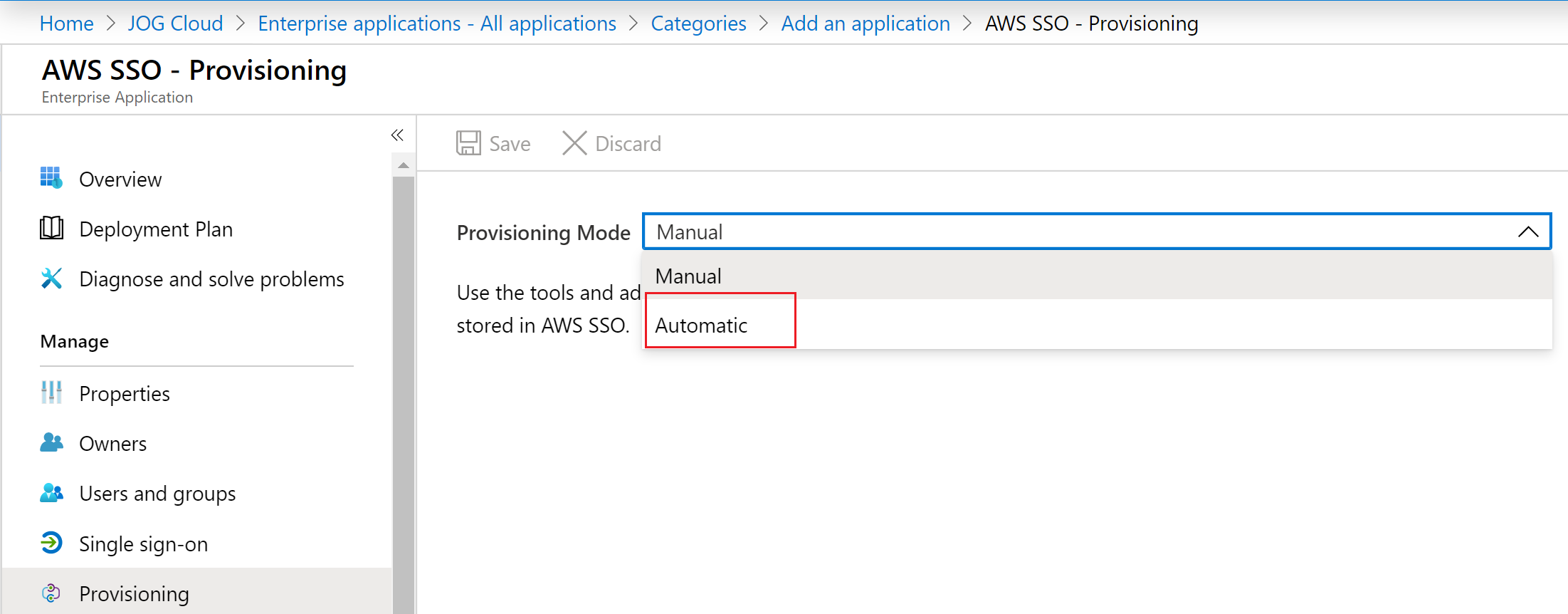
Next you’ll need to bounce over to Azure AD and go into the enterprise app you created (refer to my third post for this process).   There you’ll navigate to the Provisioning blade and select Automatic as the provisioning method.

azuread-scimprov.png

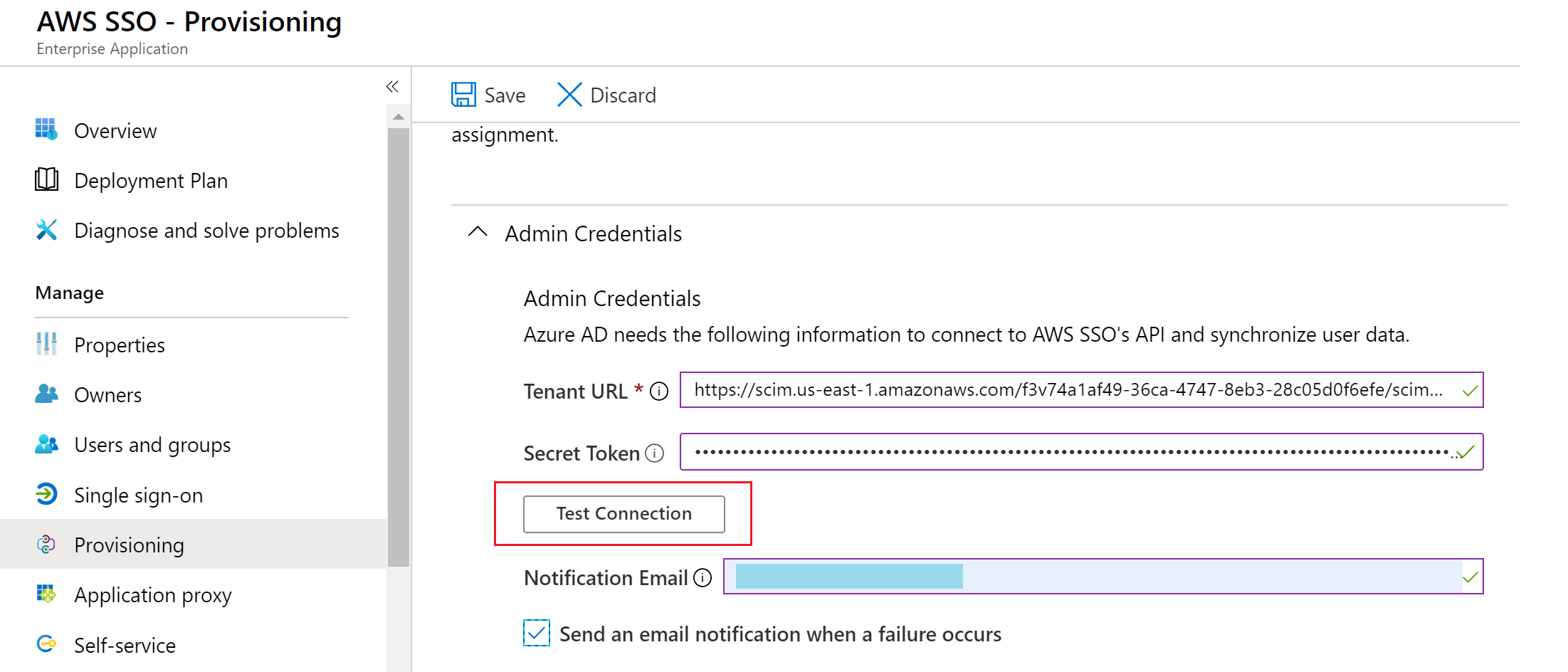
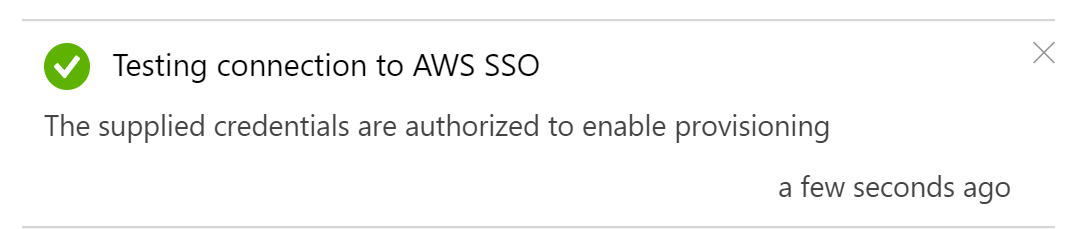
You’ll then need to configure the URL and access token you collected from AWS and test the connection.  This will cause Azure AD to test querying the endpoint for a random user and group to validate functionality.

azuread-scimtest.png

If your test is successful you can then save the settings.

azuread-scimtestsucccess.PNG

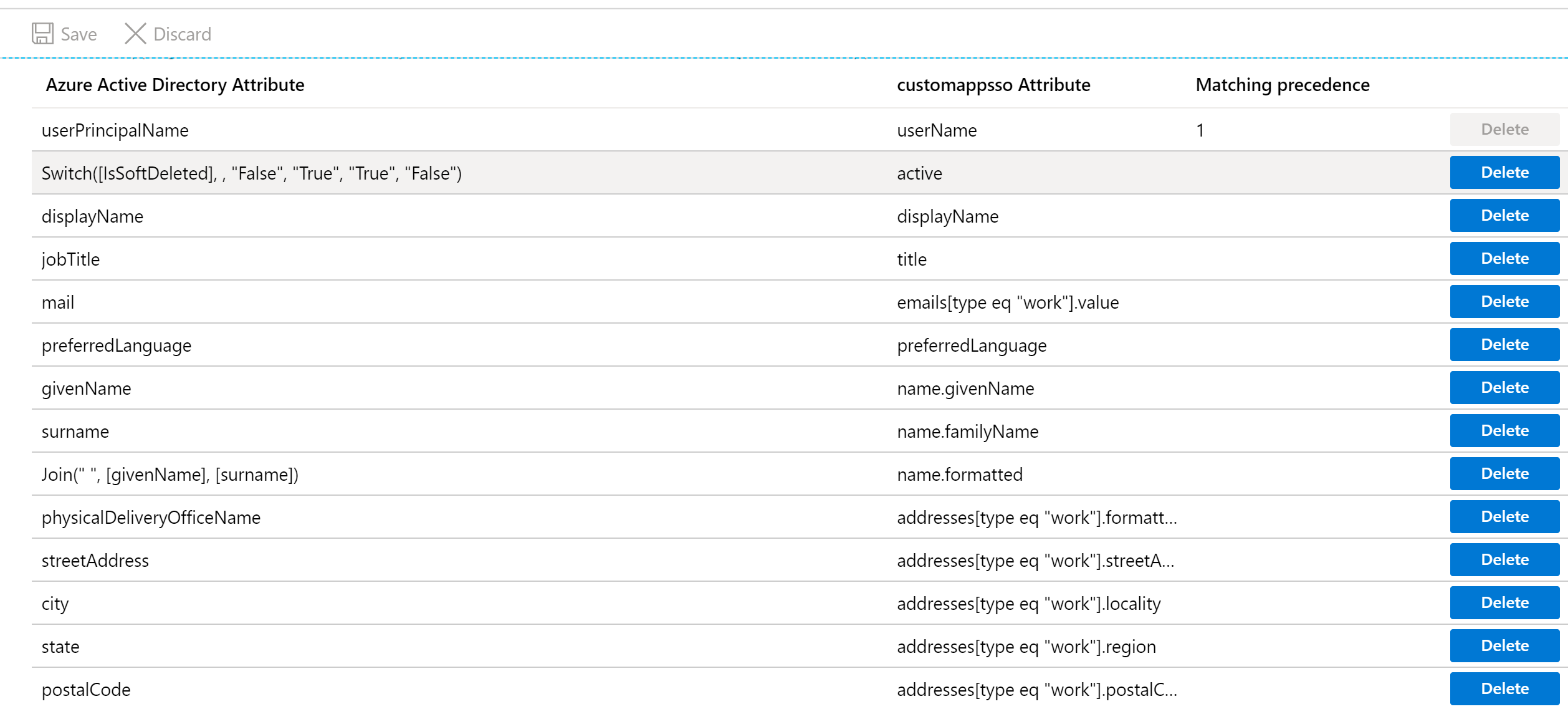
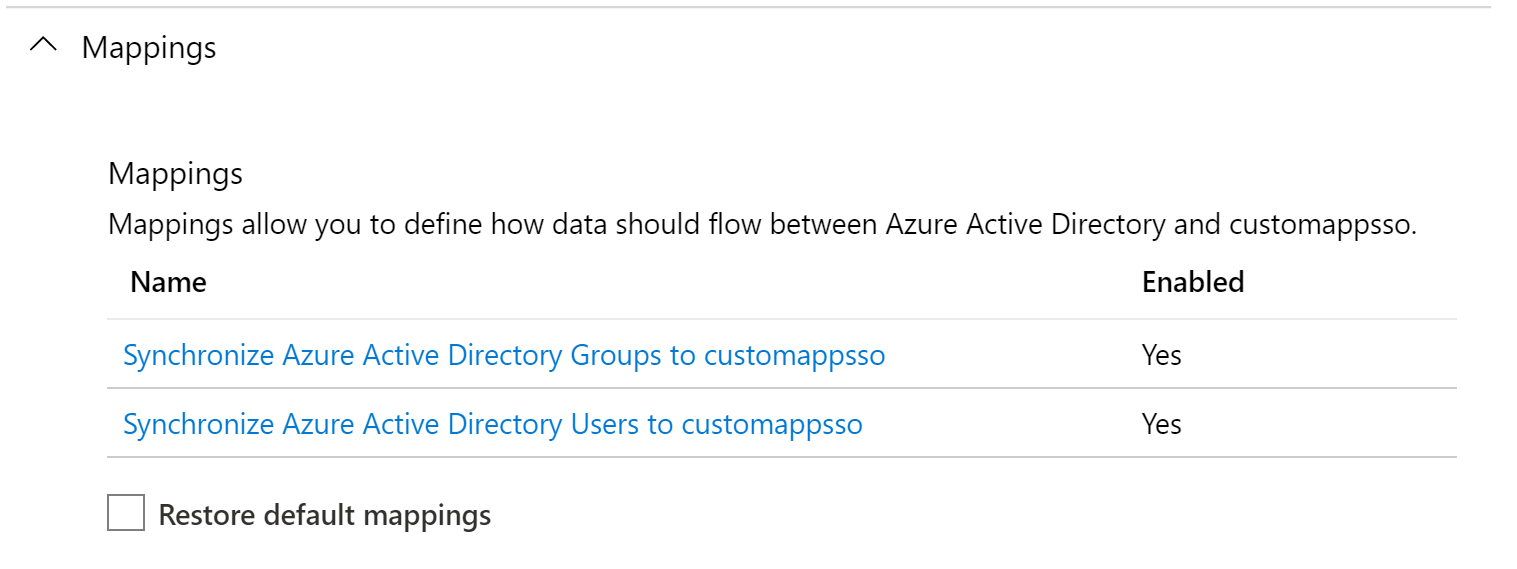
You’re not done yet.  Next you have to configure a mapping which map attributes in Azure AD to the resource and attributes in the SCIM schema.  Yes folks, SCIM does have a schema for attributes and resources (like users and groups).  You can extend it as needed, but in this integration it looks to be using the default user and group resources.

azuread-scimmappings

Let’s take a look at what the group mappings look like.

azuread-scimgroupmappings.PNG

The attribute names on the left are the names of the attributes in Azure AD and the attributes on the right are the names of the attributes Azure AD will write the values of the attributes to in AWS SSO.  Nothing too surprising here.

How about the user mappings?

azuread-scimusermappings1azuread-scimusermappings2

Lots more attributes in the user mappings by default.  Now I’m not sure how many of these attributes AWS SSO supports.  According to the SCIM standard, a client can attempt to write whatever it wants and any attributes the service provider doesn’t understand is simply discarded.  The best list of attributes I could find were located here, and it’s not near this number.  I can’t speak to what the minimum required attributes are to make AWS work, because their official instructions on this integration doesn’t say.  I know some of the product team sometimes reads the blog, so maybe we’ll luck out and someone will respond with that answer.

The one tweak you’ll need to make here is to delete the mailNickName mapping and replace it with a mapping of objectId to externalId.  After you make the change, click the save icon.

I don’t know why AWS requires this so I can only theorize.  Maybe they’re using this attribute as a primary key in the back end database or perhaps they’re using it to map the users to the groups?  I’m not sure how Azure AD is writing the members attribute over to AWS.  Maybe in the future I’ll throw together a basic app to visualize what the service provider end looks like.

newmapping.PNG

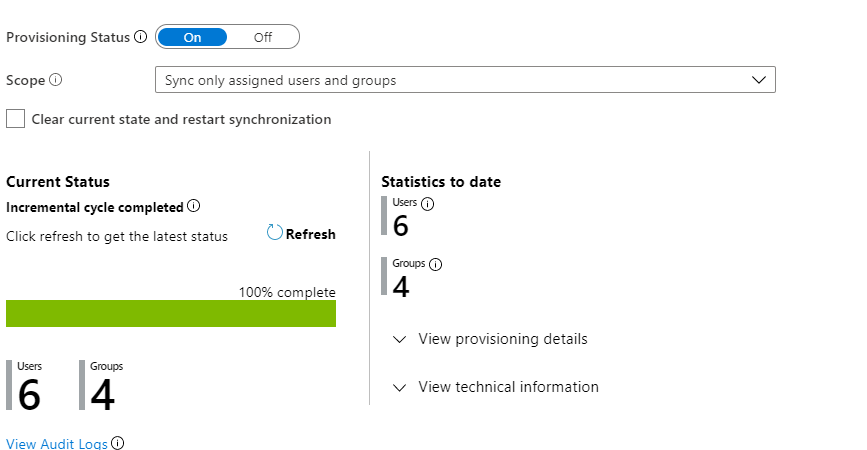
Now you need to decide what users and groups you want to sync to AWS SSO.  Towards the bottom of the provisioning blade, you’ll see the option to toggle the provisioning status.  The scope drop down box has an option to sync all users and groups or to sync only assigned users and groups.  Best practice here is basic security, only sync what you need to sync, so leave the option on sync only assigned users and group.

The assigned users and groups refers to users that have been assigned to the enterprise application in Azure AD.  This is configured on the Users and Groups blade for the enterprise app.  I tested a few different scenarios using an Azure AD dynamic group, standard group, and a group synchronized from Windows AD.  All worked successfully and synchronized the relevant users over.

Once you’re happy with your settings, toggle the provisioning status and save the changes.  It may take some time depending on how much you’re syncing.

syncsuccess.PNG

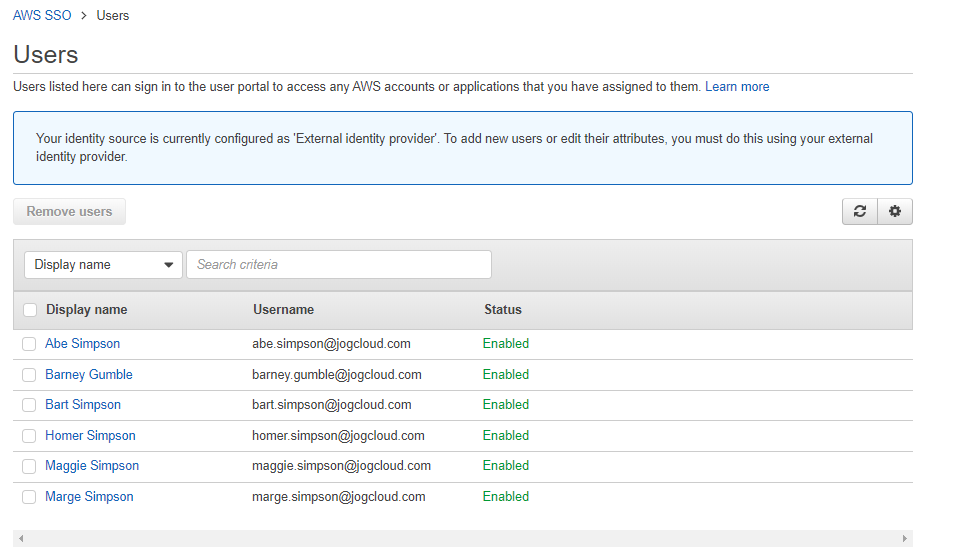
If the sync is successful, you’ll be able to hop back over to AWS SSO and you’ll see your users and groups.

awssyncedusersawssyncedgroup

Microsoft’s official documentation does a great job explaining the end to end cycle.  The short of it is there’s an initial cycle which grabs all users and groups from Azure AD, then filters the list down to the users and groups assigned to the application.  From there it queries the target system to match the user with the matching attribute and if it isn’t found creates it, and if found and needs updating, updates it.

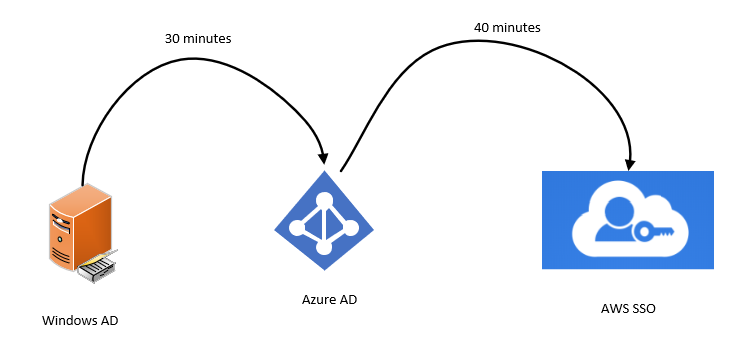
Incremental cycles are down from that point forward every 40 minutes.  I couldn’t find any documentation on how to adjust the synchronization frequency.  Be aware of that 40 minute sync and consider the end to end synchronization if you’re sourcing from Windows Active Directory.  In that case making changes in Windows AD could take just over an hour (assuming you’re using the 30 minute sync interval in Azure AD Connect) to fully synchronize.

awsssotime.PNG

As I described in my third post, I have a lab environment setup where a Windows Active Directory domain is syncing to Azure AD.  I used that environment to play out a few scenarios.

In the first scenario I disabled Marge Simpson’s account.  After waiting some time for changes to synchronize across both platforms, I saw in AWS SSO that Marge Simpson was now disabled.

margedisabled.PNG

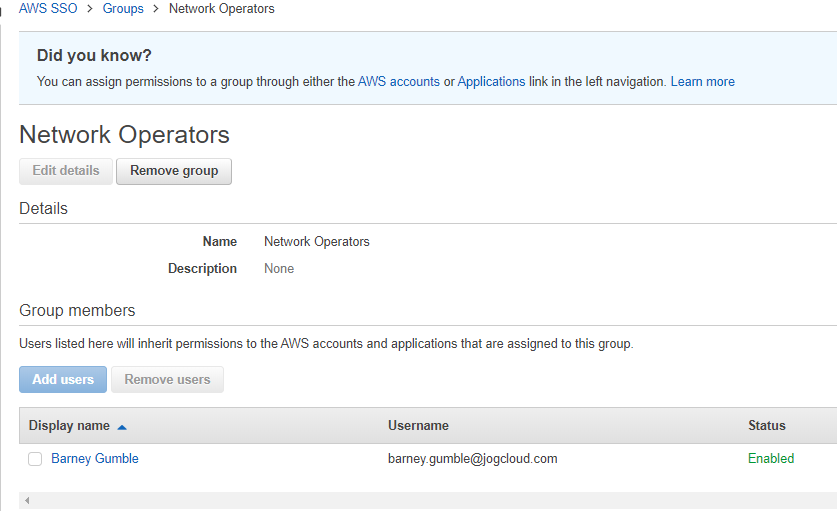
For another scenario, I removed Barney Gumble from the Network Operators Active Directory group.  After waiting time for the sync to complete, the Network Operators group is now empty reflecting Barney’s removal from the group.

networkoperators.PNG

Recall that I assigned four groups to the app in Azure AD, Network Operators, Security Admins, Security Auditors, and Systems Operators.  These are the four groups syncing to AWS SSO.  Barney Gumble was only a member of the Network Operators group, which means removing him put him out of scope for the app assignment.  In AWS SSO, he now reports as being disabled.

barneydisabled.PNG

For our final scenario, let’s look at what happens when I deleted Barney Gumble from Windows Active Directory.  After waiting the required replication time, Barney Gumble’s user account was still present in AWS SSO, but set as disabled.  While Barney wouldn’t be able to login to AWS SSO, there would still be cleanup that would need to happen on the AWS SSO directory to remove the stale identity records.

barneydisabled.PNG

The last thing I want to cover is the logging capabilities of the SCIM service in Azure AD.  There are two separate logs you can reference.  The first are the Provisioning Logs which are currently in preview.  These logs are going to be your go to to troubleshoot issues with the provisioning process.  They’re available with an Azure AD P1 or above license and are kept for 30 days.  Supposedly they’re kept for free for 7 days, but the documentation isn’t clear whether or not you have the ability to consume them.  I also couldn’t find any documentation on if it’s possible to pull the logs from an API for longer term retention or analysis in Log Analytics or a 3rd party logging solution.

If you’ve ever used Azure AD, you’ll be familiar with the second source of logs.  In the Azure AD Audit logs, you get additional information, which while useful, is more catered to tracking the process vs troubleshooting the process like the provisioning logs.

Before I wrap up, let’s cover a few key findings:

  • The access token used to access the SCIM endpoint in AWS SSO has a one year lifetime.  There doesn’t seem to be a way to query what tokens have been issued by AWS SSO at this time, so you’ll need to manage the life cycle in another manner until the capability is introduced.
  • Users that are removed from the scope of the sync, either by unassigning them from the app or deleting their user object, become disabled in AWS SSO.  The records will need to be cleaned up via another process.
  • If synchronizing changes from a Windows AD the end to end synchronization process can take over an hour (30 minutes from Windows AD to Azure AD and 40 minutes from Azure AD to AWS SSO).

That will wrap up this post.  In my opinion the SCIM service available in Azure AD is extremely under utilized.  SCIM is a great specification that needs more love.  While there is a growing adoption from large enterprise software vendors, there is a real opportunity for your organization to take advantage of the features it offers in the same way AWS has.  It can greatly ease the pain your customers and enterprise users experience having to manage the life cycle of an identity and makes for a nice belt and suspenders to modern identity capabilities in an application.

In the last post of my series I’ll demonstrate a few scenarios showing how simple the end to end experience is for users.  I’ll include some examples of how you can incorporate some of the advanced security features of Azure AD to help protect your multi-cloud experience.

See you next post!


Deep Dive into Azure AD and AWS SSO Integration – Part 3

Deep Dive into Azure AD and AWS SSO Integration – Part 3

Back for more are you?

Over the past few posts I’ve been covering the new integration between Azure AD and AWS SSO.  The first post covered high level concepts of both platforms and some of the problems with the initial integration which used the AWS app in the Azure Marketplace.  In the second post I provided a deep dive into the traditional integration with AWS using a non-Azure AD security token service like AD FS (Active Directory Federation Services), what the challenges were, how the new integration between Azure AD and AWS SSO addresses those challenges, and the components that make up both the traditional and the new solution.  If you haven’t read the prior posts, I highly recommend you at least read through the second post.
Azure AD and AWS SSO Integration

New Azure AD and AWS SSO Integration

In this post I’m going to get my hands dirty and step through the implementation steps to establish the SAML trust between the two platforms.  I’ve setup a fairly simple lab environment in Azure.  The lab environment consists of a single VNet (virtual network) with a four virtual machines with the following functions:

  • dc1 – Windows Active Directory domain controller for jogcloud.com domain
  • adcs – Active Directory Certificate Services
  • aadc1 – Azure Active Directory Connect (AADC)
  • adfs1 – Active Directory Federation Services

AADC has been configured to synchronize to the jogcloud.com Azure Active Directory tenant.  I’ve configured federated authentication in Azure AD with the AD FS server acting as an identity provider and Windows Active Directory as the credential services provider.

visio of lab environment

Lab Environment

On the AWS side I have three AWS accounts setup associated with an AWS Organization.  AWS SSO has not yet been setup in the master account.

Let’s setup it up, shall we?

The first thing you’ll need to do is log into the AWS Organization master account with an account with appropriate permissions to enable AWS SSO for the organization.  If you’ve never enabled AWS SSO before, you’ll be greeted by the following screen.

1.png

Click the Enable AWS SSO button and let the magic happen in the background.  That magic is provisioning of a service-linked role for AWS SSO in each AWS account in the organization.  This role has a set of permissions which include the permission to write to the AWS IAM instance in the child account.  This is used to push the permission sets configured in AWS SSO to IAM roles in the accounts.

Screenshot of AWS SSO IAM Role

AWS SSO Service-Linked IAM Role

After about a minute (this could differ depending on how many AWS accounts you have associated with your organization), AWS SSO is enabled and you’re redirected to the page below.

Screenshot of AWS SSO successfully enabled page

AWS SSO Successfully Enabled

Now that AWS SSO has been configured, it’s time to hop over to the Azure Portal.  You’ll need to log into the portal as a user with sufficient permissions to register new enterprise applications.  Once logged in, go into the Azure Active Directory blade and select the Enterprise Applications option.

Register new Enterprise Application

Register new Enterprise Application

Once the new blade opens select the New Application option.

Register new application

Register new application

Choose the Non-gallery application potion since we don’t want to use the AWS app in the Azure Marketplace due to the issues I covered in the first post.

Choose Non-gallery application

Choose Non-gallery application

Name the application whatever you want, I went with AWS SSO to keep it simple.  The registration process will take a minute or two.

Registering application

Registering application

Once the process is complete, you’ll want to open the new application and to go the Single sign-on menu item and select the SAML option.  This is the menu where you will configure the federated trust between your Azure AD tenant and AWS SSO on the Azure  AD end.

SAML Configuration Menu

SAML Configuration Menu

At this point you need to collect the federation metadata containing all the information necessary to register Azure AD with AWS SSO.  To make it easy, Azure AD provides you with a link to directly download the metadata.

Download federation metadata

Download federation metadata

Now that the new application is registered in Azure AD and you’ve gotten a copy of the federation metadata, you need to hop back over to AWS SSO.  Here you’ll need to go to Settings.  In the settings menu you can adjust the identity source, authentication, and provisioning methods for AWS SSO.  By default AWS SSO is set to use its own local directory as an identity source and itself for the other two options.

AWS SSO Settings

AWS SSO Settings

Next up, you select the Change option next to the identity source.  As seen in the screenshot below, AWS SSO can use its own local directory, an instance of Managed AD or BYOAD using the AD Connector, or an external identity provider (the new option).  Selecting the External Identity Provider option opens up the option to configure a SAML trust with AWS SSO.

Like any good authentication expert, you know that you need to configure the federated trust on both the identity provider and service provider.  To do this we need to get the federation metadata from AWS SSO, which AWS has been lovely enough to also provide it to us via a simple download link which you’ll want to use to get a copy of the metadata we’ll later import into Azure AD.

Now you’ll need to upload the federation metadata you downloaded from Azure AD in the Identity provider metadata section.  This establishes the trust in AWS SSO for assertions created from Azure AD.  Click the Next: Review button and complete the process.

AWS SSO Identity Sources

Configure SAML trust

You’ll be asked to confirm changing the identity source.  There a few key points I want to call out in the confirmation page.

  • AWS SSO will preserve your existing users and assignments -> If you have created existing AWS SSO users in the local directory and permission sets to go along with them, they will remain even after you enable it but those users will no longer be able to login.
  • All existing MFA configurations will be deleted when customer switches from AWS SSO to IdP.  MFA policy controls will be managed on IdP -> Yes folks, you’ll now need to handle MFA.  Thankfully you’re using Azure AD so you plenty of options there.
  • All items about provisioning – You have to option to manually provision identities into AWS SSO or use the SCIM endpoint to automatically provision accounts.  I won’t be covering it, but I tested manual provisioning and the single sign-on aspect worked flawless.  Know it’s an option if you opt to use another IdP that isn’t as fully featured as Azure AD.

Confirmation prompt

Confirmation prompt

Because I had to, I popped up the federation metadata to see what AWS requiring in the order of claims in the SAML assertion.  In the screenshot below we see is requesting the single claim of nameid-format:emailaddress.  This value of this claim will be used to map the user to the relevant identity in AWS SSO.

AWS SSO Metadata

Back to the Azure Portal once again where you’ll want to hop back to Single sign-on blade of the application you registered.  Here you’ll click the Upload metadata file button and upload the AWS metadata.

Uploading AWS federation metadata

Uploading AWS federation metadata

After the upload is successful you’ll receive a confirmation screen.  You can simple hit the Save button here and move on.

Confirming SAML

Confirming SAML

At this stage you’ve now registered your Azure AD tenant as an identity provider to AWS SSO.  If you were using a non-Azure AD security token service, you could now manually provision your users AWS SSO, create the necessary groups and permissions sets, and administer away.

I’ll wrap up there and cover the SCIM provisioning in the next post.  To sum it up, in this post we configured AWS SSO in the AWS Organization and established the SAML federated trust between the Azure AD tenant and AWS SSO.

See you next post!

DNS in Microsoft Azure Part 2 – Azure Private DNS

DNS in Microsoft Azure Part 2 – Azure Private DNS

Updates:

7/2025 – Removed bullet point highlighting lack of DNS query logging and added that this can be achieved with DNS Security Policy

This is part of my series on DNS in Microsoft Azure.

Welcome back fellow geek to part two of my series on DNS in Azure.  In the first post I covered some core concepts behind the DNS offerings in Azure.  One of the core concepts was the 168.63.129.16 virtual IP address which serves as a mechanism for services within an Azure Virtual Network to communicate with platform services such as the Azure DNS Service. I also covered the basic DNS offering, Azure-provided DNS.  For this post I’m going to cover the Azure Private DNS service.

Azure-provided DNS may serve your needs if you’re doing basic proof-of-concept testing, but not much use beyond that.  The limited capabilities around supported record types and scaling challenges when requiring resolution across virtual networks make it a non-starter for anything with production-scale needs  Prior to Azure Private DNS, customers were forced to roll their own DNS servers to host any private namespaces they wanted to use in Azure.  Programmatic management of records in traditional DNS servers can be limited, making it challenging to balance with the ephemeral nature of the cloud.

Microsoft introduced Azure Private DNS into public preview back in early 2018 to help address these problems.  The service officially went general availability in October 2019.  It addresses many of the gaps Azure-provided DNS has such as support for:

  • Custom DNS namespaces
  • Manually created records
  • Common DNS record types such as A, MX, CNAME, PTR
  • Automatic lifecycle management of DNS records for some Azure resources such as virtual machines
  • DNS namespaces can be shared across virtual networks

Before we jump into the weeds, we’ll first want to cover the basic concepts of the service.

Azure Private DNS zones are an Azure resource under the Microsoft.Network resource provider with a path of /providers/Microsoft.Network/privateDnsZones/.  Each DNS zone you want to create is represented as a separate resource.  Zones created in one subscription can be used for resolution within another subscription in the same tenant or even a different tenant.

Once the Private DNS Zone is created you need to create a virtual network link to the resource. This resource is also under the Microsoft.Network resource provider and has a path of /providers/Microsoft.Network/privateDnsZones/virtualNetworkLinks/. VNets can resolve and and optionally register DNS records with the zones you create after you create a virtual network link between the VNet and the zone.  Each zone can be linked to multiple VNets for registration and resolution.  On other hand, VNets can be linked to multiple zones for resolution but only one zone for registration.  Once a zone is linked to the VNet, resources within the VNet can resolve and/or register DNS records for those zones through the 168.63.129.16 virtual IP.

In addition to DNS resolutions, zones can be linked for auto-registration. When a virtual network is linked for auto-registration the VMs will register A records within the Azure Private DNS Zone and the Azure-provided DNS zone.  There are a few things to note about the A records automatically created in the private zone:

  • Each record has a property called isAutoRegistered which has a boolean value of true for any records created through the auto-registration process.
  • Auto-registered records have an extremely short TTL of 10 seconds.  If you have plans of performing DNS scavenging, take note of this and that these records are automatically deleted when the VM is deleted.
  • Virtual networks can only be linked to one virtual network for auto-registration.
Private DNS zone viewed in portal
Records within an Azure Private DNS Zone

The Azure-provided DNS zone dynamically created for the VNet is still created even when linking an Azure Private DNS zone to a VNet.  Additionally, if you try to resolve the IP address using a single label hostname on a Windows machine, you’ll get back the A record for the Azure-provided DNS zone as seen in the image below.  This is by design and allows you to control the DNS suffix automatically appended by your VMs.  It also means you need to use the FQDN in any application configuration to ensure the record is resolved correctly.

dnsquery.PNG
Single label lookup results in Azure-provided DNS virtual network namespace

Let’s take a look at a resolution scenario.

Scenario: VM1 wants to resolve the IP address of VM3.mydomain.com

In the image below we have resolution between two virtual networks.  In this scenario we have Virtual Network 1 and Virtual Network 2.  Virtual Network 1 is linked for both registration and resolution to the Azure Private DNS Zone of mydomain.com.  Virtual Network 2 is linked to the same zone for resolution.  In this configuration, both Virtual Network 1 and Virtual Network 2 are able to resolve records in the mydomain.com Azure Private DNS Zone namespace.

Let’s walk through this query resolution process:

  1. VM1 creates a DNS query for vm3.mydomain.com. VM1 does not have a cached entry for vm3.mydomain.com so the query is passed on to the DNS Server configured for the VMs virtual network interface (VNIC). The DNS Server has been configured by the Azure DHCP Service to the 168.63.129.16 virtual IP which is the default configuration for virtual network DNS Server settings.
  2. The DNS query is passed through the virtual IP and on to the Azure-provided DNS Service. The Azure-provided DNS Service identifies there is an Azure Private DNS Zone named mydomain.com linked to the virtual network so the query is resolved against this zone and returned to VM1.

Cross-virtual network resolution with Azure Private DNS Zones

Beyond the auto-registration of records, you can also manually create a variety of record types as I mentioned above. There isn’t anything special or different in the way Azure is handling these records.  The only thing worth noting is the records have a standard 1 hour TTL..

One other important thing to note about Azure Private DNS Zones is they are a global resource. This means that the data from an Azure Private DNS Zone is replicated across all Azure regions. If you have a zone linked to virtual network in regionA it can also be linked to virtual network in regionB. This is best practice. Now the caveat of being a global resource is the Private DNS Zone still needs to exist within a resource group, which is regional. In the event of a regional outage in the region where the resource group exists, you will not be able to modify the Azure Private DNS Zone. It will however continue services DNS queries for virtual networks in other regions.

Azure Private DNS Zones can be used to provide custom DNS namespaces for internally-facing applications you build within Azure. Remember that the Azure-provided DNS service cannnot be used by on-premises machines without a DNS Proxy (such as BIND server, Windows DNS Server, InfoBlox, etc) or the Azure Private DNS Resolver. This means you cannot resolve records in an Azure Private DNS Zone unless you have that in place.

An important use case for understanding Azure Private DNS Zones is they play a very important role with Azure PaaS services that support Azure Private Link Private Endpoints. For those use cases you will not be able to pick the namespace, you’ll need to use what Microsoft provides. I cover this in a later post in this series.

When using custom namespaces for applications you develop in Azure where you control the certificate the service serves up there are a few strategies you can employ:

  • Separate private DNS zone for each application –  In this scenario you could grant business units full control of the zone letting them manage the records as they see fit.  This would improve the application team’s agility while reducing operational burden on central IT.
  • Separate private DNS zones for each environment (Dev/QA/Prod) – In this scenario you establish separate zones for each environment which are shared across business units and these zones are managed by central IT.

Summing up the Azure Private DNS Zones when used with only the Azure-provided DNS Service:

  • Benefits
    • Managed service where you don’t have to worry the managing the underlining infrastructure
    • Scalability and availability
    • Use of custom DNS namespaces
    • Global resource that can provide resolution for virtual networks spread across Azure regions
    • Lifecycle of Azure VMs DNS records are automatically managed by the platform if using auto-registration
    • Applications could be assigned their own DNS zones and application owners delegated some level control over that zone
    • Azure-provided DNS can support query logging when used in combination with DNS Security Policy
  • Considerations
    • The records in these zones cannot be resolved by on-premises endpoints unless you incorporate a DNS Proxy (such as BIND server, Windows DNS Server, InfoBlox, etc) or the Azure Private DNS Resolver.
    • While Azure Private DNS Zone resources are global the service’s control plane is regionally dependent on the region the of the resource group the zone is deployed in
    • Linking the Private DNS Zones to every virtual network could risk hitting the limits of the service
    • No support for WINS or NETBIOS

In my next post I’ll cover the how the Azure Private DNS Resolver builds on these two components and begins addressing some of these considerations..