Azure Files and AD DS – Part 1

Azure Files and AD DS – Part 1

Welcome back folks.

I recently had a few customers reach out to me with questions around Azure Files integration with Windows Active Directory Domain Services (AD DS). Since I had never used it, I decided to build a small lab and test the functionality and better understand the service. In this series I’ll be walking through what the functionality provides, how I observed it working, and how to set it up.

In any enterprise you will have a number of Windows file shares hosting critical corporate data. If you’ve ever maintained or supported those file shares you’re quite familiar with the absolute sh*t show that occurs across an organization with the coveted H drive is no longer accessible. Maintaining a large cluster of Windows Servers backing corporate file shares can be significantly complex to support. You have your upgrades, patches, needs to scale, failures with DFS-R (distributed file system replication) or FRS-R (file replication service replication) for some of you more unfortunate souls. Wouldn’t it be wonderful if all that infrastructure could be abstracted and managed by someone else besides you? That is the major value proposition of Azure Files.

Azure Files is a PaaS (platform-as-a-service) offering provided by Microsoft Azure that is built on top of Azure Storage. It provides fully managed file shares over a protocol you know and love, SMB (Server Message Block). You simply create an Azure File share within an Azure Storage account and connect to the file share using SMB from a Windows, Linux, or MacOS machine.

Magic right? Well what about authentication and authorization? How does Microsoft validate that you are who you say you are and that you’re authorized to connect to the file share? That my friends will be what we cover from this point on.

Azure File shares supports methods of authentication:

  1. Storage account access keys
  2. Azure AD Domain Services
  3. AD DS (Active Directory Domain Services)

Of the three methods, I’m going cover authentication using AD DS (which I’ll refer to as Windows AD).

Support for Windows AD with Azure Files graduated to general availability last month. As much as we’d like it to not be true, Windows AD and traditional SMB file shares will be with us many years to come. This is especially true for enterprises taking the hybrid approach to cloud, which is a large majority of the customer base I work with. The Windows AD integration allows organizations to leverage their existing Windows AD identities for authentication and protect the files using Windows ACLs (access control lists) they’ve grown to love. This provides a number of benefits:

  • Single sign-on experience for users (via Kerberos)
  • Existing Windows ACLs can be preserved if moving files to a Azure File share integrated with Windows AD
  • Easier to supplement existing on-premises file servers without affecting the user experience
  • Better support for lift and shift workloads which may have dependencies on SMB
  • No infrastructure to manage
  • Support for Azure File Sync which allows you to store shares in Azure Files and create cache on Windows Servers

There are a few key dependencies and limitations I want to call out. Keep in mind you’ll want to visit the official documentation as these will change over time.

  • The Windows AD identities you want to use to access the file shares must be synchronized to Azure AD (we’ll cover the why later)
  • The storage account hosting the Azure File share must be in the same tenant you’re syncing the identities to
  • Linux VMs are not supported at this time
  • Services using the computer account will not be able to access an Azure File share so plan on using a traditional service account (aka User account) instead
  • Clients accessing the file share must be Window 7/Server 2008 R2 ore above
Lab Environment

So I’ve given you the marketing pitch, let’s take a look at the lab environment I’ll be using for this walkthrough.

For my lab I’ve provisioned three VMs (virtual machines) in a VNet (virtual network). I have a domain controller which provides the jogcloud.local Windows AD forest, an Azure AD Connect server which is synchronizing users to the jogcloud Azure AD tenant, and a member server which I’ll use to access the file share.

In addition to the virtual machines, I also have an Azure Storage account where I’ll create the shares. I’ve also configured a PrivateLink Endpoint which will allow me to access the file share without having to traverse the Internet. Lastly, I have an Azure Private DNS zone hosting the necessary DNS namespace needed to handle resolution to my Private Endpoint. I won’t be covering the inner workings of Azure Private DNS and Private Endpoints, but you can read my series on how those two features work together here.

In my next post I’ll dive in how to setup the integration, walk through some Wireshark and Fiddler captures, and walk through some of the challenges I ran into when running through this lab for this series.

See you next post!

Force Tunneling Azure Firewall to pfSense – Part 2

Force Tunneling Azure Firewall to pfSense – Part 2

Welcome back to my series on forced tunneling Azure Firewall using pfSense.  In my last post I covered the background of the problem I wanted to solve, the lab makeup I’m using, and the process to setup the S2S (site-to-site) VPN with pfSense and exchange of routes over BGP.  Take a few read through that post before jumping into this one.

At this point you should a working S2S VPN from your Azure VNet to your pfSense router and the two should be exchanging a few routes over BGP.  If you didn’t complete all the steps in the first post, go back and do them now.

Now that connectivity is established, it’s time to incorporate Azure Firewall.  Azure Firewall was introduced back in 2018 as a managed stateful firewall that can act as an alternative to rolling your own NVAs (network virtual appliances) like a Palo Alto or Checkpoint firewall.  Now I’m not going to lie to you and tell you it has all the bells and whistles that a 3rd party NVA has, but it can provide a reasonable alternative depending on what your needs are.  The major benefit is it’s a managed service to Microsoft owns the responsibility of managing the health of the service, its high availability and failover,  it’s closely integrated with the Azure platform, more than likely cheaper than what you’d pay for a 3rd-party NVA license.

Recently, Microsoft has introduced support for forced tunneling into public preview.  This provides you with the ability to send all of the traffic received by Azure Firewall on to another security stack that may exist within Azure, on-premises, or in another cloud. It helps to address some of the capability gaps such as lack of support for (DPI) deep packet inspection for Internet-bound traffic.  You can leverage Azure Firewall to transitively route and mediate traffic between on-premises and Azure, hub-spoke, and spoke to spoke while passing Internet bound traffic on to another security stack with DPI capabilities.

With that out of the way, let’s continue with the lab.

The first thing you’ll want to do is to deploy an instance of Azure Firewall.  To support forced tunneling, you’ll need to toggle the option to enabled.  You then need to provide another public IP address.  What’s happening here is the nodes are being created with two NICs (network interface cards).  One NIC will live in the AzureFirewallSubnet and one will live in the AzureFirewallManagementSubnet.  Traffic dedicated to Microsoft’s management of the nodes will go out to the Internet (but remains on Microsoft’s backbone) through the NIC in the AzureFirewallManagementSubnet.  Traffic from your VMs will exist the NIC in the AzureFirewallSubnet.  This split also means you can now attach a UDR (user defined route) to the AzureFirewallSubnet to route that traffic to your own security stack.

azfwsetup

The Azure Firewall instance will take about 10-20 minutes to provision.  While you’re waiting you need to prepare the Virtual Network Gateway for forced tunneling.

Now if you go Googling, you’re going to come across this Microsoft article which describes setting a GatewayDefaultSite for the VPN Gateway.  While you can do it this way and you opt for an active/active both on-premises and for the VPN Gateway configuration, you’ll need to need to flip this setting to the other local network gateway (your other router) in the event of a failover.

As an alternative solution you can propagate a default route via BGP from your on-premises router into Azure.  ECMP will be used by default and will spread the traffic across all available tunnels.  If one of your on-premises routers goes down, traffic will still be able to flow back on-premises without requiring you to fail anything over on the Azure end.  Note that if you want make one of your routers preferred, you’ll have to try your luck with AS Path Prepending.

For this lab scenario, I opted to broadcast a default route via BGP.  My OpenBGPD config file is pictured below.  Notice I’ve added a default route to be propagated.

openbgpd-config

Hopping over to Azure and enumerating the effective routes shows the new routes being propagated into the VNet via the VPN Gateway.

vnetroutes

With this configuration, all traffic without a more specific route (like all our Internet traffic) will be routed back to the VPN Gateway.  Since this lab calls for this traffic to be sent to Azure Firewall first, you’ll need to configure a UDR (user defined route).  As described in this link, when multiple routes exist for the same prefix, Azure picks from UDRs first, then BGP, and finally system routes.

For this you’re going to need to set up three route tables.

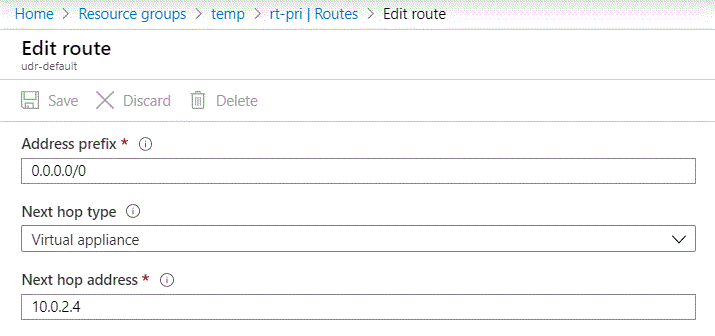
One routing table will be applied to the primary subnet the VM is living in.  This will contain a UDR for the default route (0.0.0.0/0) with a next hop type of Virtual appliance and next hop address of the Azure Firewall instance’s NIC in the AzureFirewallSubnet.  By order of

udrprimary

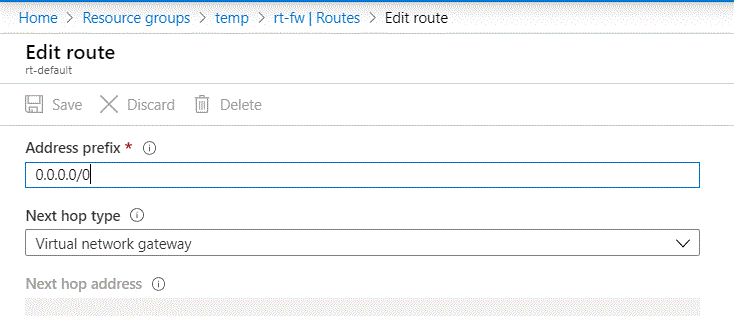
The second routing table will be applied to the AzureFirewallSubnet.  This will contain a UDR for the default route with a next hop of the Virtual network gateway.  This forces Azure Firewall to pipe all the VM traffic bound for the networks outside the VNet to the Virtual Network Gateway which will then tunnel it through the VPN tunnel.

routefirewall

Last but not least, you have an optional route table you can add.  This route table will be applied to the AzureFirewallManagementSubnet and will be configured with Virtual Network Gateway route propagation disabled.  It will have a single UDR with a default route and next hop type of Internet.  The reason I like adding this route table is it avoids the risk of someone propagating a default route from on-premises.  If this route were to be propagated to the AzureFirewallManagementSubnet, the management plane would see it down and may deallocate the instance.

routemgmt

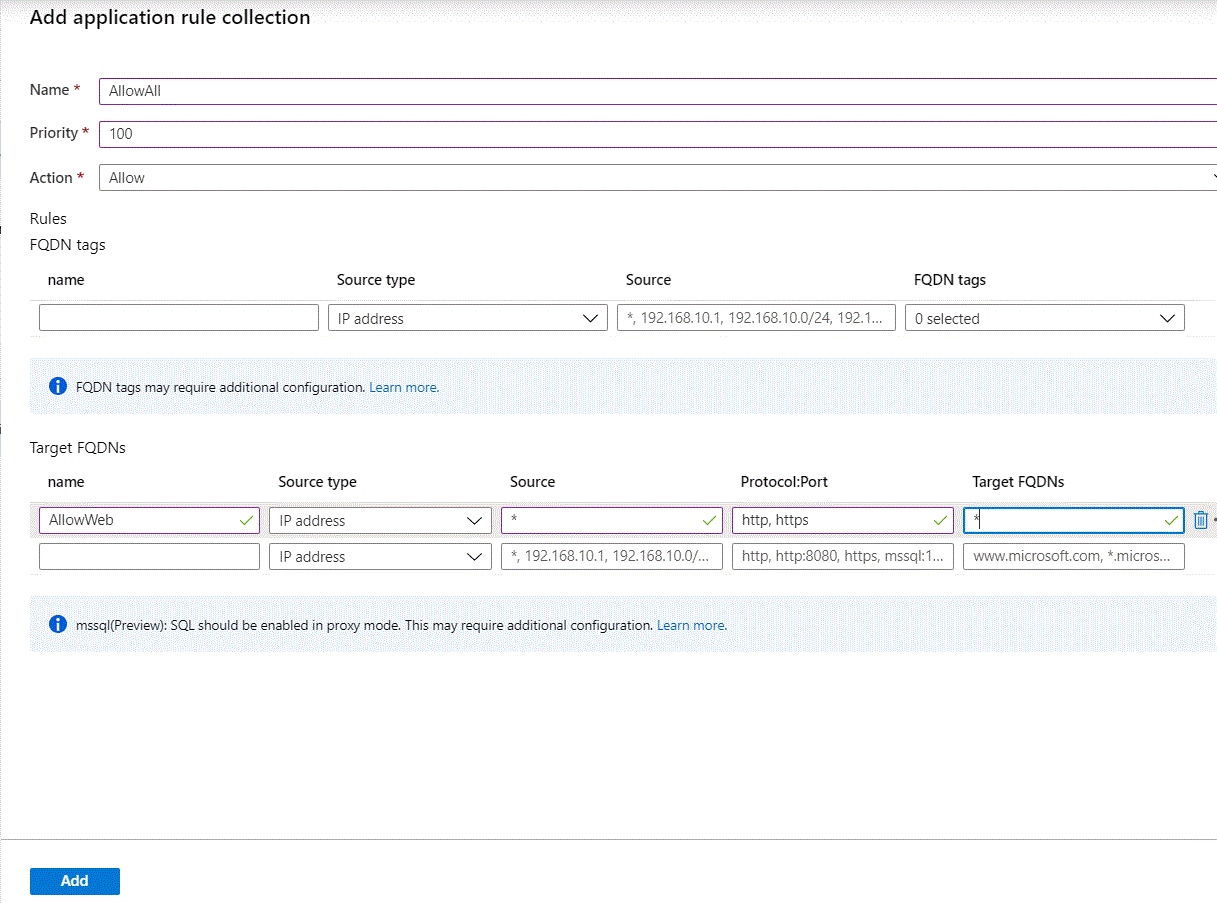
The last thing you need to do in Azure is create a rule in Azure Firewall to allow traffic to the web.  For this I created a very simple application rule allowing all HTTP and HTTPS traffic to any domain.

azfirewallrule


At this point the Azure end of the configuration is complete.  We now need to hop over to pfSense and finish that configuration.

Remember back in the last post when I had you configure the phase 2 entry with a local network of 0.0.0.0/0?  That was the traffic selector which allows traffic destined for any network from the VNet to flow through our VPN tunnel.

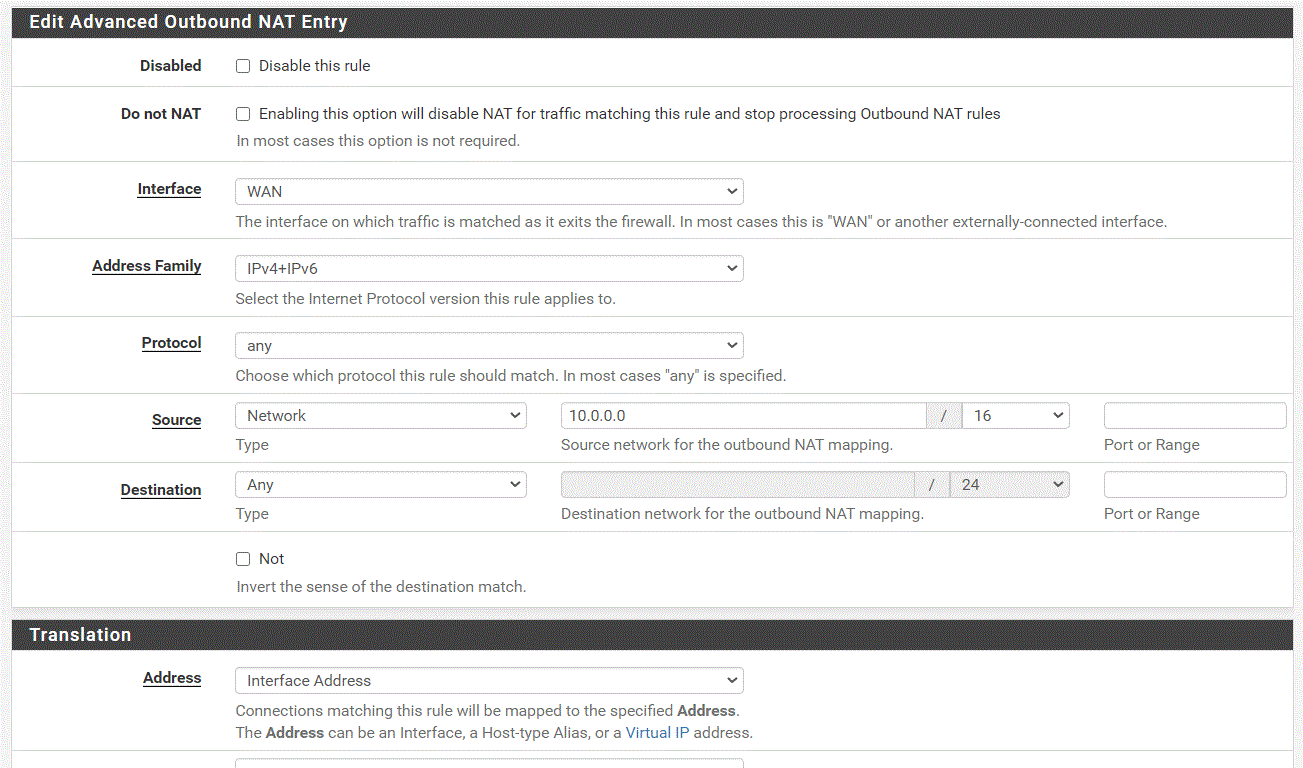
Now you have a requirement to NAT traffic from the VNet out the WAN interface on the pfSense box.  For that you have to navigate to the Firewall drop-down menu and choose the NAT menu item.  From there you’ll navigate to the Outbound option and ensure your Outbound NAT Mode is set to Hybrid Outbound NAT rule generation since we’ll continue to leverage the automatic rules pfSense creates as well as this new custom rule.

Add a new mapping by clicking the Add button.  For this you’ll want to configure it as seen in the screenshot below.  Once complete save the new rule and new mappings.

nat

Last but not least, we need to open flows within the pfSense firewall to allow the traffic to go out to the Internet over HTTP and HTTPS as seen below.

pfsensefw

You’re done!  Now time to test the configuration.  For this you’ll want to RDP into your VM, open up a web browser, and try to hit a website.

google

Excellent, so you made it out to the web, but how do you know you were force tunneled through?  Simple!  Just hit a website like https://whatismyipaddress.com and validate the IP returned is the IP associated with your pfSense WAN interface.

One thing to note is that if you deallocate and reallocate your Azure Firewall or delete and recreate your Azure Firewall after everything is in place, you may run into an issue where forced tunneling doesn’t seem to work.  All you need to do is bring down the VPN tunnel and bring it back up again.  There is some type of dependency there, but what that is, I don’t know.

Well that’s it folks.  Hope you enjoyed the series and got some value out of it.  Azure Firewall is a solid alternative to a self-managed NVA.  Sure you don’t get all the bells and whistles, but you get key capabilities such as transitive routing and features that build on NSGs such as filtering traffic via FQDN, centralized rule management, and centralized logging of what’s being allowed and denied through your network.  As an added bonus, you can always leverage the forced tunneling feature you learned about today to tunnel traffic to a security stack which can perform features Azure Firewall can’t such as deep packet inspection.

Stay healthy!


Force Tunneling Azure Firewall to pfSense – Part 1

Force Tunneling Azure Firewall to pfSense – Part 1

The Problem

Welcome back fellow geeks!  I hope you all are staying healthy and not going too stir crazy being stuck at home.  I’m here tonight to help break the monotony and walk you through a fun lab I recently put together.

I recently had a customer building out a sandbox environment for experimentation in Microsoft Azure.  For this environment the customer opted to setup a S2S VPN (site-to-site virtual private network) to establish connectivity between their on-premises data center and Azure.  The customer had requirements to use BGP (border gateway protocol) to exchange routes between on-premises and Azure.  Additionally, their security team required all Internet-bound traffic be piped back on-premises (force tunneling) through a set of security appliances before being egressed out to the Internet from their data center.

While I’ve setup connectivity with Azure in the past using an S2S VPN, it was with a policy-based VPN vs a route-based VPN that utilized BGP.  I’ve also worked with a lot of customers that had requirements for forced tunneling, but never got involved much in the implementation.  My customers typically use Microsoft ExpressRoute for connectivity with on-premises and a third-party NVA (network virtual appliance) like a Palo Alto or Imperva.  Since I’m not cool enough to have a lab with ExpressRoute and I’m too cheap to pay for an NVA, I’ve never had a chance to do the implementation myself.   This has meant relying on documentation and other folks within Microsoft that have had that experience.

Beyond the implementation gap in that pattern, I also have gaps in my BGP skill set.  While I’ve been lucky enough to play with a lot different technologies over the course of my career, enterprise routing was one area I never got to dive deep in.  Over my time at Microsoft and AWS, I’ve had to learn the concepts of the protocol and how to use it within the public cloud, but still have lacked any practical implementation experience.

If you know me, you know I hate not being able to implement the technologies I speak with customers about.  Hence, this blog post was born.  I’ll be walking you through the lab I built to address the gaps in my BGP and get some practical experience force tunneling traffic.  Enough with my blabbing, let’s get into it.

Lab Environment

Lab Environment

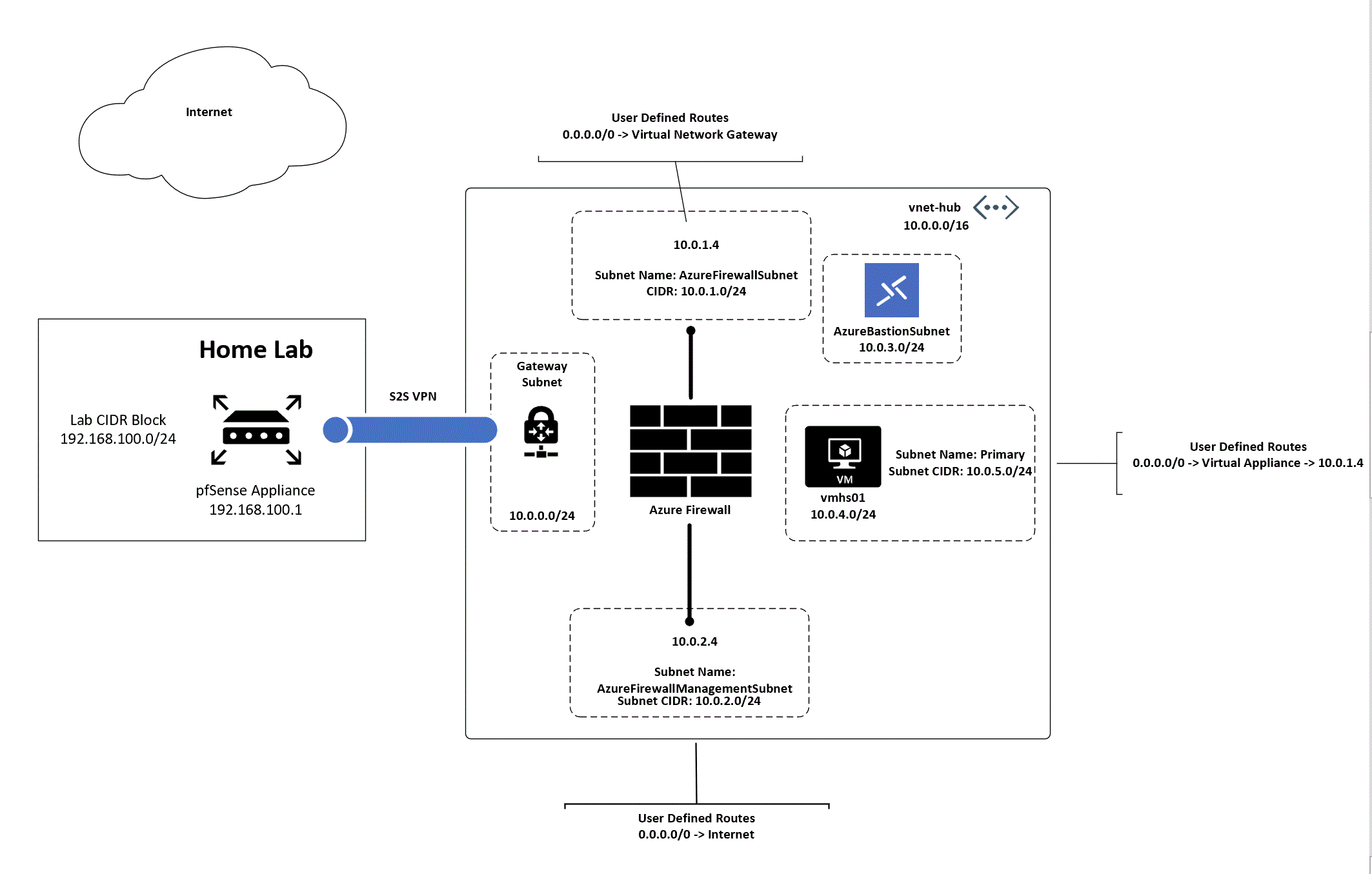
The complete lab setup I used is illustrated above.  In my home lab I’m using the 192.168.100.0/24 address range and have assigned the .1 address to the pfSense interface.  Another interface on the device has been configured for DHCP to receive a public IP address from my ISP.  Within Azure I’ve setup a single VNet (Virtual Network) assigned the address block of 10.0.0.0/16.  Within the VNet I’ve create five subnets each using a /24 block of address space (I’m terrible at subnetting).

Inside the GatewaySubnet I’ve provisioned a VPN VNG (Virtual Network Gateway) with the VpnGw2 SKU to support BGP.  The subnet named primary contains a single Windows Server 2016  VM (Virtual Machine) that I’ll be using to test the setup.  Azure Bastion sits in the Azure Bastion subnet providing me with remote access into the VM.

Finally, an Azure Firewall instance has been provisioned using the new forced tunneling feature in preview.  To support this feature, I’ve provisioned two subnets, one named AzureFirewallSubnet and one named AzureFirewallManagementSubnet  as well as two public IPs.  To route the traffic as needed, I’ve created three route tables with some user defined routes.

For this post I’m going to walk through the setup of the S2S VPN tunnel.  Anytime I can refer you to official documentation for a step-by-step process, I’ll include a hyperlink.  The steps that aren’t documented in a single place or documented at all will be the steps I’ll cover in detail.

The first thing you need to do is provision a VNet (Virtual Network).  The VNet must at least include a subnet named GatewaySubnet.  Microsoft requires this name for the subnet in order to deploy a VNG (Virtual Network Gateway).  You’ll additionally want to provision another subnet named whatever you want to hold the VM (virtual machine) to test connectivity with.  If you want to use Azure Bastion for remote access to the VM, you’ll need a third subnet which must be named AzureBastionSubnet.

While you’re twiddling your thumbs for 20 minutes waiting for the VNG, optional Bastion, and VM, you can create the local network gateway.  The local network gateway is a logical resource in Azure which represents your on-premises VPN appliance. To set this resource up you’ll need a few different items:

  • The public IP address in use by your VPN appliance
  • The BGP peer address you’ll be peering with Azure
  • The ASN (autonomous system number) you’re using on-premises

For this lab you’ll want to use a private ASN between 64512-65514 or 65521-65534.

Below is a screenshot of my configuration.  I included the entire address space I’m going to advertise, but if you’re using BGP you only need to include the addresses you’ll be using as BGP peer.

localgateway

Now that Azure is provisioning all your necessary resources, it’s a good time to bounce over to pfSense.  Note that pfSense doesn’t provide BGP support.  For that you’ll need to add the OpenBGPD package.  To do that you’ll navigate to the System drop down menu and choose Package Manger.  Search for BGP and install the OpenBGP package.  Once complete you’ll see it as an installed package as seen below.packagemanager

Once the VPN Gateway has been provisioned you can begin configuration of the connection.  The connection is also represented in Azure as a logical resource.  There isn’t much to configure when you create the connection through the Portal.  If you configure it through PowerShell, CLI, or an ARM template, you’ll have the flexibility to tweak the configuration of the tunnel.  This includes the ability to limit the encryption ciphers and hashing algorithms supported on the Azure end.  Once the connection is provisioned, open up the resource blade for it, go to the Configuration menu item in the Settings section and toggle BGP to Enabled.

connection

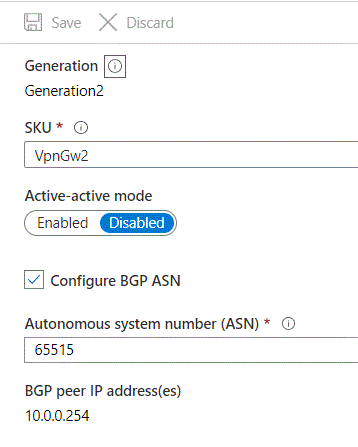
Before you bounce over to pfSense and configure that end, you’ll need a few pieces of information from the VPN Gateway.  Within the Portal open up the VNG resource blade.  Note the public IP address that has been assigned to the VNG.  You’ll need this for the pfSense setup.Next click the Configuration menu item in the Settings section.  Here you’ll want to check off the Configure BGP ASN check box and note the ASN (by default 65515) and the BGP peer IP address because you’ll need them later.  Click Save once you complete.  This change will take around 5 minutes.

bgp

It’s now time to hop over to pfSense.  From the main menu navigate to the VPN drop down menu and choose the IPsec option.  You’ll first need to create a IKE Phase 1 entry to establish the authentication for the tunnel.In the General Information section ensure the Key Exchange Version box is populated with IKEv2 and the Remote Gateway is populated with the public IP address of the VNG.  In the Phase 1 Proposal (Authentication) section, choose to the Mutual PSK (Pre-Shared Key) option, the My identifier is set to My IP Address and Peer identifier set to Peer IP address.  Plus in the PSK you setup in Azure.In the Phase 1 Proposal (Encryption Algorithm) section pick your preferred encryption algorithm, key length, hashing algorithm, and Diffie-Hellman Group.The Azure end supports a number of cryptographic combinations just be aware you’ll need to configure a custom IPSec Policy using the CLI, PowerShell, or ARM template if you pick a combination that isn’t offered by default.  I’m not sure what it supports by default because I couldn’t find any documentation on it.  It seems like you’ll be forced to use DHGroup2 if you create through the Azure Portal, which you really shouldn’t be using due the small key length.  If you want to nerd out a bit, take a read through this document.  I wanted to bump this up to DHGroup24, so I opted to create the custom IPSec policy with the configuration below.

ipsecpol = New-AzIpsecPolicy -IkeEncryption AES256 -IkeIntegrity SHA256 -DhGroup Dhgroup24 -IpsecEncryption GCMAES256 -IpsecIntegrity GMAES256 -PfsGroup None -SALifeTimeSeconds 28800  

Next up you need to configure a Phase 2 entry which will control how traffic is carried across the tunnel.  Expand the Phase 1 entry you created and click the Add P2 button to add a phase 2 entry.  In the General Information section you’ll want to set the Local Network option to Network with an address of 0.0.0.0/0.  This will allow us to tunnel traffic to any address through the VPN tunnel which will support our use case for the forced tunneling we’ll create later on.  In the Remote Network section, set it to the CIDR block of the VNet.In the Phase 2 proposal configure the settings to support whatever encryption setup you’re using.  For my configuration, I set it up as seen in the screenshot below.

phase2
Once the phase 2 entry is configured, navigate to the Status drop-down menu and choose IPsec.  Click the Connect button and assuming you configured everything correctly, the status shift from Disconnected, to Connecting, and will end on Established as seen below.
ipsecstatus

Hurray, you have an established VPN tunnel.  Now it’s time to configure BGP.

Since you’ve already toggled the appropriate options in Azure to support BGP, it’s now time to configure it in pfSense.  You will first need to create a firewall rule to allow the BGP traffic to flow between Azure and the pfSense box.  To do this you’ll select the Firewall drop-down menu and choose the Rules option.  Create a new rule to allow TCP port 179 from the source of the Azure BGP peer IP you noted earlier to the pfSense interface IP for the network you’re connecting to Azure.

firewallrule1

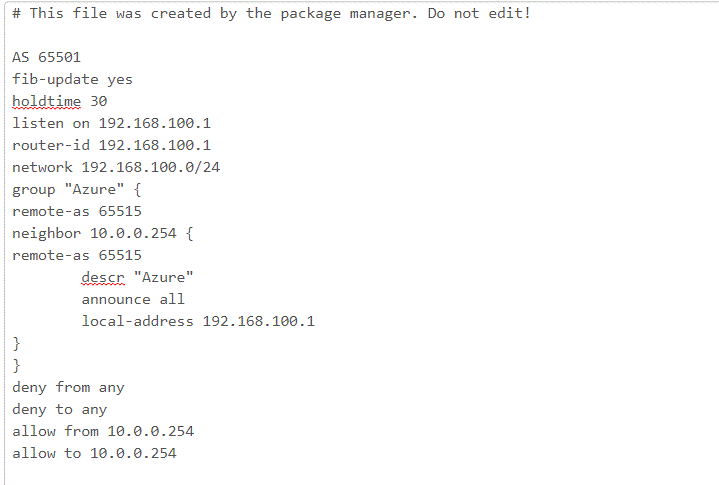
Next you have to open the Services drop-down menu and choose OpenBGPD.In this section you have a few menu options, one which allows you to modify the raw config.  Like the idiot I am, I ignored the comment at the beginning of the raw config that says not to edit it.  After editing it, I was unable to configure using the menu options.  If you’re not an idiot like me, you should be able to configure it using the menus.  My working config is illustrated below.

bgpconfigOnce you have your Config set, save it and give it a minute.  The navigate to the Status section of the OpenBGPD service.  Scroll to the bottom and check out the OpenBGPD Neighbors section.  If you’ve misconfigured anything you’ll receive an error that the log file can’t be written (useful right?)

bgpstatus

Additionally when I check the effective routes for the network interface of the VM in Azure I can see the routes propagating into the VM’s subnet.

routes

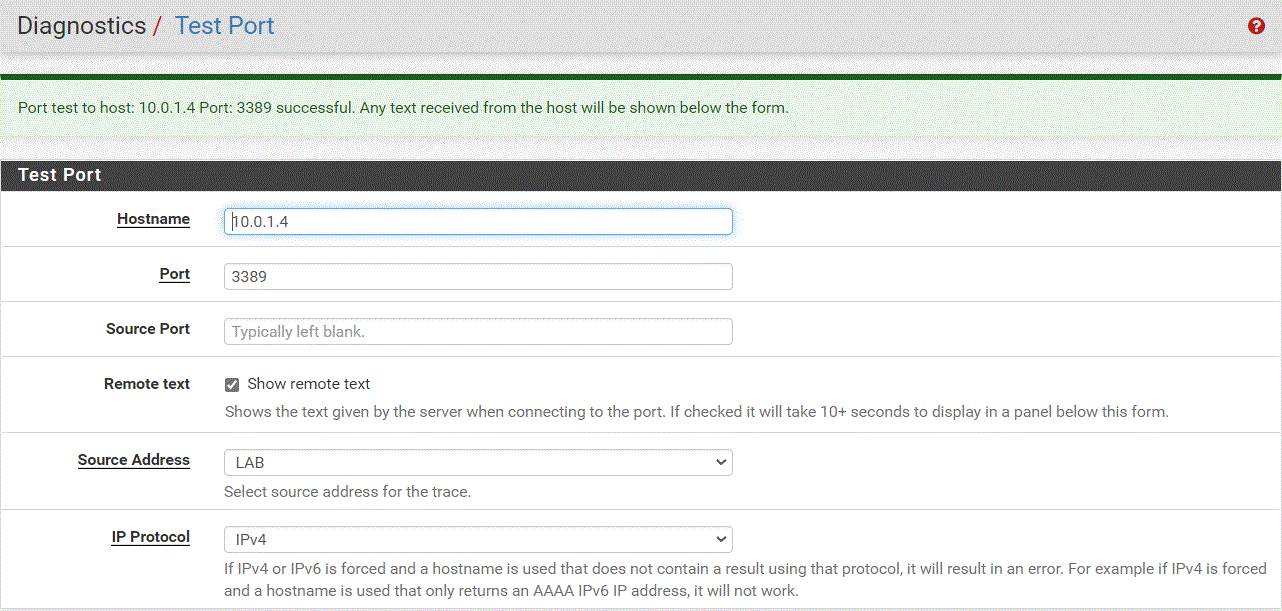
You can validate your connectivity at this point in any number of ways.  I went the lazy route and used pfSense’s Test Port capability located in the Diagnostics drop-down menu.  Make sure that you open the appropriate rules in any NSGs between you and the VM.  Also consider the VM’s host firewall if you opt to use a non-standard port or protocol like ICMP.  If you opt to test from Azure back on-premises, make sure to open the appropriate firewall rules in the pfSense firewall for the IPSec interface.

connectiontest

With that you have a working S2S VPN complete with BGP exchange of routes.  That will wrap up this post.  In the next post I’ll walk through the configuration of forced tunneling with Azure Firewall.

Continue the journey in the second post.

DNS in Microsoft Azure Part 5 – PrivateLink Endpoints and Private DNS

DNS in Microsoft Azure Part 5 – PrivateLink Endpoints and Private DNS

Updates:

7/2025 – Updated to remove mentions of DNS query logging limitations with Private DNS Resolver due to introduction of DNS Security Policies

This is part of my series on DNS in Microsoft Azure.

Hello again!

In this post I’ll be continuing my series on Azure Private Link and DNS with my 5th entry into the DNS series.  In my last post I gave some background into Private Link, how it came to be, and what it offers.  For this post I’ll be covering how the DNS integration works for Azure native PaaS services behind Private Link Private Endpoints.

Before we get into the details of how it all works let’s first look at the components that make up an Azure Private Endpoint created for an Azure native service that is integrated with Azure Private DNS. These components include (going from left to right):

  1. Virtual Network Interface – The virtual network interface (VNI) is deployed into the customer’s virtual network and reserves a private IP address that is used as the path to the Private Endpoint.
  2. Private Endpoint – The Azure resource that represents the private connectivity to the resource establishes the relationships to the other resources.
  3. Azure PaaS Service Instance – This could be a customer’s instance of an Azure SQL Server, blob endpoint for a storage account, and any other Microsoft PaaS that supports private endpoints. The key thing to understand is the Private Endpoint facilitates connectivity to a single instance of the service.
  4. Private DNS Zone Group – The Private DNS Zone Group resource establishes a relationship between the Private Endpoint and an Azure Private DNS Zone automating the lifecycle of the A record(s) registered within the zone. You may not be familiar with this resource if you’ve only used the Azure Portal.
  5. Azure Private DNS Zone – Each Azure PaaS service has a specific namespace or namespaces it uses for Private Endpoints.
Azure Private Endpoint and DNS integration components

An example of the components involved with a Private Endpoint for the blob endpoint for an Azure Storage Account would be similar to what pictured below.

Example of components for blob endpoint of Azure Storage Account

I’ll now walk through some scenarios to understand how these components work together.

Scenario 1 – Default DNS Pattern Without Private Link Endpoint with a single virtual network

DNS resolution without a Private Endpoint

In this example an Azure virtual machine needs to resolve the name of an Azure SQL instance named db1.database.windows.net. No Private Endpoint has been configured for the Azure SQL instance and the VNet is configured to use the 168.63.129.16 virtual IP and Azure-provided DNS. 

The query resolution is as follows:

  1. VM1 creates a DNS query for db1.database.windows.net. VM1 does not have a cached entry for it so the query is passed on to the DNS Server configured for the operating system. The virtual network DNS Server settings has be set to to the default of the virtual IP of 168.63.129.16 and pushed to the VNI by the Azure DHCP Service . The recursive query is sent to the virtual IP and passed on to the Azure-provided DNS service.
  2. The Azure-provided DNS services checks to see if there is an Azure Private DNS Zone named database.windows.net linked to the virtual network. Once it validates it does not, the recursive query is resolved against the public DNS namespace and the public IP 55.55.55.55 of the Azure SQL instance is returned.

Scenario 2 – DNS Pattern with Private Link Endpoint with a single virtual network

DNS Resolution with a Private Endpoint

In this example an Azure virtual machine needs to resolve the name of an Azure SQL instance named db1.database.windows.net. A Private Endpoint has been configured for the Azure SQL instance and the VNet is configured to use the 168.63.129.16 virtual IP which will use Azure-provided DNS. An Azure Private DNS Zone named privatelink.database.windows.net has been created and linked to the machine’s virtual network. Notice that a new CNAME has been created in public DNS named db1.privatelink.database.windows.net.

The query resolution is as follows:

  1. VM1 creates a DNS query for db1.database.windows.net. VM1 does not have a cached entry for it so the query is passed on to the DNS Server configured for the operating system. The virtual network DNS Server settings has be set to to the default of the virtual IP of 168.63.129.16 and pushed to the VNI by the Azure DHCP Service . The recursive query is sent to the virtual IP and passed on to the Azure-provided DNS service.
  2. The Azure-provided DNS services checks to see if there is an Azure Private DNS Zone named database.windows.net linked to the virtual network. Once it validates it does not, the recursive query is resolved against the public DNS namespace. During resolution the CNAME of privatelink.database.windows.net is returned. The Azure-provided DNS service checks to see if there is an Azure Private DNS Zone named privatelink.database.windows.net linked to the virtual network and determines there is. The query is resolved to the private IP address of 10.0.2.4 of the Private Endpoint.

Scenario 2 Key Takeaway

The key takeaway from this scenario is the Azure-provided DNS service is able to resolve the query to the private IP address because the virtual network zone link is established between the virtual network and the Azure Private DNS Zone. The virtual network link MUST be created between the Azure Private DNS Zone and the virtual network where the query is passed to the 168.63.129.16 virtual IP. If that link does not exist, or the query hits the Azure-provided DNS service through another virtual network, the query will resolve to the public IP of the Azure PaaS instance.

Great, you understand the basics. Let’s apply that knowledge to enterprise scenarios.

Scenario 3 – Azure-to-Azure resolution of Azure Private Endpoints

First up I will cover resolution of Private Endpoints within Azure when it is one Azure service talking to another in a typical enterprise Azure environment with a centralized DNS service.

Scenario 3a- Azure-to-Azure resolution of Azure Private Endpoints with a customer-managed DNS service

Azure resolution of Azure Private Endpoints using customer-managed DNS service

First I will cover how to handle this resolution using a customer-managed DNS service running in Azure. Customers may choose to do this over the Private DNS Resolver pattern because they have an existing 3rd-party DNS service (InfoBlox, BlueCat, etc) they already have experience on.

In this scenario the Azure environment has a traditional hub and spoke where there is a transit network such as a VWAN Hub or a traditional virtual network with some type of network virtual appliance handling transitive routing. The customer-managed DNS service is deployed to a virtual network peered with the transit network. The customer-managed DNS service virtual network has a virtual network link to the Private DNS Zone for privatelink.database.windows.net namespace. An Azure SQL instance named db1.database.windows.net has been deployed with a Private Endpoint in a spoke virtual network. An Azure VM has been deployed to another spoke virtual network and the DNS server settings of the virtual network has been configured with the IP address of the customer-managed DNS service.

Here, the VM running in the spoke is resolving the IP address of the Azure SQL instance private endpoint.

The query resolution path is as follows:

  1. VM1 creates a DNS query for db1.database.windows.net. VM1 does not have a cached entry for it so the query is passed on to the DNS Server configured for the operating system. The virtual network DNS Server settings has be set to 10.1.0.4 which is the IP address of the customer-managed DNS service and pushed to the virtual network interface by the Azure DHCP Service . The recursive query is passed to the customer-managed DNS service over the virtual network peerings.
  2. The customer-managed DNS service receives the query, validates it does not have a cached entry and that it is not authoritative for the database.windows.net namepsace. It then forwards the query to its standard forwarder which has been configured to the be the 168.63.129.16 virtual IP address for the virtual network in order to pass the query to the Azure-provided DNS service.
  3. The Azure-provided DNS services checks to see if there is an Azure Private DNS Zone named database.windows.net linked to the virtual network. Once it validates it does not, the recursive query is resolved against the public DNS namespace. During resolution the CNAME of privatelink.database.windows.net is returned. The Azure-provided DNS service checks to see if there is an Azure Private DNS Zone named privatelink.database.windows.net linked to the virtual network and determines there is. The query is resolved to the private IP address of 10.0.2.4 of the Private Endpoint.

Scenario 3b – Azure-to-Azure resolution of Azure Private Endpoints with the Azure Private DNS Resolver

Azure resolution of Azure Private Endpoints using Azure Private DNS Resolver

In this scenario the Azure environment has a traditional hub and spoke where there is a transit network such as a VWAN Hub or a traditional virtual network with some type of network virtual appliance handling transitive routing. An Azure Private DNS Resolver inbound and outbound endpoint has been deployed into a shared services virtual network that is peered with the transit network. The shared services virtual network has a virtual network link to the Private DNS Zone for privatelink.database.windows.net namespace. An Azure SQL instance named db1.database.windows.net has been deployed with a Private Endpoint in a spoke virtual network. An Azure VM has been deployed to another spoke virtual network and the DNS server settings of the virtual network has been configured with the IP address of the Azure Private DNS Resolver inbound endpoint IP.

Here, the VM running in the spoke is resolving the IP address of the Azure SQL instance private endpoint.

  1. VM1 creates a DNS query for db1.database.windows.net. VM1 does not have a cached entry for it so the query is passed on to the DNS Server configured for the operating system. The virtual network DNS Server settings has be set to 10.1.0.4 which is the IP address of the Azure Private DNS Resolver Inbound Endpoint IP and pushed to the virtual network interface by the Azure DHCP Service . The recursive query is passed to the Azure Private DNS Resolver Inbound Endpoint via the virtual network peerings.
  2. The inbound endpoint receives the query and passes it into the virtual network through the outbound endpoint which passes it on to the Azure-provided DNS service through the 168.63.129.16 virtual IP.
  3. The Azure-provided DNS services checks to see if there is an Azure Private DNS Zone named database.windows.net linked to the virtual network. Once it validates it does not, the recursive query is resolved against the public DNS namespace. During resolution the CNAME of privatelink.database.windows.net is returned. The Azure-provided DNS service checks to see if there is an Azure Private DNS Zone named privatelink.database.windows.net linked to the virtual network and determines there is. The query is resolved to the private IP address of 10.0.2.4 of the Private Endpoint.

Scenario 3 Key Takeaways

  1. When using the Azure Private DNS Resolver, there are a number of architectural patterns for both the centralized model outlined here and a distributed model. You can reference this post for those details.
  2. It’s not necessary to link the Azure Private DNS Zone to each spoke virtual network as long as you have configured the DNS Server settings of the virtual network to the IP address of your centralized DNS service which should be running in a virtual network which has virtual network links to all of the Azure Private DNS Zones used for PrivateLink.

Scenario 4 – On-premises resolution of Azure Private Endpoints

Let’s now take a look at DNS resolution of Azure Private Endpoints from on-premises machines. As I’ve covered in past posts Azure Private DNS Zones are only resolvable using the Azure-provided DNS service which is only accessible through the 168.63.129.16 virtual IP which is not reachable outside the virtual network. To solve this challenge you will need an endpoint within Azure to proxy the DNS queries to the Azure-provided DNS service and connectivity from-premises into Azure using Azure ExpressRoute or a VPN.

Today you have two options for the DNS proxy which include bringing your own DNS service or using the Azure Private DNS Resolver. I’ll cover both for this scenario.

Scenario 4a – On-premises resolution of Azure Private Endpoints using a customer-managed DNS Service

On-premises resolution of Azure Private Endpoints using customer-managed DNS service

In this scenario the Azure environment has a traditional hub and spoke where there is a transit network such as a VWAN Hub or a traditional virtual network with some type of network virtual appliance handling transitive routing. The customer-managed DNS service is deployed to a virtual network peered with the transit network. The customer-managed DNS service virtual network has a virtual network link to the Private DNS Zone for privatelink.database.windows.net namespace. An Azure SQL instance named db1.database.windows.net has been deployed with a Private Endpoint in a spoke virtual network.

An on-premises environment is connected to Azure using an ExpressRoute or VPN. The on-premises DNS service has been configured with a conditional forwarder for database.windows.net which points to the customer-managed DNS service running in Azure.

The query resolution path is as follows:

  1. The on-premises machine creates a DNS query for db1.database.windows.net. After validating it does not have a cached entry it sends the DNS query to the on-premises DNS server which is configured as its DNS server.
  2. The on-premises DNS server receives the query, validates it does not have a cached entry and that it is not authoritative for the database.windows.net namespace. It determines it has a conditional forwarder for database.windows.net pointing to 10.1.0.4 which is the IP address of the customer-managed DNS service running in Azure. The query is recursively passed on to the customer-managed DNS service via the ExpressRoute or Site-to-Site VPN connection
  3. The customer-managed DNS service receives the query, validates it does not have a cached entry and that it is not authoritative for the database.windows.net namepsace. It then forwards the query to its standard forwarder which has been configured to the be the 168.63.129.16 virtual IP address for the virtual network in order to pass the query to the Azure-provided DNS service.
  4. The Azure-provided DNS services checks to see if there is an Azure Private DNS Zone named database.windows.net linked to the virtual network. Once it validates it does not, the recursive query is resolved against the public DNS namespace. During resolution the CNAME of privatelink.database.windows.net is returned. The Azure-provided DNS service checks to see if there is an Azure Private DNS Zone named privatelink.database.windows.net linked to the virtual network and determines there is. The query is resolved to the private IP address of 10.0.2.4 of the Private Endpoint.

Scenario 4b – On-premises resolution of Azure Private Endpoints using Azure Private DNS Resolver

On-premises resolution of Azure Private Endpoints using Azure Private DNS Resolver

Now let me cover this pattern when using the Azure Private DNS Resolver. I’m going to assume you have some basic knowledge of how the Azure Private DNS Resolver works and I’m going to focus on the centralized model. If you don’t have baseline knowledge of the Azure Private DNS Resolver or you’re interested in the distributed mode and the pluses and minuses of it, you can reference this post.

In this scenario the Azure environment has a traditional hub and spoke where there is a transit network such as a VWAN Hub or a traditional virtual network with some type of network virtual appliance handling transitive routing. The Private DNS Resolver is deployed to a virtual network peered with the transit network. The Private DNS Resolver virtual network has a virtual network link to the Private DNS Zone for privatelink.database.windows.net namespace. An Azure SQL instance named db1.database.windows.net has been deployed with a Private Endpoint in a spoke virtual network.

An on-premises environment is connected to Azure using an ExpressRoute or VPN. The on-premises DNS service has been configured with a conditional forwarder for database.windows.net which points to the Private DNS Resolver inbound endpoint.

The query resolution path is as follows:

  1. The on-premises machine creates a DNS query for db1.database.windows.net. After validating it does not have a cached entry it sends the DNS query to the on-premises DNS server which is configured as its DNS server.
  2. The on-premises DNS server receives the query, validates it does not have a cached entry and that it is not authoritative for the database.windows.net namespace. It determines it has a conditional forwarder for database.windows.net pointing to 10.1.0.4 which is the IP address of the inbound endpoint for the Azure Private DNS Resolver running in Azure. The query is recursively passed on to the inbound endpoint over the ExpressRoute or Site-to-Site VPN connection
  3. The inbound endpoint receives the query and passes it into the virtual network through the outbound endpoint which passes it on to the Azure-provided DNS service through the 168.63.129.16 virtual IP.
  4. The Azure-provided DNS services checks to see if there is an Azure Private DNS Zone named database.windows.net linked to the virtual network. Once it validates it does not, the recursive query is resolved against the public DNS namespace. During resolution the CNAME of privatelink.database.windows.net is returned. The Azure-provided DNS service checks to see if there is an Azure Private DNS Zone named privatelink.database.windows.net linked to the virtual network and determines there is. The query is resolved to the private IP address of 10.0.2.4 of the Private Endpoint.

Scenario 4 Key Takeaways

The key takeaways from this scenario are:

  1. You must setup a conditional forwarder on the on-premises DNS server for the PUBLIC namespace of the service. While using the privatelink namespace may work with your specific DNS service based on how the vendor has implemented, Microsoft recommends using the public namespace.
  2. Understand the risk you’re accepting with this setup. All DNS resolution for the public namespace will now be sent up to the Azure Private DNS Resolver or customer-managed DNS service. If your connectivity to Azure goes down, or those DNS components are unavailable, your on-premises endpoints may start having failures accessing websites that are using Azure services (think images being pulled from an Azure storage account).
  3. If your on-premises DNS servers use non-RFC1918 address space, you will not be able to use scenario 3b. The Azure Private DNS Resolver inbound endpoint DOES NOT support traffic received from non-RFC1918 address space.

Other Gotchas

Throughout these scenarios you have likely observed me using the public namespace when referencing the resources behind a Private Endpoint (example: using db1.database.windows.net versus using db1.privatelink.database.windows.net). The reason for doing this is because the certificates for Azure PaaS services does not include the privatelink namespace in the certificate provisioned to the instance of the service. There are exceptions for this, but they are few and far between. You should always use the public namespace when referencing a Private Endpoint unless the documentation specifically tells you not to.

Let me take a moment to demonstrate what occurs when an application tries to access a service behind a Private Endpoint using the PrivateLink namespace. In this scenario there is a virtual machine which has been configured with proper resolution to resolve Private Endpoints to the appropriate Azure Private DNS Zone.

Resolution of Private Endpoint to private IP address

Now I’ll attempt to make an HTTPS connection to the Azure Key Vault instance using the PrivateLink namespace of privatelink.vaultcore.azure.net. In the image below you can see the error returned states the PrivateLink namespace is not included in the subject alternate name field of the certificate presented by the Azure Key Vault instance. What this means is the client can’t verify the identity of the server because the identities presented in the certificate doesn’t match the identity that was requested. You’ll often see this error as a certificate name mismatch in most browsers or SDKs.

Certificate name mismatch error

Final Thoughts

There are some key takeaways for you with this post:

  1. Know your DNS resolution path. This is absolutely critical when troubleshooting Private Endpoint DNS resolution.
  2. Always check your zone links. 99% of the time you’re going to be used the centralized model for DNS described in this post. After you verify your DNS resolution path, validate that you’ve linked the Private DNS Zone to your DNS Server / Azure Private DNS Resolver virtual network.
  3. Create your on-premises conditional forwarders for the PUBLIC namespaces for Azure PaaS services, not the Private Link namespace.
  4. Call your services behind Private Endpoints using the public hostname not the Private Link hostname. Using the Private Link hostname will result in certificate mismatches when trying to establish secure sessions.
  5. Don’t go and link your Private DNS Zone to every single virtual network. You don’t need to do this if you’re using the centralized model. There are very rare instances where the zone must be linked to the virtual network for some deployment check the product group has instituted, but that is rare.
  6. Centralize your Azure Private DNS Zones in a single subscription and use a single zone for each PrivateLink service across your environments (prod, non-prod, test, etc). If you try to do different zones for different environments you’re going to run into challenges when providing on-premises resolution to those zones because you now have two authorities for the same namespace.

Before I close out I want to plug a few other blog posts I’ve assembled for Private Endpoints which are helpful in understanding the interesting way they work.

  • This post walks through the interesting routes Private Endpoints inject in subnet route tables. This one is important if you have a requirement to inspect traffic headed toward a service behind a Private Endpoint.
  • This post covers how Network Security Groups work with Private Endpoints and some of the routing improvements that were recently released to help with inspection requirements around Private Endpoints.

Thanks!