Over the past few weeks I’ve been diving into the relatively new Azure product Azure Virtual Network Manager (AVNM). AVNM was first introduced back in late 2021 with the connectivity feature and security admin rule feature. In the past year both features have begun to trickle into general availability in some regions. I was interested in the Security Admin Rules feature so I did my usual thing and began to read through all the documentation and experiment with the service. I’ll be covering Security Admin Rules in another post. In this short post I will be focusing on how you onboard virtual networks to the connectivity and security admin rule features.
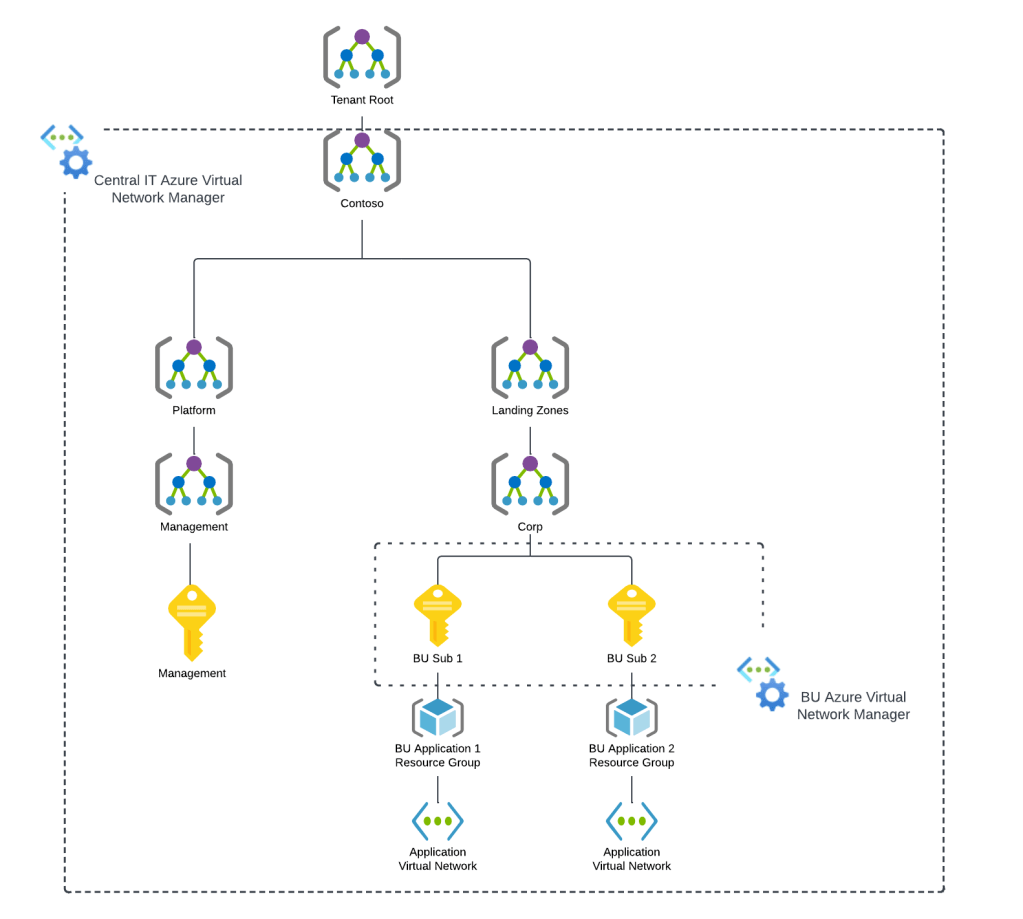
When an AVNM instance is created, it is assigned a scope of what it can manage. This can subscriptions added individually or it can be all subscriptions under a specific management group. A given scope can only have one AVNM instance assigned to it.
Azure Virtual network Manager Sample Architecture
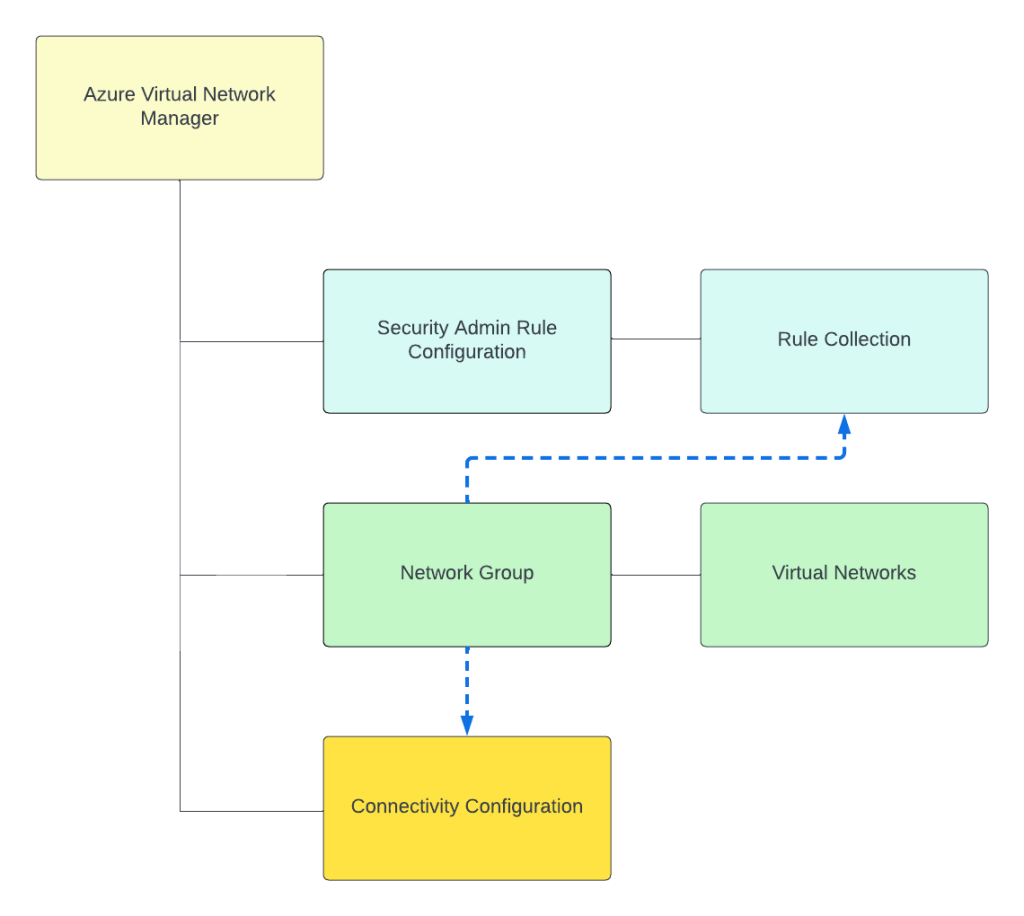
Today, under the assigned scope, AVNM can manage how virtual networks are connected to each other with the connectivity feature and what traffic is allowed or denied within the virtual network with the security admin rules feature superseding Network Security Groups. Within an AVNM instance you group virtual networks under the managed scope into a construct called a Network Group. Network Groups are then associated to either a connectivity or security admin rule configuration as seen below.
Network groups can contain multiple virtual networks and virtual networks can be members of multiple Network Groups. Virtual networks can be added to a Network Group manually or dynamically through Azure Policy. The rest of this post will focus on dynamic membership and some of the interesting properties of the Azure Policy definitions.
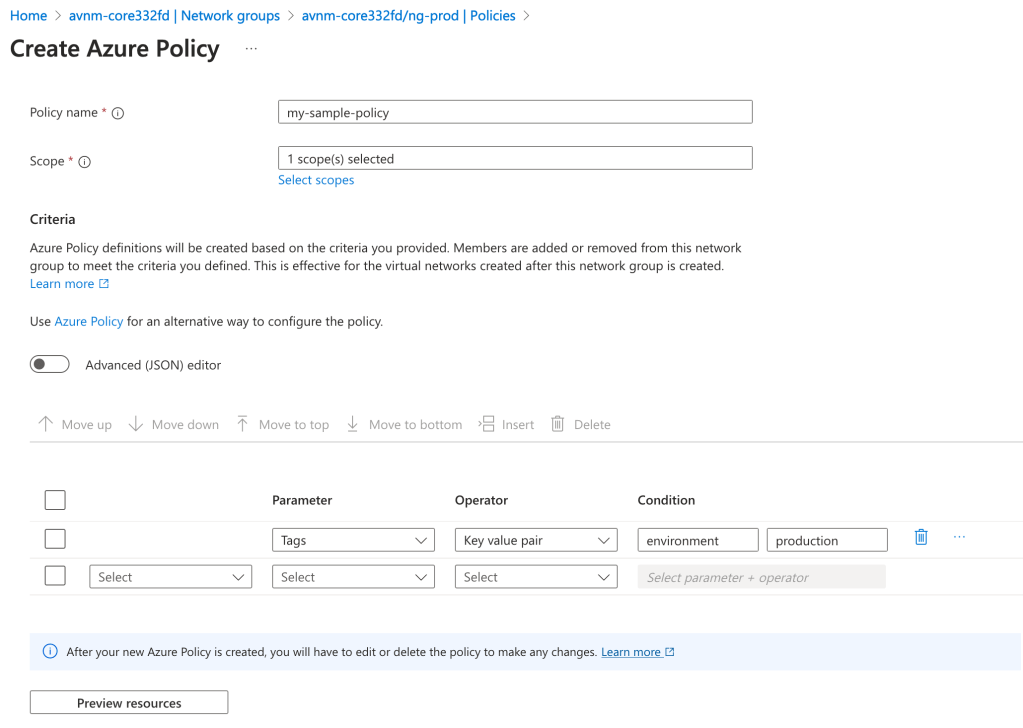
Before I dive into the policy definition I want to call out a neat feature the Product Group built into the solution. When accessing an AVNM instance from the Azure Portal there is a handy GUI-based tool included that can be used to graphically build the conditions on which virtual networks will be members of the Network Group. In the background, this tool builds out the Azure Policy definition and creates the assignment at the scopes you specify. This is one of the only products I’ve come across within Azure that assists the customer in building out an Azure Policy for the service. Great job by the product group!
Azure Policy builder to onboard virtual networks into a Network Group in Azure Virtual Network Manager
With the settings pictured above, I’m creating an Azure Policy to onboard all virtual networks tagged (there are a number of parameters and operators combinations you can use besides tags) with the key of environment and value of production under the specified scope to the Network Group. The policy will look something like this:
I’ve bolded the two properties I want you to key in on. The first property is the mode property. If you’ve written a custom Azure Policy or examined built-in policies you will likely be used to that property being set to either all or indexed. Here you will see it is set to Microsoft.Network.Data. This is one of the new resource provider modes that has been introduced which extends Azure Policy’s functionality. The other interesting property is the effect property. Again, you will likely be used to this being audit, deny, deployIfNotExists, etc. Instead, it is populated with a value of addToNetworkGroup. Both of these properties are specific to AVNM’s feature for dynamic members into its Network Groups.
Being the geek I am, I decided to try writing my own custom Azure Policy definition which would parameterize the the tag key, value, and resource id of the Network Group. Interestingly, you’re blocked from parameterizing the Network Group id due to a regex filter that has been put in. This regex filter validates that the Network Group id looks like an id and will reject if you try to do it as a parameter. I plan on submitting some feedback requesting this regex filter be removed which would allow for this to be fully parameterized. As of now, it looks like you’ll need an Azure Policy definition for each Network Group where you’re using dynamic membership.
Error message when parameterizing Network Group resource id
Once you create your Azure Policy definition and create the assignment, at the next policy evaluation the matching virtual networks will be added into the Network Group as dynamic members. The feature works exactly as described and is incredibly handy in quickly and efficiently onboarding new and existing virtual networks to a specific Network Group to apply a connectivity or security admin rule configuration.
Well folks that’s it for this short blog post. I found the dynamic membership and new Azure Policy properties interesting enough to warrant their own post. I’ve added an example working parameterized Azure Policy definition to my custom Azure Policy GitHub repo if you’re interested in messing around with it yourself.
Expect more posts to come on Azure Virtual Network Manager. Have a great night!
2/11/2025 Update – This action is now captured in the Entra ID Audit Logs! I’d recommend putting an alert in ASAP to track this moving forward.
Hello fellow geek!
Today I’m going to cover a topic that isn’t well understood in the Azure community and can present significant risk to your Azure estate. Sit back, grab your Friday morning coffee, and prepare to learn about the “real” root management group.
Microsoft made an interesting identity-based choice when architecting Azure. That choice was to have all Azure subscriptions share a common identity management plane in what we have known as Azure AD (Azure Active Directory) and which has recently been renamed Entra ID. The shared identity management plane in Azure creates a single authority for identity data and authentication while maintaining separate authorization boundaries between Azure subscriptions. This concept may differ for those of you coming from AWS (Amazon Web Services) where every AWS account has a unique identity management plane that has its own identity data store, authentication boundary, and authorization boundary. Microsoft’s decision comes with benefits and considerations.
The atomic unit for resources in Microsoft Azure is the Azure subscription which acts as an authorization boundary, limits boundary, and compliance boundary. Each Azure subscription can be associated to a single Entra ID tenant. Once a subscription is associated to an Entra ID tenant the subscription will use tenant as a source of identity data and authentication provider. This dependency on Entra ID creates an interesting security risk around authorization.
Before I dive into the details of this, let me briefly explain the concept of management groups. A management group in Azure is a logical container for Azure Subscriptions which allow for you to enforce configuration “how a resource looks” (Azure Policy) and authorization “what a user can do” (Azure RBAC) across one or more subscriptions. Prior to management groups, these things had to be managed at the individual subscription level or below (resource group or individual resource). Every subscription added to an Entra ID tenant exists under the Tenant Root Management Group by default, but this can be changed. Customers can can create additional management groups underneath the Tenant Root Management Group as per their needs (great guidance on this here).
If you’ve used Azure for any length of time the above is likely all review for you. However, as Yoda said, “there is another”. Above the Tenant Root Management Group exists another management group called root or “/”. As seen in the visual below, the root management group is the glue that sticks Entra ID authorization to Azure authorization together. Let’s dig into how this works.
Entra ID and Microsoft Azure Authorization
In Entra ID there is a role called Global Administrator. For those of you unfamiliar with this role, it is the god role of Entra ID and all services associated with an Entra ID tenant such as M365 and, yes, Azure. Holding this role in Entra ID does not give you permissions in Azure, but there is a path to give yourself permissions and become the god of your Azure estate.
Users who hold the Global Administrator have the ability to grant themselves access on the root “/” management group. They can do this through an option in the Entra ID blade of the Azure Portal called Access Management for Azure Resources or Elevate Access. This is also available via the Azure REST API using the elevateAccess endpoint. The value of this toggle switch shown in the Portal is the value for the current user context (user logged into the Portal). You cannot view this toggle switch for other users, but we can tell if it’s been toggled on as I will show later.
Option for Global Admins to assert control over Azure
When a Global Administrator toggles this option either through the Portal or through the REST API an Azure RBAC Role Assignment for the User Access Administrator is created at the root “/” management group.
User Access Administrator role assignment as result of global administrator elevate access
The User Access Administrator is a highly privileged role granting the user full permissions over the Microsoft.Authorization resource provider (as seen below). These permissions allow the user to create additional role assignments on for any Azure RBAC Role on any Azure management, subscription, resource group, or resource within the Entra ID tenant. Yes… yikes.
As I mentioned earlier, the Portal will only show you the value of the toggle switch for the ElevateAccess feature for the currently logged in user. You may now be thinking “How the heck can I enforce this if I can’t view it in the Portal?”. The good news is this toggle seems to be some backend orchestration where the platform checks whether the user has the User Access Administrator RBAC Role Assignment on the root “/” management group. This means you don’t need to care about that visual toggle switch, you only need to care about the actual permission. You can list out the the users that have the role assignment at root using the cli command below.
az role assignment list --scope "/" --query "[?roleDefinitionName=='User Access Administrator'].{Username:principalName, ObjectId:objectId}" --output table
Awesome, so you know who has it. Why should you care? Listen, I gonna be nice and assume you’re asking this because it’s a Friday and your brain is fried. The reason you should care is this gives your users who have access to the Entra ID Global Administrators Role the ability to make themselves god of your Azure estate. This includes owners over the resources for management plane operations which can, in almost every instance, lead to owner of the data contained within the resources within the data plane. You SHOULD NOT have a role assignment for User Access Administrator on the root “/” management group. There a few instances where you need this permission temporarily to grant other permissions, but I will cover that at the end of this post. For now, know that if you have that permission there you shouldn’t.
In most enterprises there is a separate team managing Entra ID from the team managing Azure in order to maintain separation of duties. Access to the Global Administrator role opens up the risk for the user to assert access and control over data that is outside of their roles and responsibilities. While there is no way to stop this from happening, you should be monitoring for when it occurs. So how might you do this?
If you’re used Azure, you should be familiar with Azure Activity Logs. The Activity Logs contain log entries for create, update, and delete operations on the Azure management plane. Activity Logs exist at a number of scopes including Subscription, Management Group, and Directory. While Subscription and Management Group Activity Logs supports integration with Azure Monitor Diagnostic Logs, Directory Activity Logs do not and those are the logs new role assignments to the root “/” management group are recorded in. This means you need to write custom code to manually pull down those logs via the REST API in order to capture and alert on them in your favorite SIEM. Yuck right? Well there is an easier way to alert on this.
Directory-level Azure Activity Logs
A while back Microsoft introduced support for Azure Monitor to make log queries against the Azure Resource Graph. I’m not going to do a deep dive into ARG (Azure Resource Graph). All you need to know for the purpose of this post is it’s a service you can tap into to pull down information about Azure resources, including role assignments.
Let me walk through how this works.
I can issue an Kusto query through Azure Monitor to query ARG to see what role assignments for User Access Administrator exist on the root “/” management group using the query below (note this will require you have appropriate read permissions at root “/”).
arg("").AuthorizationResources
| where properties.scope == "/"
| where properties.roleDefinitionId == "/providers/Microsoft.Authorization/RoleDefinitions/18d7d88d-d35e-4fb5-a5c3-7773c20a72d9"
This Kusto query will query the ARG authorizationresources category for any role assignments on the root “/” management group that have the role definition id for User Access Administrator. Each resulting log entry denotes a role assignment on root. Here we can see I have two role assignments on the root for User Access Administrator. Bad Matt.
Query to pull role assignments for User Access Administrator on root “/” management group
Back in October 2023 Microsoft introduced into public preview support to create Azure Alerts for Azure Monitor Log queries against ARG. This means you can create an Azure Alert based on this custom log query. If there is a role assignment for User Access Administrator on the root “/” management group, an alert will be fired. Let me walk through the setup of that alert, because it’s a little bit funky.
Select the option to create a new Alert Rule. In the scope section you can select a subscription. If you are using a similar subscription design as to the Azure Cloud Adoption Framework, selecting the Management subscription would be a good choice. I don’t believe the choice matters much because the alert is on the root management group and not a resource within a subscription.
On the condition screen you will choose the Custom log search option for the Signal name. The query you’ll put in there is below.
arg("").AuthorizationResources
| where properties.scope == "/"
| where properties.roleDefinitionId == "/providers/Microsoft.Authorization/RoleDefinitions/18d7d88d-d35e-4fb5-a5c3-7773c20a72d9"
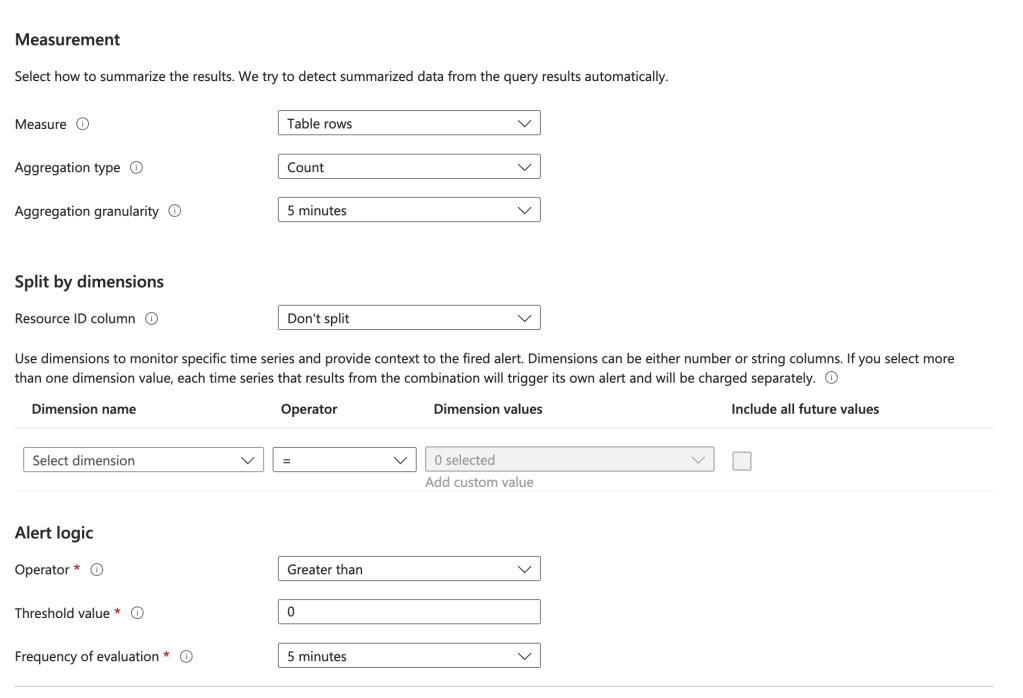
You will will also need to configure the measurements. You can use the settings I have below or customize it to your liking.
Measurements for alert
On the Actions screen choose Select action groups and select the action group you configured before.
On the Details screen you can set the severity to whatever you want. I’d recommend 0 since this is a significant escalation of privilege. You will also need to configure the alert with a managed identity. It will need an identity to authenticate and be authorized to ARG. Choose whichever managed identity type makes sense for your organization.
Adding a managed identity to the alert
Add whatever tags you want on the next screen and create the alert.
Done right? No, we now need to give the managed identity permissions on the root management group to read the role assignments.
I promised earlier I’d tell you the instance where you need to use this elevation. The are very few instances where you need to do this. One instance is when you are first building out your management group structure. In that scenario, no one has permission over the root or tenant root management group so no one can create new management groups. You will need to elevate a user with Global Administrator to the User Access Administrator role on the root “/” in that situation so that use can then grant another user account owned by the Azure team (ideally non-human, but vaulted is good too) User Access Administrator on the Tenant Root Management Group. When complete, the Global Administrator should toggle that switch back to off to remove the RBAC role assignment. This Microsoft article explains a few other scenarios you may need to temporary grant this role to grant permissions at the root “/”.
Now back to setting up the alert rule. Next up you need to grant the managed identity you assigned to the alert rule the permission at the root “/” management group so it can query the role assignments (see, a use case!). You can find the object id of the managed identity in the identity section of the Alert in the Portal. What role you assign it is up to you. I’m doing Reader because I’m lazy, but you could certainly craft a custom role if you’d like to (don’t forget to remove your permissions once you’ve completed this!).
az role assignment create --assignee-object-id "4f984694-b43c-4528-87e9-68aeab7478a3" --scope "/" --role "Reader"
You’re good to go! You now have an alert that will fire anytime there is any role assignment for User Access Administrator on the root “/” management group. Again, there should never be a role assignment for that role unless you’re temporarily using it for one of the use cases above.
The key things I want you to take away from this this post is the critical role Entra ID plays across all of the Microsoft Clouds. It’s important to understand how privilege in one product (Entra ID) can lead to privilege in another (Azure). Now you have a quick and easy security win you can crank out before Thanksgiving. Enjoy!
Hello folks! I’m back again with another post on the Azure OpenAI Service. I’ve been working with a number of Microsoft customers in regulated industries helping to get the service up and running in their environments. A question that frequently comes up in this conversations is “How do I prevent usage of the API keys?”. Today, I’m going to cover this topic.
I’ve covered authentication in the AOAI (Azure OpenAI Service) in a past post so read that if you need the gory details. For the purposes of this post, you need to understand that AOIA supports both API keys and AAD (Azure Active Directory) authentication. This dual support is similar to other Azure PaaS (platform-as-a-service) offerings such as Azure Storage, Azure CosmosDB, and Azure Search. When the AOAI instance is created, two API keys are generated which provide full permissions at the data plane. If you’re unfamiliar with the data plane versus management plane, check out my post on authorization.
Azure Portal showing AOAI API Keys
Given the API keys provide full permissions at the data plane monitoring and controlling their access is critical. As seen in my logging post monitoring the usage of these keys is no simple task since the built-in logging is minimal today. You could use a custom APIM (Azure API Management) policy to include a portion of the API key to track its usage if you’re using the advanced logging pattern, but you still don’t have any ability to restrict what the person/application can do within the data plane like you can when using AAD authentication and authorization. You should prefer AAD authentication and authorization where possible and tightly control API key usage.
In my authorization and logging posts I covered how to control and track who gets access to the API keys. I’ve also covered how APIM can be placed in front of an AOAI instance to enforce AAD authentication. If you block network access to the AOAI service to anything but APIM (such as using a Private Endpoint and Network Security Group) you force the usage of APIM which forces the use of AAD authentication preventing API keys from being used.
Azure OpenAI Service and Azure API Management Pattern
The major consideration of the pattern above is it breaks the Azure OpenAI Studio as of today (this may change in the future). The Azure OpenAI Studio is an GUI-based application available within the Azure Portal which allows for simple point-and-click actions within the AOAI data plane. This includes actions such as deploying models and sending prompts to a model through a GUI interface. While all this is available via API calls, you will likely have a user base that wants access a simple GUI to perform these types of actions without having to code to them. To work around this limitation you have to open up network access from the user’s endpoint to the AOAI instance. Opening up these network flows allows the user to bypass APIM which means the user could use an API key to make calls to the AOAI service. So what to do?
In every solution in tech (and life) there is a screwdriver and a hammer. While the screwdriver is the optimal way to go, sometimes you need the hammer. With AOAI the hammer solution is to block usage of API key-based authentication at the AOAI instance level. Since AOAI exists under the Azure Cognitive Services framework, it benefits from a poorly documented property called disableLocalAuth. Setting this property to true blocks the API key-based authentication completely. This property can be set at creation or after the AOAI instance has been deployed. You can set it via PowerShell or via a REST call. Below is code demonstrating how to set it using a call to the Azure REST API.
The AOIA instance will take about 2-5 minutes to update. Once the instance finishes updating, all calls to it using API key-based authentication will receive an error such as seen below when using the OpenAI Python SDK.
You can re-enable the usage of API keys by setting the property back to false. Doing this will update the AOAI resource again (around 2-5 minutes) and the instance will begin accepting API keys. Take note that turning the setting off and then back on again WILL cycle the API keys so don’t go testing this if you have applications in production using API keys today.
Mission accomplished right? The user or application can only access the AOAI instance using AAD authentication which enforced granular Azure RBAC authroization. Heck, there is even an Azure Policy available you can use to audit whether AOAI instances have had this property set.
There is a major consideration with the above method. While you’ve blocked access to the API keys, you’re still created a way to circumvent APIM. This means you lose out on the advanced logging provided by APIM and you’ll have to live with the native logging. You’ll need to determine whether that risk is acceptable to your organization.
My suggestion would be to use this control in combination with strict authorization and network controls. There should be a very limited set of users with permissions directly on the AOAI resource and the direct network access to the resource should be tightly controlled. The network control could be accomplished by creating a shared jump host users that require this access could use. Key thing is you treat access to the Azure OpenAI Studio as an exception versus the norm. I’d imagine Microsoft will evolve the Azure OpenAI Studio deployment options over time and address the gaps in native logging. For today, this provides a reasonable compromise.
I did encounter one “quirk” with this option that is worth noting. The account I used to lab this all out had the Owner role assignment at the subscription level. With this account I was able to do whatever I wanted within the AOAI data layer when disableLocalAuth was set to false. When I set disableLocalAuth to true I was unable to make data plane calls (such as deploying new models). When I granted my user one of the data plane roles (such as Azure Cognitive Service OpenAI Contributor) I was able to perform data plane operations once again. It seems like setting this property to true enforces a rule which requires being granted specific data plane-level permissions. Make sure you understand this before you modify the property.
Well folks that concludes this blog post. Here are your key takeaways:
API Key-based authentication can be blocked at the AOIA instance by setting the disableLocalAuth property to true. This setting can be set at deployment or post deployment and takes 2-5 minutes to take effect. Switching the value of this property from true to false will regenerate the API keys for the instance.
The Azure OpenAI Studio requires the user’s endpoint have direct network access to the AOAI instance. This is because it uses the user’s endpoint to make specific API calls to the data plane. You can look at this yourself using debug mode in your browser or a local proxy like Fiddler. Direct network access to the AOAI instance means you will only have the information located in the native logs for the activities the user performs.
Setting disableLocalAuth to true enforces a requirement to have specific data plane-level permissions. Owner on the subscription or resource group is not sufficient. Ensure you pre-provision your users or applications who require access to the AOAI instance with the built-in Azure RBAC roles such as Azure Cognitive Services OpenAI User or a custom role with equivalent permissions prior to setting the option to true.
Another Azure OpenAI Service post? Why not? I gotta justify the costs of maintaining the blog somehow!
The demand for the AOAI (Azure OpenAI Service) is absolutely insane. I don’t think I can compare the customer excitement over the service to any other service I’ve seen launch during my time working at cloud providers. With that demand comes the challenge to the cloud service provider of ensuring there is availability of the service for all the customers that want it. In order to do that, Microsoft has placed limits on the number of tokens/minute and requests/minute that can be made to a specific AOAI instance. Many customers are hitting these limits when moving into production. While there is a path for the customer to get the limits raised by putting in a request to their Microsoft account team, this process can take time and there is no guarantee the request can or will be fulfilled.
What can customers do to work around this problem? You need to spin up more AOAI instances. At the time of this writing you can create 3 instances per region per subscription. Creating more instances introduces the new problem distributing traffic across those AOAI instances. There are a few ways you could do this including having the developer code the logic into their application (yuck) ore providing the developer a singular endpoint which is doing the load balancing behind the scenes. The latter solution is where you want to live. Thankfully, this can be done really easily with a piece of Azure infrastructure you are likely already using with AOAI. That piece of infrastructure is APIM (Azure API Management).
Sample AOAI Architecture
As I’ve covered in my posts on AOAI and APIM and my granular chargebacks in AOAI, APIM provides a ton of value the AOIA pattern by providing a gate between the application and the AOAI instance to inspect and action on the request and response. It can be used to enforced Azure AD authentication, provide enhanced security logging, and capture information needed for internal chargebacks. Each of these enhancements is provided through APIM’s custom policy language.
APIM and AOAI Flow
By placing APIM into the mix and using a simple APIM policy we can introduce simple randomized load balancing. Let’s take a deeper look at this policy
<!-- This policy randomly routes (load balances) to one of the two backends -->
<!-- Backend URLs are assumed to be stored in backend-url-1 and backend-url-2 named values (fka properties), but can be provided inline as well -->
<policies>
    <inbound>
        <base />
        <set-variable name="urlId" value="@(new Random(context.RequestId.GetHashCode()).Next(1, 3))" />
        <choose>
            <when condition="@(context.Variables.GetValueOrDefault<int>("urlId") == 1)">
                <set-backend-service base-url="{{backend-url-1}}" />
            </when>
            <when condition="@(context.Variables.GetValueOrDefault<int>("urlId") == 2)">
                <set-backend-service base-url="{{backend-url-2}}" />
            </when>
            <otherwise>
                <!-- Should never happen, but you never know ;) -->
                <return-response>
                    <set-status code="500" reason="InternalServerError" />
                    <set-header name="Microsoft-Azure-Api-Management-Correlation-Id" exists-action="override">
                        <value>@{return Guid.NewGuid().ToString();}</value>
                    </set-header>
                    <set-body>A gateway-related error occurred while processing the request.</set-body>
                </return-response>
            </otherwise>
        </choose>
    </inbound>
    <backend>
        <base />
    </backend>
    <outbound>
        <base />
    </outbound>
    <on-error>
        <base />
    </on-error>
</policies>
In the policy above a random number is generated that is greater than or equal to 1 and less than 3 using the Next method. The application’s request is sent along to one of the two backends based upon that number. You could add additional backends by upping the max value in the Next method and adding another when condition. Pretty awesome right?
Before you ask, no you do not need a health probe to monitor a cloud service provider managed service. Please don’t make your life difficult by introducing an Application Gateway behind the APIM instance in front of the AOAI instance because Application Gateway allows for health probes and more complex load balancing. All you’re doing is paying Microsoft more money, making your operations’ team life miserable, and adding more latency. Ensuring the service is available and health is on the cloud service provider, not you.
But Matt, what about taking an AOAI instance out of the pool if it beings throttling traffic? Again, no you do not need to this. Eventually this APIM as a simple load balancer pattern will not necessary when the AOAI service is more mature. When that happens, your applications consuming the service will need to be built to handle throttling. Developers are familiar with handling throttling in their application code. Make that their responsibility.
Well folks, that’s this short and sweet post. Let’s summarize what we learned:
This pattern requires Azure AD authentication to AOAI. API keys will not work because each AOAI instance has different API keys.
You may hit the requests/minute and tokens/minute limits of an AOAI instance.
You can request higher limits but the request takes time to be approved.
You can create multiple instances of AOAI to get around the limits within a specific instance.
APIM can provide simple randomized load balancing across multiple instances of AOAI.
You DO NOT need anything more complicated than simple randomized load balancing. This is a temporary solution that you will eventually phase out. Don’t make it more complicated than it needs to be.
DO NOT introduce an Application Gateway behind APIM unless you like paying Microsoft more money.




 Journey Of The Geek