Azure VWAN and Private Endpoint Traffic Inspection – Findings

Azure VWAN and Private Endpoint Traffic Inspection – Findings

Today I’m taking a break from my AI series to cover an interesting topic that came up at a customer.

My customer base exists within the heavily regulated financial services industry which means a strong security posture. Many of these customers have requirements for inspection of network traffic which includes traffic between devices within their internal network space. This requirement gets interesting when talking inspection of traffic destined for a service behind a Private Endpoint. I’ve posted extensively on Private Endpoints on this blog, including how to perform traffic inspection in a traditional hub and and spoke network architecture. One area I hadn’t yet delved into was how to achieve this using Azure Virtual WAN (VWAN).

VWAN is Microsoft’s attempt to iterate on the hub and spoke networking architecture and make the management and setup of the networking more turnkey. Achieving that goal has been an uphill battle for VWAN with it historically requiring very complex architectures to achieve the network controls regulated industries strive for. There has been solid progress over the past few months with routing intent and support for additional third-party next generation firewalls running in the VWAN hub such as Palo Alto becoming available. These improvements have opened the doors for regulated customers to explore VWAN Secure Hubs as a substitute for a traditional hub and spoke. This brings us to our topic: How do VWAN Secure Hubs work when there is a requirement to inspect traffic destined for a Private Endpoint?

My first inclination when pondering this question was that it would work in the same way a traditional hub and spoke works. In past posts I’ve covered that pattern. You can take a look at this repository I’ve put together which walks through the protocol flows in detail if you’re curious. The short of it is inspection requires enabling network policies for the subnet the Private Endpoints are deployed to and SNATing at the firewall. The SNATing is required at the firewall because Private Endpoints do not obey user-defined routes defined in a route table. Without the SNAT you get asymmetric routing that becomes a nightmare of troubleshooting to identify. Making it even more confusing, some services like Azure Storage will magically keep traffic symmetric as I’ve covered in past posts. Best practice for traditional hub and spoke is SNATing for firewall inspection with Private Endpoints.

Hub and Spoke Firewall Inspection

My first stop was to read through the Microsoft documentation. I came across this article first which walks through traffic inspection with Azure Firewall with a VWAN Secure Hub. As expected, the article states that SNAT is required (yes I’m aware of the exception for Azure Firewall Application Rules, but that is the exception and not the rule and very few in my customer space use Azure Firewall). Ok great, this aligns with my understanding. But wait, this article about Secure Hub with routing intent does not mention SNAT at all. So is SNAT required or not?

When public documentation isn’t consistent (which of course NEVER happens) it’s time to lab and see what we see. I threw together a single region VWAN Secure Hub with Azure Firewall, enabled routing intent for both Internet and Private traffic, and connected my home lab over a S2S VPN. I created then Private Endpoint for a Key Vault and Azure SQL resource. Per the latter article mentioned above, I enabled Private Endpoint Network Policies for the snet-svc subnet in the spoke virtual network. Finally, I created a single Network Rule allowing traffic for 443 and 1433 from my lab to the spoke virtual network. This ensured I didn’t run into the transparent proxy aspect of Application Rules throwing off my findings.

Lab used

If you were doing this in the “real world” you’d setup a packet capture on the firewall and validate you see both sides of the conversation. If you’ve used Azure Firewall, you’re well aware it does not yet support packet captures making this impossible. Thankfully, Microsoft has recently introduced Azure Firewall Structure Firewall Logs which include a log called Azure Firewall Flow Trace Log. This log will show you the gooey details of the TCP conversation and helps to fill the gap of troubleshooting asymmetric traffic while Microsoft works on offering a packet capture capability (a man can dream, can’t he?).

While the rest of the Azure Firewall Structured Logs need nothing special to be configured, the Flow Trace Logs do (likely because as of 8/20/2023 they’re still in public preview). You need to follow the instructions located within this document. Make sure you give it a solid 30 minutes of completing the steps to enable the feature before you enable the log through the diagnostic settings of the Azure Firewall. Also, do not leave this running. Beyond the performance hit that can occur because of how chatty this log is, you could also be in a world of hurt for a big Log Analytics Workspace bill if you leave it running.

Once I had my lab deployed and the Flow Trace Logs working, I next went ahead testing using the Test-NetConnection PowerShell cmdlet from a Windows machine in my home lab. This is a wonderful cmdlet if you need something built-in to Windows to do a TCP Ping.

Testing Azure SQL via Private Endpoint

In the above image you can see that the TCP Ping to port 1433 of an Azure SQL database behind a Private Endpoint was successful. Review of the Azure Firewall Network Logs showed my Network Rule firing which tells me the TCP SYN at least passed through providing proof that Private Endpoint Network Policies were successfully affecting the traffic to the Private Endpoint.

What about return traffic? For that I went to the Flow Trace Logs. Oddly enough, the firewall was also receiving the SYN-ACK back from the Private Endpoint all without SNAT being configured. I repeated the test for a Azure Key Vault behind a Private Endpoint and observed the same behavior (and I’ve confirmed in the Azure Key Vault needs SNAT for return traffic in the past in a standard hub and spoke).

Azure Firewall Flow Trace Log

So is SNAT required or not? You’re likely expecting me to answer yes or no. Well today I’m going to surprise you with “I don’t know”. While testing with these two services in this architecture seemed to indicate it was not, I’ve circulated these findings within Microsoft and the recommendation to SNAT to ensure flow symmetry remains. As I’ve documented in prior posts, not all Azure services behave the same way with traffic symmetry and Azure Private Endpoints (Azure Storage for example) and for consistent purposes you should be SNATing. Do not rely on your testing of a few services in a very specific architecture as being gospel. You should be following the practices outlined in the documentation.

I feel like I’m ending this blog Sopranos-style with fade to black, but sometimes even tech has mystery. In this post you got a taste of how Flow Trace Logs can help troubleshoot traffic symmetry issues when using Azure Firewall and you learned that not all things in the cloud work the way you expect them to work. Sometimes that is intentional and sometimes it’s not intentional. When you run into this type of situation where behavior you’re observing doesn’t match documentation, it’s always best to do what is documented (in this case you should be doing SNAT). Maybe it’s something you’re doing wrong (this is me we’re talking about) or maybe you don’t have all the data (I tested 2 of 100+ services). If you go with what you experience, you risk that undocumented behavior being changed or corrected and then being in a heap of trouble in the middle of the night (oh the examples I could give of this across my time at cloud providers over a glass of Titos).

Well folks, that wraps things up. TLDR; SNAT until the documentation says otherwise regardless of what you experience.

Thanks!

Blocking API Key Access in Azure OpenAI Service

Blocking API Key Access in Azure OpenAI Service

This is part of my series on GenAI Services in Azure:

  1. Azure OpenAI Service – Infra and Security Stuff
  2. Azure OpenAI Service – Authentication
  3. Azure OpenAI Service – Authorization
  4. Azure OpenAI Service – Logging
  5. Azure OpenAI Service – Azure API Management and Entra ID
  6. Azure OpenAI Service – Granular Chargebacks
  7. Azure OpenAI Service – Load Balancing
  8. Azure OpenAI Service – Blocking API Key Access
  9. Azure OpenAI Service – Securing Azure OpenAI Studio
  10. Azure OpenAI Service – Challenge of Logging Streaming ChatCompletions
  11. Azure OpenAI Service – How To Get Insights By Collecting Logging Data
  12. Azure OpenAI Service – How To Handle Rate Limiting
  13. Azure OpenAI Service – Tracking Token Usage with APIM
  14. Azure AI Studio – Chat Playground and APIM
  15. Azure OpenAI Service – Streaming ChatCompletions and Token Consumption Tracking
  16. Azure OpenAI Service – Load Testing

Hello folks! I’m back again with another post on the Azure OpenAI Service. I’ve been working with a number of Microsoft customers in regulated industries helping to get the service up and running in their environments. A question that frequently comes up in this conversations is “How do I prevent usage of the API keys?”. Today, I’m going to cover this topic.

I’ve covered authentication in the AOAI (Azure OpenAI Service) in a past post so read that if you need the gory details. For the purposes of this post, you need to understand that AOIA supports both API keys and AAD (Azure Active Directory) authentication. This dual support is similar to other Azure PaaS (platform-as-a-service) offerings such as Azure Storage, Azure CosmosDB, and Azure Search. When the AOAI instance is created, two API keys are generated which provide full permissions at the data plane. If you’re unfamiliar with the data plane versus management plane, check out my post on authorization.

Azure Portal showing AOAI API Keys

Given the API keys provide full permissions at the data plane monitoring and controlling their access is critical. As seen in my logging post monitoring the usage of these keys is no simple task since the built-in logging is minimal today. You could use a custom APIM (Azure API Management) policy to include a portion of the API key to track its usage if you’re using the advanced logging pattern, but you still don’t have any ability to restrict what the person/application can do within the data plane like you can when using AAD authentication and authorization. You should prefer AAD authentication and authorization where possible and tightly control API key usage.

In my authorization and logging posts I covered how to control and track who gets access to the API keys. I’ve also covered how APIM can be placed in front of an AOAI instance to enforce AAD authentication. If you block network access to the AOAI service to anything but APIM (such as using a Private Endpoint and Network Security Group) you force the usage of APIM which forces the use of AAD authentication preventing API keys from being used.

Azure OpenAI Service and Azure API Management Pattern

The major consideration of the pattern above is it breaks the Azure OpenAI Studio as of today (this may change in the future). The Azure OpenAI Studio is an GUI-based application available within the Azure Portal which allows for simple point-and-click actions within the AOAI data plane. This includes actions such as deploying models and sending prompts to a model through a GUI interface. While all this is available via API calls, you will likely have a user base that wants access a simple GUI to perform these types of actions without having to code to them. To work around this limitation you have to open up network access from the user’s endpoint to the AOAI instance. Opening up these network flows allows the user to bypass APIM which means the user could use an API key to make calls to the AOAI service. So what to do?

In every solution in tech (and life) there is a screwdriver and a hammer. While the screwdriver is the optimal way to go, sometimes you need the hammer. With AOAI the hammer solution is to block usage of API key-based authentication at the AOAI instance level. Since AOAI exists under the Azure Cognitive Services framework, it benefits from a poorly documented property called disableLocalAuth. Setting this property to true blocks the API key-based authentication completely. This property can be set at creation or after the AOAI instance has been deployed. You can set it via PowerShell or via a REST call. Below is code demonstrating how to set it using a call to the Azure REST API.

body=$(cat <<EOF
{
    "properties" : {
        "disableLocalAuth": true
    }
}

az rest --method patch --uri "https://management.azure.com/subscriptions/SUBSCRIPTION_ID/resourceGroups/RESOURCE_GROUP/providers/Microsoft.CognitiveServices/accounts/AOAI_INSTANCE_NAME?api-version=2021-10-01" --body $body              

The AOIA instance will take about 2-5 minutes to update. Once the instance finishes updating, all calls to it using API key-based authentication will receive an error such as seen below when using the OpenAI Python SDK.

You can re-enable the usage of API keys by setting the property back to false. Doing this will update the AOAI resource again (around 2-5 minutes) and the instance will begin accepting API keys. Take note that turning the setting off and then back on again WILL cycle the API keys so don’t go testing this if you have applications in production using API keys today.

Mission accomplished right? The user or application can only access the AOAI instance using AAD authentication which enforced granular Azure RBAC authroization. Heck, there is even an Azure Policy available you can use to audit whether AOAI instances have had this property set.

There is a major consideration with the above method. While you’ve blocked access to the API keys, you’re still created a way to circumvent APIM. This means you lose out on the advanced logging provided by APIM and you’ll have to live with the native logging. You’ll need to determine whether that risk is acceptable to your organization.

My suggestion would be to use this control in combination with strict authorization and network controls. There should be a very limited set of users with permissions directly on the AOAI resource and the direct network access to the resource should be tightly controlled. The network control could be accomplished by creating a shared jump host users that require this access could use. Key thing is you treat access to the Azure OpenAI Studio as an exception versus the norm. I’d imagine Microsoft will evolve the Azure OpenAI Studio deployment options over time and address the gaps in native logging. For today, this provides a reasonable compromise.

I did encounter one “quirk” with this option that is worth noting. The account I used to lab this all out had the Owner role assignment at the subscription level. With this account I was able to do whatever I wanted within the AOAI data layer when disableLocalAuth was set to false. When I set disableLocalAuth to true I was unable to make data plane calls (such as deploying new models). When I granted my user one of the data plane roles (such as Azure Cognitive Service OpenAI Contributor) I was able to perform data plane operations once again. It seems like setting this property to true enforces a rule which requires being granted specific data plane-level permissions. Make sure you understand this before you modify the property.

Well folks that concludes this blog post. Here are your key takeaways:

  1. API Key-based authentication can be blocked at the AOIA instance by setting the disableLocalAuth property to true. This setting can be set at deployment or post deployment and takes 2-5 minutes to take effect. Switching the value of this property from true to false will regenerate the API keys for the instance.
  2. The Azure OpenAI Studio requires the user’s endpoint have direct network access to the AOAI instance. This is because it uses the user’s endpoint to make specific API calls to the data plane. You can look at this yourself using debug mode in your browser or a local proxy like Fiddler. Direct network access to the AOAI instance means you will only have the information located in the native logs for the activities the user performs.
  3. Setting disableLocalAuth to true enforces a requirement to have specific data plane-level permissions. Owner on the subscription or resource group is not sufficient. Ensure you pre-provision your users or applications who require access to the AOAI instance with the built-in Azure RBAC roles such as Azure Cognitive Services OpenAI User or a custom role with equivalent permissions prior to setting the option to true.

Thanks folks and have a great weekend!

Load Balancing in Azure OpenAI Service

Load Balancing in Azure OpenAI Service

This is part of my series on GenAI Services in Azure:

  1. Azure OpenAI Service – Infra and Security Stuff
  2. Azure OpenAI Service – Authentication
  3. Azure OpenAI Service – Authorization
  4. Azure OpenAI Service – Logging
  5. Azure OpenAI Service – Azure API Management and Entra ID
  6. Azure OpenAI Service – Granular Chargebacks
  7. Azure OpenAI Service – Load Balancing
  8. Azure OpenAI Service – Blocking API Key Access
  9. Azure OpenAI Service – Securing Azure OpenAI Studio
  10. Azure OpenAI Service – Challenge of Logging Streaming ChatCompletions
  11. Azure OpenAI Service – How To Get Insights By Collecting Logging Data
  12. Azure OpenAI Service – How To Handle Rate Limiting
  13. Azure OpenAI Service – Tracking Token Usage with APIM
  14. Azure AI Studio – Chat Playground and APIM
  15. Azure OpenAI Service – Streaming ChatCompletions and Token Consumption Tracking
  16. Azure OpenAI Service – Load Testing

Updates:

5/23/2024 – Check out my new post on this topic here!

Another Azure OpenAI Service post? Why not? I gotta justify the costs of maintaining the blog somehow!

The demand for the AOAI (Azure OpenAI Service) is absolutely insane. I don’t think I can compare the customer excitement over the service to any other service I’ve seen launch during my time working at cloud providers. With that demand comes the challenge to the cloud service provider of ensuring there is availability of the service for all the customers that want it. In order to do that, Microsoft has placed limits on the number of tokens/minute and requests/minute that can be made to a specific AOAI instance. Many customers are hitting these limits when moving into production. While there is a path for the customer to get the limits raised by putting in a request to their Microsoft account team, this process can take time and there is no guarantee the request can or will be fulfilled.

What can customers do to work around this problem? You need to spin up more AOAI instances. At the time of this writing you can create 3 instances per region per subscription. Creating more instances introduces the new problem distributing traffic across those AOAI instances. There are a few ways you could do this including having the developer code the logic into their application (yuck) ore providing the developer a singular endpoint which is doing the load balancing behind the scenes. The latter solution is where you want to live. Thankfully, this can be done really easily with a piece of Azure infrastructure you are likely already using with AOAI. That piece of infrastructure is APIM (Azure API Management).

Sample AOAI Architecture

As I’ve covered in my posts on AOAI and APIM and my granular chargebacks in AOAI, APIM provides a ton of value the AOIA pattern by providing a gate between the application and the AOAI instance to inspect and action on the request and response. It can be used to enforced Azure AD authentication, provide enhanced security logging, and capture information needed for internal chargebacks. Each of these enhancements is provided through APIM’s custom policy language.

APIM and AOAI Flow

By placing APIM into the mix and using a simple APIM policy we can introduce simple randomized load balancing. Let’s take a deeper look at this policy

<!-- This policy randomly routes (load balances) to one of the two backends -->
<!-- Backend URLs are assumed to be stored in backend-url-1 and backend-url-2 named values (fka properties), but can be provided inline as well -->
<policies>
    <inbound>
        <base />
        <set-variable name="urlId" value="@(new Random(context.RequestId.GetHashCode()).Next(1, 3))" />
        <choose>
            <when condition="@(context.Variables.GetValueOrDefault<int>("urlId") == 1)">
                <set-backend-service base-url="{{backend-url-1}}" />
            </when>
            <when condition="@(context.Variables.GetValueOrDefault<int>("urlId") == 2)">
                <set-backend-service base-url="{{backend-url-2}}" />
            </when>
            <otherwise>
                <!-- Should never happen, but you never know ;) -->
                <return-response>
                    <set-status code="500" reason="InternalServerError" />
                    <set-header name="Microsoft-Azure-Api-Management-Correlation-Id" exists-action="override">
                        <value>@{return Guid.NewGuid().ToString();}</value>
                    </set-header>
                    <set-body>A gateway-related error occurred while processing the request.</set-body>
                </return-response>
            </otherwise>
        </choose>
    </inbound>
    <backend>
        <base />
    </backend>
    <outbound>
        <base />
    </outbound>
    <on-error>
        <base />
    </on-error>
</policies>

In the policy above a random number is generated that is greater than or equal to 1 and less than 3 using the Next method. The application’s request is sent along to one of the two backends based upon that number. You could add additional backends by upping the max value in the Next method and adding another when condition. Pretty awesome right?

Before you ask, no you do not need a health probe to monitor a cloud service provider managed service. Please don’t make your life difficult by introducing an Application Gateway behind the APIM instance in front of the AOAI instance because Application Gateway allows for health probes and more complex load balancing. All you’re doing is paying Microsoft more money, making your operations’ team life miserable, and adding more latency. Ensuring the service is available and health is on the cloud service provider, not you.

But Matt, what about taking an AOAI instance out of the pool if it beings throttling traffic? Again, no you do not need to this. Eventually this APIM as a simple load balancer pattern will not necessary when the AOAI service is more mature. When that happens, your applications consuming the service will need to be built to handle throttling. Developers are familiar with handling throttling in their application code. Make that their responsibility.

Well folks, that’s this short and sweet post. Let’s summarize what we learned:

  • This pattern requires Azure AD authentication to AOAI. API keys will not work because each AOAI instance has different API keys.
  • You may hit the requests/minute and tokens/minute limits of an AOAI instance.
  • You can request higher limits but the request takes time to be approved.
  • You can create multiple instances of AOAI to get around the limits within a specific instance.
  • APIM can provide simple randomized load balancing across multiple instances of AOAI.
  • You DO NOT need anything more complicated than simple randomized load balancing. This is a temporary solution that you will eventually phase out. Don’t make it more complicated than it needs to be.
  • DO NOT introduce an Application Gateway behind APIM unless you like paying Microsoft more money.

Have a great week!

Granular Chargebacks in Azure OpenAI Service

Granular Chargebacks in Azure OpenAI Service

This is part of my series on GenAI Services in Azure:

  1. Azure OpenAI Service – Infra and Security Stuff
  2. Azure OpenAI Service – Authentication
  3. Azure OpenAI Service – Authorization
  4. Azure OpenAI Service – Logging
  5. Azure OpenAI Service – Azure API Management and Entra ID
  6. Azure OpenAI Service – Granular Chargebacks
  7. Azure OpenAI Service – Load Balancing
  8. Azure OpenAI Service – Blocking API Key Access
  9. Azure OpenAI Service – Securing Azure OpenAI Studio
  10. Azure OpenAI Service – Challenge of Logging Streaming ChatCompletions
  11. Azure OpenAI Service – How To Get Insights By Collecting Logging Data
  12. Azure OpenAI Service – How To Handle Rate Limiting
  13. Azure OpenAI Service – Tracking Token Usage with APIM
  14. Azure AI Studio – Chat Playground and APIM
  15. Azure OpenAI Service – Streaming ChatCompletions and Token Consumption Tracking
  16. Azure OpenAI Service – Load Testing

Updates:

Yes folks, it’s time for yet another Azure OpenAI Service post. This time around I’m going to cover a pattern that can help with operationalizing the service by collecting and analyzing logging data for proper internal chargebacks to the many business units you likely have requesting the service. You’ll want to put on your nerd hat today because we’re going to need to dive a bit in the weeds for this one.

Let me first address why this post is even necessary. The capabilities provided by the AOAI (Azure OpenAI Service) have the feel of a core foundational technology, almost feeling as necessary as basic networking and PKI (public key infrastructure). The service has usages in almost every portion of the business and, very likely, every business unit is asking you for AI at this point.

Beyond the business demand, the architecture of the Azure OpenAI Service lends itself well to being centralized. Each instance offers the same set of static models and the data sent to and returned from the models is ephemeral. Unless you are creating fine-tuned models (which should be a very small percentage of customers), there isn’t any data stored by the service. Yes, there is default storage and human review of prompts and completions for abuse, but customers can opt out of this process. Additionally, as of the date of this blog, customers do not have access to those stored prompts and completions anyway so the risk of one compromise of those 30-days of stored prompts and completions due to a failed customer control doesn’t exist. Don’t get me wrong, there are legitimate reasons to create business unit specific instances for the service for edge use cases such as the creation of fine-tuned models. There are also good arguments to be made to create specific instances for compliance boundaries and separating production from non-production. However, you should be looking at consolidating instances where possible and providing it as a centralized core service.

Now if you go down the route I suggested above, you’ll run into a few challenges. Two of most significant challenges are throttling limits per instance and chargebacks. Addressing the throttling problem isn’t terribly difficult if you’re using the APIM (Azure API Management) pattern I mentioned in my last post. You can enforce specific limits on a per application basis when using Azure AD authentication at APIM on the frontend and you can use a very basic round robin-like load balancing APIM policy at the backend to scale across multiple Azure OpenAI Service instances. The chargeback problem is a bit more difficult to solve and that’s what I’ll be covering in the rest of the post.

The AOAI Service uses a consumption model for pricing which means the more you consume, the more you pay. If you opt to centralize the service, you’re going to need a way to know which app is consuming which amount of tokens. As I covered in my logging post, the native logging capabilities of the AOAI service are lacking as of the date of this blog post. The logs don’t include details as to who made a call (beyond an obfuscated IP address) or the number of tokens consumed by a specific call. Without this information you won’t be able to determine chargebacks. You should incorporate some of this logging directly into the application calling the AOAI service, but that logging will likely be application centric where the intention is to trace a specific call back to an individual user. For a centralized service, you’re likely more interested in handling chargebacks at the enterprise level and want to be able to associate specific token consumption back to a specific business unit’s application.

I took some time this week and thought about how this might be able to be done. The architecture below is what I came up with:

Azure OpenAI Service Chargeback Architecture

APIM and APIM custom policies are the key components of this architecture that make chargebacks possible. It is used to accomplish two goals:

  1. Enforce Azure AD Authentication and Authorization to the AOAI endpoint.
  2. Provide detailed logging of the request and response sent to the service.

Enforcing Azure AD authentication and authorization gives me the calling application’s service principal or managed identity identifier which allows me to correlate the application back to a specific business unit. If you want the details on that piece you can check out my last post. I’ve also pushed the custom APIM policy snippet to GitHub if you’d like to try it yourself.

The second goal is again accomplished through a custom APIM policy. Since APIM sits in the middle of the conversation it gets access to both the request from the application to the AOAI service and the response back. Within the response from a Completion or ChatCompletion the API returns the number of prompt, completion, and total tokens consumed by a specific request as can be seen below.

{
  "choices": [
    {
      "finish_reason": "stop",
      "index": 0,
      "message": {
        "content": "This is a test message.",
        "role": "assistant"
      }
    }
  ],
  "created": 1684425128,
  "id": "chatcmpl-7HaDAS0JUZKcAt2ch2GC2tOJhrG2Q",
  "model": "gpt-35-turbo",
  "object": "chat.completion",
  "usage": {
    "completion_tokens": 6,
    "prompt_tokens": 14,
    "total_tokens": 20
  }
}

Awesome, the information we need is there but how do we log it? For that, you can use an APIM Logger. An APIM Logger is an integration with a specific instance of Azure Application Insights or Azure Event Hub. The integration allows you to specify the logger in an APIM policy and send specific data to that integrated service. For the purposes of this integration I choose the Azure Event Hub. The reason being I wanted to allow logging large events (the integration supports up to 200KB messages) in case I wanted to capture the prompt or completion and I wanted the flexibility to integrate with an upstream service for ETL (extract, transform, load).

Setting the up the logger isn’t super intuitive if you want to use a managed identity for APIM to authenticate to the Azure Event Hub. Once the logger is created, you can begin calling it in the APIM policy. Below is an example of the APIM policy I used to parse the request and response and extract the information I was interested in.

        <log-to-eventhub logger-id="chargeback" partition-id="1">@{
                var responseBody = context.Response.Body?.As<JObject>(true);
                return new JObject(
                    new JProperty("event-time", DateTime.UtcNow.ToString()),
                    new JProperty("appid", context.Request.Headers.GetValueOrDefault("Authorization",string.Empty).Split(' ').Last().AsJwt().Claims.GetValueOrDefault("appid", string.Empty)),
                    new JProperty("operation", responseBody["object"].ToString()),
                    new JProperty("model", responseBody["model"].ToString()),
                    new JProperty("modeltime", context.Response.Headers.GetValueOrDefault("Openai-Processing-Ms",string.Empty)),
                    new JProperty("completion_tokens", responseBody["usage"]["completion_tokens"].ToString()),
                    new JProperty("prompt_tokens", responseBody["usage"]["prompt_tokens"].ToString()),
                    new JProperty("total_tokens", responseBody["usage"]["total_tokens"].ToString())
                ).ToString();
        }</log-to-eventhub>

In the policy above I’m extracting the application’s client id from the access token generated by Azure Active Directory for access to the Azure OpenAI Service. Recall that I have the other policy snippet in place I mentioned earlier in this post in place to force the application to authenticate and authorize using Azure AD. I then grab the pieces of information from the response that I would find useful in understanding the costs of the service and each app’s behavior within the AOAI service.

Now that the logs are being streamed to the Event Hub, you need something to pick them up. You have a lot of options in this space. You could use Azure Data Factory, custom function, Logic App, SIEM like Splunk, and many others. What you choose to do here really depends on where you want to put the data and what you want to do with it prior to putting it there. To keep it simple for this proof-of-concept, I chose the built-in Azure Stream Analytics integration with Event Hub.

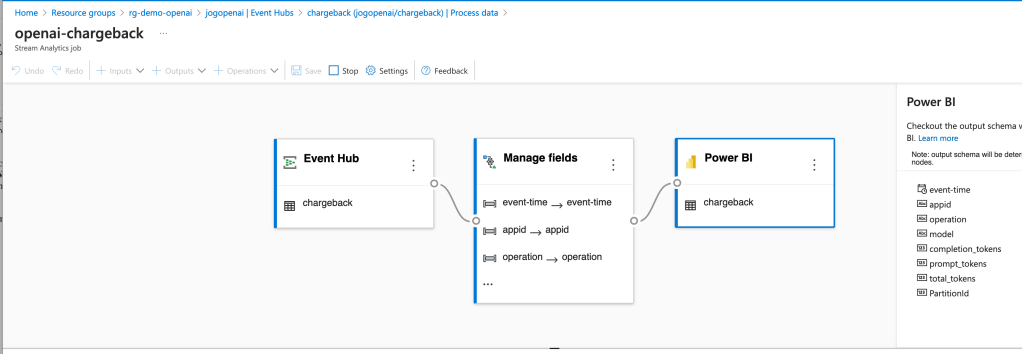
The integration creates a Stream Analytics Job that connects to the Event Hub, does small amount of transformation in setting the types for specific fields, and loads the data into a PowerBI dataset.

Azure Stream Analytics and Event Hub Integration

Once the integration was setup, the requests and responses I was making to the AOAI services began to populate in the Power BI dataset. I was then able to build some really basic (and very ugly) visuals to demonstrate the insights this pattern provides for chargebacks. Each graphic shows the costs accumulated by individual applications by their application id.

Power BI Report Showing Application by Application Costs

Pretty cool right? Simple, easy to implement, and decent information to work from.

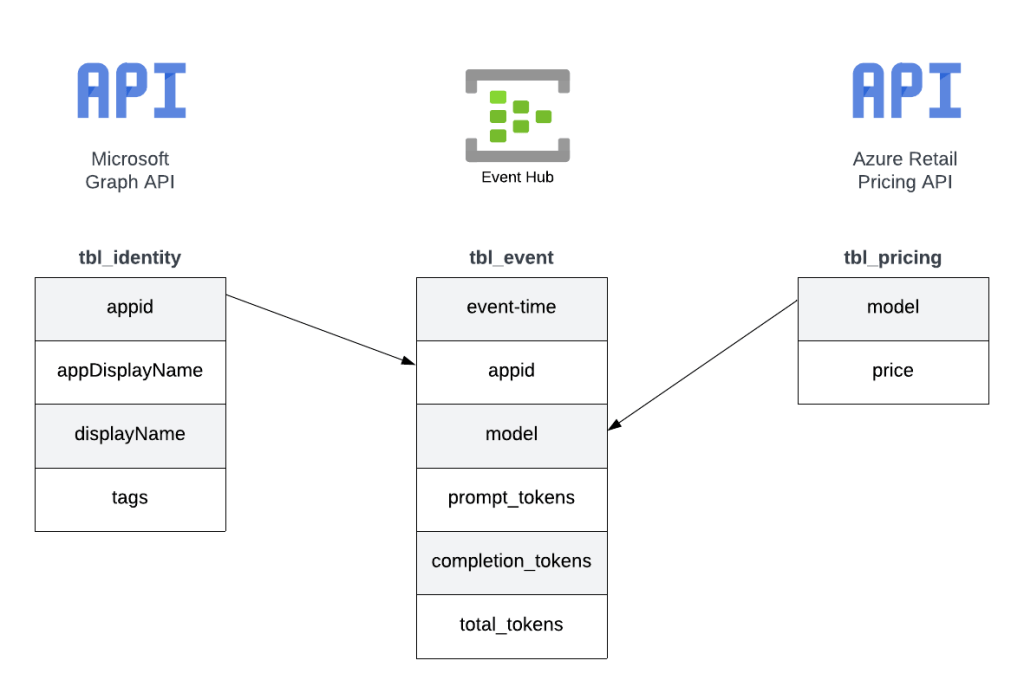
Since this was a POC, I cut some corners on the reporting piece. For example, I hardcoded the model pricing into some custom columns. If I were to do this at the enterprise level, I’d be supplementing this information from data pulled from the Microsoft Graph and the Azure Retail Pricing REST API. From the Microsoft Graph I’d pull additional attributes about the service principal / managed identity such as a more human readable name. From the Azure Retail Pricing REST API I’d pull down the most recent prices on a per model basis. I’d also likely store this data inside something like Cosmos or Azure SQL to provide for more functionality. From a data model perspective, I’d envision a “enterprise-ready” data model version of the pattern looking like the below.

Possible data model

The key challenge I set out to address here was how to get the data necessary to do chargebacks and what could I do with that data once I got it. Mission accomplished!

Well folks, that covers it. I’d love to see someone looking for a side project with more data skills than me (likely any human being breathing air today) build out the more “full featured” solution using a similar data model to what I referenced above. I hope this pattern helps point your organization in the right direction and spurs some ideas as to how you could solve the ETL and analysis part within your implementation of this pattern.

I’m always interested in hearing about cool solutions. If you come up with something neat, please let me know in the comments or each out on LinkedIn.

Have a great week!