Deploying Resources Across Multiple Azure tenants

Hello fellow geeks! Today I’m going to take a break from my AI Foundry series and save your future self some time by walking you through a process I had to piece together from disparate links, outdated documentation, and experimentation. Despite what you hear, I’m a nice guy like that!

The Problem

Recently, I’ve been experimenting with AVNM (Azure Virtual Network Manager) IPAM (IP address management) solution which is currently in public preview. In the future I’ll do a blog series on the product, but today I’m going to focus on some of the processes I went through to get a POC (proof-of-concept) working with this feature across two tenants. The scenario was a management and managed tenant concept where the management tenant is the authority for the pools of IP addresses the managed tenant can draw upon for the virtual networks it creates.

Let’s first level set on terminology. When I say Azure tenant, what I’m really talking about is the Entra ID tenant the Microsoft Azure subscriptions are associated with. Every subscription in Azure can be associated with only one Entra ID tenant. Entra ID provides identity and authentication services to associated Azure subscriptions. Note that I excluded authorization, because Azure has its own authorization engine in Azure RBAC (role-based access control).

Relationship between Entra ID tenant and Azure resources

Without deep diving into AVNM, its IPAM feature uses the concepts of “pools” which are collections of IP CIDR blocks. Pools can have a parent and child relationship where one large pool can be carved into smaller pools. Virtual networks in the same regions as the pool can be associated with these pools (either before or after creation of the virtual network) to draw down upon the CIDR block associated with the range. You also have the option of creating an object called a Static CIDR which can be used to represent the consumption of IP space on-premises or another cloud. For virtual networks, as resources are provisioned into the virtual networks IPAM will report how many of the allocated IP addresses in a specific pool are being used. This allows you to track how much IP space you’ve consumed across your Azure estate.

AVNM IPAM Resources

My primary goal in this scenario was to create a virtual network in TenantB that would draw down on an AVNM address pool in TenantA. This way I could emulate a parent company managing the IP allocation and usage across its many child companies which could be spread across multiple Azure tenants. To this I needed to

  1. Create an AVNM instance in TenantA
  2. Setup the cross-tenant AVNM feature in both tenants.
  3. Create a multi-tenant service principal in TenantB.
  4. Create a stub service principal in TenantA representing the service principal in TenantB.
  5. Grant the stub service principal the IPAM Pool User Azure RBAC role.
  6. Create a new virtual network in TenantB and reference the IPAM pool in TenantA.

My architecture would similar to image below.

Multi-Tenant AVNM IPAM Architecture

With all that said, I’m now going to get into the purpose of this post which is focusing steps 3, 4, and 6.

Multi-Tenant Service Principals

Service principals are objects in Entra ID used to represent non-human identities. They are similar to an AWS IAM user but cannot be used for interactive login. The whole purpose is non-interactive login by a non-human. Yes, even the Azure Managed Identity you’ve been using is a service principal under the hood.

Unlike Entra ID users, service principals can’t be added to another tenant through the Entra B2B feature. To make a service principal available across multiple tenants you need to create what is referred to as a multi-tenant service principal. A multi-tenant service principal exist has an authoritative tenant (I’ll refer to this as the trusted tenant) where the service principal exists as an object with a credential. The service principal has an attribute named appid which is a unique GUID representing the app across all of Entra. Other tenants (I’ll refer to these as trusting tenants) can then create a stub service principal in their tenant by specifying this appid at creation. Entra ID will represent this stub service principal in the trusted tenant as an Enterprise Application within Entra.

Multi-Tenant Service Principal in Trusted Tenant

For my use case I wanted to have my multi-tenant service principal stored authoritatively TenantB (the managed tenant) because that is where I would be deploying my virtual network via Terraform. I had an existing service principal I was already using so I ran the command below to update the existing service principal to support multi-tenancy. The signInAudience attribute is what dictates whether a service principal is single-tenant (AzureADMyOrg) or multi-tenant (AzureADMultipleOrgs).

az login --tenant <TENANTB_ID>
az ad app update --id "d34d51b2-34b4-45d9-b6a8-XXXXXXXXXXXX" --set signInAudience=AzureADMultipleOrgs

Once my service principal was updated to a multi-tenant service principal I next had to provision it into TenantA (management tenant) using the command below.

az login --tenant <TENANTA_ID>
az ad sp create --id "d34d51b2-34b4-45d9-b6a8-XXXXXXXXXXXX"

The id parameter in each command is the appId property of the service principal. By creating a new service principal in TenantA with the same appId I am creating the stub service principal for my service principal in TenantB.

Many of the guides you’ll find online will tell you that you need to grant Admin Consent. I did not find this necessary. I’m fairly certain it’s not necessary because the service principal does not need any tenant-wide permissions and won’t be acting on behalf of any user. Instead, it will exercise its direct permissions against the ARM API (Azure Resource Manager) based on the Azure RBAC role assignments created for it.

Once these commands were run, the service principal appeared as an Enterprise Application in TenantA. From there I was able to log into TenantA and create an RBAC role assignment associating the IPAM Pool user role to the service principal.

Creating The New VNet in TenantB with Terraform… and Failing

At this point I was ready to create the new virtual network in TenantB with an address space allocated from an IPAM pool in TenantA. Like any sane human being writing Terraform code, my first stop was to the reference document for the AzureRm provider. Sadly my spirits were quickly crushed (as often happens with that provider) the provider module (4.21.1) for virtual networks does not yet support the ipamPoolPrefixAllocations property. I chatted with the product group and support for it will be coming soon.

When the AzureRm provider fails (as it feels like it often does with any new feature), my fallback was to AzApi provider. Given that the AzApi is a very light overlay on top of the ARM REST API, I was confident I’d be able to use it with the proper ARM REST API version to create my virtual network. I wrote my code and ran my terraform apply only to run into an error.

Forbidden({"error":{"code":"LinkedAuthorizationFailed","message":"The client has permission to perform action 'Microsoft.Network/networkManagers/ipamPools/associateResourcesToPool/action' on scope '/subscriptions/97515654-3331-440d-8cdf-XXXXXXXXXXXX/resourceGroups/rg-demo-avnm/providers/Microsoft.Network/virtualNetworks/vnettesting', however the current tenant '6c80de31-d5e4-4029-93e4-XXXXXXXXXXXX' is not authorized to access linked subscription '11487ac1-b0f2-4b3a-84fa-XXXXXXXXXXXX'."}})

When performing cross-tenant activities via the ARM API, the platform needs to authenticate the security principal to both Entra tenants. From a raw REST API call this can be accomplished by adding the x-ms-authorization-auxiliary header to the headers in the API call. In this header you include a bearer token for the second Entra ID tenant that you need to authenticate to.

Both the AzureRm and AzApi providers support this feature through the auxiliary_tenant_ids property of the provider. Passing that property will cause REST calls to be made to the Entra ID login points for each tenant to obtain an access token. The tenant specified in the auxiliary_tenant_ids has its bearer token passed in the API calls in the x-ms-authorization-auxiliary header. Well, that’s the way it’s supposed to work. However, after some Fiddler captured I noticed it was not happening with AzApi v2.1.0 and 2.2.0. After some Googling I turned up this Github repository issue where someone was reporting this as far back as February 2024. It was supposed resolved in v1.13.1, but I noticed a person posting just a few weeks ago that it was still broken. My testing also seemed to indicate it is still busted.

What to do now? My next thought was to use the AzureRm provider and pass an ARM template using the azurerm_resource_group_deployment module. I dug deep into the recesses of my brain to surface my ARM template skills and I whipped up a template. I typed in terraform apply and crossed my fingers. My Fiddler capture showed both access tokens being retrieved (YAY!) and being passed in the underlining API call, but sadly I was foiled again. I had forgotten that ARM templates to not support referencing resources outside the Entra ID tenant the deployment is being pushed to. Foiled again.

My only avenue left was a REST API call. For that I used the az rest command (greatest thing since sliced bread to hit ARM endpoints). Unlike PowerShell, the az CLI does not support any special option for auxiliary tenants. Instead, I need to run az login to each tenant and store the second tenant’s bearer token in a variable.

az login --service-principal --username "d34d51b2-34b4-45d9-b6a8-XXXXXXXXXXXX" --password "CLIENT_SECRET" --tenant "<TENANTB_ID>"

az login --service-principal --username "d34d51b2-34b4-45d9-b6a8-XXXXXXXXXXXX" --password "CLIENT_SECRET" --tenant "<TENANTA_ID>"

auxiliaryToken=$(az account get-access-token \
--resource=https://management.azure.com/ \
--tenant "<TENANTA_ID>" \
--query accessToken -o tsv)

Once I had my bearer tokens, the next step was to pass my REST API call.

az rest --method put \
--uri "https://management.azure.com/subscriptions/97515654-3331-440d-8cdf-XXXXXXXXXXXX/resourceGroups/rg-demo-avnm/providers/Microsoft.Network/virtualNetworks/vnettesting?api-version=2022-07-01" \
--headers "x-ms-authorization-auxiliary=Bearer ${auxiliaryToken}" \
--body '{
"location": "centralus",
"properties": {
"addressSpace": {
"ipamPoolPrefixAllocations": [
{
"numberOfIpAddresses": "100",
"pool": {
"id": "/subscriptions/11487ac1-b0f2-4b3a-84fa-XXXXXXXXXXXX/resourceGroups/rg-avnm-test/providers/Microsoft.Network/networkManagers/test/ipamPools/main"
}
}
]
}
}
}'

I received a 200 status code which meant my virtual network was created successfully. Sure enough the new virtual network in TenantB and in TenantA I saw the virtual network associated to the IPAM pool.

Summing It Up

Hopefully the content above saves someone from wasting far too much time trying to get cross tenant stuff to work in a non-interactive manner. While my end solution isn’t what I’d prefer to do, it was my only option due to the issues with the Terraform providers. Hopefully, the issue with the Az Api provider is remediated soon. For AVNM IPAM specifically, AzureRm providers will be here soon so the usage of Az Api will likely not be necessary.

What I hope you took out of this is a better understanding of how cross tenant actions like this work under the hood from an identity, authentication, and authorization perspective. You should also have a better understanding of what is happening (or not happening) under the hood of those Terraform providers we hold so dear.

TLDR;

When performing cross tenant deployments here is your general sequence of events:

  1. Create a multi-tenant service principal in Tenant A.
  2. Create a stub service principal in Tenant B.
  3. Grant the stub service principal in Tenant B the appropriate Azure RBAC permissions.
  4. Obtain an access token from both Tenant A and Tenant B.
  5. Package one of the access tokens in the x-ms-authorization-auxiliary header in your request and make your request. You can use the az rest command like I did above or use another tool. Key thing is to make sure you pass it in addition to the standard Authorization header.
  6. ???
  7. Profit!

Thanks for reading!

Azure Authorization – The Basics

This is part of my series on Azure Authorization.

  1. This is part of my series on Azure Authorization.
  2. Azure Authorization – The Basics
  3. Azure Authorization – Azure RBAC Basics
  4. Azure Authorization – actions and notActions
  5. Azure Authorization – Resource Locks and Azure Policy denyActions
  6. Azure Authorization – Azure RBAC Delegation
  7. Azure Authorization – Azure ABAC (Attribute-based Access Control)

Hello again!

I’ve been wanting to put together a series on authorization in Azure for a while now. Over the past month I spent some time digging into the topic and figured I’d get it in written form while it is still fresh in my mind. I’ll be covering a lot of areas and features in these series, including some cool stuff that is in public preview. Before we get into the gooey details, let’s start with the basics.

When we talk identity I like to break it into three topics: identity, authentication, and authorization. Let me first define those terms using some wording from the NIST glossary. Identity is the attribute or attributes that describe the subject (in terms of Azure think of this as an Entra ID user or service principal). Authentication which is the process of verifying a user, process, or device. Authorization, which will be the topic of this series, is the rights or permissions granted to a subject. More simply, identity is the representation of the subject, authentication is the process of getting assurance that the subject is who they claim to be, and authorization is what the subject can do.

Identity in Azure is provided by the Entra ID directory (formerly Azure Active Directory, Microsoft marketing likes to rebrand stuff every few years). Like any good directory, it supports a variety of object types. The ones relevant to Azure are users, groups, service principals, and managed identities. Users and groups can exist authoritatively in the Entra ID tenant, they can be synchronized from an on-premises directory using something like Entra ID Connect Sync (marketing, please rebrand this), or they can represent federated users from other Entra ID tenants via the Entra ID B2B feature.

Azure Subscriptions (logical atomic unit for Azure whose parallel would be in AWS would be an AWS Account) are associated to a single Entra ID tenant. An Entra ID tenant can be associated to multiple Azure subscriptions. When configuring authorization in Azure you will be able to associate the permissions to security principals sourced from the associated Entra ID tenant.

Since multiple Azure Subscriptions can be associated to the same Entra ID tenant, this means all of those Azure Subscriptions share a common identity data store and authentication boundary. This differs from an AWS Account where each AWS Account has its own unique authentication boundary and directory of IAM Users and Roles. There are positive and negatives to this architectural decision by Microsoft that we can have fun banter with over a few tequilas, but we’ll save that for another day. The key thing I want you to remember is every Azure Subscription in the same Entra ID tenant shares that directory and authentication boundary but has a separate authorization boundary within each subscription. This means that getting authorization right is critical.

Boundaries in Azure

The above will always be true when talking about the management plane (sometimes referred to as the control plane), however there are exceptions when talking about the data plane. So what are the management plane and data planes? I like to define the management plane as the destination you interact with when you want to perform actions on a resource. Meanwhile the data plane is the destination you communicate with when you want to perform actions on data the resource is storing.

Management plane versus data plane

In the image above you’ll see an example of how the management plane and data plane differ when talking about Azure Storage. When you communicate with the management plane you interact with the management.azure.com which is the endpoint for the Azure Resource Manager REST API. The Azure Portal, Azure CLI, Azure PowerShell, ARM (Azure Resource Manager) templates, Bicep templates, and the Azure Terraform Provider are all different ways to interact with this API. Interaction with this API will use Entra ID authentication (which uses modern authentication protocols and standards such as Open ID Connect and SAML). Determining what actions you can perform on resources behind this management plane is then determined by the permissions defined in Azure RBAC (Role-based Access Control) roles you have been assigned (more on this in the next post).

As I mentioned earlier, the data plane can break the the rule of “one identity plane to rule them all”. Notice how interactions with the data plane use a separate endpoint, in this case blob.core.windows.net. This is the Azure Storage Blob REST API and is the API used to interact with the data plane of Azure Storage when using blob storage. As is common with Azure, many PaaS (platform-as-a-service) offerings support Entra ID authentication and Azure RBAC authorization for both the management plane and data plane. What should pop out to you is that there is also support for a service-specific authentication and authorization mechanism, in this case storage account keys and SAS (shared access signature) tokens. You’ll see this pattern often with Azure PaaS offerings and its important to understand that the service-specific authentication and authorization mechanism should only be used if the service doesn’t support Entra ID authentication or authorization, or your use case specifically requires some functionality of the service-specific mechanism that isn’t available in Entra ID. The reason for this is service-specific mechanisms rarely support granular authorization (SAS tokens being an exception) effectively making the person in possession of that key “god” of the data plane for the service. Additionally, there are security features which are specific to Entra ID (Entra ID Conditional Access, Privileged Identity Management, Identity Protection, etc) and, perhaps most critically, traceability and auditability is extremely difficult to impossible when these mechanisms are used.

Yet another interesting aspect of Azure authorization is there are a few ways for a security principal who is highly privileged in other places to navigate themselves into highly privileged roles across Azure resources. In the image below, you can see how a highly privileged user in Entra ID can leverage the Entra ID Global Admin role to obtain highly privileged permissions in Azure. I’ve covered how this works, how to mitigate it, and how to detect it in this post. The other way to do this is through holding a highly privileged role across the Enterprise Billing constructs. While a bit dated, this blog post does a good job explaining how it’s possible.

Azure Authorization Planes

The key things I want you to walk away with for this post are:

  • With a shared identity and authentication boundary, ensuring a solid authorization model is absolutely mission critical for security of your Azure estate.
  • Ensure you tightly control your Entra ID Global Admins and Enterprise Billing authorization because they provide a way to bypass even the best configured Azure RBAC.
  • Whenever possible use Entra ID identities and authentication so you can take advantage of Azure RBAC.
  • Avoid using service-specific authentication and authorization because it tends to be very course-grained and difficult to track.

Alright folks, you are prepped with the basics. In my next post I’ll begin diving into Azure RBAC.

Have a great weekend!

The “Real” Root Management Group

2/11/2025 Update – This action is now captured in the Entra ID Audit Logs! I’d recommend putting an alert in ASAP to track this moving forward.

Hello fellow geek!

Today I’m going to cover a topic that isn’t well understood in the Azure community and can present significant risk to your Azure estate. Sit back, grab your Friday morning coffee, and prepare to learn about the “real” root management group.

Microsoft made an interesting identity-based choice when architecting Azure. That choice was to have all Azure subscriptions share a common identity management plane in what we have known as Azure AD (Azure Active Directory) and which has recently been renamed Entra ID. The shared identity management plane in Azure creates a single authority for identity data and authentication while maintaining separate authorization boundaries between Azure subscriptions. This concept may differ for those of you coming from AWS (Amazon Web Services) where every AWS account has a unique identity management plane that has its own identity data store, authentication boundary, and authorization boundary. Microsoft’s decision comes with benefits and considerations.

The atomic unit for resources in Microsoft Azure is the Azure subscription which acts as an authorization boundary, limits boundary, and compliance boundary. Each Azure subscription can be associated to a single Entra ID tenant. Once a subscription is associated to an Entra ID tenant the subscription will use tenant as a source of identity data and authentication provider. This dependency on Entra ID creates an interesting security risk around authorization.

Before I dive into the details of this, let me briefly explain the concept of management groups. A management group in Azure is a logical container for Azure Subscriptions which allow for you to enforce configuration “how a resource looks” (Azure Policy) and authorization “what a user can do” (Azure RBAC) across one or more subscriptions. Prior to management groups, these things had to be managed at the individual subscription level or below (resource group or individual resource). Every subscription added to an Entra ID tenant exists under the Tenant Root Management Group by default, but this can be changed. Customers can can create additional management groups underneath the Tenant Root Management Group as per their needs (great guidance on this here).

If you’ve used Azure for any length of time the above is likely all review for you. However, as Yoda said, “there is another”. Above the Tenant Root Management Group exists another management group called root or “/”. As seen in the visual below, the root management group is the glue that sticks Entra ID authorization to Azure authorization together. Let’s dig into how this works.

Entra ID and Microsoft Azure Authorization

In Entra ID there is a role called Global Administrator. For those of you unfamiliar with this role, it is the god role of Entra ID and all services associated with an Entra ID tenant such as M365 and, yes, Azure. Holding this role in Entra ID does not give you permissions in Azure, but there is a path to give yourself permissions and become the god of your Azure estate.

Users who hold the Global Administrator have the ability to grant themselves access on the root “/” management group. They can do this through an option in the Entra ID blade of the Azure Portal called Access Management for Azure Resources or Elevate Access. This is also available via the Azure REST API using the elevateAccess endpoint. The value of this toggle switch shown in the Portal is the value for the current user context (user logged into the Portal). You cannot view this toggle switch for other users, but we can tell if it’s been toggled on as I will show later.

Option for Global Admins to assert control over Azure

When a Global Administrator toggles this option either through the Portal or through the REST API an Azure RBAC Role Assignment for the User Access Administrator is created at the root “/” management group.

User Access Administrator role assignment as result of global administrator elevate access

The User Access Administrator is a highly privileged role granting the user full permissions over the Microsoft.Authorization resource provider (as seen below). These permissions allow the user to create additional role assignments on for any Azure RBAC Role on any Azure management, subscription, resource group, or resource within the Entra ID tenant. Yes… yikes.

{
    "id": "/providers/Microsoft.Authorization/roleDefinitions/18d7d88d-d35e-4fb5-a5c3-7773c20a72d9",
    "properties": {
        "roleName": "User Access Administrator",
        "description": "Lets you manage user access to Azure resources.",
        "assignableScopes": [
            "/"
        ],
        "permissions": [
            {
                "actions": [
                    "*/read",
                    "Microsoft.Authorization/*",
                    "Microsoft.Support/*"
                ],
                "notActions": [],
                "dataActions": [],
                "notDataActions": []
            }
        ]
    }
}

As I mentioned earlier, the Portal will only show you the value of the toggle switch for the ElevateAccess feature for the currently logged in user. You may now be thinking “How the heck can I enforce this if I can’t view it in the Portal?”. The good news is this toggle seems to be some backend orchestration where the platform checks whether the user has the User Access Administrator RBAC Role Assignment on the root “/” management group. This means you don’t need to care about that visual toggle switch, you only need to care about the actual permission. You can list out the the users that have the role assignment at root using the cli command below.

az role assignment list --scope "/" --query "[?roleDefinitionName=='User Access Administrator'].{Username:principalName, ObjectId:objectId}" --output table

Awesome, so you know who has it. Why should you care? Listen, I gonna be nice and assume you’re asking this because it’s a Friday and your brain is fried. The reason you should care is this gives your users who have access to the Entra ID Global Administrators Role the ability to make themselves god of your Azure estate. This includes owners over the resources for management plane operations which can, in almost every instance, lead to owner of the data contained within the resources within the data plane. You SHOULD NOT have a role assignment for User Access Administrator on the root “/” management group. There a few instances where you need this permission temporarily to grant other permissions, but I will cover that at the end of this post. For now, know that if you have that permission there you shouldn’t.

In most enterprises there is a separate team managing Entra ID from the team managing Azure in order to maintain separation of duties. Access to the Global Administrator role opens up the risk for the user to assert access and control over data that is outside of their roles and responsibilities. While there is no way to stop this from happening, you should be monitoring for when it occurs. So how might you do this?

If you’re used Azure, you should be familiar with Azure Activity Logs. The Activity Logs contain log entries for create, update, and delete operations on the Azure management plane. Activity Logs exist at a number of scopes including Subscription, Management Group, and Directory. While Subscription and Management Group Activity Logs supports integration with Azure Monitor Diagnostic Logs, Directory Activity Logs do not and those are the logs new role assignments to the root “/” management group are recorded in. This means you need to write custom code to manually pull down those logs via the REST API in order to capture and alert on them in your favorite SIEM. Yuck right? Well there is an easier way to alert on this.

Directory-level Azure Activity Logs

A while back Microsoft introduced support for Azure Monitor to make log queries against the Azure Resource Graph. I’m not going to do a deep dive into ARG (Azure Resource Graph). All you need to know for the purpose of this post is it’s a service you can tap into to pull down information about Azure resources, including role assignments.

Let me walk through how this works.

I can issue an Kusto query through Azure Monitor to query ARG to see what role assignments for User Access Administrator exist on the root “/” management group using the query below (note this will require you have appropriate read permissions at root “/”).

arg("").AuthorizationResources
| where properties.scope == "/"
| where properties.roleDefinitionId == "/providers/Microsoft.Authorization/RoleDefinitions/18d7d88d-d35e-4fb5-a5c3-7773c20a72d9"

This Kusto query will query the ARG authorizationresources category for any role assignments on the root “/” management group that have the role definition id for User Access Administrator. Each resulting log entry denotes a role assignment on root. Here we can see I have two role assignments on the root for User Access Administrator. Bad Matt.

Query to pull role assignments for User Access Administrator on root “/” management group

Back in October 2023 Microsoft introduced into public preview support to create Azure Alerts for Azure Monitor Log queries against ARG. This means you can create an Azure Alert based on this custom log query. If there is a role assignment for User Access Administrator on the root “/” management group, an alert will be fired. Let me walk through the setup of that alert, because it’s a little bit funky.

First thing you will need to do is create an action group and you can use this documentation to that. Once you have your action group you’ll want to navigate to the Alerts blade in the Azure Portal and then to the alert rules

Alert Rules in Azure Portal

Select the option to create a new Alert Rule. In the scope section you can select a subscription. If you are using a similar subscription design as to the Azure Cloud Adoption Framework, selecting the Management subscription would be a good choice. I don’t believe the choice matters much because the alert is on the root management group and not a resource within a subscription.

On the condition screen you will choose the Custom log search option for the Signal name. The query you’ll put in there is below.

arg("").AuthorizationResources
| where properties.scope == "/"
| where properties.roleDefinitionId == "/providers/Microsoft.Authorization/RoleDefinitions/18d7d88d-d35e-4fb5-a5c3-7773c20a72d9"

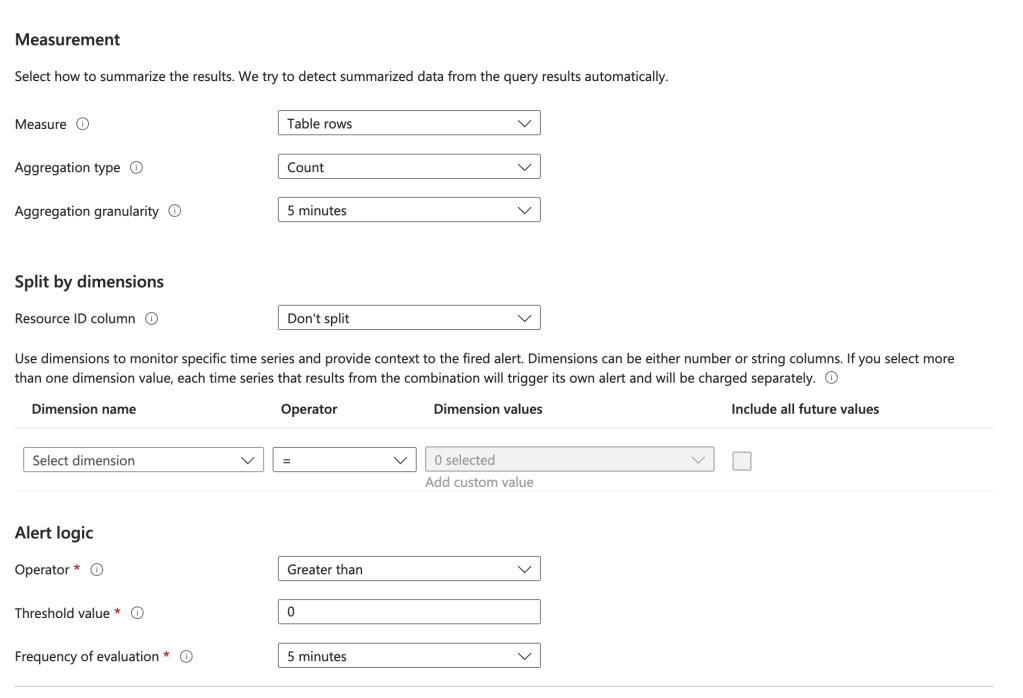
You will will also need to configure the measurements. You can use the settings I have below or customize it to your liking.

Measurements for alert

On the Actions screen choose Select action groups and select the action group you configured before.

On the Details screen you can set the severity to whatever you want. I’d recommend 0 since this is a significant escalation of privilege. You will also need to configure the alert with a managed identity. It will need an identity to authenticate and be authorized to ARG. Choose whichever managed identity type makes sense for your organization.

Adding a managed identity to the alert

Add whatever tags you want on the next screen and create the alert.

Done right? No, we now need to give the managed identity permissions on the root management group to read the role assignments.

I promised earlier I’d tell you the instance where you need to use this elevation. The are very few instances where you need to do this. One instance is when you are first building out your management group structure. In that scenario, no one has permission over the root or tenant root management group so no one can create new management groups. You will need to elevate a user with Global Administrator to the User Access Administrator role on the root “/” in that situation so that use can then grant another user account owned by the Azure team (ideally non-human, but vaulted is good too) User Access Administrator on the Tenant Root Management Group. When complete, the Global Administrator should toggle that switch back to off to remove the RBAC role assignment. This Microsoft article explains a few other scenarios you may need to temporary grant this role to grant permissions at the root “/”.

Now back to setting up the alert rule. Next up you need to grant the managed identity you assigned to the alert rule the permission at the root “/” management group so it can query the role assignments (see, a use case!). You can find the object id of the managed identity in the identity section of the Alert in the Portal. What role you assign it is up to you. I’m doing Reader because I’m lazy, but you could certainly craft a custom role if you’d like to (don’t forget to remove your permissions once you’ve completed this!).

az role assignment create --assignee-object-id "4f984694-b43c-4528-87e9-68aeab7478a3" --scope "/" --role "Reader"

You’re good to go! You now have an alert that will fire anytime there is any role assignment for User Access Administrator on the root “/” management group. Again, there should never be a role assignment for that role unless you’re temporarily using it for one of the use cases above.

The key things I want you to take away from this this post is the critical role Entra ID plays across all of the Microsoft Clouds. It’s important to understand how privilege in one product (Entra ID) can lead to privilege in another (Azure). Now you have a quick and easy security win you can crank out before Thanksgiving. Enjoy!

APIM and Azure OpenAI Service – Azure AD

This is part of my series on GenAI Services in Azure:

  1. Azure OpenAI Service – Infra and Security Stuff
  2. Azure OpenAI Service – Authentication
  3. Azure OpenAI Service – Authorization
  4. Azure OpenAI Service – Logging
  5. Azure OpenAI Service – Azure API Management and Entra ID
  6. Azure OpenAI Service – Granular Chargebacks
  7. Azure OpenAI Service – Load Balancing
  8. Azure OpenAI Service – Blocking API Key Access
  9. Azure OpenAI Service – Securing Azure OpenAI Studio
  10. Azure OpenAI Service – Challenge of Logging Streaming ChatCompletions
  11. Azure OpenAI Service – How To Get Insights By Collecting Logging Data
  12. Azure OpenAI Service – How To Handle Rate Limiting
  13. Azure OpenAI Service – Tracking Token Usage with APIM
  14. Azure AI Studio – Chat Playground and APIM
  15. Azure OpenAI Service – Streaming ChatCompletions and Token Consumption Tracking
  16. Azure OpenAI Service – Load Testing

Hello folks!

I’m back with another entry on the Azure OpenAI Service (AOAI). In my previous posts, I’ve focused on the native security features that Microsoft provides to its customers to secure their instance of the service. However, in this post, I’ll be taking a slightly different approach. I’ll be walking you through a pattern that can be used to supplement those native features using Azure API Management (APIM)

For those who are unfamiliar with APIM, it is Azure’s API Gateway PaaS (platform-as-a-service) offering. Like any good API Gateway, it provides an abstraction layer away from backend APIs, which allows you to add additional authentication/authorization controls, throttling, transform requests, and log information from the requests and responses. In this post, I’ll be covering how the authentication/authorization controls can be used to supplement what is provided natively in AOAI. 

I’ve covered authentication in the AOAI in a previous post, refer to that post for the gory details. For the purposes of this post, you need to understand at the data plane it supports both Azure AD authentication/Azure RBAC authorization and authentication with two API keys created when the service is instantiated.

Azure OpenAI Service Authentication and Authorization

To my knowledge, there is no way to disable the usage of API keys. Moreover, as I’ve discussed in my logging post, it is extremely difficult to trace back to what is using the API keys because the source IP address is masked and the calls aren’t associated with specific API keys or Azure AD identities. This makes it critically important to control who has access to the API keys. In my post on authorization within the service, I cover this conversation in more detail, and yes, it can be done with Azure RBAC.

Sample log entry from Azure Open AI Service


Controlling access should be your first priority. However, wouldn’t it be great to restrict access to the service to Azure AD authentication only? This is where APIM comes in. APIM is placed between the application calling the AOAI service and the AOAI service. This establishes a man-in-the-middle scenario where APIM can analyze and modify the request and responses between the application and AOAI service.

APIM and AOAI Data Flow

The image above is an example of this pattern. Here, the calling application is provisioned with either a service principal (running outside of Azure) or a managed identity (running within Azure or integrated with Azure Arc). Instead of pointing the application directly to the Azure OpenAI Service, it is pointed to a custom domain configured on the APIM instance, and the APIM instance is configured to front the Azure OpenAI Service API. My peer Jake Wang put together some wonderful instructions on how to set this piece up in this repository.

Once APIM is set up to pass traffic along to the AOAI service, a custom APIM policy can be introduced to start controlling access. Since the goal is to limit access to the AOAI service to applications using an Azure AD identity, the validate-jwt policy can be used. This policy captures and extracts the JSON Web Token (bearer token) and parses the content within it to verify that the token was issued by the issuer specified in the policy. 

The policy would be structured as shown below. In this policy, any request made to the API must include a JWT issued by the Azure AD tenant (you can find your tenant ID here). Additionally, the policy filters to ensure that the token is intended for the Cognitive Services OAuth scope, which AOAI falls under. If the request doesn’t include the JWT issued by the tenant, the user receives a 403.

<!--
    This sample policy enforces Azure AD authentication and authorization to the Azure OpenAI Service. 
    It limits the authorization tokens issued by the organization's tenant for Cognitive Services.
    The authorization token is passed on to the Azure OpenAI Service ensuring authorization to the actions within
    the service are limited to the permissions defined in Azure RBAC.

    You must provide values for the AZURE_OAI_SERVICE_NAME and TENANT_ID parameters.
-->
<policies>
    <inbound>
        <base />
        <set-backend-service base-url="https://{{AZURE_OAI_SERVICE_NAME}}.openai.azure.com/openai" />
        <validate-jwt header-name="Authorization" failed-validation-httpcode="403" failed-validation-error-message="Forbidden">
            <openid-config url="https://login.microsoftonline.com/{{TENANT_ID}}/v2.0/.well-known/openid-configuration" />
            <issuers>
                <issuer>https://sts.windows.net/{{TENANT_ID}}/</issuer>
            </issuers>
            <required-claims>
                <claim name="aud">
                    <value>https://cognitiveservices.azure.com</value>
                </claim>
            </required-claims>
        </validate-jwt>
    </inbound>
    <backend>
        <base />
    </backend>
    <outbound>
        <base />
    </outbound>
    <on-error>
        <base />
    </on-error>
</policies>

If you followed the instructions in the repository I linked above, you can enforce this policy for the API you created as seen below.

APIM Policy In Place

Once the policy is in place, you can test it by attempting to authenticate to the APIM API endpoint and specifying an AOAI API key. In the image below, an attempt is made to call the endpoint with an API key.

APIM Denying Request with API Keys

Success! Even though the API key is valid, APIM is rejecting the request before it ever reaches the AOAI instance, preventing the API keys from being used. 

This pattern also passes the bearer token on to the AOAI service, so the RBAC you configure on your AOAI instance will be enforced. In my post on authorization, I provide some guidance on which built-in RBAC roles make since and which permissions you’ll want to carefully distribute.

What’s even cooler is that now that the application is forced to authenticate using Azure AD, the application ID can be extracted. If there are multiple applications hitting the same AOAI instance, different throttling can be applied on a per-application basis instead of having them share one big pool of request/token allowance at the AOAI service level

This can be achieved with a policy similar to the one shown below. This policy looks for specific app IDs in the bearer token and applies different throttling based on the application.

<!--
    This sample policy enforces Azure AD authentication and authorization to the Azure OpenAI Service. 
    It limits the authorization tokens issued by the organization's tenant for Cognitive Services.
    The authorization token is passed on to the Azure OpenAI Service ensuring authorization to the actions within
    the service are limited to the permissions defined in Azure RBAC.

    The sample policy also sets different throttling limits per application id. This is useful when an organization
    has multiple applications consuming the same instance of the Azure OpenAI Service. This sample shows throttling
    rules for two separate applications.

    You must provide values for the AZURE_OAI_SERVICE_NAME, TENANT_ID, and CLIENT_ID_APP parameters. You can add multiple
    lines for as many applications as you need to throttle.
-->
<policies>
    <inbound>
        <base />
        <set-backend-service base-url="https://{{AZURE_OAI_SERVICE_NAME}}.openai.azure.com/openai" />
        <validate-jwt header-name="Authorization" failed-validation-httpcode="403" failed-validation-error-message="Forbidden">
            <openid-config url="https://login.microsoftonline.com/{{TENANT_ID}}/v2.0/.well-known/openid-configuration" />
            <issuers>
                <issuer>https://sts.windows.net/{{TENANT_ID}}/</issuer>
            </issuers>
            <required-claims>
                <claim name="aud">
                    <value>https://cognitiveservices.azure.com</value>
                </claim>
            </required-claims>
        </validate-jwt>
        <choose>
            <when condition="@(context.Request.Headers.GetValueOrDefault("Authorization","").Split(' ').Last().AsJwt().Claims.GetValueOrDefault("appid", string.Empty).Equals("{{CLIENT_ID_APP1}}"))">
                <rate-limit-by-key calls="1" renewal-period="60" counter-key="@(context.Request.Headers.GetValueOrDefault("Authorization","").Split(' ').Last().AsJwt().Claims.GetValueOrDefault("appid", string.Empty))" increment-condition="@(context.Response.StatusCode == 200)" />
            </when>
        </choose>
        <choose>
            <when condition="@(context.Request.Headers.GetValueOrDefault("Authorization","").Split(' ').Last().AsJwt().Claims.GetValueOrDefault("appid", string.Empty).Equals("{{CLIENT_ID_APP2}}"))">
                <rate-limit-by-key calls="10" renewal-period="60" counter-key="@(context.Request.Headers.GetValueOrDefault("Authorization","").Split(' ').Last().AsJwt().Claims.GetValueOrDefault("appid", string.Empty))" increment-condition="@(context.Response.StatusCode == 200)" />
            </when>
        </choose>
    </inbound>
    <backend>
        <base />
    </backend>
    <outbound>
        <base />
    </outbound>
    <on-error>
        <base />
    </on-error>
</policies>

While the above is impressive, it only works if the application is restricted from direct access to the Azure OpenAI Service. To achieve this, I recommend creating a Private Endpoint for the AOAI service and wrapping a Network Security Group around the subnet (NSGs are now supported for private endpoints) to block access to the resources within the subnet to anything but the APIM instance. Keep in mind that the APIM instance needs to be able to access resources within the virtual network, which means that an APIM needs to be deployed in internal mode. The architecture could look similar to the image below.

APIM and Azure OpenAI Service with Private Networking

One thing to note is that if access is blocked as described above, it will break the AOAI studio feature within the Azure Portal. This is because calls to the data plane of the AOAI service are now blocked. A workaround could be to use a jump host or shared server if you need to continue supporting that feature. However, that opens up the risk that someone could write some code while on that machine and use the API keys. 

Let me sum up what we learned today:

  • APIM policies can be used to enforce Azure AD authentication and can block the use of API keys.
  • You must lock down the Azure OpenAI Service to just APIM to make this effective. Remember this will break access to the Studio within the Azure Portal.
  • Since you’re forcing Azure AD authentication, you can use the application id to add custom throttling.

That’s all for this post. The policy samples used in this blog have been uploaded to this repository on GitHub. Feel free to experiment with them and build upon them. If you end up building upon them and doing anything interesting, do reach out and let me know. I’m always interested in geeking out! In my next post, I’ll cover how to use an APIM policy to create custom logging that can be delivered to an Event Hub and consumed by the upstream service of your choice. Have a great week!