The Evolution of AD RMS to Azure Information Protection – Part 5 – Client-Side Migration and Testing

The Evolution of AD RMS to Azure Information Protection – Part 5 – Client-Side Migration and Testing

Welcome to the fifth entry in my series on the evolution of Microsoft’s Active Directory Rights Management Service (AD RMS) to Azure Information Protection (AIP).  We’ve covered a lot of material over this series.  It started with an overview of the service, examined the different architectures, went over key planning decisions for the migration from AD RMS to AIP, and left off with performing the server-side migration steps.  In this post we’re going to round out the migration process by performing a staged migration of our client machines.

Before we jump into this post, I’d encourage you to refresh yourself with my lab setup and the users and groups I’ve created, and finally the choices I made in the server side migration steps.  For a quick reference, here is the down and dirty:

  • Windows Server 2016 Active Directory forest named GEEKINTHEWEEDS.COM with servers running Active Directory Domain Services (AD DS), Active Directory Domain Name System (AD DNS), Active Directory Certificate Services (AD CS), Active Directory Federation Services (AD FS), Active Directory Rights Management Services (AD RMS), Azure Active Directory Connect, and Microsoft SQL Server Express.
  • Forest is configured to synchronize to Azure AD using Azure AD Connect and uses federated authentication via AD FS
  • Users Jason Voorhies and Ash Williams will be using a Windows 10 client machine with Microsoft Office 2016 named GWCLIENT1
  • Users Theodore Logan and Michael Myers will be using a Windows 10 client machine with Microsoft Office 2016 named GWCLIENT2
  • Users Jason Voorhies and Theodore Logan are in the Information Technology Windows Active Directory (AD) group
  • Users Ash Williams and Michael Myers are in the Accounting Windows AD group
  • Onboarding controls have been configured for a Windows AD group named GIW AIP Users of which Jason Voorhies and Ash Williams are members

Prepare The Client Machine

To take advantage of the new features AIP brings to the table we’ll need to install the AIP client. I’ll be installing the AIP client on GWCLIENT1 and leaving the RMS client installed by Office 2016 on GWCLIENT2. Keep in mind the AIP client includes the RMS client (sometimes referred to as MSIPC) as well.

If you recall from my last post, I skipped a preparation step that Microsoft recommended for client machines. The step has you download a ZIP containing some batch scripts that are used for performing a staged migration of client machines and users. The preparation script Microsoft recommends running prior to any server-side configuration Prepare-Client.cmd.  In an enterprise environment it makes sense but for this very controlled lab environment it wasn’t needed prior to server-side configuration. It’s a simple script that modifies the client registry to force the RMS client on the machines to go to the on-premises AD RMS cluster even if they receive content that’s been protected using an AIP subscription. If you’re unfamiliar with the order that the MSIPC client discovers an AD RMS cluster I did an exhaustive series a few years back.  In short, hardcoding the information to the registry will prevent the client from reaching out to AIP and potentially causing issues.

As a reminder I’ll be running the script on GIWCLIENT1 and not on GIWCLIENT2.  After the ZIP file is downloaded and the script is unpackaged, it needs to be opened with a text editor and the OnPremRMSFQDN and CloudRMS variables need to be set to your on-premises AD RMS cluster and AIP tenant endpoint. Once the values are set, run the script.

5AIP1.png

Install the Azure Information Protection Client

Now that the preparation step is out of the way, let’s get the AIP client installed. The AIP client can be downloaded directly from Microsoft. After starting the installation you’ll first be prompted as to whether you want to send telemetry to Microsoft and use a demo policy.  I’ll be opting out of both (sorry Microsoft).

5AIP2.png

After a minute or two the installation will complete successfully.

5AIP3.png

At this point I log out of the administrator account and over to Jason Voorhies. Opening Windows Explorer and right-clicking a text file shows we now have the classify and protect option to protect and classify files outside of Microsoft Office.

5AIP4.png

Testing the Client Machine Behavior Prior to Client-Side Configuration

I thought it would be fun to see what the client machine’s behavior would be after the AIP Client was installed but I hadn’t finished Microsoft’s recommended client-side configuration steps. Recall that GIWCLIENT1 has been previously been bootstrapped for the on-premises AD RMS cluster so let’s reset the client after observing the current state of both machines.

Notice on GWICLIENT1 the DefaultServer and DefaultServerUrl in the HKCU\Software\Microsoft\Office\16.0\Common\DRM do not exist even though the client was previously bootstrapped for the on-premises AD RMS instance. On GIWCLIENT2, which has also been bootstrapped, has the entries defined.

5AIP5.png

I’m fairly certain AIP cleared these out when it tried to activate when I started up Microsoft Word prior to performing these steps.

Navigating to HKCU\Software\Classes\Local Settings\Software\Microsoft\MSIPC shows a few slight differences as well. On GIWCLIENT1 there are two additional entries, one for the discovery point for Azure RMS and one for JOG.LOCAL’s AD RMS cluster. The JOG.LOCAL entry exists on GIWCLIENT1 and not on the GIWCLIENT2 because of the baseline testing I did previously.

5AIP6.png

5AIP7.png

Let’s take a look at the location the RMS client stores its certificates which is %LOCALAPPDATA%\Microsoft\MSIPC.  On both machines we see the expected copy of the public-key CLC certificate, the machine certificate, RAC, and use licenses for documents that have been opened.  Notice that even though the AD RMS cluster is running in Cryptographic Mode 1, the machine still generates a 2048-bit key as well.

5AIP8.png

5AIP9

Now that the RMS Client is reset on GIWCLIENT1, let’s go ahead and see what happens the RMS client tries to do a fresh activation after having AIP installed but the client-side configuration not yet completed.

After opening Microsoft Word I select to create a new document. Notice that the labels displayed in the AIP bar include a custom label I had previously defined in the AIP blade.

5AIP10.png

I then go back to the File tab on the ribbon and attempt to use the classic way of protecting a document via the Restrict Access option.

5AIP11.png

After selecting the Connect to Rights Management Servers and get templates option the client successfully bootstraps back to the on-premises AD RMS cluster as can be seen from the certificates available to the client and that all necessary certificates were re-created in the MISPC directory.

5AIP12

5AIP13.png

That’s Microsoft Office, but what about the scenario where I attempt to use the AIP client add in for Windows Explorer?

To test this behavior I created a PDF file named testfile.pdf.  Right-clicking and selecting the Classify and protect option opens the AIP client to display the default set of labels as well as a new GIW Accounting Confidential label.

5AIP14.png

If I select that label and hit Apply I receive the error below.

5AIP15.png

The template can’t be found because the client is trying to pull it from my on-premises AD RMS cluster.  Since I haven’t run the scripts to prepare the client for AIP, the client can’t reach the AIP endpoints to find the template associated with the label.

The results of these test tell us two things:

  1. Installing the AIP Client on a client machine that already has Microsoft Office installed and configured for an on-premises AD RMS cluster won’t break the client’s integration with that on-premises cluster.
  2. The AIP client at some point authenticated to the Geek In The Weeds Azure AD tenant and pulled down the classification labels configured for my tenant.

In my next post I’ll be examining these findings more deeply by doing a deep dive of the client behavior using a combination of procmon, Fiddler, and WireShark to analyze the AIP Client behavior.

Performing Client-Side Configuration

Now that the client has been successfully installed we need to override the behavior that was put in place with the Prepare-Client batch file earlier.  If we wanted to redirect all clients across the organization that were using Office 2016, we could use the DNS SRV record option listed in the migration article.  This option indicates Microsoft has added some new behavior to the RMS Client installed with Office 2016 such that it will perform a DNS lookup of the SRV record to see a migration has occurred.

For the purposes of this lab I’ll be using the Microsoft batch scripts I referenced earlier.  To override the behavior we put in place earlier with the Prepare-Client.cmd batch script, we’ll need to run both the Migrate-Client and Migrate-User scripts.  I created a group policy object (GPO) that uses security filtering to apply only to GIWCLIENT1 to run the Migrate-Client script as a Startup script and a GPO that uses security filtering to apply only to GIW AIP Users group which runs the Migrate-User script as a Login script.  This ensures only GIWCLIENT2 and Jason Voorhies and Ash Williams are affected by the changes.

You may be asking what do the scripts do?  The goal of the two scripts are to ensure the client machines the users log into point the users to Azure RMS versus an on-premises AD RMS cluster.  The scripts do this by adding and modifying registry keys used by the RMS client prior to the client searching for a service connection point (SCP).  The users will be redirected to Azure RMS when protecting new files as well as consuming files that were previously protected by an on-premises AD RMS cluster.  This means you better had performed the necessary server-side migration I went over previously, or else your users are going to be unable to consume previously protected content.

We’ll dig more into AIP/Office 2016 RMS Client discovery process in the next post.

Preparing Azure Information Protection Policies

Prior to testing the whole package, I thought it would be fun to create some AIP policies. By default, Microsoft provides you with a default AIP policy called the Global Policy. It comes complete with a reasonably standard set of labels, with a few of the labels having sublabels that have protection in some circumstances. Due to the migration path I undertook as part of the demo, I had to enabled protection for All Employees sublabels of both the Confidential and Highly Confidential labels.

5AIP16.png

In addition to the global policy, I also created two scoped policies. One scoped policy applies to users within the GIW Accounting group and the other applies to users within the GIW Information Technology group. Each policy introduces another label and sublabel as seen in the screenshots below.

5AIP17.png

5AIP18.png

Both of the sublabels include protection restricting members of the relevant groups to the Viewer role only. We’ll see these policies in action in the next section.

Testing the Client

Preparation is done, server-side migration has been complete, and our test clients and users have now been completed the documented migration process. The migration scripts performed the RMS client reset so no need to repeat that process.

For the first test, let’s try applying protection to the testfile.txt file I created earlier. Selecting the Classify and protect option opens up the AIP Client and shows me the labels configured in my tenant that support classification and protection. Recall from the AIP Client limitations different file types have different limitations. You can’t exactly append any type of metadata to content of a text file now can you?

5AIP19.png


Selecting the IT Staff Only sublabel of the GIW IT Staff label and hitting the apply button successfully protects the text file and we see the icon and file type for the file changes.  Opening the file in Notepad now displays a notice the file is protected and the data contained in the original file has been encrypted.

5AIP20.png

We can also open the file with the AIP Viewer which will decrypt the document and display the content of the text file.

5AIP24

Next we test in Microsoft Word 2016 by creating a new document named AIP_GIW_ALLEMP and classifying it with the High Confidential All Employees sublabel.  The sublabel adds protection such that all users in the GIW Employees group have Viewer rights.

5AIP21

5AIP22

Opening the AIP_GIW_ALLEMP Word document that was protected by Jason Voorhies is successful and it shows Ash Williams has viewer rights for the file.

5AIP23.png

Last but not least, let’s open the a document we previously protected with AD RMS named GIW_GIWALL_ADRMS.DOCX.  We’re able to successfully open this file because we migrated the TPD used for AD RMS up to AIP.

5AIP25.png

At this point we’ve performed all necessary steps up the migration.  What you have left now is cleanup steps and planning for how you’ll complete the rollout to the rest of your user base.  Not bad right?

Over the next few posts ‘ll be doing a deep dive of the RMS Client behavior when interacting with Azure Information Protection.   We’ll do some procmon captures to the behavior of the client when it’s performing its discovery process as well as examining the web calls it makes to Fiddler.  I’ll also spend some time examining the AIP blade and my favorite feature of AIP, Tracking and Revocation.

See you next time!


The Evolution of AD RMS to Azure Information Protection – Part 1

The Evolution of AD RMS to Azure Information Protection – Part 1

Collaboration.  It’s a term I hear at least a few times a day when speaking to my user base.  The ability to seamlessly collaborate with team members, across the organization, with trusted partners, and with customers is a must.  It’s a driving force between much of the evolution of software-as-a-service collaboration offerings such as Office 365.  While the industry is evolving to make collaboration easier than ever, it’s also introducing significant challenges for organizations to protect and control their data.

In a recent post I talked about Microsoft’s entry into the cloud access security broker (CASB) market with Cloud App Security (CAS) and its capability to provide auditing and alerting on activities performed in Amazon Web Services (AWS).  Microsoft refers to this collection of features as the Investigate capability of CAS.  Before I cover an example of the Control features in action, I want to talk about the product that works behind the scenes to provide CAS with many of the Control features.

That product is Azure Information Protection (AIP) and it provides the capability to classify, label, and protect files and email.  The protection piece is provided by another Microsoft product, Azure Active Directory Rights Management Services (Azure RMS).  Beyond just encrypting a file or email, Azure RMS can control what a user can do with a file such as preventing a user from printing a document or forwarding an email.  The best part?  The protection goes with the data even when it leaves your security boundary.

For those of you that have read my blog you can see that I am a huge fanboy of the predecessor to Azure RMS, Active Directory Rights Management Services (AD RMS, previously Rights Management Service or RMS for you super nerds).  AD RMS has been a role available in Microsoft Windows Server since Windows Server 2003.  It was a product well ahead of its time that unfortunately never really caught on.  Given my love for AD RMS, I thought it would be really fun to do a series looking at how AIP has evolved from AD RMS.   It’s a dramatic shift from a rather unknown product to a product that provides capabilities that will be as standard and as necessary as Antivirus was to the on-premises world.

I built a pretty robust lab environment (two actually) such that I could demonstrate the different ways the solutions work as well as demonstrate what it looks to migrate from AD RMS to AIP.  Given the complexity of the lab environment,  I’m going to take this post to cover what I put together.

The layout looks like this:


1AIP1.png

On the modern end I have an Azure AD tenant with the custom domain assigned of geekintheweeds.com.  Attached to the tenant I have some Office 365 E5 and Enterprise Mobility + Security E5 trial licenses  For the legacy end I have two separate labs setup in Azure each within its own resource group.  Lab number one contains three virtual machines (VMs) that run a series of services included Active Directory Domain Services (AD DS), Active Directory Certificate Services (AD CS), AD RMS, and Microsoft SQL Server Express.  Lab number two contains four VMs that run the same set as services as Lab 1 in addition to Active Directory Federation Services (AD FS) and Azure Active Directory Connect (AADC).  The virtual network (vnet) within each resource group has been peered and both resource groups contain a virtual gateway which has been configured with a site-to-site virtual private network (VPN) back to my home Hyper-V environment.  In the Hyper V environment I have two workstations.

Lab 1 is my “legacy” environment and consists of servers running Windows 2008 R2 and Windows Server 2012 R2 (AD RMS hasn’t changed in any meaningful manner since 2008 R2) and a client running Windows 7 Pro running Office 2013.  The DNS namespace for its Active Directory forest is JOG.LOCAL.  Lab 2 is my “modern” environment and consists of servers running Windows Server 2016 and a Windows 10 client running Office 2016 .  It uses a DNS namespace of GEEKINTHEWEEDS.COM for its Active Directory forest and is synchronized with the Azure AD tenant I mentioned above.  AD FS provides SSO to Office 365 for Geek in The Weeds users.

For AD RMS configuration, both environments will initially use Cryptographic Mode 1 and will have a trusted user domain (TUD).  SQL Server Express will host the AD RMS database and I will store the cluster key locally within the database.  The use of a TUD will make the configuration a bit more interesting for reasons you’ll see in a future post.

Got all that?

In my next post I’ll cover how the architecture changes when migrating from AD RMS to Azure Information Protection.

Deep Dive into Azure AD Domain Services – Part 3

Deep Dive into Azure AD Domain Services  – Part 3

Well folks, it’s time to wrap up this series on Azure Active Directory Domain Services (AAD DS).  In my first post I covered the basic configurations of the managed domain and in my second post took a look at how well Microsoft did in applying security best practices and complying with NIST standards.  In this post I’m going to briefly cover the LDAPS over the Internet capability, summarize some key findings, and list out some improvements I’d like to see made to the service.

One of the odd features Microsoft provides with the AAD DS service is the ability to expose the managed domain over LDAPS to the Internet.  I really am lost as to the use case that drove the feature.  LDAP is very much a legacy on-premises protocol that has no place being exposed to risks of the public Internet.  It’s the last thing that should the industry should be encouraging.  Just because you can, doesn’t mean you should.   Now let me step off the soap box and let’s take a look at the feature.

As I covered in my last post LDAPS is not natively enabled in the managed domain.  The feature must be configured and enabled through the Azure Portal.  The configuration consists of uploading the private key and certificate the service will use in the form of a PKCS12 file (*.PFX).  The certificate has a few requirements that are outlined in the instructions above.  After the certificate is validated, it takes about 10-15 minutes for the service to become available.  Beyond enabling the service within the VNet, you additionally have the option to expose the LDAPS endpoint to the Internet.

3aads1.png

Microsoft provides instructions on how to restrict access to the endpoint to trusted IPs via a network security group (NSG) because yeah, exposing an LDAP endpoint to the Internet is just a tad risky.  To lock it down you simply associate an NSG with the subnet AAD DS is serving.  Once that is done enable the service via the option in the image above and wait about 10 minutes.  After the service is up, register a external DNS record for the service that points to the IP address noted under the properties section of the AADS blade and you’re good to go.

For my testing purposes, I locked the external LDAPS endpoint down to the public IP address my Azure VM was SNATed to.  After that I created an entry in the host file of the VM that matched the external DNS name I gave the service (whyldap.geekintheweeds.com) to the public IP address of the LDAPS endpoint in order to bypass the split-brain DNS challenge.  Initiating a connection from LDP.EXE was a success.

3aads2.png

Now that we know the service is running, let’s check out what the protocol support and cipher suite looks like.

3aads3.png

Again we see the use of deprecated cipher suites. Here the risk is that much greater since a small mistake with an NSG could expose this endpoint directly to the Internet.  If you’re going to use this feature, please just don’t.  If you’re really determined to, don’t screw up your NSGs.

This series was probably one of the more enjoyable series I’ve done since I knew very little about the AAD DS offering. There were a few key takeaways that are worth sharing:

  • The more objects in the directory, the more expensive the service.
  • Users and groups can be created directly in managed domain after a new organizational unit is created.
  • Password and lockout policy is insanely loose to the point where I can create an account with a three character password (just need to meet complexity requirements) and accounts never lockout.  The policy cannot be changed.
  • RC4 encryption ciphers are enabled and cannot be disabled.
  • NTLMv1 is enabled and cannot be disabled.
  • The service does not support smart-card enforced users.  Yes, that includes both the users synchronized from Azure AD as well as any users you create directly in the managed domain.  If I had to guess, it’s probably due to the fact that you’re not a Domain Admin so hence you can’t add to the NTAuth certificate store.
  • LDAPS is not enabled by default.
  • Schema extensions are not supported.
  • Account-Based Kerberos Delegation is not supported.
  • If you are syncing identities to Azure AD, you’ll also need to synchronize your passwords.
  • The managed domain is very much “out of the box” defaults.
  • Microsoft creates a “god” account which is a permanent member of every privileged group in the forest
  • Recovery of deleted objects created directly in the managed domain is not possible.  The rights have not been delegated to the AADC Administrator.
  • The service does not allow for Active Directory trusts
  • SIDHistory attribute of users and groups sourced from Azure AD is populated with Primary Group from on-premises domain

My verdict on AAD DS is it’s not a very useful service in its current state.  Beyond small organizations, organizations that have very little to no requirements on legacy infrastructure, organizations that don’t have strong security requirements, and dev/qa purposes I don’t see much of a use for it right now.  It comes off as a service in its infancy that has a lot of room to grow and mature.  Microsoft has gone a bit too far in the standardization/simplicity direction and needs to shift a bit in the opposite direction by allowing for more customization, especially in regards to security.

I’d really like to see Microsoft introduce the capabilities below.   All of them should  exposed via the resource blade in the Azure Portal if at all possible.  It would provide a singular administration point (which seems to be the strategy given the move of Azure AD and Intune to the Azure Portal) and would allow Microsoft to control how the options are enabled in the managed domain.  This means no more administrators blowing up their Active Directory forest because they accidentally shut off all the supported cipher suites for Kerberos.

  • Expose Domain Controller Event Logs to Azure Portal/Graph API and add support for AAD DS Power BI Dashboards
  • Support for Active Directory trusts
  • Out of the box provide a Red Forest model (get rid of that “god” account)
  • Option to disable risky cipher suites for both Kerberos and LDAPS
  • Option to harden the password and lockout policy
  • Option to disable NTLMv1
  • Option to turn on LDAP Debug Logging
  • Option to direct Domain Controller event logs to a SIEM
  • Option to restore deleted users and groups that were created directly in the managed domain.  If you’re allow creation, you need to allow for restoration.
  • Removal of Internet-accessible LDAPS endpoint feature or at least somehow incorporate the NSG lockdown feature directly into the AAD DS blade.

While the service has a lot of room for improvement the direction of a managed Windows AD offering is spot on.  In the year 2018, there is no reason Windows AD shouldn’t be offered as a managed service.  The direction Microsoft has gone by sourcing the identities and credentials from Azure AD is especially creative.  It’s a solid step in the direction of creating a singular centralized identity service that provides both legacy and modern protocols.  I’ll be watching this service closely as Microsoft builds upon it for the next few months.

Thanks and see you next post!

Deep Dive into Azure AD Domain Services – Part 1

Deep Dive into Azure AD Domain Services  – Part 1

Hi everyone.  In this series of posts I’ll be doing a deep dive into Microsoft’s Azure AD Domain Services (AAD DS).  AAD DS is Microsoft’s managed Windows Active Directory service offered in Microsoft Azure Infrastructure-as-a-Service intended to compete with similar offerings such as Amazon Web Services’s (AWS) Microsoft Active Directory.  Microsoft’s solution differs from other offerings in that it sources its user and group information from Azure Active Directory versus an on-premises Windows Active Directory or LDAP.

Like its competitors Microsoft realizes there are still a lot of organizations out there who are still very much attached to legacy on-premises protocols such as NTLM, Kerberos, and LDAP.  Not every organization (unfortunately) is ready or able to evolve its applications to consume SAML, Open ID Connect, OAuth, and Rest-Based APIs (yes COTS vendors I’m talking to you and your continued reliance on LDAP authentication in the year 2018).  If the service has to be there, it makes sense to consume a managed service so staff can focus less on maintaining legacy technology like Windows Active Directory and focus more on a modern Identity-as-a-Service (IDaaS), Software-as-a-Service (SaaS), and Platform-as-a-Service (Paas) solutions.

Sounds great right?  Sure, but how does it work?  Microsoft’s documentation does a reasonable job giving the high level details of the service so I encourage you to read through it at some point.  I won’t be covering information included in that documentation unless I notice a discrepancy or an area that could use more detail.  Instead, I’m going to focus on the areas which I feel are important to understand if you’re going to attempt to consume the service in the same way you would a traditional on-premises Windows Active Directory.

With that introduction, let’s dig in.

The first thing I did was to install the Remote Server Administration Tools (RSAT) for Active Directory Domain Services and Group Policy Management tools.  I used these tools to explore some of the configuration choices Microsoft made in the managed service.  I also installed Microsoft Network Monitor 3.4 to review packet captures  captured using the netsh.

After the tools were installed I started a persistent network capture using netsh using an elevated command prompt.  This is an incredibly useful feature of Windows when you need to debug issues that occur prior or during user or system logon.  I’ve used this for years to troubleshoot a number of Windows Active Directory issues including slow logons and failed logons.  The only downfall of this is you’re forced into using Microsoft Network Monitor or Microsoft Message Analyzer to review the packet captures it creates.  While Microsoft Message Analyzer is a sleek tool, the resources required to run it effectively are typically a non-starter for a lab or traditional work laptop so I tend to use Network Monitor.

entry1pic1

After the packet capture was started I went through the standard process of joining the machine to the domain and rebooting the computer.  After reboot, I logged in an account in the AAD DC Administrators Azure Active Directory group, started an elevated command prompt as the VM’s local administrator and stopped the packet capture.  This provided me with a capture of the domain join, initial computer authentication, and initial user authentication.

entry1pic2

While I know you’re as eager to dig into the packet capture as I am, I’ll cover that in a future post.  Instead I decided to break out the RSAT tools and poke around at configuration choices an administrator would normally make when building out a Windows Active Directory domain.

Let’s first open the tool everyone who touches Windows Active Directory is familiar with, Active Directory Users and Computers (ADUC).  The data layout (with Advanced Features option on) for organizational units (OUs) and containers looks very similar to what we’re used to seeing with the exception of the AADC Computers, AADC Users, AADDSDomainAdmin OUs, and AADDSDomainConfig container.  I’ll get into these containers in a minute.

entry1pic3.png

If we right-click the domain node and go to properties we see that the domain and forest are running in Windows Server 2012 R2 domain and forest functional level with no trusts defined.  Examining the operating system tab of the two domain controllers in the Domain Controllers OU shows that both boxes run Windows Server 2012 R2.  Interesting that Microsoft chose not to use Windows Server 2016.

entry1pic4.png

Navigating to the Security tab and clicking the Advanced button shows that the AAD DC Administrator group has only been granted the Create Organizational Unit objects permission while the AAD DC Service Accounts group has been granted Replicating Directory Changes.  As you can see from these permissions the base of the directory tree is very locked down.

entry1pic5.png

Let me circle back to the OUs and Containers I talked about above.  The AADDC Computers and AADDC Users OUs are the default OUs Microsoft creates for you.  Newly joined machines are added to the AADDC Computers OU and users synchronized from the Azure AD tenant are placed in the AADDC Users OU.  As we saw from the permissions above, we could use an account in the AAD DC Administrators group to create additional OUs under the domain node to delegate control to another set of more restricted admins, for the purposes of controlling GPOs if security filtering doesn’t meet our requirements, or for creating additional service accounts or groups for the workloads we deploy in the environment.  The permissions within the default OUs are very limited.  In the AADDC Computer OU GPOs can be applied and computer objects can be added and removed.  In the AADC Users OU only GPOs can be applied which makes sense considering the user and group objects stored there are sourced from your authoritative Azure AD tenant.

The AADDSDomainAdmin OU contains a single security group named AADDS Service Administrators Group (pre-Windows 2000 name of AADDSDomAdmGroup).  The group contains a single member names dcaasadmin which is the renamed built-in Active Directory administrator account.  The group is nested into a number of highly privileged built-in Active Directory groups including Administrators, Domain Admins, Domain Users, Enterprise Admins, and Schema Admins.  I’m very uncomfortable with Microsoft’s choice to make a “god” group and even a “god” user of the built-in administrator.  This directly conflicts with security best practices for Active Directory which would see no account being a permanent member of these highly privileged groups or at the least divvying up the privileges among separate security principals.  I would have liked to see Microsoft leverage a Red Forest Red Forest  design here.  Hopefully we’ll see some improvements as the service matures.  I’m unsure as to the purpose of the OU and this group at this time.

entry1pic6

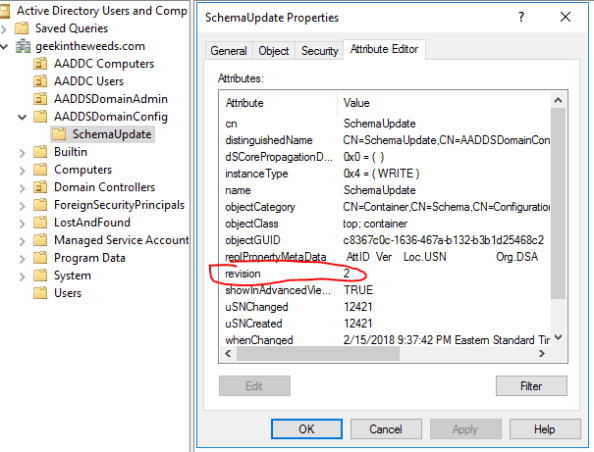
The AADDSDomainConfig container contains a single container object named SchemaUpdate.  I reviewed the attributes of both containers hoping to glean some idea of the purpose of the containers and the only thing I saw of notice was the revision attribute was set to 2.  Maybe Microsoft is tracking the schema of their standard managed domain image via this attribute?  In a future post in this series I’ll do a comparison of this managed domain’s schema with a fresh Windows Server 2012 R2 schema.

entry1pic7.png

Opening Active Directory Sites and Services shows that Microsoft has chosen to leave the domain with a single site.  This design choice makes sense given that a limitation of AAD DS is that it can only serve a single region.  If that limitation is ever lifted, Microsoft will need to revisit this choice and perhaps include a site for each region.   Expanding the Default-First-Site-Name site and the Servers node shows the two domain controllers Microsoft is using to provide the Windows Active Directory service to the VNet.

entry1pic8

So the layout is simple, what about the group policy objects (GPO)?  Opening up the Group Policy Management Console displays five GPOs which are included in every managed domain.

entry1pic9.png

The AADDC Users GPO is empty of settings while the AADC Computers GPO has a single Preference defined that adds the AAD DC Administrators group to the built-in Administrators group on any member servers added to the OU.  The Default Domain Controllers Policy (DDCP) GPO is your standard out of the box DDCP with nothing special set.  The Default Domain Policy (DDP) GPO on the other hand has a number of settings applied.  The password policy is interesting… I get that you have the option to source all the user accounts within your AAD DS domain from Azure AD, but Microsoft is still giving you the ability to create user accounts in the managed domain as I covered above which makes me uncomfortable with the default password policy.  Microsoft hasn’t delegated the ability to create Fine Grained Password Policies (FGPPs) either, which means you’re stuck with this very lax password policy.  Given the lack of technical enforcement, I’d recommend avoiding creating user accounts directly in the managed domain for any purpose until Microsoft delegates the ability to create FGPPs.  The remaining settings in the policy are standard out of the box DDP.

entry1pic10.png

The GPO named Event Log GPO is linked to the Domain Controllers OU and executes a startup script named EventLogRetentionPolicy.PS1.  Being the nosy geek I am, I dug through SYSVOL to find the script.  The script is very simple in that it sets each event log to overwrite events over 31 days old.  It then verifies the results and prints the results to the console.  Event logs are an interesting beast in AAD DS.  An account in the AAD DC Administrators group doesn’t have the right to connect to the Event Logs on the DCs remotely and I haven’t come across any options to view those logs.  I don’t see any mention of them in the Microsoft documentation, so my assumption is you don’t get access to them at this time.  I have to imagine this is a show stopper for some organizations considering the critical importance of Domain Controller logs.  If anyone knows how to access these logs, please let me know.  I’d like to see Microsoft incorporate an option to send the logs to a syslog agent via a configuration option in the Azure AD Domain Services blade in the Azure Portal.

I’m going to stop here today.  In my next post I’ll do some poking around by running a port scan against the managed domain controllers to see what network flows are open, enable LDAPS to see what the SSL/TLS landscape looks like, and examine authentication protocols and algorithms supported (NTLMv1,v2, Kerberos DES, etc).  Thanks for reading!