Azure Authorization – Azure RBAC Basics

This is part of my series on Azure Authorization.

  1. Azure Authorization – The Basics
  2. Azure Authorization – Azure RBAC Basics
  3. Azure Authorization – actions and notActions
  4. Azure Authorization – Resource Locks and Azure Policy denyActions
  5. Azure Authorization – Azure RBAC Delegation
  6. Azure Authorization – Azure ABAC (Attribute-based Access Control)

Welcome back folks. In this post I will be continuing my series on Azure authorization by covering the basics of Azure RBAC. I will review the components that make up Azure RBAC and touch upon some of the functionality I’ll be covering in future posts of this series. Grab a coffee, get comfy, and prepare to review some JSON!

In my first post in this series I touched on the basics of authorization in Azure. In that post I covered the differences between the management plane (actions on a resource) and the data plane (actions on data stored in the resource). I also called out the four authorization planes for Azure which include Entra ID Roles, Enterprise Billing Accounts, Azure Classic Subscription Admin Roles, and Azure RBAC (Role-Based Access Control). If you’re unfamiliar with these concepts, take a read through that post before you continue.

Authorization Planes for Azure

Azure RBAC is the primary authorization plane for Microsoft Azure. When making a request to the ARM (Azure Resource Manager) REST API it’s Azure RBAC that decides whether or not the action is allowed (with the exceptions I covered in my first post and some exceptions I’ll cover through this series). Azure RBAC is configured by using a combination of two resources which include the Azure RBAC Role Definition and Azure RBAC Role Assignment. At a high level, an Azure RBAC Role Definition is a collection of permissions and an assignment is the granting of those permissions to a security principal for an access scope. Definitions and assignments can only be created by a security principal that has been assigned an Azure RBAC Role with the permissions in the Microsoft.Authorization resource provider. The specific permissions include Microsoft.Authorization/roleDefinitions/* and Microsoft.Authorization/roleAssignments/*. Out of the box there are two built-in roles that have these permission which include User Access Administrator and Owner (there are a few others that are newer and I’ll discuss in a future post).

Let me dig deeper into both of these resources.

It all starts with an Azure Role Definition. These can be either built-in (pre-existing roles Microsoft provides out of the box) or custom (a role you design yourself). A role definition is made up of three different components which include the permissions (actions), assignable scopes, and conditions. The permissions include the actions that can be performed, the assignable scope is the access scopes the role definition can be assigned to, and the conditions further constrain the access for the purposes of a largely new and upcoming additional features for Azure RBAC.

Azure RBAC Role Definition – Structure

Permissions are divided into four categories which include actions, notActions, dataActions, and notDataActions. The actions and notActions are management plane permissions and dataActions and notDataActions are data plane permissions. As mentioned earlier, management plane is actions on the resource while data plane is actions on the data within the resource. Azure RBAC used to be management plane only, but has increasingly (thankfully) been expanded into the data plane. Actions and dataActions are the actions that are allowed and notActions and notDataActions are the actions which should be removed from the list of actions. That likely sounds very confusing and I’ll cover it in more depth in my next post. For now, understand that a permission in notAction or notDataAction is not an explicit deny.

The assignable scopes component is a list of places the role definition can be assigned (I’ll get to this later). The assignable scopes include management group (with some limitations for custom role definitions), subscription, resource group, or resource. Note that whatever scopes are includes, the scopes under it are also included. For example, an assignable scope of a management group would make the role definition usable at that management scope, subscriptions associated with that management group, resource groups within those subscriptions, and resources within those resource groups.

Lastly, we have the conditions. Conditions are a new feature of Azure RBAC Role Definitions and Assignments and are used to further filter the access based on other properties of the security principal, session, or resource. These conditions are used in newer features I’ll be covering throughout this series.

When trying to learn something, I’m a big fan of looking at the raw information from the API. It gives you all the properties you’d never know about when interacting via the GUI. Below is the representation of a built-in Azure RBAC Role Definition. You can dump this information using Azure PowerShell, Azure CLI, or the REST API. Using Azure CLI you would use the az role definition command.

Azure RBAC Role Definition – Data

There are a few things I want you to focus on. First, you’ll notice the id property. Each Azure RBAC Role Definition has a unique GUID which must be unique across the Entra ID tenant. The GUIDs for built-in roles should (never run into an instance where they were not) be common across all instances of Entra ID. Like all Azure objects, Azure RBAC Role Definitions also have be be stored somewhere. Custom Azure RBAC Role Definitions can be stored at the management group or subscription-level. I’d recommend you store your Azure RBAC Role Definitions at the management group level whenever possible so they can be re-used (there is a limit of 5,000 custom Azure RBAC Role Definitions per Entra ID tenant) and they exist beyond the lifetime of the subscription (think of use case where you re-use a role definition from subscription 1 in subscription 2 then blow up subscription 1, uh oh).

Next, you’ll see the assignableScopes property with a value of “/”. That “/” represents the root management group (see my post on the root management group if you’re unfamiliar with the concept). As of 3/2024, only built-in role definitions can have an assignable scope of “/”. When you create a custom role definition you will likely create it with an assignable scope of either a management group (good for common roles that will be used across subscriptions and to keep under the 5,000 role definition limit) or subscription (good for use cases where a business unit may have specific requirements).

Lastly, you’ll see that a condition has been applied to this Azure RBAC Role Definition. As of 3/2024 only built-in roles will include conditions in the definitions. I’ll cover what these conditions do in a future post.

Excellent, so you now grasp the Azure RBAC Role Definition. Let me next dive into Assignments.

Azure RBAC Role Assignments associate a role definition to a security principal and assign an access scope to those permissions. At a high-level, they are made up of four components which include the security principal (the entity assigned the role), role definition (the collection of permissions), scope (the access scope), and conditions (further filters on how this access can be exercised).

Azure RBAC Role Assignment – Structure

The security principal component is the entity that will be assigned the role for the specific access scope. This can be an Entra ID user, group, service principal, or managed identity.

The role definition is the Azure RBAC Role Definition (collection of permissions) the security principal will be assigned. This can include a built-in role or a custom role.

The scope is the access scope the security principal can exercise the permissions defined in the role definition. It’s most common to create Azure RBAC Role Assignments at the subscription and resource group scope. If you have a subscription strategy where every application gets its own subscription, the subscription scope may make sense for you. If your strategy is subscriptions at the business unit level you may create assignments at the resource group. Assignments at the management group tend to be limited to roles for the central IT (platform and security) team. Take note there are limits to the number of assignments at different scopes which are documented at this link. As of 3/2024 you cannot assign an Azure RBAC Role with dataActions or notDataActions permissions at the management group scope.

Let’s now take a look at the API representation of a typical role assignment. You can dump this information using Azure PowerShell, Azure CLI, or the REST API. When using Azure CLI you would do:

az role assignment list
Azure RBAC Role Assignment – Data

Here there are a few properties to note. Just like the Azure Role Definitions, the id property of an Azure RBAC Assignment must contain a GUID unique to the Entra ID tenant.

The principalId is the object id of the security principal in Entra ID and the principalType is the object type of the security principal which will be user, group, or service principal. Why no managed identity? The reason for that is managed identities are simply service principals with some orchestration on top. If you’re curious as to how managed identities are represented in Entra ID, check out my post on orphaned managed identities.

The scope is the access scope the permissions will apply to. In the example above, the permissions granted by this role assignment will have the scope of the rg-demo-da-50bfd resource group.

This role assignment also has a condition. The capabilities of conditions and where they are used will be covered in a future post.

The last property I want to touch on is the delegatedManagedIdentityResourceId. This is a property used when Azure Lighthouse is in play.

Alright folks, that should give you a basic understanding of the foundations of Azure RBAC. Your key takeaways for today are:

  • Assigning a security principal permissions consists of two resources, the role definition (the set of permissions) and the assignment (combination of the role, security principal, and access scope).
  • Custom Azure RBAC Role Definitions should be created at the management group level where possible to ensure their lifecycle persists beyond the subscription they are used within. Be aware of the 5,000 per Entra ID tenant limit.
  • Azure RBAC Role Assignments are most commonly created at the subscription or resource group level. Usage at management groups will likely be limited to granting permissions for Central IT or Security. Be aware of the limits around the number of assignments.

In my next post I’ll dig deeper into how notActions and notDataActions works, demonstrate how it is not an explicit deny, and compare and contract an Azure RBAC Role Definition to an AWS IAM Policy.

Have a great week!

Azure Authorization – The Basics

This is part of my series on Azure Authorization.

  1. This is part of my series on Azure Authorization.
  2. Azure Authorization – The Basics
  3. Azure Authorization – Azure RBAC Basics
  4. Azure Authorization – actions and notActions
  5. Azure Authorization – Resource Locks and Azure Policy denyActions
  6. Azure Authorization – Azure RBAC Delegation
  7. Azure Authorization – Azure ABAC (Attribute-based Access Control)

Hello again!

I’ve been wanting to put together a series on authorization in Azure for a while now. Over the past month I spent some time digging into the topic and figured I’d get it in written form while it is still fresh in my mind. I’ll be covering a lot of areas and features in these series, including some cool stuff that is in public preview. Before we get into the gooey details, let’s start with the basics.

When we talk identity I like to break it into three topics: identity, authentication, and authorization. Let me first define those terms using some wording from the NIST glossary. Identity is the attribute or attributes that describe the subject (in terms of Azure think of this as an Entra ID user or service principal). Authentication which is the process of verifying a user, process, or device. Authorization, which will be the topic of this series, is the rights or permissions granted to a subject. More simply, identity is the representation of the subject, authentication is the process of getting assurance that the subject is who they claim to be, and authorization is what the subject can do.

Identity in Azure is provided by the Entra ID directory (formerly Azure Active Directory, Microsoft marketing likes to rebrand stuff every few years). Like any good directory, it supports a variety of object types. The ones relevant to Azure are users, groups, service principals, and managed identities. Users and groups can exist authoritatively in the Entra ID tenant, they can be synchronized from an on-premises directory using something like Entra ID Connect Sync (marketing, please rebrand this), or they can represent federated users from other Entra ID tenants via the Entra ID B2B feature.

Azure Subscriptions (logical atomic unit for Azure whose parallel would be in AWS would be an AWS Account) are associated to a single Entra ID tenant. An Entra ID tenant can be associated to multiple Azure subscriptions. When configuring authorization in Azure you will be able to associate the permissions to security principals sourced from the associated Entra ID tenant.

Since multiple Azure Subscriptions can be associated to the same Entra ID tenant, this means all of those Azure Subscriptions share a common identity data store and authentication boundary. This differs from an AWS Account where each AWS Account has its own unique authentication boundary and directory of IAM Users and Roles. There are positive and negatives to this architectural decision by Microsoft that we can have fun banter with over a few tequilas, but we’ll save that for another day. The key thing I want you to remember is every Azure Subscription in the same Entra ID tenant shares that directory and authentication boundary but has a separate authorization boundary within each subscription. This means that getting authorization right is critical.

Boundaries in Azure

The above will always be true when talking about the management plane (sometimes referred to as the control plane), however there are exceptions when talking about the data plane. So what are the management plane and data planes? I like to define the management plane as the destination you interact with when you want to perform actions on a resource. Meanwhile the data plane is the destination you communicate with when you want to perform actions on data the resource is storing.

Management plane versus data plane

In the image above you’ll see an example of how the management plane and data plane differ when talking about Azure Storage. When you communicate with the management plane you interact with the management.azure.com which is the endpoint for the Azure Resource Manager REST API. The Azure Portal, Azure CLI, Azure PowerShell, ARM (Azure Resource Manager) templates, Bicep templates, and the Azure Terraform Provider are all different ways to interact with this API. Interaction with this API will use Entra ID authentication (which uses modern authentication protocols and standards such as Open ID Connect and SAML). Determining what actions you can perform on resources behind this management plane is then determined by the permissions defined in Azure RBAC (Role-based Access Control) roles you have been assigned (more on this in the next post).

As I mentioned earlier, the data plane can break the the rule of “one identity plane to rule them all”. Notice how interactions with the data plane use a separate endpoint, in this case blob.core.windows.net. This is the Azure Storage Blob REST API and is the API used to interact with the data plane of Azure Storage when using blob storage. As is common with Azure, many PaaS (platform-as-a-service) offerings support Entra ID authentication and Azure RBAC authorization for both the management plane and data plane. What should pop out to you is that there is also support for a service-specific authentication and authorization mechanism, in this case storage account keys and SAS (shared access signature) tokens. You’ll see this pattern often with Azure PaaS offerings and its important to understand that the service-specific authentication and authorization mechanism should only be used if the service doesn’t support Entra ID authentication or authorization, or your use case specifically requires some functionality of the service-specific mechanism that isn’t available in Entra ID. The reason for this is service-specific mechanisms rarely support granular authorization (SAS tokens being an exception) effectively making the person in possession of that key “god” of the data plane for the service. Additionally, there are security features which are specific to Entra ID (Entra ID Conditional Access, Privileged Identity Management, Identity Protection, etc) and, perhaps most critically, traceability and auditability is extremely difficult to impossible when these mechanisms are used.

Yet another interesting aspect of Azure authorization is there are a few ways for a security principal who is highly privileged in other places to navigate themselves into highly privileged roles across Azure resources. In the image below, you can see how a highly privileged user in Entra ID can leverage the Entra ID Global Admin role to obtain highly privileged permissions in Azure. I’ve covered how this works, how to mitigate it, and how to detect it in this post. The other way to do this is through holding a highly privileged role across the Enterprise Billing constructs. While a bit dated, this blog post does a good job explaining how it’s possible.

Azure Authorization Planes

The key things I want you to walk away with for this post are:

  • With a shared identity and authentication boundary, ensuring a solid authorization model is absolutely mission critical for security of your Azure estate.
  • Ensure you tightly control your Entra ID Global Admins and Enterprise Billing authorization because they provide a way to bypass even the best configured Azure RBAC.
  • Whenever possible use Entra ID identities and authentication so you can take advantage of Azure RBAC.
  • Avoid using service-specific authentication and authorization because it tends to be very course-grained and difficult to track.

Alright folks, you are prepped with the basics. In my next post I’ll begin diving into Azure RBAC.

Have a great weekend!

The “Real” Root Management Group

2/11/2025 Update – This action is now captured in the Entra ID Audit Logs! I’d recommend putting an alert in ASAP to track this moving forward.

Hello fellow geek!

Today I’m going to cover a topic that isn’t well understood in the Azure community and can present significant risk to your Azure estate. Sit back, grab your Friday morning coffee, and prepare to learn about the “real” root management group.

Microsoft made an interesting identity-based choice when architecting Azure. That choice was to have all Azure subscriptions share a common identity management plane in what we have known as Azure AD (Azure Active Directory) and which has recently been renamed Entra ID. The shared identity management plane in Azure creates a single authority for identity data and authentication while maintaining separate authorization boundaries between Azure subscriptions. This concept may differ for those of you coming from AWS (Amazon Web Services) where every AWS account has a unique identity management plane that has its own identity data store, authentication boundary, and authorization boundary. Microsoft’s decision comes with benefits and considerations.

The atomic unit for resources in Microsoft Azure is the Azure subscription which acts as an authorization boundary, limits boundary, and compliance boundary. Each Azure subscription can be associated to a single Entra ID tenant. Once a subscription is associated to an Entra ID tenant the subscription will use tenant as a source of identity data and authentication provider. This dependency on Entra ID creates an interesting security risk around authorization.

Before I dive into the details of this, let me briefly explain the concept of management groups. A management group in Azure is a logical container for Azure Subscriptions which allow for you to enforce configuration “how a resource looks” (Azure Policy) and authorization “what a user can do” (Azure RBAC) across one or more subscriptions. Prior to management groups, these things had to be managed at the individual subscription level or below (resource group or individual resource). Every subscription added to an Entra ID tenant exists under the Tenant Root Management Group by default, but this can be changed. Customers can can create additional management groups underneath the Tenant Root Management Group as per their needs (great guidance on this here).

If you’ve used Azure for any length of time the above is likely all review for you. However, as Yoda said, “there is another”. Above the Tenant Root Management Group exists another management group called root or “/”. As seen in the visual below, the root management group is the glue that sticks Entra ID authorization to Azure authorization together. Let’s dig into how this works.

Entra ID and Microsoft Azure Authorization

In Entra ID there is a role called Global Administrator. For those of you unfamiliar with this role, it is the god role of Entra ID and all services associated with an Entra ID tenant such as M365 and, yes, Azure. Holding this role in Entra ID does not give you permissions in Azure, but there is a path to give yourself permissions and become the god of your Azure estate.

Users who hold the Global Administrator have the ability to grant themselves access on the root “/” management group. They can do this through an option in the Entra ID blade of the Azure Portal called Access Management for Azure Resources or Elevate Access. This is also available via the Azure REST API using the elevateAccess endpoint. The value of this toggle switch shown in the Portal is the value for the current user context (user logged into the Portal). You cannot view this toggle switch for other users, but we can tell if it’s been toggled on as I will show later.

Option for Global Admins to assert control over Azure

When a Global Administrator toggles this option either through the Portal or through the REST API an Azure RBAC Role Assignment for the User Access Administrator is created at the root “/” management group.

User Access Administrator role assignment as result of global administrator elevate access

The User Access Administrator is a highly privileged role granting the user full permissions over the Microsoft.Authorization resource provider (as seen below). These permissions allow the user to create additional role assignments on for any Azure RBAC Role on any Azure management, subscription, resource group, or resource within the Entra ID tenant. Yes… yikes.

{
    "id": "/providers/Microsoft.Authorization/roleDefinitions/18d7d88d-d35e-4fb5-a5c3-7773c20a72d9",
    "properties": {
        "roleName": "User Access Administrator",
        "description": "Lets you manage user access to Azure resources.",
        "assignableScopes": [
            "/"
        ],
        "permissions": [
            {
                "actions": [
                    "*/read",
                    "Microsoft.Authorization/*",
                    "Microsoft.Support/*"
                ],
                "notActions": [],
                "dataActions": [],
                "notDataActions": []
            }
        ]
    }
}

As I mentioned earlier, the Portal will only show you the value of the toggle switch for the ElevateAccess feature for the currently logged in user. You may now be thinking “How the heck can I enforce this if I can’t view it in the Portal?”. The good news is this toggle seems to be some backend orchestration where the platform checks whether the user has the User Access Administrator RBAC Role Assignment on the root “/” management group. This means you don’t need to care about that visual toggle switch, you only need to care about the actual permission. You can list out the the users that have the role assignment at root using the cli command below.

az role assignment list --scope "/" --query "[?roleDefinitionName=='User Access Administrator'].{Username:principalName, ObjectId:objectId}" --output table

Awesome, so you know who has it. Why should you care? Listen, I gonna be nice and assume you’re asking this because it’s a Friday and your brain is fried. The reason you should care is this gives your users who have access to the Entra ID Global Administrators Role the ability to make themselves god of your Azure estate. This includes owners over the resources for management plane operations which can, in almost every instance, lead to owner of the data contained within the resources within the data plane. You SHOULD NOT have a role assignment for User Access Administrator on the root “/” management group. There a few instances where you need this permission temporarily to grant other permissions, but I will cover that at the end of this post. For now, know that if you have that permission there you shouldn’t.

In most enterprises there is a separate team managing Entra ID from the team managing Azure in order to maintain separation of duties. Access to the Global Administrator role opens up the risk for the user to assert access and control over data that is outside of their roles and responsibilities. While there is no way to stop this from happening, you should be monitoring for when it occurs. So how might you do this?

If you’re used Azure, you should be familiar with Azure Activity Logs. The Activity Logs contain log entries for create, update, and delete operations on the Azure management plane. Activity Logs exist at a number of scopes including Subscription, Management Group, and Directory. While Subscription and Management Group Activity Logs supports integration with Azure Monitor Diagnostic Logs, Directory Activity Logs do not and those are the logs new role assignments to the root “/” management group are recorded in. This means you need to write custom code to manually pull down those logs via the REST API in order to capture and alert on them in your favorite SIEM. Yuck right? Well there is an easier way to alert on this.

Directory-level Azure Activity Logs

A while back Microsoft introduced support for Azure Monitor to make log queries against the Azure Resource Graph. I’m not going to do a deep dive into ARG (Azure Resource Graph). All you need to know for the purpose of this post is it’s a service you can tap into to pull down information about Azure resources, including role assignments.

Let me walk through how this works.

I can issue an Kusto query through Azure Monitor to query ARG to see what role assignments for User Access Administrator exist on the root “/” management group using the query below (note this will require you have appropriate read permissions at root “/”).

arg("").AuthorizationResources
| where properties.scope == "/"
| where properties.roleDefinitionId == "/providers/Microsoft.Authorization/RoleDefinitions/18d7d88d-d35e-4fb5-a5c3-7773c20a72d9"

This Kusto query will query the ARG authorizationresources category for any role assignments on the root “/” management group that have the role definition id for User Access Administrator. Each resulting log entry denotes a role assignment on root. Here we can see I have two role assignments on the root for User Access Administrator. Bad Matt.

Query to pull role assignments for User Access Administrator on root “/” management group

Back in October 2023 Microsoft introduced into public preview support to create Azure Alerts for Azure Monitor Log queries against ARG. This means you can create an Azure Alert based on this custom log query. If there is a role assignment for User Access Administrator on the root “/” management group, an alert will be fired. Let me walk through the setup of that alert, because it’s a little bit funky.

First thing you will need to do is create an action group and you can use this documentation to that. Once you have your action group you’ll want to navigate to the Alerts blade in the Azure Portal and then to the alert rules

Alert Rules in Azure Portal

Select the option to create a new Alert Rule. In the scope section you can select a subscription. If you are using a similar subscription design as to the Azure Cloud Adoption Framework, selecting the Management subscription would be a good choice. I don’t believe the choice matters much because the alert is on the root management group and not a resource within a subscription.

On the condition screen you will choose the Custom log search option for the Signal name. The query you’ll put in there is below.

arg("").AuthorizationResources
| where properties.scope == "/"
| where properties.roleDefinitionId == "/providers/Microsoft.Authorization/RoleDefinitions/18d7d88d-d35e-4fb5-a5c3-7773c20a72d9"

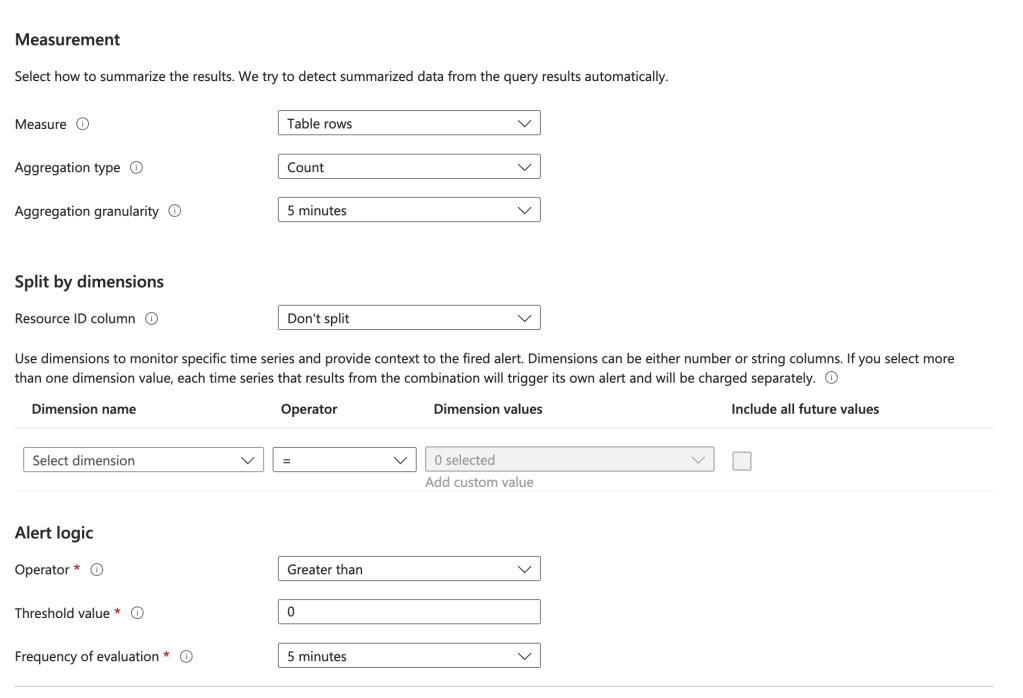
You will will also need to configure the measurements. You can use the settings I have below or customize it to your liking.

Measurements for alert

On the Actions screen choose Select action groups and select the action group you configured before.

On the Details screen you can set the severity to whatever you want. I’d recommend 0 since this is a significant escalation of privilege. You will also need to configure the alert with a managed identity. It will need an identity to authenticate and be authorized to ARG. Choose whichever managed identity type makes sense for your organization.

Adding a managed identity to the alert

Add whatever tags you want on the next screen and create the alert.

Done right? No, we now need to give the managed identity permissions on the root management group to read the role assignments.

I promised earlier I’d tell you the instance where you need to use this elevation. The are very few instances where you need to do this. One instance is when you are first building out your management group structure. In that scenario, no one has permission over the root or tenant root management group so no one can create new management groups. You will need to elevate a user with Global Administrator to the User Access Administrator role on the root “/” in that situation so that use can then grant another user account owned by the Azure team (ideally non-human, but vaulted is good too) User Access Administrator on the Tenant Root Management Group. When complete, the Global Administrator should toggle that switch back to off to remove the RBAC role assignment. This Microsoft article explains a few other scenarios you may need to temporary grant this role to grant permissions at the root “/”.

Now back to setting up the alert rule. Next up you need to grant the managed identity you assigned to the alert rule the permission at the root “/” management group so it can query the role assignments (see, a use case!). You can find the object id of the managed identity in the identity section of the Alert in the Portal. What role you assign it is up to you. I’m doing Reader because I’m lazy, but you could certainly craft a custom role if you’d like to (don’t forget to remove your permissions once you’ve completed this!).

az role assignment create --assignee-object-id "4f984694-b43c-4528-87e9-68aeab7478a3" --scope "/" --role "Reader"

You’re good to go! You now have an alert that will fire anytime there is any role assignment for User Access Administrator on the root “/” management group. Again, there should never be a role assignment for that role unless you’re temporarily using it for one of the use cases above.

The key things I want you to take away from this this post is the critical role Entra ID plays across all of the Microsoft Clouds. It’s important to understand how privilege in one product (Entra ID) can lead to privilege in another (Azure). Now you have a quick and easy security win you can crank out before Thanksgiving. Enjoy!

Blocking API Key Access in Azure OpenAI Service

Blocking API Key Access in Azure OpenAI Service

This is part of my series on GenAI Services in Azure:

  1. Azure OpenAI Service – Infra and Security Stuff
  2. Azure OpenAI Service – Authentication
  3. Azure OpenAI Service – Authorization
  4. Azure OpenAI Service – Logging
  5. Azure OpenAI Service – Azure API Management and Entra ID
  6. Azure OpenAI Service – Granular Chargebacks
  7. Azure OpenAI Service – Load Balancing
  8. Azure OpenAI Service – Blocking API Key Access
  9. Azure OpenAI Service – Securing Azure OpenAI Studio
  10. Azure OpenAI Service – Challenge of Logging Streaming ChatCompletions
  11. Azure OpenAI Service – How To Get Insights By Collecting Logging Data
  12. Azure OpenAI Service – How To Handle Rate Limiting
  13. Azure OpenAI Service – Tracking Token Usage with APIM
  14. Azure AI Studio – Chat Playground and APIM
  15. Azure OpenAI Service – Streaming ChatCompletions and Token Consumption Tracking
  16. Azure OpenAI Service – Load Testing

Hello folks! I’m back again with another post on the Azure OpenAI Service. I’ve been working with a number of Microsoft customers in regulated industries helping to get the service up and running in their environments. A question that frequently comes up in this conversations is “How do I prevent usage of the API keys?”. Today, I’m going to cover this topic.

I’ve covered authentication in the AOAI (Azure OpenAI Service) in a past post so read that if you need the gory details. For the purposes of this post, you need to understand that AOIA supports both API keys and AAD (Azure Active Directory) authentication. This dual support is similar to other Azure PaaS (platform-as-a-service) offerings such as Azure Storage, Azure CosmosDB, and Azure Search. When the AOAI instance is created, two API keys are generated which provide full permissions at the data plane. If you’re unfamiliar with the data plane versus management plane, check out my post on authorization.

Azure Portal showing AOAI API Keys

Given the API keys provide full permissions at the data plane monitoring and controlling their access is critical. As seen in my logging post monitoring the usage of these keys is no simple task since the built-in logging is minimal today. You could use a custom APIM (Azure API Management) policy to include a portion of the API key to track its usage if you’re using the advanced logging pattern, but you still don’t have any ability to restrict what the person/application can do within the data plane like you can when using AAD authentication and authorization. You should prefer AAD authentication and authorization where possible and tightly control API key usage.

In my authorization and logging posts I covered how to control and track who gets access to the API keys. I’ve also covered how APIM can be placed in front of an AOAI instance to enforce AAD authentication. If you block network access to the AOAI service to anything but APIM (such as using a Private Endpoint and Network Security Group) you force the usage of APIM which forces the use of AAD authentication preventing API keys from being used.

Azure OpenAI Service and Azure API Management Pattern

The major consideration of the pattern above is it breaks the Azure OpenAI Studio as of today (this may change in the future). The Azure OpenAI Studio is an GUI-based application available within the Azure Portal which allows for simple point-and-click actions within the AOAI data plane. This includes actions such as deploying models and sending prompts to a model through a GUI interface. While all this is available via API calls, you will likely have a user base that wants access a simple GUI to perform these types of actions without having to code to them. To work around this limitation you have to open up network access from the user’s endpoint to the AOAI instance. Opening up these network flows allows the user to bypass APIM which means the user could use an API key to make calls to the AOAI service. So what to do?

In every solution in tech (and life) there is a screwdriver and a hammer. While the screwdriver is the optimal way to go, sometimes you need the hammer. With AOAI the hammer solution is to block usage of API key-based authentication at the AOAI instance level. Since AOAI exists under the Azure Cognitive Services framework, it benefits from a poorly documented property called disableLocalAuth. Setting this property to true blocks the API key-based authentication completely. This property can be set at creation or after the AOAI instance has been deployed. You can set it via PowerShell or via a REST call. Below is code demonstrating how to set it using a call to the Azure REST API.

body=$(cat <<EOF
{
    "properties" : {
        "disableLocalAuth": true
    }
}

az rest --method patch --uri "https://management.azure.com/subscriptions/SUBSCRIPTION_ID/resourceGroups/RESOURCE_GROUP/providers/Microsoft.CognitiveServices/accounts/AOAI_INSTANCE_NAME?api-version=2021-10-01" --body $body              

The AOIA instance will take about 2-5 minutes to update. Once the instance finishes updating, all calls to it using API key-based authentication will receive an error such as seen below when using the OpenAI Python SDK.

You can re-enable the usage of API keys by setting the property back to false. Doing this will update the AOAI resource again (around 2-5 minutes) and the instance will begin accepting API keys. Take note that turning the setting off and then back on again WILL cycle the API keys so don’t go testing this if you have applications in production using API keys today.

Mission accomplished right? The user or application can only access the AOAI instance using AAD authentication which enforced granular Azure RBAC authroization. Heck, there is even an Azure Policy available you can use to audit whether AOAI instances have had this property set.

There is a major consideration with the above method. While you’ve blocked access to the API keys, you’re still created a way to circumvent APIM. This means you lose out on the advanced logging provided by APIM and you’ll have to live with the native logging. You’ll need to determine whether that risk is acceptable to your organization.

My suggestion would be to use this control in combination with strict authorization and network controls. There should be a very limited set of users with permissions directly on the AOAI resource and the direct network access to the resource should be tightly controlled. The network control could be accomplished by creating a shared jump host users that require this access could use. Key thing is you treat access to the Azure OpenAI Studio as an exception versus the norm. I’d imagine Microsoft will evolve the Azure OpenAI Studio deployment options over time and address the gaps in native logging. For today, this provides a reasonable compromise.

I did encounter one “quirk” with this option that is worth noting. The account I used to lab this all out had the Owner role assignment at the subscription level. With this account I was able to do whatever I wanted within the AOAI data layer when disableLocalAuth was set to false. When I set disableLocalAuth to true I was unable to make data plane calls (such as deploying new models). When I granted my user one of the data plane roles (such as Azure Cognitive Service OpenAI Contributor) I was able to perform data plane operations once again. It seems like setting this property to true enforces a rule which requires being granted specific data plane-level permissions. Make sure you understand this before you modify the property.

Well folks that concludes this blog post. Here are your key takeaways:

  1. API Key-based authentication can be blocked at the AOIA instance by setting the disableLocalAuth property to true. This setting can be set at deployment or post deployment and takes 2-5 minutes to take effect. Switching the value of this property from true to false will regenerate the API keys for the instance.
  2. The Azure OpenAI Studio requires the user’s endpoint have direct network access to the AOAI instance. This is because it uses the user’s endpoint to make specific API calls to the data plane. You can look at this yourself using debug mode in your browser or a local proxy like Fiddler. Direct network access to the AOAI instance means you will only have the information located in the native logs for the activities the user performs.
  3. Setting disableLocalAuth to true enforces a requirement to have specific data plane-level permissions. Owner on the subscription or resource group is not sufficient. Ensure you pre-provision your users or applications who require access to the AOAI instance with the built-in Azure RBAC roles such as Azure Cognitive Services OpenAI User or a custom role with equivalent permissions prior to setting the option to true.

Thanks folks and have a great weekend!