Azure OpenAI Service – Streaming ChatCompletions and Token Consumption Tracking

This is part of my series on GenAI Services in Azure:

  1. Azure OpenAI Service – Infra and Security Stuff
  2. Azure OpenAI Service – Authentication
  3. Azure OpenAI Service – Authorization
  4. Azure OpenAI Service – Logging
  5. Azure OpenAI Service – Azure API Management and Entra ID
  6. Azure OpenAI Service – Granular Chargebacks
  7. Azure OpenAI Service – Load Balancing
  8. Azure OpenAI Service – Blocking API Key Access
  9. Azure OpenAI Service – Securing Azure OpenAI Studio
  10. Azure OpenAI Service – Challenge of Logging Streaming ChatCompletions
  11. Azure OpenAI Service – How To Get Insights By Collecting Logging Data
  12. Azure OpenAI Service – How To Handle Rate Limiting
  13. Azure OpenAI Service – Tracking Token Usage with APIM
  14. Azure AI Studio – Chat Playground and APIM
  15. Azure OpenAI Service – Streaming ChatCompletions and Token Consumption Tracking
  16. Azure OpenAI Service – Load Testing

Hello again!

Today I’m back with another post focusing on AOAI (Azure OpenAI Service). My focus falls into two buckets: operations and security. For this post I’m going to cover a topic that falls into the operations bucket.

Last year I covered some of the challenges that arise when tracking token usage when the need arises to use streaming-based ChatCompletions. The challenges center around logging the prompt, response, and token usage. The guidance I provide in that prior post is unchanged for logging prompts and completions, but capturing token usage has gotten much easier. Before I dig into the details, I want to very briefly cover why you should care about and track token usage.

The whole “AI is the new electricity” statement isn’t all hype. Your business units are going to want to experiment with it, especially generative AI, to for optimizing business processes such as shaving time off how long it takes a call center rep to resolve a customer’s problem or automating a portion of what is now a manual limited value-added activity of highly paid employees to free them up to focus on activities that drive more business value. As an organization, you’re going to be charged with providing these services to the developers, data scientists, an AI engineers. The demand will be significant and you gotta figure out a scalable way to provide these services while satisfying security, performance, and availability requirements.

This will typically drive an architecture where capacity for generative AI is pooled and distributed to your business units a core service. Acting as a control point to ensure security, availability, and performance requirements can be met, the architectural concept of a Generative AI Gateway is introduced. This component usually translates to Azure API Management, 3rd party API Gateway, or custom developed solution with “generative ai-specific” functionality layered on top (load balancing, rate limiting based on token usage, token usage tracking, prompt and response logging, caching of prompts and responses to reduce costs and latency, etc).

In Azure you might see a design like the image below where you’re distributing the requests across multiple AOAI instances spread across regions, geo-political boundaries, and subscriptions in order to maximize your quota (number of requests and tokens per model). When you have this type of architecture it’s important to get visibility into the token usage of each application for charge backs and to ensure everyone is getting their fair share of the capacity (i.e. rate limiting).

Example high-level architecture using AOAI

Now let’s align the token usage back to streaming ChatCompletions. With a non-streaming ChatCompletion the API automatically returns the number of prompt tokens, completion tokens, and total tokens that were consumed with the request. This information is easy to intercept at the Generative AI Gateway to use as an input for rate limiting or to pass on to some reporting system for charge backs on token usage.

Non-streaming ChatCompletion returning usage

When performing a streaming ChatCompletion the completion is returned in a series of server events (or chunks). Usage statistics were historically not provided in the response from the AOAI service to my understanding and experience. This forced the application developer or the owner of the Generative AI Gateway to incorporate some custom code using a Tokenizer like tiktoken to manually calculate the total number of tokens. An example of such a solution developed by one of my wonderful peers Shaun Callighan can be found here. This was one of the only (maybe the only?) to approach the problem at the time but sometimes resulted in slightly skewed results from what was estimated by the tokenizer to what the actual numbers were when processed by the AOAI service and billed to the customer.

Streaming ChatCompletion chunks of responses


Microsoft has made this easier with the introduction of the azure-openai-emit-token-metrics policy snippet for APIM (Azure API Management) which can emit token usage for both streaming and non-streaming completions (among other operations) to an App Insights instance. I talk through this at length in this post. However, at this time, it’s supported for a limited set of models and not every customer uses APIM. These customers have had to address the problem using a custom solution like I mentioned earlier.

Earlier this week I was mucking around with a simplistic ChatBot I’m building (FYI, Streamlit is an amazing framework to help build GUIs if you’re terrible at frontend design like I am) and I came across an additional parameter that can be passed when making a streaming ChatCompletion. You can pass an additional parameter called stream_options which will provide the token usage of the ChatCompletion in the the second to last chunk delivered back to the client. I’m not sure when this was introduced or how I missed it, but it removes the need to calculate this yourself with a tokenizer.

 response = client.chat.completions.create(
    model=deployment_name,
    messages= [
        {"role":"user",
         "content": message}
    ],
    max_tokens=200,
    stream=True,
    stream_options={
         "include_usage": True
        }
 )

Below you’ll see a sample response from a streaming ChatCompletion when including the stream_options property. In the chunk before the final chunk (there is a final check not visible in this image), the usage statistics are provided and can be extracted.

This provides a much better option than trying to calculate this yourself. I tested this with 3.5-turbo and 4o (both with text and images) and it gave me back the token usage as expected (I’m using API version 2024-02-01). I threw together some very simple (and if it’s coming from me it’s likely gonna be simple because my coding skills leave a lot to be desired) to capture these metrics and return them as part of the completion.

# Class to support completion and token usage
class ChatMessage:
    def __init__(self, full_response, prompt_tokens, completion_tokens, total_tokens):
        self.full_response = full_response
        self.prompt_tokens = prompt_tokens
        self.completion_tokens = completion_tokens
        self.total_tokens = total_tokens

# Streaming chat completions
async def get_streaming_chat_completion(client, deployment_name, messages, max_tokens):
    response = client.chat.completions.create(
        model=deployment_name,
        messages=messages,
        max_tokens=max_tokens,
        stream=True,
        stream_options={
            "include_usage": True
        }
    )
    assistant_message = st.chat_message("assistant")
    full_response = ""

    with assistant_message:
        message_placeholder = st.empty()

    # Intialize token counts
    t_tokens = 0
    c_tokens = 0
    p_tokens = 0
    usage_dict = None


    for chunk in response:
        if chunk.usage:
            usage_dict = chunk.usage
            if p_tokens == 0:
                p_tokens = usage_dict.prompt_tokens
                c_tokens = usage_dict.completion_tokens
                t_tokens = usage_dict.total_tokens

        if hasattr(chunk, 'choices') and chunk.choices:
            content = chunk.choices[0].delta.content
            if content is not None:
                full_response += content
                message_placeholder.markdown(full_response)

    if full_response == "":
        full_response = "Sorry, I was unable to generate a response."

    return ChatMessage(full_response, p_tokens, c_tokens, t_tokens)

For those of using APIM as a Generative AI Gateway, you won’t have to worry about this for most of the OpenAI models offered through AOAI because the policy snippet I mentioned earlier will be improved to support additional models beyond what it supports today. For those of you using third-party gateways, this is likely relevant and may help to simplify your code and eliminate the discrepancies you see from calculating token usage yourself vs what you’re seeing displayed within the AOAI instance.

Well folks, this post was short and sweet. Hopefully this small tidbit of information helps a few folks out there who were going the tokenizer route. Any simplification these days is welcome!

Securing Azure OpenAI Studio

Securing Azure OpenAI Studio

This is part of my series on GenAI Services in Azure:

  1. Azure OpenAI Service – Infra and Security Stuff
  2. Azure OpenAI Service – Authentication
  3. Azure OpenAI Service – Authorization
  4. Azure OpenAI Service – Logging
  5. Azure OpenAI Service – Azure API Management and Entra ID
  6. Azure OpenAI Service – Granular Chargebacks
  7. Azure OpenAI Service – Load Balancing
  8. Azure OpenAI Service – Blocking API Key Access
  9. Azure OpenAI Service – Securing Azure OpenAI Studio
  10. Azure OpenAI Service – Challenge of Logging Streaming ChatCompletions
  11. Azure OpenAI Service – How To Get Insights By Collecting Logging Data
  12. Azure OpenAI Service – How To Handle Rate Limiting
  13. Azure OpenAI Service – Tracking Token Usage with APIM
  14. Azure AI Studio – Chat Playground and APIM
  15. Azure OpenAI Service – Streaming ChatCompletions and Token Consumption Tracking
  16. Azure OpenAI Service – Load Testing

Updates

  • 5/28/2024 – Updated to mention that objectid of security principal is now included in native diagnostic logs

Hello again folks! Today I’m going to bounce back into AOAI (Azure OpenAI Service) mode and cover a topic that frequently comes up with my customers in regards to securing the service. Over the past year I’ve covered the infrastructure and security controls available within the AOAI. Much of that focus was on accessing the service through an SDK (software development kit) or directly through the API. Today I’m going to spend some time talking about the security controls available to secure the Azure OpenAI Studio, which I’m going to refer to as Studio for the rest of this post.

If you’re unfamiliar with Studio, it’s a GUI-based experience for interacting with the data plane of the AOAI service. In my authorization post, I cover the difference between the service’s management and data planes. At a high level, the management plane is for operations “on the service” while the data plane is for operations “in the service”.

Azure OpenAI Service Management Plane vs Data Plane

Microsoft recommends using an SDK or the API directly when interacting with the data plane of the service. It’s a good recommendation because there are lots of knobs for you to turn to lock down the service and address gaps in the service. When the service is using through the Azure OpenAI Studio, you lose the ability to inject some type of control component between the user’s endpoint and the instance of AOAI. The rest of this post will cover why that is, what controls are available to you, and what risks you’ll have to accept if you opt to make Studio available to your users.

Before I jump into the details of what you get and what you don’t get, I want to cover what some of the main use cases are for using Studio versus accessing the service through an SDK or direct through the API. First and foremost, it should be obvious that GUIs are much more accessible than having to write code to interact with the API. For example, say I’m performing a PoC (proof-of-concept) of the service and I want to quickly test the gpt 3.5 model’s ability to answer a question in my field. For that I can use the Completions interface within Studio to get a chat-like interface with zero coding.

Example of Chat Completion functionality in Azure OpenAI Studio

Another use case may be I want a simple way to test the models on my organization’s data to see if the models can provide value to that data. I don’t want to invest a ton of time coding to perform this functionality because I don’t yet know if the models will be able to provide any value on top of my data.

A lot of the use for Studio comes down to its simplicity of use. If you need to do some basic PoC with minimal funding, using Studio can be a nice shortcut to doing all the code you’d need to do in order to interact with the API to perform the actions.

Long story short, if you’re offering this service to your business units you’re likely going to be asked to provide Studio access to your users. My goal here is to help you understand the risks and mitigations of doing so.

So how does the Azure OpenAI Studio work? It appears to use an MVC (model-view-controller) architecture (or something similar to it for those application developer purists who are much smarter than me). In simple terms for non-developers like myself, the Studio application instructs the user’s browser which data plane endpoints to call and then provides a pretty view in the user’s browser of the responses received from those endpoints.

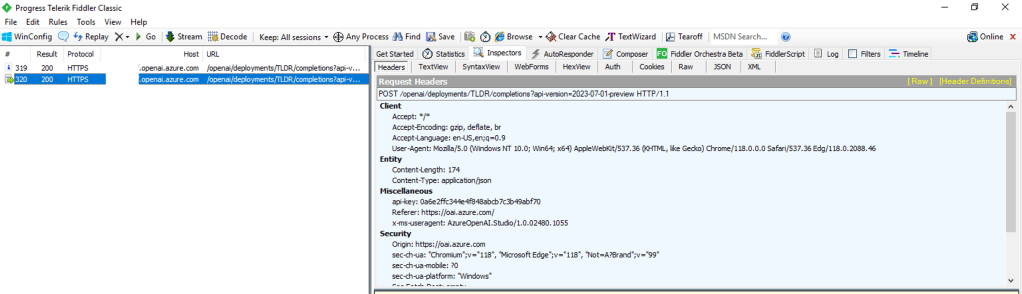
For you non-developers like myself, I find it helpful to perform an action within Studio and then review the Fiddler capture to observe what the browser did. In the Fiddler capture below, I used the Chat Completion interface in Studio to send a request a completion. You can see that the request was sent from my browser to the data plane endpoint of the service (openai.azure.com).

Fiddler capture of Chat Completion in Azure OpenAI Studio

This trait of the Studio can work to your advantage when you need to secure the Studio. If the calls are made from the user’s endpoint to the data plane, then that means network controls around the data plane can be used to enforce control over access to the Studio for the instance of AOAI. As I covered in my prior posts, AOAI is no different from other Microsoft PaaS services and provides the standard network controls which include the service firewall and support for Private Endpoints.

A common security standard for organizations using Azure is to use Private Endpoints for PaaS services. Private Endpoints allow you to restrict access to the public IP of a PaaS service and limit it to access through an endpoint deployed in the customer’s virtual network. Accessing the service through the Private Endpoint requires the user’s endpoint to be within your organization’s private network. This means by creating a Private Endpoint you can block access to access to the AOAI instance through Studio to endpoints within your private network. If the user attempts to access the AOAI instance through Studio outside of the private network, they’ll be blocked and will receive the error you see below.

Network controls blocking access through Azure OpenAI Studio

Placing your AOAI instance behind a Private Endpoint will be your primary means of controlling access to an AOAI instance through Studio. Creating the private endpoint and blocking public access keeps user’s from accessing the AOAI instance through Studio when hitting the public IP. However, users can still reach the AOAI instance through Studio if they are on the private network. You can lock that down by wrapping an NSG (Network Security Group) around the subnet containing the Private Endpoint, turning on Private Endpoint Network Policies in the subnet, and placing some type of mediator (such an Azure API Management instance) between the user’s endpoint and the AOAI instance. That will restrict the users to the API when interacting with the AOAI instance.

Example AOAI architecture

Outside of network controls, you don’t have much ability to control Studio access. There are no specific RBAC permissions that I’m aware of today that could be stripped from an RBAC role to prevent access to Studio. When it comes to authorization you should strive for least privilege as you’ve always done. My authorization blog has some guidance on how to handle that within the service.

Now that you understand what controls you have, let’s talk about the risks you’re going to need to accept if you plan on granting users access to Studio.

First and foremost, you’re going to need to accept the very basic logging provided by the diagnostics logging available within an AOAI instance. As I cover in the linked post above, the logging is minimal. Prompts and responses will not be logged, traceability in the logs will be limited, and you won’t get metrics as to token usage per call. The lack of visibility into prompts and responses becomes all that much more critical if shut off the built in content filtering and abuse monitoring.

Next up, you won’t have the ability to limit the usage of service on a per user or per app basis. AOAI has API limits around requests and tokens. There are capabilities today to control this on per user or per app basis within a single instance of AOAI today.

Let me summarize what we covered today:

  • Network controls are your primary means to securing access to an AOAI instance through the Azure OpenAI Studio
  • Placing an AOAI instance behind a Private Endpoint and blocking public access restrict Azure OpenAI Studio access to the AOAI instance to endpoints within your private network
  • Azure OpenAI Studio access to an AOAI instance can be blocked completely by placing the AOAI instance behind a private endpoint, inserting some sort of mediation solution (such as API Management, and wrapping an NSG around the subnet containing the Private Endpoint which blocks all access but traffic from the mediator.
  • Exercise least privilege using Azure RBAC but be aware there is no specific permission that allows access to the Azure OpenAI Studio
  • The diagnostic logs provided limited information. Prompts and responses are not logged to the diagnostic logs and neither are token consumption. The former will mean you don’t have visibility into the prompts users are making (think abuse, inclusion of PII, etc) and the latter means you won’t be able to tell who is creating the costs within the instance.

Considering all of the above, my recommendation to customers it to establish an approval process for usage of Studio and ensure there is a strong business need to justify accepting the risks outlined above. The lack of logging is the real gut punch for me. That is a lot of risk, especially since most regulated orgs opt out of content filtering and abuse monitoring.

Nothing to fancy in this post, but hopefully it helps some folks better understand the security options for Azure OpenAI Studio access.

Thanks!

Blocking API Key Access in Azure OpenAI Service

Blocking API Key Access in Azure OpenAI Service

This is part of my series on GenAI Services in Azure:

  1. Azure OpenAI Service – Infra and Security Stuff
  2. Azure OpenAI Service – Authentication
  3. Azure OpenAI Service – Authorization
  4. Azure OpenAI Service – Logging
  5. Azure OpenAI Service – Azure API Management and Entra ID
  6. Azure OpenAI Service – Granular Chargebacks
  7. Azure OpenAI Service – Load Balancing
  8. Azure OpenAI Service – Blocking API Key Access
  9. Azure OpenAI Service – Securing Azure OpenAI Studio
  10. Azure OpenAI Service – Challenge of Logging Streaming ChatCompletions
  11. Azure OpenAI Service – How To Get Insights By Collecting Logging Data
  12. Azure OpenAI Service – How To Handle Rate Limiting
  13. Azure OpenAI Service – Tracking Token Usage with APIM
  14. Azure AI Studio – Chat Playground and APIM
  15. Azure OpenAI Service – Streaming ChatCompletions and Token Consumption Tracking
  16. Azure OpenAI Service – Load Testing

Hello folks! I’m back again with another post on the Azure OpenAI Service. I’ve been working with a number of Microsoft customers in regulated industries helping to get the service up and running in their environments. A question that frequently comes up in this conversations is “How do I prevent usage of the API keys?”. Today, I’m going to cover this topic.

I’ve covered authentication in the AOAI (Azure OpenAI Service) in a past post so read that if you need the gory details. For the purposes of this post, you need to understand that AOIA supports both API keys and AAD (Azure Active Directory) authentication. This dual support is similar to other Azure PaaS (platform-as-a-service) offerings such as Azure Storage, Azure CosmosDB, and Azure Search. When the AOAI instance is created, two API keys are generated which provide full permissions at the data plane. If you’re unfamiliar with the data plane versus management plane, check out my post on authorization.

Azure Portal showing AOAI API Keys

Given the API keys provide full permissions at the data plane monitoring and controlling their access is critical. As seen in my logging post monitoring the usage of these keys is no simple task since the built-in logging is minimal today. You could use a custom APIM (Azure API Management) policy to include a portion of the API key to track its usage if you’re using the advanced logging pattern, but you still don’t have any ability to restrict what the person/application can do within the data plane like you can when using AAD authentication and authorization. You should prefer AAD authentication and authorization where possible and tightly control API key usage.

In my authorization and logging posts I covered how to control and track who gets access to the API keys. I’ve also covered how APIM can be placed in front of an AOAI instance to enforce AAD authentication. If you block network access to the AOAI service to anything but APIM (such as using a Private Endpoint and Network Security Group) you force the usage of APIM which forces the use of AAD authentication preventing API keys from being used.

Azure OpenAI Service and Azure API Management Pattern

The major consideration of the pattern above is it breaks the Azure OpenAI Studio as of today (this may change in the future). The Azure OpenAI Studio is an GUI-based application available within the Azure Portal which allows for simple point-and-click actions within the AOAI data plane. This includes actions such as deploying models and sending prompts to a model through a GUI interface. While all this is available via API calls, you will likely have a user base that wants access a simple GUI to perform these types of actions without having to code to them. To work around this limitation you have to open up network access from the user’s endpoint to the AOAI instance. Opening up these network flows allows the user to bypass APIM which means the user could use an API key to make calls to the AOAI service. So what to do?

In every solution in tech (and life) there is a screwdriver and a hammer. While the screwdriver is the optimal way to go, sometimes you need the hammer. With AOAI the hammer solution is to block usage of API key-based authentication at the AOAI instance level. Since AOAI exists under the Azure Cognitive Services framework, it benefits from a poorly documented property called disableLocalAuth. Setting this property to true blocks the API key-based authentication completely. This property can be set at creation or after the AOAI instance has been deployed. You can set it via PowerShell or via a REST call. Below is code demonstrating how to set it using a call to the Azure REST API.

body=$(cat <<EOF
{
    "properties" : {
        "disableLocalAuth": true
    }
}

az rest --method patch --uri "https://management.azure.com/subscriptions/SUBSCRIPTION_ID/resourceGroups/RESOURCE_GROUP/providers/Microsoft.CognitiveServices/accounts/AOAI_INSTANCE_NAME?api-version=2021-10-01" --body $body              

The AOIA instance will take about 2-5 minutes to update. Once the instance finishes updating, all calls to it using API key-based authentication will receive an error such as seen below when using the OpenAI Python SDK.

You can re-enable the usage of API keys by setting the property back to false. Doing this will update the AOAI resource again (around 2-5 minutes) and the instance will begin accepting API keys. Take note that turning the setting off and then back on again WILL cycle the API keys so don’t go testing this if you have applications in production using API keys today.

Mission accomplished right? The user or application can only access the AOAI instance using AAD authentication which enforced granular Azure RBAC authroization. Heck, there is even an Azure Policy available you can use to audit whether AOAI instances have had this property set.

There is a major consideration with the above method. While you’ve blocked access to the API keys, you’re still created a way to circumvent APIM. This means you lose out on the advanced logging provided by APIM and you’ll have to live with the native logging. You’ll need to determine whether that risk is acceptable to your organization.

My suggestion would be to use this control in combination with strict authorization and network controls. There should be a very limited set of users with permissions directly on the AOAI resource and the direct network access to the resource should be tightly controlled. The network control could be accomplished by creating a shared jump host users that require this access could use. Key thing is you treat access to the Azure OpenAI Studio as an exception versus the norm. I’d imagine Microsoft will evolve the Azure OpenAI Studio deployment options over time and address the gaps in native logging. For today, this provides a reasonable compromise.

I did encounter one “quirk” with this option that is worth noting. The account I used to lab this all out had the Owner role assignment at the subscription level. With this account I was able to do whatever I wanted within the AOAI data layer when disableLocalAuth was set to false. When I set disableLocalAuth to true I was unable to make data plane calls (such as deploying new models). When I granted my user one of the data plane roles (such as Azure Cognitive Service OpenAI Contributor) I was able to perform data plane operations once again. It seems like setting this property to true enforces a rule which requires being granted specific data plane-level permissions. Make sure you understand this before you modify the property.

Well folks that concludes this blog post. Here are your key takeaways:

  1. API Key-based authentication can be blocked at the AOIA instance by setting the disableLocalAuth property to true. This setting can be set at deployment or post deployment and takes 2-5 minutes to take effect. Switching the value of this property from true to false will regenerate the API keys for the instance.
  2. The Azure OpenAI Studio requires the user’s endpoint have direct network access to the AOAI instance. This is because it uses the user’s endpoint to make specific API calls to the data plane. You can look at this yourself using debug mode in your browser or a local proxy like Fiddler. Direct network access to the AOAI instance means you will only have the information located in the native logs for the activities the user performs.
  3. Setting disableLocalAuth to true enforces a requirement to have specific data plane-level permissions. Owner on the subscription or resource group is not sufficient. Ensure you pre-provision your users or applications who require access to the AOAI instance with the built-in Azure RBAC roles such as Azure Cognitive Services OpenAI User or a custom role with equivalent permissions prior to setting the option to true.

Thanks folks and have a great weekend!

Load Balancing in Azure OpenAI Service

Load Balancing in Azure OpenAI Service

This is part of my series on GenAI Services in Azure:

  1. Azure OpenAI Service – Infra and Security Stuff
  2. Azure OpenAI Service – Authentication
  3. Azure OpenAI Service – Authorization
  4. Azure OpenAI Service – Logging
  5. Azure OpenAI Service – Azure API Management and Entra ID
  6. Azure OpenAI Service – Granular Chargebacks
  7. Azure OpenAI Service – Load Balancing
  8. Azure OpenAI Service – Blocking API Key Access
  9. Azure OpenAI Service – Securing Azure OpenAI Studio
  10. Azure OpenAI Service – Challenge of Logging Streaming ChatCompletions
  11. Azure OpenAI Service – How To Get Insights By Collecting Logging Data
  12. Azure OpenAI Service – How To Handle Rate Limiting
  13. Azure OpenAI Service – Tracking Token Usage with APIM
  14. Azure AI Studio – Chat Playground and APIM
  15. Azure OpenAI Service – Streaming ChatCompletions and Token Consumption Tracking
  16. Azure OpenAI Service – Load Testing

Updates:

5/23/2024 – Check out my new post on this topic here!

Another Azure OpenAI Service post? Why not? I gotta justify the costs of maintaining the blog somehow!

The demand for the AOAI (Azure OpenAI Service) is absolutely insane. I don’t think I can compare the customer excitement over the service to any other service I’ve seen launch during my time working at cloud providers. With that demand comes the challenge to the cloud service provider of ensuring there is availability of the service for all the customers that want it. In order to do that, Microsoft has placed limits on the number of tokens/minute and requests/minute that can be made to a specific AOAI instance. Many customers are hitting these limits when moving into production. While there is a path for the customer to get the limits raised by putting in a request to their Microsoft account team, this process can take time and there is no guarantee the request can or will be fulfilled.

What can customers do to work around this problem? You need to spin up more AOAI instances. At the time of this writing you can create 3 instances per region per subscription. Creating more instances introduces the new problem distributing traffic across those AOAI instances. There are a few ways you could do this including having the developer code the logic into their application (yuck) ore providing the developer a singular endpoint which is doing the load balancing behind the scenes. The latter solution is where you want to live. Thankfully, this can be done really easily with a piece of Azure infrastructure you are likely already using with AOAI. That piece of infrastructure is APIM (Azure API Management).

Sample AOAI Architecture

As I’ve covered in my posts on AOAI and APIM and my granular chargebacks in AOAI, APIM provides a ton of value the AOIA pattern by providing a gate between the application and the AOAI instance to inspect and action on the request and response. It can be used to enforced Azure AD authentication, provide enhanced security logging, and capture information needed for internal chargebacks. Each of these enhancements is provided through APIM’s custom policy language.

APIM and AOAI Flow

By placing APIM into the mix and using a simple APIM policy we can introduce simple randomized load balancing. Let’s take a deeper look at this policy

<!-- This policy randomly routes (load balances) to one of the two backends -->
<!-- Backend URLs are assumed to be stored in backend-url-1 and backend-url-2 named values (fka properties), but can be provided inline as well -->
<policies>
    <inbound>
        <base />
        <set-variable name="urlId" value="@(new Random(context.RequestId.GetHashCode()).Next(1, 3))" />
        <choose>
            <when condition="@(context.Variables.GetValueOrDefault<int>("urlId") == 1)">
                <set-backend-service base-url="{{backend-url-1}}" />
            </when>
            <when condition="@(context.Variables.GetValueOrDefault<int>("urlId") == 2)">
                <set-backend-service base-url="{{backend-url-2}}" />
            </when>
            <otherwise>
                <!-- Should never happen, but you never know ;) -->
                <return-response>
                    <set-status code="500" reason="InternalServerError" />
                    <set-header name="Microsoft-Azure-Api-Management-Correlation-Id" exists-action="override">
                        <value>@{return Guid.NewGuid().ToString();}</value>
                    </set-header>
                    <set-body>A gateway-related error occurred while processing the request.</set-body>
                </return-response>
            </otherwise>
        </choose>
    </inbound>
    <backend>
        <base />
    </backend>
    <outbound>
        <base />
    </outbound>
    <on-error>
        <base />
    </on-error>
</policies>

In the policy above a random number is generated that is greater than or equal to 1 and less than 3 using the Next method. The application’s request is sent along to one of the two backends based upon that number. You could add additional backends by upping the max value in the Next method and adding another when condition. Pretty awesome right?

Before you ask, no you do not need a health probe to monitor a cloud service provider managed service. Please don’t make your life difficult by introducing an Application Gateway behind the APIM instance in front of the AOAI instance because Application Gateway allows for health probes and more complex load balancing. All you’re doing is paying Microsoft more money, making your operations’ team life miserable, and adding more latency. Ensuring the service is available and health is on the cloud service provider, not you.

But Matt, what about taking an AOAI instance out of the pool if it beings throttling traffic? Again, no you do not need to this. Eventually this APIM as a simple load balancer pattern will not necessary when the AOAI service is more mature. When that happens, your applications consuming the service will need to be built to handle throttling. Developers are familiar with handling throttling in their application code. Make that their responsibility.

Well folks, that’s this short and sweet post. Let’s summarize what we learned:

  • This pattern requires Azure AD authentication to AOAI. API keys will not work because each AOAI instance has different API keys.
  • You may hit the requests/minute and tokens/minute limits of an AOAI instance.
  • You can request higher limits but the request takes time to be approved.
  • You can create multiple instances of AOAI to get around the limits within a specific instance.
  • APIM can provide simple randomized load balancing across multiple instances of AOAI.
  • You DO NOT need anything more complicated than simple randomized load balancing. This is a temporary solution that you will eventually phase out. Don’t make it more complicated than it needs to be.
  • DO NOT introduce an Application Gateway behind APIM unless you like paying Microsoft more money.

Have a great week!