Azure AD Pass-through Authentication – How does it work? Part 2

Welcome back. Today I will be wrapping up my deep dive into Azure AD Pass-through authentication. If you haven’t already, take a read through part 1 for a background into the feature. Now let’s get to the good stuff.

I used a variety of tools to dig into the feature. Many of you will be familiar with the Sysinternals tools, WireShark, and Fiddler. The Rohitab API Monitor. This tool is extremely fun if you enjoy digging into the weeds of the libraries a process uses, the methods it calls, and the inputs and outputs. It’s a bit buggy, but check it out and give it a go.

As per usual, I built up a small lab in Azure with two Windows Server 2016 servers, one running AD DS and one running Azure AD Connect. When I installed Azure AD Connect I configured it to use pass-through authentication and to not synchronize the password. The selection of this option will the MS Azure Active Directory Application Proxy. A client certificate will also be issued to the server and is stored in the Computer Certificate store.

In order to capture the conversations and the API calls from the MS Azure Active Directory Application Proxy (ApplicationProxyConnectorService.exe) I set the service to run as SYSTEM. I then used PSEXEC to start both Fiddler and the API Monitor as SYSTEM as well. Keep in mind there is mutual authentication occurring during some of these steps between the ApplicationProxyConnectorService.exe and Azure, so the public-key client certificate will need to be copied to the following directories:

  • C:WindowsSysWOW64configsystemprofileDocumentsFiddler2
  • C:WindowsSystem32configsystemprofileDocumentsFiddler2

So with the basics of the configuration outlined, let’s cover what happens when the ApplicationProxyConnectorService.exe process is started.

  1. Using WireShark I observed the following DNS queries looking for an IP in order to connect to an endpoint for the bootstrap process of the MS AAD Application Proxy.DNS Query for TENANT ID.bootstrap.msappproxy.net
    DNS Response with CNAME of cwap-nam1-runtime.msappproxy.net
    DNS Response with CNAME of cwap-nam1-runtime-main-new.trafficmanager.net
    DNS Response with CNAME of cwap-cu-2.cloudapp.net
    DNS Response with A record of an IP
  2. Within Fiddler I observed the MS AAD Application Proxy establishing a connection to TENANT_ID.bootstrap.msappproxy.net over port 8080. It sets up a TLS 1.0 (yes TLS 1.0, tsk tsk Microsoft) session with mutual authentication. The client certificate that is used for authentication of the MS AAD Application Proxy is the certificate I mentioned above.
  3. Fiddler next displayed the MS AAD Application Proxy doing an HTTP POST of the XML content below to the ConnectorBootstrap URI. The key pieces of information provided here are the ConnectorID, MachineName, and SubscriptionID information. My best guess MS consumes this information to determine which URI to redirect the connector to and consumes some of the response information for telemetry purposes.Screen Shot 2017-04-05 at 9.37.04 PM
  4. Fiddler continues to provide details into the bootstrapping process. The MS AAD Application Proxy receives back the XML content provided below and a HTTP 307 Redirect to bootstrap.his.msappproxy.net:8080. My guess here is the process consumes this information to configure itself in preparation for interaction with the Azure Service Bus.Screen Shot 2017-04-05 at 9.37.48 PM
  5. WireShark captured the DNS queries below resolving the IP for the host the process was redirected to in the previous step.DNS Query for bootstrap.his.msappproxy.net
    DNS Response with CNAME of his-nam1-runtime-main.trafficmanager.net
    DNS Response with CNAME of his-eus-1.cloudapp.net
    DNS Response with A record of 104.211.32.215
  6. Back to Fiddler I observed the connection to bootstrap.his.msappproxy.net over port 8080 and setup of a TLS 1.0 session with mutual authentication using the client certificate again. The process does an HTTP POST of the XML content  below to the URI of ConnectorBootstrap?his_su=NAM1. More than likely this his_su variable was determined from the initial bootstrap to the tenant ID endpoint. The key pieces of information here are the ConnectorID, SubscriptionID, and telemetry information.
    Screen-Shot-2017-04-05-at-9.35.52-PM
  7. The next session capture shows the process received back the XML response below. The key pieces of content relevant here are within the SignalingListenerEndpointSettings section.. Interesting pieces of information here are:
    • Name – his-nam1-eus1/TENANTID_CONNECTORID
    • Namespace – his-nam1-eus1
    • ServicePath – TENANTID_UNIQUEIDENTIFIER
    • SharedAccessKey

    This information is used by the MS AAD Application Proxy to establish listeners to two separate service endpoints at the Azure Service Bus. The proxy uses the SharedAccessKeys to authenticate to authenticate to the endpoints. It will eventually use the relay service offered by the Azure Service Bus.

    Screen Shot 2017-04-05 at 9.34.43 PM

  8. WireShark captured the DNS queries below resolving the IP for the service bus endpoint provided above. This query is performed twice in order to set up the two separate tunnels to receive relays.DNS Query for his-nam1-eus1.servicebus.windows.net
    DNS Response with CNAME of ns-sb2-prod-bl3-009.cloudapp.net
    DNS Response with IP

    DNS Query for his-nam1-eus1.servicebus.windows.net
    DNS Response with CNAME of ns-sb2-prod-dm2-009.cloudapp.net
    DNS Response with different IP

  9. The MS AAD Application Proxy establishes connections with the two IPs received from above. These connections are established to port 5671. These two connections establish the MS AAD Application Proxy as a listener service with the Azure Service Bus to consume the relay services.
  10. At this point the MS AAD Application Proxy has connected to the Azure Service Bus to the his-nam1-cus1 namespace as a listener and is in the listen state. It’s prepared to receive requests from Azure AD (the sender), for verifications of authentication. We’ll cover this conversation a bit in the next few steps.When a synchronized user in the journeyofthegeek.com tenant accesses the Azure login screen and plugs in a set of credentials, Azure AD (the sender) connects to the relay and submits the authentication request. Like the initial MS AAD Application Proxy connection to the Azure Relay service, I was unable to capture the transactions in Fiddler. However, I was able to some of the conversation with API Monitor.

    I pieced this conversation together by reviewing API calls to the ncryptsslp.dll and looking at the output for the BCryptDecrypt method and input for the BCryptEncrypt method. While the data is ugly and the listeners have already been setup, we’re able to observe some of the conversation that occurs when the sender (Azure AD) sends messages to the listener (MS AAD Application Proxy) via the service (Azure Relay). Based upon what I was able to decrypt, it seems like one-way asynchronous communication where the MS AAD Application Proxy listens receives messages from Azure AD.

    Screen Shot 2017-04-05 at 9.38.40 PM

  11. The LogonUserW method is called from CLR.DLL and the user’s user account name, domain, and password is plugged. Upon a successful return and the authentication is valided, the MS AAD Application Proxy initiates an HTTP POST to
    his-eus-1.connector.his.msappproxy.net:10101/subscriber/connection?requestId=UNIQUEREQUESTID. The post contains a base64 encoded JWT with the information below. Unfortunately I was unable to decode the bytestream, so I can only guess what’s contained in there.{“JsonBytes”:[bytestream],”PrimarySignature”:[bytestream],”SecondarySignature”:null}

So what did we learn? Well we know that the Azure AD Pass-through authentication uses multiple Microsoft components including the MS AAD Application Proxy, Azure Service Bus (Relay), Azure AD, and Active Directory Domain Services. The authentication request is exchanged between Azure AD and the ApplicationProxyConnectorService.exe process running on the on-premises server via relay function of the Azure Service Bus.

The ApplicationProxyConnectorService.exe process authenticates to the URI where the bootstrap process occurs using a client certificate. After bootstrap the ApplicationProxyConnectorService.exe process obtains the shared access keys it will use to establish itself as a listener to the appropriate namespace in the Azure Relay. The process then establishes connection with the relay as a listener and waits for messages from Azure AD. When these messages are received, at the least the user’s password is encrypted with the public key of the client certificate (other data may be as well but I didn’t observe that).

When the messages are decrypted, the username, domain, and password is extracted and used to authenticate against AD DS. If the authentication is successful, a message is delivered back to Azure AD via the MS AAD Application Proxy service running in Azure.

Neato right? There are lots of moving parts behind this solution, but the finesse in which they’re integrated and executed make them practically invisible to the consumer. This is a solid out of the box solution and I can see why Microsoft markets in the way it does. I do have concerns that the solution is a bit of a black box and that companies leveraging it may not understand how troubleshoot issues that occur with it, but I guess that’s what Premier Services and Consulting Service is for right Microsoft? 🙂

Digging deep into the AD DS workstation logon process – Part 2

Welcome back.

Today I will continue my analysis of the workstation logon process. Please take a read through Part 1 if you haven’t already. We left off with the workstation obtaining a Kerberos service ticket in order to authenticate to the domain controller to access the SMB share.

Ready? Let’s go!

  1. Source: Domain-joined machine
    Destination: Same Site or Closest Site Domain Controller
    Connection: TCP
    Port: 445
    Protocol: SMB
    Purpose: The domain-joined workstation requests a new authenticated SMB session with the domain controller and provides its Kerberos service ticket as proof of authentication.
    Links:

  2. Source: Domain-joined machine
    Destination: Primary DNS Server
    Connection: UDP
    Port: 53
    Protocol: DNS
    Purpose: DsGetDcName API issues a DNS query for an SRV record to the domain-joined machine’s primary DNS server for a domain controller offering the Kerberos service within its site using the SRV record of _ldap._tcp.FAKESITE._sites.dc._msdcs.contoso.local. The primary DNS server returns the results of the SRV query.

  3. Source: Domain-joined machine
    Destination: Domain Controller resolved from IP returned from previous step
    Connection: UDP
    Port: 389
    Protocol: LDAP
    Purpose: DsGetDcName API on domain-joined machine issues a specially crafted LDAP query (referred to by Microsoft as an LDAP Ping) to the domain controller it receives back from the query and then queries the RootDSE for the NetLogon attribute. The detail query is as follows:

    • Filter: (&(DnsDomain=)(Host=HOSTNAME)(DomainGUID=)(NtVer=)(DnsHostName=))
    • Attributes: NetLogon

    The domain controller passes the query to the NetLogon service running on the domain controller which evaluates the query to determine which site the server belongs in. The domain controller returns information about its state and provides the information detailed below (https://msdn.microsoft.com/en-us/library/cc223807.aspx):

    • Flags:
      • DSPDCFLAG – DC is PDC of the domain
      • DSGCFLAG – DC is a GC of the forest
      • DSLDAPFLAG – Server supports an LDAP server
      • DSDSFlag- DC supports a DS and is a domain controller
      • DSKDCFlag DC is running KDC service
      • DSTimeServFlag – DC is running time service
      • DSClosestFlag – DC is in the closest site to the client
      • DSWritableFLag – DC has a writable DS
      • DSGoodTimeServFlag (0) – DC is running time service
      • DSNDNCFlag – DomainName is a non-domain NC serviced by the LDAP server
      • DSSelectSecretDomain6Flag – the server is a not an RODC
      • DSFullSecretDomain6Flag – The server is a writable DC
      • DSWSFlag – The Active Directory Web Service is present on the server
      • DSDNSControllerFlag – DomainControllerName is not a DNS name
      • DSDNSDomainFlag – DomainName is not a DNS name
      • DSDNSForestFlag – DnsForestName is not a DNS name
    • DomainGuid:
    • DnsForestName: contoso.local
    • DnsDomainName: contoso.local
    • DnsHostName: dc2.contoso.local
    • NetbiosDomainName: CONTOSO
    • NetbiosComputerName: DC2
    • Username:
    • DcSiteName: FAKESITE
    • ClientSiteName: FAKESITE
    • NextClosestSIteName: Default-First-Site-Name

    The client caches this information to its DCLocator cache.

  4. Source: Domain-joined machine
    Destination: Same Site or Closest Site Domain Controller
    Connection: TCP
    Port: 445
    Protocol: SMB
    Purpose: The domain-joined workstation sends an SMB TREE CONNECT Request to the domain controller for the IPC$ share accessed by \IPC$. The IPC$ share is used to setup a named pipe for further RPC calls to the service such as allowing the workstation to enumerate the shares available on the server. The domain controller responds with an SMB TREE CONNECT Response providing information about the capabilities of the IPC$ share.
    Links:

  5. Source: Domain-joined machine
    Destination: Same Site or Closest Site Domain Controller
    Connection: TCP
    Port: 445
    Protocol: SMB
    Purpose: The domain-joined workstation sends an SMB IOCTL Request to the domain controller with the control FSCTL_VALIDATE_NEGOTIATE_INFO (0x00140204). This control is used to verify that the domain controller hasn’t changed the authentication mechanism originally negotiated. The domain controller responds with an SMB IOCTL Response confirming the authentication mechanism has not changed. This helps to prevent man in the middle attacks.
    Links:

  6. Source: Domain-joined machine
    Destination: Same Site or Closest Site Domain Controller
    Connection: TCP
    Port: 445
    Protocol: SMB
    Purpose: The domain-joined workstation sends an SMB IOCTL Request to the domain controller with the control FSCTL_QUERY_NETWORK_INTERFACE_INFO (0x001401FC). This control is used to determine whether or not the server has multiple IPs and a new channel should be established. The domain controller responds with an SMB IOCTL Response providing an answer.
    Links:

  7. Source: Domain-joined machine
    Destination: Same Site or Closest Site Domain Controller
    Connection: TCP
    Port: 445
    Protocol: SMB
    Purpose: The domain-joined workstation sends an SMB IOCTL Request to the domain controller with the control SCTL_DFS_GET_REFERRALS (0x00060194). This control requests the DFS referral for the domain-based DNS root. The domain controller responds with an SMB IOCTL Response providing an answer with an entry for the FQDN and NetBios entries.
    Links:

  8. Source: Domain-joined machine
    Destination: Primary DNS Server
    Connection: UDP
    Port: 389
    Protocol: LDAP
    Purpose: The domain-joined workstation sends a DNS query for the A record for the second domain controller record it received back in the initial queries for the various SRV records. The domain controller responds with the answer to the DNS query.

  9. Source: Domain-joined machine
    Destination: Domain Controller resolved from IP returned from previous step
    Connection: UDP
    Port: 389
    Protocol: LDAP
    Purpose: DsGetDcName API on domain-joined machine issues a specially crafted LDAP query (referred to by Microsoft as an LDAP Ping) to the domain controller it receives back from the query and then queries the RootDSE for the NetLogon attribute. The detail query is as follows:

    • Filter: (&(DnsDomain=)(Host=HOSTNAME)(DomainGUID=)(NtVer=)(DnsHostName=))
    • Attributes: NetLogon

    The domain controller passes the query to the NetLogon service running on the domain controller which evaluates the query to determine which site the server belongs in. The domain controller returns information about its state and provides the information detailed below (https://msdn.microsoft.com/en-us/library/cc223807.aspx):

    • Flags:
      • DSPDCFLAG – DC is PDC of the domain
      • DSGCFLAG – DC is a GC of the forest
      • DSLDAPFLAG – Server supports an LDAP server
      • DSDSFlag- DC supports a DS and is a domain controller
      • DSKDCFlag DC is running KDC service
      • DSTimeServFlag – DC is running time service
      • DSClosestFlag – DC is in the closest site to the client
      • DSWritableFLag – DC has a writable DS
      • DSGoodTimeServFlag (0) – DC is running time service
      • DSNDNCFlag – DomainName is a non-domain NC serviced by the LDAP server
      • DSSelectSecretDomain6Flag – the server is a not an RODC
      • DSFullSecretDomain6Flag – The server is a writable DC
      • DSWSFlag – The Active Directory Web Service is present on the server
      • DSDNSControllerFlag – DomainControllerName is not a DNS name
      • DSDNSDomainFlag – DomainName is not a DNS name
      • DSDNSForestFlag – DnsForestName is not a DNS name
    • DomainGuid:
    • DnsForestName: contoso.local
    • DnsDomainName: contoso.local
    • DnsHostName: DCSERVER.contoso.local
    • NetbiosDomainName: CONTOSO
    • NetbiosComputerName: DCSERVER
    • Username:
    • DcSiteName: Default-First-Site-Name
    • ClientSiteName: FAKESITE
    • NextClosestSIteName: Default-First-Site-Name

    The client caches this information to its DCLocator cache.

All right folks, we’re going to break here. My next post will continue with the NetLogon process.

Thanks and see you then!

Digging deep into the AD DS workstation logon process – Part 1

Hi everyone. The holidays are over, spring is quickly approaching, and it’s been far too long since I’ve had a chance to do a deep dive. This year I have some work on the agenda for Microsoft Active Directory Domain Services (AD DS). That work will require a very strong understanding of the network flows, ports, and protocols that provide the service. While there are many different resources on the web, I haven’t found one that gets to the level I’d like to see. This made for the perfect opportunity for a series of blog posts.

Many of us have faced the challenge where there is a requirement to separate the domain controllers providing the AD DS service and the domain members with a firewall. Microsoft does a wonderful job defining the ports and protocols required for this scenario in this link (https://technet.microsoft.com/en-us/library/dd772723(v=ws.10).aspx). The integration is pretty straightforward with the only decision typically being whether to define static RPC ports or leveraging a firewall which is capable of handling dynamic RPC ports.

One of the things I’ve always wondered is when are each of these ports and protocols used? What better place to start than a common source for troubleshooting? For this series of blogs I will do a deep dive into the flows a domain-joined machine uses and what happens within those connections. Yeah I know, AD DS isn’t that glamorous in the year 2017, but all the moving parts, protocols, standards, and functions that power something as seemingly simple as a logon are fascinating and worth a deeper look.

To provide for this scenario I built a small lab in Azure with three Windows Server 2016 Standard VMs. Each VM is configured as seen below:

Name: DCSERVER
Roles: Active Directory Domain Services, DNS
IP: 10.0.10.101

Name: DC2
Roles: Active Directory Domain Services, DNS
IP: 10.0.10.102

Name: MEMBER
Roles: None
IP: 10.0.10.100

The AD DS forest uses the CONTOSO.LOCAL DNS namespace and has one custom site defined named FAKESITE. DCSERVER is servicing the Default-First-Site-Name and DC2 is servicing FAKESITE. FAKESITE has been assigned a subnet range that includes MEMBER. For tools I used Procmon to capture the registry entries that a domain-joined member’s Active Directory site is cached to. Additionally I used netsh to perform a network capture at boot up

Beyond the network flows, I was interested in observing the DCLocator (DSGetDcName) API behavior. I cleared the three registry entries listed below to ensure MEMBER would perform a DCLocator query at boot up. Additionally I used netsh to get a network capture at boot up (https://blogs.msdn.microsoft.com/canberrapfe/2012/03/30/capture-a-network-trace-without-installing-anything-capture-a-network-trace-of-a-reboot/) and Microsoft Network Monitor to analyze the capture.

– HKLMSystemCurrentControlSetServicesTcpipParametersDomain
– HKLMSystemCurrentControlSetServicesNetlogonParametersSiteName
– HKLMSystemCurrentControlSetServicesNetlogonParameterDynamicSiteName

With the background information taken care of, let’s jump into workstation authentication process.

  1. Source: Domain-joined machine
    Destination: Primary DNS Server
    Connection: UDP
    Port: 53
    Protocol: DNS
    Purpose: DsGetDcName API on domain-joined machine uses the information collected from the registries entries listed at the bottom of this step to issue a DNS query for an SRV record to the machine’s primary DNS server for a server offering an LDAP service _ldap._tcp.dc_msdsc.contoso.local. The primary DNS server returns the results of the SRV query.

    • HKLMSystemCurrentControlSetServicesTcpipParametersHostname
    • HKLMSystemCurrentControlSetServicesTcpipParametersDomain
    • HKLMSystemCurrentControlSetServicesTcpipParametersNameServer
    • HKLMSystemCurrentControlSetServicesTcpipParametersDhcpNameServer
    • HKLMSystemCurrentControlSetServiesNetlogonParametersSiteName
    • HKLMSystemCurrentControlSetServiesNetlogonParametersDynamicSiteName
  2. Source: Domain-joined machine
    Destination: Primary DNS Server
    Connection: UDP
    Port: 53
    Protocol: DNS
    Purpose: DSGetDcName API on domain-joined machine issues a DNS query for the A record of a domain controller from the results of the SRV query. The primary DNS server returns the results of the A record query.

  3. Source: Domain-joined machine
    Destination: Domain Controller
    Connection: UDP
    Port: 389
    Protocol: LDAP
    Purpose: DsGetDcName API on domain-joined machine issues a specially crafted LDAP query (referred to by Microsoft as an LDAP Ping) to the domain controller querying the RootDSE for the NetLogon attribute. The detail query is as follows:

    • Filter: (&(DnsDomain=)(Host=HOSTNAME)(DomainSID=)(DomainGUID=)(NtVer=)(DnsHostName=))
    • Attributes: NetLogon

    The domain controller passes the query to the NetLogon service running on the domain controller which evaluates the query to determine which site the server belongs in. The domain controller returns information about its state and provides the information detailed below (https://msdn.microsoft.com/en-us/library/cc223807.aspx):

    • Flags:
      • DSPDCFLAG – DC is PDC of the domain
      • DSGCFLAG – DC is a GC of the forest
      • DSLDAPFLAG – Server supports an LDAP server
      • DSDSFlag- DC supports a DS and is a domain controller
      • DSKDCFlag DC is running KDC service
      • DSTimeServFlag – DC is running time service
      • DSClosestFlag – DC is in the closest site to the client
      • DSWritableFLag – DC has a writable DS
      • DSGoodTimeServFlag (0) – DC is running time service
      • DSNDNCFlag – DomainName is a non-domain NC serviced by the LDAP server
      • DSSelectSecretDomain6Flag – the server is a not an RODC
      • DSFullSecretDomain6Flag – The server is a writable DC
      • DSWSFlag – The Active Directory Web Service is present on the server
      • DSDNSControllerFlag – DomainControllerName is not a DNS name
      • DSDNSDomainFlag – DomainName is not a DNS name
      • DSDNSForestFlag – DnsForestName is not a DNS name
    • DomainGuid:
    • DnsForestName: contoso.local
    • DnsDomainName: contoso.local
    • DnsHostName: DCSERVER.contoso.local
    • NetbiosDomainName: CONTOSO
    • NetbiosComputerName: DCSERVER
    • Username:
    • DcSiteName: Default-First-Site-Name
    • ClientSiteName: FAKESITE
    • NextClosestSIteName: Default-First-Site-Name

    The client caches this information to its DCLocator cache and will perform another LDAP Ping to another domain controller if it was determined the domain controller is not within the client’s site.

  4. Source: Domain-joined machine
    Destination: Same Site or Closest Site Domain Controller
    Connection: TCP
    Port: 445
    Protocol: SMB
    Purpose: The domain-joined workstation sends an SMB2 NEGOTIATE Request to the domain controller and receives back an SMB2 Negotiate Response. This process allows the machines to agree upon an authentication mechanism. This SMB session will be leveraged through the logon process to communicate with a domain controller’s SYSVOL to process group policy and run any startup scripts.
    Links:

  5. Source: Domain-joined machine
    Destination: Primary DNS Server
    Connection: UDP
    Port: 53
    Protocol: DNS
    Purpose: DsGetDcName API issues a DNS query for an SRV record to the machine’s primary DNS server for a domain controller offering the Kerberos service using the SRV record of _kerberos._tcp.dc._msdcs.contoso.local. The primary DNS server returns the results of the SRV query.

  6. Source: Domain-joined machine
    Destination: Domain Controller
    Connection: UDP
    Port: 389
    Protocol: LDAP
    Purpose: DsGetDcName API on domain-joined machine issues a specially crafted LDAP query (referred to by Microsoft as an LDAP Ping) to the domain controller querying the RootDSE for the NetLogon attribute. The detail query is as follows:

    • Filter: (&(DnsDomain=)(Host=HOSTNAME)(DomainGUID=)(NtVer=)(DnsHostName=))
    • Attributes: NetLogon

    The domain controller passes the query to the NetLogon service running on the domain controller which evaluates the query to determine which site the server belongs in. The domain controller returns information about its state and provides the information detailed below (https://msdn.microsoft.com/en-us/library/cc223807.aspx):

    • Flags
      • DSPDCFLAG – DC is PDC of the domain
      • DSGCFLAG – DC is a GC of the forest
      • DSLDAPFLAG – Server supports an LDAP server
      • DSDSFlag- DC supports a DS and is a domain controller
      • DSKDCFlag DC is running KDC service
      • DSTimeServFlag – DC is running time service
      • DSClosestFlag – DC is in the closest site to the client
      • DSWritableFLag – DC has a writable DS
      • DSGoodTimeServFlag (0) – DC is running time service
      • DSNDNCFlag – DomainName is a non-domain NC serviced by the LDAP server
      • DSSelectSecretDomain6Flag – the server is a notan RODC
      • DSFullSecretDomain6Flag – The server is a writable DC
      • DSWSFlag – The Active Directory Web Service is present on the server
      • DSDNSControllerFlag – DomainControllerName is not a DNS name
      • DSDNSDomainFlag – DomainName is not a DNS name
      • DSDNSForestFlag – DnsForestName is not a DNS name
    • DomainGuid:
    • DnsForestName: contoso.local
    • DnsDomainName: contoso.local
    • DnsHostName: DCSERVER.contoso.local
    • NetbiosDomainName: CONTOSO
    • NetbiosComputerName: DCSERVER
    • Username:
    • DcSiteName: Default-First-Site-Name
    • ClientSiteName: FAKESITE
    • NextClosestSIteName: Default-First-Site-Name

    The client caches this information to its DCLocator cache and will perform another LDAP Ping to another domain controller if it was determined the domain controller is not within the client’s site.

  7. Source: Domain-joined machine
    Destination: Same Site or Closest Site Domain Controller
    Connection: TCP
    Port: 88
    Protocol: Kerberos
    Purpose: The domain-joined machine attempts to verify its identity with the domain controller by sending a KRB-AS-REQ without pre-authentication data. The domain controller checks the object that represents the principal to determine if the account has the “Do not require Kerberos preauthentication.” If the option is not checked, the domain controller returns KRB_ERROR (25) indicating preauthentication data is required.

  8. Source: Domain-joined machine
    Destination: Same Site or Closest Site Domain Controller
    Connection: TCP
    Port: 88
    Protocol: Kerberos
    Purpose: The domain-joined machine re-attempts to verify its identity with the domain controller by sending a KRB-AS-REQ with pre-authentication data. The domain controller validates the principal’s identity and responds with a KRB-AS-REP which includes a Kerberos TGT for the principal to use to obtain additional Kerberos service tickets.

  9. Source: Domain-joined machine
    Destination: Same Site or Closest Site Domain Controller
    Connection: TCP
    Port: 88
    Protocol: Kerberos
    Purpose: The domain-joined machine requests a service ticket for CIFS service running on the domain controller by sending a KRB-TGS-REQ for the CIFS service principal. The domain controller validates the machine’s Kerberos TGT and returns a service ticket for the CIFS service. The domain-joined machine will use the service ticket to authenticate to the SMB service in order to access the SYSVOL share.

  10. Source: Domain-joined machine
    Destination: Same Site or Closest Site Domain Controller
    Connection: TCP
    Port: 88
    Protocol: Kerberos
    Purpose: The domain-joined machine requests a service ticket for CIFS service running on the domain controller by sending a KRB-TGS-REQ for the CIFS service principal name. The domain controller validates the machine’s Kerberos TGT and returns a service ticket for the CIFS service. The domain-joined machine will use the service ticket to authenticate to the SMB service in order to access the SYSVOL share.

  11. Source: Domain-joined machine
    Destination: Same Site or Closest Site Domain Controller
    Connection: TCP
    Port: 88
    Protocol: Kerberos
    Purpose: The domain-joined machine requests a Kerberos TGT by sending a KRB-TGS-REQ for the KRBTGT service principal name. I have to admit, I’m pretty clueless on this one. The only usage I can find online references cross realm.

As you can see, there’s a ton of interesting chatter that only gets more interesting once we begin breaking down the SMB conversation. The SMB portion involved a ton of reading on my end, because I haven’t often done any deep dive troubleshooting into the protocol. As always, I’ll include the links that helped me along the learning path as we cruise through those sections. See you on the next post!

Azure AD User Provisioning – Part 2

Hello again. Today I will continue this series by examining the GUI options available within Microsoft’s Azure offerings to provision new user accounts. I am going to focus on member user objects and not guests for this series.

There are four native GUI options available that can be used to provision new user accounts in Azure Active Directory.

  1. Office 365 Administration Center
  2. Azure Management Portal
  3. Azure Portal
  4. ADUC/ADAC then synchronization to Azure AD

I’ll start with the Office 365 Admin Center. The Office 365 Administration Center is where most business will find themselves provisioning user accounts due to the popularity of the products under the Office 365 umbrella. The Admin Center provides an interface that is sleek and simple to navigate. The simplicity comes with a price. Administration of many aspects of Azure AD must be done outside of the Admin Center. This registering custom applications and applications from the application gallery, creation of additional directories such as B2C directories, B2B imports, and much more. Microsoft seemingly intends this interface to be business friendly administration endpoint for the Office 365 suite and rightfully assumes the consumers of this endpoint need simplicity.

I’ll now create a new user account. We first need navigate and login to the Office 365 portal. After the user authenticates the Office 365 home page that lists out the various applications the user has access to. I’ll next click on the Admin icon to enter the Admin Center. Next I will navigate to the Users section and select the Active Users section. This will bring us up a listing of the users currently in the Azure AD tenant associated with the Office 365 subscription.

pic1

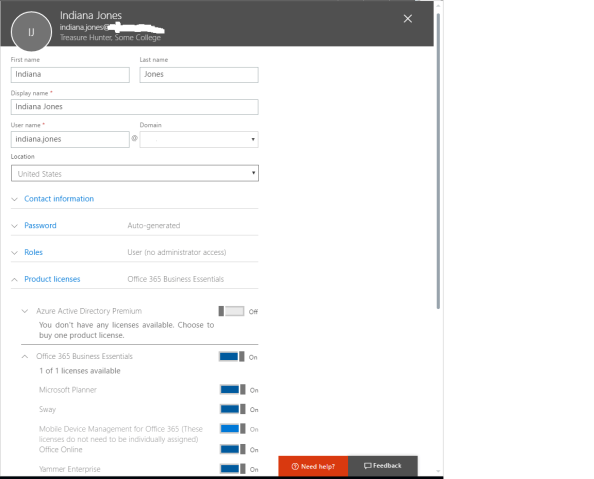
When I hit the Add User button a new blade opens where the key components of the user’s account can be configured. This includes the first name, last name, user name and the like as seen in the screenshot below.

pic2

Let’s take some time to dig through the remaining sections.

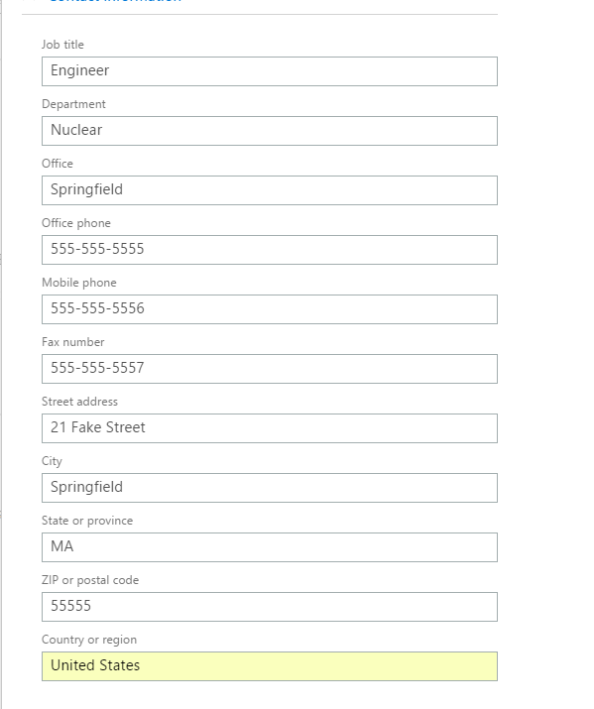
First up is the contact information section. On-premise Active Directory administrators will recognize these fields from the various tabs in ADUC.

pic3

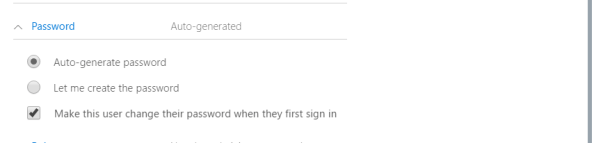
Next up is the password section. Here I have the option of creating a password or auto-generating a password and turning on or off the enforcement of a password change at first sign-in. I don’t recall there being an option to create a password a few months back when I was playing with the Admin Center, but that is one of the many lovely aspects of SaaS, continuous change and improvement.

pic4

Next up is the Roles section. Here there is an option to assign the user to the standard Azure AD roles or Office 365 roles. You can read more about these roles here.

pic5

Finally, the Licenses section allows for assignment of Azure AD and Office 365 licenses to the user account.

pic6

After the user is created it can be modified by clicking on the user object. Contact information about the user, membership into Azure AD groups, MFA enforcement, and product specific settings for the user can be modified in this blade.

pic7

The restoration of deleted users is simple and quick via the Deleted Users section. If only Microsoft had made it this easy in the old days of on-premises Active Directory prior to the Active Directory Administration Center.

pic8

Users can also be added in bulk by uploading a CSV file by hitting the More button in the Active Users section.

pic9.png

The Office 365 Admin Center interface is sleek and simple, perfect for a business user or Tier 1 support staff. So what’s the problem? No matter how simple the interface, it’s another process and interface staff need to learn. There is also no way to technically enforce standards for data input. What if what user puts MA and another puts Massachusetts? What about a user who misspells accountant in the job title field? Human error and lack of standardization can make for some nasty operational headaches, not to mention security risks. If an organization wants to limit the new processes and interfaces its staff needs to learn (because really, where is the business value in that?) as well as making sure the data about a user is standardized and correct, making these changes programmatically is the way to go.

In my next post I’ll cover both the Azure Management Portal and the Azure Portal.