Deep dive into AD FS and MS WAP – WAP Registration

Hi everyone,

In today’s blog entry I’ll be doing a deep dive into how the Microsoft Web Application Proxy (WAP) established a trust with the Active Directory Federation Service (AD FS) (I’ll be referring to this as registration) in order to act as a reverse proxy for AD FS.  In my first entry into this series I covered the business use cases that would call for such an integration as well as providing an overview of the lab environment I’ll be using for the series.  So what does registration mean?  Well, the best way to describe it is to see it in action.

Figuring out how to capture the conversation took some trial and error.  This is where Sysinternals Process Explorer comes into play.  I went through the process of registering the WAP with AD FS using the Remote Access Management Console configuration utility and monitored the running processes with Process Explorer.  Upon reviewing the TCP/IP activity of the Remote Access Management Console process (RAMgmtUI.exe) I observed TCP connectivity to the AD FS farm.

RemoteReg

The process is running as the logged in user, in my case the administrator account I’ve configured.  This meant I would need to run Fiddler using the logged in user context rather than having to do some funky with running it as SYSTEM or another security principal using PSEXEC.

I started up Fiddler and configured it to intercept HTTPS traffic as per the configuration below.  Ensure that you’ve trusted the Fiddler root certificate so Fiddler can establish a man-in-the-middle (MITM) scenario.

fiddlerconfig.png

I next ran the Remote Access Management Console and initiated the Web Application Proxy Configuration wizard.   Here I ran the wizard a few different times specifying invalid credentials on the AD FS server to generate some web requests.  The web conversation below popped up Fiddler.

failedlog.png

Digging into the third session shows an HTTP POST to sts.journeyofthegeek.com/adfs/Proxy/EstablishTrust with a return code of 401 Unauthorized which we would expect given our application doesn’t know if authentication is required yet and didn’t specify an Authorization header.

estab1

Session four shows another HTTP POST to the same URL this time with an Authorization header specifying Basic authentication with our credentials Base64 encoded.  We receive another 401 because we have invalid credentials which again is expected.

succlog.png

What’s interesting is the JSON object being posted to the URL.  The JWT includes a key named SerializedTrustCertificate with a value of a Base64 encoded public-key certificate as the value.

json.png

Copy and pasting the encoded value to notepad and saving the file with a CER extension yields the certificate below of which the WAP has both the public and private key pairs.  The certificate is a 2048-bit key length self-signed certificate.

cert.png

At this point the WAP will attempt numerous connections to the /adfs/Proxy/GetConfiguration URL with a query string of api-version=2 as seen in the screenshot below.  It will receive a 401 back because Fiddler needs a copy of the client certificate to provide to the AD FS server.  At this point I let it time out and eventually the setup finished.

getconfig.png

So what does the configuration information look like from AD FS when it’s successfully retrieved?  So to see that we have to now pay attention to the Microsoft.IdentityServer.ProxyService.exe process which runs as the Active Directory Federation Services service (adfssrv).

adfservice.png

Since the process runs as Network Service I needed to get a bit creative in how I captured the conversation with Fiddler.  The first step is to export the public-key certificate for the self-signed certificate generated by the WAP, name it ClientCertificate.cer, and to store it in the Network Service profile folder in C:\Windows\ServiceProfiles\NetworkService\Documents\Fiddler2.   By doing this Fiddler will use that certificate for any website requiring client certificate authentication.

The next step was to start Fiddler as the Network Service security principal.  To do this I used PSEXEC with the following options:

Psexec -i -u “NT AUTHORITY\Network Service” “C:\Program Files (x86)\Fiddler2\Fiddler.exe.

I then restarted the Active Directory Federation Service on the WAP and boom there are our successful GET from the AD FS server at the /adfs/Proxy/GetConfiguration URL.

getconfigsuc.png

The WAP receives back a JSON object with all the configuration information for the AD FS server as seen below.  Much of this is information about endpoints the AD FS server is supporting.  Beyond that we get information the AD FS service configuration.  The WAP uses this configuration to setup its bindings with the HTTP.SYS kernel mode driver.  Yes the WAP uses HTTP.SYS in the same way AD FS uses it.

config1.png

config2.png

So what did we learn?  When establishing the trust with the AD FS server (I’m branding this registration 🙂 ) the WAP does the following:

  1. Generates a 2048-bit self-signed certificate
  2. Opens an HTTPS connection with an AD FS server
  3. Performs a POST on /adfs/Proxy/EstablishTrust providing a JSON object containing the public key certificate and authenticating to the AD FS server with the credentials provided with the wizard using Basic authentication.If the authentication is successful the AD FS server establishes the trust.  (I’ll dig into this piece in the next post)
  4. Performs a GET on /adfs/Proxy/GetConfiguration using the self-signed certificate to authenticate itself to the AD FS server.
  5. Consumes the configuration information and configures the appropriate endpoints with calls to HTTP.SYS.

So that’s the WAP side of the fence for establishing the trust.  In my next post I’ll briefly cover what goes on with the AD FS server as well as examining the LDAP calls (if any) to AD DS during the registration process.

See you next time!

Deep dive into AD FS and MS WAP – Overview

Hi everyone,

If you’ve followed my blog at all, you will notice I spend a fair amount of my time writing about the products and technologies powering the integration of on-premises and cloud solutions.  The industry refers to that integration using a variety of buzzwords from hybrid cloud to software defined data center/storage/networking/etc.  I prefer a more simple definition of legacy solutions versus modern solutions.

So what do I mean by a modern solution?  I’m speaking of solutions with the following most if not all of these characteristics:

  • Customer maintains only the layers of the technology that directly present business value
  • Short time to market for new features and features are introduced in a “toggle on and toggle off” manner
  • Supports modern authentication, authorization, and identity management standards and specifications such as Open ID Connect, OAuth, SAML, and SCIM
  • On-demand scaling
  • Provides a robust web-based API
  • Customer data can exist on-premises or off-premises

Since I love the identity realm, I’m going to focus on the bullet regarding modern authentication, authorization, and identity management.  For this series of posts I’m going to look at how Microsoft’s Active Directory Federation Service (AD FS)  and Microsoft’s Web Application Proxy (WAP) can be used to help facilitate the use of modern authentication and authorization.

So where does AD FS and the WAP come in?  AD FS provides us with a security token service producing the logical security tokens used in SAML, OAuth, and Open ID Connect.  Why do we care about the MS WAP?  The WAP acts a reverse proxy giving us the ability to securely expose AD FS to untrusted networks (like the Internet) so that devices outside our traditional firewalled security boundary can leverage our modern authentication and authorization solution.

Some real life business cases that can be solved with this solution are:

  1. Single sign-on (SSO) experience to a SaaS application such as SharePoint online from both an Active Directory domain-joined endpoint or a non-domain joined endpoint such as a mobile phone.
  2. Limit the number of passwords a user needs to remember to access both internal and cloud applications.
  3. Provide authentication or authorization for modernized internal applications for endpoints outside the traditional firewalled security boundary.
  4. Authentication and authorization of devices prior to accessing an internal or cloud application.

As we can see from the above, there are some great benefits around SSO, limiting user credentials to improve security and user experience, and taking our authorization to the next step by doing contextual-based authorization (device information, user location, etc) versus relying upon just Active Directory group.

Microsoft does a relatively decent job describing how to design and implement your AD FS and WAP rollout, so I’m not going to cover much of that in this series.  Instead I’m going to focus on the “behind the scenes” conversations that occur with endpoints, WAP, AD FS, AD DS, and Azure AD. Before I begin delving into the weeds of the product, I’m going to spend this post giving an overview of what my lab looks like.

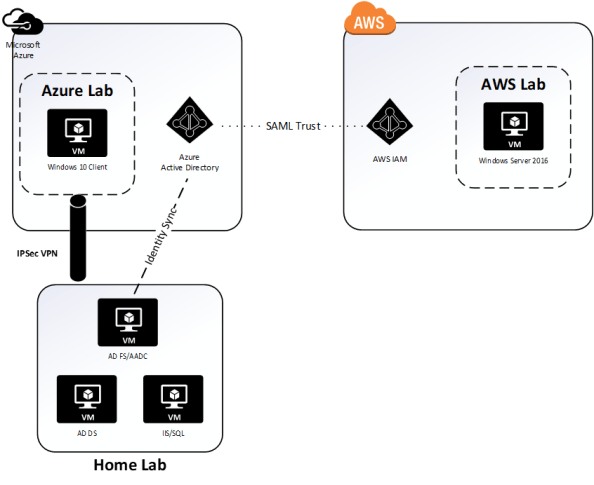
I recently put together a more permanent lab consisting of a mixture of on-premise VMs running on HyperV and Azure resources.  I manage to stay well within my $150.00 MSDN balance by keeping a majority of the VMs deallocated.   The layout of the lab is diagramed below.

HomeLab


On-premises I am running a small collection of Windows Server 2016 machines within HyperV running on top of Windows Server 2016.  I’m using a standard setup of an AD DS, AD CS, AADC, AD FS, and IIS/MS SQL server.  Running in Azure I have a single VNet with three subnets each separated by a network security group.  My core infrastructure of an AD DS, IIS/MS SQL, and AD FS server exist in my Intranet subnet with my DMZ subnet containing a single WAP.

The Active Directory configuration consists of a single Active Directory forest with an FQDN of journeyofthegeek.local.  The domain has been configured with an explicit UPN of journeyofthegeek.com which is assigned as the UPN suffix for all users synchronized to Azure Active Directory.  The domain is running in Windows Server 2016 domain and forest functional level.  The on-premises domain controller holds all FSMO roles and acts as the DC for the Active Directory site representing the on-premises physical location.  The domain controller in Azure acts as the sole DC for the Active Directory site representing Azure.  Both DCs host the split-brain DNS zone for journeyofthegeek.com.

The on-premises domain controller also runs Active Directory Certificate Services.  The CA is an enterprise CA that is used to distribute certificates to security principals in the environment.  I’ve removed the CDP from the certificate templates issued by the CA to eliminate complications with the CRL revocation checking.

The AD FS servers are members of an AD FS farm named sts.journeyofthegeek.com and use a MS SQL Server 2016 backend for storage of configuration information.  The SQL Server on-premises hosts the SQL instance that the AD FS users are using to store configuration information.

Azure Active Directory Connect is co-located on the AD FS server and uses the same SQL server as the AD FS uses.  It has been integrated with a lab Azure Active Directory tenant I use which has a few licenses of Office 365 Business Essentials.  The objectGUID attribute is used as the immutable ID and the Azure Active Directory tenant has the DNS namespaces of journeyofthegeek.onmicrosoft.com and journeyofthegeek.com associated with it.

The IIS server running in Azure runs a simple .NET application (https://blogs.technet.microsoft.com/tangent_thoughts/2015/02/20/install-and-configure-a-simple-net-4-5-sample-federated-application-samapp/) that is used for claims-based authentication.  I’ll be using that application for demonstrations with the Web Application Proxy and have used it in the past to demonstrate functionality of the Azure Application Proxy.

For the demonstrations throughout these series I’ll be using the following tools:

In my next post I’ll do a deep dive into what happens behind the scenes during the registration of the Web Application Proxy with an AD FS farm.  See you then!


Helpful hints for resolving AD FS problems – Part 2

Welcome back to part two of my series of posts which looks at resolving problems with AD FS.  You can check out part 1 here.  In this post I’ll look another problem you may encounter while administering the service.

With the introduction of AD FS 2012 R2, Microsoft de-coupled AD FS from IIS.  AD FS running on MS versions 2012 R2 or later now use the HTTP Server API (more often referred to as HTTP.SYS).  HTTP.SYS is a kernal mode drive that was introduced in Windows Server 2003 and is used by a Windows system to listen for HTTP and HTTPS requests (check out this article for a detailed breakdown of how it works.)  Infrastructure services such as IIS and WINRM use the driver.  By integrating AD FS directly with HTTP.SYS, Microsoft was able to cut the footprint of the solution by eliminating the need for IIS.  Awesome right?  Of course it is, however, it is a bit more challenging to troubleshoot.

Issue 2: Replacing the AD FS Service Communications certificate

The service communications certificate is one of the “big three” certificates used within an AD FS implementation.  The certificate that is assigned as the service communications certificate is used to protect web communication between clients and the AD FS service (i.e. SSL/TLS).  Like any certificate, it will have a standard lifecycle and will eventually need to be replaced.  When that time comes, you can run into a very interesting problem depending on how you go about replacing that certificate.

If you’ve been managing an AD FS instance for any period of time, you’ve more than likely become quite familiar with the AD FS Management Console.  When replacing the certificate in AD FS 2012 R2 or above, you may be tempted to use the Set Service Communications Certificate action seen below.  Let’s give it a try shall we?

ADFSMMCSC

I first requested a new web certificate from the instance of AD CS through the Certificate MMC and placed it in the Computer store.  I then granted READ access to the private key for the service account AD FS is using.  After that I used the Set Service Communications Certificate action and selected the new certificate.  A quick check of the thumbprint of the certificate now being used matches the thumbprint of the new certificate (pay attention to the thumbprint, I’ll reference it again later).  Last step is to restart the AD FS service.

Screen Shot 2017-06-10 at 3.12.06 PM.png

Let’s now test the sample claim app I described in my first post.

Screen Shot 2017-06-10 at 2.58.35 PM

Uh oh.  What happened?  A check of the Application, System, and AD FS Admin logs shows no errors or warning nor does the AD FS Debug after another attempt.  Heck, even the log for the HTTP.SYS kernal driver httperr.log in C:\Windows\System32\LogFiles\HTTPERR is empty.  This is yet another instance of where the answer could not be found in any of the logs I reviewed because it’s another error related to the integration with HTTP.SYS.  What to do next?

Much of the administration of the integration with HTTP.SYS is doing using netsh.  Here we’re going to look at the certificate bindings configured for the HTTP listeners using the command http showsslcert from the netsh command prompt.

Screen Shot 2017-06-10 at 3.07.19 PM.png

Well our bindings are there, but look at the thumbprint: 12506a00b40617b096002089383015bbbb99e970.  That thumbprint does not match the thumbprint for the new certificate I set for the Service Communications certificate.  So what happened?  My best guess is when one of the HTTPS listeners are hit, the configuration in the AD FS database does not match the configuration of the HTTP.SYS listeners causing AD FS to crash.  How do we fix it?  Come to find out from this blog, there is one additional command that needs to be run to setup the listeners with the proper bindings, Set-AdfsSslCertificate.  After using the Set-AdfsSslCertificate and setting it with the new thumbprint then restarting the AD FS service, netsh http showsslcert now shows the correct thumbprint and the sample claim app is now working as expected.

Screen Shot 2017-06-10 at 3.26.51 PM

What you should take from this post is that while integrating with HTTP.SYS helps to limit the AD FS footprint, it also adds some intricacies to troubleshooting the service when it stops working.  In the next and final post in this series I will cover an issue that can pop up when a Web Application Proxy (WAP) is integrated in the mix.

See you next post!


Helpful hints for resolving AD FS problems – Part 1

Hi everyone.

Over the past week I’ve been building a lab for an upcoming deep dive into Microsoft’s Web Application Proxy.  During the course of building the lab I ran into a few interesting issues with AD FS and the Web Application Proxy that I wanted to cover.  Some were similar to issues I’ve run into in production environments and some were new to me.

These issues are interesting in that there aren’t any obvious indicators of the problem in any of the typical logs.  Two out of three required some trial and error to determine root cause, while the third drove me quite insane for a good two weeks before getting an answer from an “official” source.  Over the course of this series of blogs I’ll cover each issue in detail with the hopes that it will help others troubleshoot these issues in the future.

Issue 1: AD FS Certificate authentication fails

I’m going to start with the problem that took me the longest to resolve and eventually required getting the answer directly from an official source.

For those of you that are unfamiliar, AD FS provides the capability to offer multi-factor authentication methods both native and third-party.  Out of the box, it supports certificate-based authentication as an option for a multi-factor or “step-up” authentication mechanism.

A few months back I wanted to take advantage of the certificate authentication feature to provide a two-factor authentication solution for applications integrated with AD FS.  Like a good engineer I did my Googling, read the Microsoft articles and various blogs out there to understand how the feature worked and what the requirements were.  I built a lab in Azure, setup an AD FS server, and ensured port 49443 was open in addition to the the typical ports required by AD FS.  I created my instance of AD CS, issued a user certificate containing the user’s UPN in the subject alternate name field, and setup a sample SAML app and configured it to require Certificate authentication.

How easy it all sounds right?  I navigated to the sample application and got the screen below…

Screen Shot 2017-06-04 at 9.29.35 PM

and I waited….  and waited…. and waited…  Ummm, what went wrong?  Well surely the AD FS log will tell me what happened.

Screen Shot 2017-06-04 at 9.34.03 PM.png

Well isn’t that odd.  No errors or warnings in the AD FS Admin log.  A quick check of the Application and System logs showed no errors either.  Maybe the AD FS Debug log would show me something?  I flipped on the log and attempted another authentication.

Screen Shot 2017-06-04 at 9.38.07 PM

Nothing as well?  Maybe the server can’t query the revocation lists designated in the certificates CDP?  Nope, not that either the server can successfully contact the CDP endpoints.  At this point I began to get quite frustrated and attempted packet captures, Fiddler captures, and anything and everything I could think of.  Nothing I tried revealed the answer.

I finally gave in (which I can tell you is incredibly challenging for me) and reached out to an “official” source.  We chatted back and forth and went through much of the same steps as outlined above to ensure I didn’t miss anything.  However, we ran into another dead end.  He then reached out to some other engineers he knew and eventually we got a hit.  We were told to check to see if there were any intermediary certificates stored within the trusted root certificate authorities store.  Sounds like an odd circumstance, but sure why not.

Upon opening up the certificates MMC, opening the machine store, and exploring the trusted root certificate authorities store low and behold I see an intermediary certificate within the store.  I deleted the certificate, restarted the AD FS server and attempted another login to the sample claim application and hit the screen below.

Screen Shot 2017-06-04 at 9.50.16 PM

Boom, I’m finally receiving the certificate prompt.  Clicking the OK button brings about the successful login below.

Screen Shot 2017-06-04 at 9.51.23 PM

So what was the issue?  Apparently AD FS certificate authentication fails without generating an error in any logical location (maybe nowhere at all?) if there is an intermediary certificate in the trusted root certificate authority machine store.  I’ve verified this is an issue in both AD FS 2012 R2 and AD FS 2016.  Now why this occurs is unknown to me.  It could be the underlining HTTPS.SYS driver that pukes and doesn’t report any errors to the event logs.  I didn’t get a straight answer as to why this occurs, just that it will due to some type of integrity check on the machine certificate store.  Odd right?

That completes the rundown of the first of three problems I’ll be outlining in this series of blogs.  Hopefully this helps save someone else some time and aggravation.

See you next post!