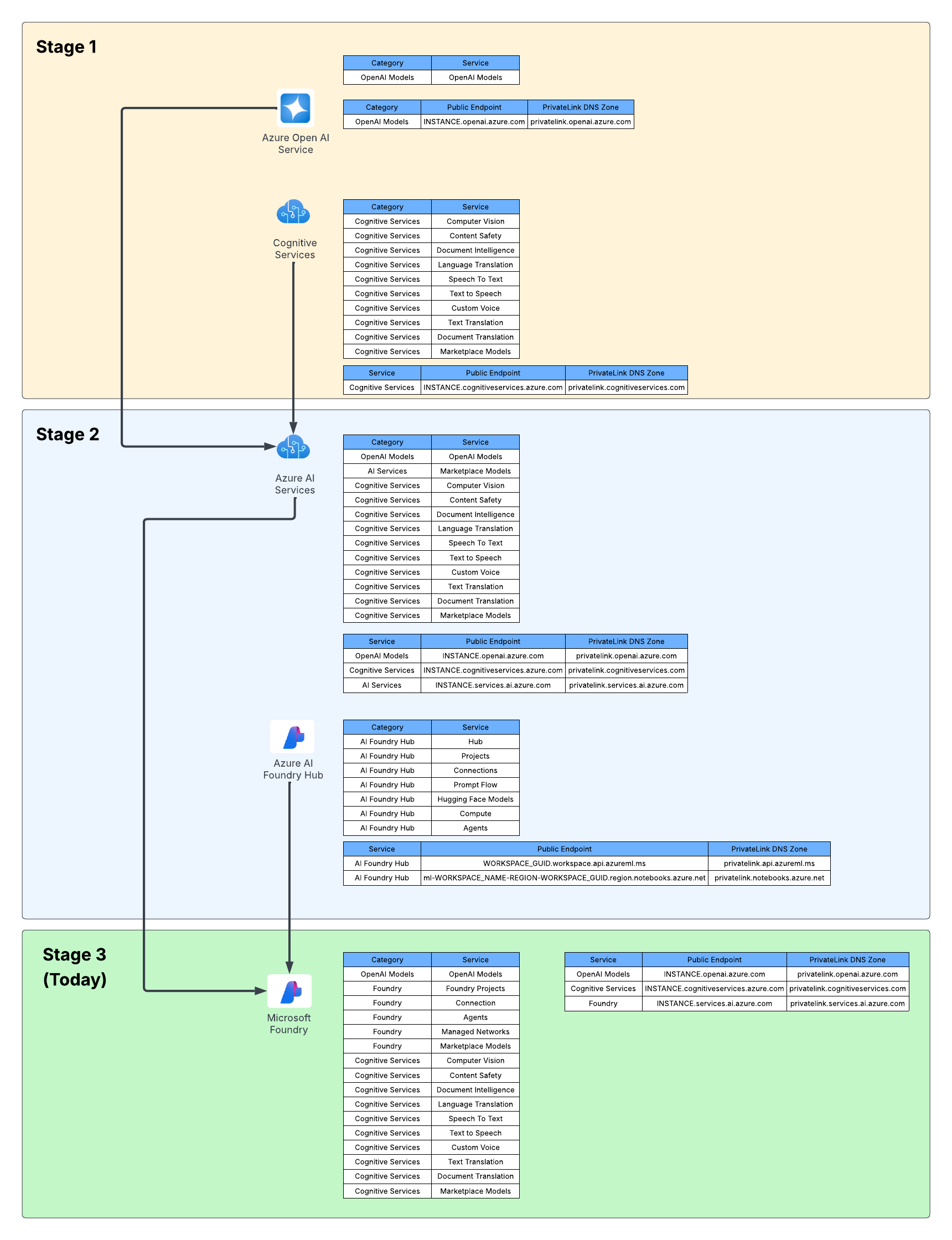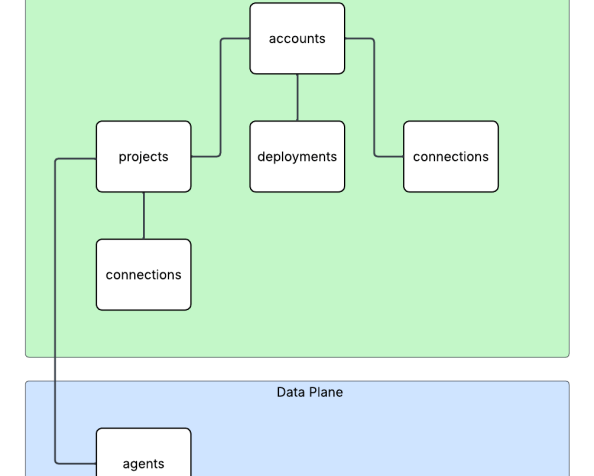
Hello again! Today I’m going to continue my series on Microsoft Foundry’s new support for the BYO AI Gateway. In my past few posts I’ve walked through the evolution of Foundry and covered at a high level what an AI Gateway is and the problem this feature solves. In this post we’re gonna get down and dirty with the technical details on setting this up. Grab your coffee and put on your thinking music (for me that is some Blink and Third Eye Blind!).
Let’s get to it!
Current State Architecture
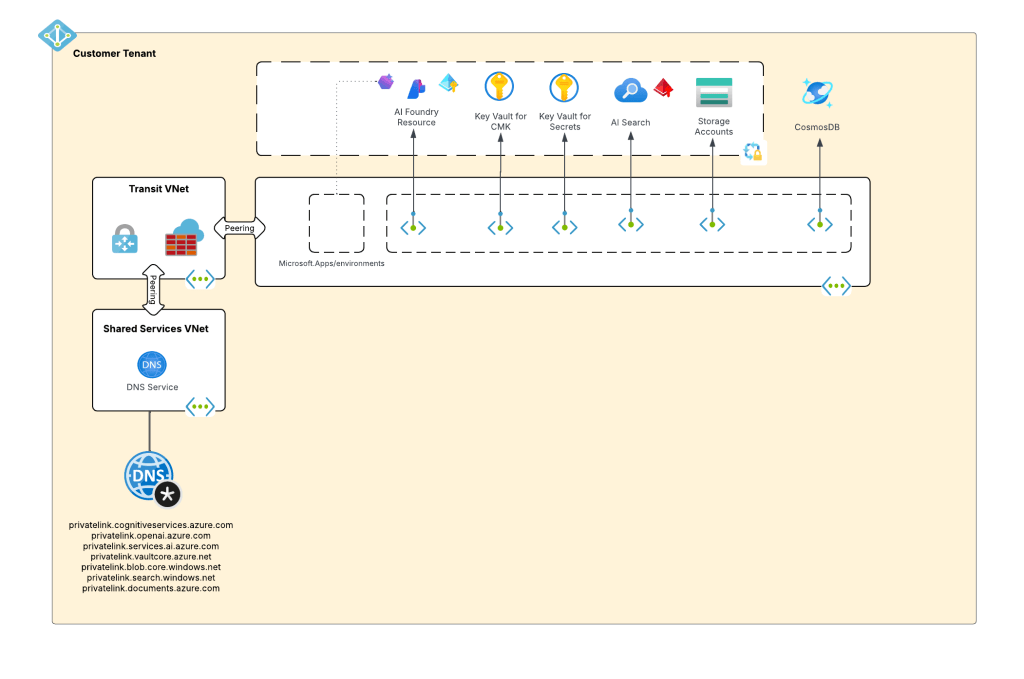
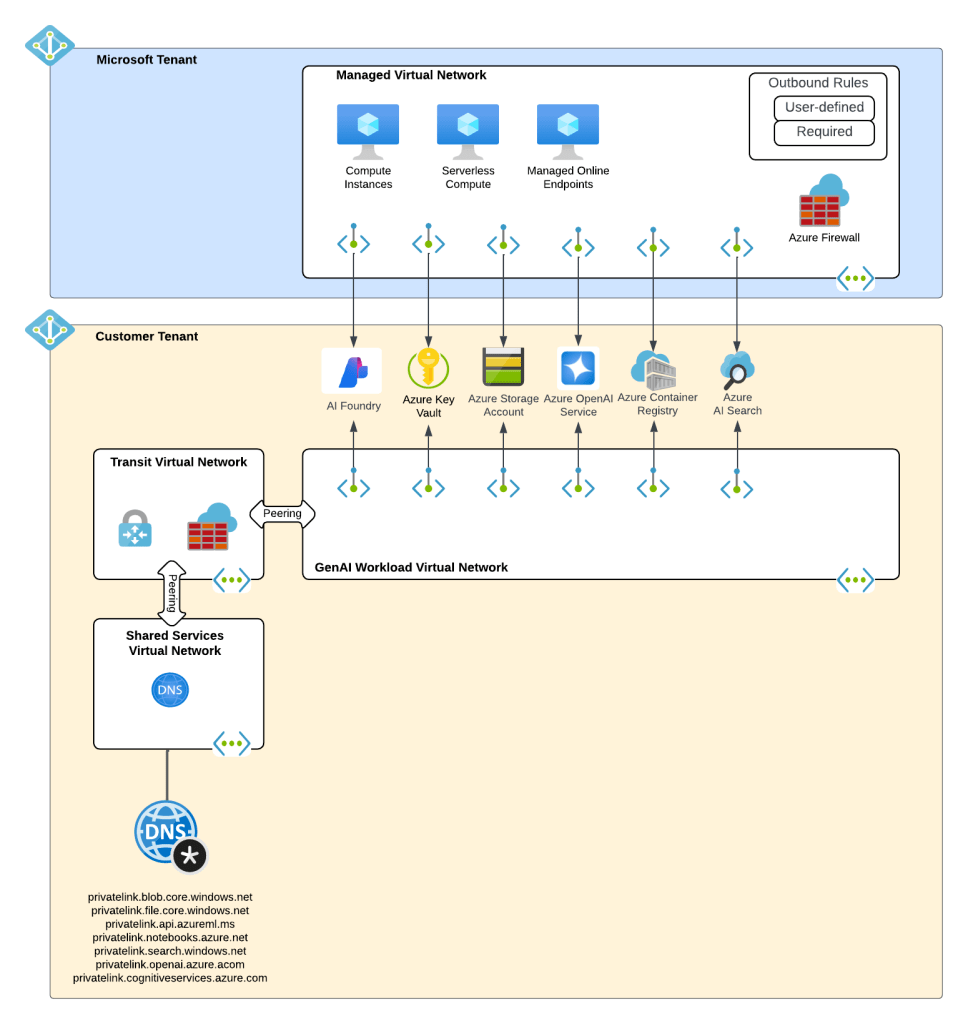
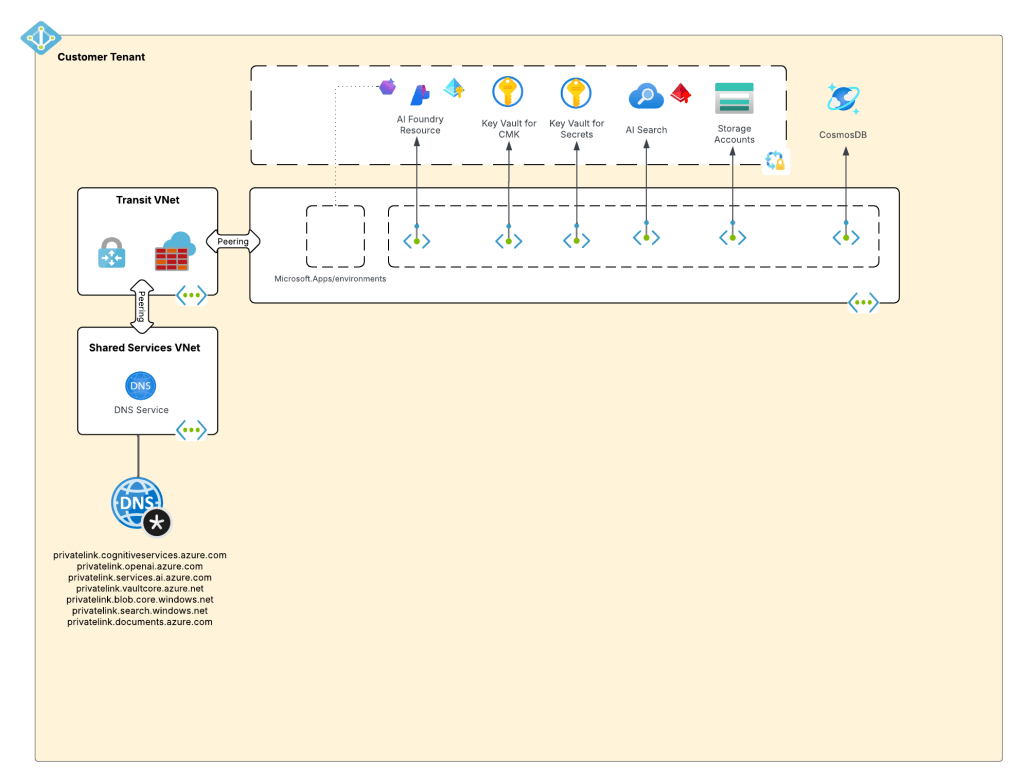
My customer base is primarily in the regulated industry so most of my customers are still at the experimentation state with the Foundry Agent Service. Given these customers have strict security requirements they are largely using the agent service with the standard agent configuration. In this configuration the outbound traffic (subsets of it, but that is a much larger conversation) can be tunneled through the customer virtual network for centralized logging, mediation, and facilitating access to private resources (again, with limitations today) through what the product group calls VNet injection but I’d say is more closely described as VNet integration via a delegated subnet. Threads (conversations in v2 agents) and agent metadata are stored in a Cosmos DB, vector stores created by an agent from tools such as the File Search tool are stored in AI Search, and files uploaded to the Foundry resource are stored in a Storage Account. These resources are all provisioned by the customer into the customer subscription and fully managed by the customer (RBAC, encryption, HA settings, etc). Private Endpoints for each resource are created within the customer’s virtual network and made accessible from the agent delegated subnet. The whole environment looks similar to what you see below.
As I covered in my last post, in a generally available (aka fully supported and is recommended for production) agents can only consume models deployed to the Foundry account the agents exist in. This creates an issue for customers wanting to inject the governance, visibility, and operational improvements an AI Gateway can provide when it sits between the agent and the model. For now, customers are working around doing this using third-party agents. Downfall of that is these “external” agents live on compute customers have to manage and these agents can’t access many of the tools available to Foundry-native agents. This is the problem the BYO AI Gateway feature is attempting to fix.
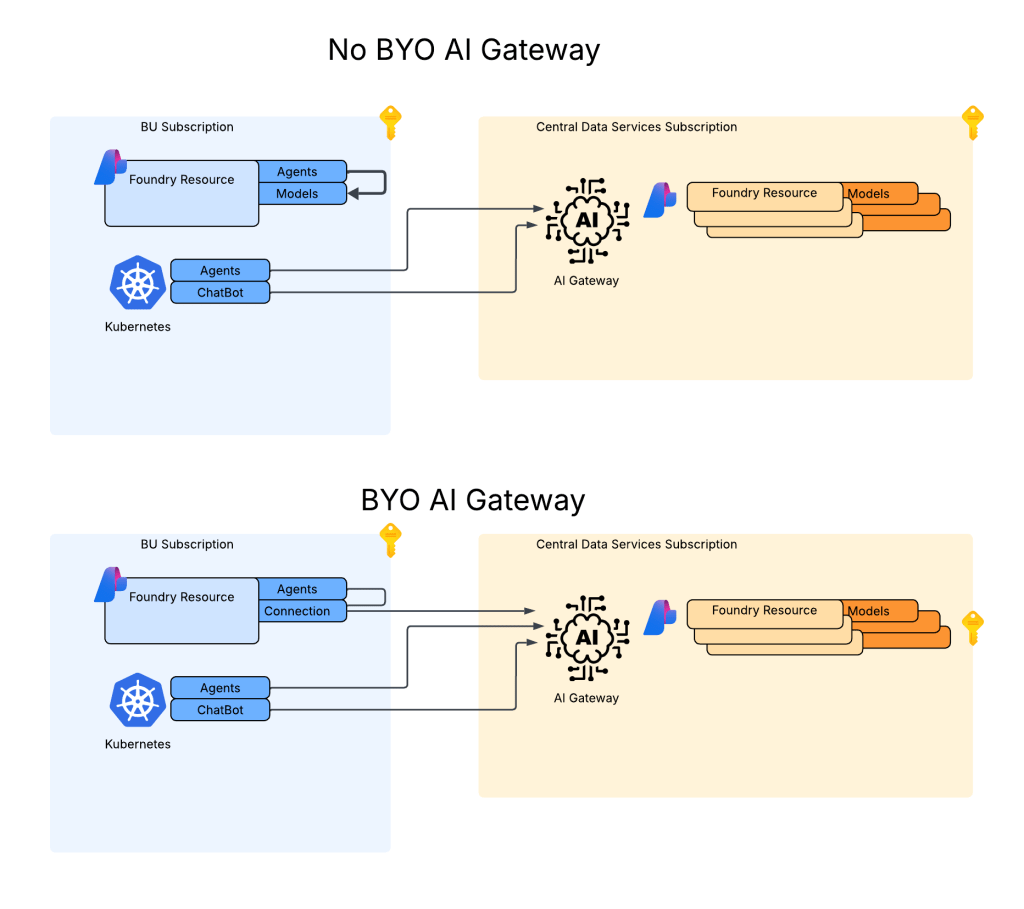
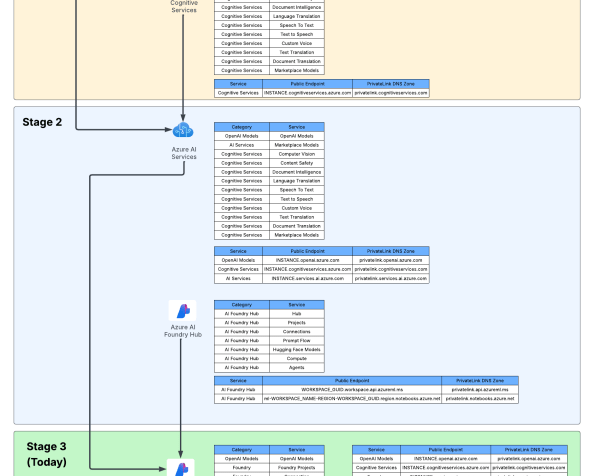
Foundry resource architecture
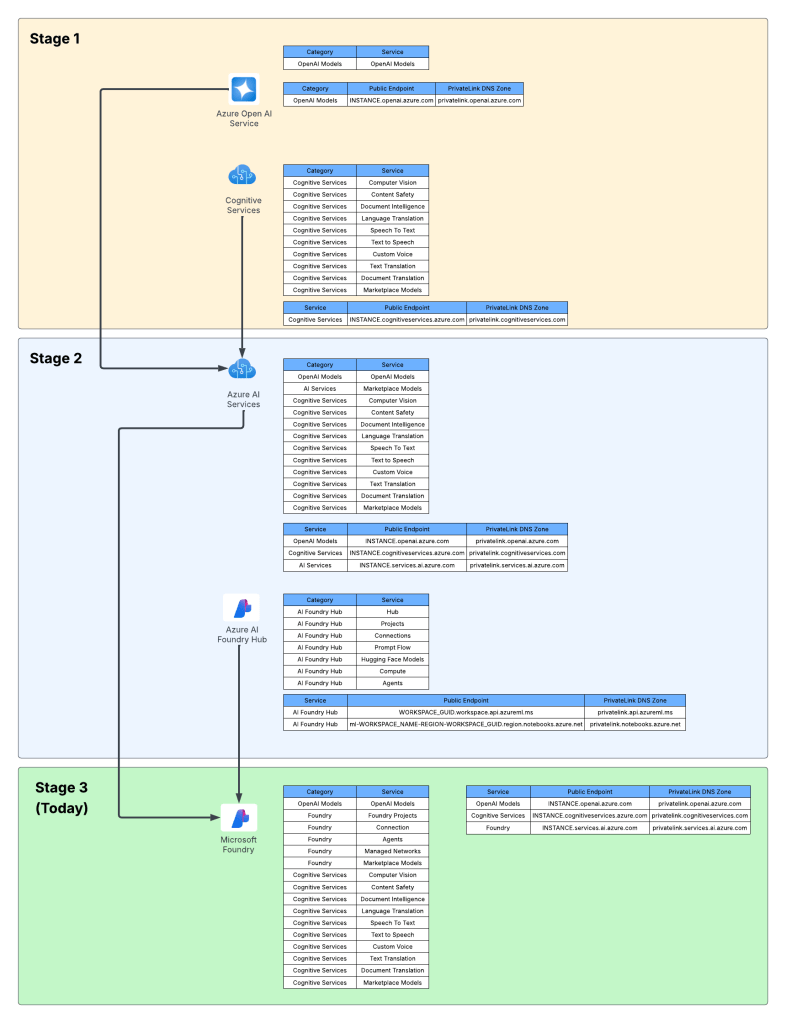
Here is where the new connection type introduced in Foundry comes to the rescue. Before I dive into the details of that, I think it’s helpful to level set a bit on the resource hierarchy within Foundry. At the top is the top-level Azure resource referred to as the Foundry service which under the hood is a Cognitive Services account. The relevant resources for this discussion beneath that are projects, deployments, and connections. Projects are containers connections (at the management plane) for agents (at the data plane), deployments for models which are made available to all projects within the account, and connections which can also be created at the account level and shared across all projects.
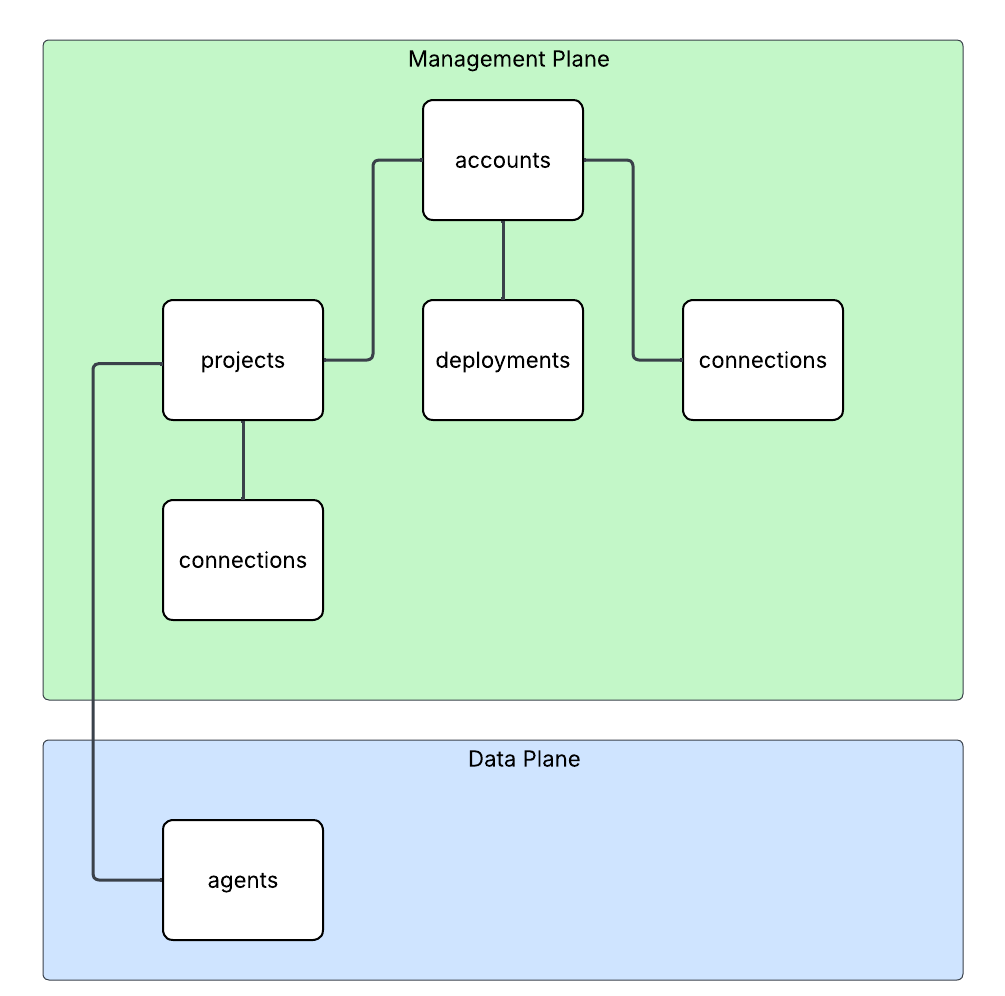
For the purposes of this discussion, I’m going to focus on the connection objects. Connection objects can be created at the account level and project level. In the standard agent configuration, you’ll create a number of different connections out of the gates including connections to Cosmos, AI Search, and Azure Storage. Additional common connections could be to an App Insights instance for tracing or a Grounding With Bing Search resource. Connection objects will contain some type of pointer, like a URI and a credential. That credential is usually API Key, some Entra ID-based authentication mechanism, or general OAuth.
Connections are created at the account level when the Foundry account itself needs to access them. This could be for the usage of Content Understanding, to a Key Vault for storing connection secrets (API keys) in a customer subscription, an an App Insights instance used for tracing. From what I’ve observed, you will create connections at the account level if they need to be shared across all projects OR they’re used by the Foundry resource in general vs some type of project construct. These connections are also created at the project level. When you provision a standard agent for example, you’ll create connection objects to the Cosmos DB, Storage Account, and AI Search resources mentioned above. The new category of connections for this post will be created at the project level.
APIM and Model Gateway Connections
The BYO AI Gateway feature uses a new type of connection category of ApiManagement and ModelGateway. These objects are the glue that allow the Foundry agents to funnel requests for models through the AI Gateway the connections point to. When we’re connecting to an APIM instance, you should ideally use the ApiManagement category and when you’re connecting to a third-party category you’ll use the ModelGateway category.
As of the date of this blog post, these connection objects have the following schema (relevant properties to this discussion only):
name: The name of the connection (needs to be less than 60 characters in my testing)properties: { category: ApiManagement or ModelGateway target: The URI you want the agent to connect to authType: For ApiManagement this can be ApiKey or ProjectManagedIdentity credentials: This will be populated with the value of the API key if using that authType isSharedToAll: true or false if you want this shared across all projects # ApiManagement category with static models metadata: { deploymentInPath: true or false inferenceAPIVersion: API version used for inferencing (not used if using OpenAI v1 API) # Models discussed in detail below models: "[{\"name\":\"gpt-4o\",\"properties\":{\"model\":{\"format\":\"OpenAI\",\"name\":\"gpt-4o\",\"version\":\"2024-08-06\"}}}]" } # ApiManagement category with dynamic discovery metadata: { deploymentAPIVersion: ARM API version for CognitiveServices/accounts/deployments API calls deploymentInPath: true or false inferenceAPIVersion: API version used for inferencing (not used if using OpenAI v1 API) } # ModelGateway category with static models metadata: { deploymentInPath: true or false inferenceAPIVersion: API version used for inferencing (not used if using OpenAI v1 API) # Models discussed in detail below models: "[{\"name\":\"gpt-4o\",\"properties\":{\"model\":{\"format\":\"OpenAI\",\"name\":\"gpt-4o\",\"version\":\"2024-08-06\"}}}]" } # ModelGateway category with dynamic models metadata: { deploymentInPath: true or false inferenceAPIVersion: API version used for inferencing (not used if using OpenAI v1 API) deploymentAPIVersion: ARM API version for CognitiveServices/accounts/deployments API calls modelDiscovery: "{\"deploymentProvider\":\"AzureOpenAI\",\"getModelEndpoint\":\"/deployments/{deploymentName}\",\"listModelsEndpoint\":\"/deployments\"}"}I’ll walk through each of these properties in as much detail as I’ve been able to glean from them with my testing.
The category property is self-explanatory. You either set to this to ApiManagement (if using APIM) or Model Gateway (if using a third-party AI Gateway like a Kong or LiteLLM).
The target property is the URI you want the agent to try to connect to. As an example, if I create an API on my APIM instance for the v1 OpenAPI named openai-v1 my target would look like “https://myapim.azure-api.net/openai-v1/v1”. As of the date of this blog post, you MUST use the azure-api-net FQDN for the APIM. If you try to do a custom domain you’ll get an error back telling you that it’s not supported. I got a request into the product group to lift this limitation. I’ll update this if that is done. For third-party model gateway, the URI would be similar.
The authType property is going to be either ApiKey or ProjectManagedIdentity for an APIM connection. ProjectManagedIdentity will authenticate to the upstream APIM using the agent’s project’s Entra ID managed identity. When using ProjectManagedIdentity you must also specify the audience property and set it to cognitive services.azure.com if connecting to a backend Foundry resource hosting models. Today, it doesn’t seem possible to pass the agent’s Entra ID agent identity that I’ve seen. For a model gateway connection this will either be ApiKey or OAuth. Details on the OAuth setup can be found in the samples GitHub (I haven’t mucked with it yet). If you’re using the authType of ApiKey you additional need to pass the credentials property which includes a property of key with the API key similar to what you see below.
authType: ApiKeycredentials = { key = MYAPIKEY}I haven’t messed extensively with the isSharedToAll property as of yet. For my use case I set this to false so each project got its own connection object. You may be able to create this object at the account level and set the isSharedToAll property, but I haven’t tested that yet. If you have, def let me know if that works.
Ok, now on the property that can bring the most pain. Here we have the metadata property. This property is going to the main guts that makes this whole thing work. A few considerations, if doing this with Terraform or REST (can’t speak to Bicep or ARM), each of the properties I’m going to cover are CASE SENSITIVE. If you do the wrong casing, your connection object will not work. When connecting to an APIM or model gateway your can have Foundry either enumerate the models available (called dynamic discovery) or you can provide the exact models you want to expose (called static models).
Let’s first cover static models. Here is an example of me creating a connection to an APIM instance with static models using the authType or ProjectManagedIdentity. One thing to note is in my backend object in my APIM I’m appending /v1 to the backend path vs doing it in this connection object.
{ "id": "/subscriptions/X/resourceGroups/X/providers/Microsoft.CognitiveServices/accounts/X/projects/sampleproject1/connections/conn1apimgwstaticopenai-v1", "name": "conn1apimgwstaticopenai-v1", "properties": { "audience": "https://cognitiveservices.azure.com", "authType": "ProjectManagedIdentity", "category": "ApiManagement", "isSharedToAll": false, "metadata": { "deploymentInPath": "false", "inferenceAPIVersion": null, "models": "[{\"name\":\"gpt-4o\",\"properties\":{\"model\":{\"format\":\"OpenAI\",\"name\":\"gpt-4o\",\"version\":\"2024-08-06\"}}}]" }, "target": "https://X.azure-api.net/openai-v1", }Since I’m using the v1 Azure OpenAI API, I don’t need to specify an inferenceAPIVersion. If I was using the classic API I’d need to specify the version (such as 2025-04-01-preview). Notice also I have set deploymentInPath to false. When set to true the connection will add the /deployments/deployment_name to the path. For the v1 API this isn’t required. Finally you got the models property. With a static model setup I list out the models I’m exposing to the connection. If you’re using Terraform, you MUST jsonencode the models property. If you don’t, it will not work. Static models is pretty helpful if you want to strictly control exactly what models the project is getting access to.
Let’s now switch over to dynamic discovery. Dynamic discovery requires you define a few additional operations inside of your API. The details can be found in this GitHub repo, but the basics of is you define an operation for a GET on a specific model and a LIST to find all the models available. These operations are management plane operations at the ARM API to retrieve deployment information. Here is an example of a setup with dynamic discovery using an APIM connection.
{ "id": "/subscriptions/X/resourceGroups/X/providers/Microsoft.CognitiveServices/accounts/X/projects/sampleproject1/connections/conn1apimgwdynamicopenai-v1", "location": null, "name": "conn1apimgwdynamicopenai-v1", "properties": { "audience": "https://cognitiveservices.azure.com", "authType": "ProjectManagedIdentity", "category": "ApiManagement", "group": "AzureAI", "isSharedToAll": false, "metadata": { "deploymentAPIVersion": "2024-10-01", "deploymentInPath": "false", "inferenceAPIVersion": null }, "target": "https://X.azure-api.net/openai-v1", }, "type": "Microsoft.CognitiveServices/accounts/projects/connections" }When doing the dynamic discovery, you’ll see the deploymentAPIVersion property set to the API version for the GET and LIST deployment operations of the ARM REST API. I added these operations into the API as after I imported the v1 OpenAI spec. You can see an example in Terraform I put together in my lab repo. Dynamic discovery is a great solution when you want to the developer to have access to any new deployments you may push to the Foundry resources.
I’m not going to run through the ModelGateway connection categories because they will largely emulate what you see above with some minor differences. The official Foundry samples GitHub repo has the gory details. I also have examples in Terraform available in my own repo (if you dare subject yourself to reading my code).
Ok, so now you understand the basics of setting up the connection and what you need to do on the APIM side. For more details on setting up APIM you can reference this official repo.
Summing It Up
Ok, so you now you understand the basic connection object, how to set it up, and how it works. I’m going to cut it here and continue in another post where I’ll dig into the dirty details of how it looks to use this because I don’t want to overload your brain (and mine) with a super long post.
Before I jet I will want to provide some critical resources:
- My AMAZING peer Piotr Karpala has put together a repository with examples of this pattern (and some 3rd-party integrations) with Bicep. The stuff in there is gold. He was also my late night buddy helping me work through the quirks of this integration late at night. Couldn’t have gotten it done without him (or at least would have broken many keyboards).
- The Product Group’s official samples and explanations of the setup are located here. I’d highly recommending referencing them because they will always have more up to date instructions than my blog.
- I’ve put together some Terraform samples for my own purposes which are you welcome to reference, loot for your own means, and laugh at my pathetic coding ability. Check out this one for the Foundry portion and this one for the APIM portion.
And here are your tips for this post:
- RTFM. Seriously, read the official documentation. Today, this integration is challenging to put in place. If you try to lone wolf it, let me know how many keyboards end up being thrown through your window.
- If you’re coding in Terraform or making REST calls to create these connections, remember CASE SENSITIVITY matters. If you do wrong case sensitivity, the resource will still create but it won’t work. You’ll get very frustrated trying to troubleshoot it.
- If you’re coding in Terraform don’t forget to use the jsonencode function on the models property. If you skip that, the resource will create but shit will not work.
- This is only supported for prompt agents today.
- Don’t forget this is public preview. So test it, but expect things to change and don’t throw this into production.
In the next post I’ll walk through how you can test the integration, some of the quirks and considerations for identity and authentication, and some of the neat APIM policy you can craft given some of the new information that is sent in the request.
See you next post!
 Journey Of The Geek