AI Foundry – The Basics

This is a part of my series on AI Foundry:

Happy New Year! Over the last few months of 2024, I was buried in AI Foundry (FKA Azure AI Studio. Hey marketing needs to do something a few times a year.) proof-of-concepts with my best buddy Jose. The product is very new, very powerful, but also very complex to get up and running in a regulated environment. Through many hours labbing scenarios out and troubleshooting with customers, I figured it was time to share some of what I learned.

So what is AI Foundry? If you want the Microsoft explanation of what it is, read the documentation. Here you’ll get the Matt Felton opinion on what it is (god help you). AI Foundry is a toolset intended to help AI Engineers build Generative AI applications. It allows them to interact with the LLMs (large language models) and build complex workflows (via Prompt Flows) in a no code (like Chat Playground) or low code (prompt flow interface) environment. As you can imagine, this is an attractive tool to get the people who know Generative AI quick access to the LLMs so use cases can be validated before expensive development cycles are spent building the pretty front-end and code required to make it a real application.

Before we get into the guts of the use cases Jose and I have run into, I want to start with the basics of how the hell this service is setup. This will likely require a post or two, so grab your coffee and get ready for a crash course.

AI Foundry is built on top of AML (Azure Machine Learning). If you’re ever built out a locked down AML instance, you have some understanding of the many services that work together to provide the service. AI Foundry inherits these components and provides a sleek user interface on top and typically requires additional resources like Azure OpenAI and AI Search (for RAG use cases). Like AML there are lots and lots of pieces that you need to think about, plan for, and implement in the correct manner to make the secured instance of AI Foundry work.

One specific feature of AML plays an important role within AI Foundry and that is the concept of a hub workspace. A hub is an AML workspace that centrally manages the security, networking, compute resources, and quota for children AML workspaces. These child AML workspaces are referred to as projects. The whole goal of the hub is to make it easier for your various business units to do the stuff they need to do with AML/AI Foundry without having to manage the complex pieces like the security and networking. My guidance would be to think about giving each business unit a Foundry Hub that they can group projects of similar environment (prod or non-prod) and data sensitivity.

General relationship between AI Foundry Hub and AI Foundry Projects

Ok, so you get the basic gist of this. When you deploy an AI Foundry instance, behind the scenes an AML workspace designated as a hub is created. Each project you create is a “child” AML workspace of the hub workspace and will inherit some resources from the hub. Now that you’re grounded in that basic piece, let’s talk about the individual components.

The many resources involved with a secured AI Foundry instance

As you can see in the above image, there are a lot of components of this solution that you will likely use if you want to deploy an AI Foundry instance that has the necessary security and networking controls. Let me give you a quick and dirty explanation of each component. I’ll dive deeper into the identity, authorization, and networking aspects of these components in future posts.

  • Managed identities
    • There are lots of managed identities in use with this product. There is a managed identity for the hub, a managed identity for the project, and managed identities for the various compute. One of the challenges of AI Foundry is knowing which managed identity (and if not a managed identity, the user’s identity) is being used to access a specific resource.
  • Azure Storage Account
    • Just like in AML, there is a default storage account associated with the workspace. Unlike with a traditional AML workspace you may be familiar with, the hub feature allows all project workspaces to leverage the same storage account. The storage account is used by the workspaces to store artifacts like logs in blob storage and artifacts like prompt flows in file storage. The hub and projects isolate their data to specific containers (for blob) and folders (for file) with Azure ABAC (holy f*ck a use case for this feature finally) setup such that the managed identities for the workspaces can only access containers/folders for data related to their specific workspace.
  • Azure Key Vault
    • The Azure Key Vault will store any keys used for connections created from within the AI Foundry project. This could be keys for the default storage account or keys used for API access to models you deploy from the model catalog.
  • Azure Container Registry
    • While this is deemed optional, I’d recommend you plan on deploying it. When deploy a prompt flow there uses certain functionality to the managed compute, the container image used isn’t the default runtime and an ACR instance will be spun up automatically without all the security controls you’ll likely want.
  • Azure OpenAI Service
    • This is used for deployment of OpenAI and some Microsoft chat and embedding models
  • Azure AI Service
    • This can be used as an alternative to the Azure OpenAI Service. It has some additional functionality beyond just hosting the models such as speed and the like.
  • Azure AI Search
    • This will be used for anything RAG related. Most likely you’ll see it used with the Chat With Your Data feature of the Chat Playground.
  • Managed Network
    • This is used to host the compute instances, serverless endpoints and managed online endpoints spun up for compute operations within AI Foundry. I’ll do a deep dive into networking within the service in a future post.
  • Azure Firewall
    • If building a secured instance, you’re going to use a managed virtual network that is locked down to all Internet access via outbound rules. Under the hood an Azure Firewall instance (standard for almost all use cases) will be spun up in the managed virtual network. You interact with it through the creation of the outbound rules and can’t directly administer it. However, you will be paying for it.
  • Role Assignments
    • So so so many role assignments. I’ll cover these in a future post.
  • Azure Private DNS
    • Used heavily for interacting with the AI Foundry instance and models/endpoints you deploy. I’ll cover this in an upcoming post.

Are you frightened yet? If not you should be! Don’t worry though, over this series I’ll walk you through the pain points of getting this service up and running. Once you get past the complex configuration, it’s a crazy valuable service that you’ll have a high demand for from your business units.

In the next post I’ll walk through the complexities of authorization within AI Foundry.

Azure Authorization – Azure RBAC Delegation

This is part of my series on Azure Authorization.

  1. Azure Authorization – The Basics
  2. Azure Authorization – Azure RBAC Basics
  3. Azure Authorization – actions and notActions
  4. Azure Authorization – Resource Locks and Azure Policy denyActions
  5. Azure Authorization – Azure RBAC Delegation
  6. Azure Authorization – Azure ABAC (Attribute-based Access Control)

Hello again fellow geeks!

I typically avoid doing multiple posts in a month for sanity purposes, but quite possibly one of the most awesome Azure RBAC features has gone generally available under the radar. Azure RBAC Delegation is going to be one of those features that after reading this post, you will immediately go and implement. For those of you coming from AWS, this is going to be your IAM Permissions Boundary-like feature. It addresses one of the major risks to Azure’s authorization model and fills a big gap the platform has had in the authorization space.

Alright, enough hype let’s get to it.

Before I dive into the new feature, I encourage you to read through the prior posts in my Azure Authorization series. These posts will help you better understand how this feature fits into the bigger picture.

As I covered in my Azure RBAC Basics post, only security principals with sufficient permissions in the Microsoft.Authorization resourced provider can create new Azure RBAC Role Assignments. By default, once a security principal is granted that permission it can then assign any Azure RBAC Role to itself or any other security principal within the Entra ID tenant to it’s immediate scope of access and all child scopes due to Azure RBAC’s inheritance model (tenant root -> management group -> subscription -> resource group -> resource). This means a human assigned a role with sufficient permissions (such as an IAM support team) could accidentally / maliciously assign another privileged role to themselves or someone else and wreak havoc. Makes for a not good late night for anyone on-call.

While the human risk exists, the greater risk is with non-human identities. When an organization passes beyond the click-ops and imperative (az cli, PowerShell, etc) stage and moves on to the declarative stage with IaC (infrastructure-as-code), delivery of those IaC templates (ARM, Bicep, Terraform) are put through a CI/CD (continuous integration / continuous delivery) pipeline. To deploy the code to the cloud platform, these pipeline’s compute need an identity to authenticate to the cloud management plane. In Azure, this is accomplished through a service principal or managed identity. That identity must be granted the specific permissions it needs which is done through Azure RBAC Role assignments.

In the ideal world, as much as can be is put through the pipeline, including role assignments. This means the pipeline needs to be able to create Azure RBAC Role assignments which means it needs permissions for the Microsoft.Authorization resource provider (or relevant built-in roles with Owner being common).

To mitigate the risk of one giant blast radius with one pipeline, organizations will often create multiple pipelines with separate pipelines for production and non-production, pipelines for platform components (networking, logging, etc) and others for the workload (possibly one for workload components such as an Event Hub and another separate pipeline for code). Pipelines will be given separate security principals with permissions at different scopes with Central IT typically owning pipelines at higher scopes (management groups) and business units owning pipelines at lower scopes (subscription or resource group).

Example of multiple pipelines and identities

At the end of the day you end up with lots of pipelines and lots of non-humans that hold the Owner role at a given scope. This multiplies the risk of any one of those pipeline identities being misused to grant someone or something permissions beyond what it needs. Organizations typically mitigate through this automated and manual gates which can get incredibly complex at scale.

This is where Azure RBAC Delegation really shines. It allows you to wrap restrictions around how a security principal can exercise its Microsoft.Authorization permissions. These restrictions can include:

  • Restricting to a specific set of Azure RBAC Roles
  • Restricting to a specific security principal type (user, service principal, group)
  • Restricting whether it can create new assignments, update existing assignments, or delete assignments
  • Restricting it to a specific set of security principals (specific set of groups, users, etc)

So how does it do it? Well if you read my prior post, you’ll remember I mentioned the new property included in Azure RBAC Role assignments called conditions. RBAC Delegation uses this new property to wrap those restrictions around the role. Let’s look at an example role using one of the new built-in role Microsoft has introduced called the Role Based Access Control Administrator.

Let’s take a look at the role definition first.

{
    "id": "/subscriptions/b3b7aae7-c6c1-4b3d-bf0f-5cd4ca6b190b/providers/Microsoft.Authorization/roleDefinitions/f58310d9-a9f6-439a-9e8d-f62e7b41a168",
    "properties": {
        "roleName": "Role Based Access Control Administrator",
        "description": "Manage access to Azure resources by assigning roles using Azure RBAC. This role does not allow you to manage access using other ways, such as Azure Policy.",
        "assignableScopes": [
            "/"
        ],
        "permissions": [
            {
                "actions": [
                    "Microsoft.Authorization/roleAssignments/write",
                    "Microsoft.Authorization/roleAssignments/delete",
                    "*/read",
                    "Microsoft.Support/*"
                ],
                "notActions": [],
                "dataActions": [],
                "notDataActions": []
            }
        ]
    }
}

In the above role definition, you can see that the role has been granted only permissions necessary to create, update, and delete role assignments. This is more restrictive than an Owner or User Access Administrator which have a broader set of permissions in the Microsoft.Authorization resource provider. It makes for a good candidate for a business unit pipeline role versus Owner since business units shouldn’t need to be managing Azure Policy or Azure RBAC Role Definitions. That responsibility should within Central IT’s scope.

You do not have to use this built-in role or can certainly design your own. For example, the role above does not include the permissions to manage a resource lock and this might be something you want the business unit to be able to manage. This feature is also supported for custom role. In the example below, I’ve cloned the Role Based Access Control Administrator but added additional permissions to manage resource locks.

{
    "id": "/subscriptions/b3b7aae7-c6c1-4b3d-bf0f-5cd4ca6b190b/providers/Microsoft.Authorization/roleDefinitions/dd681d1a-8358-4080-8a37-9ea46c90295c",
    "properties": {
        "roleName": "Privileged Test Role",
        "description": "This is a test role to demonstrate RBAC delegation",
        "assignableScopes": [
            "/subscriptions/b3b7aae7-c6c1-4b3d-bf0f-5cd4ca6b190b"
        ],
        "permissions": [
            {
                "actions": [
                    "Microsoft.Authorization/roleAssignments/write",
                    "Microsoft.Authorization/roleAssignments/delete",
                    "*/read",
                    "Microsoft.Support/*",
                    "Microsoft.Authorization/locks/read",
                    "Microsoft.Authorization/locks/write",
                    "Microsoft.Authorization/locks/delete"
                ],
                "notActions": [],
                "dataActions": [],
                "notDataActions": []
            }
        ]
    }
}

If I were to attempt to create a new role assignment for this custom role, I’ve given the ability to associate the role with a set of conditions.

Adding conditions to a custom role

Let’s take an example where I want a security principal to be able to create new role assignments but only for the built-in role of Virtual Machine Contributor. The condition in my role would like the below:

    (
        (
            !(ActionMatches{'Microsoft.Authorization/roleAssignments/write'})
        )
        OR 
        (
            @Request[Microsoft.Authorization/roleAssignments:RoleDefinitionId] ForAnyOfAnyValues:GuidEquals {9980e02c-c2be-4d73-94e8-173b1dc7cf3c}
            AND
            @Request[Microsoft.Authorization/roleAssignments:PrincipalType] StringEqualsIgnoreCase 'User'
        )
    )
    AND
    (
        (
            !(ActionMatches{'Microsoft.Authorization/roleAssignments/delete'})
        )
        OR 
        (
            @Request[Microsoft.Authorization/roleAssignments:PrincipalType] StringEqualsIgnoreCase 'User'
        )
    )

Yes, I know the conditional language is ugly as hell. Thankfully, you won’t have to write this yourself which I will demonstrate in a few. First, I want to walk you through the conditional language.

Azure RBAC conditional language

When using RBAC Delegation, you can associate one or more conditions to an Azure RBAC role assignment. Like most conditional logic in programming, you can combine conditions with AND and OR. Within each condition you have an action and expression. When the condition is evaluated the action is first checked for a match. In the example above I have !(ActionMatches{‘Microsoft.Authorization/roleAssignments/write’}) which will match any permission that isn’t write which will cause the condition to result in true and will allow the access without evaluating the expression below. If the action is write, then this evaluated to false and the expression is then evaluated. In the example above I have two expressions. The first expression checks whether the request I’m making to create a role assignment is for the role definition id for the Virtual Machine Contributor. The second expression checks to see if the principal type in the role assignment is of type user. If either of these evaluate to false, then access is denied. If it evaluates to true, it moves on to the next condition which limits the security principal to deleting role assignments assigned to users.

No, you do not need to learn this syntax. Microsoft has been kind enough to provide a GUI-based conditions tool which you can use to build your conditions and view as code you can include in your templates.

GUI-based condition builder

Pretty cool right? The public documentation walks through a number of different scenarios where you can use this, so I’d encourage you to read it to spur ideas beyond the pipeline example I have given in this post. However, the real value out of this feature is stricter control of what how those pipeline identities can affect authorization.

So what are you takeaways for this post?

  • Get this feature implemented YESTERDAY. This is minimal overhead with massive security return.
  • Use the GUI-based condition builder to build your conditions and then copy the JSON into your code.
  • Take some time to learn the conditional syntax. It’s used in other places in Azure RBAC and will likely continue to grow in usage.
  • Start off using the built-in Role Based Access Control Administrator role. If your business units need more than what is in there (such as managing resource locks) clone it and add those permissions.

Well folks, I hope you got some value out of this post. Add a to-do to get this in place in your Azure estate as soon as possible!

Azure Authorization – Resource Locks and Azure Policy denyActions

This is part of my series on Azure Authorization.

  1. Azure Authorization – The Basics
  2. Azure Authorization – Azure RBAC Basics
  3. Azure Authorization – actions and notActions
  4. Azure Authorization – Resource Locks and Azure Policy denyActions
  5. Azure Authorization – Azure RBAC Delegation
  6. Azure Authorization – Azure ABAC (Attribute-based Access Control)

Welcome back! Today I have another post in my series on Azure Authorization. In my last post I covered how permissions listed in notActions and notDataActions in an Azure RBAC Role Definition is not an explicit deny but rather a subtraction from the permissions listed in the definition in the action and nonActions section. In this post I’m going two features which help to address that gap: Resource Locks and the Azure Policy denyActions feature.

Resource Locks

Let’s start with Resource Locks. Resource Locks can be used to protect important resources from actions that could delete the resource or actions that could modify the resource. They are an Azure Resource that are administered through the Microsoft.Authorization resource provider (specifically Microsoft.Authorization/locks) and come in two forms which include delete (CanNotDelete) and modification locks (ReadOnly). Resource locks can be applied at the subscription scope, resource group scope, and resource scope. Resource locks applied at a higher scope are inherited down.

Resource locks are a wonderful defense-in-depth control because they are another authorization control in addition to Azure RBAC. A common use case might be to place a read only resource lock on an Azure Subscription which is used to house ExpressRoutes resources since once setup, ExpressRoute Circuits are relatively static from a configuration perspective. This could help mitigate the risk of an authorized user or CI/CD pipeline identity, who may have the Azure RBAC Owner or Contributor over the subscription, from mucking up the configuration purposefully or by accident and causing broad issues for your Azure landscape.

Example of a resource lock on a resource

Resource locks do have a number of considerations that you should be aware of before you go throwing them everywhere. One of the main considerations is that they can be removed by anyone with access to Microsoft.Authorization/*, which will include built-in Azure RBAC roles such as Owner and User Access Administrator. It’s common practice for organizations to grant the identity (service principal or managed identity) used by a CI/CD pipeline the Owner role in order for that role to create role assignments required for the services it is deploying (you can work around this with delegation which I will cover in my next post!). This means that anyone with sufficient permissions on the pipeline could theoretically pass some code that removes the lock.

Another consideration is resource locks only affect management plane operations (if you’re unfamiliar with this concept check out my first post on authorization). Using a Storage Account as an example, a ReadOnly lock would prevent someone from modifying the CMK used to encrypt a storage account, but it wouldn’t stop a user with sufficient permissions at the data plane from deleting a container or blob. Before applying a ReadOnly resource lock, make sure you understand some of the ramifications of blocking management plane operations. Using an App Service as an example, a ReadOnly lock would prevent you from scaling that App Service up or down.

I’m a big fan of using resource locks for mission critical pieces of infrastructure such as ExpressRoute. Outside of that you’ll want to evaluate the considerations I’ve listed above in the public documentation. If your primary goal is to prevent delete operations, then you may be better off with using the next feature, Azure Policy deny Actions.

Azure Policy denyActions

Azure Policy is Azure’s primary governance tool. For those of you coming from AWS, think of Azure Policy as if AWS IAM Policy conditions had a baby with AWS Config. I like to think of it as a way to enforce the way a resource needs to look, and if the resource doesn’t look that way, you can block the action altogether, log that it’s not compliance, or remediate it.

It’s important to understand that Azure Policy sits in line with the ARM (Azure Resource Manager) API allowing it to prevent or remediate the resource creation or modification before it ever gets processed by the API. This is bonus vs having to remediate it after the fact with something like AWS Config.

Azure Policy Architecture

In addition to the functionality above, Microsoft has added a bit of authorization logic in to Azure Policy with effect of denyAction (yes it was a bit confusing to me why authorization to do something was introduced, but you know what, it can come in handy!). As of the date of this blog, the only action that can be denied is the DELETE action. While this may seem limited, it’s an awesome improvement and addresses some of the gaps in resource locks.

First, you can use the power of the Azure Policy language to filter to a specific resource type type with a specific set of tags. This allows you to apply these rules at scale. Use case here might be I want to deny the delete action on all Log Analytics Workspaces across my entire Azure estate. Second, the policy could be assigned a management group scope. By assigning the policy at the management group scope I can prevent deletions of these resources even by a user or service principal that might hold the Owner role of the subscription. This helps me mitigate the risk present with resource locks when a CI/CD pipeline has been given the Owner role over a subscription.

An example policy could look like something below. This policy would prevent any Log Analytics Workspaces tagged with a tag named rbac with a value equal to prod from being deleted.

$policy_id=(New-AzPolicyDefinition -Name $policy_name `
    -Description "This is a policy used for RBAC demonstration that blocks the deletion of Log Analytics Workspaces tagged with a key of rbac and a value of prod" `
    -ManagementGroupName $management_group_name `
    -Mode Indexed `
    -Policy '{
            "if": {
                "allOf": [
                    {
                        "field": "type",
                        "equals": "Microsoft.OperationalInsights/workspaces"
                    },
                    {
                        "field": "tags.rbac",
                        "equals": "prod"
                    }
                ]
            },
            "then": {
                "effect": "denyAction",
                "details": {
                    "actionNames": [
                        "delete"
                    ],
                    "cascadeBehaviors": {
                        "resourceGroup": "deny"
                    }
                }
            }
        }')
    ```

Just like resource locks, Azure Policy denyActions have some considerations you should be aware of. These include limitations such as it not preventing deletion of the resources when the subscription is deleted. Full limitations can be found here.

Conclusion

What I want you to take away from this post is that there are other tools beyond Azure RBAC that can help you secure your Azure resources. It’s important to practice a defense-in-depth approach and utilize each tool where it makes sense. Some general guidance would be the following:

  • Use resource locks when you want to prevent modification and Azure Policy denyActions when you want to prevent deletion. This will allow you to do it at scale and mitigate the Owner risk.
  • Be careful where you use ReadOnly resource locks. Blocking management plane actions even when the user has the appropriate permission can be super helpful, but it can also bite you in weird ways. Pay attention to the limitations in the documentation.
  • If you know the defined state of a resource needs to look like, and you’re going to deploy it that way, look at using Azure Policy with the deny effect instead of a ReadOnly resource lock. This way can enforce that configuration in code and mitigate the Owner risk.

So this is all well and good, but neither of these features allow you to pick the SPECIFIC actions you want to deny. In an upcoming post I’ll cover the feature that is kind there, but not really, to address that ask.

Azure Authorization – actions and notActions

This is part of my series on Azure Authorization.

  1. Azure Authorization – The Basics
  2. Azure Authorization – Azure RBAC Basics
  3. Azure Authorization – actions and notActions
  4. Azure Authorization – Resource Locks and Azure Policy denyActions
  5. Azure Authorization – Azure RBAC Delegation
  6. Azure Authorization – Azure ABAC (Attribute-based Access Control)

Hello again! This post will be a continuation of my series on Azure authorization where I’ll be covering how actions and notActions (and dataActions and notDataActions) work together. I will cover what they do and, more importantly, what they don’t do. If there is one place I see customers make mistakes when creating custom Azure RBAC roles, it’s with the use of notActions (and notDataActions).

In my last post I explained the structure of an Azure RBAC Role Definition. As a quick refresher, each role definition has a permissions section which consists of subsections named actions, notActions, dataActions, and notDataActions. Actions are the management plane permissions (operations on the resource) the role is granted and dataActions are the data plane actions (operations on the data stored within the resource) the role is granted.

Sample Azure RBAC role definition for a built-in role

So what about notActions and notDataActions? The notActions section subtracts permissions from the actions section while the notDataActions subtracts permissions from the notDataActions. Notice I used the word subtract and not deny. notActions and notDataActions IS NOT an explicit deny but rather a way to subtract a specific or permission or set of permissions. If a user receives a permissions from another Azure RBAC role assignment for another role which grants the permission, the user would have that permission. Azure’s authorization engine evaluates all of the permissions a user has across all Azure RBAC role assignments relevant to the resource the user is trying to perform an operation on. We’ll see this in more detail in a later post. Confusing right? Let’s explore a use case and do a compare and contrast to an AWS IAM Policy to drive this point home.

Example AWS IAM Role and Azure RBAC Role Definition

In the AWS IAM Policy above (on the left side) I’ve authored a custom IAM Policy that includes an allow rule allowing all actions on Amazon CloudWatch Logs (AWS’s parallel to a Log Analytics Workspace). The policy also includes a deny rule which explicitly denies the delete action. Finally, it contains a condition that the CloudWatch Logs instance must be tagged with a tag of environment with value of production. Any IAM Users, Groups, or Roles assigned the policy will have the ability to perform all operations on a CloudWatch Logs instance EXCEPT for the delete action if the CloudWatch Logs instance is tagged with environment=production. This is a very common way to design AWS IAM Policy where you grant all permissions then strip out risky or destructive permissions.

What if you wanted to do something similar in Azure? You might design an Azure RBAC role definition like what is pictured on the right. Here the actions section is granting all permissions on the Log Analytics resource provider and the notActions section is subtracting purge and delete. Notice that while Azure RBAC definition support conditions as well, but today they cannot be used in the same way they are used in AWS and you’d instead need to use another Azure feature such as a resource lock or Azure Policy denyAction. I’ll cover those features and the capabilities of Azure RBAC definition and assignment conditions future posts in this series. For the purposes of this post, let’s ignore that condition. Would an assignment of this role definition prevent a user from deleting a Log Analytics Workspace? Let’s try it out and see.

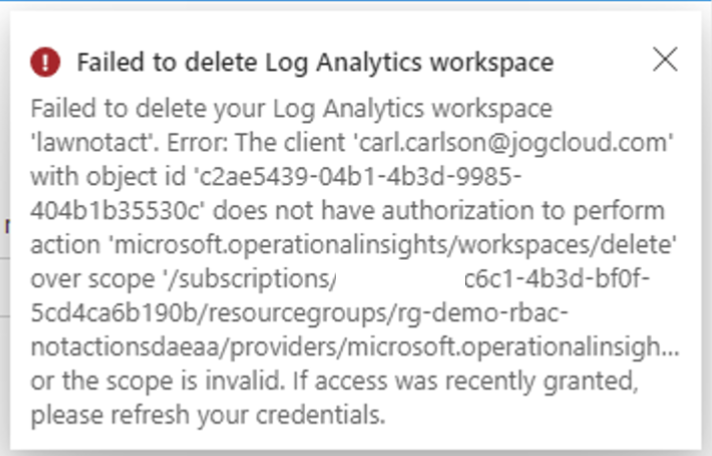
Here we have a user name Carl Carlson. An Azure RBAC role assignment has been created at the resource group scope for the role definition described below. This role definition includes all permissions for a log analytics workspace but removes the delete action.

{
    "id": "/subscriptions/XXXXXXXX-c6c1-4b3d-bf0f-5cd4ca6b190b/providers/Microsoft.Authorization/roleDefinitions/a21541c6-401d-48b7-9149-7c3de8db2adc",
    "properties": {
        "roleName": "Custom - notActions Demo - Remove action",
        "description": "Custom role that demonstrates notActions. This role uses a notAction to remove the delete action from a Log Analytics Workspace.",
        "assignableScopes": [
            "/subscriptions/XXXXXXXX-c6c1-4b3d-bf0f-5cd4ca6b190b"
        ],
        "permissions": [
            {
                "actions": [
                    "Microsoft.OperationalInsights/*"
                ],
                "notActions": [
                    "Microsoft.OperationalInsights/workspaces/delete"
                ],
                "dataActions": [],
                "notDataActions": []
            }
        ]
    }
}

When Carl attempts to delete the Log Analytics Workspace he receives an error stating that he does not have authorization to perform this action. This demonstrates that the delete action was indeed removed from the actions. Let me now drive home why this is not a deny.

Unauthorized error message

I’ll now create an additional Azure RBAC role assignment at the resource group scope for the custom role described in the definition below. This role definition includes the delete action that the other role definition subtracted.

{
    "id": "/subscriptions/b3b7aae7-c6c1-4b3d-bf0f-5cd4ca6b190b/providers/Microsoft.Authorization/roleDefinitions/bed940de-a64b-4601-bd47-651182f9f3e1",
    "properties": {
        "roleName": "Custom - notActions Demo - Add Action",
        "description": "Custom role that demonstrates notActions. This role grants the delete action from a Log Analytics Workspace.",
        "assignableScopes": [
            "/subscriptions/b3b7aae7-c6c1-4b3d-bf0f-5cd4ca6b190b"
        ],
        "permissions": [
            {
                "actions": [
                    "Microsoft.OperationalInsights/workspaces/delete"
                ],
                "notActions": [],
                "dataActions": [],
                "notDataActions": []
            }
        ]
    }
}

This time when Carl attempts to delete the Log Analytics Workspace he is successful. This is because the action subtracted by the first role has been added back in by this second role because the Azure RBAC authorization engine looks at all permissions cumulatively.

Successful deletion of resource due to cumulative permissions

So what do I want you to walk away with from this post? I want you to walk away with an understanding that notActions and notDataActions ARE NOT explicit denies and they are simply subtracting a permission(s) from actions or dataActions. As of today, you cannot design your roles the same way you did it in AWS (if you’re coming from there).

The next question bubbling in your mind is what tools does Microsoft provide to address this behavior of notActions and notDataActions. The answer to that is there are a lot of them. These include things like resource locks, Azure Policy denyActions, and denyAssignments. Each of these tools has benefits and considerations to their usage. Thankfully for you, I’ll be including a post on each of these features and some of the more advanced features working their way to general availability.

See you next post!