Network Security Perimeters – NSPs in Action – AI Workload Example

Network Security Perimeters – NSPs in Action – AI Workload Example

This is part of my series on Network Security Perimeters:

  1. Network Security Perimeters – The Problem They Solve
  2. Network Security Perimeters – NSP Components
  3. Network Security Perimeters – NSPs in Action – Key Vault Example
  4. Network Security Perimeters – NSPs in Action – AI Workload Example

Hello again! Today I’ll be covering another NSP (Network Security Perimeters) use case, this time focused on AI (gotta drive traffic, am I right?). This will be the fourth entry in my NSP series. If you haven’t read at least the first and second post, you’ll want to do that before jumping into this one because, unlike my essays back in college, I won’t be padding the page count by repeating myself. Let’s get to it!

Use Case Background

Over the past year I’ve worked with peers helping a number of customers get a quick and simple RAG (retrieval augmented generation) workload into PoC (proof-of-concept). The goal of these PoCs were often to validate that the LLMs (large language models) could provide some level of business value when supplementing them with corporate data through a RAG-based pattern. Common use cases included things like building a chatbot for support staff which was supplemented with support’s KB (knowledge base) or chatbot for a company’s GRC (governance risk and compliance) team which was supplemented with corporate security policies and controls. You get the gist of it.

In the Azure realm this pattern is often accomplished using three core services. These services include the Azure OpenAI Service (now more typically AI Foundry), AI Search, and Azure Storage. In this pattern AI Search acts as the as the search index and optional vector database, Azure Storage stores the data in blob storage before it’s chunked and placed inside AI Search, and Azure OpenAI or AI Foundry hosts the LLM. Usage of this pattern requires the data be chunked (think chopped up into smaller parts before it’s stored as a record in a database while still maintaining the important context of the data). There are many options for chunking which are far beyond the scope of this post (and can be better explained by much smarter people), but in Azure there are three services (that I’m aware of anyway) that can help with chunking vs doing it manually. These include:

  1. Azure AI Document Intelligence’s layout model and chunking features
  2. Azure OpenAI / AI Foundry’s chat with your data
  3. Azure AI Search’s skillsets and built-in vectorization

Of these three options, the most simple (and point and click) options are options 2 and 3. Since many of these customers had limited Azure experience and very limited time, these options tended to serve for initial PoCs that then graduated to more complex chunking strategies such as the use of option 1.

The customer base that was asking for these PoCs fell into one or more of the these categories:

  1. Limited staff, resources, and time
  2. Limited Azure knowledge
  3. Limited Azure presence (no hybrid connectivity, no DNS infrastructure setup for support of Private Endpoints

All of these customers had minimum set of security requirements that included basic network security controls.

RAG prior to NSPs

While there are a few different ways to plumb these services together, these PoCs would typically have the services establish network flows as pictured below. There are variations to this pattern where the consumer may be going through some basic ChatBot app, but in many cases consumers would interact direct with the Azure OpenAI / AI Foundry Chat Playground (again, quick and dirty).

Network flows with minimalist RAG pattern

As you can see above, there is a lot of talk between the PaaS. Let’s tackle that before we get into human access. PaaS communication almost exclusively happens through the Microsoft public backbone (some services have special features as I’ll talk about in a minute). This means control of that inbound traffic is going to be done through the PaaS service firewall and trusted Azure service exception for Azure OpenAI / AI Foundry, AI Search, and Azure Storage (optionally using resource exception for storage). If you’re using the AI Search Standard or above SKU you get access to the Shared Private Access feature which allows you to inject a managed Private Endpoint (this is a Private Endpoint that gets provisioned into a Microsoft-managed virtual network allowing connectivity to a resource in your subscription) into a Microsoft-managed virtual network where AI Search compute runs giving it the ability to reach the resource using a Private Endpoint. While cool, this is more cost and complexity.

Outbound access controls are limited in this pattern. There are some data exfiltration controls that can be used for Azure OpenAI / AI Foundry which are inherited from the Cognitive Services framework which I describe in detail in this post. AI Search and Azure Storage don’t provide any native outbound network controls that I’m aware of. This lack of outbound network controls was a sore point for customers in these patterns.

For inbound network flows from human actors (or potentially non-human if there is an app between the consumer and the Azure OpenAI / AI Foundry service) you were limited to the service firewall’s IP whitelist feature. Typically, you would whitelist the IP addresses of forward web proxy in use by the company or another IP address where company traffic would egress to the Internet.

RAG design network controls prior to NSPs

Did this work? Yeah it did, but oh boy, it was never simple to approved by organizational security teams. While IP whitelisting is pretty straightforward to explain to a new-to-Azure customer, the same can’t be said for the trusted services exception, shared private access, and resource exceptions. The lack of outbound network controls for AI Search and Storage went over like a lead balloon every single time. Lastly, the lack of consistent log schema and sometimes subpar network-based logging (I’m looking at you AI Search) and complete lack of outbound network traffic logs made the conversations even more difficult.

Could NSPs make this easier? Most definitely!

RAG with NSPs

NSPs remove every single one of the pain points described above. With an NSP you get:

  1. One tool for controlling both inbound and outbound network controls (kinda)
  2. Standardized log schema for network flows
  3. Logging of outbound network calls

We go from the mess above to the much more simple design pictured below.

The design using NSPs

In this new design we create a Network Security Perimeter with a single profile. In this profile there is an access rule which allows customer egress IP addresses for human users or non-human (in case users interact with an app which interacts with LLM). Each resource is associated to that profile within the NSP which allows non-human traffic between PaaS services since it’s all within the same NSP. No additional rules are required which prevents the PaaS services from accepting or initiating any network flows outside of what the access rules and communication with each other within the NSP.

In this design you control your inbound IP access with a single access rule and you get a standard manner to manage outbound access. No more worries about whether the product group baked in an outbound network control, every service in the NSP gets one. Logging? Hell yeah we got your logging for both inbound and outbound in a standard schema.

Once it’s setup you get you can monitor both inbound and outbound network calls using the NSPAccessLogs. It’s a great way to understand under the hood how these patterns work because the NSP logs surface the source resource, destination resource, and the operation being performed as seen below.

NSP logs surfacing operations

One thing to note, at least in East US 2 where I did my testing, outbound calls that are actually allowed since all resources are within the NSP falsley record as hitting the DenyAll rule. Looking back at my notes, this has been an issue since back in March 2025 so maybe that’s just the way it records or the issue hasn’t yet been remediated.

The other thing to note is when I initially set this all up I got an error in both AI Foundry’s chunking/loading method and AI Search’s. The error complains that an additional header of xms_az_nwperimid was passed and the consuming app wouldn’t allow it. Oddly enough, a second attempt didn’t hit the same error. If you run into this error, try again and open a support ticket so whatever feature on the backend is throwing that error can be cleaned up.

Summing it up

So yeah… NSPs make PaaS to PaaS flows like this way easier for all customers. It especially makes implementing basic network security controls far more simple for customers new to Azure that may not have a mature platform landing zone sitting around.

Here are your takeaways for today:

  1. NSPs give you standard inbound/outbound network controls for PaaS and standardized log schema.
  2. NSPs are especially beneficial to new customers who need to execute quickly with basic network security controls.
  3. Take note as of the date of this blog both Azure OpenAI Service and AI Foundry support for NSPs in public preview. You will need to enable the preview flag on the subscription before you go mucking with it in a POC environment. Do not use it in production until it’s generally available. Instructions are in the link.
  4. I did basic testing for this post testing ingestion, searching, and submitting prompts that reference the extra data source property. Ensure you do your own more robust testing before you go counting on this working for every one of your scenarios.
  5. If you want to muck around with it yourself, you can use the code in this repo to deploy a similar lab as I’ve built above. Remember to enable the preview flag and wait a good day before attempting to deploy the code.

Well folks, that wraps up this post. In my final post on NSPs, I’ll cover a use case for NSPs to help assist with troubleshooting common connectivity issues.

Thanks!

Azure Authorization – Azure ABAC (Attribute-based Access Control)

This is part of my series on Azure Authorization.

  1. Azure Authorization – The Basics
  2. Azure Authorization – Azure RBAC Basics
  3. Azure Authorization – actions and notActions
  4. Azure Authorization – Resource Locks and Azure Policy denyActions
  5. Azure Authorization – Azure RBAC Delegation
  6. Azure Authorization – Azure ABAC (Attribute-based Access Control)

Welcome back fellow geeks.

I do a lot of learning and educational sessions with my customer base. The volume pretty much demands reusable content which means I gotta build decks and code samples… and worse maintain them. The maintenance piece typically consists of me mentally promising myself to update the content and kicking the can down the road for a few months. Eventually, I get around to updating the content.

This month I was doing some updates to my content around Azure Authorization and decided to spend a bit more time with Azure ABAC (Attribute-based access control). For those of you unfamiliar with Azure ABAC, well it’s no surprise because the use cases are so very limited as of today. Limited as the use cases are, it’s a worthwhile functionality to understand because Microsoft does use it in its products and you may have use cases where it makes sense.

The Dream of ABAC

Let’s first touch briefly on the differences between (RBAC) role-based access control and (ABAC) attribute-based access control. Attribute-based access control has been the dream for the security industry for as long as I can remember. RBAC has been the predominant authorization mechanism in a majority of applications over the years. The challenge with RBAC is it has typically translated to basic group membership where an application authorizes a user solely on whether or not the user is in a group. Access to these groups would typically come through some type of request for membership and implementation by a central governance team. Those processes have tended to be not super user friendly and the access has tended to be very course-grained.

ABAC meanwhile promised more fine-grained access based upon attributes of the security principal, resource, or whatever your mind can dream up. Sounds awesome right? Well it is, but it largely remained a dream in the mainstream world with a few attempts such as Windows Dynamic Access Control (Before you comment, yeah I get you may have had some cool apps doing this stuff years ago and that is awesome, but let’s stick with the majority). This began to change when cloud came around with the introduction of more modern protocols and standards such as SAML, OIDC, and OAuth. These protocols provide more flexibility with how the identity provider packages attributes about the user in the token delivered to the service provider/resource provider/what have you.

When it came to the Azure cloud, Microsoft went the traditional RBAC path for much of the platform. User or group gets placed in Azure RBAC role and user(s) gets access. I explain Azure RBAC in my other posts on RBAC. There is a bit of flexibility on the Entra ID side for the initial access token via Entra ID Conditional Access, but RBAC in the Azure realm. This was the story for many years of Azure.

In 2021 Microsoft decided something more flexible was needed and introduced Azure ABAC. The world rejoiced… right? Nah, not really. While the introduction of ABAC was awesome, its scope of use was and still is extremely limited. As of the date of this blog, ABAC is only usable for Azure Storage blob and queue operations. All is not lost though, there are some great use cases for this feature so it’s important to understand how it works.

How does ABAC work?

Alright, history lesson and complaining about limited scope aside, let’s now explore how the feature works.

ABAC is facilitated through an additional property on Azure RBAC Role Assignment resources. I’m going to assume you understand the ins and out of role assignments. If you don’t, check out my prior post on the topic. In its most simple sense, an Azure RBAC role assignment is the association of a role to a security principal granting that principal the permissions defined in the role over a particular scope of resources. As I’ve covered previously, role assignments are an Azure resource that have defined sets of properties. The properties we care about for the scope of this discussion are the conditionVersion and condition properties. The conditionVersion property will always have a value of 2.0 for now. The condition property is where we work our ABAC magic.

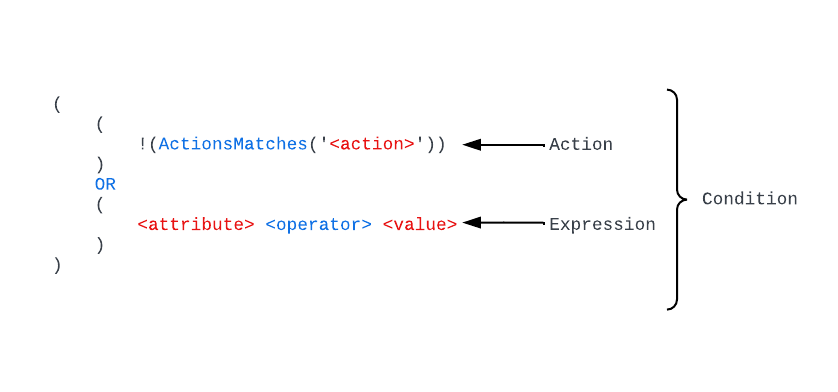
The condition property is made up of a series of conditions which each consist of an action and one or more expressions. The logic for conditions is kinda weird, so I’m walk you through it using some of the examples from documentation as well as complex condition I throw together. First, let’s look at the general structure.

Structure of conditions used in ABAC

In the above image you can see the basic building blocks of a condition. Looks super confusing and complicated right? I know it did to me at first. Thankfully, the kind souls who write the public documentation broke this down in a more friendly programming-like way.

Far more simple explanation of conditions

In each condition property we first have the action line where the logic looks to see if the action being performed by the security principal doesn’t (note the exclamation point which negates whats in the parentheses) match the action we’re applying the conditions to. You’ll commonly see a line like:

!(ActionMatches{'Microsoft.Storage/storageAccounts/blobServices/containers/blobs/read'} AND !SubOperationMatches{'Blob.List'})

This line is saying if the action isn’t blobs/read (which would be data plane call to read the contents of the blob) then the line should evaluate to true. If it evaluates to true, then the access is allowed and the expressions are not evaluated any further.

After this line we have the expression which is only evaluated when the first line evaluates to false (which in the example I just covered would mean the security principal is trying to read the content of a blob). The expressions support four categories of what Microsoft refers to as condition features. There are currently four features in various states of GA (general availability) and preview (refer to the documentation for those details). These four categories include:

  • Requests
  • Environment
  • Resource
  • Principal (security principal)

These four categories give you a ton of flexibility. Requests covers the details of the request to storage, for example such as limiting a user to specific blob prefixes based on the prefix within the request. Environment can be used to limit the user to accessing the resource from a specific Private Link Private Endpoint over Private Link in general (think defense-in-depth here). The resource feature exposes properties of the resource being accessed, which I find the most flexible thing to be blob index tags. Lastly, we have security principal and this is where you can muck around with custom security attributes in Entra ID (very cool feature if you haven’t touched it).

In a given condition we can have multiple expressions and within the condition property we can string together multiple conditions with AND and OR logic. I’m a big believer in going big or going home, so let’s take a look at a complex condition.

Diving into the Deep End

Let’s say I have a whole bunch of data I need to make available via a blobs in an Azure Storage Account. I have a strict requirement to use a single storage account and the blobs I’m going to store have different data classifications denoted by a blob index tag key named access_level. Blobs without this key are accessible by everyone while blobs classified high, medium, or low are only accessible by users with approval for the same or higher access levels (example: user with high access level can access high, medium, low, and data with no access level). Lastly, I have a requirement that data at the high access level can only be accessed during business hours.

I use a custom security attribute in Entra ID called accesslevel under an attribute set named organization to denote a user’s approved access level.

Here is how that policy would break down.

My first condition is built to allow users to read any blobs that don’t have the access_level tag.

# Condition that allows users within scope of the assignment access to documents that do not have an access level tag
(
  (
    # If the action being performed doesn't match blobs/read then result in true and allow access
    !(ActionMatches{'Microsoft.Storage/storageAccounts/blobServices/containers/blobs/read'} AND !SubOperationMatches{'Blob.List'})
  )
  OR 
  (
    # If the blob doesn't have a blob index tag with a key of access_level then allow access
    NOT @Resource[Microsoft.Storage/storageAccounts/blobServices/containers/blobs/tags&$keys$&] ForAnyOfAnyValues:StringEquals {'access_level'}
  )
)

If the blob does have an access tag, I want to start incorporating my logic. The next condition I include allows users with the accesslevel security attribute set to high to read blobs with a blob index tag of access_level equal to low or medium. I also also allow them to read blobs tagged with high if it’s between 9AM and 5PM EST.

# Condition that allows users within scope of the assignment to access medium and low tagged data if they have a custom 
# security attribute of accesslevel set to high. High data can also be read within working hours
OR
(
 (
   # If the action being performed doesn't match blobs/read then result in true and allow access
   !(ActionMatches{'Microsoft.Storage/storageAccounts/blobServices/containers/blobs/read'} AND !SubOperationMatches{'Blob.List'})
 )
 OR 
 (
   # If the blob has an index tag of access_level with a value of medium or low allow the user access if they have a custom security
   # attribute of organization_accesslevel set to high
   @Resource[Microsoft.Storage/storageAccounts/blobServices/containers/blobs/tags:access_level<$key_case_sensitive$>] ForAnyOfAnyValues:StringEquals {'medium', 'low'}
   AND
   @Principal[Microsoft.Directory/CustomSecurityAttributes/Id:organization_accesslevel] StringEquals 'high'
 )
 OR
 (
   # If the blob has an index tag of access_level with a value of high allow the user access if they have a custom security
   # attribute of organization_accesslevel set to high and it's within working hours
   @Resource[Microsoft.Storage/storageAccounts/blobServices/containers/blobs/tags:access_level<$key_case_sensitive$>] ForAnyOfAnyValues:StringEquals {'high'}
   AND
   @Principal[Microsoft.Directory/CustomSecurityAttributes/Id:organization_accesslevel] StringEquals 'high'
   AND
   @Environment[UtcNow] DateTimeGreaterThan '2025-06-09T12:00:00.0Z'
   AND
   @Environment[UtcNow] DateTimeLessThan '2045-06-09T21:00:00.0Z'
 )
)

Next up is users with medium access level. These users are granted access to data tagged medium or low.

# Condition that allows users within scope of the assignment to access medium and low tagged data if they have a custom 
# security attribute of accesslevel set to medium
OR
(
  (
    # If the action being performed doesn't match blobs/read then result in true and allow access
    !(ActionMatches{'Microsoft.Storage/storageAccounts/blobServices/containers/blobs/read'} AND !SubOperationMatches{'Blob.List'})
  )
  OR 
  (
    # If the blob has an index tag of access_level with a value of medium or low allow the user access if they have a custom security
    # attribute of organization_accesslevel set to medium
    @Resource[Microsoft.Storage/storageAccounts/blobServices/containers/blobs/tags:access_level<$key_case_sensitive$>] ForAnyOfAnyValues:StringEquals {'medium', 'low'}
    AND
    @Principal[Microsoft.Directory/CustomSecurityAttributes/Id:organization_accesslevel] StringEquals 'medium'
 )
)

Finally, I allow users with low access level to access data tagged as low.

# Condition that allows users within scope of the assignment to access low tagged data if they have a custom 
# security attribute of accesslevel set to low
OR
(
 (
   # If the action being performed doesn't match blobs/read then result in true and allow access
   !(ActionMatches{'Microsoft.Storage/storageAccounts/blobServices/containers/blobs/read'} AND !SubOperationMatches{'Blob.List'})
 )
 OR 
 (
   # If the blob has an index tag of access_level with a value of low allow the user access if they have a custom security
   # attribute of organization_accesslevel set to low
   @Resource[Microsoft.Storage/storageAccounts/blobServices/containers/blobs/tags:access_level<$key_case_sensitive$>] ForAnyOfAnyValues:StringEquals {'low'}
   AND
   @Principal[Microsoft.Directory/CustomSecurityAttributes/Id:organization_accesslevel] StringEquals 'low'
 )
)

Notice how I separated each condition using OR. If the first condition resolves to false, then the next condition is evaluated until all access is granted or all conditions are exhausted. Neat right?

Summing it up

So why should you care about this if its use case is so limited? Well, you should care because that is ABAC’s use case today, and it would be expanded in the future. Furthermore, ABAC allows you to be more granular in how you grant access to data in Azure Storage (again, blob or queue only). You likely have use cases where this can provide another layer of security to further constrain a security principal’s access. You’ll also see these conditions used in Microsoft’s products such as AI Foundry.

The other reason it’s helpful to understand this language used for the condition, is conditions are expanding into other services such as Azure RBAC Delegation (which if you aren’t using you should be). While the language can be complex, it does make sense if you muck around with it a bit.

A final bit of guidance here, don’t try to write conditions by hand. Use the visual builder in the Azure Portal as seen below. It will help you get some basic conditions in place that you can further modify directly via the code view.

Azure Portal Condition Builder

Next time you’re locking down an Azure storage account, think about whether or not you can further restrict humans and non-humans alike based on the attributes discussed today. The main places I’ve seen this used are for user profiles, further restricting user access to specific subsets of data (similar to the one I walked through above), or even adding an additional layer of network security baked directly into the role assignment itself.

See you next post!

Generative AI in Azure for the Generalist – Prompt and Response Logging with API Management

Hello folks!

The rate of change in tech is the most crazy I’ve experienced in my career. What you knew yesterday is quickly replaced with major changes a week or two later. The generative AI space is one of those areas that seems to change on a daily basis, and with these changes comes updated and new patterns and products. Given some major changes over the past few months, I’ve decided to kick off a new blog series that will cover generative AI in Azure for the generalist. The focus will be on folks like myself that sit squarely in the generalist vertical. In this series I’ll cover new topics as well as revisiting topics I’ve covered in the past and how they have changed.

In spirit of that latter point, tonight I’ll be covering an AWESOME new feature in Azure API Management (APIM).

The Background

I’ve talked pretty extensively about APIM’s role in the generative AI space where it provides the features and functionality of the architectural component of a Generative AI Gateway (GenAI Gateway). So what is a GenAI Gateway? Well, you see, someone at Forrester/Gartner needed to create a new phrase that vendors could adopt and sell existing products under, they had a pitch meeting, and yadda yadda yadda. But seriously, in its most simple sense a GenAI Gateway is essentially an API Gateway with additional functionality and features specific to the challenges of doing Generative AI at scale. These challenges can include fine-grained authorization, rate limiting, usage tracking, load balancing, caching, additional logging and monitoring and more.

Common GenAI Gateway functionality

Cloud providers jumped at the chance to add this functionality to their existing native API Gateway products. Microsoft began integrating this functionality into APIM first with load balancing, then with throttling based upon token usage and token tracking for charge backs and sharing model quota across an enterprise, and semantic caching for cost reduction and improved response times. One of the areas that was somewhat of a gap was prompt and response logging.

Back in 2023 I wrote an article about the challenges of prompt and response logging when using a generative AI gateway pattern, and specifically some of the challenges around when APIM was used as the gateway. The history of how folks tried to tackle the issue is pretty interesting context to understand how we ended up where we were.

Before I jump into that history, it’s worth understanding why you should care about prompt and response logging. Those cares are typically grouped in two buckets:

  1. Operational
  2. Security

In the operational bucket we care about these things because they provide great insight into how our users are using these tools to identify commonly asked questions. For example, if we see a question pop up a lot, maybe it’s something we need to add to a user-facing FAQ. Or perhaps we build a workflow into our app that checks commonly asked questions and provides an answer before we call an LLM in order to save some costs and time. There are many creative uses to having these things saved and available.

In the security bucket we care because we want to ensure the LLMs are used responsibly. We don’t want people abusing the LLMs and getting instructions on how to malicious things and we also want to monitor them to ensure we don’t see odd behavior that might be indicative of an attacker who may have compromised a chat bot. Lastly, we capture this because it’s only a matter of a time before some government somewhere in the world pushes legislation that requires us to. It’s coming folks.

Now let’s talk the history of how folks tried to solve this problem.

First, we tried logging requests and responses to Application Insights using the built-in integration with APIM. This worked great until the max tokens for prompts grew too large such that requests and responses started getting truncated. Next, we tried using APIM’s integration with Event Hub (logger) in combination with complex custom APIM policy to parse the request and response, extract the prompt and completion, and deliver to an Event Hub for it to get picked up by some type of automated function and stored in some type of backend data store like a CosmosDB. This worked for a short time where folks were largely experimenting with how the LLMs (large language models) worked with their data but started to fall apart when these LLMs were baked into a chat bot handed out to users (they were also a nightmare to maintain due to frequent API changes to the structure of requests and responses). The reason for this is chat bots demand streaming based completions which deliver the tokens as they generated (which seems more human like) vs the user waiting for the entire completion to be generated. APIM would end up buffering the response and breaking the user experience. To solve this problem, folks were introducing custom code to do the parsing outside of APIM (such as this creative solution by my peer Shaun Callighan). Writing custom code, running it somewhere, and integrating it into APIM was a tough pill to swallow. Most of my customer base either accepted prompt and response logging would be dependent on the developer baking it into their application or they would simply accept not getting that information for the time being.

What’s New

Kind of a shitty situation to be in, right? Well, I have good news for you. Last week the APIM Product Group (PG) released a stellar new feature to support prompt and response logging (both streaming and non-streaming) with a few clicks of the mouse (or slight modifications of code). This morning I had a chance to muck around with it and I wanted to get out this quick article to share with folks the basics of setting this up and provide a bit of detail into how it works (I’ll be updating post this as I experiment more).

The feature is now available directly as an additional log emitted by the APIM instance via the diagnostic settings. This means you can stream these logs to a Log Analytics Workspace, Azure Storage Account, or on to an Event Hub where you send it to any place your heart desires.

Setup

Setting this feature up is pretty cake and requires only a few steps to get it done.

First up you’ll need to enable the additional log in diagnostic settings as seen below.

New diagnostic setting

Once the new diagnostic setting is enabled, you then need to enable it for your API that represents your instance of the an Azure OpenAI resource(s) or Azure AI Foundry (FKA Azure AI Service) instance hosting your LLMs.

Enabling feature in API

Once the feature is enabled in both places, the events should begin to get captured in around 15 or so minutes. I chose to send mine to a Log Analytics Workspace and had a new table named ApiManagementGatewayLlmLogs appear (took about 15 minutes to finally appear) which contains events related to my operations against the LLMs. Each log entry represents a 32KB chunk of the request and response for up to 2MB. The SequenceNumber field is used to denote the order of the chunks as seen in the image below with the CorrelationId field requesting the unique identifier for each request and response.

Expanding an event gives you the ability to review the prompt and response in full detail. This particular request spanned three separate events (sequence 0-2) with the first sequence (0) containing the prompt, completion, and total tokens and the second sequence (1) including the prompt and last sequence (2) containing the model’s response.

Example prompt and response logging event

I tested with both a multi-modal model (gpt-4o) and a reasoning model (o1) and both sets of events were captured. I haven’t seen an authoritative list for which models are supported, but when I do I’ll update this post with a link.

I’m also waiting to hear back from the PG as to how APIM determines it’s a call to an LLM. My guess is by operation name, but waiting on that response as well. I haven’t tested other operations such as creating embeddings yet, so if you do, feel free to reply to this post with your findings. If I’m able to get a full list of operations supported by this logging, I’ll update the post.

Wrapping It Up

That about sums up this quick post. My main goal here was to publicize this new feature because it’s a real game changer for APIM and addresses a major pain point of Generative AI Gateways in general. It’s been really cool to see this from the beginning, and I’m not sure about other folks, but I love understanding the journey a technology takes, the new problems that pop up, and the solutions that solve those problems. It really helps give context to why the solution looks the way it does.

See you next post!

Simple Patterns for Chatting with Your Data – Using the Microsoft public backbone

Hello again folks! Recently, I’ve been working with some far more intelligent peers (such as my buddy Jose Medina Gomez, you should definitely check out his repos because he has some awesome stuff there) on getting some new-to-Azure customers up and running in the GenAI (generative AI) space. Specifically, these customers had some custom data they wanted to use the LLMs (large language models) to reason on and answer questions about. This called for using a RAG (retrieval-augmented generation) pattern to provide an LLM access to an external knowledge base. I thought it would be helpful to other folks out there like myself that are new to this world to document some simple patterns to do this type of stuff that keep security in mind. I’ll cover these over a few posts with this being the first.

The Pattern

The first pattern I want to cover is what I call the “Microsoft public backbone” pattern. This pattern is ideal for customers to minimal to no Azure presence who need something up and running quickly with some basic security guardrails. The pattern looks like what you see below:

Microsoft-backbone Pattern

The key benefits of this pattern are:

  • All traffic between Microsoft PaaS (platform-as-a-service) services flows over the Microsoft public backbone and the organization’s application communicates with the services over the Microsoft public backbone.
  • All Microsoft PaaS services use the built-in service firewall to control inbound traffic.
  • Microsoft PaaS services that support outbound network controls use those controls to mitigate the risk of data exfiltration.
  • Authentication between each component uses Entra ID based authentication and Azure RBAC authorization.
  • Minimizes costs by choosing more affordable SKUs where possible.
  • Captures logs where available.

What I like about this pattern is it is super simple to get up and running (can take less than one hour) and provides decent security controls with minimal headache. It’s by no means production-ready pattern for reasons I’ll discuss further in this post, but for a quick proof-of-concept or for getting your feet wet with RAG-like patterns, this is a great choice.

I’ll now spend a few moments providing detail to each of the benefits I outlined above.

The Benefits and Considerations

Benefit 1: All traffic between Microsoft PaaS (platform-as-a-service) services flows over the Microsoft public backbone and the organization’s application communicates with the services over the Microsoft public backbone

Simplicity is the name of the game here folks. By keeping keeping all communication to the Microsoft public backbone you avoid the complexities of Private Link integration. For organizations that are new to Azure and don’t have a platform landing zone (hybrid connectivity, network inspection, Internet egress support for Azure resources, DNS forwarding for Private Link) this pattern can be done without much effort. As an added benefit, PaaS to PaaS stays over the Microsoft public backbone providing you with the the security controls Microsoft provides across their public backbone.

Benefit 2: All Microsoft PaaS services use the built-in service firewall to control inbound traffic

Almost all (I’m sure there are some exceptions that aren’t top of mind) Microsoft PaaS services provide a basic built-in firewall I refer to as the service firewall. The service firewall is off by default, but can be toggled on to restrict inbound traffic to the public endpoint for the PaaS (which ever PaaS has). Most commonly (every PaaS service seems to work a bit differently) you can create exceptions to the firewall based on IP address or allow “trusted” Microsoft services to bypass the firewall. Additionally, Azure Storage has is its capability which allows to configure specific resource instances to bypass the firewall based on the resource instance identifier and its managed identity.

The “trusted” Microsoft service exception needs a bit more explaining. Most Azure PaaS (again, there are always exceptions because Microsoft loves its snowflakes) has a checkbox in the Portal with text like seen in the screenshot below. This checkbox allows traffic from a specific set of Azure services (identified by their public IP addresses) to bypass the service firewall. Today, this will be a box you will often need to check whenever you are doing PaaS to PaaS. The key thing to understand about this checkbox is it’s all public IPs associated with whatever the “trusted” services are the specific product group identifies. This means instances not owned by you could be allowed to bypass the service firewall (making authentication and authorization critical). Thankfully, the upcoming Network Security Perimeters feature will likely address this gap and make this box something of the past.

Trusted services bypass option

Benefit 3: Microsoft PaaS services that support outbound network controls use those controls to mitigate the risk of data exfiltration

While controlling inbound traffic for a PaaS is typically a Private Endpoint or service firewall (or eventually Network Security Perimeters) use case, controlling outbound traffic tends a bit a bit more tricky. For many compute-based services (AKS, App Services, Azure Container Services, etc) you are able to force outbound traffic through your virtual network allowing you to get visibility into the traffic and control what that service can make outbound network connections to.

With PaaS services like the ones used in this architecture, these types of virtual network integration aren’t an option. For most non-compute-based PaaS you are essentially SOL (I’ll let you figure out this acronym yourself). The services that fall under the Cognitive Services framework (such as Azure OpenAI Service and AI Services) support outbound traffic controls. You can check out my prior post for the details on those controls. In this architecture we use Azure OpenAI Services so we can take advantage of those outbound controls.

Restricting outbound access in Cognitive Services

Controlling outbound access from a PaaS will be another place Network Security Perimeters will become the predominant control mechanism.

Benefit 4: Authentication between each component uses Entra ID based authentication and Azure RBAC authorization

In this pattern Entra ID-based authentication and Azure RBAC authorization is used at each hop for human-to-service and service-to-service communication. Users interacting with these service will use their Entra ID user identities which are typically synchronized from an on-premises Windows Active Directory. Non-humans (applications and services) will use Entra ID service principals to authenticate to each other. This will either be a standard service principal, identified by a client id and client secret (for you AWS folks this is essentially your IAM User), or a special type of service principal called a managed identity (for those of you coming from AWS, this is as close to an IAM Role as Azure gets).

Azure RBAC roles are assigned with least privilege in mind. Users (or groups) are assigned the minimal permissions they need to upload data to the storage account and perform needed functions with the PaaS to load and query the data. Services are provided the necessary permissions they need to interact.

Benefit 5: Minimizes costs by choosing more affordable SKUs where possible

Costs are already pretty cheap with this pattern. This pattern minimizes costs further by sacrificing the Shared Private Access feature of AI Search. Yeah, you lose on the fuzzy feeling of the communication between AI Search and Azure Storage or Azure OpenAI Service happening over Private Link, but you save some money with the more basic SKU and still get the security of the Microsoft public backbone and the service firewalls.

Note that this design choice is made to optimize costs. Performance within the Basic SKU may not be sufficient for your use case.

Benefit 6: Captures logs where available

Finally, let’s look at logging. In this pattern you’ll get your management plane activities (actions on the resources) via Azure Activity Logs and you’ll get data plane (actions on the data held by the resources) activities via diagnostic settings delivering logs to a Log Analytics Workspace.

Each of these resources has a selection of logs available. Some are “ok” (Azure OpenAI Service) and some are “meh” (Azure AI Search). However, you will want all of these logs for both security and operational use.

The Considerations

There can’t only be benefits, right? The major considerations of this pattern is it’s very much built for proof-of-concept. You get basic network security controls with the service firewall, but no inspection of traffic unless you have an inspection point on-premises in front of the developer. Additionally, before communication from the developer gets to Azure it will have to traverse the public Internet before it gets to the Microsoft public backbone. While all of your communication will happen over TLS, you don’t get the security benefits of wrapping that encrypted session with an IPSec tunnel or funneling it over a known path and operational benefits of consistent latency with ExpressRoute.

Scalability of AI Search is another consideration. The Basic SKU will offer you a limited amount of scale.

On the LLM front, this pattern only allows you to deploy models available within an Azure OpenAI Service (or AI Services) instance (thanks to Jose for highlighting this consideration). There are options to adjust this pattern to use other LLMs, but it will require the introduction of AI Foundry which is quite the beast.

There are likely others I’m missing, but this is still a great little pattern to see what the LLMs can do that comes wrapped with decent security controls and requires minimal coding.

Loading Data

So you’ve decided that the benefits and considerations make sense to you and you want to move ahead, or maybe you’re just dipping your toes into this world and you want to muck around with things. Now you’re left wondering, “Ok I set this thing up like you documented above, how the heck do I use it?”

Alrighty, I’m going to show you the the quick and dirty way. Do not assume the way I’m going to show you is the only way to do this pattern. There are lots of variations, especially on how you chunk and load the data into AI Search. My advice to you in that department would be to work with the data folks at your organization or engage a Microsoft solutions architect on the optimal way to chunk and load your data. Do it wrong, and the responses from the LLMs will be crappy. After watching my buddy Jose and many of his peers, it’s very much an art form that requires experience and experimentation.

For the less experienced folks like myself, there is a built-in wizard within AI Search that helps to chunk and vectorize the data. If you open the Azure Portal you’ll see an option called Import and Vectorize as seen in the screenshot below.

The easy button

Clicking that option will open up the wizard (yes Microsoft still loves its wizards). On the first screen you’ll select the Azure Blob Storage option. On the next screen you’ll configure the options below. If you’ve set things up as I’ve outlined them in the initial pattern diagram (RBAC and network controls) this will work like a champ (don’t forget to deploy a chat model like gpt-4o and embedding model like text-embedding-3-large to the AOAI (Azure OpenAI Service) instance). I’m assuming you already created a container in the Azure Storage account and uploaded data (like some PDFs). I’ve found this useful when referencing and consuming RFCs to confirm my understanding.

Here you’re specifying that the AI Search instance grab the data you’ve uploaded to the blob container using its system-assigned managed identity.

Connect to your data

The next screen provides us with the options to vectorize (or create embeddings) for our data. We can then use AI Search to query both the text-based chunks and vectors to optimize the results we return to the LLM. Here I’m selecting to use an embedding model deployed to an Azure OpenAI instance. More advanced scenarios you may choose to incorporate other embeddings you’ve built yourself or sourced from the model marketplace and deployed to AI Foundry (thanks to Jose for mentioning this).

I also select to use the deployed text-embedding-3-large embedding model and am again using the AI Search managed identity to call the Azure OpenAI service to create the embeddings.

Vectorize your text

The data I’m using (10K financial reports) doesn’t have any images so I ignore the Vectorize and enrich your images option.

Finally, I opt to use the semantic ranker (great article on this) to improve the results of my queries to AI Search and leave the other options as the default since this is a one time operation. If you are doing this regularly, getting a good data pipeline in place (either push or pull) is mission critical (another learning from my buddy Jose). Someone smarter than me can help you with that.

Review the settings and opt to create the indexer. The full run will only take a few minutes if you don’t have a ton of content. For larger data volume, get yourself some coffee and work on something else while you wait. If you have any failures at this step, it will likely be you don’t have the networking controls setup correctly. Review the image I posted at the beginning of this post and get busy with the resource logs (it’s good experience!).

Indexer in progress

Once it’s complete, you’ll see a screen like this if you select the indexer that was created. It will will show you how many of the docs it pulled from the container and how many were successfully imaged.

Successful run. Yay!

Next you can navigate to the index and run a test search. Here you’ll get back the relevant records and you can muck around with direct searches against the index to get a feel for the structure of the chunked data. If you don’t get an responses it’s likely an RBAC or networking issue. For RBAC, ensure you granted yourself both management plane (Search Service Contributor) and data plane (Search Data Index Reader or Contributor).

Directly searching chunked data

Chatting with your data

Alright, your data has been pulled into AI Search. How do you go about extending this knowledge base to the LLM? There are a ton of ways to do it, but for something quick and dirty, I’m a fan of either writing some simple Python code or using the Chat Playground via your Azure OpenAI Services or AI Services instance. For this blog, I’m going to be lazy and focus on the latter.

For this you’ll want to navigate to the AOAI instance and select the “Explore Azure AI Foundry portal” link. No this isn’t actually AI Foundry and is instead the rebranded (and standardized) Azure OpenAI Playground incorporated into a Foundry-like interface.

Entering the Azure AI Foundry portal

Once entering the new portal you’ll be dropped into the Chat playground. Here you’ll want to use the Add your data link and then Add a data source link as seen below.

Importing index to Chat Playground

On the next screen I choose to add the index I created earlier during my data import also choosing to use vector-based searches to improve the quality of the search results returned to the LLM. This is where the embedding model I deployed earlier comes into play as seen in the image below.

Adding data source

On the next screen I opt to do a hybrid + semantic search to ensure I get the best results out of a typical keyword search, vector search, and semantic search. A default semantic search configuration was created for you when you imported the data into AI Search.

Data management screen

Lastly, I choose to use the system-assigned managed identity of the AOAI instances when calls are made from the AOAI instance to AI Search. This is where the Azure RBAC assignments I show in the original diagram come into play. Any missing permissions on the managed identity will pop up for you here during the validation stage.

Data Connection screen

After saving and closing I’m good to go! In the chat window I can ask a question such as “How many shares did Microsoft buy back in 2024?” The LLM optimizes my query for AI Search, creates vector-based embeddings of my question, performs the hybrid and semantic search against the AI Search instance, summarizes the results, and returns them to the Chat Playground.

Chat with your data process

Below you see the answer to my question with citations back to the original chunked data in AI Search. Cool shit right?

LLM results

If you’re just dipping your toes into this world or you’re an organization validating that the Azure platform’s AI Services can do what you need them to do before you invest heavily into the platform, this is a great pattern to mess around with. It’s super easy to get up and running, doesn’t require a deep understanding of Azure, and still provides foundational security controls that every organization should have in place. All this in a quick few hours of work.

In upcoming posts I’ll showcase some variations of this pattern such as the incorporation of Private Link and using CoPilot Studio as a frontend to build a quick and simple Teams bot using a small variation of this pattern (this was a really fun one Denis Rougeau, Aga Shirazi, Jose and I have been rolling out to a few customers. Super excited to talk more about that one!).

Until next time!