Welcome back folks! I recently had a few customers ask me about using certificates with Azure Key Vault and switching from using a client secret to a client certificate for their Azure AD (Active Directory) service principals. The questions put me on a path of diving deeper around the topics which results in some great learning and opportunity to create some Python code samples.
Azure Key Vault is Microsoft’s solution for secure secret, key, and credential management. If you’re coming from the AWS (Amazon Web Services) realm, you can think of it as AWS KMS (Key Management Services) with a little bit of AWS Secrets Manager and AWS Certificate Manager thrown in there. The use cases for secrets and keys are fairly well known and straightforward, so I’m going instead focus time on the certificates use case.
In a world where passwordless is the newest buzzword, there is an increasing usage of secrets (or passwords) in the non-human world. These secrets are often used to programmatically interact with APIs. In the Microsoft world you have your service principals and client secrets, in the AWS world you have your IAM Users with secret access keys, and many more third-parties out there require similar patterns that require the use of an access key. Vendors like Microsoft and AWS have worked to mitigate this growing problem in the scope of their APIs by introducing features such as Azure Managed Identities and AWS IAM Roles which use short lived dynamic secrets. However, both of these solutions work only if your workload is running within the relevant public cloud and the service it’s running within supports the feature. What about third-party APIs, multi-cloud workloads, or on-premises workloads? In those instances you’re many of times forced to fall back to the secret keys.
There is a better option to secret keys, and that is client certificates. While a secret falls into the “something you know” category, client certificates fall into the “something you have” category. They provide an higher assurance of identity (assuming you exercise good key management practices) and can have more flexibility in their secure storage and usage. Azure Service Principals support certificate-based authentication in addition to client secrets and Azure Key Vault supports the secure storage certificates. Used in combination, it can yield some pretty cool patterns.
Before I get into those patterns, I want to cover some of the basics in how Azure Key Vault stores certificates. There are some nuances to how it’s designed that is incredibly useful to understand. I’m not going to provide a deep dive on the inner workings of Key Vault, the public documentation does a decent enough job of that, but I am going to cover some of the basics which will help get you up and running.
Certificates can be both imported into and generated within Azure Key Vault. These certificates generated can be self-signed, generated from a selection of public CAs (certificate authorities) it is integrated with, or can be used to generate a CSR (certificate signing request) you can full-fill with your own CA. These processes are well detailed in the documentation, so I won’t be touching further on them.
Once you’ve imported or generated a certificate and private key into Key Vault, we get into the interesting stuff. The components of the certificate and private key are exposed in different ways through different interfaces as seen below.
Key Vault and certificates
Metadata about the certificate and the certificate itself are accessible via the certificates interface. This information includes the certificate itself provided in DER (distinguished encoded rules) format, properties of the certificate such as the expiration date, and metadata about the private key. You’ll use this interface to get a copy of the certificate (minus private key) or pull specific properties of the certificate such as the thumbprint.
Operations using the private key such as sign, verify, encrypt, and decrypt, are made available through the key interface. Say you want to sign a JWT (JSON Web Token) to authenticate to an API, you would use this interface.
Lastly, the private key is available through the secret interface. This is where you could retrieve the private key in PEM (privacy enhanced mail) or PKCS#12 (public key cryptography standards) format if you’ve set the private key to be exportable. Maybe you’re using a library like MSAL (Microsoft Authentication Library) which requires the private key as an input when obtaining an OAuth access token using a confidential client.
Now that you understand those basics, let’s look at some patterns that you could leverage.
In the first pattern consider that you have a CI/CD (continuous integration / continuous delivery) running on-premises that you wish to use to provision resources in Azure. You have a strict requirement from your security team that the infrastructure remain on-premises. In this scenario you could provision a service principal that is configured for certificate authentication and use the MSAL libraries to authenticate to Azure AD to obtain the access tokens needed to access the ARM API (Azure Resource Manager). Here is Python sample code demonstrating this pattern.
On-premises certificate authentication with MSAL
In the next pattern let’s consider you have a workload running in the Azure AD tenant you dedicate to internal enterprise workloads. You have a separate Azure AD tenant used for customer workloads. Within an Azure subscription associated with the customer tenant, there is an instance of Azure Event Hub you need to access from a workload running in the enterprise tenant. For this scenario you could use a pattern where the workload running in the enterprise tenant uses an Azure Managed Identity to retrieve a client certificate and private key from Key Vault to use with the MSAL library to obtain an access token for a service principal in the customer tenant which it will use to access the Event Hub.
For the last pattern, let’s consider you have the same use case as above, but you are using the Premium SKU of Azure Key Vault because you have a regulatory requirement that the private key never leaves the HSM (hardware security module) and all cryptographic operations are performed on the HSM. This takes MSAL out of the picture because MSAL requires the private key be provided as a variable when using a client certificate for authentication of the OAuth client. In this scenario you can use the key interface of Key Vault to sign the JWT used to obtain the access token from Azure AD. This same pattern could be leveraged for other third-party APIs that support certificate-based authentication.
Well folks I’m going to keep it short and sweet. Hopefully this brief blog post has helped to show you the value of Key Vault and provide some options to you for moving away from secret-based credentials for your non-human access to APIs. Additionally, I really hope you get some value out of the Python code samples. I know there is a fairly significant gap in Python sample code for these types of operations, so hopefully this begins filling it.
I’ve recently had a number of inquiries on Microsoft’s AAD (Azure Active Directory) B2C (Business-To-Consumer) offering. For those infrastructure folks who have had to manage customer identities in the past, you know the pain of managing these identities with legacy solutions such as LDAP (Lighweight Directory Access Protocol) servers or even a collection of Windows AD (Active Directory) forests. Developers have suffered along with us carrying the burden of securely implementing the technologies into their code.
AAD B2C exists to make the process easier by providing a modern IDaaS (identity-as-a-service) offering complete with a modern directory accessible over a Restful API, support for modern authentication and authorization protocols such as SAML, Open ID Connect, and OAuth, advanced features such as step-up authentication, and a ton of other bells and whistles. Along with these features, Microsoft also provides a great library in the form of the Microsoft Authentication Library (MSAL).
It had been just about 4 years since I last experimented with AAD B2C, so I was due for a refresher. Like many people, I learn best from reading and doing. For the doing step I needed an application I could experiment with. My first stop was the samples Microsoft provides. The Python pickings are very slim. There is a basic web application Ray Lou put together which does a great job demonstrating basic authentication. However, I wanted to test additional features like step-up authentication and securing a custom-built API with AAD B2C so I decided to build on top of Ray’s solution.
I began my journey to create the web app and web API I’ll be walking through setting up with this post. Over the past few weeks I spent time diving into the Flask web framework and putting my subpar Python skills to work. After many late nights and long weekends spent reading documentation and troubleshooting with Fiddler, I finished the solution which costs of a web app and web API.
The solution is quite simple . It is intended to simulate a scenario where a financial services institution is providing a customer access the customer’s insurance policy information . The customer accesses a web frontend (python-b2c-web) which makes calls to a API (python-b2c-api) which then retrieves policy information from an accounts database (in this case a simple JSON file). The customer can use the self-service provisioning capability of Azure B2C to create an account with the insurance company, view their policy, and manage the beneficiary on the policy.
AAD B2C provides the authentication to the web front end (python-b2c-web) via Open ID Connect. Access to the user’s policy information is handled through the API (python-b2c-api) using OAuth. The python-b2c-web frontend uses OAuth to obtain an access token which is uses for delegated access to python-b2c-api to retrieve the user’s policy information. The claims included in the access token instruct the python-b2c-api which record to pull. If the user wishes to change the beneficiary on the policy, the user is prompted for step-up authentication requiring an MFA authentication.
The solution uses four Azure AD B2C UserFlows. It has a profile editing user flow which allows the user to change information stored in the AAD B2C directory about the user such as their name. A password reset flow allows the user to change the password for their local AAD B2C identity. Two sign-up/sign-in flows exist one with no MFA and one with MFA enforced and two sign-up / sign-in flows. The non-MFA enabled flow is the kicked off at login to python-b2c-web while the MFA enabled flow is used when the user attempts to change the beneficiary.
With the basics on the solution explained, let’s jump in to how to set it up. Keep in mind I’ll be referring to public documentation where it makes sense to avoid reinventing the wheel. At this I’m providing instructions as to how to run the code directly on your machine and additionally instructions for running it using Docker. Before we jump into how to get the code up and running, I’m going to walkthrough setting up Azure AD B2C.
Setting up Azure AD B2C
Before you go setting up Azure AD B2C, you’ll need a valid Azure AD Tenant and Azure Subscription. You can setup a free Azure account here. You will need at least contributor within the Azure Subscription you plan on using to contain the Azure AD B2C directory.
Follow the official documentation to setup your Azure B2C directory once you have your Azure Subscription setup and ready to go. Take note of the name of the single-label DNS name you use for your Azure B2C directory. This will be the unique name you set that prefixes .onmicrosoft.com (such as myb2c.onmicrosoft.com).
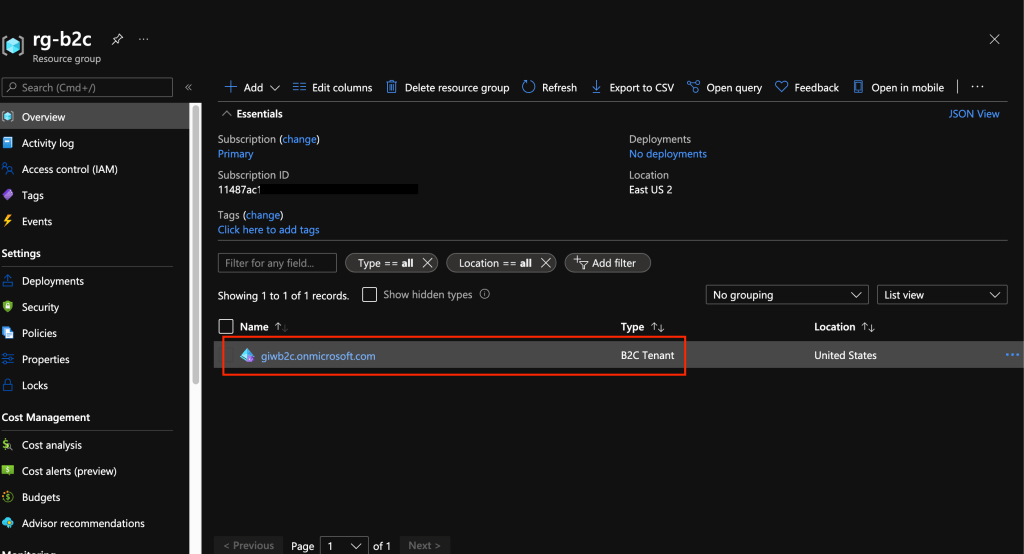
Creation of the Azure AD B2C directory will create a resource of type B2C Tenant in the resource group in the Azure Subscription you are using.
In addition to the single-label DNS name, you’ll also need the note down tenant ID assigned to the B2C directory for use in later steps. You can obtain the tenant ID by looking at the B2C Tenant resource in the Azure Portal. Make sure you’re in the Azure AD directory the Azure Subscription is associated with.
Screenshot of Azure AD B2C resource in Azure Resource Group
If you select this resource you’ll see some basic information about your B2C directory such as the name and tenant ID.
Screenshot of Overview of an Azure AD Tenant resource
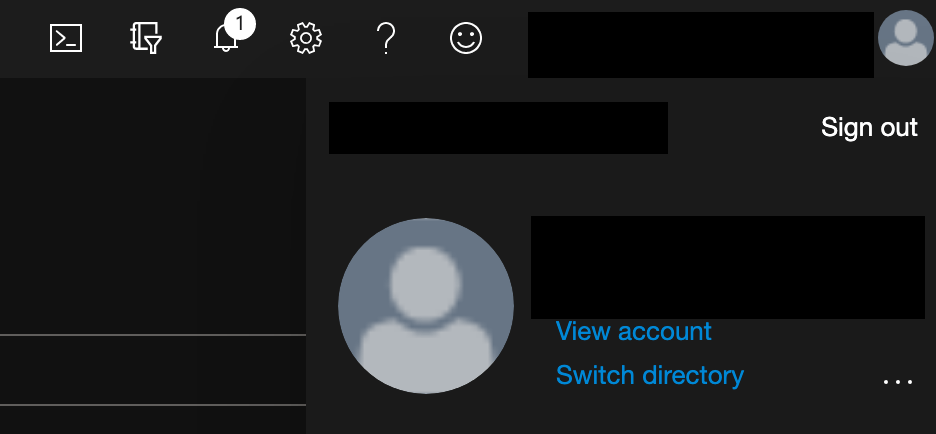
Once that is complete the next step is to register the web front end (python-b2c-web) and API (python-b2c-api). The process of registering the applications establishes identities, credentials, and authorization information the applications use to communicate with Azure B2C and each other. This is a step where things can get a bit confusing because when administering an Azure AD B2C directory you need to switch authentication contexts to be within the directory. You can do this by selecting your username in the top right-hand corner of the Azure Portal and selecting the Switch Directory link.
Screenshot of how to switch between Azure AD and Azure AD B2C directories
This will bring up a list of the directories your identity is authorized to access. In the screenshot below you’ll see my Azure AD B2C directory giwb2c.onmicrosoft.com is listed as an available directory. Selecting the directory will be me in the context of the B2C directory where I can then register applications and administer other aspects of the B2C directory.
Screenshot showing available directories
Once you’ve switched to the Azure AD B2C directory context you can search for Azure B2C in the Azure search bar and you’ll be able to fully administer the B2C directory. Select the App Registrations link to begin registering the python-b2c-web application.
Screenshot of Azure AD B2C administration options
In the next screen you’ll be see the applications currently registered with the B2C directory. Click the New registration button to begin a new registration.
In the Register an application screen you need to provide information about the application you are registering. You can name the application whatever you’d like as this is used as the display name when viewing registered applications. Leave the Who can use this application or access thisAPI set the Accountsin any identity provider or organizational directory (for authenticating users with user flows). Populate the Redirect URI with URI Azure B2C should redirect the user’s browser to after the user has authenticate. This needs to be an endpoint capable of processing the response from Azure AD B2C after the user has authenticated. For this demonstration application you can populate the URI with http://localhost:5000/getAToken. Within the application this URI will process the authorization code returned from B2C and use it to obtain the ID token of the user. Note that if you want to run this application in App Services or something similar you’ll need to adjust this value to whatever DNS name your application is using within that service.
Leave the Grant admin consent to openid and offline_access permissions option checked since the application requires permission to obtain an id token for user authentication to the application. Once complete hit the Register button. This process creates an identity for the application in the B2C directory and authorizes it to obtain ID tokens and access tokens from B2C.
Screenshot showing how to register the python-b2c-web application
Now that the python-b2c-web application is registered, you need to obtain some information about the application. Go back to the main menu for the B2C Directory, back into the App Registrations and select the newly registered application. On this page you’ll have the ability to administer a number of aspects of the application such as creating credentials for the application to support confidential client flows such as the authorization code flow which this application uses.
Before you do any configuration, take note of the Application (client) ID. You’ll ned this for later steps.
Screenshot of registered application configuration options
The client ID is used to identify the application to the Azure B2C directory, but you still need a credential to authenticate it. For that you’ll go to Certificates & secrets link. Click on the New client secret button to generate a new credential and save this for later.
You will need to register one additional redirect URI. This redirect URI is used when the user authenticates with MFA during the step-up process. Go back to the Overview and click on the Redirect URIs menu item on the top section as seen below.
Screenshot of overview menu and Redirect URIs link
Once the new page loads, add a redirect URI which is found under the web section. The URI you will need to add is http://localhost:5000/getATokenMFA. Save your changes by hitting the Save button. Again, note you will need to adjust this URI if you deploy this into a service such as App Services.
At this point the python-b2c-web (or web frontend) is registered, but you need to now register python-b2c-api (the API). Repeat the steps above to register the python-b2c-api. You’ll select the same except you do not need to provide a redirect URI since the API won’t be directly authenticating the user.
Once the python-b2c-api is registered, go into the application configuration via the App Registrations menu and record the Application (client) ID as you’ll use this to configuration the application later on. After you’ve recorded that information select the Expose anAPI link. Here you will register the two OAuth scopes I’ve configured in the application. These scopes will be included in the access token obtained by python-b2c-web when it makes calls to python-b2c-api to get policy information for the user.
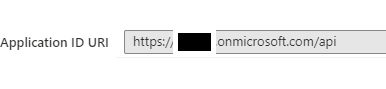
Select the Add a scopebutton and you’ll be prompted to set an Application ID URI which you need to set to api. Once you’ve set it, hit the Save and continue button.
Screenshot of setting the Application ID URI for the python-b2c-api
The screen will refresh you’ll be able to add your first scope. I have defined two scopes within the pyton-b2c-api. One is called Accounts.Read which grants access to read policy information and one for Accounts.Write which grants access to edit policy information. Create the scope for the Accounts.Read and repeat the process for Accounts.Write.
As a side note, by default B2C grants application registered with it the offline_access and openid permissions for Microsoft Graph. Since python-b2c-api won’t be authenticating the user and will simply be verifying the access token passed by the python-b2c-web, you could remove those permissions if you want. You can do this through theAPI permissions link which is located on the application configuration settings of the python-b2c-api.
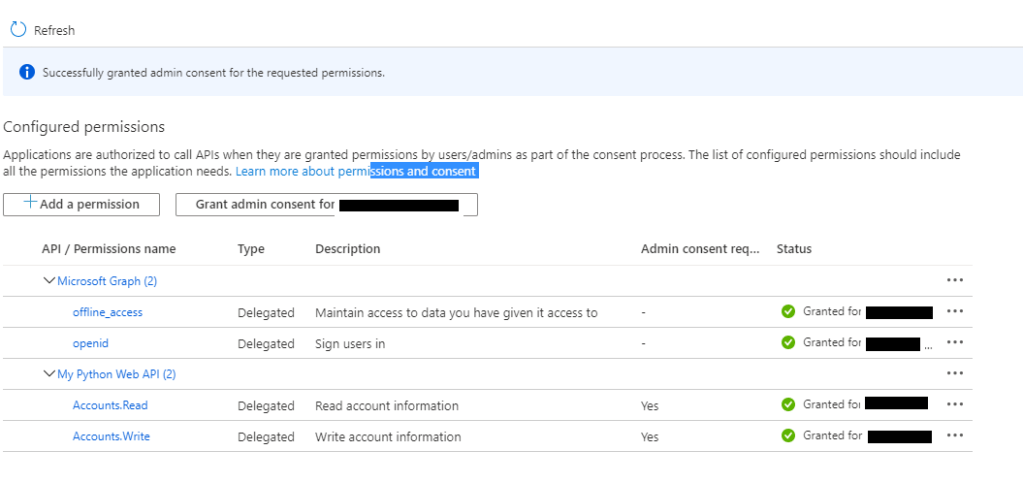
The last step you have in the B2C portion of Azure is to grant the python-b2c-web application permission to request an access token for the Accounts.Read and Accounts.Write scopes used by the python-b2c-api application To do this you need to go back into the application configuration for the python-b2c-web application and go to the API permissions link. Click the Add a permission link. In the Request API permissions window, select My APIs link and select the python-b2c-api application you registered. Select the two permissions (Accounts.Read and Accounts.Write) and click the Add permissions link.
Screenshot of granting permissions to the python-b2c-web application
To finish up with the permissions piece you’ll grant admin consent to permissions. At the API permissions window, click the Grant admin consent for YOUR_TENANT_NAME button.
Screenshot of granting admin consent to the new permissions
At this point we’ve registered the python-b2c-web and python-b2c-api applications with Azure B2C. We now need to enable some user flows. Azure B2C has an insanely powerful policy framework that powers the behavior of B2C behind the scenes that allow you to do pretty much whatever you can think of. With power comes complexity, so expect to engage professional services if you want to go to the custom policy route. Azure AD B2C also comes with predefined user flows that provide for common user journeys and experiences. Exhaust your ability to use before you go the custom policy route.
For this solution you’ll be using predefined user flows. You will need to create four predefined user flows named exactly as outlined below. You can use the instructions located here for creation of the user flows. When creating the sign-in and sign-up flows (both MFA and non-MFA) make sure to configure the user attributes and application claims to include the Display Name, Email Address, Given Name, and Surname attributes at a minimum. The solution will be expecting these claims and be using them throughout the application. You are free to include additional user attributes and claims if you wish.
Screenshot of user flows that must be created
At this point you’ve done everything you need to to configure Azure B2C. As a reminder make sure you’ve collected the Azure AD B2C single-label DNS name, Azure AD B2C Tenant ID, python-b2c-web application (client) ID and client secret, and python-b2c-api application (client) ID.
In the next section we’ll setup the solution where the code will run directly on your machine.
(Option 1) Running the code directly on your machine
With this option you’ll run the Python code directly on your machine. For prerequisites you’ll need to download and install Visual Studio Code and Python 3.x.
The python-b2c-web folder contains the web front end application and the python-b2c-api contains the API application. The accounts.json file in the python-b2c-api folder acts as the database containing the policy information. If a user does not have a policy, a policy is automatically created for the user by the python-b2c-api application the first time the user tries to look at the policy information. The app_config.py file in the python-b2c-web folder contains all the configuration options used by python-b2c-web application. It populates any key variables with environment variables you will set in a later step. The app.py files in both directories contain the code for each application. Each folder also contains a Dockerfile if you wish to deploy the solution as a set of containers. See the option 2 running as containers sectionfor steps on how to do this.
Once the repo has cloned you’ll want to open two Terminal instances in Visual Studio Code. You can do this with CTRL+SHIFT+` hotkey. In your first terminal navigate python-b2c-web directory and in the second navigate to the python-b2c-api directory.
In each terminal we’ll setup a Python virtual directory to ensure we don’t add a bunch of unneeded libraries into the operating system’s central Python instance.
Run the command in each terminal to create the virtual environments. Depending on your operating system you may use to specify python3 instead of python before the -m venv env. This is because operating systems like Mac OS X come preinstalled with Python2 which will not work for this solution.
python -m venv env
Once the virtual environments will need to activate the virtual environments. On a Windows machine you’ll use the command below. On a Mac this file will be in env/bin/ directory and you’ll need to run the command source env/bin/activate.
env\Scripts\activate
Next, load the required libraries using pip using the command below. Remember to do this for both terminals. If you run into any errors installing the dependencies for python-b2c-web ensure you update the version of pip used in the virtual environment using the command pip install –upgrade pip.
pip install -r requirements.txt
The environments are now ready to go. Next up you need to set some user variables. Within the terminal for the python-b2c-web create variables for the following:
CLIENT_ID – The application (client) id of the python-b2c-web application you recorded.
CLIENT_SECRET – The client secret of the python-b2c-web application you recorded.
B2C_DIR – The single-label DNS name of the B2C directory such as myb2c.
API_ENDPOINT – The URI of the python-b2c-api endpoint which must this to http://localhost:5001 when running the code directly on your machine. If running this solution on another platform such as Azure App Services you’ll need to set this to whatever the URI you’re using for App Services.
Within the terminal for the python-b2c-api create variables for the following:
CLIENT_ID – application (client) id of the python-b2c-api application you recorded earlier
TENANT_ID – tenant ID of the B2C directory you recorded earlier
B2C_DIR – single-label DNS name of the B2C directory such as myb2c
In Windows you can set these variables by using the command below. If using Mac OS X ensure you export the variables after creation after you set them. Remember to set all of these variables. If you miss one the application will fail to run.
set B2C_DIR=myb2c
Now you can start the python-b2c-web web front end application. To do this you’ll use the flask command. In the terminal you setup for the python-b2c-web application, run the following command:
flask run -h localhost -p 5000
Then in the terminal for the python-simple-web-api, run the following command:
flask run -h localhost -p 5001
You’re now ready to test the app! Open up a web browser and go to http://localhost:5000.
Navigate to the testing the application section <INSERT LINK> for instructions on how to test the application.
(Option 2) Running as containers
Included in the repository is the necessary Dockerfiles to build both applications as Docker images to run as containers in your preferred container runtime. I’m working on a Kubernetes deployment and will that in time. For the purposes of this article I’m going to assume you’ve installed Docker on your local machine.
The python-b2c-web folder contains the web front end application and the python-b2c-api contains the API application. The accounts.json file in the python-b2c-api folder acts as the database containing the policy information. If a user does not have a policy, a policy is automatically created for the user by the python-b2c-api application the first time the user tries to look at the policy information. The app_config.py file in the python-b2c-web folder contains all the configuration options used by python-b2c-web application. It populates any key variables with environment variables you will set in a later step. The app.py files in both directories contain the code for each application. Each folder also contains a Dockerfile that you will use to build the images.
Navigate to the python-b2c-web directory and run the following command to build the image.
docker build --tag=python-b2c-web:v1 .
Navigate to the python-b2c-api directory and run the following command to build the image.
docker build --tag=python-b2c-api:v1 .
Since we need the python-b2c-web and python-b2c-api applications to communicate, we’re going to create a custom bridged network. This will provide a network that will allow both containers to communicate, connect to the Internet to contact Azure B2C, and find each other using DNS. Note that you must use a custom bridged network to support the DNS feature as the default bridged network doesn’t support the containers finding each other by name.
docker network create b2c
Now that the images are built and the network is created you are ready to spin up the containers. When spinning up each container you’ll need to pass a series of environment variables to the containers. The environment variables are as follows:
CLIENT_ID – The application (client) id of the python-b2c-web application you recorded.
CLIENT_SECRET – The client secret of the python-b2c-web application you recorded.
B2C_DIR – The single-label DNS name of the B2C directory such as myb2c.
API_ENDPOINT – The URI of the python-b2c-api endpoint. As long as you name the container running the python-b2c-api with the name of python-b2c-api, you do not need to set this variable.
Within the terminal for the python-b2c-api create variables for the following:
CLIENT_ID – application (client) id of the python-b2c-api application you recorded earlier
TENANT_ID – tenant ID of the B2C directory you recorded earlier
B2C_DIR – single-label DNS name of the B2C directory such as myb2c
Start a container instance of the python-b2c-web application using the following command:
Once both containers are created proceed to the Testing the Application section of this post.
Testing the Application
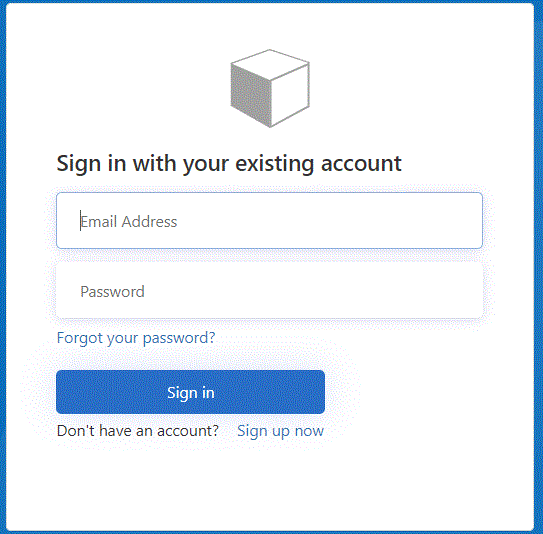
Open a web browser and navigate to http://localhost:5000. The login page below will appear.
Clicking the Sign-In button will open up the B2C sign-in page. Here you can sign-in with an existing B2C account or create a new one. You can also initialize a password reset.
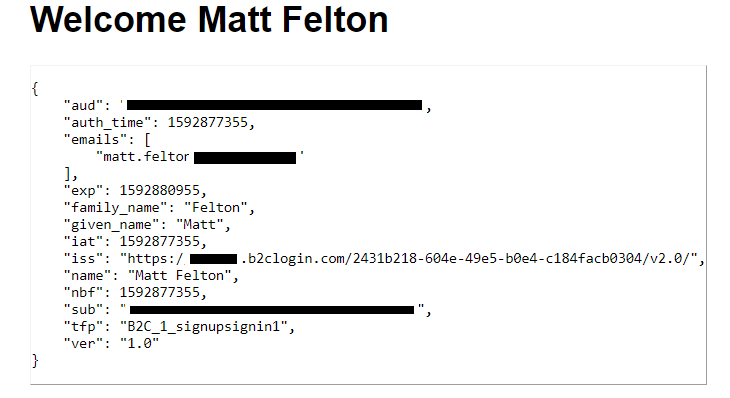
After successfully authenticating you’ll be presented with a simple home page. The Test API link will bring you to the public endpoint of the python-b2c-api application validating that the API is reachable and running. The Edit Profile link will redirect you to the B2C Edit Profile experience. Clicking the My Claims link will display the claims in your ID token as seen below.
Clicking the My Account link causes the python-b2c-web application to request an access token from Azure B2C to access the python-b2c-api and pull the policy information for the user.
Clicking on the Change Beneficiary button will kick off the second MFA-enabled sign-in and sign-up user flow prompting the user for MFA. After successful MFA, the user is redirected to a page where they make the change to the record. Clicking the submit button causes the python-b2c-web application to make a call to the python-b2c-api endpoint modifying the user’s beneficiary on their policy.
That’s about it. Hopefully this helps give you a simple base to mess with Azure AD B2C.
Welcome back to my series on forced tunneling Azure Firewall using pfSense. In my last post I covered the background of the problem I wanted to solve, the lab makeup I’m using, and the process to setup the S2S (site-to-site) VPN with pfSense and exchange of routes over BGP. Take a few read through that post before jumping into this one.
At this point you should a working S2S VPN from your Azure VNet to your pfSense router and the two should be exchanging a few routes over BGP. If you didn’t complete all the steps in the first post, go back and do them now.
Now that connectivity is established, it’s time to incorporate Azure Firewall. Azure Firewall was introduced back in 2018 as a managed stateful firewall that can act as an alternative to rolling your own NVAs (network virtual appliances) like a Palo Alto or Checkpoint firewall. Now I’m not going to lie to you and tell you it has all the bells and whistles that a 3rd party NVA has, but it can provide a reasonable alternative depending on what your needs are. The major benefit is it’s a managed service to Microsoft owns the responsibility of managing the health of the service, its high availability and failover, it’s closely integrated with the Azure platform, more than likely cheaper than what you’d pay for a 3rd-party NVA license.
Recently, Microsoft has introduced support for forced tunneling into public preview. This provides you with the ability to send all of the traffic received by Azure Firewall on to another security stack that may exist within Azure, on-premises, or in another cloud. It helps to address some of the capability gaps such as lack of support for (DPI) deep packet inspection for Internet-bound traffic. You can leverage Azure Firewall to transitively route and mediate traffic between on-premises and Azure, hub-spoke, and spoke to spoke while passing Internet bound traffic on to another security stack with DPI capabilities.
With that out of the way, let’s continue with the lab.
The first thing you’ll want to do is to deploy an instance of Azure Firewall. To support forced tunneling, you’ll need to toggle the option to enabled. You then need to provide another public IP address. What’s happening here is the nodes are being created with two NICs (network interface cards). One NIC will live in the AzureFirewallSubnet and one will live in the AzureFirewallManagementSubnet. Traffic dedicated to Microsoft’s management of the nodes will go out to the Internet (but remains on Microsoft’s backbone) through the NIC in the AzureFirewallManagementSubnet. Traffic from your VMs will exist the NIC in the AzureFirewallSubnet. This split also means you can now attach a UDR (user defined route) to the AzureFirewallSubnet to route that traffic to your own security stack.
The Azure Firewall instance will take about 10-20 minutes to provision. While you’re waiting you need to prepare the Virtual Network Gateway for forced tunneling.
Now if you go Googling, you’re going to come across this Microsoft article which describes setting a GatewayDefaultSite for the VPN Gateway. While you can do it this way and you opt for an active/active both on-premises and for the VPN Gateway configuration, you’ll need to need to flip this setting to the other local network gateway (your other router) in the event of a failover.
As an alternative solution you can propagate a default route via BGP from your on-premises router into Azure. ECMP will be used by default and will spread the traffic across all available tunnels. If one of your on-premises routers goes down, traffic will still be able to flow back on-premises without requiring you to fail anything over on the Azure end. Note that if you want make one of your routers preferred, you’ll have to try your luck with AS Path Prepending.
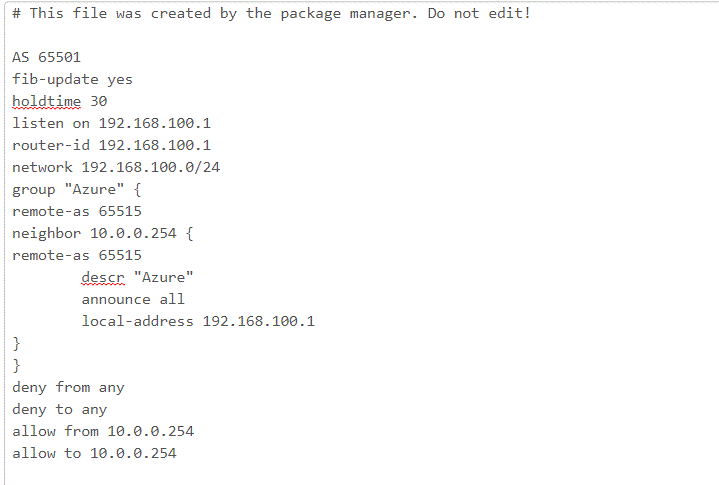
For this lab scenario, I opted to broadcast a default route via BGP. My OpenBGPD config file is pictured below. Notice I’ve added a default route to be propagated.
Hopping over to Azure and enumerating the effective routes shows the new routes being propagated into the VNet via the VPN Gateway.
With this configuration, all traffic without a more specific route (like all our Internet traffic) will be routed back to the VPN Gateway. Since this lab calls for this traffic to be sent to Azure Firewall first, you’ll need to configure a UDR (user defined route). As described in this link, when multiple routes exist for the same prefix, Azure picks from UDRs first, then BGP, and finally system routes.
For this you’re going to need to set up three route tables.
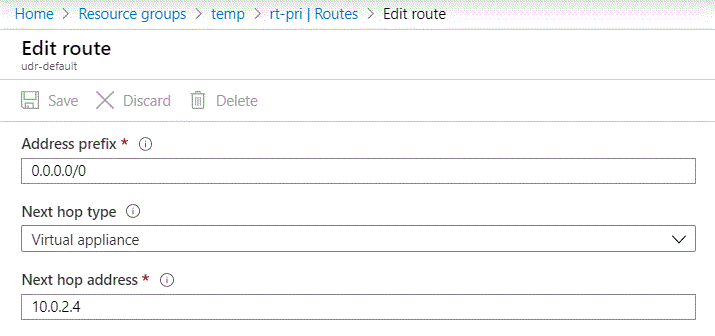
One routing table will be applied to the primary subnet the VM is living in. This will contain a UDR for the default route (0.0.0.0/0) with a next hop type of Virtual appliance and next hop address of the Azure Firewall instance’s NIC in the AzureFirewallSubnet. By order of
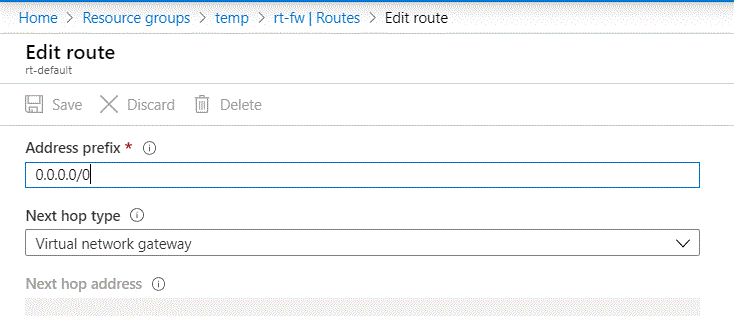
The second routing table will be applied to the AzureFirewallSubnet. This will contain a UDR for the default route with a next hop of the Virtual network gateway. This forces Azure Firewall to pipe all the VM traffic bound for the networks outside the VNet to the Virtual Network Gateway which will then tunnel it through the VPN tunnel.
Last but not least, you have an optional route table you can add. This route table will be applied to the AzureFirewallManagementSubnet and will be configured with Virtual Network Gateway route propagation disabled. It will have a single UDR with a default route and next hop type of Internet. The reason I like adding this route table is it avoids the risk of someone propagating a default route from on-premises. If this route were to be propagated to the AzureFirewallManagementSubnet, the management plane would see it down and may deallocate the instance.
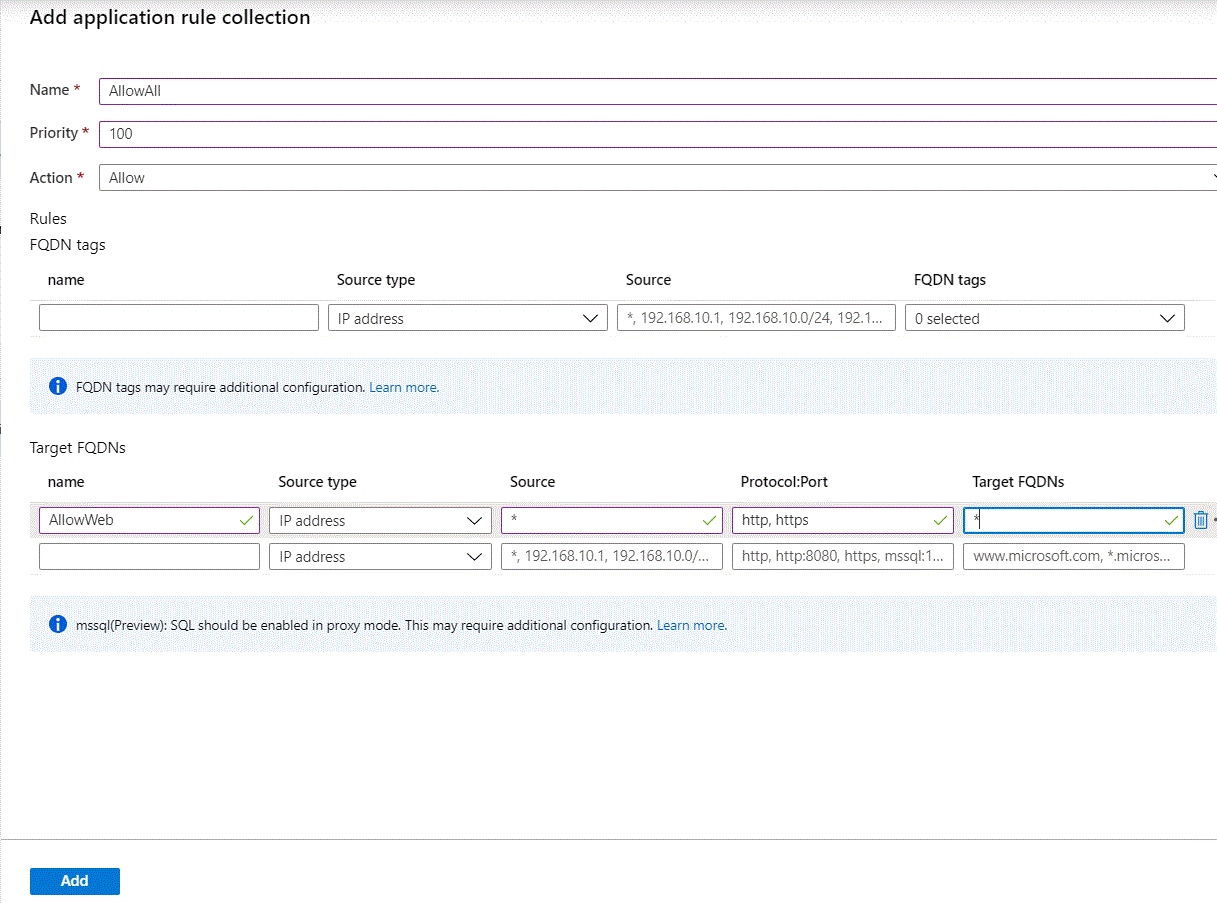
The last thing you need to do in Azure is create a rule in Azure Firewall to allow traffic to the web. For this I created a very simple application rule allowing all HTTP and HTTPS traffic to any domain.
At this point the Azure end of the configuration is complete. We now need to hop over to pfSense and finish that configuration.
Remember back in the last post when I had you configure the phase 2 entry with a local network of 0.0.0.0/0? That was the traffic selector which allows traffic destined for any network from the VNet to flow through our VPN tunnel.
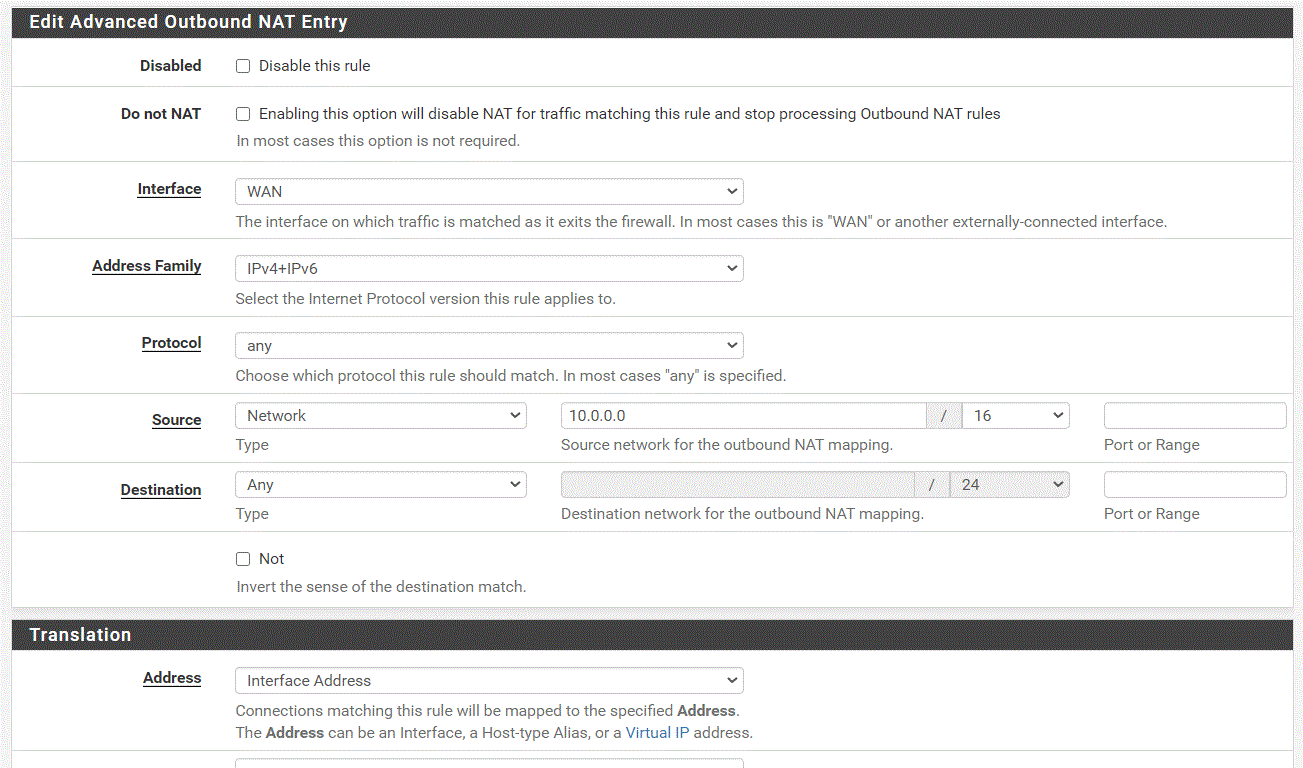
Now you have a requirement to NAT traffic from the VNet out the WAN interface on the pfSense box. For that you have to navigate to the Firewall drop-down menu and choose the NAT menu item. From there you’ll navigate to the Outbound option and ensure your Outbound NAT Mode is set to Hybrid Outbound NAT rule generation since we’ll continue to leverage the automatic rules pfSense creates as well as this new custom rule.
Add a new mapping by clicking the Add button. For this you’ll want to configure it as seen in the screenshot below. Once complete save the new rule and new mappings.
Last but not least, we need to open flows within the pfSense firewall to allow the traffic to go out to the Internet over HTTP and HTTPS as seen below.
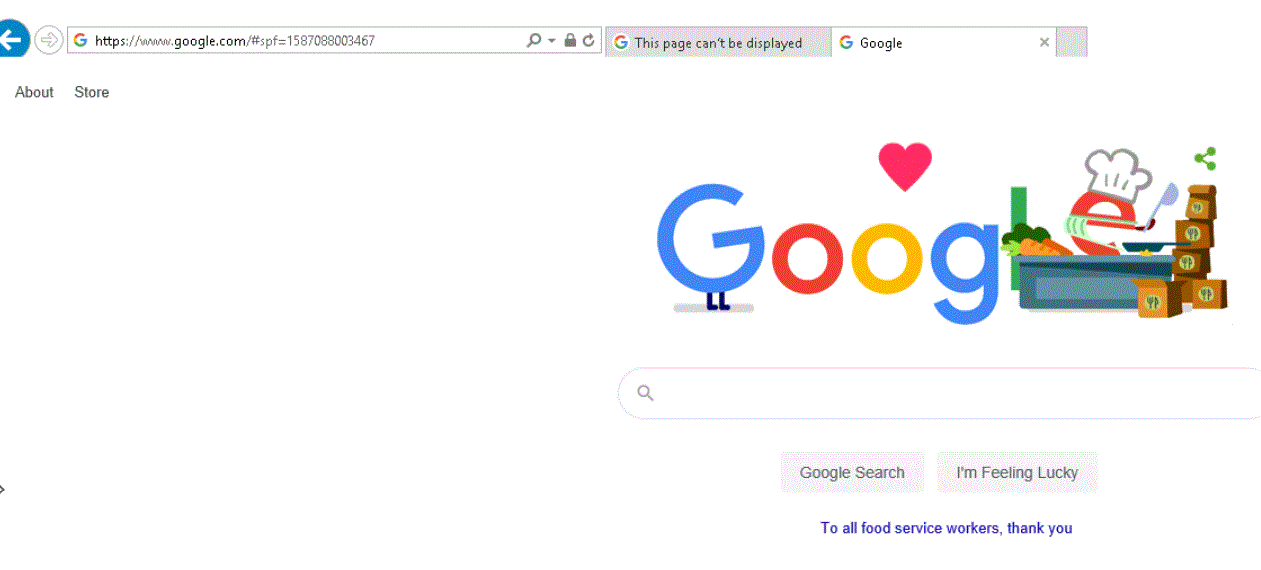
You’re done! Now time to test the configuration. For this you’ll want to RDP into your VM, open up a web browser, and try to hit a website.
Excellent, so you made it out to the web, but how do you know you were force tunneled through? Simple! Just hit a website like https://whatismyipaddress.com and validate the IP returned is the IP associated with your pfSense WAN interface.
One thing to note is that if you deallocate and reallocate your Azure Firewall or delete and recreate your Azure Firewall after everything is in place, you may run into an issue where forced tunneling doesn’t seem to work. All you need to do is bring down the VPN tunnel and bring it back up again. There is some type of dependency there, but what that is, I don’t know.
Well that’s it folks. Hope you enjoyed the series and got some value out of it. Azure Firewall is a solid alternative to a self-managed NVA. Sure you don’t get all the bells and whistles, but you get key capabilities such as transitive routing and features that build on NSGs such as filtering traffic via FQDN, centralized rule management, and centralized logging of what’s being allowed and denied through your network. As an added bonus, you can always leverage the forced tunneling feature you learned about today to tunnel traffic to a security stack which can perform features Azure Firewall can’t such as deep packet inspection.
Welcome back fellow geeks! I hope you all are staying healthy and not going too stir crazy being stuck at home. I’m here tonight to help break the monotony and walk you through a fun lab I recently put together.
I recently had a customer building out a sandbox environment for experimentation in Microsoft Azure. For this environment the customer opted to setup a S2S VPN (site-to-site virtual private network) to establish connectivity between their on-premises data center and Azure. The customer had requirements to use BGP (border gateway protocol) to exchange routes between on-premises and Azure. Additionally, their security team required all Internet-bound traffic be piped back on-premises (force tunneling) through a set of security appliances before being egressed out to the Internet from their data center.
While I’ve setup connectivity with Azure in the past using an S2S VPN, it was with a policy-based VPN vs a route-based VPN that utilized BGP. I’ve also worked with a lot of customers that had requirements for forced tunneling, but never got involved much in the implementation. My customers typically use Microsoft ExpressRoute for connectivity with on-premises and a third-party NVA (network virtual appliance) like a Palo Alto or Imperva. Since I’m not cool enough to have a lab with ExpressRoute and I’m too cheap to pay for an NVA, I’ve never had a chance to do the implementation myself. This has meant relying on documentation and other folks within Microsoft that have had that experience.
Beyond the implementation gap in that pattern, I also have gaps in my BGP skill set. While I’ve been lucky enough to play with a lot different technologies over the course of my career, enterprise routing was one area I never got to dive deep in. Over my time at Microsoft and AWS, I’ve had to learn the concepts of the protocol and how to use it within the public cloud, but still have lacked any practical implementation experience.
If you know me, you know I hate not being able to implement the technologies I speak with customers about. Hence, this blog post was born. I’ll be walking you through the lab I built to address the gaps in my BGP and get some practical experience force tunneling traffic. Enough with my blabbing, let’s get into it.
Lab Environment
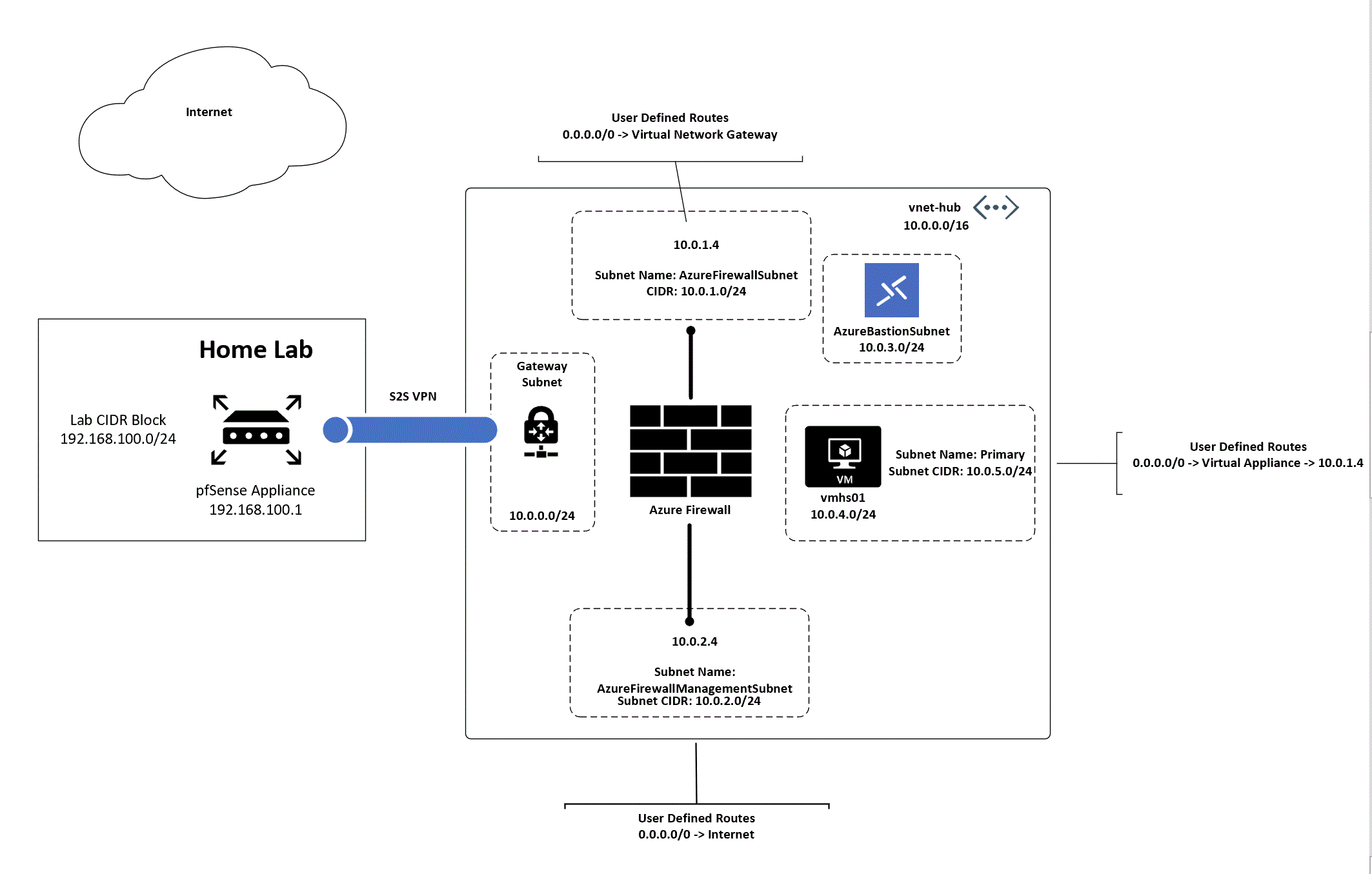
The complete lab setup I used is illustrated above. In my home lab I’m using the 192.168.100.0/24 address range and have assigned the .1 address to the pfSense interface. Another interface on the device has been configured for DHCP to receive a public IP address from my ISP. Within Azure I’ve setup a single VNet (Virtual Network) assigned the address block of 10.0.0.0/16. Within the VNet I’ve create five subnets each using a /24 block of address space (I’m terrible at subnetting).
Inside the GatewaySubnet I’ve provisioned a VPN VNG (Virtual Network Gateway) with the VpnGw2 SKU to support BGP. The subnet named primary contains a single Windows Server 2016 VM (Virtual Machine) that I’ll be using to test the setup. Azure Bastion sits in the Azure Bastion subnet providing me with remote access into the VM.
Finally, an Azure Firewall instance has been provisioned using the new forced tunneling feature in preview. To support this feature, I’ve provisioned two subnets, one named AzureFirewallSubnet and one named AzureFirewallManagementSubnet as well as two public IPs. To route the traffic as needed, I’ve created three route tables with some user defined routes.
For this post I’m going to walk through the setup of the S2S VPN tunnel. Anytime I can refer you to official documentation for a step-by-step process, I’ll include a hyperlink. The steps that aren’t documented in a single place or documented at all will be the steps I’ll cover in detail.
The first thing you need to do is provision a VNet (Virtual Network). The VNet must at least include a subnet named GatewaySubnet. Microsoft requires this name for the subnet in order to deploy a VNG (Virtual Network Gateway). You’ll additionally want to provision another subnet named whatever you want to hold the VM (virtual machine) to test connectivity with. If you want to use Azure Bastion for remote access to the VM, you’ll need a third subnet which must be named AzureBastionSubnet.
While you’re twiddling your thumbs for 20 minutes waiting for the VNG, optional Bastion, and VM, you can create the local network gateway. The local network gateway is a logical resource in Azure which represents your on-premises VPN appliance. To set this resource up you’ll need a few different items:
The public IP address in use by your VPN appliance
The BGP peer address you’ll be peering with Azure
The ASN (autonomous system number) you’re using on-premises
Below is a screenshot of my configuration. I included the entire address space I’m going to advertise, but if you’re using BGP you only need to include the addresses you’ll be using as BGP peer.
Now that Azure is provisioning all your necessary resources, it’s a good time to bounce over to pfSense. Note that pfSense doesn’t provide BGP support. For that you’ll need to add the OpenBGPD package. To do that you’ll navigate to the System drop down menu and choose Package Manger. Search for BGP and install the OpenBGP package. Once complete you’ll see it as an installed package as seen below.
Once the VPN Gateway has been provisioned you can begin configuration of the connection. The connection is also represented in Azure as a logical resource. There isn’t much to configure when you create the connection through the Portal. If you configure it through PowerShell, CLI, or an ARM template, you’ll have the flexibility to tweak the configuration of the tunnel. This includes the ability to limit the encryption ciphers and hashing algorithms supported on the Azure end. Once the connection is provisioned, open up the resource blade for it, go to the Configuration menu item in the Settings section and toggle BGP to Enabled.
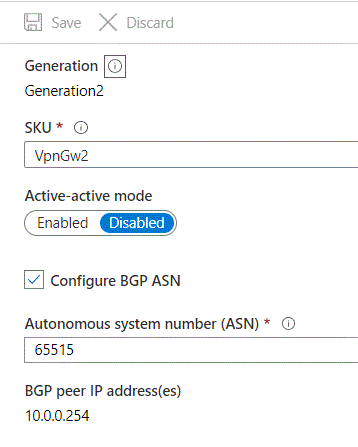
Before you bounce over to pfSense and configure that end, you’ll need a few pieces of information from the VPN Gateway. Within the Portal open up the VNG resource blade. Note the public IP address that has been assigned to the VNG. You’ll need this for the pfSense setup.Next click the Configuration menu item in the Settings section. Here you’ll want to check off the Configure BGP ASN check box and note the ASN (by default 65515) and the BGP peer IP address because you’ll need them later. Click Save once you complete. This change will take around 5 minutes.
It’s now time to hop over to pfSense. From the main menu navigate to the VPN drop down menu and choose the IPsec option. You’ll first need to create a IKE Phase 1 entry to establish the authentication for the tunnel.In the General Information section ensure the Key Exchange Version box is populated with IKEv2 and the Remote Gateway is populated with the public IP address of the VNG. In the Phase 1 Proposal (Authentication) section, choose to the Mutual PSK (Pre-Shared Key) option, the My identifier is set to My IP Address and Peer identifier set to Peer IP address. Plus in the PSK you setup in Azure.In the Phase 1 Proposal (Encryption Algorithm) section pick your preferred encryption algorithm, key length, hashing algorithm, and Diffie-Hellman Group.The Azure end supports a number of cryptographic combinations just be aware you’ll need to configure a custom IPSec Policy using the CLI, PowerShell, or ARM template if you pick a combination that isn’t offered by default. I’m not sure what it supports by default because I couldn’t find any documentation on it. It seems like you’ll be forced to use DHGroup2 if you create through the Azure Portal, which you really shouldn’t be using due the small key length. If you want to nerd out a bit, take a read through this document. I wanted to bump this up to DHGroup24, so I opted to create the custom IPSec policy with the configuration below.
Next up you need to configure a Phase 2 entry which will control how traffic is carried across the tunnel. Expand the Phase 1 entry you created and click the Add P2 button to add a phase 2 entry. In the General Information section you’ll want to set the Local Network option to Network with an address of 0.0.0.0/0. This will allow us to tunnel traffic to any address through the VPN tunnel which will support our use case for the forced tunneling we’ll create later on. In the Remote Network section, set it to the CIDR block of the VNet.In the Phase 2 proposal configure the settings to support whatever encryption setup you’re using. For my configuration, I set it up as seen in the screenshot below.
Once the phase 2 entry is configured, navigate to the Status drop-down menu and choose IPsec. Click the Connect button and assuming you configured everything correctly, the status shift from Disconnected, to Connecting, and will end on Established as seen below.
Hurray, you have an established VPN tunnel. Now it’s time to configure BGP.
Since you’ve already toggled the appropriate options in Azure to support BGP, it’s now time to configure it in pfSense. You will first need to create a firewall rule to allow the BGP traffic to flow between Azure and the pfSense box. To do this you’ll select the Firewall drop-down menu and choose the Rules option. Create a new rule to allow TCP port 179 from the source of the Azure BGP peer IP you noted earlier to the pfSense interface IP for the network you’re connecting to Azure.
Next you have to open the Services drop-down menu and choose OpenBGPD.In this section you have a few menu options, one which allows you to modify the raw config. Like the idiot I am, I ignored the comment at the beginning of the raw config that says not to edit it. After editing it, I was unable to configure using the menu options. If you’re not an idiot like me, you should be able to configure it using the menus. My working config is illustrated below.
Once you have your Config set, save it and give it a minute. The navigate to the Status section of the OpenBGPD service. Scroll to the bottom and check out the OpenBGPD Neighbors section. If you’ve misconfigured anything you’ll receive an error that the log file can’t be written (useful right?)
Additionally when I check the effective routes for the network interface of the VM in Azure I can see the routes propagating into the VM’s subnet.
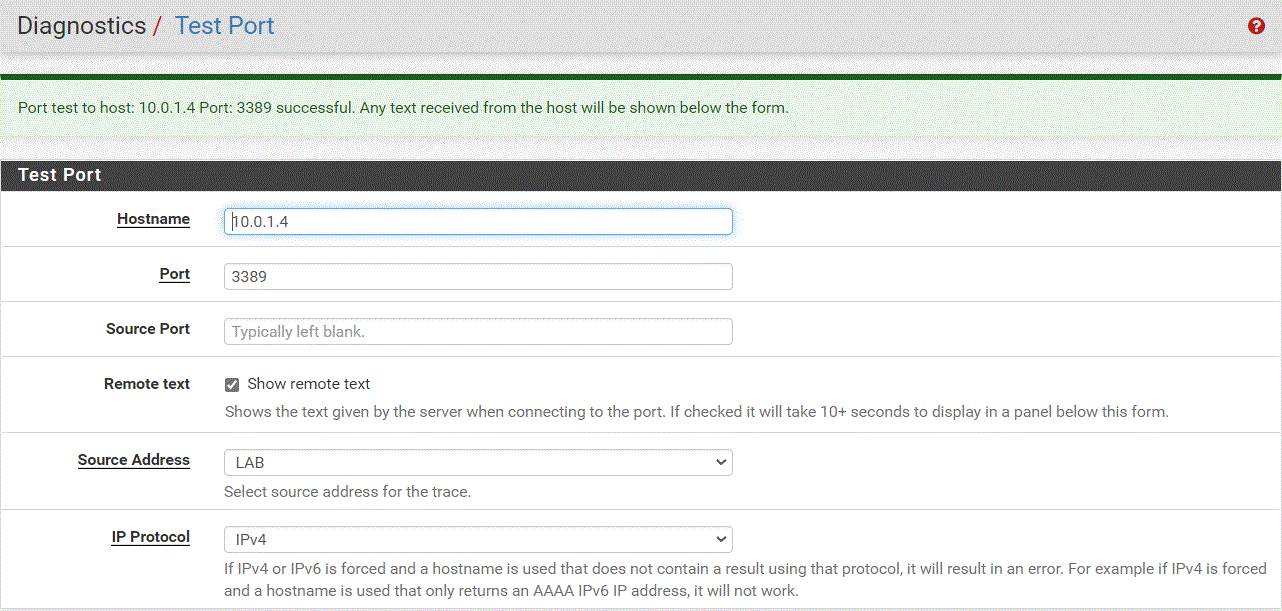
You can validate your connectivity at this point in any number of ways. I went the lazy route and used pfSense’s Test Port capability located in the Diagnostics drop-down menu. Make sure that you open the appropriate rules in any NSGs between you and the VM. Also consider the VM’s host firewall if you opt to use a non-standard port or protocol like ICMP. If you opt to test from Azure back on-premises, make sure to open the appropriate firewall rules in the pfSense firewall for the IPSec interface.
With that you have a working S2S VPN complete with BGP exchange of routes. That will wrap up this post. In the next post I’ll walk through the configuration of forced tunneling with Azure Firewall.
















 Once you have your Config set, save it and give it a minute. The navigate to the Status section of the OpenBGPD service. Scroll to the bottom and check out the OpenBGPD Neighbors section. If you’ve misconfigured anything you’ll receive an error that the log file can’t be written (useful right?)

 Journey Of The Geek